Using EVE
Typically, after you have laid out user interface elements such as dialog boxes using fixed sizes and positions, changing the layout is time-consuming because, even for a small change, you might need to recalculate the positioning, sizing, and alignment of all elements. The Adobe Express View Engine (EVE) helps resolve this by resizing widgets automatically based on their text or labels. This not only makes it quick and easy to make small changes to the layout, but it also eliminates the need for multiple .fr files for different locales (in most cases) when localizing applications.
With EVE, you lay out a user interface only once and then, given a correctly formed textual description of a dialog or palette, EVE dynamically generates the geometry of the user interface elements. With EVE, you create one resource file with the relative positioning and ordering of the widgets in a row-column manner. This saves the time of generating different resources and defining the actual positions of the widgets.
You can convert your existing InDesign dialogs and panels to use EVE layout format, instead of using exact widget frame coordinates.
- Note
- All dialogs based SDK samples use EVE and are good reference material for your own conversions.
Prerequisites
Converting existing user interface elements to EVE is much easier if you use the EVE converter tool. The tool is located here:
<SDK>/devtools/eveconverter/
Benefits of Using EVE
Laying out a dialog with EVE initially is no easier than laying it out the old way. The benefit comes when you have to modify a dialog, such as by as adding a new widget in the middle of the dialog. With EVE, you simply add the widget, and the shifting of all other widgets happens automatically.
Because you no longer need localized versions of your .fr files, there is no longer a potential problem for localized views files to have different data than the English-language .fr files. And changing an English translation that is used in a dialog does not force you to edit the .fr file to make the new text fit.
Other benefits include:
- In cases where text is different sizes on different operating systems, you no longer have to worry about calculating extra whitespace.
- English dialogs can be smaller because you do not need to leave room for anticipated localized text being longer.
- EVE eliminates problems with widgets that don't quite line up correctly or text being chopped off because EVE automatically resizes static text, buttons, check boxes, radio buttons, and drop-down lists.
EVE Directives and Values
By default, the EVEConverter sets a regular spacing (5 pixels) between widgets with the constant kEVERegularSpaceAfter, and the overall margins to a large margin (15 pixels) on the edges with kEVELargeMargin.
The spacing defines and sizes that EVE uses are as follows:
| EVE Constant | Pixel Height/Width |
|---|
| kEVENoSpaceAfter | 0 |
| kEVENoMargin | 0 |
| kEVESmallSpaceAfter | 3 |
| kEVERegularSpaceAfter | 5 |
| kEVESmallMargin | 5 |
| kEVELargeSpaceAfter | 10 |
| kEVERegularMargin | 10 |
| kEVEExtraLargeSpaceAfter | 15 |
| kEVELargeMargin | 15 |
| kEVEJumboSpaceAfter | 20 |
The additional EVE content for a .fr file is defined in EVEInfo.fh in the SDK. Here's a summary of the EVE directives:
Alignment: Possible values are:
- kEVEAlignLeft: The default for everything except buttons.
- kEVEAlignRight
- kEVEAlignCenter
- kEVEAlignFill: The default for buttons. This means to take up all the space in the parent container.
- kEVEDontAlignWidth: This means do not align to the width of the parent container.
Space After: Specifies how much empty space to leave between this widget and the next one. Different widget types have different default values. Possible values are:
- kEVENoSpaceAfter
- kEVESmallSpaceAfter
- kEVERegularSpaceAfter
- kEVELargeSpaceAfter
- kEVEExtraLargeSpaceAfter
- kEVEJumboSpaceAfter
Child Arrangement: This is the most important aspect of EVE layout. Converting a dialog mainly consists of figuring out the rows and columns in the dialog's layout. Once those are correct, the rest is just details. These values are valid only for panels. Possible values are:
- kEVEArrangeChildrenInRow
- kEVEArrangeChildrenInColumn
- kEVEArrangeChildrenStacked: This means to overlay different panels or controls with different dimensions.
- kEVEDontArrangeChildren: This means the panel widget is not to arrange the children at all. In this case, you need to specify the coordinates for each child.
Child Alignment: These values are valid only for panels. They set the default alignment of children that don't provide their own alignment. Possible values are:
- kEVEChildAlignLeft
- kEVEChildAlignRight
- kEVEChildAlignCenter
- kEVEChildAlignFill
Child Space After: These values are valid only for panels. They set the space after for child widgets that don't specify their own. Possible values are:
- kEVEChildNoSpaceAfter
- kEVEChildSmallSpaceAfter
- kEVEChildRegularSpaceAfter
- kEVEChildLargeSpaceAfter
- kEVEChildExtraLargeSpaceAfter
- kEVEChildJumboSpaceAfter
Margin: Valid only for panels. This is is an inset from the edge of the panel to all the widgets. Mostly used by top level dialog widgets and group panels. Possible values are:
- kEVENoMargin
- kEVESmallMargin
- kEVERegularMargin
- kEVELargeMargin
- kEVEMinimalMargin
- kEVERegularButSmallBottomMargin
- kEVELargeButSmallBottomMargin
- kEVERegularButExtraLargeTopMargin
ODFRC Widget Types: EVEGenericPanelWidget is the same as GenericPanelWidget, but adds resource fields for EVE Info. You're likely to add several of these to your dialog. There are also other widgets defined here, such as EVEStaticTextWidget.
Converting Dialogs to Use EVE
You can convert your dialogs in two ways:
- Automatically, using the EVE conversion tool
- Manually (by hand)
Converting Using the EVE Conversion Tool
- Note
- Due to an existing issue with the InDesign implementation of the EVE layout engine, some widgets may require width and height. You can get the width and height for specific widgets from the converted files that you obtain by running the tool with the -n option. This issue occurs because many of the InDesign widgets do not know how to properly size themselves, and therefore cannot report correctly to EVE. This is being addressed as the offending widgets are located.
To convert a dialog to EVE format using the conversion tool:
- If there are additional views defined in the .fr for additional locales other than English (for example, *_deDE, *_ukUA, and so on), comment these out.
- Run your .fr file through the EVEConverter. See EVE Converter Command for command-line settings. If everything completes successfully, this produces a converted file with the same name as the input file and places it into the specified output directory or the default directory. If errors occur during processing, a dump of the widget stack is sent to STDERR and an error log file, Errors.txt, is created in the same directory as the output .fr file. You can use the -e option to automatically open the log file when the command completes.
- Fix any errors before continuing and rerun the conversion tool. Errors may include:
- There are several issues with dialogs containing selectable panel views. If you encounter a dialog with selectable panel views, at this time, just set its parent group's layout flag to not align the selectable panel widget (kEVEDontAlignChildren) and leave the original FRAME directives in place.
- The most common error that comes up running the tool is an overlapping FRAME directive. In this case, usually a preprocessor directive is causing two widgets' FRAME coordinates to overlap. This is simply just a matter of finding the widget and fixing the overlapping coordinates.
- Note
- about the FRAME directive. Originally, this specified the bounding rectangle in exact coordinates of the widget. Under EVE, this is largely ignored. Nearly all widgets should know how to measure themselves correctly; however, there are a few special case widgets (like Tree/List based ones) that cannot at this time measure themselves. In these cases, they will still need appropriate bottom (height) and right (width) values in the FRAME directive. The other special case is when the EVE flag kEVEDontArrangeChildren is present. This causes the EVE layout engine not to attempt to arrange any child of the group which contains the flag; instead, it forces the widgets to rely on the exact coordinates specified in the FRAME directive. There should be very few cases of this flag in the future and its use should be considered highly discouraged as it defeats the purpose of having autolayout functionality.
- "Filename entered not found" error: This is usually caused by an #include statement in which the included file cannot be located. This is resolved by specifying the header search paths using the command option -p <filename.rsp>. The tool then picks the search paths from the specified .rsp file.
- "Unable to arrange in row/column" error: There may be some widgets that cannot be divided into rows and columns based on their frame coordinates due to either frames intersection or generally poorly defined coordinates in the original source (for example, miscalculated bottom right coordinates). Check the view and manually adjust the coordinates so that they no longer overlap.
- "Incorrect FRAME directive/syntax" error: This usually means that the Frame coordinates are specified either without using the "Frame" directive (that is, a macro instead of the FRAME) or Frame coordinates themselves are specified as some function or macro. In this case, adjust the Frame directives, eliminating the macro. If there are too many to do, you can run the source view file through the compiler preprocessor (Visual Studio in Windows or Xcode in MacOS) to generate a substituted version of the view, which you can then run through the converter tool.
- Dialogs that hide and show widgets. These are tricky and may require code changes, such as calls to ApplyEveLayout, to fix. Avoid using the ApplyEveLayoutToFrontDialog variant of this call, as you might inadvertently apply the EVE layout to the wrong dialog.
- Widgets are misgrouped. Sometimes the tool can put widgets together in the wrong groups; when this happens, it is fairly easy to address by moving the entire widget block to the correct group.
- If you find EVEFittedStaticTextWidget after conversion, replace it with StaticTextWidget, and provide this widget-id as border widget-id in the containing group.
- If the tool runs successfully but there is a compilation error on Windows of "Error R32741: \# Error: Expression must be numeric", a possible reason could be that the widget is like an EVE generic panel or EVE cluster panel widget, which doesn't have a panel name string. Remove that and it should work fine.
- Save a copy of your original .fr file as a backup and copy the new file in its place.
- Run InDesign to test your converted dialog as described in Debugging the Converted Dialog in InDesign.
Manually Converting to EVE
For some complex dialogs, you might need to convert your dialogs manually. To do this:
- Manually sketch out the overall layout of the dialog.
- Decide how to divide widgets into rows and columns; see the following example.
- In the .fr file, use EVEGenericPanelWidget to divide the dialog into rows and columns.
- Within each EVEGenericPanelWidget, embed additional EVEGenericPanelWidgets to contain buttons, checkboxes, and so on.
- Run InDesign to test your converted dialog as described in Debugging the Converted Dialog in InDesign.
Example 1: Dialog Layout for EVE
Here is one example of how to assign widgets to rows and columns for EVE:
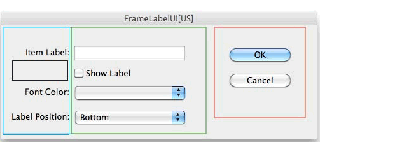
This FrameLabelUI dialog could be broken into three parts as depicted by the blue, green, and red rectangles. These three parts are in the same row, so they could be placed in a panel widget set to arrange children in a row (kEVEArrangeChildrenInRow).
The blue rectangle contains three static text widgets vertically, where each static text widget corresponds to a widget in the green rectangle and aligns with it horizontally. The blue rectangle could be a panel widget that arranges static text widgets in a column. Note that there are four widgets in the green rectangle, but there are only three static text widgets in the blue one, so the margin between the first and second static text widgets is larger than that of other widgets. We can place an invisible static text widget (the black rectangle) there for padding purpose.
The green rectangle is similar to the blue one. You might need to specify the width of an empty text-edit box widget and a drop-down list widget with an empty selection, otherwise, its width will be very small when displayed, because EVE resizes widgets based on their text or labels.
The red rectangle is also similar to the blue one. Configuring the panel to arrange the two buttons vertically should be fine.
Example 2: Dialog Layout for EVE
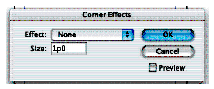
Given this following original dialog, figure out which widgets should line up with what other widgets and how to arrange them in rows and columns. Note that you can lay out a dialog however you want to; this is one way to do it.
Observations about this dialog's alignments:
- Effect and Size should align on the colons.
- The drop-down list and edit box should align on their left edges.
- The buttons should align and be the same size.
- The checkbox should be centered under the buttons.
This dialog could be looked at as a single row with three columns:
- Column 1 has the static text fields (both right aligned).
- Column 2 has the drop-down list and edit box (both left aligned).
- Column 3 has the buttons and checkbox (aligned Fill and Center).
To implement this in EVE:
- To group items into a column, put them into a new panel, which arranges its children in a column. This dialog has three columns, hence three panels (EVEGe nericPanelWidgets).
- Place the dialog's three children (the three panels) into a row (kEVEArrangeChildrenInRow).
- We also want an inset all around the edge of the dialog. We'll use a large EVE margin for that (kEVELargeMargin).
- Right align the children in the first column (kEVEChildAlignRight), and put normal spacing between them (kEVEChildRegularSpaceAfter). Also use normal spacing after it, so use kEVERegularSpaceAfter.
- The second column needs a bigger space after it, so we'll use kEveExtraLargeSpaceAfter.
- The last column needs its buttons to align in the fill mode (which they do by default) and the checkbox to be centered (kEVEChildAlignCenter).
- Lastly, change the widths of the widgets that get measured. We treat the width in the .fr file as a minimum width, so if you want your dialog to become smaller when possible, you need to reduce the width of your static text, radio buttons, checkboxes, and so on.
Conversion Tips
EVE supports automatically laying out widgets by row or column. Rows and columns can be used in combination to build complex widget layouts that should satisfy most of your needs.
For converting any dialog, try and draw the existing dialog using coordinates for widgets. Figure out how the dialog should be divided into rows and columns. Then run the converter tool and compare the arrangement produced by the tool to your assumptions about how it should have been arranged. If the arrangement from the tool is not appropriate then you may tweak those on your own.
Also, the tool produces many intermediate panels and dummy widgets for padding purposes. Sometimes these are not necessary and you may manually remove them. Try to use minimum numbers of dummy widgets and intermediate panels for padding.
Don't specify coordinates for leaf widgets.
Leave the coordinates as Frame(0,0,0,0). EVE takes care of the resizing of widgets based on their label text. However, there are two exceptions: For text edit-box widgets without an initial value and for drop-down list widgets with an empty selection, you need to specify their width; otherwise, the width will be too small.
Fine tune your dialog
You will need to fine tune your dialog to get it very close to the original non-EVE version; however, an exact pixel by pixel match is not usually required.
There are several EVE properties that you could adjust to tweak your dialog:
- Child arrangement of panel widgets: The children can be arranged in rows and columns or stacked. You can even tell the panel widget not to arrange the children at all. In this case, you need to specify the coordinates for each child.
- Child alignment of panel widgets.
- The margin between children and panel widgets.
- The space between children. For more information on these properties, refer to EveInfo.fh in the SDK.
- If different panels or controls are overlaid with different dimensions, then use kEVEArrangeChildrenStacked. EVE evaluates the maximum size dimension out of all the overlaid panels and then, if we show or hide controls that will not show flickering, there will be no change in size. Refer to the SDK sample "snippetrunner" in the plug-in SDK ( <plug-in SDK>/source/sdksamples/snippetrunner/SnipRun.fr).
- The tool cannot handle the following:
- Frame coordinates that are not specified in the format Frame(left,top,right,bottom)
- Function macros, such as #define SUM(x,y) x+y
- In the dialog/widget definition, #include statements or conditional preprocessors, other than for WINDOWS and MACINTOSH. For example,the tool ignores #ifdef WINDOWS or #ifdef MACINTOSH. If the included file contains some useful information regarding the widgets' arrangement, then copy the contents of that file manually
Debugging the Converted Dialog in InDesign
After you have converted the dialog, test it in InDesign as follows:
- Copy the converted file to the proper place in your source tree.
- Open the project file associated with the .fr file and rebuild the project.
- Launch InDesign.
Open the dialog for the .fr file that you converted and confirm that it looks the way you want it to.
In most cases, the result will be close to the original, but you might need to make adjustments to spacing and alignment. To do this, close the dialog, edit the file (see the following suggestions), and rebuild even though InDesign is still running. The project won't link (on Windows), but the view resources will still be compiled and be put into the correct location.
- Note
- If your dialog doesn't look right when displayed in InDesign, you can use the panel editor to help you. It now features a display of EVE info, which might help you to figure out why your dialog is awry. It also gives you the number of pixels for space after and for margins, if you're looking for that.
- Repeat until the dialog looks correct.
- Taking a screen shot of the dialog before conversion and at various adjustment passes can be useful in helping to determine what needs to be corrected in the layout.
Typical issues that you might encounter in this testing stage:
- InDesign crashes when you open the dialog. This is usually due to the code making assumptions about the hierarchy depth, which has now changed because of extra levels of widgets. If possible (and it is possible, although time consuming), remove assumptions like this from the code. Problems like this can also cause the dialog just not to function correctly, depending on how the code was written (checking for nil, for example).
- Clicking on some widget leads to the expansion of a dialog or the collapse of a dialog. In this case, you might have to call ApplyEveLayout() on the IEVEUtils interface, since the widget's position needs to be recomputed.
- Dialogs may start with the wrong field having focus initially. This is because the order of fields has changed in the EVE conversion and may require a code change to fix.
- Fix any issues in the code that assume the position of the widget and the widget is not found later after repositioning due to EVE conversion.
- In most cases, there should not be source code changes needed; however, some of the more complicated dialogs may have code hooks that need to be adjusted, especially ones that attempt to walk or expect widgets to be at a certain place in the hierarchy.
EVE Converter Command
This tool converts dialogs and widgets in a .fr file to EVE notation by rearranging the widgets in a row/column manner.
The EVEConverter is a command-line tool, the command is:
and it is located in <SDK>/devtools/eveconverter/.
Command-Line Options
The tool takes the following options:
| Option | Description |
|---|
| -i <filename> | Required. A single input file name including the absolute path; for example:
C:\myfolder\mycomponents\myViews.fr |
| -s <plugin_sdk_path> | Required. The absolute path to the SDK directory. For example:
F:\plugin_sdk\ |
| -o <outputDirPath> | Optional. Folder in which to create the output folders. The output folder evelzed contains the converted file and error log; the output folder localeFiles contains the simplified content of localized files. If not specified, the output folders are created in the folder where the input file resides. If output files with the same names already exist, they are overwritten. |
| -p <searchPathsFile.rsp> | Optional. The .rsp file that contains the search path for all header files referenced in the .fr file. |
| -e | Optional. If errors occur, this opens the error log file (Errors.txt) for viewing as soon as processing completes. The file is opened in Notepad in Windows and TextEdit in MacOS. |
| -n | Optional. Generate nonzero width and height for leaf widgets. By default, the leaf widgets have zero coordinates (height and width) and will be arranged in EVE default format. |
| -x | Optional. Avoid the grouping and row arrangement of StaticTextWidget with some related widget. |
Description
Upon successful completion, the tool generates the following subfolders in the location described for the -o option:
- evelzed folder: Contains the converted file and the error log file, if any.
- localeFiles folder: Contains simplified localized files.
If there were any custom widgets defined in the .fr file, they now have an EVE prefix and are renamed in the output .fr file. For example:
becomes:
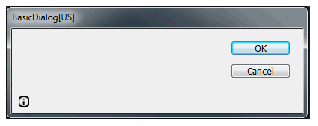
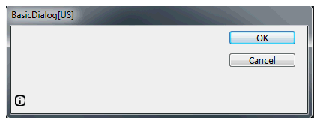
The SDK sample basicdialog looks like this as delivered with the SDK:
And its description is:
resource BscDlgDialogBoss (kSDKDefDialogResourceID + index_enUS)
{
__FILE__, __LINE__,
kBscDlgDialogWidgetID,
kPMRsrcID_None,
kBindNone,
Frame(0, 0, 388, 112),
kTrue, kTrue,
kBscDlgDialogTitleKey,
{
DefaultButtonWidget
(
kOKButtonWidgetID,
kSysButtonPMRsrcId,
kBindNone,
Frame(388-(16+80), 16, 388-16, 16+20),
kTrue, kTrue,
kSDKDefOKButtonApplicationKey,
),
CancelButtonWidget
(
kCancelButton_WidgetID,
kSysButtonPMRsrcId,
kBindNone,
Frame(388-(16+80), 16+20+10, 388-16, 16+20+10+20),
kTrue, kTrue,
kSDKDefCancelButtonApplicationKey,
kTrue,
),
RollOverIconButtonWidget
(
kBscDlgIconSuiteWidgetID,
kSDKDefIconInfoResourceID,
kBscDlgPluginID,
kBindNone,
Frame(5, 87, 26, 107)
kTrue, kTrue,
kADBEIconSuiteButtonDrawWellType
),
},
};
Conversion Command
To convert this dialog to EVE format:
eveconverter.exe
-i "<sdk>\source\sdksamples\basicdialog\BscDlg.fr"
-s "<sdk>"
-p "<sdk>\build\win\prj\SDKCPPOptions.rsp"
-o F:\convResults
This processes the original BscDlg.fr file into F:\convresults\eveIzed\BscDlg.fr.
Conversion Results
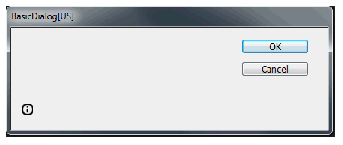
The converted BscDlg.fr file looks like this:
and contains the following. Text in bold is text that will be removed from the final version because the tool generated more EVEGenricPanelWidgets and dummy widgets than are actually needed.
resource BscDlgDialogBoss (kSDKDefDialogResourceID + index_enUS)
{
__FILE__, __LINE__,
kBscDlgDialogWidgetID,
kPMRsrcID_None,
kBindNone,
Frame(0,0,388,112),
kTrue, kTrue,
kBscDlgDialogTitleKey,
{
EVEGenericPanelWidget
(
kInvalidWidgetID,
0,
0,
kBindNone,
Frame(0,0,26,112)
kTrue,
kTrue,
kEVEAlignFill | kEVERegularSpaceAfter | kEVEArrangeChildrenInColumn,
{
EVEStaticTextWidget
(
kInvalidWidgetID,
kSysStaticTextPMRsrcId,
kBindNone,
Frame(0,0,21,87)
kTrue, kFalse, kAlignRight,
kDontEllipsize, kTrue,
"",
0 ,
kEVENoSpaceAfter,
),
EVERollOverIconButtonWidget
(
kBscDlgIconSuiteWidgetID,
kSDKDefIconInfoResourceID,
kBscDlgPluginID,
kBindNone,
Frame(0,0,0,0)
kTrue, kTrue,
kADBEIconSuiteButtonDrawWellType,
kEVERegularSpaceAfter,
),
}
),
EVEGenericPanelWidget
(
kInvalidWidgetID,
0
0,
kBindNone,
Frame(0,0,362,112)
kTrue,
kTrue,
kEVEAlignFill | kEVERegularSpaceAfter | kEVEArrangeChildrenInRow,
{
EVEStaticTextWidget
(
kInvalidWidgetID,
kSysStaticTextPMRsrcId,
kBindNone,
Frame(0,0,266,50)
kTrue, kFalse, kAlignRight,
kDontEllipsize, kTrue,
"",
0 ,
kEVENoSpaceAfter,
),
EVEGenericPanelWidget
(
kInvalidWidgetID,
0
0,
kBindNone,
Frame(0,0,80,50)
kTrue,
kTrue,
kEVEAlignLeft | kEVERegularSpaceAfter | kEVEArrangeChildrenInColumn,
{
EVEDefaultButtonWidget
(
kOKButtonWidgetID,
kSysButtonPMRsrcId,
kBindNone,
Frame(0,0,0,0),
kTrue, kTrue,
kSDKDefOKButtonApplicationKey,
kEVELargeSpaceAfter,
),
EVECancelButtonWidget
(
kCancelButton_WidgetID,
kSysButtonPMRsrcId,
kBindNone,
Frame(0,0,0,0),
kTrue, kTrue,
kSDKDefCancelButtonApplicationKey,
kTrue,
kEVELargeSpaceAfter,
),
}
),
}
),
},
kEVEArrangeChildrenInRow | kEVELargeMargin,
};
Adjusting the Result
You might or might not want or need your dialog to match the original pixel by pixel. However, if you want it to be closer to the original than might occur with the generated dialog, you can adjust the results manually.
First of all, we check whether we can remove any unnecessary EVEGenericPanelWidget and dummy widgets. For this example, the tool does not generate optimum results, so we remove the unnecessary EVEGenericPanelWidget and the dummy widget manually as shown by the bold text in the preceding Conversion Result.
For this example, we also need to adjust the coordinate of the remaining EVEGenericPanelWidget to divide the dialog. This is not necessary if you do not remove any EVEGenericPanelWidget.
Because EVE lays out widgets by row and column groupings, you should first focus on adjusting any alignment (especially static text labels and such), then move on to cosmetic spacing.
The large margin is too big, so we change that to kEVESmallMargin (5 pixels), which gets us closer in height. By default, the EVEGenericPanelWidget is given regular spacings that cause the OK/Cancel button to not stay in the top-right corner as in the original dialog, so, for the right EVEGenericPanelWidget, we adjust its spacing to large (10 pixels).
This results in the final dialog:
Changes from the generated file are shown in bold:
resource BscDlgDialogBoss (kSDKDefDialogResourceID + index_enUS){
__FILE__, __LINE__,
kBscDlgDialogWidgetID,
kPMRsrcID_None,
kBindNone,
Frame(0,0,388,112)
kTrue, kTrue,
kBscDlgDialogTitleKey,
{
EVEGenericPanelWidget
(
kInvalidWidgetID,
0
0,
kBindNone,
Frame(0,0,280,112)
kTrue,
kTrue,
kEVEAlignFill | kEVERegularSpaceAfter | kEVEArrangeChildrenInColumn,
{
EVEStaticTextWidget
(
kInvalidWidgetID,
kSysStaticTextPMRsrcId,
kBindNone,
Frame(0,0,280,87)
kTrue, kFalse, kAlignRight,
kDontEllipsize, kTrue,
"",
0,
kEVENoSpaceAfter,
),
EVERollOverIconButtonWidget
(
kBscDlgIconSuiteWidgetID,
kSDKDefIconInfoResourceID,
kBscDlgPluginID,
kBindNone,
Frame(0,0,0,0)
kTrue, kTrue,
kADBEIconSuiteButtonDrawWellType
kEVERegularSpaceAfter,
),
}
),
EVEGenericPanelWidget
(
kInvalidWidgetID,
0
0,
kBindNone,
Frame(0,0,70,50)
kTrue,
kTrue,
kEVEAlignLeft | kEVELargeSpaceAfter | kEVEArrangeChildrenInColumn,
{
EVEDefaultButtonWidget
(
kOKButtonWidgetID,
kSysButtonPMRsrcId,
kBindNone,
Frame(0,0,0,0)
kTrue, kTrue,
kSDKDefOKButtonApplicationKey,
kEVELargeSpaceAfter,
),
EVECancelButtonWidget
(
kCancelButton_WidgetID,
kSysButtonPMRsrcId,
kBindNone,
Frame(0,0,0,0)
kTrue, kTrue,
kSDKDefCancelButtonApplicationKey,
kTrue,
kEVELargeSpaceAfter,
),
}
),
},
kEVEArrangeChildrenInRow | kEVESmallMargin,
};
Conversion Example: Selectable Dialogs
Another example is BasicSelectableDialog. In this example, there are list and tab style selectable dialogs derived from kSelectableDialogBoss, and two panel widgets derived from PrimaryResourcePanelWidget.
As in the previous example, you can run the EVE converter to generate a converted .fr and adjust the result manually to remove any unnecessary EVEGenericPanelWidget and dummy widgets; adjust the coordinate of the EVEGenericPanelWidget or child widget; adjust the alignment, margins, and spacing; and so on.
However, in this example, the EVE changes for the tree node widget are not required because this widget is created by the code and typically it is not passed to the EVE engine. Therefore, we need to revert any changes to it after the conversion.
After the conversion, the .fr looks like this:
{
WidgetEveInfo;
};
resource BscSlDlgTreeNodeWidget (kBscSlDlgTreeNodeRsrcID){
__FILE__, __LINE__,
kBscSlDlgTreeNodeWidgetID, kPMRsrcID_None,
kBindLeft | kBindRight,
Frame(0,0,149,18),
kTrue, kTrue,
"",
{
EVEInfoStaticTextWidget
(
kBscSlDlgTreeNodeNameWidgetID,
kSysStaticTextPMRsrcId,
kBindNone,
Frame(3,1,120,17)
kTrue, kTrue, kAlignLeft,
kDontEllipsize, kTrue,
"",
0,
kPaletteWindowSystemScriptFontId, kPaletteWindowSystemScriptHiliteFontId,
kEVERegularSpaceAfter,
),
}
kEVEArrangeChildrenInRow | kEVELargeMargin,
}
We then revert the changes:
{};
resource BscSlDlgTreeNodeWidget (kBscSlDlgTreeNodeRsrcID)
{
__FILE__, __LINE__,
kBscSlDlgTreeNodeWidgetID, kPMRsrcID_None,
kBindLeft | kBindRight,
Frame(0,0,149,18),
kTrue, kTrue,
"",
{
InfoStaticTextWidget
(
kBscSlDlgTreeNodeNameWidgetID,
kSysStaticTextPMRsrcId,
kBindNone,
Frame(3,1,120,17)
kTrue, kTrue, kAlignLeft,
kDontEllipsize, kTrue,
"",
0,
kPaletteWindowSystemScriptFontId, kPaletteWindowSystemScriptHiliteFontId,
),
}
}

 1.8.3.1
