 | InDesign SDK 20.5 |
The Adobe InDesign Tool Kit (ITK) consists of several tools. This document includes the following:
Notation
This document uses the following notation for path names:
| Notation | Meaning |
|---|---|
| <InDesign> | The installation directory for Adobe InDesign. By default, this is Mac OS: /Applications/Adobe InDesign 2025/ Windows: C:\Program Files\Adobe\Adobe InDesign 2025\
|
| <ITK> | The directory containing the Adobe InDesign Tool Kit. |
| <SDK> | The directory containing the Adobe InDesign SDK. |
| <username> | In a path, the user's name. |
| <locale> | in a path, the locale, such as en_US/. |
| <version> | In a path, the current version number of the product release; for example, 9.0. |
This chapter describes how to use the Action Automation Tool (AAT) for black-box testing of Adobe® InDesign® plug-ins. The AAT editor allows you to create test sequences (action sessions) through its user interface, save them as XML (Session Files), and run them arbitrarily many times. It is a standard part of the debug build of InDesign and also can be used in the release build. AAT requires no deep programming knowledge to assemble test sequences.
The target audience for this chapter is anyone responsible for devising black-box tests for InDesign plug-ins. We do not assume that you have programmed in high-level language or written scripts, although that background makes learning the AAT easier, because it involves some basic programming concepts. We do assume that you are responsible in some way for black-box testing of code written for InDesign.
This chapter is organized as a series of procedures that take you through the major features of the AAT and gives you practical experience using the tool to write tests.
The following key concepts related to the AAT are introduced in this chapter:
To work with the AAT, you must have the required assets (libraries, plug-ins, data files, etc.) in the correct places. This section describes how to install these assets.
To install the AAT, you must do the following:
Some shared libraries must be in the same folder as the other shared libraries on which InDesign depends; for example, for the release build, DataBase.dll on Windows® and DataBaseLib.dylib on Mac OS®. These libraries are in folders named as follows:
The following table lists the shared libraries required for AAT to function with the release/debug applications.
| Windows | Mac OS |
|---|---|
| TestLib.dll | TestLib.dylib |
| AATLib.dll | AATLib.dylib |
| TestUILib.dll | TestUILib.dylib |
It is possible that these libraries are part of a debug build that you already have. On Mac OS, if you Ctrl-right-mouse-click the InDesign executable and View Package Contents, you can inspect the packaged components to see whether the libraries already are included:
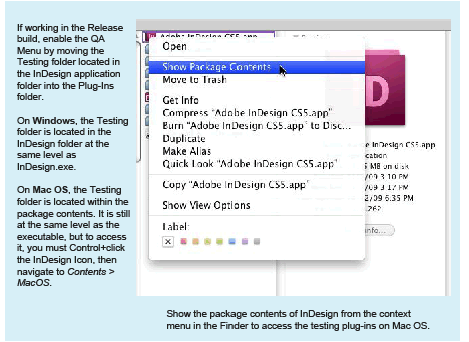
Move the shared libraries to the following folders:
To use the AAT, some Adobe QA plug-ins must be loaded. The minimum set for AAT to function is shown in the following table.
| Windows | Mac OS |
|---|---|
| AutoUI.apln | AutoUI.InDesignPlugin |
| AATArch.apln | AATArch.InDesignPlugin |
| AATArchUI.apln | AATArchUI.InDesignPlugin |
| QAMenu.apln | QAMenu.InDesignPlugin |
| QAScript.apln | QAScript.InDesignPlugin |
| QAScriptTestSuite.apln | QAScriptTestSuite.InDesignPlugin |
| QAXMLParser.apln | QAXMLParser.InDesignPlugin |
| Snapshotting.apln | Snapshotting.InDesignPlugin |
| TestLibPlugin.apln | TestLibPlugin.InDesignPlugin |
| TestUILibPlugin.apln | TestUILibPlugin.InDesignPlugin |
These plug-ins may be part of a debug build that you already have. They are not normally part of a release build. Binaries of these plug-ins are in the ITK folders named as follows:
To load these plug-ins, use one of the following techniques:
If there are no Testing or QA menus in the application, this is one symptom that you are missing the required testing plug-ins. In that case, check your configuration to ensure that these plug-ins load.
Some data files must be present to use AAT. The expectation is that there is a QA folder that is a peer of the <InDesign> folder. The required data files are in the following folder:
The folders containing required data files are as follows:
On Windows, the default location of application installation for InDesign 2025 is as following:
you would place the QA folder from the InDesign Tool Kit in the following location:
On Mac OS, the same rule applies: The QA folder should be a peer of the <InDesign> folder. If you run the application at least once with the shared libraries and plug-ins required to run AAT, the QA folder is created for you in the required location.
If you receive asserts in debug when trying to bring up the Action Automation Editor, this is one symptom of missing these AAT data files. See Launching the Action Automation Editor.
Acquire palettes for user-interface extension
If you bring up the Action Automation Editor now, there is nothing under the Loaded UI Extensions node of the Source Components. You can populate the UI Extensions node by creating a new document and executing GetAllPalettes.xml using either of the following methods:
Both execute the GetAllPalettes.xml session file and acquire all palettes in their default state with document open. These acquired palettes are loaded into the Action Automation Editor as a Preloaded Palette UI Library, for your convenience later. For more information, see Using a preloaded palette user-interface library.
The <ITK>/source/itksamples/aatexamples/ folder contains subfolders with sample AAT session files and related assets. Familiarize yourself with the organization of this folder before working through the examples. The subfolders include the following:
We recommend that you back up the aatexamples/ folder before working through the procedures in this chapter, to avoid inadvertently overwriting or changing session files on which other procedures depend.
This chapter is structured as a set of procedures using the AAT. Completed examples of each procedure are provided; in some cases, these are starting points for other procedures.
Test scripts can be expressed as a sequence of actions, regardless of whether they are intended for testing code in the Print, Text, or XML subsystems. Actions are the building blocks of test cases and bug specifications: They comprise the repeatable keystrokes or menu selections necessary to create a test case that you are trying to validate or find a defect that you are trying to reproduce.
Do not confuse an action in the sense we use it here with the low-level API concept of an operation identified by an ActionID. An action in the sense used in describing the AAT need not be associated with a particular ActionID, although it can be.
Often, test cases contain implicit actions that may seem obvious to the writer of the test script but ambiguous to someone else running that script. For example, take the test case "Draw a one inch by one inch square." Several implicit steps must happen before the first step can be executed: The user needs to launch the application, create a new document, select a page of that document, decide whether to create the square with a tool or bring up a dialog, and determine the coordinates on the page where the square will be drawn.
Including the implicit steps in a test case would be useful for anyone trying to run this test case. Hence, an ideal test script explicitly states each step necessary to complete a given case.
Actions are the building blocks of the AAT. Explicit automated actions yield a test case. In essence, actions are single events assembled to consistently reproduce a given test case.
Stored externally as XML-based files, action sessions (that is, test cases) have the advantage of being portable, flexible, and straightforward to use as a tool for automating most test scripts. Action sessions can be devised with little programming knowledge. As long as you understand the fundamentals of good test-case creation (for example, making each action explicit), you can automate your test scripts, converting repetitive testing tasks into scripts that can be run automatically, with failures logged to an external text log for straightforward bug reporting.
Action sessions have several uses. For example, testers can include action sessions with most bug reports, to ensure reproducibility by engineers. Action sessions can be used to create test files, to test legacy functionality, or to create test environments for manual testing. Also, it is relatively straightforward to carry out regression testing for bugs if an action session exists for the bug steps. The session files are cross-platform, meaning that, once you define an action session on one platform (say, Windows), you can run it on another (say, Mac OS) by transferring the session file from one platform to another, without having to recompile (for example, if you were writing white-box test code).
This section familiarizes you with the main components of the AAT and allows you to create a session file containing a set of test steps. It covers how to do the following:
There are some prerequisites for working with the AAT in the release build, like ensuring that the testing plug-ins load; see Installation. In the debug build, the AAT should be configured correctly by default.
To open the Action Automation Editor window:
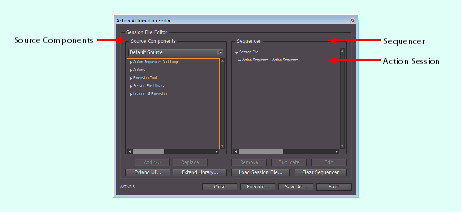
As shown in the preceding figure, the Action Automation Editor is divided into two columns:
The Action Automation Editor is the main interface for building and executing action sequences to automate your test:
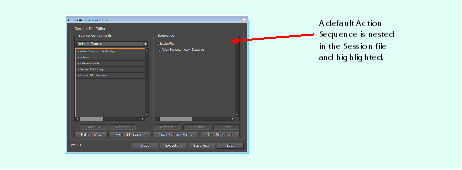
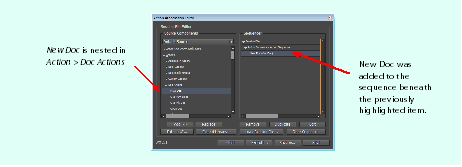
To construct an action sequence to create a new document:
Any action in your sequence has a set of parameters; you can either specify these explicitly or accept the defaults. To specify them, you must edit the action in the Item Editor. The Item Editor is accessible by double-clicking the action in your sequence or selecting the action and clicking the Edit button. This brings up the Item Editor modal dialog, which is split into two panes: a Parameters panel on the left and a panel on the right where you can specify the value of the parameter selected:
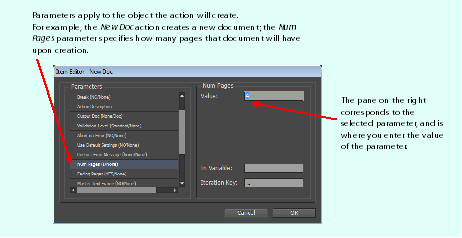
Parameters are settings that apply to the action you are editing. For example, when creating a new document with a New Doc action, there is a Landscape parameter that can take the value Yes or No; Yes creates a document in Landscape orientation, and No creates a document in Portrait orientation. The preceding figure shows parameterizing the number of pages in the new document created for a New Doc action.
Most parameters can be specified using variables. Variables can be set before executing an action as Input and can be set during execution as Output variables (See Input and output variables). You can set the variable name and value in the right pane of the Item Editor dialog. New values are updated after you close the item editor and bring it up again next time.
The set of the parameters varies according to the actions. Some parameters are used in most actions, such as Comments, Comment Out, Break, Action Descriptions, Validation level, Abort on error, etc. Other parameters are specific to the actions. The following table lists some of the most common action parameters that may be useful when you construct your AAT sessions.
| Parameter | Descriptions |
|---|---|
| Abort on error | See "Abort on error" in Debugging and fixing action sessions. |
| Action Descriptions | Describes the action. Usually includes the purpose, pre-conditions, etc. of the action. |
| Bounds | Commonly used for actions that create page items. |
| Break | If Yes, AAT stops at this action. Used for debugging. See "Break" in Debugging and fixing action sessions. |
| Comment Out | If Yes, this action is commented out and is therefore not executed. |
| File | Commonly used in actions that involve files, like open, place, import, and export, as well as acquisition actions to store an acquired user interface. |
In the following steps, we take the sequence from Building an action session to create a new document and modify it to create a four-page document:
You should now see a four-page document created.
Create a session that generates the following document, using what you know so far about action sessions:
This section familiarizes you with the concept of a session file, which is where an action sequence is stored.
Saved session files can be loaded into the Sequencer using the Load Session File... button. This button brings up a file-open dialog, which you can use to choose the XML session file you want to execute:
When you load a session file, it replaces the contents of the Sequencer. If you have unsaved changes in your current Action Session, clicking the Load Session File... button prompts you to save changes.
Opening session files from a shared network drive can lead to contention with other testers. If you open from a shared network drive, save the session as a new file locally, to avoid potential conflicts. Also, when the application is open, be careful about deleting session files that you opened previously with the Action Automation Editor.
Loading a session file displays the contents of the session file and allows you to run and/or edit it however you choose. If editing the session file is unnecessary and you want to run the session file directly:
This executes the session file named apply-swatch-to-box.xml without having to open the Action Automation Editor.
To run several session files at once:
This runs all session files in the folder.
To run a subset of tests, create a folder for that set of Action Session files, and use the Run All Session Files in Directory command. There is no Cmd/Ctrl selection to allow selection of multiple files from a file list.
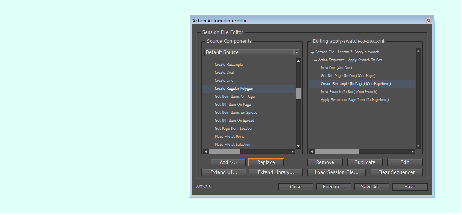
See whether you can adapt the session file (apply-swatch-to-poly.xml) created in Editing an action session" Editing an action session" to do the following:
Save the session file to a convenient location, and execute it. After you execute the action sequence, zoom in to verify that the polygon's stroke is now red. For one implementation of the procedure above, see the session file apply-spot-to-poly.xml in the examplefiles folder.
This section examines nesting of action sequences, adding your own session files to the existing library, and running one session file from within another.
One main goal when automating testing is to create reusable, flexible components. When designing session files, create small sequences of actions; this increases the likelihood that you can reuse the sequences in other session files and makes it easier to isolate problems. Execute one sequence and verify that it works before adding another sequence to your session file.
Up to this point, we have considered action sequences that consist of one action sequence containing a set of actions. You can nest action sequences within one another, to structure your test code and make it modular. The benefits of modularizing test sequences in this way are equivalent to modularizing program code; the tests become easier to read, and you can use the name of the action sequence to indicate the intent of a block of test actions.
The Session File Library can be found in the Source Components tree view, as a peer of the Actions node you already used. The Session File Library allows you to access common action sequences as shown in the following figure; it lists all default session files and the session files you added. The named action sequences within each session file are displayed in the tree view as children of each session file item in the library:
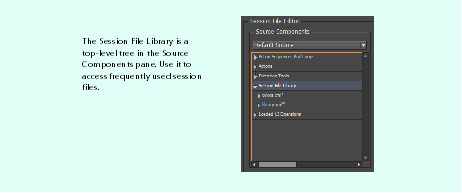
You should add session files that you use frequently. For example, if you realize that you are always adding the same set-up actions to every new session file you create, save those set-up actions as a session file and add it to your library.
The following figure shows adding to the Session File Library:
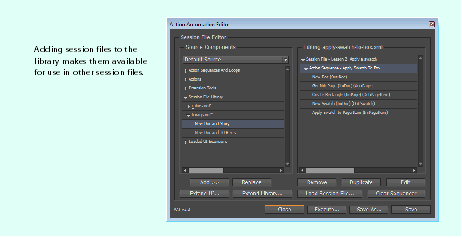
When you add a sequence from the Session File Library, the sequence is no longer connected to the action sequence stored in the Library; that is, you are adding the individual actions in the session file from the Library to your current action session, rather than creating a reference to a shared session file. If you update the sequence in the session file stored in the Library, it does not update in other session files in which you have used that sequence. You must edit each instance of the sequence in each separate session file. This means that the Library is not a universal panacea to creating tests; you should ensure that the session files in the Library are correct and stable before using them widely.
In the following steps, we add an existing session file to the Session File Library:
Instead of reusing sequences by extending the library, you could use an Execute Session File action, located under the Actions > Custom Actions node in Source Components. This action executes a particular session file that you direct it to, as part of another action sequence. The advantage of using an Execute Session File action in your sequence is that the executed session file is self-contained. Any changes are made in one place, the executed file. A disadvantage is that, if you need to isolate a problem, you may have to troubleshoot multiple session files.
A further disadvantage is that you cannot pass parameters into session files that you execute from another session file. This means, for example, if you create context in one session file, like a page item that you want to pass into the actions in the other session file, you cannot do this by executing one session file from within another. In this case, you should use the approach described in Extending the Session File Library.
There can be many ways to create a particular layout object. For example, to create text, you can directly create a text frame with the text tool and begin to type, place a story, click in a graphic frame with the text tool and type, or click in a text frame and paste text. Alternately, you can click a path and create text-on-a-path.
Just like manually creating a page item, usually there are multiple ways to create a given item through action automation. It is helpful to consider what method you want to use. Sometimes it does not matter, as long as the result is the same; other times, the method matters a great deal. For example, if you are testing a tool that creates specific page items, you want your automation to create new page items using the given tool, not another method.
Before you manually create a page item, you specify where you want the page item to go-not only in terms of its coordinates, but also the document and page relative to the start of the document-or you locate the spread and choose a page within that spread relative to the start of the spread. If you have multiple documents open, you choose the document in which the object goes. If multiple views are open on one document, when manually creating a page item, you choose the view (out of those opened on the document) in which you want to create the page item. You also may choose the page on which you will create the object and where on the page you will start to drag with the page-item tool.
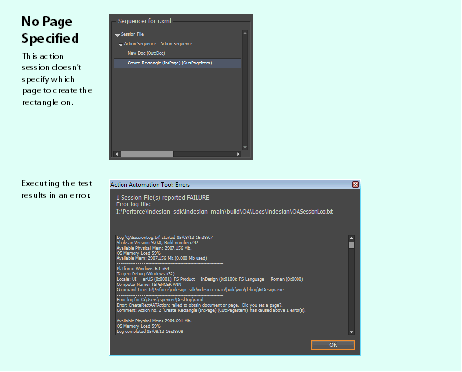
These same decisions need to be made in your automation. You must be explicit about which document, which page, and where on the page you want to create an object in the action session. The following figure shows the wrong way to create a rectangle, where the page is not made explicit:
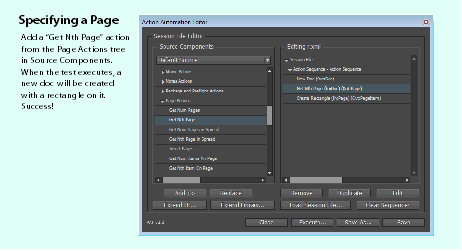
The following figure shows the correct way, where the page is explicit. In both cases, only one document is open, so we do not have to tell the session file which document to target.
When creating a new document with an action session, sometimes it is easier to use the Close All Docs action under Application Actions before starting. This eliminates the need to specify which document or window you are targeting, since there can be only one.
This section looks at the basics of creating and modifying page items.
Page items are drawn by default from right to left. To draw page items from left to right, use a click and drag action, not the Create (something) action. The default location for new page items is (0, 0) (upper-left corner of the page). No margins are taken into account. Page items are created at the default location, unless another location is specified in the Item Editor.
Each page in the document has an index associated with it, which is a number that identifies the page you are targeting. This is a zero-based index, so page numbering starts from 0. To put an object on page 1 of the document (as displayed in the Pages panel), the action needs to use page index 0. To put an object on page 2, specify page index 1, and so on. In other words, take the page number displayed in the Pages panel, subtract 1, and the result is the index to use.
The same applies for anything you have to target; for example, collections of documents and spreads use a zero-based index. The first document opened (Untitled-1.indd) has an index of 0; the second document opened, 1; and so on.
Note that a new Action Sequence has the default name Action Sequence. It is good practice to change the name of your action sequence to something descriptive. The name appears in the Action Automation Editor and makes organizing long sequences, troubleshooting, and re-using Action Sessions easier, especially if you use the Extend Library feature. See Extending the Session File Library.
When editing or creating page items, the location and size of the object is specified using four parameters, in this order: X (left), Y (top), H (height), W (width).
For example, add a Create Rectangle action and edit the Bounds value, making it 2, 2, 3, 4 inches. You are telling the application to start at (x, y) and drag down the page to (H) and across the page to (W). This corresponds to the following: "Go to (2 inches right, 2 inches down) from the page origin, and create an item 3 inches high and 4 inches wide."
Any item you create must fit on the pasteboard. We recommend that you do not specify negative numbers in the bounds of a create action, as the behavior of the application is undefined.
The following procedure creates some page items and modifies their attributes:
This procedure shows one way to enter text into a story, as if it had been typed into a window through the user interface:
When working with text, consider whether placing a text file would work better for your purposes. It is much faster to place a text file than to type text; under Page Item actions, see the Place File at Selection action.
If you want to test a feature that depends on an end user actually typing, not just putting text in a document, use the Type Text action. For example, suppose you want to set a default style, then test it was respected as text was typed. You could create an action sequence to set the text style, then type text into the story and determine the style settings; this would let you verify that the defaults in that text frame were correctly respected, which placing cannot do in all situations.
In addition to the typing-text.xml session file, there is a related session file in the examplefiles folder, named placing-text.xml. In the placing-text.xml, a Place File at Selection action replaces Type Text. Execute both session files, and compare the relative speeds of the two scripts to create text.
The objectives of this section are to introduce you to the basics of placing assets.
When placing graphics and text, consider whether you will run the test on more than one machine or platform. If so, create a relative path to the graphic or text file, rather than an absolute path. Otherwise, the AAT cannot automatically target the path to the asset on the new machine, and your test will fail.
To create inline graphics, you must first have some text, then either create a text insertion or select a range of text. You then place a graphic at the selection (or insertion point) to create an inline graphic.
Some Select Text action parameters are important to know about when creating inlines:
To place inline graphics:
This section explores how to create linked text frames using the Action Automation Editor.
Expand Text Frame Actions in your Source Component list, and notice the Link To Text Frame and the Link From Text Frame actions. To manipulate text-frame threads, we use variables to refer to different text frames and use these as action parameters. For more detail about using variables to refer to objects we create in scripts, see Input and output variables.
The AAT provides testers with a user interface, the AAT Editor, with which to create automated tests. The tool makes it possible for a tester to create automated tests without requiring an extensive technical background. That said, there are certain programming concepts and methods built into the tool, which may require some study for those who have never scripted or programmed before.
The concepts presented in this section will help you understand how each action affects every other action by way of input and output variables, how loop statements are used in action sequences, and how to use logic to control the flow of action sequences. The concepts introduced in this section include the following:
With AAT, variables are the objects an action takes in (the In variable) or produces (the Out variable). Variables can be anything-rectangles, pages, XML tags, documents, swatches, text strings, numbers-and are identified by a name the action specifies.
Every action that produces an object outputs a default name to represent that variable. For example, if you use the New Doc command, the output variable is Doc. In addition, most actions that require an input variable reference an expected variable. For example, if you select the Insert Pages action, it expects an Input variable called Doc.
Parameters of an action may accept values directly or values stored in variables. For the New Doc action example, you can specify the number of pages of the new document as 10 using the "Num Pages" parameter in the top right of the Item Editor dialog, or you can provide a variable name (for example, "numPages") at the bottom right of the dialog and initialize the variable to 10.
AAT variables do not specify a type. You can assign a string to a variable that was used as an integer.
If you examine the thread-two-stories.xml session file from Link two existing stories, note how Doc is an output variable in the New Doc action, but it is an input variable in the Get Nth Page action. Variables are neither exclusively input nor exclusively output. When an output variable is assigned based on an action, that variable is available for input to another action later. In short, a variable gives you a name with which to refer to an object later.
An output variable is the name of the object the action created. For example, Page is the default output variable for the Insert Pages action.
An input variable is the name of the object the action needs to successfully create its object. For example, the Insert Pages action requires an input variable that references a document, as shown in the following figure. By default, the Insert Pages action expects a variable named Doc to be available and to refer to a document created by an action like New Doc.
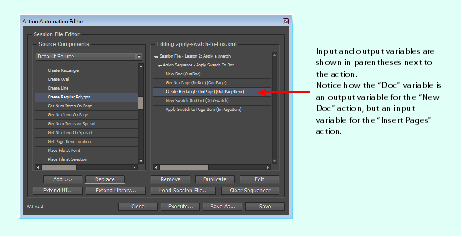
The Sequencer pane of the Action Automation Editor displays input and output variables in parentheses next to the action name for any actions that have variables associated with them. In and Out are used for input and output variables, respectively.
Sometimes an action requires variables other than the In variable shown when the action is added to an action sequence. For example, the Apply Swatch To Page Item action (Actions >\ Swatches) depends on two input variables, Target Page Item and Swatch. Only the Target Page Item is shown as an In variable. The AAT tool typically reports an error if an input variable is not defined and gives you an indication of how to fix the problem.
Variable names
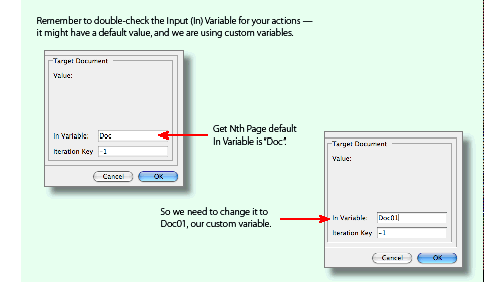
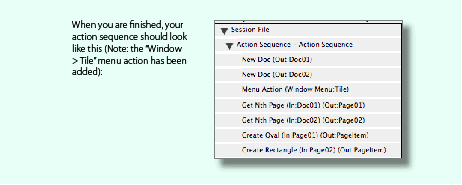
Variables can be renamed, depending on how you want to use them. For any action that outputs an object, you can edit the Out variable if desired. Sometimes this is necessary, as in the example of linking two TextFrame objects, where you might choose to name them TextFrame1 and TextFrame2, to specify the From and To frames.
Suppose you want to create two documents and work with both throughout an action sequence. If you execute the New Doc action with the default output variable, the first document you create is assigned a variable named Doc, but as soon as the second New Doc action is executed, the variable named Doc is reassigned to the second document; see the following figure. A straightforward workaround to this problem is to change the default name of the New Doc output variable to something different in each case, say Doc1 and Doc2.
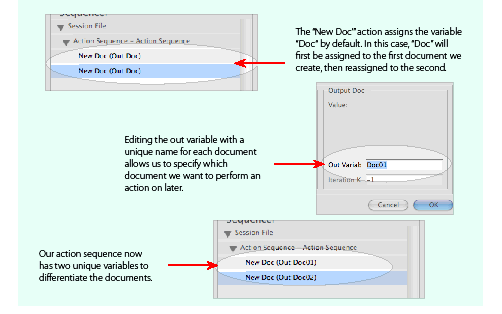
To define custom variable names:
The AAT provides a collection of miscellaneous actions; for example, for mathematical functions and string manipulations. These actions can be found under Actions > Variable Operation and are listed in the following table.
| Operation | Meaning |
|---|---|
| Math | Left value [+, -, *, /,%], right value = value. |
| Unary | Takes a single variable and performs floor, ceiling, and round operations. |
| Compare | Compares two values based on an operations (<, >, =, etc). |
| Random Number | Generates a random, real number specified by min and max parameters. |
| Output Rect | Outputs a variable for the "x1, y1, x2, y2, units" values specified in the action. |
| Output Point | Outputs a variable for the "x,y,units" values specified in the action. |
| Offset Rect | Outputs a variable for a new set of "x1,y1,x2,y2,units" based on previous coordinates, offset by "x,y" as specified in the action. |
| Offset Point | Outputs a variable for a new set of "x1,y1,units" based on previous coordinates, offset by "x,y" as specified in the action. |
| Get Point From Rect | Outputs a variable for a new set of "x, y, units" based on an input rect as specified in the action parameter. |
| Get Value From Point | Outputs a variable for x or y value of an input point specified in the action parameter. The units for the variable also can be set in the action parameter. |
| String Actions | Manipulates a string based on the supplied parameters. For example, you can append one string of text to another. |
| String Information | Returns information about a string, based on the supplied parameters. For example, you can return the total number of characters in the string. |
| Output Path | Specifies where you want a file to go. |
| Extract File Name from Path | Returns a string contain the filename. |
| Get Session File Name | Returns the filename of the session. |
| Get Platform Folder Separator | Returns "\" or ":". |
| Get Local Point from Global | Converts global coordinate to local. |
| Get Global Point from Local | Converts local points to global. |
An InDesign document can be viewed as a collection of object collections. Suppose you have a one-page document that contains a rectangle, linked graphic file, and text frame. That one-document object includes a page object, and that page object includes three page items-the text frame, the link, and the box.
In Using custom variables, we considered how variables are assigned to new objects created by your action sequence. In this section, we discuss how variables can be assigned to existing objects in your document.
Consider the following scenario. Suppose you want to create a new document and draw a box on the first page. Through the InDesign user interface, you choose File > New, supply the document parameters and click OK, select the Rectangle Tool, click and hold down the mouse button in the area of the page where you want the box to start, drag the mouse to where you want the box to stop, and release the mouse button.
The AAT lets you automate this operation with the New Doc and Create Rectangle actions. Superficially, it might seem that, to automate the action of creating a box as described above, all you would need to do is add a New Doc action followed by a Create Rectangle action to your action sequence; however, there is a missing step: if you created the action sequence (New Doc, Create Rectangle), you would find the Create Rectangle action fails, with an error like this:
Many actions require an input variable, including Create Rectangle, which has the default input variable of Page. If you change the Target Page parameter of the Create Rectangle action to be Doc, then execute the action sequence, the Create Rectangle action succeeds.
Suppose we want to create a new document with five pages, with the rectangle created on the third page (index=2). If we edit the New Doc action so the number of pages is five and execute the action sequence again, we get a five-page document but with a rectangle on the first page (index=0). Clearly, we need another variable to specify that we should use the third page in the document, not the first.
In this situation, when you need to specify a position within an indexed collection, using an action of the form Get Nth object can solve our problem; we can obtain a variable that refers to an existing object and use it throughout our action sequence.
We need to have a variable that refers to the third page in the document, and use that as our input variable for the Create Rectangle action. Using a Get Nth Page with the Index value set to 2 (since the pages are indexed from 0), then assigning the output variable (Output Page) from that action as the input variable (Target Page) for the Create Rectangle action, we can create a rectangle page item on the third page of the document.
You may have to use an action of the form Get Nth object when another action you want to use requires an input variable that was not specified previously in your action sequence.
An action of the form Get Nth object allows you to refer to an object of a specific type based on its index value. The index enumerates all objects of a given type in a particular context. For example, if you have 10 documents open, N can take the values N=0, 1, 2, ..., 9.
An action to Get Nth object is available for many object types. You can Get Nth Page, Get Nth Swatch, Get Nth Document, and so on. Occasionally, Get Nth is the only way to obtain a variable referring to an object in your document.
Get Nth object and Get Num object look similar but have different meanings: Get Nth lets you choose an object by its position in a collection, while Get Num tells you the size of a collection. For example, when a Get Num Pages action executes, the value it outputs is the number of pages in the document, which is not zero-based.
Use actions of the form Get Nth object to do the following. Create a new document with five pages. Add a different type of page item to each page, using Get Nth Page actions. For a sample solution, see five-page-items.xml in the examplefiles folder.
A loop in an action sequence is one way to build a repeating action. Loops allow you to reduce the number of actions you list in your action sequence, while maintaining the number of repetitions you want.
For example, suppose you want to draw 1,000 boxes in a document. One way of doing that is to add 1,000 Create Rectangle actions to your action sequence. A more efficient way is to add an iterative loop to your action sequence that performs the Create Rectangle action 1,000 times. Either way, you end up with the same number of boxes in your documents, but the former approach yields a much longer action sequence than the latter.
The number of times a loop executes can be based on the following:
In each case, the loop executes a set of actions (the actions within the loop) based on a condition specified by the loop statement. Loops can be found under the Action Sequences and Loops node in Source Components.
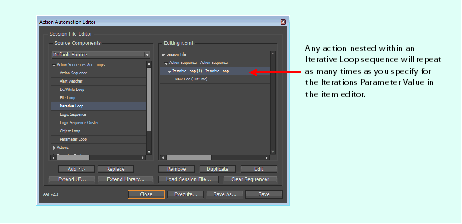
An iterative loop is a sequence of actions that repeats the number of times specified in the loop action. The Iterative Loop action has an Iterations parameter that controls how many times the actions in the loop are executed.
Building an iterative loop
In this procedure, the action sequence creates a new document five times, using an Iterative loop:
Practice using iterative loop
Create an action sequence using Iterative Loop to do the following:
A file loop is a sequence of actions that executes for all files in a specified location of a specified file extension.
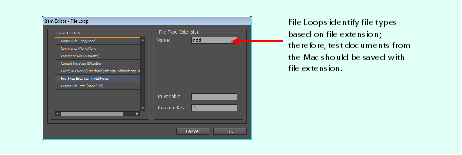
When using a File Loop action, you specify which folder to target and which file extension to look for in the folder. The default folder is the build/qa folder, and the default file extension is INDD, native InDesign documents.
You can use a file loop if you want to quickly place all graphics of the same type into a document.
Constructing a file loop
In this procedure, a file loop is used to perform an Place File action on each file with the "tif" file extension in the examplefiles/images folder.
Practice using file loops
Try this using file loops and different types of actions.
Try the task in "Constructing a file loop" (in File loop), but use the CurIter output variable of the loop sequence to create a unique place point for each image. Hint: Use actions from Variable Operations, like Math, if you want to use div (/) or modulo (%) operators to create a tiled layout.
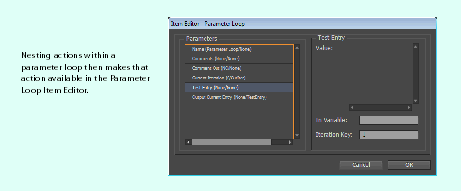
A parameter loop is a sequence of actions that executes for each available value of a particular action. Parameter loops are helpful when you want to apply each available value in a list or combo box. For example, when you create a new document with InDesign Roman, you have 11 page-size parameters to choose from (Legal, Letter, A5, etc.). If you want to create a new document for each available size, you could construct a parameter loop using the Page Size values of the New Document dialog.
Constructing a parameter loop
In this example, the action sequence draws a line on a page, selects the line, and executes a parameter loop over the Stroke Type values in the Stroke palette to apply each type to the selected line:
Do/while loops execute a series of actions while a specified condition is true. There are two distinct types of do/while action:
A do/while loop is controlled by four parameters, described in the following table. These specify whether the loop is a do/while variant or a while variant, and the logical expression that controls the loop's execution.
| Parameter | Meaning |
|---|---|
| Do/while | Specifies whether the loop is the do/while variant or while variant. The while variant evaluates the condition first, before executing. The do/while variant executes the actions in the loop at least once before evaluating the condition. |
| Operator | The evaluative statement between the left value and right value (see the following figure). Operator values can be Equal, Not Equal, Less Than, Less Than or Equal To, Greater Than, or Greater Than or Equal To. |
| Left value | The variable or value that precedes the operator statement (see the following figure). |
| Right value | The variable or value that follows the operator statement (see the following figure). |
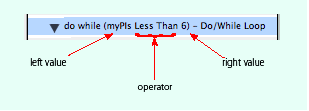
When constructing a do/while loop, you evaluate the relationship between one entity and the other; for example, whether value "a" is greater than value "b," or the logical expression (a > b). When evaluating expressions containing a logical operator (in this case, >, greater than), you need to consider the type of variable on either side of the operator, to be sure you are evaluating an expression that makes sense. The variables on either side of the logical operator (also called operands) are represented by the left-value and right-value parameters.
Creating a do/while loop
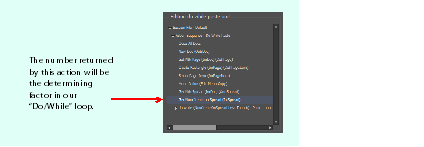
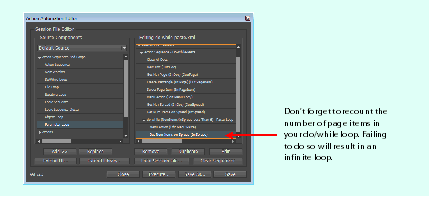
This procedure creates a page item and pastes it repeatedly, until there are six page items in the spread:
An object loop loops over each object type specified. An object type could be anything in the document: pages, lines, boxes, words, etc. When you create an object loop, you are telling the action sequence to perform the actions nested in the scope of the loop on every object of the specified type.
When building an object loop, you must be aware of the parameters that control the behavior of the loop, listed in the following table. These specify the type of container object you want to look inside, the type you want to iterate over within a container object, and the range of container objects over which you want to search. You can think of the specification controlling the behavior of the object loop as a query.
| Parameter | Meaning |
|---|---|
| Finder Type | The type of container in which you want to search. For example, you would look for inline graphics inside a Story or Table, but you would look for Stories or Swatches inside a Document. |
| Find Object of Class | The object type for which you want to search. |
| Find In Target | The object variable in which you want to search. For example, if you want to search only for text-frame objects on page 3, you would search only within that page variable. |
Building an object loop
In this example, we use an object loop to apply a new stroke weight and type to a collection of page items. Follow these steps; the following figure summarizes these actions:
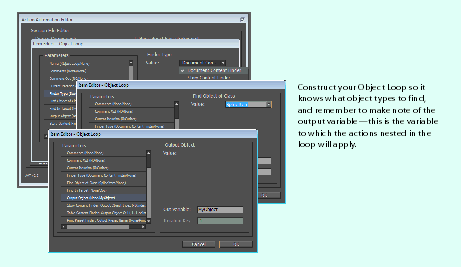
Logic sequences allow you to control the flow of an action sequence, using if, else-if, and else statements. Informally, an if statement involves a test to see whether a condition holds. If it does, the AAT executes one set of actions; otherwise, it does something else.
The practical topics covered in this section include the following:
Conditional expressions and decisions based on the results of these expressions are common. For example, suppose you walk past the cinema with 5 euros in your pocket. If the price of the ticket is less than or equal to 5 euros, you buy a ticket; if the price is higher, but you have a friend with you, you borrow some money and then buy a ticket; and if you do not have a friend with you, you do not buy a ticket. There are several conditions you would evaluate one after the other. Using AAT terminology, this is a logic sequence.
Expressions in a logic sequence begin with "if," "else-if," or "else." When writing conditional expressions for AAT, you must follow these rules:
The operator within a conditional expression in a logic sequence can be any of the following: Equal, Not Equal, Less Than, Less Than or Equal To, Greater Than, or Greater Than or Equal To. Logical sequences can be nested, to create relatively elaborate (though possibly hard to understand) logic.
The simplest useful logic sequence, written in some notional scripting language, is something like this:
This is an if statement, consisting of a keyword "if," a condition (in this case, "a > c "), and operations to perform (in this case, "then-do-this"). The operations indicated by then-do-this are performed only if the condition is true, making (a > c) a decision point for this example.
Here is an example of a slightly more elaborate logic sequence:
The action (do-the-other) is performed if "a" fails to be greater than either "b" or "c." For example, if a=1, b=3, and c=2, the do-the-other action is performed.
Building a logic sequence is like building a do/while loop, described in Do/while loop. The Action Sequences and Loops node in the Source Components panel contains an action named Logic Sequence. You can parameterize an instance of this action with a left value (left operand), operator, and right value (right operand). See the following table for information about these parameters. You also need to specify the type of the Logic Sequence; that is, whether it is an if, else-if, or else statement.
| Parameter | Meaning |
|---|---|
| Operator | Operator can be Equal, Not Equal, Less Than, Less Than or Equal To, Greater Than, or Greater Than or Equal To. |
| Left Value | Left operand. The variable or value that precedes the operator statement; for example, in the statement (A > B), A is the left value. |
| Right Value | Right operand. The variable or value that follows the operator statement; for example, in the statement (A < B), B is the right value. |
A fundamental type of logic sequence is an if statement, where we perform an operations if a specified condition is true.
This procedure creates a new document and a story in it, fills it with placeholder text, and changes the point size of the text to a random value. If the point size of text in a given text frame is greater than a threshold value (in this case, the default point size for placeholder text, 12 pts), we assume that the text is overset. In that case, an additional linked text frame is created to hold the overset text. An if statement is used to determine whether a linked text frame is needed, based on the point size of the text in the text frame under consideration.
A logic-sequence cluster supports else-if logic. Suppose we want to modify the procedure in Constructing a logic sequence: if statement, so when the point size of text is less than 12 points, we fit the frame to the content. Follow these steps:
A principal objective of writing action sequences is automating some of your testing. As you write and run your tests, you may encounter the following bugs:
This section describes the logging features of AAT, how to use the AAT logs in your own testing, and how to determine the likely location of defects you observe during testing with the AAT.
The objectives of this section are as follows:
Log files are an integral part of using the AAT to validate tests. Automating certain tasks saves time in several ways and allows you to focus on other testing areas that cannot benefit from automation; however, simply running an action sequence does not absolve you from ever looking at that area again, and this is where log files can come into play.
Each time an action sequence is run, two log are created that report on the status of the test while it ran:
These logs record information about the test that ran, including when it started and when it finished, build, platform, what steps (actions) were performed, and any errors that occurred. By keeping track of this information, you can use your action sequences to verify different test criteria, like performance, functionality, and errors.
AAT session log
The AAT session log, shown in the following figure, contains an account of every action and its supplied parameters of the action sequence, as well as information about the time it took the sequence and each of its individual actions to complete. Viewing this log is another method of determining which actions were run during the test; the other method is inspecting the action sequence in the Action Automation Editor.
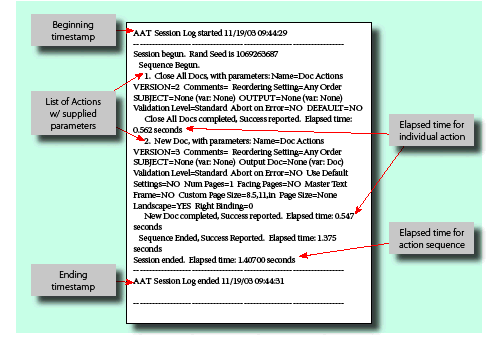
QA session log
The QASessionLog.txt/xml log files list errors that occurred during the test, as well as build and machine information. These are in the qa folder.
The QA session log includes errors encountered because of a problem with your action sequence, errors caused by bugs in the code you are testing, and/or forced errors.
Action sequence errors
While you are learning the tool, the most common type of error reported by the AAT is errors in your action sequence. These errors can arise for several reasons. If you construct the sequence of actions (Open Doc, Save Doc), the AAT tool reports an error something like this:
This is because the Save action is valid only for a modified document. The error provides you with an attempt at a resolution, to substitute another action for the inappropriate Save Doc. You can find a transcript of the error message in the action sequence if you inspect QASessionLog.txt. You also can find a detailed description of the behavior of the AAT action behind each action while the test ran, in AATSessionLog.txt.
Diagnosing and fixing an error
Creating custom error messages
Built into the AAT is an action called Report Error, available under the Actions > Custom Actions node. This action allows you to write into the QASessionLog.txt file, by setting a parameter named Error String. The action also generates a warning dialog when the action sequence completes, indicating there are errors in the action sequence.
Using a custom error to indicate success or failure
In the following procedure, we consider how to use the Report Error action to report success or failure of a test. A minimal document is created, with a page item in the pasteboard, to the left of the first page of the document. A logic-sequence cluster is used to write a custom error, indicating whether the page item is on the first page of the document.
The Report Error action can be used in developing action sequences. By reporting values, names, and other variables to the log file, it can help determine the state of objects that otherwise may be confusing.
Custom error messages using string actions
The following procedure uses String Actions to demonstrate how to construct more informative error messages. After the action sequence executes, the error message reports how many page items are on the first page, rather than just success or failure.
String Actions can be used to build logging statements based on different types of data, including variables, strings, and integers.
Developing a methodology
There is a basic methodology you can use to ensure your action sequence works in the way you intend, by asking questions as actions are added:
When you run into problems with your action sequence, the log files may provide answers. For example, if you want to create a new page item but do not have a page-object reference, an error is reported that the object does not exist.
If the action sequence does not generate an error but fails to do what you intend, it may be harder to determine the source of the problem. Perhaps there is a page-object reference already in the action sequence, but for a page other than the one intended. Experience with the AAT tool makes it easier to solve problems.
You can nest a series of actions in an action-sequence cluster. This can allow you to isolate and debug sets of actions, as well as remove sequences quickly if you no longer need them.
Abort on error
Built into all actions is a parameter called Abort on Error. By default, this parameter is set to No. When it is set to Yes for a specific action, if the action fails for any reason, the whole test is terminated and an error is reported.
For example, suppose an action sequence has a Get Nth Page action, which may try to acquire a page not available in the document. If you set the Abort On Error parameter to Yes for the Get Nth Page action, you can terminate the action sequence whenever the Get Nth Page fails.
You should set the Abort on Error parameter to Yes for actions that are critical to what you are validating. Also, use it to help troubleshoot your action sequences as you develop them.
Break
Another parameter that is useful for debugging is Break. Like Abort on Error, Break is set to No by default. When it is set to Yes for a specific action, it serves as a break point of the Session: AAT stops at the action and waits for user intervention. You can press Option Alt+S to step to the next action, or press Option Alt+R to restart the program. If the action is within a loop, it stops every time the loop executes.
Working with the AAT script debugger
AAT script debugger is a separate panel that displays the same session file as the one displayed in the Action Automation Editor. Changes made in either window effect the other. The debugger is useful when you debug an AAT script. When you set a break point in the action sequence using the Break parameter and execute the session, the Action Automation Editor disappears. When the AAT stops at the action, the action is highlighted in the AAT script debugger, and if you press Option Alt+S, the highlight moves to the next action, showing what is going on in your action sequence.
The objectives of this section are as follows:
Session files can include two types of actions: command actions and user-interface actions; see the following tables. Each action type has benefits and drawbacks, and understanding these will help you write tests faster and more efficiently. For example, user-interface-based actions tend to be slower, but they simulate end-user actions more convincingly.
The following table shows the benefits of command and user-interface actions:
| User-interface actions | Command actions |
|---|---|
| Reproduces end-user actions by automating palette and dialog widgets and window operations like click and click-and-drag. | Quick and straightforward shortcut for the provided actions you want to run that would take more actions if done via the user interface. |
| Accompanying user interface for requested actions can be monitored while the test runs. | Outputs object references that can be referenced later in the automation sequence. |
| Most InDesign features are accessible via user-interface actions. | Command-based automation runs faster than user-interface-based automation. |
The following table shows the drawbacks of command and user-interface actions:
| User-interface actions | Command actions |
|---|---|
| Requires more actions for the desired result. | Does not accurately reproduce end-user actions in the application. |
| While building tests, the black-box tester must acquire dialogs and palettes. | A limited number of commands are written relative to the number of available features in InDesign. |
| User-interface-based automation takes longer to complete than command-based automation. | Command actions do not display the accompanying user interface for the requested action. |
Command actions execute without involving the user interface when they are running; for example, the action to create a New Doc is a command action. There is an application user interface (the New Document dialog) to create a new document, but it is not involved when the New Doc action executes. With the exception of the actions listed in User-interface actions, the actions under the Actions node of Source Components are command actions.
Command actions are intended to enable black-box testers to build tests quickly, when the application user interface associated with those actions is not important to the test. Command actions invoke code written by white-box testers (AATActions), which in turn uses the InDesign API directly.
User-interface actions include menu commands, key presses, and mouse clicks. User-interface actions also include any actions that set data in widgets. When building an action sequence that reproduces the actions an end user would take with the user interface, this is described as "testing through the user interface." (See Working with the user interface).
The following procedure loads and runs a session file that creates a new document using the New Doc command and using user-interface actions. This example illustrates the differences between using commands and the user interface.
When the first action sequence (New Doc: Commands) executes, a new 10-page document is created. When the second action sequence (New Doc: UI) executes, the New Document dialog appears. The action sequence sets the state of widgets in the New Document dialog; for example, it modifies the state of the number-of-pages edit box and facing-pages check box to something other than the defaults.
The following two procedures create a cyan rectangle on the first page of a document. The first example uses command actions; the second, user-interface actions. The following figure shows the sequences side by side.
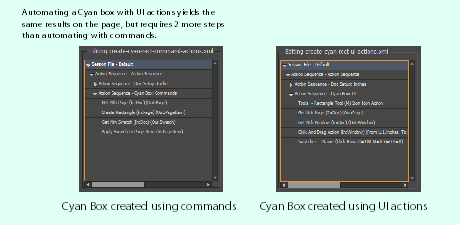
Cyan rectangle - command actions
Cyan box- user-interface actions
The main focus here is on how to create a page item with user-interface actions, and how to apply a swatch in the same way. To create the rectangle with user-interface actions, we need to switch tools to the Rectangle Tool. There are several ways to select the Rectangle tool:
In the following procedure, we select the tool through the Tools palette:
As the previous procedures illustrate, using user-interface actions for your automation can take several additional steps compared to the command-action equivalent. On the other hand, user-interface-driven automation has the major advantage of reproducing end-user actions more closely, so you can test your end-users' code paths more effectively.
We recommend that you focus on building tests that run through user-interface actions, if you are simulating black-box testing. When deciding whether to use command actions or user-interface actions, use the following questions to guide your decision:
Several user-interface actions are available to manipulate the InDesign user interface. These can be found under Actions > UI Actions in the Source Components panel. They include the following:
To see a more complete list, inspect the actions nested under Actions > UI Actions in the Source Components panel.
The following procedure uses a combination of user-interface actions in an action sequence that creates rectangle page items and groups them:
If the Click and Drag actions failed to select both page items, try to slow down the drag by increasing the "Num Steps" parameter of the action.
Click and Click and Drag actions can fail if palettes or dialogs obstruct the area of layout in which you want to click. Avoid having palettes in the way when running user-interface actions.
You also can suppress the AAT progress bar with a menu item on the QA menu. This is at the path QA > Action Automation Tool > Settings > Suppress Progress Bar.
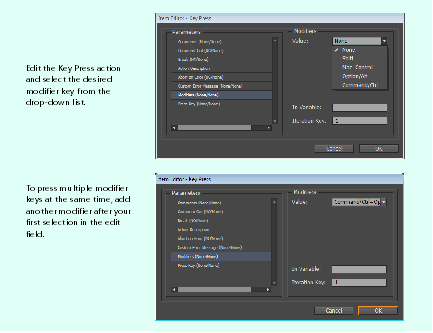
Many keyboard shortcuts depend on keyboard modifiers. The Key Press action, under Actions > UI Actions in the Source Components panel, can be parameterized with keyboard modifiers required to create the keystrokes for the keyboard shortcuts understood by InDesign, as shown in the following figure:
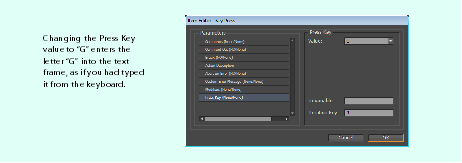
This procedure sends the key press Cmd+Option+n (Ctrl-Alt-n), which creates a new document without showing the New Document dialog:
In Using modifier keys with the key-press action, a character "n" was entered as part of the keystrokes for the shortcut to create a new default document. Beside the basic alphanumeric characters, a Key Press action (under UI Actions) can be used to send the keystrokes that correspond to the keys like Enter (Return) and Delete. The following table shows so me keypress references.
| Key | Value |
|---|---|
| Enter (Return) | \r |
| Delete | \b |
| Tab | \t |
| Home | \h |
| End | \e |
| Right Arrow | > |
| Left Arrow | \< |
| Up | \u |
| Down | \d |
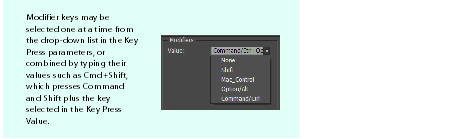
To press more than one modifier key, a second modifier can be entered, exactly as it appears in the drop-down list for modifiers. In Using modifier keys with the key-press action, the string "+Option/Alt" was appended to the modifier, to form the keystroke Cmd+Option+n.
If you enter a capital letter in the "Press Key" field, you do not need to enter Shift as a modifier. The same rule applies for the characters above number keys, like @ (shifted 2 on a US keyboard).
The Action Automation Editor understands several abbreviations for units and measurements. For example, any of the abbreviations in the following table works when specifying bounds or other measurements.
| Measurements | Abbreviations |
|---|---|
| Centimeters | cm, centimeters |
| Ciceros | cicero |
| Inches | in, ins, inch, inches |
| Millimeters | mm, millimeters |
| Picas | p, picas |
| Points | pt, pts, points |
A key feature of the AAT is the ability to drive the InDesign user interface. The InDesign user interface needs to be captured or acquired to an XML file, representing the widgets in a palette or dialog.
The Action Automation Editor has a built-in set of user-interface extensions for palettes in their default states; you can use these preloaded user-interface extensions as described in Using a preloaded palette user-interface library. These preloaded user-interface extensions are XML-based descriptions of the default set of InDesign palettes, acquired during the installation of the AAT data files (see "Acquire palettes for user-interface extension" in Required data files). After a palette or dialog is acquired, actions available through its user interface become available in the Action Automation Editor for use in action sequences.
There are actions available through AAT that enable a palette or dialog to be acquired as part of an action sequence; these actions are under Extension Tools > Acquisition Actions. When a dialog or palette is acquired, the state of the dialog or palette at that moment is saved to an XML description.
The AAT obtains menu items from the keyboard-shortcut editor. Palette pop-out menus are considered menu items and are not part of the palette. This is true in both the keyboard shortcut editor and the Action Automation Editor. The menu items that appear on the palette pop-out menus are available to parameterize Menu Action actions (under Actions > UI Actions) through the Command parameter; to use these, no user interface needs to be acquired.
Acquiring a dialog targets the front-most dialog. The Acquire Dialog action (see Extension Tools > Acquisition Actions) can be parameterized to specify the output filename and folder to which the dialog-dump XML file should be written. By default, this action creates a file named Dialog_Dump.xml inside the QA folder. For more detail, see Acquiring a dialog.
When acquiring a palette, the target needs to be specified explicitly through the Command parameter of the Acquire Palette action (see Extension Tools > Acquisition Actions). The output filename and the folder to which the palette description XML file is saved are parameters of this action. By default, the palette-description XML file is saved to <palette-name>.xml; for example Align.xml for the Align palette. For more details, see Acquiring a palette.
After some user-interface components like a palette or dialog are acquired, you can create action sequences based on the palette or dialog. These sequences can be executed on another machine without the acquired user-interface XML files being present. To create action sequences based on the acquired user-interface component on other machines, you need to transfer one or more XML files; see Transferring a saved user-interface library between machines.
When you create action sequences based on user-interface extensions, particularly when testing before your product is released, the user interface you acquired can change. If you are using an acquired user interface in your action sequences, and this user interface changes, it is important to acquire the dialog/palette again and replace actions using that dialog/palette in existing session files with actions from the updated user-interface extensions.
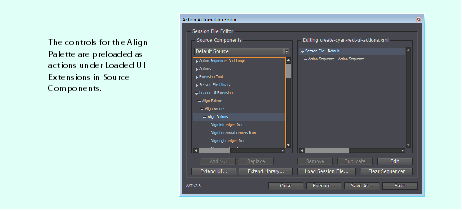
The default set of InDesign palettes should be available when the Action Automation Editor is launched, if AAT is correctly installed. These palettes are listed under Loaded UI Extensions in the Source Components panel. They reflect the user interface of the palettes when nothing is selected. If the palette of interest has other states that show different sets of controls, the palette may need to be acquired in that state. If no Loaded UI Extensions can be found, see How can I solve common problems, like loading AAT under release?.
Palette pop-out menus are accessed through a Menu action, not a UI Extension action. The menu items from the palette pop-out menus are in a subtree under the Palette Menus node; for example, when editing the Command parameter of a Menu Action (from Actions > UI Actions).
Aligning objects with a preloaded user-interface extension
Unlike palettes, there is no preloaded user-interface library for dialogs. To test the user interface of a dialog or test a feature accessible only through a dialog, the dialog first needs to be acquired.
To acquire a dialog, set up actions to open the dialog (for example, using UI Actions > Menu Action), then add an Acquire Dialog action from Extension Tools > Acquisition Actions.
Acquiring the New Paragraph Style dialog
The following procedure acquires the New Paragraph Style dialog:
When acquiring dialogs, be sure to use a Command parameter for the Menu Action (from Actions > UI Actions) that will bring up the precise dialog you require. For example, in the procedure above, a Menu Action was needed to bring up the New Paragraph Style dialog rather than, say, using the iconic button on the Paragraph Styles palette.
Acquiring the Move dialog
This procedure is another example of capturing a dialog, this time by adapting an existing action sequence:
Although palette user-interface libraries are preloaded in the AAT, you may need to capture a palette in a state other than its default state. If you are a third-party developer, you may have your own palettes and want to capture these.
Unlike acquiring a dialog, you do not need to bring up a palette in the user interface to acquire it. There is an Acquire Palette action under Extension Tools > Acquisition Actions. If you add an Acquire Palette action and edit the action, you can specify the palette you want to acquire through the Command parameter of this action.
Acquiring the Tags palette
If you want to use an acquired user interface on more than one machine, you can move the file to the second machine and load it through the Action Automation Editor; alternately, see Transferring a saved user-interface library between machines.
Entering text into an edit box of an acquired dialog
The New Hyperlink dialog is of medium complexity. It uses buttons, edit boxes, list boxes, and combo boxes. We begin by extending the user interface to include the New Hyperlink dialog after acquiring it:
Having created a dialog dump for the New Hyperlink dialog, we can now load it and begin to use the actions it specifies in a new action sequence. The following procedure sets the name of the hyperlink created through this acquired-dialog user interface and dismisses the dialog through its OK button:
We created a new hyperlink and gave it a name, but it does not yet have a destination; this is left as an exercise for the reader.
When using user-interface extensions like an acquired dialog, as in this example, it is important to remember that if the action sequence edits parameters of a dialog, you must add an action to click the OK button or Cancel to dismiss the dialog, or your action session will fail.
Setting a drop-down list-box value in an acquired dialog
The following procedure acquires the New Gradient Swatch dialog and uses it to create a new gradient swatch with a radial gradient:
The following procedure uses the acquired-dialog user interface to set the state of one of the list boxes on the New Gradient Swatch dialog:
Although it is not necessary to give dialog descriptions to execute session files on another system, if you want to create Action Sessions on multiple machines, you may want to set up your dialog extension library and use that library of dialogs on multiple machines.
When the AAT extends the user interface, an XML file named MyDialogExtensionLibrary.xml is created in the cached data folder under the QA folder (see Where is the QA folder I keep hearing about?). This file indicates where the loaded user-interface extension files are located (see the following figure). Relative links work just as with graphics, to the documents or my documents folders, desktop, QA folder, or anywhere inside those locations.
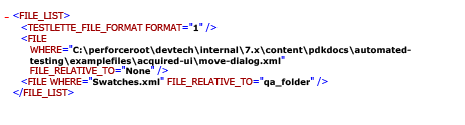
If you have only one or two dialogs that you have captured, it is straightforward to just click Extend UI and browse to the Dialog Description files on any system; for example, if you place the captured user interface on a server volume that can be seen from all the test machines you are working on, use Extend UI, and point the AAT on each machine at the user-interface-extension files on the server. If you have many acquired user-interface-extension files and you want to create action sequences on many machines, consider putting the user-interface extensions on a server, but transfer the MyDialogExtensionLibrary.xml file between machines, to avoid having to click the Extend UI button for each user-interface extension.
The following procedure goes under the hood to examine how Loaded UI Extensions are represented on your local system and how to transfer them to another machine. There is an acquired user interface for the Move Dialog in the examplefiles folder. This defines the information the AAT needs to automate actions through the Move Dialog. In the procedure, we consider how data stored on one machine about a loaded user-interface extension can be transferred to another machine, to make the captured user interface available on the other machine.
The following table lists common issues getting started with the AAT:
| Issue | Cause | Resolution |
|---|---|---|
| I don't see the QA menu. I'm running the release build of InDesign. | Be sure you have the testing plug-ins loaded. By default, these are not in the profile that loads under release. | See Launching the Action Automation Editor and Installation. |
| I don't see anything under the "Loaded UI Extensions" of the source components. | You need to have the qa/aat folder in the correct location and execute GetAllPalettes script. | See Installation. |
| I can't find the Type Text to Story action. | This action is obsolete and is hidden in the source components tree. | Old action sequences that use it will still run, but new action sequences should use Type Text, from Actions > UI Actions. |
| How do I create a new paragraph style? I don't see the action I expect under the Styles actions. | There is no New Paragraph Style action, as it is relatively elaborate to parameterize. | Use a Load Styles action from a document that contains the styles you want. |
You will encounter two different QA folders, and the context in this document should specify which of the two QA folders is being discussed. One is in the cached data folder, and the other is a peer of the folder in which the application (for example, InDesign) is installed. The default locations of the cached folder are as follows:
Yes. AAT scripts that use only command actions can be used with InDesign Server.
Yes, AAT can be used with InCopy, but if you run a script that uses InDesign-only functionality in InCopy, it is likely to fail or crash. Scripts written for InDesign may not function as intended if the corresponding functionality is not in InCopy.
Follow the procedure in Installation. You need to be sure the Testing plug-ins are loaded. These plug-ins are loaded by default under the debug build. For the release build, however, you need to take some action to ensure they load; for example, either add a Path in your PluginConfig.txt file or copy these plug-ins to the application's plug-ins folder.
Right-mouse-click (Ctrl-click) on the Source Components panel, choose Search from the context-sensitive menu that appears, and enter the name or partial name of the action. You should be presented with a list of matches. Select one from the dialog that appears, and the Action Automation Editor navigates to the action in the Source Components that matches your choice.
Menu Actions are based on the keyboard shortcuts list in InDesign. If you find an expected item missing, check in InDesign and in the Keyboard Shortcut editor to make sure the item appears on the menu where you expect it to be.
An object loop finds every object in a specified target and outputs a reference to it for manipulation within the loop. There are only two kinds of targets in which it will look: stories and documents (the table-content finder shows up but is unimplemented). So, we cannot say, "For Each rectangle on Page 1, apply swatch Black," but we can say, "For Each spline in document foo.indd, apply swatch Black."
The Create Linked Text Frame action is supposed to be like clicking in the overset-text adornment on one frame (whether or not there is overset text) and dragging a new frame. You need to specify the frame to which you are linking and the page and bounds of the new frame. The After Frame parameter allows you to make the new linked frame appear before the one you are linking to in the story.
If you specify the length of the range to select as 0, the cursor (with no selected text) is inserted at the specified index.
You just need a reference to the page item you want to select. If you used one of the Place actions under Page Item Actions, they should give you one, and you can use that variable name to specify which page item to select in the Select Page Item action. If you used the Import Load Place Gun action under Import/Export Actions, you must get the reference in another way (for example, using the Get Nth Page Item action under Page Actions). You also can use Select All (and Deselect All, if desired) under Doc Actions.
String Actions act on a string, and String Information gets information about a string. String Actions has four action types, and String Information has four information types; see the following tables. Of the other parameters in the actions, not every action type uses all of them.
The following table lists parameters used by String Actions:
| Action Type | Parameters Used |
|---|---|
| Remove | Target String, Output String, Index, and Length. |
| Append | Target String, Input String, Output String. |
| Set | Input String and Output String. |
| Insert | Target String, Input String, Index, and Output String. |
The following table lists parameters used by String Information:
| Information Type | Parameters Used |
|---|---|
| Get Index of Character | Target String, Start Index, Character, and Output Int. |
| Get Last Index of Character | Target String, Character, and Output Int. |
| Contains Substring | Target String, Substring, and Output Int. |
| Get Num Characters | Target String and Output Int. |
The four values represent the text frame's left, top, right, and bottom, in that order. For example, 1,1,3,6 creates a frame that starts at (1,1) and ends at (3,6). (Recall that points are described as (x, y); thus, the bounds are (x1, y1, x2, y2).)
You can use the Apply XML Tag to Text action found under both Story Actions and XML Actions. It takes in tag, story, and range information. It ignores the current selection.
Alert Watcher can watch for all alerts (hitting the default button) or a specific alert. For specific alerts, it can check the alert text and hit a specific button (based on the button string). It behaves like any other sequence or loop and can be nested, have multiple children, etc.
Alert Watcher has four parameters:
There are two ways to do this:
In both cases, if the application preference (from the QA menu) is set to suppress the progress bar, it never appears (even if you call Show). So, you can hide the progress bar for your click actions and bring it back when you are done, or you can have an entire session file that does not show it at all.
The page item output from place is the frame that contains the graphic you have placed, not the graphic itself. As a workaround, add a menu action that changes to the Direct select tool through the Tools menu, then add a mouse-click action on a point you know is on the image.
You need to type the second modifier as it appears in the drop-down for the combo box. You can, but do not need to, use spaces, commas, or other separators for each modifier ("Ctrloption" equals "Ctrl option" equals "Ctrl+option" equals "Ctrl,option").
If you enter a capital letter in the Press Key field, you do not need Shift as a modifier as the AAT sorts that out for you. The same applies for the characters above number keys, like 2 and @ on a US keyboard.
The Finder Type is the type of container in which you want to search. For example, you would look for inline graphics inside a story or table, but you would look for stories or swatches inside a document.
Finder Loops loop for each object they find and post out a reference to each instance they find. For example, a given script opens a document that contains three stories. Consider a Finders set to the following:
This will loop three times, posting references to each story it finds. The order in which items are found depends on the container in which you are searching. In documents, it is based on UID; that is, the order in which each content item was created initially. In stories or tables, the order is based on the text index in the story or table cell.
Suppose you have text like this question's title, and you want to select the word "specific." You could use the Select Text action (from Actions > Story Actions), with Text Start Index set to 18 and Selection Length set to 8.
Getting does not manipulate an item. It is not selected, deleted, modified or altered. You can think of Get as a pathway to another action or set of actions. When you insert a Get action into a sequence, what you are doing is "specifying" the object you want to manipulate with a later action. For example, suppose you have a test file where you have made three page items, and you want to select the first one. To do this, you need to Get the 0th Page Item, then call Select Page Item.
Suppose for every open file, we want to set the name of the document to something different, then save and close. Here are the steps to do this:
Ensure that you set the parameters for the While loop to be integers.
Pop-out menus are available by adding a Menu Action, from Actions > UI Actions. If you edit the Command Parameter of this action, you will find a node called Palette Menus. Within the subtree below that node are the pop-out menu items.
The basic idea is that our Menu Action really is a reflection of the keyboard-shortcut editor's list of entries. Anything for which you can set a keyboard shortcut can be accessed there. Hide/Show toggles are not updated, so if you call Show Layout Grid twice, and it originally was not shown, it ends up not shown again.
All menus are accessible through the Menu Action item. We do not provide custom/special methods for accessing contextual menus. If you know where an item is in the keyboard shortcut editor, that is where it appears in our menus. Thus, contextual-menu actions and palette-menu actions are done through the Menu Action.
Again, this happens because the AAT locates menu items based on the keyboard-shortcut editor. Under the hood, the palette pop-out menu items are considered menu items, so that is where they show up. Look under the Palette Menus subtree when editing a Menu Action (Actions > UI Actions > Menu Action).
Use the GetNthParagraph action from Actions > Story Actions to get the offset and length you need, then call Select Text, again from Actions > Story Actions.
If you see the following assertion when writing AAT files, it is because the file you are trying to write to is locked, is in a locked folder, or is in use:
Simply unlock it or its parent folder, or save to a new location or with a different filename.
InDesign reports what is in a dialog or palette by including the possible values, the ID of each widget, the bounds, and the default state. The representation of the dialog or palette is said to be acquired or captured, and it can be loaded as a user-interface extension by the AAT. See Working with user-interface extensions.
You can change this in the Description File parameter on the Acquire Dialog action. For details, see Acquiring a dialog and the sections following it.
Yes. The description is in XML and should have no machine- or platform-specific information. See Transferring a saved user-interface library between machines.
The part of the user interface that is used is included with any session file. There is no reason to provide the Dialog Description file just to run the session file; you need the Dialog Description file only if you want to add new actions to it.
Only the part used in a session file is included If you want to create more session files using this user interface, or add actions based on this acquired user interface to an existing action sequence, it makes sense to copy the XML file and extend the user interface with it.
Use the click and drag action. If you will drag and drop on a different window, you need to convert the location from local to global and manage active windows accordingly.
This chapter explains how to extend the Action Automation Tool (AAT).
With the default AAT, you can automate many black-box testing tasks by implementing test scripts, as explained in Action Automation Tool for Black-box Testing . The AAT comes with many common actions ready to be plugged into your action script. It also comes with a list of acquired user-interface actions, so a QA engineer can use the user-interface action to "simulate" user actions.
Also, the AAT is very smart in "acquiring" a third-party plug-in's user interface. If you have a panel (or dialog) in your plug-in, it is possible for the AAT to get information about the panel's widgets, as long as the widget class hierarchy for the control includes a known InDesign widget type.
There are times, however, when your QA testing requirements are not covered by the default AAT. Consider the following situations:
Fortunately, AAT is designed for flexibility, functionality, and extensibility. By writing a plug-in using the supplied AAT-related APIs, you can extend the default AAT tool so it can adapt to your specific QA requirements.
This chapter explains how to implement AAT extensions, and provides specific implementation tips in Building blocks for the two situations described above.
This section describes how to set up the AAT extension environment. To work with the AAT extension, you must have the required assets (libraries, header and source files, and so on) in the correct places.
You must move the shared libraries described in Shared libraries to an additional location.
Move the shared libraries to SDK folders named as follows:
The source files for the AAT extension are in InDesign Tool Kit folders named as follows:
Normally, they are not part of the InDesign SDK. To compile the ITK source files, move them to the SDK folders named as follows:
AAT's project files are provided in:
Move them to the SDK folder:
The core of the AAT system comprises action/verification pairs called AATActions. AATActions allow us to remove the data from the code and store it in external files. These files, which are a series of actions described in XML, are processed by the AAT as tests.
Each AATAction encompasses one kind of action, but it can store its own attributes. Each action displayed under the AAT editor's Source Components is an AATAction. To extend the AAT system as described in Background, you need to create your own AATAction or, in some cases, add to an existing AATAction.
The following figure shows how the AAT system is represented by boss classes and interfaces.
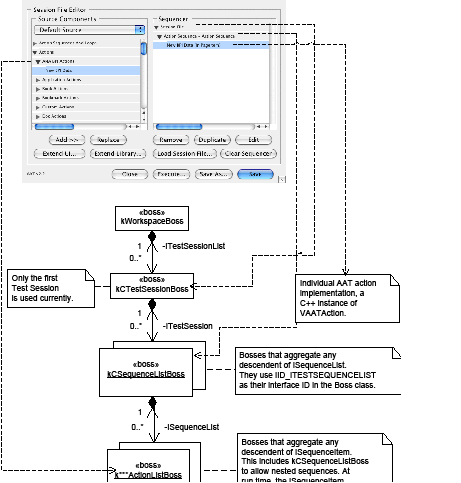
When a user clicks the Execute button in the AAT editor, the AAT queries the ITestSessionList on the kWorkspaceBoss for a list of test sessions to execute. An ITestSessionList contains a list of kCTestSessionBoss(es) that aggregate ITestSession(s). Only the first ITestSession is used during an AAT session; that is, you can have only one top-level session file per session. In the preceding figure, this is shown in the AAT Editor under the Sequencer box as the Session File.
An ITestSession manages a list of sequence lists. A sequence list, as depicted in the following figure, is the Action Sequences item in the Sequencer box, which is represented by service provider bosses that aggregate any descendent of ISequenceList.
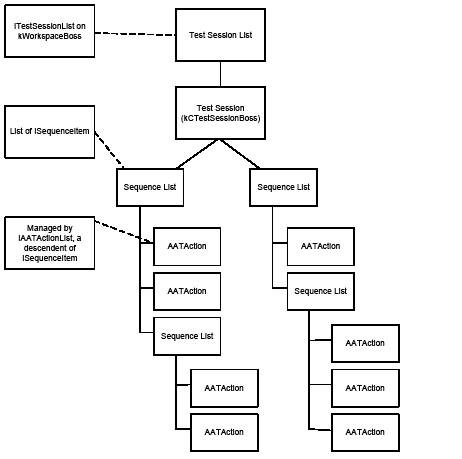
The purpose of a sequence list is to provide flow control, data sharing, and logic for a series of actions. A sequence list provides an environment in which AATActions run and communicate. A sequence list can contain a list of AATActions, managed by an IAATActionList or another ISequenceList like kCDoWhileSequenceListBoss, which aggregates an implementation of ISequenceList that basically manages other AATActions or other sequence lists. ISequencesList is a list of ISequenceItem(s). ISequenceItem is the parent class for ISequenceList and IAATActionList. This arrangement allows ISequenceList to contain another ISequenceList; therefore, it satisfies the requirement for nested sequences. The following figure shows the main AAT classes in a C++ class hierarchy diagram.
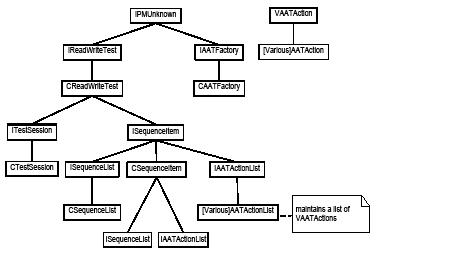
An AATAction is a C++ instance of VAATAction. CAATAction is a (partial) abstract class that provides most of the default implementations for an AATAction; your AATAction should use CAATAction as the base class and override only the necessary methods. There are a few pure virtual methods and one static method in CAATAction for which you must provide implementations; these are listed in the following table.
| Method name | Note |
|---|---|
| CreateAATAction | A static method that returns an instance of the AATAction class to the caller. |
| Execute | Test code goes here. For example, if want to exercise your code that adds custom data to a page item, you should put the code in this method. Then, when this AATAction is called to perform the action, it adds the data to the target page item. |
| GetAATActionID | Returns the hex ID declared for this AATAction. For more information about AATAction IDs, see AATAction ID. |
Think of an AATAction as a self-contained test unit. You use input data (of a type based on CAATData; see AATAction data) in the Execute method. Usually, the input data is needed to exercise the code you want to test, then you put the result in one or more output variables. The top-most sequence list is responsible for passing data among the AATActions it manages. The following figure shows AAT PageItem Actions > Create Rectangle used in a sequence.
By default, the Create Rectangle action expects an input variable (In Variable, as labeled in the action item's editor) named Page, and it puts its test result, a rectangle page item, in an output variable (Out Variable) named PageItem. When a correct action sequence is constructed using the Create Rectangle action, the Create Rectangle action should be preceded by an action that outputs a variable that Create Rectangle expects; in this example, it is a variable called Page, output by the Get Nth Page In Spread action. The sequence list that manages the AATActions (from New Doc to Resize) matches all the input and output request by each AATAction and distributes proper data at run time, based on the variable names set up by each AATAction. AATAction data discusses in more detail how input data can be collected and how the output data is being broadcast.
The following table lists the data members of CAATAction. Most are initialized by CAATAction, but your AATAction implementation might need to change the values in some data members. Building blocks gives examples of when you should override the default values.
| Member | Type | Note |
|---|---|---|
| fAbortOnError | qaBool16 | Default variable indicating whether execution should stop if this action fails. The implementation of your action should check the value of fAbortOnError. If it is set to kTrue or "Yes," you should return kCancel rather than kFailure when your action fails. |
| fActionDescription | qaString | AATAction's information string, usually a description of the action's use. |
| fDefault | qaBool16 | Deprecated. Do not use. |
| fInited | ProdBool | CAATAction initializes fInited to kFalse by default. In some custom AATActions, it needs a specialized user-interface handler. When fInited is set to false, the handler is set up properly. |
| fItems | K2Vector <ISequenceItem*> | For internal use. |
| fName | qaString | Deprecated. Do not use. |
| fParamExtensions | VirtualDataList* | Not used. |
| fParentContainer | VAATAction* | For internal use. |
| fParentSeq | ISequenceList* | The sequence list that contains the AATAction. |
| fProduct | qaUIDRef | Output variable for the AATAction. |
| fProductCompatibility | ProdInt32 | Indicates the AATAction's availability in different products. See VAATAction.h for enum values. |
| fSessProps | IAATActionSessionProperties* | Provides access to IAATActionSessionProperties. Initialized by CAATAction. |
| fShowInTree | qaBool16 | Used by DialogAndPanelActions to prevent "empty" user-interface actions from appearing in the source tree. If this value is set to kFalse, the item is not displayed in the Actions List of the source tree. Defaults to kTrue. |
| fSubject | qaUIDRef | Input variable for the AATAction. It could be a document UIDRef, page item UIDRef, and so on, or nothing. |
| fSupportsExtensions | ProdBool | Not used. |
| fType | qaString | AATAction action name, initialized by the first parameter of CAATAction constructor, typeStr. |
| fTypeCode | qaString | AATAction's eight-digit hex ID. |
| fValidationLevel | qaString | Deprecated. Do not use. |
| fVersion | ProdInt32 | Used for conversion. The value of fVersion is additive, so if CAATAction changes, your descendants also change. You should never hard-code this value; instead, you should increment it in your action's constructor. |
Each AATAction action is an atomic unit designed to perform one test step. The question is: How does an action like Insert Pages know to which document to add pages?
Like all programming systems, the AAT architecture allows for the passing of values through variables of the CAATData type. Virtually any parameter in the AAT architecture is simultaneously a static value and a variable. Variables in AAT can be assigned and used to assign specific objects, values, or strings. Unlike traditional algebraic models, variables in the AATAction architecture can receive values or assign (post) values, but never both; that is, some AAT variables receive values and some post. The distinction can be noted in the Item Editor of an AATAction, where a receiving variable is indicated as In Variable, while a posting variable is Out Variable.
If a CAATData variable never receives a new value, it uses the default value set up by the AATAction where the variable belongs. If you examine the test case in the figure shown earlier in AATAction, it contains New Doc, Get Nth Spread, Get Nth Page in Spread, Create Rectangle, and Resize actions. After each action title, there is an entry in parentheses indicating the posting and receiving keys for the action's primary variables. These are the default fSubject and fProduct members of CAATAction.
Whenever a test action with a posting variable executes, every receiver has its value set to the value posted. This means that, if two actions post the same key, they overwrite each other. For example, New Doc and Open Doc both post Doc by default. If an Open Doc action is inserted just below the New Doc in the previously mentioned figure, the rectangle is created in the document that is opened, not the new one.
Variable communication is scoped by the top-most sequence; that is, every test item below the sequence that is added to the session can communicate with every other item in that sequence tree. Sequences at the session level cannot communicate with items in other session-level sequences.
Many of the CAATAction's data members listed in the preceding table are of types prefixed with "qa." For example, fActionDescription is of type qaString, and fSubject is of type qaUIDRef. The qa*** classes are the most fundamental data classes in AAT for an AATAction's input and output. All these qa*** types are defined in the AATDataTypes.h file and are based on CAATData. All the most common types in InDesign have a corresponding qa*** class defined in AATDataTypes.h. An AATAction always should use variables of the qa*** type to collect and store data.
CAATData is a data class that can generate a user interface to be used in the AATAction action's Item Editor (see AATAction action-item editor). Every instance of CAATData must have a user-interface code associated with it. CAATAction creates a user interface in the Item Editor based on the user-interface code. For example, CAATAction has a derived class called BaseDialogAATAction, which has a data member called fCheckEnabled. It is a qaString and is constructed with a kDropDownListCode user-interface code. In BaseDialogAATAction's constructor, three expected enable-state strings (Don't Check, Disabled, and Enabled) are added to the fCheckEnabled using CAATData::AddAcceptableValues. When Expected Enable State is clicked in the Item Editor of a user-interface extension action, a drop-down list that contains the three enable-state strings set up in BaseDialogAATAction's constructor is available for the user to choose. The current selection is translated into a string and stored in the qaString. Then the AATAction's implementation can use the BaseDialogAATAction::fCheckEnabled to find the user's choice.
The following table lists the available user-interface element codes to be used in a CAATData-based class. The default user-interface code for CAATData is kInvalidUICode, which does not display any user interface in the Item Editor.
| User-interface code | User-interface element shown in item editor |
|---|---|
| kButtonCode | No user interface. |
| kCheckBoxCode | Single-selection, drop-down list with string values of Yes/No. |
| kCheckBoxTreeViewCode | Tree view with check-box tree node. An example is the Snapshots parameter of Validation Actions > Snapshot. |
| kChooseDirCode | Like kChooseFileCode, but the browser window is a "choose folder" dialog. |
| kChooseFileCode | Text-edit box with a Browse button. When clicked, a browser window opens for the user to choose a file. |
| kComboBoxCode | Combo box. |
| kDropDownListCode | Single-selection, drop-down list. |
| kFileComboCode | Deprecated. Do not use. |
| kIndeterminateCode | Provides an interface that allows users to set the data type of this data point to whatever they want. For example, logic may sometimes call for an integer value but other times need a string, bool, or even UID or UIDRef. |
| kInt32EditBoxCode | Text-edit box. |
| kInvalidUICode | None. |
| kMeasurementCode | Edit box for a value in the unit of measurement available from a drop-down list. An example is the Weight parameter of the Set Page Item Stroke Weight action. |
| kMultiLineTextEditBoxCode | Multiline text-edit box. |
| kPointCode | A group of widgets with edit boxes for X and Y (values of a point) plus a drop-down list for the unit of measurement for the point. An example is the Center Point parameter of the Rotate action. |
| kRadioButtonCode | Same as kCheckBoxCode. |
| kRadioClusterCode | Single-selection, drop-down list. The list of strings in the drop-down represents the values of the radio cluster. |
| kRealEditBoxCode | Text-edit box. |
| kRectCode | A group of widgets with edit boxes for X, Y, Width, and Height values of a rectangle, plus a drop-down list for the unit of measurement for the rectangle. An example is the Expected Bounds parameter of the Get Window Dimension action. |
| kSaveAsDependentFileCode | To be deprecated. Use kSaveAsFileCode instead. |
| kSaveAsFileCode | Like kChooseFileCode, but the browser window is the Save As... dialog. |
| kStaticTextCode | Static text. |
| kTextEditBoxCode | Text-edit box. |
| kTextListBoxCode | Single-selection, drop-down list. |
| kTreeViewCode | Scrollable tree view. An example is the Command parameter of UI Action > Menu Action. |
Sometimes you want to create tests that do not use default values when executed. Perhaps you want to create a document with a specific page size or place a file at a specific location. To do this, you need to be able to edit individual actions and change their values. When you insert an item into the sequencer, it starts life with its default values. By double-clicking an item in the sequencer or selecting an item and clicking the Edit button, you access the Item Editor dialog. The Item Editor, shown in the following figure, allows you to set values and variables for any parameter of a test action, sequence, or session. By default, the AAT puts up the parameters shown in the following table.
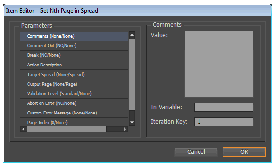
| Parameter | Note |
|---|---|
| Comments | For AATAction users to insert their own comments. |
| Comment Out | For the AATAction user to disable the AATAction in the sequence. When "commented out," an AATAction is not executed. |
| Action Description | For the AATAction author to describe the use of the AATAction. This corresponds to CAATAction::fActionDescription, a qaString variable. You can use the variable to set up your action description. |
| Validation Level | For the AATAction user to specify test-validation level. By default, CAATAction uses a drop-down list to provide three validation levels, using the strings constants (kExtensiveValidationStr, kStandardValidationStr, and kMinimumValidationStr) declared in AATXMLTagDefs.h. The current selected item from the drop-down list is stored in the CAATAction::fValidationLevel, a qaString. Typically, in your CAATAction::Execute method, you use the validation level to provide different levels of testing. |
| Abort on Error | For the AATAction user to decide what to do when the AATAction encounters an exception. Abort on Error causes the test session to terminate if the action fails. For example, if your test began with New Doc, and you set the Abort On Error drop down to "Yes," then if the creation of a new document fails, the test does not try to continue execution. The Abortion Error parameter corresponds to CAATAction::fAbortOnError, a qaBool16. Every CAATAction::Execute should return an ErrorCode. During exception, it is an AATAction's responsibility to return a proper ErrorCode based on the user's choice in the Abort on Error parameter. If the user's choice is True, CAATAction::Execute should returns kCancel; otherwise, kFailure. |
Item Editor dialog is generated when the user double-clicks on an action in a sequence list. This is done by asking the sequence item (a AATAction) for its data list. The list contains all member variables for the AATAction. As discussed in AATAction data, each of these variables is an instance of CAATData. The implementations of CAATData can provide a user-interface code for the type of user-interface element needed to collect input from the user.
You can supply your own parameter(s) to collect the necessary data and broadcast your test result to meet your AATAction's needs. This is done by adding a CAATData-based class (qa*** type, discussed in AATAction data) data member to your AATAction class and constructing it with proper user-interface code. For example, your test code may process a command that requires a string as its command data. To collect string data in the AAT, you can add qaString-type member data to your AATAction implementation. Depending on the user-interface code associated with your qaString variable, a corresponding user interface is displayed in the Item Editor.
When you add your own parameter to the AATAction, by default, the parameter is created as a receiving variable (that is, input variable). To make it a posting variable (that is, output variable), you need to call the VAATData::SetIsPosting method and pass kTrue to the function. Typically, you need to assign your output variable with the object you want to output, then call fParentSeq->PostMsg (fParentSeq is a member of CAATAction) to post the output, so the parent sequence can propagate the result to proper receivers for that variables. The CAATAction class declares two UID-based (type qaUIDRef) data members, fSubject and fProduct, that you can use as input/output variables. fSubject (used as input variable by default) and fProduct (used as output variable by default) are initialized by CAATAction. For the corresponding user interface to show up in the AATAction's Item Editor, you need to call the CAATData::SetUITextString and give the editor panel a name.
The AAT system uses the service-provider paradigm to find all AATActions during run time and make them available in the AAT editor. An AATAction boss typically is a service provider that aggregates IAATActionList, which maintains a list of test implementations that can be queried. The test implementation is a regular C++ instance of the VAATAction class. The AATAction factory (IAATFactory) is an AddIn interface to the global workspace. The core of the factory is a tree data structure that stores the function pointer to each AATAction's static CreateAATAction method. The tree is sorted by hexadecimal character strings, each eight characters long. This provides up to eight bytes of possible AATActions. Every AATAction needs to define a unique ID to be identified inside the factory. For the reserved ID range, see AATAction ID.
To register into the factory, an AATAction must be registered in the Initialize method of at least one IAATActionList interface. All AATActions lists register with their boss ID and impl ID to the factory's registry. When the factory initializes, an instance of each IAATActionList is created and initialized. When the list is initialized, it is passed the optional IAATFactory pointer. The list, in turn, adds the AATAction IDs into the registry, as well as its own list. If two or more IAATActionLists try to add a duplicate pointer to the same leaf of the registry, an assert is thrown only if the leaf pointers do not match; otherwise, this is simply ignored.
Due to the cumbersome nature of repeating the same code to add items to the registry, it was decided that an AATAction must define an ID internally that corresponds to its class name plus "ID." This allows a simple macro that needs only the class name to expand for registration. (The macro is k##a##ID, which expands to the name with the ID).
Each AATAction is associated with an ID of the AATActionHexID class (see IAATActionList.h). You should define the ID as an eight-character string, but you should treat it as a four-byte hexadecimal number. The AAT system actually expects the string to be in the range 0x00000000 to 0xFFFFFFFF. with DEADFACE and a certain range of IDs reserved for internal use. The ID should be registered in IAATActionList::AddAATActionID, and the VAATAction::GetAATActionID should return the ID.
The following example shows a typical way to define an AATAction ID:
Assume that a third-party AATAction ID is declared as follows:
The following table shows how the AATAction ID should be declared.
| @@: Product ID | ###: Plug-in ID space | $: AATAction list IDs | %%: AATAction IDs |
|---|---|---|---|
| For InDesign and InCopy, the product ID should be declared as 00. | Third-party partners should use the first three characters from their plug-in ID. For example, if your plug-in prefix ID is 0xC5D00, you would use C5D. | Use this digit to manage your AATAction List. Since it is really a hex value, you can have up to 16 (0-F) AATAction lists per plug-in ID space. | Use these two digits to manage your individual AATAction IDs. You can specify anything from 00-FF, which allows up to 4096 potential actions, since you can specify up to 16 action lists in the proceeding digit. |
The APIs provided to manipulate layout-related objects are summarized in the following tables.
The following table lists key AAT APIs:
| API | Note |
|---|---|
| CAATAction | Provides a basic implementation for VAATAction. This is the base class you should use for your own AATAction, if you are adding a new AAT action. |
| CAATData | Provides a basic implementation for VAATData. |
| IAATActionList | An AATAction list is a kind of sequence item that holds related AATActions. When added to a sequence list, the AATAction list has one of its member AATAction activated. When Execute is called on the list, the active AATAction is executed. |
| IAATFactory | Serves as the constructor/provider of all AATAction items. |
| ISequenceList | A sequence list is a list of sequence items. The list is itself an item and can be embedded in another sequence list. |
| ITestSession | A session is a list of ISequenceLists that represents a specific test or set of tests. A session is responsible for releasing all its list contents when destroyed. |
| ITestSessionList | A list of sessions. The session list serves as a driver for a test file and is filled in when the file is read to memory. |
| VAATAction | Not an interface. An AATAction is a specific test or action to be performed and verified. |
| VAATData | The "variable" to be used for communication between AAT actions. A VAATData is a virtual class that defines such data. |
The following table lists APIs for add-on:
| API | Note |
|---|---|
| IAATActionListAddOn | CAATActionListAddOn. |
| IAATUIHandler | When you want to add a custom widget to the AAT, you need to tell the AAT how to handle the widget through IAATUIHandler. This includes information such as widget ID and widget bound. |
| BaseDialogAATAction | The base class of an AATAction for dialog add-ons, like a custom widget. |
| BaseUIAction | Descendent of CAATAction. This is the base class for BaseDialogAATAction. |
This section describes two common scenarios, listed in Background, to illustrate the necessary steps to extend the AAT system.
In the first scenario, you want to add a new custom action to the action list of the main AAT editor window, so users can insert your action into their test sequences. You need to add an AATAction to the AAT system. Here is the critical information that you need to know to be able to add an AATAction to the AAT source tree.
Implement an AATAction
You always should implement your AATAction based on CAATAction.
AATAction constructor guideline
In your AATAction constructor, you always should call the CAATAction base class's constructor, which is declared as follows:
An AATAction's data variables should have their values set in the AATAction's constructor. If you specified a variable name in the CAATAction constructor, a proper construction of the qa*** class should set up the user interface with a proper user-interface string associated with it. For fSubject and fProduct, call the variable's SetUITextString to set up the user-interface string for the parameter. The user-interface string shows up in the left side of the Item Editor as a parameter that the user can click and then edit. Most of the CAATAction's data members are initialized by CAATAction, but you may want to set up at least fProductCompatibility, to make sure your AATAction is available only in proper products. Use the eProductCompatibility defined in the VAATAction.h to declare your AATAction compatibility.
To add an additional input variable, declare a new data member in one of the qa*** types (see AATDataTypes.h) in your CAATAction-derived class. The qa*** uses two macros to expand the preprocessor macro-generated classes (QA_##a##_Data) into a fully qualified class, MAKE_NONORDINAL_DATA_HEADER for a UID-based data class and MAKE_QADATA_HEADER for an ordinal data class. Both preprocessor macro-generated classes are based on CAATData, which has four constructors:
Use the first three constructors either if the AATAction data will not be visible in the user interface or if the AATAction data's user-interface information will be set in the body of the constructor.
The fourth constructor is used most often. Its last parameter has a default value of kInvalidUICode and may be left blank for AATAction data that does not need a UI Element (value set by variable only). When you construct a qa*** type variable, you typically use its constructor of the following form, so it expands to be based on the fourth CAATData constructor. (For details, see AATDataTypes.h.)
In the body of the constructor, set user-interface information for standard variables, if necessary. Also, if your AATAction data uses user-interface code such as drop-down lists or tree elements, acceptable values should be populated. The value of fProductCompatibility should be set as well. For more information, see AATAction data.
Declare an ID for the AATAction
The AATAction ID should be returned in the VAATAction::GetAATActionID. Also, it is used in the AATAction list. See "Add an AATAction list" in Add an AATAction to the AAT editor source tree.
Provide VAATAction implementation
See the table in AATAction for the minimal set of functions you should implement. If you added your own variable to the AATAction, you also should implement VAATAction::CollectReadWriteParams.
Add an AATAction list
You need to provide your own IAATActionList implementation that will manage the AATActions you are adding. Your IAATActionList class always should be based on CAATActionList. There are only three things you need to do in your IAATActionList implementation:
After the AATAction list is implemented, add it to a service-provider boss, to be defined in your plug-in's .fr file. Use kAATFactoryServiceProviderImpl for the IK2ServiceProvider implementation, which adds the IAATActionList implementation in the boss to the AAT system.
If you have a custom widget on a panel or dialog that does not descend from any InDesign widget boss, then, when the containing panel/dialog is acquired by AAT through the Acquisition Actions, the widget is not acquired, because the AAT does not know how to handle the widget. As a result, the AAT user cannot script that widget. The following definition is an example of such a widget:
The kAATExtGoButtonBoss class descends from kInvalidClass, instead of an Indesign widget boss like kRollOverIconButtonBoss. Even though the widget may reuse some of the provided implementations through the InDesign SDK, the AAT still cannot recognize the widget. If you have such a widget in your user interface, you need to write an AAT plug-in to tell the AAT how to handle your custom widget.
The following steps are necessary to make a custom widget available in the AAT system.
Provide widget handler
Each custom widget that you are about to acquire through AAT should have a widget handler that tells the AAT how to handle the widget. The widget handler should be a service provider (a boss that aggregates IK2ServiceProvider) that identifies itself using the kAcquireService service ID. Normally, the service-provider boss simply uses the default implementation kAcquireServiceProviderImpl to identify itself.
Another interface that the widget-handler service provider needs to aggregate is IAATUIHandler; for the widget handler to work, you must provide your own implementation. The following table describes what should be implemented for each method in IAATUIHandler.
| Method | Description |
|---|---|
| AcquireView | Returns a VAcquisitionElement, which is the pure virtual base class of AcquisitionElement. You should instantiate an AcquisitionElement and populate the object with the widget you are handling, whose IControlView is passed in as a parameter. The basic data you need to set up for the AcquisitionElement includes: - widget type (using AcquisitionElement::SetWidgetType with the supported token of this handler) - widget ID (using AcquisitionElement::SetWidgetID with the widget ID you can acquire from the IControlView::GetWidgetID) - widget bounding box (using AcquisitionElement::SetBounds with the bounds acquired from the IControlView::GetBBox), - enable state of the widget (using SetEnabled with the data returned from IControlView::IsEnabled). If the widget has data associated with it, like a combo box's drop-down menu item, you also should add each item's value to the AcquisitionElement through its AddValueEntry() method. |
| GetSupportedClassIDs | Connects the custom widget boss with the widget handler. Normally, you write one widget handler per widget, so you would append the custom widget's boss ID to the ID list passed in to this method. |
| GetSupportedTokens | A string token that identifies the widget handler. This token is used in the AAT's data file (XML) for the acquired containing panel/dialog, to identify the widget. It provides a hook from the data file into the C++ handler code. Normally, you write one handler per custom widget, so you can just append the only token into the token list passed in to this method. |
| GetSupportedWidgetIDs | Further connects the custom widget to the widget handler through the custom widget's ID. You can safely provide just an empty implementation, since the GetSupportedClassIDs method already provides the hook. |
| GetValueAsString | Mainly represents a control's value as a string, for users to understand what they are doing. |
| GetWidgetUIString | A string that identifies the type of the widget. |
| IsSupportedToken | The AAT acquires a panel/dialog and saves its data in an XML data file. All acquired widgets are identified by a tag called WIDGET_CODE. The value of this tag is a token defined in the IAATUIHandler::GetSupportedTokens() by the widget handler. When the AAT looks for widget-handler code to handle the widget, it passes the token to all widget handlers, to see which one handles it. So, in this method, you should check that the token passed in matches the supported token, and pass the result back to the calling function. |
| SetName | String that identifies the control. |
| SetValue | Mainly sets the value to the current state of a widget, such as a drop-down list or edit box where you want to set the control to a certain value. You can use the control's ITextControlData (if any) to mirror the widget's value and AcquisitionElement. |
Add an AATAction based on naseDialogAATAction for the widget
Because the widget normally is acquired through an action like Acquire Palette or Acquire Dialog, the AAT user will try to use the widget through the acquired panel/dialog. The widget handler that you write connects the widget with the AAT system and tells the AAT about the attributes of the widget, like widget bounds, so the AAT knows how to interpret the custom widget and present it along with the acquired panel/dialog.
There is still one piece missing when users try to use the widget in their script: you need to provide a test function for the widget, when it is being added to a script. The test function should be provided through an AATAction. Consider a panel with a custom widget that you provided with a widget handler. When a user adds that widget action into his AAT script from Loaded UI Extension, typically the user wants to perform the user-interface function provided by that widget. For example, suppose we acquire and extend the ITK's AATExtensionTest panel so the panel is available in the AAT. When we add the Go button from the AAT source into the Script's Sequencer list, we are trying to simulate a click on the Go button panel. What happens after the click is not the concern of that widget. The C++ code of the widget's controller performs the proper action, as you expect. Basically, from the AAT script, you are trying to provide an automatic way of simulating a click on the button. That is the main purpose of an AATAction for the custom widget.
So, the next step in adding a custom widget to a panel/dialog is writing an AATAction for the widget.
What is BaseDialogAATAction?
A widget's AATAction always should derive from the BaseDialogAATAction class, which is descended from CAATAction. BaseDialogAATAction keeps tracks of the widget's geometry and hierarchy, so when a widget is used in the AAT script, it has enough information to perform proper user-interface interaction when necessary. The table in AATAction lists the functions you should override for a typical CAATAction derivation, and it should be applied to your own custom widget. Another method you should override is GetInstanceName(), which returns a name string that represents the action.
The following table lists some of the important member variables you may need to use in your BaseDialogAATAction-derived AATAction. If the description of the member indicates it needs to be set up, you should do so early in the construction of the AATAction.
| Member | Description |
|---|---|
| fDlg | The parent window (IWindow) that contains the widget. |
| fMyView | The IControlView of the widget this AATAction represents. |
| fSetGet | Represents how the widget's AATAction is being used. The widget's item editor has a Set/Get field, to allow the user to specify how he wants to use the widget. The Get state means the user wants to get the value out of the widget; the value can be used to make further script logic. The Set state means the user wants to set the value of the widget, as if the user interacts with the widget through the InDesign user interface. |
| fShowInTree | Always should be set to kFalse; otherwise, a bogus Dialogs and Panels Actions is appended to the Action source tree. The real widget action should appear only under the acquired panel's tree under Loaded UI Extensions. |
| fSupportedTokens | The AATAction's supported token should be the same token as is set up in the AATAction's associated widget handler. |
| fWidgetValue | Use the widget code from the table in AATAction data to assign a user-interface representation to be used in the widget's value field in the item editor. For a button type of widget, you probably do not need a user interface, since when you use the widget, there usually is no further user choice; that is, when you use the widget, it should mean that you want a click the button. In this case, simply assign a kInvalidUICode to fWidgetValue using its SetUIElement() method. |
If you do not want the variable to show up at all in the editor, calling SetEditable(kFalse) would make the variable invisible.
For other types of widget, such as a check box, you can assign kCheckBoxCode to fWidgetValue. When kCheckBoxCode is used, AAT uses a drop-down list with a yes/no value in the item editor, for the AAT user to choose the value of the check box. Do not be confused by the name of the data member fWidgetValue. In the internal code for the Icon or Button action, the fWidgetValue data member is used to determine the number of clicks the user wants to perform (Single, Double, Triple, etc).
BaseDialogAATAction::Execute()
You always must override the Execute() method of the BaseDialogAATAction base class. Think about what the user wants to do in terms of user-interface interaction. When users interact with a button in InDesign, they want to click the button. With a check box, the user wants to select/deselect the box. With a drop-down menu, the user wants to select an item. In your Execute() override, try to "simulate" what the user wants to do with the widget. This is different from Execute() in Add an AATAction to the AAT editor source tree, where a new action represents the execution of a feature; for example, creating a document.
If you write code to perform the action that is supposed to happen after the user interacts with the user interface, this widget's AATAction loses the real purpose of providing this widget AATAction as a user-interface extension. Also, it may not accurately test the code written for that widget boss.
So, how do you simulate a user action? AAT provides a utility class, IUIDriverUtils, that you can use to perform user actions like mouse down, key press, and select a check box. When IUIDriverUtils is called on to perform user actions, you will see the widget being interacted with as if a phantom mouse is being directed by your code. For example, a IUIDriverUtils::MouseDown on the center of a button causes the cursor to be moved to the center point of the button, then the button to be highlighted as if clicked by a mouse. The real user-interface event is to the widget's controller code, as if a real mouse clicked it.
Another important aspect of Execute() in a BaseDialogAATAction-derived class is the need to distinguish among the different ways that a user intends to use the widget. The state is stored in the fSetGet member variable. In the Get state, the user wants to get the value of the widget. Typically, you should call the CAATAction's member fParentSeq's PostMsg() method to post any variable value. The standard member variable to use is fGetProduct, although you could use a member of your own definition. In the Set state, the user wants to change the value of the widget; in such a state, you should perform the user-action simulation. If you changed the widget value in Execute(), you always should call the fParentSeq->PostMsg() (as explained in AATAction data) to broadcast the change to interested parties.
Add the widget AATAction to existing panel/dialog action
Instead of providing your own IAATActionList implementation, as explained in "Add an AATAction list" (in Add an AATAction to the AAT editor source tree), you need to provide a CAATActionListAddOn-based class implementation. In this class, you declare that you are adding to an existing dialog/panel action by calling CAATActionListAddOn::AddAATActionID and passing kDialogAndPanelActionsStrKey for the first parameter, idStr.
Sample code
The AATWidgetHandler sample shows how to make a custom widget available in the AAT. It illustrates all the steps covered in this section. The custom widgets it covers includes a button, check box, and combo box. To test the code for AATWidgetHandler, it uses a plug-in called AATExtensionTest, available in the ITK, where its Go button, check box, and combo box are customized.
Make sure you called the qa*** class's SetUITextString() method, to give it a user-interface string.
kPostingKey is defined as #, and kReceivingKey is defined as $. Internally, they are used in some places for input/output variables; however, they are in the process of being deleted. Do not use # or $ as the prefix for your AAT variables, as they will cause unknown problems.
This chapter describes the installation, use, and design of the Diagnostic Logger tool in the Adobe® InDesign® CC Tool Kit (ITK). The Diagnostic Logger collects information about application events occurring during execution of InDesign and related applications in both debug and release (production) environments.
The following terms are related to the Diagnostic Logger:
The main steps to install and start working with the Diagnostic Logger are as follows:
After you successfully install and use the logger, you can install and build the logger-related samples provided in the ITK. See Installing and building the samples.
The Diagnostic Logger can be started without any configuration; it generates a configuration file based on its default settings after an initial run. The recommended way to configure the Diagnostic Logger is to run the debug version of the application once, to generate a default configuration file and a symbol database file that is used for the release build to resolve symbols.
By default, the use of a database to resolve symbols is disabled, even in the debug build; although it generates the database, you still need to turn on the "load" attribute in the <iddatabase> element to resolve symbols.
By default, the DiagnosticLog plug-in supplied with the ITK compiles into a "future version" folder. Also, prebuilt DiagnosticLog plug-ins for the debug and release versions are included in the following folders:
To have InDesign load the DiagnosticLog plug-in:
If InDesign is running without saved data (an empty Version 9.0 folder), by default the DiagnosticLog plug-in produces no logging information; however, both debug and release versions of InDesign produce configuration files after being run without saved data. The main difference is that the symbol database that is filed (DiagnosticLogIDDB.xml) is generated only when running under the debug build.
By default, the output files are generated to a folder called DiagLog in the user's InDesign Caches folder, in the following location:
The debug and release builds of the DiagnosticLog plug-in generate slightly different sets of files in the output folder, as shown in the following tables.
Files generated in the debug version:
| File | Description |
|---|---|
| DiagnosticLogConfiguration_debug.xml | Debug configuration file. Controls the operation of the logger in the debug version of the application. |
| DiagnosticLogIDDB.xml | Symbol database that can be used in both debug and release versions to resolve numeric identifiers to symbolic ones. |
| DiagnosticLogOutput_<n>.txt | Contains the output of the text-based logger. |
| DiagnosticLogOutput_<n>.xml | Contains the output of the XML-based logger. |
| DiagnosticLogRTEnvironment.xml | Run-time environment, plug-ins loaded when the Diagnostic Logger runs, platform, product, feature set, etc. |
Files generated in the release version:
| File | Description |
|---|---|
| DiagnosticLogConfiguration_release.xml | Release configuration file. Controls the operation of the logger in the release version of the application. |
| DiagnosticLogOutput_<n>.txt | Contains the output of the text-based logger, with numeric identifiers resolved if requested and the symbol database file is present. |
| DiagnosticLogOutput_<n>.xml | Contains output of the XML-based logger, with numeric identifiers resolved if requested and the symbol database file is present. |
| DiagnosticLogRTEnvironment.xml | Run-time environment, plug-ins loaded when the Diagnostic Logger runs, platform, product, feature set, etc. |
To control logging options, you edit an XML-based configuration file in the output folder, which is one of the following:
By default, both text and text loggers are disabled, so you need to turn on at least one of them to see meaningful debug information. Also, the DiagnosticLog plug-in allows you to specify the number and maximum size of output files for logging. For details on what happens when the logged output exceeds a specified size, see Log-file rotation.
The XML vocabulary used by the configuration files is described in Configuration XML: element catalog and subsequent sections. Also see the IDiagLogConfigManager interface, which lets you programmatically vary many (but not all) of the properties specified in the XML.
The symbol database file is an XML-based file named DiagnosticLogIDDB.xml, which contains look-up tables for the different ID spaces that the application supports, like kActionIDSpace, kClassIDSpace, and kServiceIDSpace. You can configure the DiagnosticLog plug-in to load this symbol database file via its configuration XML file. Alternately, you can force the DiagnosticLog plug-in to load the database file programmatically through the IDiagLogConfigManager API.
When a log file logs enough information to reach its file-size limit, the DiagnosticLog creates a new file if you chose to do so, until the maximum number of files specified is created; at this point, the DiagnosticLog plug-in starts overwriting the first file it created, and it continues to recycle the created files for output. DiagnosticLog also allows the user to specify the output buffer size, and it writes out the log in the size specified by this parameter. For more information, see the <loggers> element in the configuration file, described in <loggers>.
There are several information sources or event generators within the application that can generate output that can be picked up by the diagnostic logger. These event generators were added specifically for the purpose of logging. The application events can be partitioned into contexts, where there is a definite beginning and end to the application event (like processing a command), and a message, which may report in any context; for example, a memory purge. For details, see id_contexts_and_messages "Contexts and messages".
The dispatcher component is part of the application core, delivered as a component in the Public shared library. The dispatcher is a mediator between the event generators and the logger component. It expects the logger plug-in to have the kDiagnosticLogPluginID identifier, and it requires the following interfaces to be implemented by that plug-in:
If there is a plug-in with the kDiagnosticLogPluginID identifier, information emitted by the event sources can be logged by that plug-in.
The logger component is a (sample) plug-in that shows how to interact with the dispatcher component. You can use the logger plug-in (DiagnosticLog) as a client or consumer of services implemented by the DiagnosticLog plug-in. For instance, you can use it to log information about application events; control how much information you want it to log through its API; and control whether you want text output, XML output, or both.
The logger plug-in also is an extensible component, since it enables third parties to add their own diagnostic-logger service (IDiagnosticLogger), which can be turned on and off through its XML-based configuration file. You also can implement a log-modifier service (IDiagLogModifier) to take control over what is logged at each logger service. For more details on these service types, see Extension patterns.
In principle, you can replace the logger component entirely with your own, as long as you reuse the plug-in identifier expected by the dispatcher component and implement the required interfaces for the dispatcher, described in Dispatcher. However, you should do this only after studying the implementation of the existing logger component, to be sure you understand the contract with the dispatcher component.
The application events to which the logger responds can be broken into contexts and messages, in the terminology of the diagnostic logger. A context has a definite beginning and end; a message is sent out without regard for context.
Contexts are associated with extension patterns. The following contexts are supported by the logger:
A message supplies information about an application event and is not as directly connected as contexts with particular extension patterns. A message sent to the logger is about one of the following:
Information buffered in memory is written to disk on an idle task (approximately every five seconds) and on a protective shut-down or other abnormal program termination, like a program crash.
The following table shows what information is logged at different levels across the categories supported by the Diagnostic Logger. The minimum amount of information is shown for a logging level kDiagLogMinimum. Higher levels for some categories contribute additional information; for instance, for commands. There are categories where increasing the logging level does not yield extra information; for instance, actions. From this table, you can see that, for most categories, increasing the logging level does not yield any extra information for the particular category; commands and command sequences are the exceptions.
| Category | Logging level | ||
|---|---|---|---|
| kDiagLogMinimum | kDiagLogMedium | kDiagLogMaximum | |
| Action | ActionID, action name | Same as the previous level | Same as the previous level |
| Command | Command ClassID | Command type, name, undoability | Creator ID, target database, input item list, output item list |
| Command sequence | Sequence name, sequence address (as ID) | Ending status (end, abort), undoability | Same as the previous level |
| Global error state | Current error code, new error code, error string, context string | Same as the previous level | Same as the previous level |
| Idle task | Idle task ClassID, task name (see lIdleTask) | Same as the previous level | Same as the previous level |
| Memory purge | Purge level | Same as the previous level | Same as the previous level |
| Observer | Subject ClassID, message ID, protocol (interface) PMIID, observer ImplementationID | Same as the previous level | Same as the previous level |
| Responder | ServiceID, signal manager ClassID, responder ImplementationID | Same as the previous level | Same as the previous level |
| Text-damage mark | TextIndex of wax line, span of wax line | Same as the previous level | Same as the previous level |
| Tracking | State (begin, end, abort), tracker ClassID | Same as the previous level | Same as the previous level |
| Transaction | Database ClassID, state (begin or end transaction), database filename | Same as the previous level | Same as the previous level |
The DiagnosticLog plug-in is extensible. It offers several extension patterns; implement these to extend its basic capabilities. For instance, you can add a new type of logger service, for logging to a console or over the network. Alternately, you can modify (supplement or filter out) information sent to each logger service, by implementing a log-modifier service.
This extension service enables a new type of logger service to be added to the basic text and XML logger services supported by the DiagnosticLog plug-in. A logger service is implemented as a service provider, with the following characteristics:
If you implement a logger service, your logger is sent information about application events by the dispatcher component. See Dispatcher.
This extension pattern lets you modify what is logged by each logger service. See Logger service. A log-modifier service is implemented as a service provider, with the following characteristics:
The log manager (IDiagLogManager) within the DiagnosticLog plug-in delegates to a log modifier on the following messages from the dispatcher: EnterContext(), ExitContext(), and LogMessage().
As mentioned in Configuration XML file, the behavior of the DiagnosticLog plug-in and associated logger services can be controlled by an XML file, which is named DiagnosticLogConfiguration_<*>.xml, where <*> is "debug" or "release." In this section, we consider the XML vocabulary of this configuration file and provide constraints on its structure and the values that its elements and attributes can take.
The following example shows an abridged form of the default XML configuration file for the DiagnosticLog plug-in. Ellipses (...) indicates content that was omitted to keep the example short. One point to note about the default configuration is that neither the text-logger service nor the XML-based logger service is turned on. This means that, unless you vary the default configuration to enable at least one of these loggers, you will not see any output to either log file.
In the sections from <category> to <logging>, we consider the organization of the XML configuration file in more detail and indicate how to configure this file to make the logger behave the way you want. One representation of the logical structure of this file can be seen in the following figure, which shows parent-child relationships between elements. This shows a view of the content model for the XML configuration file. The root element (<DiagnosticLogConfiguration>) is at the left of the diagram, and the tree extends to the right. For instance, you can see that the <category> element can have <includelist> and <excludelist> children. This same information also is represented in the sections describing each element (that is, the sections from <category>), along with additional information specifying constraints.
This is the content model of the configuration XML:
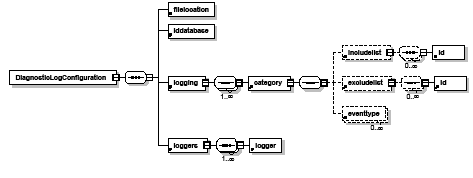
The <category> element represents information that controls how activity is logged for different categories of event source. The event category lists all event types as elements. It also has two attributes: name and enabled. Users can enable or disable an event category using a flag. The enabled flag at the event category level determines whether individual <eventtype> enabled flags are used.
Content model
Parent
Children
Attributes
| Attribute name | Type | Summary | Required? |
|---|---|---|---|
| name | CDATA | Name of the category. | Required |
| enabled | CDATA | Whether activity in this category is logged. | Required |
name
This is a string value that corresponds to the name of the category for which you want to log activity. The complete list of values is in the IDiagLogConfigManager.h header file. This list consists of the following contexts and messages (see Contexts and messages):
enabled
This is a string value representing a Boolean, where "true" means logging is enabled for the category, and "false" means it is disabled. Enabling or disabling logging at the category level determines whether enabled attributes at the level of individual <eventtype> elements are used.
Example
The following example shows a populated <category> element without any dependents.
The <DiagnosticLogConfiguration> element is the root element of the configuration file.
Children
The <eventtype> element controls whether particular user-interface events within the category kDiagLogEvents are logged.
The enabled flag of the parent <category> flag determines whether a specification at the <eventtype> level is used; for instance, if the parent category is not enabled, the enabling of individual <eventtype> elements has no effect.
Content model
Parent
Attributes
| Attribute name | Type | Summary | Required? |
|---|---|---|---|
| name | CDATA | Event name. | Required |
| enabled | CDATA | Whether event activity should be logged. | Required |
name
This is a string value that identifies the event type to enable or disable. The values this attribute can have are in the IEvent::IEventType enumeration. You should leave out the IEvent: qualifier; hence, the values are as follows:
enabled
This is a string value representing a Boolean, where "true" means logging is enabled for the category, and "false" means it is disabled. Enabling or disabling events on the <category> parent determines whether this attribute on the <eventtype> is used.
Example
The following example shows a populated <eventtype> element in the scope of a <category> element. Other elements are indicated by ellipses (...).
The <excludelist> element can be used to explicitly filter out some application events, so information about them is not logged. It applies only to the categories listed in the following table. To identify application events to filter out, <id> elements are used.
If the <category> has both <excludelist> and <includelist> elements, and there is contention between them, the <includelist> always takes precedence.
Specifying values for each category:
| Category | Value | ID Space |
|---|---|---|
| kDiagLogAction | ActionID, in hex. | kActionIDSpace |
| kDiagLogCommand | Command boss ClassID, in hex. | kClassIDSpace |
| kDiagLogIdleTask | Idle-task boss ClassID, in hex. | kClassIDSpace |
| kDiagLogObserver | Observer ImplementationID, in hex. | kImplementationIDSpace |
| kDiagLogResponder | Responder ImplementationID, in hex. | kImplementationIDSpace |
| kDiagLogTracking | Tracker boss ClassID, in hex. | kClassIDSpace |
Content model
Parent
Child
Attribute
| Attribute name | Type | Summary | Required? |
|---|---|---|---|
| value | CDATA | Hex value specifying an identifier in a particular ID space. | Required |
value
This must correspond to the hex value of the identifier; for instance, 0x1e0 would be used for kMouseWatcherIdleTaskBoss. The ID space is associated with the parent <category> element. See the <excludelist> table, which gives more information about the ID spaces in which numeric identifiers are defined, for the categories that support this element.
Example
The following example logs all the idle tasks, except one associated with ClassID of kMouseWatcherIdleTaskBoss (ClassID = 0x1e0).
The <filelocation> element specifies the directory where the generated files should be placed, and stores the path to itself when last loaded by the application.
Content model
Parent
Attributes
| Attribute name | Type | Summary | Required? |
|---|---|---|---|
| outputpath | CDATA | Folder where output files should go. | Required |
outputpath
This specifies the directory where the output file should go, as a platform-dependent path. Output files include all log file(s), the symbol-database file, and the run-time environment file.
Example
The following example shows a populated <filelocation> element for Mac OS.
The <id> element specifies a category ID to be included or excluded in the include/exclude list.
Content model
Parent
Attributes
| Attribute name | Type | Summary | Required? |
|---|---|---|---|
| value | CDATA | Hex-valued identifier. | Required |
value
This is a numeric identifier, as a hex value; for instance, 0x1e0 or 0x1E0. This should specify something that makes sense within the ID space. The value could be an ImplementationID, ActionID, or ClassID. For more details, see the table in <excludelist>.
Example
The <iddatabase> element represents information about the logger's symbol database file, such as whether it should be loaded. A symbol database file always is created when the Diagnostic Logger is running in the debug environment. It enables you to map numeric identifiers (for example, 0xE05, in ID space 0x101) into symbolic identifiers (for example, kOpenDocCmdBoss).
If you do not load the symbol database file, you will not get numeric identifiers mapped to symbolic identifiers, even in the debug build. To ensure that numeric identifiers are resolved to symbolic ones in both debug and release builds, change the this element's load attribute from its default of "false" to "true."
Parent
Content model
Attributes
| Attribute name | Type | Summary | Required? |
|---|---|---|---|
| name | CDATA | Name of associated symbol database file. | Required |
| load | CDATA | Whether the symbol database should be loaded. | Required |
name
This is the name of the symbol database file. This is expected to be in the folder specified by the outputpath attribute of the <filelocation> element.
load
This is a string value representing a Boolean, where "true" means the symbol database is to be loaded (used to map numeric values to symbolic identifiers), and "false" (the default) means no numeric-to-symbolic mapping occurs.
Example
The following example shows a populated <iddatabase> element, with a default name for the symbol database file, and the load attribute set to ensure that numeric identifiers also are logged as symbolic identifiers.
The <includelist> element specifies particular application events that should be logged within a given category. If it is populated, other events in this category are ignored. It is a way of asserting the primacy of some application events within a particular category: if you add one or more application events to the <includelist>, all other events in the category are ignored. See the table in <excludelist> for the list of categories for which an <includelist>child is supported; it is the same as the list categories that support an <excludelist> element.
If the <category> has both <excludelist> and <includelist> elements, and there is contention between them, the <includelist> always takes precedence.
Content model
Parent
Child
Attributes
| Attribute name | Type | Summary | Required? |
|---|---|---|---|
| value | CDATA | Hex value specifying an identifier in a particular ID space. | Required |
value
This must correspond to the hex value of the identifier; for instance, 0xE05 would be used for kOpenDocCmdBoss. The ID space is associated with the parent <category> element. See the table in <excludelist> for more information about the ID spaces in which numeric identifiers are defined, for the categories that support this element.
Example
The following example shows a populated <includelist> element, The example specifies that only information about a small subset of commands should be captured by logger services.
The <logger> element controls a particular logger service (IDiagnosticLogger). Each logger service must serialize its state to XML, and each logger should choose a different name attribute, enabling it to serialize its state to XML and deserialize its state from XML. See Logger service.
Content model
Parent
Attributes
| Attribute name | Type | Summary | Required? |
|---|---|---|---|
| name | NMTOKEN | Required | |
| Enabled | CDATA | Required | |
| OutputFileSize | CDATA | Optional, specified only for the existing text and logger service. | |
| OutputFileCount | CDATA | Optional, specified only for the existing text and logger service. | |
| OutputFileBufferSize | CDATA | Optional, specified only for the existing text and logger service. |
name
This is associated with a particular logger service. The logger services delivered by the DiagnosticLog component itself are named "text" and "xml." If you implement your own logger service, it would have a corresponding <logger> element with a unique name to identify it.
Enabled
This is a string value, where "true" means this logger is turned on, and "false" means it is off. The default is "false" for text and XML logger services.
OutputFileSize
This specifies the maximum allowable log-file size before rollover, in kilobytes. Clients can use this attribute, in conjunction with OutputFileCount, to control the maximum amount of data the logger can write, in terms of file size and number. This attribute is supported by the text and XML logger services. When the amount of data already logged exceeds OutputFileSize, the log is rolled over or rotated to another log file.
Suppose the text-based logger starts emitting output to DiagnosticLogOutput_1.txt. When it emits an amount equal to OutputFileSize, it rolls over to start writing to DiagnosticLogOutput_2.txt. When the number of log files created reaches OutputFileCount, the logger returns to DiagnosticLogOutput_1.txt. The log files are cyclic (a bounded set); there cannot be more log files than OutputFileCount, and the logger wraps around to start logging at the start of the log-file set when required.
OutputFileCount
This is the maximum number of files the log rollover uses. This attribute is supported by the text and XML logger services. It specifies the number of output files to be used by log services, as explained above.
OutputFileBufferSize
This is the memory cache size, in kilobytes.This attribute is supported by the text and XML logger services. It controls the size of the memory cache that the DiagnosticLog plug-in uses to buffer output; the larger the buffer, the less often it needs to be flushed to disk.
Example
The <loggers> element specifies a collection of <logger> elements with which the DiagnosticLog component works. Some of these can be added by third parties, and the text and XML loggers are those provided by default by the DiagnosticLog component. By default, neither text nor XML logger services is enabled, so if you do not change the Enabled flag, you see no output from either service.
Parent
Child
Content model
Example
The <logging> element determines whether the DiagnosticLog component should create log files and specifies other parameters to control it, such as the logging level. It also contains a list of <category> elements, each controlling how application events of different types are logged.
Parent
Child
Content model
Attributes
| Attribute name | Type | Summary | Required? |
|---|---|---|---|
| enabled | CDATA | Whether logging is turned on. | Required |
| level | CDATA | Detail level of logging. | Required |
| timeinfo | CDATA | Whether to log with timestamps. | Required |
| timethreshold | CDATA | Closest spacing of timestamps (msec). | Required |
enabled
This is a string value representing a Boolean. It overrides all other enabling flags in its dependents, such as <category> elements. If this flag is "false," no logging output takes place.
level
This is the detail level. It controls the detail about what is logged for different categories; see the table in Logging output level. The attribute is a string that should be one of the following values:
timeinfo
This indicates whether timestamp information is logged.This information is logged as distinct application events, rather than being associated with specific events like an action or command being executed. The smaller the timethreshold attribute is set, the closer these entries are spaced in the log file.
timethreshold
This specifies how closely spaced the timestamp messages that get logged will be in the log file. This attribute specifies the lower time limit that is recorded, in msec. For example, in the current implementation, we use std::clock for timing information; since the resolution of clock is about 10 msec, do not set a value below 10.
Example
The following example shows a populated <logging> element with logging turned on, at an intermediate detail level, and with time information turned on.
The following table provides some troubleshooting tips.
| Issue | Cause | Resolution or workaround |
|---|---|---|
| I turned on the <eventtype> element, but the DiagnosticLog does not log anything. | There is hierarchical control over what information is logged. The parent element <category> determines whether the settings of its dependents are used. | You need to also turn on the kDiagLogEvents <category> element, to have individual events logged. See <category>. |
| When I run InDesign with DiagnosticLog, it does not log anything. | There are at least three elements in the configuration file whose "Enabled" attributes need to be turned on before any log is output: <logging>, <category>, and <logger>. | None of the <loggers> is turned on by default. The only category turned on by default is the Action. So, first enable a <loggers>, then turn on the category in which you are interested. |
| When I run InDesign with DiagnosticLog for the first time, in the default output location, I cannot find the DiagnosticLogConfiguration_debug.xml configuration file. | The configuration file is not written until InDesign quits. | Quit InDesign, then check the default output location again. You also can force the file to be written out programmatically, by calling IDiagLogConfigManager::Save(). |
| When I choose XML as my logger output option, sometimes when I try to open the XML, my XML viewer complains it cannot validate the XML and cannot open the file. | In some cases (for example, when an idle task yields to another thread), the context enter/exit are mismatched. This results in an XML-based log failing to be validated. | Try using the non-XML-based logger. You may not see perfect context matching, but all the context and events are still logged chronologically. Alternately, if you know the context that is causing the mismatching, try to exclude it from the logging. |
Suppose you want to log information about only a one-application event or a small set of application events, and you know the ActionID or ClassID (of command) or other identifiers for these events.
Solution
One way to do this is to define an <includelist> element (see <includelist>) in the configuration XML file (see Configuration XML file). This lets you define one or more application events within a given category that are of interest to you. Only information about those events is logged, if you define anything in your <includelist>.
The <includelist> lets you specify the list of application events in which you are interested. For instance, you might want to log information about only the kSetRedlineTrackingCmdBoss command, associated with turning tracked changes on and off. You would set up the <includelist> for the <category> element kDiagLogCommand; see the IDiagLogConfigManager::DiagLogCategory enumeration for other types. This <includelist> would have an <id> element with the correct identifier; for instance, 0xa415 for kSetRedlineTrackingCmdBoss.
You should find that the log produced by the DiagnosticLog plug-in contains information about only the application event you specified, within the specified category.
If you are interested in all application events in a particular category, you do not need to define an <includelist> element in the configuration XML, or it can be included in the configuration XML but with no dependents.
See also
Sample code
API
Suppose you are writing code intended for a release build, you have a numeric value for something like a ClassID (for example, 0xa40a, or 41994 in decimal), and you want to turn it into a symbolic form (for example, kDeletedTextBoss).
Solution
The symbol database file (see Symbol database file), produced under the InDesign debug build by the DiagnosticLog component, contains key-value pairs mapping numeric values to symbolic identifiers within the ID spaces used in the InDesign API. Follow these steps:
See also
Sample code
API
There are plug-in samples provided in the ITK that implement the patterns described in Extension patterns and/or use the Diagnostic Logger client API. To build these samples, you need to first copy their projects and source files from the ITK into an existing InDesign SDK; the following table shows where the files/folders should be moved. After the projects and source files are moved, they can be built as normal SDK samples.
| Files/Folders to copy from ITK | Copy to CC SDK folder |
|---|---|
| <ITK>/build/mac|win/prj/ConsoleLogger.itk.(xcodeproj|vcxproj) | <SDK>/build/<mac|win>/prj/ |
| <ITK>/build/mac|win/prj/DetailSwitchLogger.itk.(xcodeproj|vcxproj) | <SDK>/build/<mac|win>/prj/ |
| <ITK>/build/mac|win/prj/LoggerPreferences.itk.(xcodeproj|vcxproj) | <SDK>/build/<mac|win>/prj/ |
| <ITK>/source/itksamples/ | <SDK>/source/ |
| <ITK>/source/private/ | <SDK>/source/ |
LoggerPreferences provides a user interface to manipulate a subset of the settings that control the Diagnostic Logger. The main purpose of the plug-in is to demonstrate how to use the IDiagLogConfigManager interface to change settings for the Diagnostic Logger at run time.
The normal pattern of using Diagnostic Logger, described in Configuration, requires you to first run InDesign and exit the application to generate an XML configuration file (if no previous configuration exists), turn on at least one logging service through this XML configuration file, then restart InDesign before logging output is produced. In other words, you must exit the application before you can change any settings that control the Diagnostic Logger component. By default, the XML configuration file is read only on start-up by the Diagnostic Logger, so changes to that XML file would affect only the next run of InDesign.
The LoggerPreferences plug-in allows you to configure the Diagnostic Logger dynamically; for instance, to turn on a particular logger and determine which categories of output to log, and potentially see logging information being output immediately when a logger is enabled. The LoggerPreferences user interface allows you to manipulate a subset of the configuration settings for Diagnostic Logger. For more complete control over its settings, you can modify the plug-in to provide a more comprehensive user interface.
LoggerPreferences has an option to enable the console log (Console Logger sample logger service), which is not one of the default logger services provided by the DiagnosticLog plug-in. Make sure the ConsoleLogger plug-in (see ConsoleLogger) is loaded when LoggerPreferences is executed.
Using the LoggerPreferences sample
To start working with the LoggerPreferences sample:

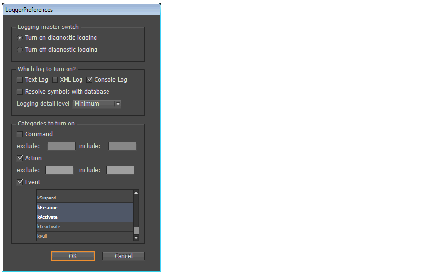
The first group of widgets on the LoggerPreferences user interface, "Logging master switch," corresponds to the enabled attribute of the <logging> element in the configuration XML file (see <logging>). This master switch must be turned on before any log can be output.
The second group of widgets, "Which log to turn on?", determines whether a given logging service is enabled and other global properties of the logging behavior. This corresponds to the Enabled attribute of the <logger> element (see <logger>). The "Resolve symbols with database" check box corresponds to the load attribute of the <iddatabase> element (see <iddatabase>). The "Logging detail level" drop-down list corresponds to the level attribute of the <logging> element (see <logging>).
To see some logging output, you must turn on at least one logger service (Text, XML, or Console).
The last group of widgets corresponds to the <category> element; see <category>. Three of the more frequently used categories were chosen for demonstration purposes. For command and action categories, there are "exclude" and "include" text-entry boxes, corresponding to the <excludelist> and <includelist> elements in the configuration file. You should enter the command/action IDs in hex format. Multiple IDs are supported; use commas to separate IDs. For the Event category, click on the event you want to log; for multiple events, hold down the command/control key while clicking.
After the LoggerPreferences dialog is dismissed by clicking the OK button, the options are written out to the configuration XML file, and some logging information may be output, if at least one logger service is enabled. For instance, if ConsoleLogger is loaded, and a console window is open as described in ConsoleLogger and enabled in the LoggerPreferences user interface, you should see logging output in the console window.
The ConsoleLogger sample plug-in implements a console-based logging service. On Mac OS, its output is written to Console.app (which must be running before InDesign). On Windows, the ConsoleLogger writes output to a command-prompt window launched by the plug-in itself.
ConsoleLogger implements an extension pattern described in Logger service (also see IDiagnosticLogger).
Using ConsoleLogger
To turn on the ConsoleLogger for real-time logging feedback:
The DetailSwitchLogger sample plug-in provided in the ITK implements an extension pattern described in Log-modifier service (also see IDiagLogModifier). In this sample, two extensibility scenarios for the Diagnostic Logger are illustrated:
Event-driven configuration
To demonstrate this feature, DetailSwitchLogger is hard-coded to wait for the menu item Layout > Pages > Add Page (action ID kAddNewPageActionID) to be executed. After this menu-item action is executed, the DetailSwitchLogger sample plug-in (if loaded) changes the logging detail to maximum.
To see the event-driven configuration in operation, follow these steps:
Customized Logger output
To demonstrate this feature, DetailSwitchLogger is hard-coded to wait for a particular command (kCreateMultiColumnItemCmdBoss) to be processed. After the command is processed, the DetailSwitchLogger sample plug-in (if loaded) gathers extra information from data interfaces on the command boss object, which propagates to the logger services.
To see customized logger output:
Note that the information on the frame orientation is not part of the default log output, but because the DiagnosticLog supplies a reference to the command (ICommand) being processed to the log modifier, we can customize the log output with this additional information from the context of the log-modifier (IDiagLogModifier) implementation. If you want to log extra information through Diagnostic Logger about arbitrary commands being processed, you can implement a log modifier and follow the pattern illustrated in this scenario.
This chapter discusses how to use the Adobe ® InDesign® symbol files provided in the InDesign Tool Kit (ITK). It describes the process of resolving symbols for development purposes, and it discusses a tool (CrashResolver) provided with the ITK to help resolve symbols from crash dumps on Mac OS®.
Third-parties developers often have two major debugging concerns when developing and deploying InDesign-based applications:
By providing most InDesign source symbols, we address these concerns and make the development process easier. The call stack provides information on how the program reached the breakpoint or crash; sometimes it can provide hints on performance issues.
We discuss how to debug with the InDesign symbols for two scenarios:
The Mac OS version of InDesign has a crash-reporting feature; it generates a crash report similar to Apple's CrashReporter, but instead of being routed to Apple, the Adobe crash report can be sent to Adobe. You also can use the Adobe or Apple crash report to gain some insight into the condition of InDesign at the time of crash.
The following terms are related to the resolution of Adobe InDesign symbols:
The symbols in the ITK are packaged in a compressed archive; decompress the archive into a folder in your hard drive. Move the symbols folder to a place where you can find it easily later, and make sure the debug and release symbols are labeled correctly. The symbols are distributed in a folder structure described in this section.
On Windows, the InDesign build process extracts the symbol (.pdb) files into one debug|debugx64|release|releasex64 folder in the ITK. For example, the binary for the required plug-in AppFramework is in the required folder inside the application install folder with this path:
You will find its symbol file, AppFramework.pdb, in the symbols folder in the ITK at the following location:
By default, the Visual Studio debugger searches for a symbol file in the same folder as the executable; however, that is not an absolute requirement, as you can always tell the debugger where to find a symbol file later. Similarly, when you load a symbol file and the debugger cannot find its corresponding executable, it asks you to locate the matching binary. It is not necessary, therefore, to move the symbols to be in the same folder as their binaries.
On Mac OS, all symbol files (.dSYM) are extracted into one debug|release folder in the ITK, which does not maintain the same application install folder structure. Xcode requires the symbol file to be located with the binary, so the debugger can find the symbol in a debugging session. Since the symbols are distributed in a flat folder, you will need to move them to be in the same folder as their binaries. For example, the binary for the required plug-in AppFramework is in the applicaInDesign CC 2014l folder (for example, "Adobe InDesign CC") at this path:
You should move the symbol for AppFramework.InDesignPlugin (AppFramework.InDesignPlugin.dSYM) to the following path:
If you have many symbol files to open, consider creating a script that copies your frequently used symbol files to the same folder as their binaries. If you use Adobe CrashResolver to resolve symbols from Adobe CrashReporter output, you do not have to organize the symbols as described above, see Adobe CrashResolver. To install CrashResolver, see Setup and preferences.
When applications or libraries are linked during build, the linker that creates the application and the libraries' executable files also can create several additional files, known as symbol files. Typically, you can configure the linker through project settings in the IDE to generate a symbol file. On Windows, Visual Studio generates symbol files with an extension of .pdb (program debug database). On Mac OS, Xcode can generate symbol files in different formats, InDesign is built with the DWARF symbol format, and the symbol file has an extension of .dSYM.
Symbol files store information about function names and the addresses of their entry points, local/global variables, and the memory address or registers that hold the values of the variables. Both real-time, interactive debugging and postmortem debugging require symbols. You must obtain the symbols corresponding to the application that you want to debug and load these symbols into the debugger, so the debugger can resolve the symbols into something more readable by people.
In addition to the external symbol file, Mac OS programs and libraries built with Xcode can be compiled with some debugging symbols embedded. There is an option in the linker preferences to include local symbols in the binary. With embedded symbols, Xcode debuggers can be used to display the stack crawl during execution of the program directly, without the dSYM file. The debugger can give you not only memory addresses but also the names of routines and variables. The inclusion of debugging symbols, however, enlarges a program or library significantly; hence, during the final release build of the program, most applications, including InDesign, are stripped of symbols.
It is necessary to distinguish between the external symbol files and the embedded symbol. When we refer to the symbol file in this chapter, we mean the external symbol files included with the ITK, namely .pdb and .dSYM files.
For space-saving optimization purpose on Windows, we set EnableCOMDATFolding= "2" for most of our projects in release project properties.
In Visual Studio, this behavior is called COMDAT folding, also known as "code folding." Within a single linkage (a single plug-in or library), when multiple functions share the same object code, only one copy of the code actually appears in the final linked output.
This is useful to reduce code size when using common C++ accessor paradigms that cannot be inlined because they are virtual; for example, simple accessors that return a value in a class may share the same object code.
This also is very useful to fight template bloat. The downside of this behavior is that debugging is more difficult: only one symbol name survives, which is confusing when you expect another one. This results in some stack frames in release appearing to be incorrect. It is not a problem in the symbol files. You can get around this by using the debug symbol files.
In this section, we discuss how to use symbols while your plug-in is under development. We discuss how to debug InDesign and your plug-in with the symbols, so you can see the call stack and variables (availability varies) when a breakpoint is encountered in the required IDEs; i.e., Visual Studio on Windows and Xcode on Mac OS.
Start a debug session from a plug-in vcxproj file
By default, the SDK projects were built with the option to generate a .pdb file, so if your vcxproj file is based on an SDK project, the pdb file is generated when you build your project. If the plug-in binary is in the same directory as the .pdb file, Visual Studio finds and loads the symbol file. To load the InDesign symbols supplied with the ITK:
Another way to reload an individual symbol file is to specify its path in the solution properties. Before starting the debugging session:
Start a debug session by attaching to a running InDesign process
With Visual Studio, you also can debug a program without a project file. To do this, attach your debugging session to a running process:
Instead of attaching the process from Visual Studio, you could start the debug session from the Windows Task Manager. Right-click InDesign.exe from the Processes tab, and select Debug from the contextual menu. This brings up a dialog listing possible debuggers that you can use to debug. Select Visual Studio, then follow the steps described earlier.
Start a debug session from a plug-in project .xcodeproj file
Start a debug session by attaching to a running InDesign process
Xcode allows you to debug a running process so you do not have to start up the application from the Xcode to debug. You still need a project file to attach to a running InDesign process. The most logical choice is the project file for your plug-in. You also need to set up the executable so Xcode can find the host that loads your plug-in:
WinDbg is part of Debugging Tools for Windows from Microsoft ®, available from Microsoft's website. It provides source-level debugging through a graphical user interface that wraps around CDB/NTSD and KD, command-line debuggers that also are available from Debugging Tools for Windows. WinDbg also can read a core dump after an exception is thrown from an application. This feature is particularly useful for post-crash debugging. If you have the symbols and core-dump file, you can get a view into the memory, registers, and other debugging information at the time of the crash.
To set up WinDbg for postmortem debugging:
This procedure is not the only way to do postmortem debugging using WinDbg; there are many useful links in References for further reading. The WinDbg help file also contains useful details about how to debug using the Windows debugging tool.
The most effective postmortem debugger on Mac OS is GDB (the GNU project debugger). Mac OS X can generate a core dump after a program crashes, and GDB can then start a core-dump debugging session. The core dump does not contain symbolic information, so you must supply the symbols using the GDB add-symbol-file command. Remember that you can enable core dumps on a system-wide basis, by adding the line "limit core unlimited" to /etc/launchd.conf. Alternately, you can use the following shell command in Terminal to generate a core dump on a per-session basis (and you need to start the application from Terminal):
When using core dumps, be aware of the core dump file in the /cores folder. Each core file is large, so clean up the /cores folder often, especially when you enable the core dump on a system-wide basis: every time there is a program crash, several hundred megabytes of core dumps are added to your hard drive. The folder usually is hidden from the Finder.
For more information about debugging a core file using GDB, see Apple's technical note #2124, "Mac OS X Debugging Magic." There might be a limitation on using GDB with a core file; for example, a bt command may not show an entire backtrace. Apple Radar bug 5046663 was logged to address this issue.
CrashReporter is a package for recording crash logs out of Adobe applications. When an application linked with CrashReporter crashes, it gives the user the option of submitting the crash logs to Adobe via e-mail.
The CrashReporter log is in XML format. It contains several sections of information, discussed in CrashReporter log.
When InDesign crashes, the CrashReporter log is written to the ~/Library/Logs/Adobe/LogTransport folder, and the user is presented with the following dialog:
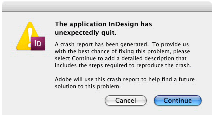
If the user clicks Cancel, he exits gracefully, and the log file is deleted. If the user clicks Continue, he is presented with the following dialog:
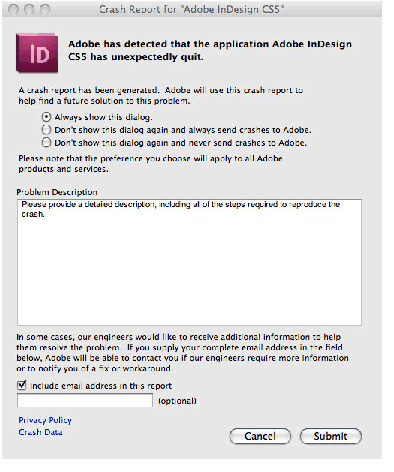
The Problem Description edit field is a user-editable field that allows the user to add any information about the crash.
The Privacy Policy link opens a browser window with Adobe's privacy policy.
The Crash Data link opens a text editor with a text file that is loaded from a temporary location. It contains all the information about the crash, including a stack crawl, registers, library load locations and sizes, and any application-specific data the application adds.
The first few elements in the CrashReporter log are basic information, like the computer system where the crash occurred and the application that crashed. The following example shows an XML snippet extracted from the crash report, showing the general information section.

The <crash exception>=""> element shows the crash as "Read Only Memory Exception," and the <backtrace> element tells us that the backtrace for this crash is displayed in crash thread 0, which is discussed in the next section.
The last line in the previous example shows that the crash process's backtrace is available in crash thread 0. The following example is extracted from that thread.
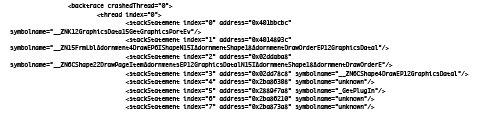
Each stackStatement element in the backtrace describes a nested-function invocation (also referred to as a stack frame), with the most recently executed function at the top and the least recently executed at the bottom. The address attribute of the stackStatement element is the program-counter address in the frame. For frame 0 (that is, stackStatement index 0), this typically is the address of the instruction that caused the exception. For higher frames, this is the return address for the frame. The symbolName attribute of the stackStatement element is the symbolic name for the program-counter address in the address attribute. In this example, some stack frames have resolved the function name, because the symbols are available at the time of the crash. Some stack frames have symbol name "unknown," because the symbols are not available. In the final release build, the symbols are stripped; therefore, the symbolName attribute probably will be unknown (or the name of a nearby, exported function). To resolve this, see Adobe CrashResolver.
The element following <backtrace> is <registerSet>, which is a snapshot of the register's state at the time of the crash. The following is an example of the register set. Apple developer technical note 2123 and "Mach-O Runtime Architecture" (see References) contain excellent information on how to decipher register values. One thing to note is that the register name "PC" in the Adobe CrashReporter is the "srr0" in the Apple CrashReporter, which is the program counter at the time the exception occurred. That address should be the same as the address you see in the backtrace stackStatement 0.
The final part of the CrashReporter log tells you which plug-ins/libraries are loaded in the process. The following example is part of a sample binaryImageSet element.
There is a command-line tool that you can use to debug without symbols, as described in Apple developer technical note 2123 (see References). Because the final release build is stripped of symbols, however, the technique is not particularly useful for third-party developers; therefore, a tool was developed to help resolve symbol names in a CrashReporter log, which is discussed in Adobe CrashResolver.
You may wonder what to do when a final release build InDesign crashes on a Macintosh ® at a customer site. There is no easy way to determine what causes the crash. This section discusses an ITK tool called CrashResolver, which you can use in a situation like this to get a meaningful stack crawl.
CrashResolver is an application that converts the stack crawl and register dumps in an Apple CrashReporter or Adobe CrashReporter log into a more informative stack crawl with function names, source filenames, some variable values, and source code (if available). To do this, CrashResolver must have access to the actual libraries and dSYM files that correspond to the correct version of the application that produced the crash log. If the source files for the build also are available, CrashResolver also provides code snippets for each function in the stack crawl.
To reduce the size of the InDesign binaries, we build the final release target of InDesign with the per-function local symbol stripped off (this is achieved by turning on the target setting "Strip Debug Symbols During Copy"). With the symbols stripped, neither Adobe or Apple's crash report can resolve the stack crawl into meaningful function names; the crash reports contain only the hex address of the function (or the offset to the nearest exported function, which is not very useful). For example, if you strip the symbols of your plug-in, the backtrace for the function in your plug-in would be something like this:
You can resolve the plug-in name using CrashReporter with the address 0x0904a674 and look up the loaded binary image's address range. The dyld_stub_binding_helper is the nearest export symbol, which is not very useful in this case; even if you have symbol files, there is no way to tell the crash report to resolve the symbols. Therefore, Adobe CrashResolver is provided in the ITK. Along with the symbol files, it can resolve the address and report a human-readable backtrace with more information. An example follows.
With BasicDialog built with symbols stripped, and when we forced a crash in BscDlgDialogController::ApplyDialogFields, the Adobe CrashReporter reported a crash trace as follows:
With the symbols resolver set to minimal detail level, it reported the following:
You can see the unknown function in Adobe CrashReporter is replaced by the mangled _ZN22BscDlgDialogController17ApplyDialogFields. Also, in some situations, the variable values can be reported if they are saved in registers. The second entry of the Adobe CrashReporter output shows a meaningful function name, because the function is an exported function located in WidgetBinLib.dylib. Most of the exported and imported functions from a dylib will be visible in a stack frame even without a symbol file.
Before using CrashResolver, set up the application as described in this section.
Requirements
Setting up CrashResolver
The version and build targets (debug, release, etc.) for the application and libraries also must match those of the application that produced the crash. Using versions of libraries and symbol files that do not exactly match that of the crashing application is likely to produce incorrect results. In addition, if the crash occurs in an application built without trace-back tables or built-in debugging symbols, the symbol files and libraries must have been built the same way.
Before using CrashResolver for the first time, launch it and go the Preferences dialog to set it up, as described in next section.
CrashResolver preferences
All set-up for CrashReporter is done through its Preferences dialog:
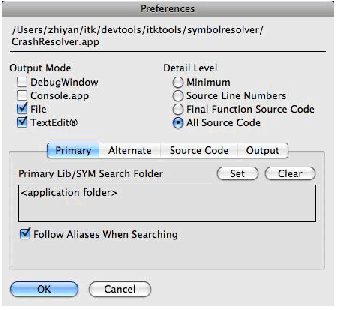
The top of the dialog shows the location and name of the CrashResolver application.
Output Mode specifies how the output is recorded and displayed. You have the option of logging the info to the DebugWindow application (part of the InDesign SDK installation) or the Apple console.app, or writing the log to a text file. If you select the File option, you also can choose to have each output file opened automatically in your default text editor when CrashResolver finishes (the TextEdit option). CrashResolver tries to write some information out of order (that is, it appends warning messages to the header as it evaluates the stack trace). It can do this only if the File option is selected; with the other output options, warnings are interspersed within the stack trace, which may make them more difficult to read. The defaults selected are File and TextEdit.
Detail Level specifies how much information is included in the output. Final Function Source Code displays a source-code snippet (if source code is available) for the top (crashed) function in the trace. All Source Code displays a source-code snippet for each function in the trace. Both these options also display the contents of register variables in the top function in the trace. Since this register-variables feature does not require source code, you probably will want to leave the detail level at the highest level. In addition, you will want to use the displayed source-code snippets to verify that the correct version of symbol files was used to resolve the crash log.
The tabs in the dialog lets you specify four different folder locations. Click the Set button to set a path for each of the following:
All but the last of these paths let you specify a Follow Aliases When Searching option. With this selected, CrashResolver also searches any folders referenced by aliases found in the search path.
If you change the primary or alternate library/symbol file folder in the preferences dialog, CrashResolver automatically updates itself to reflect the change when you close the dialog (searching the folders again). If you add, remove, or rebuild libraries or symbol files while CrashResolver is running, you must quit and relaunch CrashResolver for the changes to take effect.
For simplicity, CrashResolver is designed to work with only one version of an application. If you need to be able to resolve crash logs from different applications or different versions of an application, you must create duplicates of CrashResolver and set up each one accordingly. For this reason, CrashResolver is a completely self-contained application package. It stores its preferences in its internal /Contents/Resources folder.
Updating CrashResolver
Because CrashResolver stores its preferences inside its application package, you normally would have to set up your preferences again when you upgrade to a new version of CrashResolver; however, CrashResolver includes a means for retaining your preferences when upgrading to a new version. After dragging the new copy of CrashResolver to its desired location, drag the old copy of CrashResolver onto the new one. You will be asked whether you want to copy your preferences. Click OK, and the old preferences are copied to the new copy of CrashResolver.
Drag the CrashReporter log that you want to decipher onto the CrashResolver application. You get a log containing a stack crawl for each crash contained in the CrashReporter log (CrashReporter logs may be cumulative, containing all crashes of the given application). You also can copy a selection of a CrashReporter log, launch CrashResolver, and choose Edit > Paste. (You can copy and paste only the stack-crawl portion of an Apple CrashReporter log; however, you will need to copy and paste an entire Adobe CrashReporter log.) Where and how the output is displayed depends on the option you selected in the preferences dialog. See CrashResolver output.
It is important to visually verify that the crash log was resolved with the correct version of libraries and symbol files. If source files are available, CrashResolver displays a snippet of code at each function call in the stack crawl. By checking to see that the function indicated in this snippet matches the name of the function in the stack crawl above it, you can determine that the output probably is valid. See CrashResolver output.
If the CrashReporter log-stack crawl already includes local debugging symbols (function names), you can still run the file through CrashResolver to get additional information, like the source-code snippets and the values of any register variables in the crashed function.
Also, for MachO executables that include no debugging symbols, the CrashReporter log may instead give offsets relative to exported functions. These exported functions often are not the functions from which the calls in the stack crawl were made. Running these log files through CrashResolver gives you the names of the correct function calls.
You have several options for recording the output of CrashResolver, selected in the preferences dialog: trace to the DebugWindow application or the Mac Console.app, or log to a file. If this last option is selected, the log file is written to the output folder with the name selected in the CrashResolver preferences. Every CrashReporter log dragged to CrashResolver is written to a separate output file. If you choose to write to a file, you also have the option of having the file open automatically in your default text application (usually TextEdit) after it is created; this is the default behavior.
The format of CrashResolver output is described below.
The output file header is as follows:
The header is followed by a list of crash incidents. Some CrashReporter logs include all crashes that occurred with the given application since the log file was last deleted. Each incident is preceded by the following header:
The crash-incident header is immediately followed by any warning messages concerning CrashResolver's attempt to resolve the stack crawl, like a mismatch in version numbers between any libraries in the crashed application and the lib/symbol files used to resolve the log.
This is followed by the resolved stack crawl. The stack crawl includes one entry for each line in the stack crawl from the CrashReporter log. A stack-crawl entry is preceded by a line number in brackets. If the entry could not be resolved, the line number is followed by "••." The reason for the failure follows in a C-style comment. The stack crawl is displayed in the same order in which it is presented in the CrashReporter log, that is, crashed function at the top, and application entry point at the bottom. The "lib version string" displayed is the version string taken from the CrashReporter log (if available) and is the version of the library in the crashed application.
This entry header is followed by the source code, if the source code is available and the appropriate detail level is selected in the preferences. The line at which the jump to the next line in the stack crawl occurred is marked in this source code snippet with an asterisk (*).
You can verify that the resolution of the stack crawl appears valid by matching the function name at this mark against the "mangled C++ function name" in the line above this one in the stack crawl. They should be the same; for example:
CrashResolver works by first searching the primary (and, possibly, alternate) directories and all their subdirectories for applications, shared libraries, and symbol files. Executables are matched to their corresponding symbol files by filename.
In addition to the symbol files, the libraries are needed for two reasons:
When a CrashReporter log is dragged onto a copy of CrashResolver, it searches for all libraries and symbol files (when it is first launched). It then parses the CrashReporter log, looking for each stack trace corresponding to a crash. For each line in the stack trace, CrashResolver uses the symbol file of the corresponding name to determine the function name, source file, and (for the function at the top of the stack trace) the values of any variables stored in registers.
CrashResolver requires that the CrashReporter log contain both library names and offsets. Mac OS X 10.3 was the first version that included library names in CrashReporter logs. Crash logs from previous versions of Mac OS cannot be deciphered.
CrashResolver also can use the source files from which the application was built, if they are available. Whether CrashResolver looks for the source files depends on the "Detail Level" you selected in the preferences dialog. If you select a high level of detail and the source files are not available, the additional information they would have provided is not logged. CrashResolver uses the source files to calculate source-line numbers for each function in a stack trace. Also, having the source available allows CrashResolver to display a code snippet at each function call in the stack trace. This provides a convenient way to verify that the output looks correct; that is, the version of the symbol files used matches the version of the crashed application.
Because CrashReporter logs contain a dump of the contents of the registers at the time of the crash, CrashResolver can provide the values of any variables stored in registers at the time of the crash. CrashReporter stack traces, however, do not always end with the function in which the crash occurred: they sometimes stop with the function that called the crashing function. If this is the case, the variable values listed may not be correct.
You should be able to open a symbol file located on a server, as long as you have access to the server. Both Xcode and Visual Studio support remote debugging. For set-up information, see the IDE's debugging manual.
The symbol file does not contain source code. If you want to do true, source-level debugging, you still need the original source code used to compile the project. The presence of symbols lets you examine the call stack and variables.
CrashReporter can be set to any of three modes:
Use the Adobe Crash Reporter Preference Chooser to set the InDesign's preference in /Applications/Adobe InDesign 2025/Adobe InDesign 2025.
Check the option described in Can I disable the Adobe CrashReporter? to make sure Adobe CrashReporter is not disabled. Also, if you run the application from within a debugger, Adobe CrashReporter output is not generated after a crash.
See the Apple Technical Q&A on suppressing "unexpected quit" alerts: http://developer.apple.com/qa/qa2001/qa1288.html
Adobe CrashReporter respects this setting.
Apple's Technical Note TN2124 has the latest information on how to generate a core dump. To summarize, you should do one of the following:
If neither of these methods works, try to disable Adobe Crash Reporter as described in Can I disable the Adobe CrashReporter?. The CrashReporter may have intercepted the crash signal. (The latest CrashReporter should not do this, but the older version may exhibit this behavior.)
CrashResolver relies on the CrashReporter and symbols to provide the information. During a crash, the CrashReporter captures the values in registers, so if the variable is stored in the register, CrashResolver can display the variable value. Not all variables are stored in registers; they could be in the stack/heap. Also, it depends on the type of the variable: the content of the register may contain an address to the real data. So, the variable value is not always available.
Most likely, Visual Studio cannot find the symbol file. Perhaps you did not specify the symbol search path, or you set the breakpoint before you specified the path. Try to delete the breakpoint, make sure the debug symbol path covers the path of your symbol, then set the breakpoint again. When a breakpoint is in effect, you should see a red dot next to the breakpoint name in the Breakpoints window.
 1.8.3.1
