 | InDesign SDK 20.5 |
This guide gives an introduction to InDesign development. It covers native plug-in development, making plug-ins compatible with InDesign Server, and the use of ExtendScript (Adobe's implementation of JavaScript).
Because InDesign, InCopy and InDesign Server share the same codebase and have the same underlying architecture, the InDesign SDK can be used to create plug-ins for all three products. The InDesign family of products is heavily based on plug-ins, with each application comprising a small executable that loads and initializes all of the plug-ins which make up the applications. Nearly all features of these applications are contributed by plug-ins. This plug-in architecture is made available to third-party developers in this SDK.
On Windows, plug-in are DLLs with a .pln or .apln file extension. On Mac OS, they are Frameworks with an ".InDesignPlugin" file extension.
The scope of this SDK is limited to these C++ plug-ins. There is another technology - CEP - that can be used to create extensions for InDesign and InCopy. CEP technology is not discussed here - please refer to following resources for more information on CEP:
InDesign plug-ins need to be recompiled with the matching SDK for every major version. A plug-in that was built with the SDK corresponding to a specific major version of InDesign will not get loaded if dropped into an InDesign build with a different major version. This is because the public APIs offered by InDesign do keep evolving from release to release to support new product features as well as programming language features. Often the underlying compilers used to build the InDesign code base also change from version to version which may introduce incompatibilities. In most cases, you would find that a simple recompilation is all that is necessary. Sometimes at the time of some necessary architecture changes, deprecated OS API removal etc., the changes may be broader in nature.
When a minor update to InDesign is released, the API compatibility with the major version is maintained unless stated otherwise. Plug-ins built with the SDK of the major version should continue to work with the minor update without recompilation.
If the minor update is a feature bearing update, it's minor version is also updated. While API compatibility will be maintained with the major version (unless stated otherwise), if a plug-in is compiled with the SDK of this feature bearing update, it would no longer get loaded on any InDesign builds with the same major version but smaller minor version. In other words, plug-ins built with the InDesign 12.0 SDK should still load and work on InDesign 12.1, but plug-ins built with the InDesign 12.1 SDK will no longer load on InDesign 12.0.
Since InDesign CC 2015.4, all plug-ins that Adobe ships by default with InDesign on Mac OS are installed inside the application package, which is also signed. You should not be installing any plug-ins inside the application package as that would invalidate the package signature. Instead, your plug-ins should be installed in the Plug-Ins folder that is in the same folder as the application package.
If a user runs InDesign from a folder other than the Applications folder on Mac and the Plug-Ins folder contains any plug-ins, InDesign will display an alert asking user's confirmation regarding whether these plug-ins should be loaded or not, as shown below:
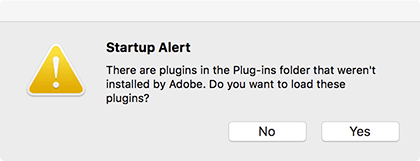
This is a deliberate change to ensure that the user gets the opportunity to prevent any potentially malicious plug-ins from loading.
The user choice is remembered as user preference for future launches. If any plugin is replaced, deleted or modified in this folder, InDesign will show the warning for subsequent launches only if user had chosen Yes earlier. In case, user had chosen No, he will not be shown a warning for any subsequent launch of InDesign.
Kindly note that the process outlined above will kick off only when user installs and launches InDesign from a non-default directory on Mac and the Plug-Ins folder contains plug-ins. If the user launches InDesign from the Mac Application folder, then no warning will be shown and everything from Plug-Ins folder will be loaded.
In InDesign installer, we used to include some InCopy workflow plug-ins openly within the "OEM" folder. The historical reason was that some of our partners replaced these plug-ins with their own custom plug-ins before deploying at their customer locations. These plug-ins lying openly constitute a security risk. Anyone with access to our installer can replace these plug-ins with malicious plug-ins of their own, and potentially bring down a customer’s machine.
To address this, Adobe plugins which are currently present in the "OEM" folder will also move inside the application package on Mac.
If you need to suppress loading of these plugins and instead want to use your own plugins, here is the approach that needs to be taken:
InDesign pre-release builds make use of a preprocessor directive named PRERELEASE which remains defined for much of the development cycle and is undefined as the development cycle is winding down towards the final release. In builds where the PRERELEASE directive is defined, developers can suppress this warning by defining a file or folder with the name AllowLoadingExternalPlugins in the root volume of their machines.
Once the PRERELEASE directive is undefined close to the end of the development cycle, this warning will get activated once more, irrespective of the presence of the above-mentioned file or folder.
An InDesign plug-in can be classified in two ways:
An InDesign plug-in must identify whether it supports model or user-interface operations and which applications it can be loaded by.
InDesign is written in C++ and makes heavy use of a resource compiler called ODFRC (OpenDoc Framework Resource Compiler). ODFRC files end with the ".fr" extension and are used for many things, including user interfaces like panels and dialogs, menus, and localization of strings. Introduction to ODFRC gives a high-level overview of most of what you can expect to encounter in an ODFRC (.fr) file.
Perhaps most significantly, ODFRC is used to define and extend classes in the InDesign object model. These are not C++ classes, but rather an InDesign type of class called a boss. Working with bosses and instantiated boss objects is at the heart of InDesign plug-in development. Bosses are mentioned in passing in Introduction to ODFRC, then are covered more thoroughly in Introduction to the InDesign Object Model.
An InDesign plug-in is an extension library that is loaded dynamically by InDesign. It represents a standard interface to InDesign. On Windows ®, it is a dynamic link library (a DLL). On Mac OS®, it is a dynamic shared library packaged in a framework (e.g. a package).
InDesign plug-in development requires the use of several libraries supplied in this SDK. On Windows, this amounts to only a handful of static lib files. Debug and release versions of these libraries are in the following locations:
To support 64-bit Windows plug-ins, 64-bit versions are in the following location:
Compiling on the Mac requires many dynamic libraries and Framework files. These files are embedded in a directory structure that resembles the actual application package:
The InDesign Plugin SDK contains several different types of source-code files.
The public API
InDesign-specific public headers are in the following directory:
External APIs
Several header files are in the external folder:
These are not InDesign-specific header files, but they may be used in the InDesign code base. One example is the header files for the Boost C++ library, a non-Adobe library that is used in InDesign. Another example is the header files for the Adobe File Library, an Adobe-engineered library that is not specific to InDesign.
Open folder
The goal of the "open" folder is to provide production InDesign user-interface code to developers, as examples of complex InDesign user-interface code, and to provide complete plug-ins. At a minimum, an open plug-in must be able to compile with the Release target. An open plug-in might or might not be able to compile with the Debug target.
The open folder is not a public API: The code may changed or be removed in the next version.
The open folder has three subfolders:
Project files for the Open plug-ins are located at:
<SDK>/build/mac|win/prj/. The open project files are named with the following extensions:
Sample plug-ins
The SDK contains many sample plug-ins. The project files are in the following directory:
The source files for the sample projects are in the following directory:
SnippetRunner
One SDK sample project of note is called SnippetRunner. The SnippetRunner sample plug-in provides a convenient way to demonstrate and test small snippets of code. Many snippets are included with it. A typical use-case for using SnippetRunner is if you want to try some small piece of code out without having to create a completely new plug-in, which involves many files and layers of complexity.
All the SDK code snippets included in Snippet Runner are located in the following at:
Tools
The <SDK>/devtools folder contains a 'bin' directory that contains tools that are essential to InDesign plug-in development. They are used to help compile and merge resources with the plug-in executable during Xcode/Visual Studio project compilation. The projects in different platforms require different sets of tools, but you need not be concerned about how to use them, as long as your project settings are similar to the SDK samples.
In the devtools folder you will also find tools for creating new plug-in projects ('dolly'), for converting a plug-in to use EVE for dialog layout ('eveconverter') and other tools like 'DebugWindow' which enables you to view debug output in a window running outside InDesign.
There are also IDML tools in the SDK. These are Java-based tools for working with IDML, ICML, and IDMS files. These tools allow you to validate package and nonpackage files, compress and decompress IDML packages, and generate and transform IDML files with XSLT.
A 'statics_reporter' tool is provided for searching InDesign's object code for global and static variables, producing a text file for each object file that contains globals or statics.
The required environment for developing plug-ins for InDesign varies by operating system.
Windows
| Required component | Notes |
|---|---|
| Windows 7 with Service Pack 1 or later | |
| Visual C++ | A component of Visual Studio 2022 (v17.9.6). |
Before building on Windows, you need to alter the environment so Visual Studio knows where to find our custom Adobe build tools, such as ODFRC. If you generated the project and it's props files using Dolly, this should already be set. If you need to set it manually, this setting is now part of the project's property pages:
Mac OS
Developing plug-ins under Mac OS has the following additional requirements:
| Required component |
|---|
| Mac OS 13.5 or later |
| Xcode 15.2 |
Building sample plug-ins
Open SDKSamples.xcworkspace (Mac) or SDKSamples.sln (Win) and build all the samples:
Windows: Build > Rebuild Solution Mac OS: Product > Build.
Launching InDesign with the samples
For your plug-ins to be used in InDesign, InDesign must know about your plug-ins at launch time. You can do this in one of two ways:
Having the project build directly into the Plug-ins folder
You can change the project setting so the plug-in binary is built directly into the InDesign application's Plug-ins folder.
On Windows, the project's output setting is specified in the Visual Studio project's Properties > Configuration Properties > Linker > General > Output File. Enter the following value:
On Mac OS, the project's output setting is specified in the Xcode project's BUILT_PRODUCTS_DIR variable in each Target. Enter the following value:
Windows
If you haven't set your project to build directly into the Plug-ins folder, make sure that your plug-in is loaded into InDesign. Build your plug-in and copy the binary over to the InDesign Plug-ins folder. The default output location for plug-ins is:
Mac OS
To debug an InDesign plug-in from an Xcode project, make sure your plug-in is loaded into InDesign. If you haven't set your project to build directly into the Plug-ins folder, build your plug-in and copy the binary into the InDesign Plug-ins folder. The default output location for plug-ins is:
Typically, an InDesign project contains the following C++, ODFRC, and library files.
Public libraries that contains code that you must link against when building your plug-in.
The rest of this chapter guides you through creating a basic InDesign plug-in and illustrates how to add functionality to that basic plug-in.
The source code for InDesign plug-ins is largely platform independent. The InDesign plug-in development process is unique, because it has its own user-interface and object-oriented API. This section focuses on these two unique aspects, to help you develop plug-ins for both Windows and Mac OS.
The example describes how to build the WriteFishPrice sample plug-in that is available in the InDesign SDK. This sample allows the user to enter fish names and current prices into a text frame at the text-cursor position. It incorporates several common user-interface components: menus, dialog boxes, pull-down menus, text-edit boxes, static-text fields, and buttons.
To see the finished plug-in toward which you are working, start InDesign with WriteFishPrice loaded, and create a document. In the new document, create a text frame and place a text cursor in the frame. From the main menu, choose Plug-In > SDK > WriteFishPrice(US):

The WriteFishPrice(US) dialog opens:
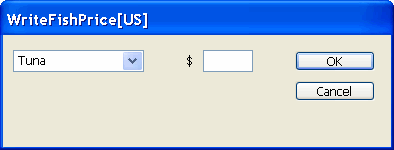
From the drop-down menu, select a fish name. Enter its price in the text box:
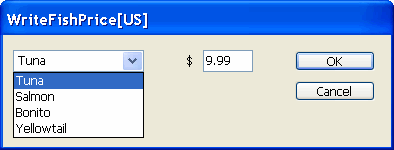
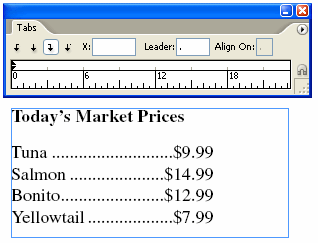
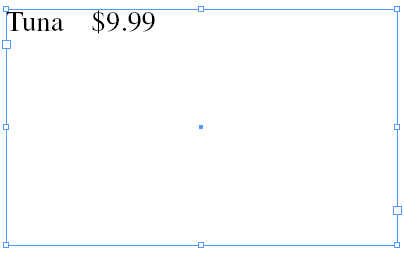
When you click OK, the name of the fish selected from the drop-down menu and the price you entered appear in the text frame at the insertion point of the text cursor. As you continue making entries in the text frame, the output appears like that shown here:
This simple plug-in serves as a good starting point, because it incorporates fundamental and common components. The following sections describe how to create this plug-in. The main steps are as follows:
Dolly is a tool included in the SDK for generating plug-in projects for Visual Studio and Xcode.
To create a working plug-in that provides a solid starting point for your plug-in development, you can run DollyXs and fill in the fields in the DollyXs interface. For this example, you will choose a dialog-box user interface as the foundation for your WriteFishPrice plug-in.
To start Dolly, double click dolly.jar which is at <SDK>/devtools/dolly/dolly.jar. If this fails to launch the app, use the command line to launch it:
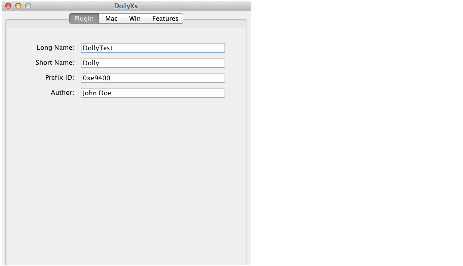
In the Plugin tab, enter the two plug-in names:
For this exercise, enter WriteFishPrice for Long Name and WFP for Short Name.
For Author, enter your name. This string is used in the About This Plug-in dialog and comments in source code.
A prefix ID is a unique value assigned by Adobe for your plug-in development. Given a prefix ID, 256 unique IDs can be created for each ID space (e.g. kClassIDSpace). For plug-ins that you will release outside your organization, make sure to use a prefix ID assigned to you by Adobe.
To request a new Prefix ID please send the following information to wwds@adobe.com:
For this exercise, specify 0xe9400 (the default).
Windows
Click the Win tab, and specify the directory paths that you want to use. For Project Dir, specify the complete path to the directory where you want your Visual Studio project file (.vcxproj) to be generated. If you unzipped the SDK in a different directory, edit the default path.
The other directories are relative to Project Dir. For this exercise, you will work in the WriteFishPrice directory. For Source Dir and Header Dir, specify WriteFishPrice as your subdirectory in sdksamples.
The Shared RSP Files group lets you use existing .rsp file(s). A .rsp file is used in an SDK project to specify common search paths for the C++ and ODFRC compilers.
Mac OS
Click the Mac tab, and specify the directory paths that you want to use. For Project Dir, specify the complete path to the directory where you want your Xcode project (.xcodeproj) file to be generated. If you installed the SDK in a different directory, edit the path.
The other directories are relative to Project Dir. For this exercise, you will work in the WriteFishPrice directory. For Source Dir and Header Dir, specify WriteFishPrice as your subdirectory in sdksamples.
In the Architectures pop-up menu, the choice corresponds to the Architectures variable in the Xcode's project/target setting. Choose the platform that you want to target.
The Shared XCConfig Files group lets you use existing xcconfig files on your computer. The xcconfig file is used in the Xcode project to provide base settings for project/targets. The file specified in the Main xcconfig field is used as the xcconfig file for the project-level build setting in the generated project; the file specified in the Debug xcconfig field is used for the Debug-target build setting; and the file specified in the Release xcconfig field is used for the Release-target build setting. The SDK comes with a set of xcconfig files in the projects folder, which you can reuse if you use settings like those in the SDK project.
Click the Features tab, and select Generate Dialog.
Verify your settings, then click OK.
Verify that DollyXs has generated files in the project and code directories you specified. In the project directory, you should see WriteFishPrice.vcxproj or WriteFishPrice.xcodeproj. In the source directory, you should see a group of C++ source files that begin with WFP. For details about each file, see Files included in the project generated by DollyXs.
Windows
Before building your plug-in, set up your InDesign development environment (IDE) to use the InDesign ODFRC. To do this, choose Tools > Options, and add the <SDK>\devtools\bin directory under the Executable Files directory path.
To build your plug-in:
Mac OS
The Xcode project generated by DollyXs is already set up to find the ODFRC compiler from its default SDK location. Unless you moved the ODFRC.cmd to somewhere other than its default location, you do not need to do anything to specify the location of the ODFRC compiler.
To build your plug-in:
The plug-in you just built has the filename WriteFishPrice.pln (Windows) or WriteFishPrice.InDesignPlugin (Mac OS) and is in the following directory in your <SDK> directory:
Windows:
Mac OS:
Copy the WriteFishPrice plug-in file to the Plug-Ins directory in the InDesignstallation directory; then the WriteFishPrice plug-in will be loaded when InDesign is launched.
When the plug-in is loaded, InDesign displays a Plug-Ins menu containing a WriteFishPrice menu item.
If you successfully built and loaded your plug-in, you can start InDesign through your IDE by following the steps below.
Visual Studio:
Xcode:
After you start InDesign, open the dialog from the Plug-Ins menu:
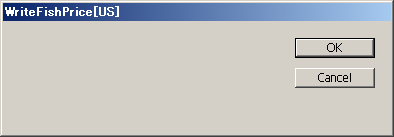
No widgets are placed on your dialog yet, nor is the menu name correct, so you still have some work to do.
This section describes the files that Dolly generates. Go back to the project in your IDE, and follow along with this section to examine each file.
Of the files in the following list, WFPFactoryList.h and TriggerResourceDeps.cpp are not visible in your project. To locate these files, go to your project's source files.
Of the files in the following list, only WFP.fr is visible. To locate the other resource files, go to your project 's source files.
This section provides more detail about the source files that you will modify throughout this exercise. Follow along with this section by using your IDE to open and examine the code of each file.
WFPActionComponent.cpp
WFPDialogObserver.cpp
WFPDialogController.cpp
You have created the rough foundation for your plug-in. Now it is time to start building your plug-in by improving its dialog widget.
Open WFPID.h in your IDE and find the widget definitions for the dialog, as shown here:
On the next line, add the following:
Next, define string keys for the items in the DropDownList. InDesign has a base type object, PMString, that is used extensively for user-interface strings; for this type, InDesign has a locale-based, string look-up mechanism for automatic string translation. The translated strings are defined in a string-table resource; if a string is specified by its key, InDesign automatically replaces it with the corresponding localized string. If you look at WFPID.h in the "Other StringKeys" section, you can see several string keys defined there.
To define a string key for the DropDownListWidget items, first find the following in WFPID.h:
Immediately after this, add the following lines:
If you know what your string key will be -for instance, kWFP_TunaKey-you can define the key using the string, so you can find it more easily later.
Next, define the string-table resource entries that correspond to the string keys you just defined. These string tables are defined in WFP_enUS.fr and WFP_jaJP.fr, for use in the US English and Japanese locales, respectively. These two resource files are included by WFP.fr and are located in your project's source files.
Start by defining the US English string-table entries. Open WFP_enUS.fr to see that the string keys and the English strings are paired up. Add strings for the four string keys you just defined. Look for the following in WFP_enUS.fr:
Immediately after this, add the following lines:
Similarly, you can add strings to the Japanese string table. Open WFP_jaJP.fr and look for the following:
Immediately after this, add the following lines:
For this exercise, it is not necessary to enter Japanese characters into the resource string tables. The SDK sample plug-ins often put a locale-specific suffix on these strings, such as "[JP]," so you know the appropriate string table is being used. You can choose to do the same.
If you will release your plug-ins commercially, however, there is a chance an InDesign Japanese version will use your plug-in. In that case, it is advisable to define strings for the Japanese string table. Better yet, obtain help in translating the strings into Japanese or other locales supported by InDesign.
The dialog resource is defined in WFP.fr, toward the end of the file. This resource already contains two widgets: the default OK button and Cancel button. Look for the following:
Immediately after this, add the following lines:
This drop-down list widget is now added to your dialog.
Earlier, when you first looked at your dialog (Step 1.9: Start InDesign through your IDE), the menu string in the Plug-Ins > SDK menu was Show Dialog. You want it to be WriteFishPrice[US] or WriteFishPrice[JP], so you need to change it.
Save the source files you edited, build the plug-in, move the plug-in to the Plug-Ins directory, start InDesign, and try using your new drop-down list.
When you first open the dialog, notice there is no default value in the drop-down list. You will set up a default value for this drop-down list in a later step.
Click the drop-down list widget. The drop-down list widget should show the four strings you just added:
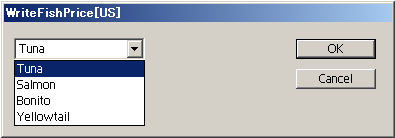
Next, you need to add the TextEditBoxWidget resource into your dialog resource definition. Define this immediately after the place where you added your DropDownListWidget. In WFP.fr, look for the following:
Immediately after this, add the following lines:
This is all that's needed to put a text-edit box on a dialog.
Save the source file you edited, build the plug-in, move the plug-in to the Plug-Ins directory, start InDesign, and try using your new text-edit box:
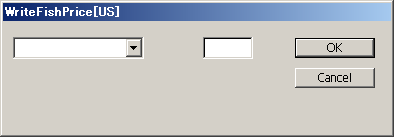
Try entering some characters or copying text from another application and pasting it into the text-edit box using shortcut keys. InDesign automatically handles the shortcut keys.
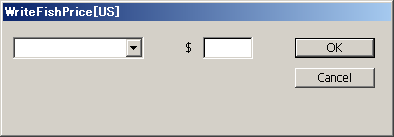
So far, you added a drop-down list to select the product and a text-edit box to enter the unit price. In addition, you should have a currency symbol next to your text-edit box. InDesign can be used in various locales; this is a good opportunity to use the power of the application's international capabilities. In this section, you will modify your dialog to display $ (dollar symbol) or ¥ (yen symbol), based on the locale.
To add an ID for your StaticTextWidget, open WFPID.h. After the lines you added for the TextEditBoxWidget, define the ID for your StaticTextWidget. Look for the following:
Immediately after this, add the following lines:
Next, define a string key for each currency symbol that will be displayed in the static-text widget:
Define the localized strings that correspond to this string key in the string-table resources in WFP_enUS.fr and WFP_jaJP.fr.
The yen symbol is specified here as a double-byte character (specifically, ShiftJIS code 0x8F81). If you cannot enter Japanese characters, specify this string as an uppercase Y.
Add the StaticTextWidget resource immediately after where you added the TextEditBoxWidget. In WFP.fr, look for the following:
Immediately after this, add the following lines:
Save the source file you edited, build the plug-in, move the plug-in to the Plug-Ins directory, start InDesign, and try using your new static-text widget. The following figure shows what you see in the US English locale:
The following figure shows what you see in the Japanese locale:
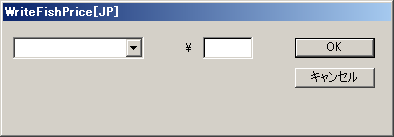
As you can see, different strings can be displayed based on the locale. You can do the same with other user-interface widgets in InDesign.
In this case, the meaning of the data you enter in the text-edit box will change, so you may have to do extra processing later.
This concludes your design of the dialog. As we demonstrated, you can design your plug-ins starting with the user interface, before implementing what the plug-in does. In other words, you can develop the controller in a manner that is decoupled from the rest of the plug-in.
This plug-in's resources are defined in WFP.fr (and the _enUS.fr and _jaJP.fr files that are included). InDesign uses resource definitions for strings, dialogs, panels, menus, and boss classes that are cross platform between the Windows and Mac OS development environments. (There are a few resource types not included in these resource definitions. They are limited to a few types that are not compatible across platforms: file version, icon, and picture resources.) To share resource definitions across platforms, InDesign uses the ODFRC.
Follow along with this section by using your IDE to take a closer look at various resources defined in WFP.fr.
The PluginVersion resource describes the plug-in version. It is defined in <SDK>/source/public/includes/objectmodeltypes.fh.
This entry is the build number of InDesign that is the target for the plug-in:
Normally, you specify this using the kTargetVersion macro, which expands depending on whether the plug-in is being built for the release or debug build.
This entry is an ID unique to this plug-in. It is defined in WFPID.h:
These entries give the major and minor versions of the plug-in and the major and minor versions of the host application:
The version numbers are defined in <SDK>/source/sdksamples/common/SDKDef.h for the SDK you are using.
This entry gives the major and minor version of this plug-in, defined in WFPID.h:
This entry list specifies which applications (products) you are targeting:
The InDesign SDK can be used to build plug-ins for InDesign, InCopy, and InDesign Server; however, there may be times when you want to allow your plug-in to be loaded in only one application. In the example used in this document, you want to be able to use your plug-in in InDesign and InCopy but not InDesign Server.
This entry is an array that specifies the feature set with which this plug-in works:
A feature set is an abstraction of a set of application features and is different from a user-interface locale. The feature-set setting allows you to customize not only the user interface but also the behavior of your plug-in. You can choose from product and language settings. For details, see <SDK>/source/public/includes/FeatureSets.h. This document's sample plug-in is specified to work with any feature set, so it specifies kWildFS.
The last entry is a string that the Adobe Update Manager displays in the plug-in's About box:
It is the plug-in's version, defined in WFPID.h and based on kSDKDefPluginVersionString, which is defined in <SDK>/source/sdksamples/SDKDef.h.
Boss-class definitions specify the InDesign object model. They are somewhat analogous to C++ class definitions. Boss classes are discussed in detail later, so this section highlights only the resource part.
Each boss-class definition shown in this file begins with the resource keyword Class, which is used to define a new boss class in the InDesign object model.
You also can start a boss class with the keyword AddIn. This allows you to add interfaces to existing boss-class definitions. For an example of an AddIn resource, see the SDK sample plug-in FrameLabel.
The next component in the resource definitions for your plug-in, kWFPDialogBoss, is the ID of this boss class. After that, kDialogBoss indicates the ID of the parent boss class. All the functionality provided by kDialogBoss (all implementations backing the interfaces aggregated on the boss class) is provided for kWFPDialogBoss. kWFPDialogBoss can extend this functionality (by adding other interfaces) or adapt it (by overriding existing interfaces and mapping them onto its own implementation). If you do not want to specify a parent boss class, specify kInvalidClass in its place.
Next is the interface-to-implementation mapping list for the boss class. In this dialog boss class, you are overriding the IID_IDIALOGCONTROLLER and IID_IOBSERVER interfaces from kDialogBoss. The actual C++ implementations are referred to indirectly by their implementation IDs, namely kWFPDialogControllerImpl and kWFPDialogObserverImpl, respectively.
InDesign plug-ins use the CREATE_PMINTERFACE macro to bind a specific implementation ID to a specific C++ class. This allows InDesign to call the C++ implementation by its implementation ID.
Open the API reference documentation (in <SDK>/docs/references), click the Boss Classes link at the top of the page, and navigate to the "kDialogBoss Class Reference" page. You can see that kDialogBoss inherits another boss class, kPrimaryResourcePanelWidgetBoss, and overrides five interfaces. The entire InDesign object model is built with a collection of these boss classes, and you can build your plug-ins by overriding and/or extending existing boss classes, just as you did for kWFPDialogBoss.
This resource allows you to register the implementation IDs for your C++ implementations in the InDesign object model. The WFPFactoryList.h header file registers the implementation IDs with the use of the REGISTER_PMINTERFACE macro, and it also is included in WFPNoStrip.cpp to prevent dead stripping. By sharing this piece of code, you prevent a situation in which you forget to specify the implementation ID in one place or the other.
The REGISTER_PMINTERFACE macro in WFPFactoryList.h defines the implementation ID when used in a resource definition and prevents dead stripping when used in a .cpp file.
The first block defines the menu used to show the About This Plug-In dialog. The second block defines the menu used to show the dialog you just designed for your plug-in.
In each block:
This resource defines the action invoked from the menu. An action is an abstraction for what happens when a menu item is selected or a shortcut key is pressed.
In the first line, kWFPActionComponentBoss is a boss class that handles the action IDs.
In the second line, kWFPAboutActionID is an action ID that is to be handled by the boss class specified in the first line.
In the third line, kWFPAboutMenuKey is the string key that corresponds to the action ID listed in the second line.
In the fourth line, kOtherActionArea specifies the keyboard shortcut editor (KBSCE) area; in the example, you are using "other." KBSCE areas are defined in <SDK>/source/public/includes/ActionDefs.h.
The fifth line specifies the action type. Generally, you specify kNormalAction here.
The sixth line specifies how the menu is enabled or disabled. Again, these enabling types are defined in ActionDefs.h.
The seventh line specifies the interfaceID for the selection required for the action to be active. If you do not require any selections for your action to be active, specify kInvalidInterfaceID.
The eighth line specifies whether the shortcut key entry is visible in the KBSCE.
This resource cross-references the string tables with the InDesign feature set and locale information.
kStringTableRsrcType specifies the type of resource you are cross-referencing. In this case, this resource is used as a locale-index resource to switch the string tables. kWildFS means this entry applies to all feature sets (defined in FeatureSets.h). k_enUS specifies that the corresponding locale is US English. So, the first line in the curly brackets after kStringTableRsrcType means that, for all feature sets and in the US English locale, use the string table referenced by the resource ID kSDKDefStringsResourceID + index_enUS.
The next line specifies that when the feature set is kInDesignJapaneseFS and the locale is Japanese (k_jaJP), use the string table referenced by the resource ID kSDKDefStringsResourceID + index_jaJP. In the example, resource definitions for other locales (like French, German, and UK English) are omitted. It is extra work to define resources for other languages from the beginning of development, so if you change the k_enUS to kWild in the first line, your plug-in uses the US English string resources for locales other than Japanese. This probably is a practical change to make, until you define resources for other locales. For a list of supported locales, see <SDK>/source/public/includes/MLocaleIds.h and <SDK>/source/public/includes/WLocaleIds.h.
The next LocaleIndex resource defines a no-translation string table, as there may be strings that you do not want to be translated automatically.
This is similar to the LocaleIndex resource for the string tables, except dialogs are defined as kViewRsrcType resources instead of kStringTableRsrcType. In the example, all feature sets and locales use the same US English dialog resource. Although the dialog resource comes strictly from the US English locale index, the strings on the dialog are localized, as you defined above with kStringTableRsrcType.
This resource defines a widget type. In the example, WFPDialogWidget belongs to the kViewRsrcType resource type and inherits the DialogBoss widget. This statement defines the boss class that backs the user interface of this type:
The DialogBoss widget type inherits from PrimaryResourcePanelWidget. Both are defined in <SDK>/source/public/widgets/includes/Widgets.fh.
This resource defines your plug-in's dialog box. This dialog is specified for the US English locale; however, as specified in the LocaleIndex resource, it is used for all feature sets and locales. Since your plug-in does not require a different dialog definition for each locale (that is, the widget arrangement is the same no matter what locale is used), the definitions are consolidated into one .fr file.
This resource is complex, so we present the suggested way to navigate through the resource definitions. First, look at the definition of the parent widget type, DialogBoss. Open <SDK>/source/public/widgets/includes/Widgets.fh to see this:
Notice that the parent of DialogBoss is PrimaryResourcePanelWidget. Now, examine the definition of PrimaryResourcePanelWidget, to see that its parent is the root Widget; this is the top of the hierarchy. Look at PrimaryResourcePanelWidget.
Go deeper and examine CControlView, defined in Widgets.fh:
Look at the first line in the type definition. It is a bit different than other widget type definitions you have seen so far, as it specifies an IID instead of ClassID. This is an interface type. It indicates that CControlView is a persistent interface in kPrimaryResourcePanelWidgetBoss.
Search for kPrimaryResourcePanelWidgetBoss in the API reference documentation, and see its aggregated interfaces.
The string-table resource is next. WFP.fr includes two other .fr files, WFP_enUS.fr and WFP_jaJP.fr. They specify US English and Japanese string table resources, respectively. Because the string-table resources are separated by locale, they are easier to manage.
WFP_enUS.fr gives the US English string-table resource definition. The first line specifies the locale ID, k_enUS. The next line specifies the character-encoding converter, which deals with the differences between high-ASCII characters on Windows and Mac OS. The next line is where the string table is defined. The string key and corresponding localized strings are comma-separated pairs.
Next, look at the Japanese-locale string table. The first line specifies the locale ID, k_jaJP. Because a character-encoding converter for Japanese is not needed, the next line contains a zero. The string table is defined after that, as in the US English string table, with the string key and localized strings in comma-separated pairs.
In this section, you obtain the string value from a dialog widget and create a string that you can insert into an InDesign document.
The first step is to add code to get the fish name from the DropDownListWidget. You want your plug-in to insert text into the InDesign document when the user clicks OK. Recall that the method that gets called when OK is clicked is WFPDialogController::ApplyDialogFields. Because the actual handling of the button click is delegated to CDialogController, the parent class of WFPDialogController, you already have some basic dialog function in your plug-in.
Look at the code for the WFPDialogController::ApplyDialogFields method using your IDE. This code was generated by DollyXs from the Dialog template. To obtain the text on the widget, call CDialogController::GetTextControlData. This method requires a widget ID as a parameter and returns a PMString object. You will use this method (from the ITextControlData interface in the dialog boss class) to obtain the text data on the widget. The string returned is not the string you see on your dialog, but the string key you defined in the string-table resource.
On the next line, the lookup feature of the PMString object is used to translate the PMString to a string in the current locale. Add the following code:
Save the source file you edited, build the plug-in, move the plug-in to the Plug-Ins directory, start InDesign, create a text frame, and put the cursor in it.
Select your plug-in from the Plug-Ins menu, select Bonito from the drop-down list, and click OK.
As you did in Step 5.1: Get string value of selected item, modify the WFPDialogController::ApplyDialogFields method. Immediately after the line with resultString, add this code:
Concatenate a string to insert into the InDesign document. Append strings in the following order: product name, tab character, currency symbol, price, and new line.
The following code creates a PMString object, moneySign, that holds the string key for the currency symbol. The code translates the string based on the current locale. Then, the code concatenates the tab character, currency symbol, TextEditBoxWidget string that represents the price the user enters, and a newline character, using the PMString::Append method.
The PMString class has a wide variety of methods and is quite useful.
A boss class is a class of objects in the InDesign object model. A boss class is like a C++ class; however, boss classes are declared differently. InDesign consists of boss classes that represent document objects (like images, text, and layers), as well as widgets (like dialog buttons and input fields). For example, InDesign pages are represented by this object hierarchy: document, spread, layer, page. This hierarchy is represented by a boss-class architecture.
Plug-in developers can access these boss-class objects when developing InDesign plug-ins. To use the appropriate boss class for the desired task at hand, you must understand the InDesign object model and its architecture. Also, you need to be aware of which boss class provides what kind of functionality. Like C++ objects, boss-class objects can be invoked by calling methods (or member functions), but the way you call boss-class objects differs from how you call methods in C++. For details, see Using interfaces in plug-ins.
As with C++ classes, boss classes can inherit other boss classes. For example, kSplineItemBoss inherits from kDrawablePageItemBoss, and kDrawablePageItemBoss inherits from kPageItemBoss. Child boss classes can call methods in parent boss classes, making for a truly abstract, object-oriented programming model.
Boss classes developed by third-party plug-in developers are recognized by InDesign and used just like boss classes that are part of the core InDesign application. For example, you can make a new boss class (in this case, a custom page item) that inherits from kDrawablePageItemBoss, instantiate this boss class, and put it on an InDesign document.
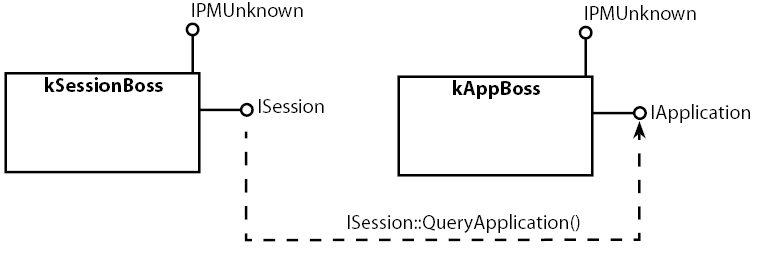
When you call methods in a boss class, you do so in a style that differs from how you normally call a method on a C++ class. First, you obtain an interface from a boss class, and then you call a method on that interface. This concept of an interface refers to something unique to the InDesign object model. InDesign interfaces are analogous to Microsoft Component Object Model (COM) interfaces.
Normally, you group related methods into a set. Interfaces in the InDesign object model comprise sets of such grouped methods and are denoted as pure abstract C++ classes. By denoting them as pure abstract C++ classes, you can call all methods within a particular interface in a boss class, even from outside the interface itself.
For example, kPageItemBoss represents the base class for all page items that can be placed on a document. This boss class aggregates (contains) the IHierarchy interface. By obtaining this interface and calling its methods, you can obtain information about the object hierarchy of image and text-frame items in an InDesign document.
InDesign's naming convention is that all interface names begin with a capital "I," so you can distinguish interfaces at a glance.
The base class of almost all InDesign interfaces is IPMUnknown. For the InDesign object model to function correctly, interfaces must inherit from IPMUnknown and support the QueryInterface, AddRef, and Release methods. You can query a boss for an interface pointer of type IPMUnknown and get back a valid interface pointer.
QueryInterface is used to query for an interface on a boss. This function returns a pointer to an interface; it returns nil if an instance of the interface is not available. QueryInterface automatically calls AddRef, which increments the reference count on the interface. The object model keeps track of the reference count for interfaces on bosses. If all interfaces on a boss have a reference count of zero, the boss can be marked for deletion. If you used QueryInterface to obtain an interface pointer, you must call the Release method when you are through with the interface, so the reference count for the interface is decremented correctly. Forgetting to call Release results in an interface with a positive reference count; this condition (boss leak) is a memory leak in the InDesign object model.
InterfacePtr (<SDK>/source/public/includes/InterfacePtr.h) is a wrapper class that wraps IPMUnknown. In addition to the AddRef method that is called automatically by QueryInterface, this template-based wrapper class also calls Release when the interface pointer goes out of scope. This ensures that Release is called on an interface, preventing boss leaks.
Here is a sample of how you would instantiate an interface pointer to ISpreadList from IDocument, using InterfacePtr:
There are many InterfacePtr constructors, which may seem overwhelming; however, three major types of constructors are used commonly.
Type 1a: To get an interface in the same boss class (using default PMIID)
This assumes that you already have an InterfacePtr of some kind or a pointer to an object derived from IPMUnknown. You use this to obtain an interface aggregated on the same boss class. If the interface declaration defines an enum kDefaultIID, the UseDefaultIID construct automatically uses the default PMIID (interface ID). In this case, the new InterfacePtr has its reference count incremented by the IPMUnknown::AddRef method:
Type 1b: To get an interface in the same boss class (specifying a PMIID)
This assumes that you already have an InterfacePtr of some kind or a pointer to an object derived from IPMUnknown. You use this to obtain an interface aggregated on the same boss class, but the interface declaration does not define an enum kDefaultIID. You also use this when there are multiple implementations of the same interface aggregated on the same boss class. In this case, the new InterfacePtr has its reference count incremented by the IPMUnknown::AddRef method. There are situations when you must specify a PMIID, like when you want to obtain an IStyleNameTable on kWorkspaceBoss or kDocWorkspaceBoss. You also can regard this as a trick to aggregate multiple implementations of the same interface into your boss class.
Type 2: To Get a specific interface, not IPMUnknown*, from a Bridge Method
Generally, Query... methods (commonly known as bridge methods, see Using databases and objects in plug-ins) return a pointer to an interface derived from IPMUnknown and increment the reference count; however, you still want to take advantage of the automated cleanup provided by InterfacePtr. To prevent reference counts from incrementing, as in Type 1a and 1b, use this constructor, which does not call IPMUnknown::AddRef:
The following line of code looks innocent, but if you execute this and quit InDesign, you will get a boss leak:
Look carefully: ISpread- > QueryNthPage(0) increments the reference count and, by means of InterfacePtr constructor Type 1a, the reference count increments again.
The easiest remedy is to remove UseDefaultIID. If you leave it as is and fail to notice that a call to iPageGeometry-> Release is necessary, you will get a boss leak.
Type 3a: To get a persistent object on a database using a UIDRef
In this case, you use a preexisting UIDRef on a boss class. A UIDRef is a combination of the database that is the target of persistence and a unique ID (UID) of a boss class object. This constructor is useful after obtaining a UIDList from a command or a selection target.
The following code processes NewFrameCmd, and then obtains the frame's IHierarchy:
The following code obtains the first layer that contains page items:
Type 3b: To get a persistent object on a database using a UID
This is like Type 3a, but it is useful when you do not need to create another UIDRef; specifically, when you are getting interfaces on the same database. This is commonly used when you navigate the page item parent/child relationship.
The following code obtains the first layer (spread-layer index 2) that contains page items:
The following code navigates up from kFrameItemBoss(ITextFrameColumn), kMultiColumnItemBoss, and to kSplineItem (see IDataBase, IHierarchy):
In InDesign, document files are represented internally as databases. You can make boss-class objects persistent by storing them in databases. In a C++ programming model, C++ classes generally are declared with a class keyword and instantiated in memory (for example, a heap). By serializing the data in the instantiated object, the data can be stored in a complex class structure in a file and retrieved from the file.
To store boss-class objects in a database, a unique identifier (UID) is assigned to each boss-class object. In the InDesign object model, UIDs (which are stored internally as 32-bit unsigned integers) are handles that are treated somewhat like pointers. For example, a document boss (kDocBoss) aggregates ISpreadList, an interface that owns the UIDs of all spreads within a document; within each spread, you can obtain page-item objects and pages by means of the UIDs obtained from IHierarchy (a bridge interface for the object tree in a document). Furthermore, these UIDs are persistent across InDesign application sessions, so even after quitting and restarting InDesign, the UIDs stored in your documents continue to be valid.
To call methods on interfaces aggregated on these boss-class objects in a C++ program, the actual objects must be instantiated in memory as C++ objects. You can obtain pointers to these interfaces using the various Get... and Query... methods (bridge methods). The general rule of thumb with bridge methods is that Get... methods do not increment reference count, but Query... methods do.
The selection architecture is used to make changes to currently selected items. This architecture is built on a group of selection-suite interfaces, which usually contain "Suite" in the interface name and have methods like I<Xxx>Suite::CanDoSomething and I<Xxx>Suite::DoSomething. One good thing about this approach is that you do not have to worry about what the selected items are, because the branching is done behind the scenes; you do not have to handle everything in your plug-in code. To learn more about the selection architecture, see the Selection chapter of Adobe InDesign Plug-In Programming Guide.
In this case, you want to edit the text at the current selection. Look in the <SDK>/source/public/interfaces/text directory, and you will find a few interfaces ending in *Suite.h. One of them is ITextEditSuite.h. Examine this interface; it contains the methods you need:
The basic idea is to first test to determine whether text on the current selection can be edited (true or false) and, if so, insert text.
To query for an instance of this interface, use IActiveContext::GetContextSelection to get to an ISelectionManager. From ISelectionManager, you can query a suite interface to see whether the queried suite is available on the current selection. When IActiveContext is not available, you can also use the ISelectionUtils interface. Because it is aggregated on the kUtilsBoss, you can use the Utils template-based helper class.
To add code to insert a string into a text frame, open WFPDialogController.cpp and add these #include statements at the top of the file:
Next, add the following code in the WFPDialogController::ApplyDialogFields method, immediately after where you left off in "Step 6.2: Form a string to insert into the text frame". Find the following line:
After that line, add the following code, which uses IActiveContext to obtain the current selection and uses ITextEditSuite to insert text into the current text selection:
Inside the implementation for ITextEditSuite, text is inserted by processing a command (ITextModelCmds::TypeTextCmd) on the text model. Commands are used throughout the InDesign API to change the model.
After making the changes, save all your edited source files, build the plug-in, move the plug-in to the Plug-Ins directory, and start InDesign. Then, create a text frame on a new document, make sure the cursor is blinking, select the Plug-in menu so your dialog shows up, select a fish type, and enter its price. Click OK. The following figure shows the result:
InDesign uses commands to modify internal data. This offers the following benefits:
You also can create custom commands. If you create custom commands, you can separate the user interface and core-feature implementation components, making for a more extensible design.
To find out more about processing commands, see the Commands chapter of Adobe InDesign Plug-In Programming Guide.
Because you do not want this dialog to be opened when there is no text selection, you will make some changes so that the menu is disabled when there is no text selection.
Open the WFP.fr resource file and add the following line toward the top of the file, with all the other include statements:
Go down to the ActionDef resource, to the second block, which begins with kWFPActionComponentBoss. Change kDisableIfLowMem to kDisableIfSelectionDoesNotSupportIID. On the next line, change kInvalidInterfaceID to IID_ITEXTEDIT_ISUITE. These constants are defined in ActionDefs.h and TextID.h.
After making the changes, save all your edited source files, build the plug-in, move the plug-in to the Plug-Ins directory, and start InDesign. Now create a new document, put a new text frame on it, and see whether the menu item for your plug-in is available.
As shown in the dialog in the following figure, the drop-down list shows nothing, and the text-edit box is blank when you open the dialog box.
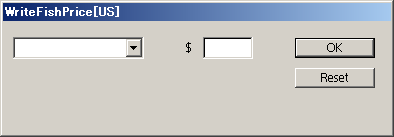
By adding functionality to the WFPDialogController::InitializeDialogFields method, you can handle the initialization and resetting of dialog-box fields. In the following sections, you will add functionality to the InitializeDialogFields method.
Open WFPDialogController.cpp. You will add code to the WFPDialogController::InitializeDialogFields method. This method first delegates to the same method in the parent class, CDialogController::InitializeDialogFields. The parent-class method sets a flag that keeps track of whether this InitializeDialogFields method was called, so make sure you call CDialogController::InitializeDialogFields:
Next, you will add some code to initialize the DropDownListWidget.
By calling the CDialogController::QueryIfNilElseAddRef method, you obtain a pointer to the IPanelControlData interface. This method takes an IPanelControlData interface pointer as a parameter. If that pointer, the method returns the IPanelControlData interface of the same boss class. If the pointer is not nil, the method increments the reference count to that pointer and returns the pointer. Add the following line at the top of WFPDialogController.cpp:
Next, insert the following code immediately after where CDialogController::InitializeDialogFields is called:
If the pPanelData interface pointer is valid, call IPanelControlData::FindWidget in the IPanelControlData interface, to obtain an IControlView interface pointer. This method takes a widget ID as a parameter and returns the corresponding IControlView interface pointer.
Insert the following code:
Using the obtained IControlView interface pointer, obtain the IDropDownListController interface pointer, which exists in the same boss class, kDropDownListWidgetBoss. The kDropDownListWidgetBoss is responsible for controlling the DropDownListWidget (as defined in the resource definitions). To use the IDropDownListController interface, you must add the following include statement at the top of WFPDialogController.cpp:
Then, add the following code immediately after the call to pPanelData->FindWidget:
If the pDropDownListController interface pointer is valid, call the IDropDownListController::Select method to set the initial state of the DropDownListWidget to show the first element. If nothing is selected in the DropDownListWidget, the IDropDownListController::GetSelected method returns -1, which is an invalid index. The top of the list has index 0. Add the following code where you left off:
Initialize the text-edit box. Create an initial string using a PMString initialized with an empty (null) string. Then, set the value of the TextEditBoxWidget to the initial string by calling the SetTextControlData method. Add the following code:
Save your files, build the plug-in, move it to the Plug-Ins directory, and start InDesign to try your plug-in. When you open the dialog, you should see the first list element automatically shown in the drop-down list. Select another entry from the drop-down list, hold down the Alt (Windows) or Option (Mac OS) key, and click Reset on the dialog. The drop-down list should reset to its initial state.
The goal of this document was to help you become familiar with developing plug-in-based solutions for InDesign. While this document covers many important, fundamental aspects of InDesign development, it is only the first step. If you study the code and header files used in our completed plug-in line by line, you may find more functionality.
The Adobe InDesign and InCopy SDK contains an enormous amount of information to help you develop plug-in-based solutions for InDesign. At first, you may be overwhelmed, and if you try too much too soon, you may get discouraged. We recommend that you start by building some of the sample plug-in projects that are provided and using them with the debug build of InDesign. We hope that you find the sample plug-ins useful.
This chapter introduces some of the most common resources types you will encounter in ODFRC (OpenDoc Framework Resource Compiler) files. This is not an ODFRC reference, it is just enough to get you comfortable with what you will see in a typical FR file. (By convention, ODFRC files have a ".fr" file extension and are referred to as FR files).
Each plug-in project must define certain resources in an FR file. There are resources that describe required data for a plug-in, and there are many optional resources. One FR file can contain all the resources necessary for the plug-in, or it can #include other FR files. Regardless of whether everything is in a single file or resources are spread across multiple files, the main FR file is configured to compile with the ODFRC. You will see in most of the SDK samples a main FR file including other FR files.
The Windows and Mac OS ODFRC executables are located in the <SDK>/devtools/bin directory. The Windows version is Odfrc.exe, and the Mac OS version is odfrc-cmd. Adding a search path to this directory is a necessary step in setting up Visual Studio for InDesign development. This is covered Getting Started. Unlike with Windows, Xcode projects must contain a path to odfrc-cmd.
Visual Studio projects are configured to compile FR files using a custom build tool that calls Odfrc.exe. Visual Studio custom build tools are not very smart about dependencies on changes to the input file. To trigger recompiles when the FR file changes and skip them when the file has not changed, the custom build tool is associated with an object file. This special object file is generated from a C++ file that #includes the FR file; each plug-in has one such file, usually called TriggerResourceDeps.cpp. When configured properly, ODFRC is called only when changes occur to the FR file.
The situation is more straightforward on Mac OS, where dependency checking works still works. InDesign plug-in projects must contain a build rule for *.fr files. Then, this rule is configured to compile FR files with odfrc-cmd. For examples of how your plug-in should be configured, see the samples included in the SDK.
FR files contain three types of content:
Each plug-in must declare a PluginVersion resource. This resource is used to provide plug-in-specific information to the InDesign object model. The name may be a bit misleading, because the resource includes more than version information: It also includes the target (debug or release) for which the plug-in was compiled, the plug-in's ID, whether it supports model or user-interface operations, and supported applications and feature sets.
The following is a typical PluginVersion resource declaration, followed by comments about the fields in the resource.
One plug-in can depend on another plug-in. Consider user-interface and model plug-ins. A user-interface plug-in is meaningless without a model plug-in present.
InDesign plug-ins can contribute data to a document. A document can still be opened by a user if the plug-in is missing, but the document may not behave as expected. The ExtraPluginInfo allows a plug-in developer to control the error message that is presented when the plug-in is determined to be missing.
InDesign offers some control over what happens when your plug-in is missing. By default, it warns you about the missing plug-in. You can suppress these warnings using an IgnoreTags resource, or you can trigger a more stern warning using CriticalTags. Both resources allow you to specify implementation or class IDs.
InDesign plug-ins can write (or retain) implementation data in document databases. Such plug-ins must be able to read and write this data when directed by the system. Sometimes, however, an implementation needs to change what data it writes, while being aware of data from prior versions of the plug-in. Schema conversion is a convenient way to handle data conversion at the resource level. Typically, you will encounter or implement something like the following:
This resource captures a data-format change. It records what data kMyDataImpl writes at a particular revision number; in this case, it is a pair of int32 values along with default values (kMyDataDefaultIndex, and kMydataDefaultSize) to be used during conversion (if, for example, you opened an older document without that data present).
This also is important if the implementation needs to be changed. For example, if an extra bool16 is added to the stream, it could be described using another schema.
This is a very basic introduction to schemas. For details about schema conversion, see Persistent Data and Data Conversion.
The InDesign object model references C++ implementations by ID. You may find it desirable to add an implementation to a boss class more than once, however, the InDesign object model does not support adding duplicate implementation IDs. The ImplementationAlias resource allows you to create a new implementation ID for an existing implementation.
Boss classes are at the heart of the InDesign object model. The ClassDescriptionTable resource allows you to declare new bosses or to modify existing bosses. You can add an interface/implementation pair into an existing boss using an AddIn directive. To declare a new boss, you can use Class directives. Examples of both follow.
Boss classes support inheritance. This allows a child boss class to inherit all the interface/implementation pairs from another boss. This is done by specifying a valid ClassID in the second field of the Class directive. The preceding example inherits the implementations in kSomeBaseClassDataBoss.
InDesign plug-ins must register each implementation. This prevents the linker from looking at them as dead code. The FactoryList resource typically includes the implementation registrations from another header file.
In effect, this amounts to something like the following:
InDesign plug-ins are fully localizable, including the ability to provide both localized strings and user-interface layouts.
The following declares that the plug-in will provide localization strings for the Japanese feature set, running in the Japanese locale, but use English for everything else.
In this example, kStringTableRsrcType tells InDesign that these resources are for strings. A LocaleIndex that specifies kViewRsrcType is used to localize ODFRC-based user-interface components like dialogs and panels.
The StringTable resource is used to provide a set of string translations for a given locale. It typically looks something like the following, but with many more strings.
When kMyDataOnMenuItem is used in a PMString, it is translated to 'My Data On'. This is not very interesting when dealing with English strings, but it is extremely useful when localizing your plug-in. For details see Localization.
Some InDesign APIs return an ErrorCode on failure. An ErrorCode is a value that InDesign or a plug-in defines within in the kErrorIDSpace using a plug-in prefix, as follows:
An ErrorCode can be mapped to a more descriptive string using the UserErrorTable.
You will encounter several other significant and sometimes complex resource types that, in conjunction with C++ code, are used to implement user interfaces and scripting. MenuDef and ActionDef resources are used to define InDesign menus and actions. There are many widget resource types used to describe dialogs and panels. The VersionedScriptElementInfo resources describe the objects and properties that a plug-in contributes to InDesign's scripting model. Scripting-related resources are covered in more detail in Scriptable Plug-in Fundamentals.
InDesign supports multithreaded resource access. When a plug-in is compiled, ODFRC generates several new folders containing resource files. On Windows, these folders are in the "(<PluginName> Resources)" directory, parallel to the plug-in file. Note that the parentheses are part of the directory name. On Mac, the folders are in the Resources directory of the plug-in bundle. On Windows and Mac OS, if the folder name is inconsistent with the plug-in name or a resource file is missing, the plug-in cannot be loaded.
This chapter discusses boss classes, interfaces, persistence, commands, facades, and the lifecycle of a plug-in.
A boss class defines an aggregate object type comprising one or more C++ classes. Like C++ classes, a boss class can be instantiated into an instance, and bosses support inheritance. Unlike a C++ class, however, a boss does not comprise methods and variables. The member type of a boss is a C++ class, accessible via an interface; this also is known as an interface/implementation pair. And unlike C++ classes, you can change the definition of existing boss classes by adding additional interface/implementation pairs. This is demonstrated below.
Interfaces are purely abstract classes, commonly used in object-oriented systems to provide a common contract between callers and different underlying types. In C++, they are classes consisting entirely of pure virtual functions. Interfaces are not instantiated but instead can be implemented, meaning a subclass inherits the interface and provides definitions for all the pure virtual functions. The subclass is then instantiated. For example, InDesign includes several implementations of the IShape interface. Each implementation is unique, but all are accessible via the IShape interface.
The following figure gives you an idea what a boss looks like in memory.
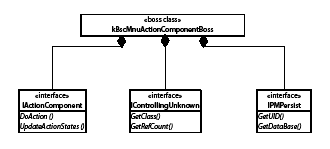
Boss definitions and add-ins are defined in a ClassDescriptionTable in your plug-in's ODFRC resource file. For example, the following is a ClassDescriptionTable containing one boss definition and one boss add-in:
Usually, a plug-in has one ClassDescriptionTable resource, but it can have more. If it has more, each resource must be assigned a unique resource ID. This particular resource ID is a simple integer ID, unique within the plug-in. Since these IDs are not used outside the plug-in, typically they are simple integers (1, 2, 3, ...).
A ClassDescriptionTable contains Class definitions and AddIn directives; the preceding example contains one of each. Aside from those keywords and the braces, commas, and semicolon, everything is a 32-bit ID.
In the Class block, the first field is an ID for the new boss (kMyNewBoss). The second field is used to specify a parent boss. Bosses inherit all the interface/implementation pairs of their parent. The example specifies a parent of kInvalidClass, meaning there is no parent. Finally, a boss definition contains a block of interface/implementation pairs.
An AddIn adds an interface/implementation pair to an existing boss class. This is useful when you need to add functionality to existing InDesign objects; for example, the kDocBoss represents an InDesign document. You may find it useful to create an AddIn for the kDocBoss. The syntax for an AddIn is similar to a boss definition, but it specifies an existing boss in the first field. The second field, which specifies a parent in the Class definition, must be set to kInvalidClass. Then the AddIn contains a block of interface/implementation pairs to add into the existing boss.
Each boss, interface, and implementation has a unique ID that identifies it within the space of all InDesign bosses, interfaces, or implementations. The boss, interface, and implementation ID spaces are separate spaces, so your plug-in can safely use the same number for an interface and a boss, but there should be no overlap within a space; for example, no overlap of bosses with other bosses.
The IDs are 32-bit unsigned integers. To ensure that unique IDs are used in each plug-in, you must request a 24-bit prefix from InDesign Developer Support. See Step 1.3: Specify the prefix ID for the process to get a new prefix ID. The 24-bit prefix you receive is reserved for use in your plug-in, giving you a maximum value of 256 values for bosses, interfaces, or any other prefix-based IDs. Typically, this is more than enough for any plug-in; in fact, sometimes this is enough for a set of plug-ins.
The following table lists the InDesign naming conventions for boss, interface, and implementation constants.
| Constant type | Prefix | Suffix |
|---|---|---|
| Boss | k | Boss |
| Interface ID | IID_ | (none) |
| Implementation ID | k | Impl |
You can use the same naming conventions for the bosses and interfaces that make up your plug-in. This will help you quickly differentiate between bosses and interfaces and keep them separate from other groups of unique IDs. Each plug-in (yours included) has an XXXID.h file (where XXX is the short name of the plug-in) that defines the prefix ID used and various IDs used by the plug-in. For an example of such a file, see any of the sample plug-ins.; in particular, see the FrameLabel samples at:
Interface classes that are used as a component of a boss are either provided by the SDK, such as ICommand, or written by the plug-in developer to provide some plug-in-specific function. They can contain any types of methods, but to work as a component of a boss, they must inherit from IPMUnknown. For example, see the definition of the ICommand interface:
Any interface you write needs to publicly inherit IPMUnknown, which contains three important methods: AddRef(), Release(), and QueryInterface(). AddRef() and Release() deal with reference counting. QueryInterface() provides access to the other interfaces on the boss.
The QueryInterface (PMIID interface ID) on IPMUnknown allows you to acquire a pointer to other interfaces on the boss or determine that a boss does not support a particular interface. If the boss contains an interface for the passed-in ID, it calls AddRef() and returns a pointer to the interface; otherwise, it returns nil.
Bosses are reference-counted objects. A reference count is maintained for the boss, not for the individual interfaces. When you call AddRef() or Release() on an interface, the reference count for the entire boss object is adjusted. Sometime after the reference count reaches zero (this is not guaranteed to happen right away), the object model deletes the boss from memory.
When your code needs to manage a reference to a boss object, you must call AddRef(). If this is not done, you run the risk of the boss being deleted while still in use. Likewise, when the reference is no longer needed, the reference count must be deleted by calling Release(). If this is not done, you will create a boss leak (which, in turn, creates memory leaks). In essence, you are allocating system resources and never freeing them.
Reference-counting example
Consider the MyClass::AddBarRef example below. The caller passes an IBar* to AddBarRef(), and MyClass stores the pointer for later use. Unless AddRef() is called, the code cannot assume that fBar will point to a valid object when it is used later. In this case, MyClass holds a reference to the boss and needs to call AddRef().
If a MyClass instance holds a valid fBar reference, Release() needs to be called at some point. This could happen in the destructor:
In other cases, it is entirely appropriate to pass an interface pointer to a function without calling AddRef(). For example, consider the following CallBar example. This method does not need to hold a reference to the boss. It simply performs some operation on the passed-in pointer; it does not save it for later use.
Typically, you will not need to store a reference to a boss. Most often, your code will acquire a reference to a boss, use it within a local scope, and eventually need to call Release(). In this case, you should not call QueryInterface(), AddRef(), and Release() yourself. The SDK includes a templated class called InterfacePtr that acts much like a smart pointer. The object is created on the stack and initialized with a reference-counted interface pointer. When the InterfacePtr goes out of scope, it calls Release() in its destructor.
You will find code similar to the preceding throughout the InDesign code base. It is important to understand what is really happening and the true benefits of using InterfacePtr. In this case, the InterfacePtr constructor calls QueryInterface on obj (if it is non-nil). It uses a PM_IID (this is the type for an interface ID that is defined in a plug-in's ID.h file) that it extracts from an enumeration item called kDefaultIID within the IBar interface. While we recommend including such an enumeration, it is not required. If IBar did not include such an enumeration, this code would fail to compile. An alternative is to construct the InterfacePtr with the ID:
The preceding two InterfacePtr constructions are roughly equivalent to calling QueryInterface directly:
The one way in which the two constructors differ is that the constructor in the first two examples checks whether the passed-in pointer is nil. If it is, an InterfacePtr is constructed, but its data member is nil. If the data member is non-nil, the InterfacePtr destructor calls Release() when the object goes out of scope. The constructor does nothing if the InterfacePtr's data member is nil. A similar thing happens with the indirection operator '->'. It is overloaded, to behave as if you are dealing with a real pointer; however, in the debug build, it asserts that the actual pointer is non-nil. This provides an opportunity to find crashes right before they occur.
The final thing to understand about the MyClass2::CallBar is one of the real advantages to using an InterfacePtr. In this example, the function might need to return abruptly due to an error condition. Because it uses an InterfacePtr, the code can just return. The InterfacePtr, which is constructed on the stack, is destructed on return, so Release() is called automatically. Often, InDesign plug-in code queries for several interfaces. If they are not stored in an InterfacePtr, the code must make sure each code path results in appropriate calls to Release().
Sometimes, you might want to set an InterfacePtr after it is constructed. This is common if the InterfacePtr can be initialized to different objects. In this case, you can use the reset() method:
The reset() method also calls Release(), if its data points to a non-nil object. There may be circumstances where you need to remove the data from an InterfacePtr without calling Release(). For this case, InterfacePtr also supplies a forget() method. The forget() method sets the InterfacePtr data to nil and returns the original data to the caller; therefore, it can be used to transfer ownership from an InterfacePtr to a caller. The following code is perfectly safe:
When writing InDesign plug-ins, you often will need to add interface/implementation pairs to a boss. There are many examples of interfaces in the SDK; see the files in <SDK>/source/public/interfaces. Often, you can reuse an existing interface. For example, if you need to add integer data to a boss, you can reuse the SDK's IIntData interface. Sometimes, however, you will need to write a new interface.
Before writing an implementation, you must add an interface ID (PMIID) to your plug-in's ID.h file. For example, the following adds an interface ID (IID_IMYINTDATA) for IMyIntData:
Once you have an interface ID, you are ready to code your interface. Most interfaces will look something like the following:
In the preceding example, note the following:
Each interface you write will be similar, but you will provide your own name, ID, and set of pure virtual functions.
Interfaces and implementations go together. Conceptually, the interface comes first, but it is not unusual to develop an interface and its implementation together. It also is not unusual to develop an implementation for an existing, Adobe-supplied interface.
For example, to add a new implementation of the previously defined IMyIntData, called MyIntData, you must add a new implementation ID to your plug-in's ID.h file. The following adds an implementation ID (kMyIntDataImpl) for the MyIntData class:
Dead-stripping is a compiler optimization that removes code that is not used in a binary. Because of how InDesign code is referenced, the compiler can be fooled into optimizing it away. To prevent dead stripping, your plug-in should have a file that references the new C++ class, so it is not dead-stripped. This prevents the compilers from optimizing your code away because it appears not to be referenced. If you generated your plug-in project and source code with DollyXs, you will have a file that ends in "FactoryList.h". Adding the following line prevents dead-stripping of the MyIntData class:
The following implementation of IMyIntData illustrates the normal steps for implementing an interface:
In the preceding example, note the following:
Each implementation you write will be somewhat similar. The name, ID, and virtual methods will vary, but the use of CPMUnknown and CREATE_PMINTERFACE will be the same.
There are several global functions for constructing (or instantiating) boss objects in the SDK header file CreateObject.h. There are different functions for creating persistent and nonpersistent boss instances. To create a nonpersistent instance of a boss, you can call CreateObject as follows:
In this example, CreateObject returns an IPMUnknown *, which must be cast to the type of the InterfacePtr data. There is a slightly better way to do this, if the interface supports the kDefaultIID enumeration. You can avoid both the casting and specification of a PM_IID by using the CreateObject2 template function:
Regardless of how you create a boss, on success a pointer to the requested interface is returned, and the reference count is one. A nil pointer is returned if the designated boss cannot be created. This may seem unlikely, but it is possible for several reasons, most notably a missing plug-in.
A persistent boss object can be removed from main memory and later reconstructed, unchanged. InDesign stores such objects in database files. An InDesign document really is just a database of persistent boss objects. Each persistent boss instance can be identified by an integer key called a UID (unique identifier).
The application maintains several different databases for various purposes. The application defaults, clipboard, and user-interface settings are saved in different databases. Also, as mentioned previously, each InDesign document is a database file.
To make a boss persistent, add the IID_IPMPERSIST, kPMPersistImpl interface pair:
This alone does not cause the boss to be written to the database. To do that, the boss must have at least one persistent implementation.
Persistent and nonpersistent implementations are very similar. The following implementation, MyPersistIntData, also implements IMyIntData:
MyPersistIntData differs from its nonpersistent counterpart, MyIntData, in the following ways:
There are many examples of persistent implementations in the SDK sample projects. For a fairly straightforward example, consider the Frame Label project. See the FrmLblData.cpp file in the Frame Label sample at: <SDK>/source/sdksamples/framelabel/FrmLblData.cpp
The Frame Label plug-in adds this implementation to the application and document workspaces and to each page item. The sample does this by adding the IID_IFRMLBLDATA/kFrmLbldataImpl interface/implementation pair to the kWorkspaceBoss, kDocWorkspaceBoss, kDrawablePageItemBoss in its ClassDescriptionTable as follows:
These bosses already are persistent, so there is no need to add an IPMPersist implementation. There also is no need to create an instance, because the application already manages these bosses.
This and other persistent implementations always are very similar to the example listed in Writing your own persistent implementation. Most examples differ from the preceding only in inconsequential ways. For example, a mutator (SetXXX) method may not check to see that a data member has really changed before calling PreDirty(); this check is an optimization.
What differs across examples is the data that the implementation manages. Each ReadWrite method is crafted to match the data to be retained. It is a good idea to look at a handful of examples. You can find these examples by searching for ReadWrite() in the sample files. Notice that a ReadWrite() method commonly calls methods on IPMStream to stream simple data types. More complex data types have their own ReadWrite() methods. For example, the first item handled in FrmLblData::ReadWrite() is a WideString. The FrmLbldata::ReadWrite method calls ReadWrite on the WideString instance, passing along the current stream and implementation information.
Changing a persistent data member requires more than simply calling the member's mutator (SetXXX) method. The InDesign object model performs changes in transactions. This allows InDesign to manage the integrity of a document and supports InDesign's undo capability. Data changes also require notification, so dependent user interfaces can be updated.
These requirements are facilitated by InDesign's use of the Command design pattern. To change existing persistent data members in InDesign, you must process the appropriate command. Processing amounts to calling or executing; often, it may be referred to as firing.
If you have written your own persistent implementations, you must write your own new command. Then this command must be used to change your persistent data.
A command is simply a boss that consists of an ICommand implementation. It almost always contains one or more data members that are used to specify data for the operation. For example, consider the command used to alter the Frame Label's various IFrmLblData implementations:
To process a command, the caller first creates an instance of the command:
The caller must then specify which boss instances are being operated on. This is done through the ICommand::SetItemList() method:
Typically, the next step is to query the command for any data instances and set them appropriately:
The final step is to process the command and check for errors:
If you introduce a new persistent implementation, you will need to add your own command boss. This will include a custom implementation of ICommand and some type of data interface. This interface may very well be the exact interface that is being changed. You can see this in the kFrmLblCmdBoss example. The IFrmLblData interface that was added into the workspace and page-item bosses exists on the command. You also can write a custom data interface/implementation pair for your command or reuse existing interfaces/implementations like IIntData and IBoolData. The last option works fine and is done in the InDesign code base, but it is not a best practice, because often this option makes it harder to understand what the data member represents.
Most ICommand implementations extend the Command class. This provides most of the plumbing for your command and leaves you with a few important methods to implement. These methods are described below, starting with the most significant.
A typical command has one more data interface. When writing a Do() method, a typical first step is to query for the command 's data interfaces. This will look something like the following:
Commands operate on one or more boss objects. Typically, these objects are specified as a UIDList saved within the command. This UIDList is initialized by the caller via SetItemList(). It is available as an instance variable or by calling ICommand::GetItemList(). Some commands operate only on one item; more commonly, though, a command operates on a list of items. In that case, the command iterates through the items in the list. For each item, it queries the targeted boss for the interface or interfaces being changed and copies from the command data to these interfaces. Typically, that will look like this:
The preceding copyFrom() method would have to exist on the IMyData interface. Some interfaces have such a method; alternately, the command data could have such a method. Other commands may copy items from their data method by method. In any event, this step amounts to copying data from the command to the targeted item.
You may see more advanced commands that do some type of filtering. This is to support what is known as mixed mode. Mixed mode allows you to operate on the common settings in a multiple selection, while leaving the settings that are not common unchanged. For example, consider the Frame Label sample. If you create several frames and apply frame-label settings, with some of the settings the same across frames and others unique for each frame, you can select all the frames and make change to those settings that are the same without altering those that are unique. This type of support ultimately should be provided by the underlying command. The Frame Label sample provides such an example in FrmLblCmd.
There are dependencies on persistent data. For example, changing persistent data may make a panel out of date. Because there may be unknown dependencies on persistent data, InDesign does not hard-code updates; instead, it uses the Subject/Observer design pattern to support the ability to dynamically subscribe to notifications. A command's DoNotify method broadcasts on some subject (ISubject) that it has changed persistent data. Some commands are written to change one instance at a time. For example, a command that changes some data on the application workspace does not process a list of items. Such commands typically broadcast on the ISubject interface of the item they have changed. For example, this code broadcasts on the application workspace:
Because notification is dynamic, each plug-in has the opportunity to attach an IObserver instance to an ISubject. An observer is attached by calling ISubject::AttachObserver(). In addition to taking a pointer to the IObserver instance, this method takes two PMIIDs. The first PMIID is a ClassID that describes the change. Usually, this is the ClassID for the command that performed the change. The second PMIID is an interface ID that narrow the scope. An attached observer is called when a notification with matching parameters occurs.
Most commands are writen to operate on a list of items. An example of this is any command that operates on a list of page items. Such commands are necessary to support making changes on a multiple selection (that is, multiple page items selected). It is not efficient to broadcast on each individual object that is changed. Such commands broadcast on the document. For example, consider the FrmLblCmd::DoNotify():
This command uses a utility that broadcasts on the kDocBoss. This works because the broadcast passes enough information for the observers to follow. In this case, the command itself (passed as a pointer) gives access to the item list of what has changed.
It is not always desirable for observers to be updated immediately; for example, the many panels that watch selection attributes would be updated more than necessary during normal operations. To get around this, InDesign supports two notification types: regular and lazy notification. Regular notification happens right away. Lazy notifications are queued for later use. This is thoroughly described in the Notification chapter of Adobe InDesign Plug-In Programming Guide. There are a handful of SDK sample plug-ins that use lazy notification. Observers often are in user-interface code. For an example of a regular observer, see <SDK>/source/sdksamples/watermarkui/WatermarkUIDialogObserver.cpp. For an example of a lazy observer see <SDK>/source/sdksamples/customdatalink/CusDtLnkDocObserver.cpp.
Each command is given a name. This may appear on the undo stack, depending on how your command is called. For example, the FrmLblCmd specifies its name as follows:
The kFrmLblCmdStringKey is simply a macro for a constant string that is defined in FrmLblID.h Because the command name may appear in the user interface, it must be localized. For information on how to localize strings, see the "Localization" chapter.
This method tells the application whether your command can operate in low-memory situations. Most commands override the default implementation and return kFalse. This means the application checks for low memory before it runs your command. If it finds itself in a low-memory situation, it purges some of the undo stack. If your command returns kTrue, this check and possible purging is skipped. Returning kTrue is rare.
Processing commands is somewhat tedious. Because a command is the norm for changing persistent data, the InDesign code base is somewhat of an API of commands. Adobe and plug-in developers often have duplicated the effort of creating, initializing, and processing commands. For example, a plug-in usually must call the same command to implement a user interface and scripting.
To get around this, some InDesign engineers recognized that it was advantageous to create utility methods to create, initialize, and execute commands. There were various attempts at this. Some attempts simply automated the creation and initialization of the command. Others went as far as to actually process the command. After some time, we standardized on an approach called facades. A facade essentially is a procedural wrapper on a command or set of commands. It may provide methods for retrieving data, but its primary purpose is to provide an API for processing underlying commands. This makes changing persistent data a matter of locating the facade and calling the appropriate method with the appropriate data.
Writing facades is a best practice that has developed over time. We wrote facades for some legacy areas but have not reworked all legacy features. All recent features are written with facades. You should strongly consider facades when coding your plug-ins.
The facades that are built into the product follow specific guidelines:
To execute a facade method, you typically write code like the following.
The Utils <> template class is like InterfacePtr. It queries for the specified facade using its kDefaultIID enum. Utils contains an operator that allows you to call methods on a pointer data member that it manages. Like an InterfacePtr, Utils calls Release() on the pointer when the object is destructed.
To enhance your understanding of facades, study the following examples of facade interfaces:
The SDK also provides examples of facade implementations in the sample projects. These facades can be studied for further understanding:
InDesign requires a plug-in to provide a PluginVersion resource that describes whether the plug-in supports model operations or user interfaces. Model plug-ins are available on InDesign Server and background threads. This declaration occurs in the PluginVersion resource. The following example is for a model plug-in: it uses the kModelPlugIn constant. If it were a user-interface plug-in, it would have used kUIPlugIn.
This section describes the stages that InDesign goes through while starting up. It also discusses what happens when a boss inside a plug-in is instantiated.
The stages a user sees on the application 's start-up screen depend primarily on whether plug-ins were added, removed, or modified since the last session. The following table shows the start-up stages and factors that affect each stage.
| Stage | Description of activity |
|---|---|
| Initializing... | Nonapplication core services and components are initialized. |
| Scanning for plug-ins... | Compares the SavedData file to the plug-ins in the application's directories. If plug-ins were added or removed, or they have changed modification dates, a more complete start-up procedure must take place to reinitialize the application. |
| Registering <n> plug-ins | Registers every plug-in when it starts for the first time and again when you add, remove, or modify plug-ins. If no plug-ins changed between sessions, start-up skips this registration step, and the application is initialized from the saved state. |
| Completing object model... | Processes inheritance in the object model. Checks for invalid cases, like two plug-ins that claim to implement the same boss interface. Some plug-ins may load, if necessary to complete the object model. |
| Saving object model... | Creates a new, blank, SavedData file and writes newly revised data to it. |
| Load plug-ins... | Loads plug-ins that must be loaded at start-up. Most plug-ins are loaded only as needed. |
| Calling early initializers... | Calls Initializer Services for strings and selection extensions. |
| Starting up service registry... | Sets up the mechanism for services. |
| Executing start-up services... | Performs operations requested by plug-ins that registered as a kStartupShutdownService. |
| Lazy start-up service initialization... | Installs lazy start-up service registered as a kAppLazyStartupShutdownService. These services are called via an idle task after application start-up. |
| Loading tools... | Loads tools. |
| Completing initialization... | Initializes the Clipboard, DragandDrop, and Paths. Sets up, but does not run, IdleTask. |
| Calling late initializers... | Calls Initializer Services for menus, actions, kits, panels, tools, tips, and scripting resources (such as ScriptInfo). |
| Loading shortcuts... | Reads shortcuts file and loads shortcuts. |
The InDesign plug-in architecture supports localization. This chapter covers the basic mechanisms for localizing strings and other resources used by your plug-in.
An InDesign locale is represented by the PMLocaleId class. You will find this class in the following location:
This class represents the following three pieces of an InDesign locale:
The types of feature sets are represented together as a bit field, and the user-interface language is represented alone. You will find constants representing different feature sets and user-interface locales in the following files:
Your plug-ins may need to know which feature set or language locale they are running under. You can access an instance of PMLocaleId that describes the current locale by using the LocaleSettings header. The following demonstrates making a decision based on the three components of a PMLocaleId:
For an example of this, see the following SDK sample file.
InDesign gives you the ability to control the feature sets under which your plug-ins will load. This is done in ODFRC using the PluginVersion resource:
In the preceding example, the third- and fourth-to-last lines represent the product- and language-feature sets under which this plug-in will load. In this case, it will load under any language feature set (kWildFS) of InDesign (kInDesignProduct). Because this resource is set to load only under InDesign, it will not load under InCopy, even if the plug-in is copied to the plug-ins directory for InCopy.
InDesign provides the PMString class for those strings that are designed to show up in the user interface. We already encountered one such string in this document: a command name may show up on the undo menu. Therefore, a translation should be provided.
PMString is not a general-purpose string class; WideString is far better for this purpose. What PMString does well is manage translatable strings that will appear in the user interface. PMStrings interact with translation tables defined in ODFRC. Each string has a key value, which can be translated into many languages.
A PMString instance eventually is translated; however, you can work with it before it is translated. You can determine whether it has been translated by calling HasTranslated(). You can force a string to be translated by calling Translate(). Translate() is called on all PMStrings before they are added to the user interface.
Providing translations for PMStrings is a fairly straightforward process handled in ODFRC. If you use DollyXs to generate your plug-in, most of the plumbing is provided. Below, we explain the various resources that are used.
Each plug-in should provide two LocaleIndex resources that contain a kStringTableRsrcType. One LocaleIndex is used for translated strings; the other, for strings that will have no translations. These resources will look something like the following example from Frame Label:
Each LocaleIndex resource must have a resource ID that is unique to this plug-in. Because it has to be unique only within the plug-in, most samples reuse the same resource IDs for translated and nontranslated LocaleIndex resources (kSDKDefStringsResourceID and kSDKDefStringsNoTransResourceID, respectively).
Each LocaleIndex also contain a kStringTableRsrcType. This provides one or more references to a StringTable. Such a reference consists of the feature set (product and language) and language locale that the StringTable is for and the resource ID of the StringTable. The first LocaleIndex above provides translations for all versions of all applications. The first entry targets any feature set (kWildFS) and the English (k_enUS) language. The second entry targets the Japanese feature set and the Japanese (k_jaJP) language. The third entry specifies that any other feature set and language combination should use English strings.
Each StringTable resource provides the same set of translations. For example, here is a portion of the Frame Label sample's English StringTable:
In this example, kFrmLblCompanyKey and kFrmLblCompanyValue are simply macros that represent strings. This could just as easily have been something like the following.
The first string is a key; the second, the English translation. The key is significant in that it must be unique (across all plug-ins). In this case, "CompanyName" is the key and "Adobe Systems" is the English translation.
The nontranslated LocaleIndex will contain one item that specifies a separate StringTable resource for all applications and user-interface languages. This additional StringTable holds a set of Strings that have no translations:
The SDK samples usually provide only Japanese and English translations. To extend this, you must add more specific translation scenarios to the translated LocaleIndex and provide the new StringTable resources.
Other resources are localized in a similar way. Like strings, an alternate user interface can be given using a LocaleIndex. The following example uses a different version of kMyDialogRsrcID for Japanese. This is how ODFRC-based user interfaces handle different user-interface layouts caused by string size.
Menus, actions, and the other resource types work the same way. For an inventory of resource types, see source/public/includes/CoreResTypes.h.
Similarly, you can control which feature sets and locales a scripting resource is available on, using the VersionedScriptElementInfo resource. Here, the last two items in each entry contain feature-set and language-locale IDs. The following example makes a scripting resource that is available on InDesign and InDesign Server locales:
InDesign plug-in development requires you to become familiar with a set of concepts and patterns that are used in many different scenarios. These concepts are the building blocks on which you will make things happen with your plug-in. This chapter introduces you to some common building blocks. This is not an exhaustive list, but this survey of building blocks will help familiarize you with how things are done in the InDesign architecture.
It is important to begin by understanding how to navigate the web of InDesign boss objects that exist in the application. This includes how to access documents and their content. In a running InDesign instance, each execution context (thread) has one session object represented by the kSessionBoss. You can use a global function (GetExecutionContextSession) to gain access to the current session. The following demonstrates how to use the session to query for the IWorkspace interface on the kWorkspaceBoss, and the IApplication interface on kAppBoss:
The kWorkspaceBoss contains interfaces that control the application's copy of preferences, defaults, styles, swatches, and so on. The IApplication interface provides access to several interfaces that manage portions of the application, including IToolMgr, IActionMgr, and IPanelMgr. As their names suggest, these interfaces allow you to manage tools (like the Text or Direct Select tools), actions, and panels. The IApplication interface also provides access to the list of documents the application has open. This comes in the form of an IDocumentList interface on the session's instance of kDocumentListBoss. The following demonstrates acquiring the document list:
The IDocumentList provides access to a kDocBoss instance for each document that is open:
The preceding IDocument interface is saved in a different database from the kAppBoss and kWorkspaceBoss. Also, note that documents maintain defaults for many of the objects that appear in the kWorkspaceBoss. Documents store these defaults in kDocWorkspaceBoss, which is available via the GetDocWorkSpace() method on IDocument.
A kDocBoss has many interfaces; some of the more significant interfaces are IStoryList, ILayerList, IMasterSpreadList, and ISpreadList. As their names indicate, these interfaces manage the stories, layers, master spreads, and spreads within an InDesign document.
Pages have second-class status in the InDesign model. They are merely geometrical in that they designate where the page is. They really do not hold any content. All content belongs to the spread.
The ISpreadList give you access to an ISpread interface on an instance of kSpreadBoss for each spread in the document. The page items are not children of the spread; instead, between the page items and the spread is an object called a spread layer (kSpreadLayerBoss). There are spread layers for each layer in the document and two extra layers for pages and guides. The fact that page items live on spread layers is a significant detail in the implementation of layers. For our purposes, it is a fact we need to understand when navigating the document. A navigation from spread to page item demonstrates how the hierarchy works:
Each IHierarchy instance can provide access to zero to many children, and also can provide access back to its parent. Every object in the hierarchy has a parent except the root, which usually is the kSpreadBoss.
You may need to write code that navigates through all or a subset of the page items in a document. Trying to write that code by hand using IHierarchy can be tedious and error prone. InDesign provides a way to iterate through page items in the order in which they draw. Instead of handling the navigation, our code provides a callback. Your callback is given the opportunity to decide what to do with the particular object.
To iterate the draw order, write an implementation of the ICallback interface. This interface is available at <SDK>/source/public/interfaces/layout/ICallback.h. Notice that it is not an IPMUnknown but a standard C++ interface.
To begin iteration, you need to create an instance of the kDrawMgrBoss and your callback. The following code has "..." in the MyCallBack constructor, because you will provide some context and/or data structures for the callback to work on. You also choose which point in the hiearchy to begin with. This code starts with a spread object. You also can set draw flags according to your preferences; these draw flags exist on the IShape interface.
For an example of iterating the draw order, see <SDK>/source/sdksamples/printselection/PrnSelSuiteCSB.cpp.
Service providers are basic building block that are very straightforward and that are used as a component of many extension points. A service provider is a mechanism by which a plug-in can publish its ability to provide a particular type of service (or function). Such a plug-in can introduce new types of services or implement a service of an existing type.
A service provider is simply a boss that provides an implementation of the IK2ServiceProvider interface:
The IK2ServiceProvider interface includes methods that describe details common to all services. Most notably, the service reports its name and which ServiceID (or IDs) it supports. A ServiceID has the same form as all other application ID-space values, like ClassID and IID values. It is not unique to the service but instead identifies the type of service that is provided. All services providers of a particular type return the same ServiceID.
A service provider contains one or more additional interface/implementation pairs; for example, "IID_IMYSERVICE, kMyServiceImpl" in the preceding boss. Such additional interfaces provide what is unique to the service. Each type of service has its own requirements concerning additional interfaces.
The application provides an implementation of IK2ServiceRegistry that manages all available service providers. This interface is available on the session and can be queried for as follows:
During application start-up, the service registry finds all service providers, by iterating through the object model and registering every boss that has an IK2ServiceProvider interface. A plug-in can query for services using the session 's IK2ServiceRegistry interface. There are methods for iterating through all the services of a particular type (ServiceID) and methods that allow you to query for the default service or a service with a particular ClassID.
Your plug-in may need to handle some tasks on application startup and shutdown. This can be achieved by implementing an application startup/shutdown service. InDesign provides two startup and shutdown service types; their ServiceIDs are kAppStartupShutdownService and kAppLazyStartupShutdownService, respectively. All service providers that support the kAppStartupShutdownService services are called during startup. Those that support kAppLazyStartupShutdownService are called on an idle task after startup is complete. Each startup/shutdown service also needs to provide an implementation of IStartupShutdownService (IID_IAPPSTARTUPSHUTDOWN).
The application includes reusable implementations that describe the two types of shutdown services. The implementation IDs for these implementations are kCStartupShutdownProviderImpl and kLazyStartupShutdownProviderImpl. The following demonstrates examples of the two types of startup/shutdown services:
The IStartupShutdownService interface contains simple Startup() and Shutdown() methods.
In addition to command notification, some changes are broadcast through the signal/responder protocol. The signal/responder protocol is used for broadcasting certain types of model changes. Signals provide coarser information than command notifications. Signals signal the responder that a change of a certain class has occurred. There are signals for various document events, such as new, open, and close; these are designated by unique ServiceIDs. There are numerous reusable implementations that return the existing ServiceIDs. For example, the Watermark sample implements a responder. Because it uses the kAfterNewDocSignalRespServiceImpl, it receives signals after a new document is created:
The Notification chapters of Adobe InDesign Plug-In Programming Guide and Adobe InDesign SDK Solutions contain more information on implementing responders and the various types of signals that are available.
A Draw event handler allows a plug-in to draw within a document at various points (or events). It is a service provider that supports the kDrawEventService and also implements the IDrwEvtHandler interface. The IDrwEvthandler interface contains methods to register and unregister draw events. For a list of available draw events, see the following header:
<SDK>/source/public/interfaces/graphics/DocumentContextID.h
When it comes time to actually draw, the HandleEvent method is called on the IDrwEvthandler instance. The passed-in eventData contains the context and graphics port necessary for drawing.
The Watermark and BasicDrwEvtHandler samples are good examples of Draw event handlers. The BasicDrwEvtHandler demonstrates registering to handle many events, and the Watermark sample demonstrates actually drawing something of interest to a document.
Page-item adornments allow plug-ins to do custom drawing on a page items. An adornment is a nonpersistent boss that provides an implementation of IAdornmentShape. Adornments are referenced by ClassID. You can add or remove adornments using the AddAdornment and RemoveAdornment methods on IPageItemAdornmentList. This interface is available on all page-item boss classes. As the page item draws, it checks the IPageItemAdornmentList and instantiates and calls any adornments that are registered to draw at particular points in the draw order.
Your implementation of IAdornmentShape::GetDrawOrderBits() provides the points in the draw order that your adornment will be called on to draw. There are various points defined in the IAdornmentShape::AdornmentDrawOrder enumeration. Some of the items are relevant only to certain types of page items. An adornment can specify multiple points by adding different draw order values together.
When it is time for the adornment to draw, the application calls IAdornmentShape::Draw() on the adornment:
While an adornment cannot be persistent, it is passed a pointer to the shape it is drawing on (iShape). This allows adornments to access data that is specific to the page item. This can include data that your plug-in adds to the page item. The Draw method also is passed the AdornmentDrawOrder value describing the current point in the draw order; this provides a way for one Draw method to handle different points in the draw order. The next parameter passed is a GraphicsData object, which provides the means to actually draw into the document. The final parameter is a set of flags that describe some attributes of the current situation; for example, these flags can be used to determine whether the application is printing.
If the adornment draws outside the bounds of the page item, it effectively extends the painted bounds of the page item. The adornment needs to report this to the application, so the correct screen area can be invalidated when the item is moved. This is done using the GetPaintedBBox() method.
The Frame Label sample is an excellent example of how to implement a page-item adornment. For more detail about page-item adornments, see the Graphics Fundamentals chapter of the Adobe InDesign Plug-In Programming Guide.
This guide does not cover implementing user-interface components like panels, menus, and dialogs. For that, see Adobe InDesign Plug-In Programming Guide, Adobe InDesign SDK Solutions Guide, or the numerous samples that demonstrate creating user interfaces.
If you were to write a user interface, it would need to operate on a selection. This section introduces you to how InDesign handles selection.
Rather than querying the application for a list of selected objects, iterating through the list, and calling commands (or facades), an InDesign user interface queries for a particular selection suite and calls methods on that suite. The user interface is not allowed to be concerned with what is selected. It strictly calls through the suite. This design facilitates adding selection types without changing large amounts of client code.
A selection suite is specific to a particular domain. For example, the IGeometrySuite can be used to change the geometry of the current selection (ResizeSelection) or to find out if that is even possible (CanChangeSelectionHeight) with the current selection.
To get to a selection suite, you must first access the selection manager. Each user-interface component is passed or initialized with an IActiveContext pointer. This pointer is the proper way to gain access to the selection manager:
Some global utilities exist that return an ISelectionManager. These bypass the ActiveContext and make their decision based on the front document in the user interface. These work as long as the front document and the IActiveContext are in sync. While there is code in the application that does it that way, the application is suspicious when dealing with multiple views. Furthermore, this approach is not well positioned for upcoming InDesign changes. We recommend that you acquire ISelectionManager through the IActiveContext interface. Once you have an ISelectionManager, you can query for a suite:
The preceding is important for code that consumes (or calls) selection suites. If you implement commands that change data, you will need to implement your own selection suite. Adobe InDesign Plug-In Programming Guide has an entire chapter dedicated to this. It demonstrates all the types of selections that can be supported. There also are many samples that implement selection suites. Also, DollyXs can generate a plug-in with a selection suite.
The following is a high-level view of the process of writing a selection suite, to provide you with some familiarity with the process:
InDesign supports three higher-level programming languages: JavaScript, VBScript, and AppleScript. These scripting languages can be used to automate repetitive tasks. JavaScript has even been used to implement a product feature, Export for Dreamweaver; the source code is available in the InDesign SDK.
Adobe is investing in enhancing the scripting model, so more solutions can be built with scripting. Other important technologies, such as IDML , are based on scripting. A good plug-in should provide scripting support for any persistent data that it introduces to a document. This allows the data to be represented in IDML (InDesign Markup Language).
For example, consider the following script that exercises the Frame Label feature using scripting:
The FrameLabel plug-in adds "framelabel" properties to InDesign page-item types. Here, a rectangle is decorated with a green "Hello World" frame label. This same frame label is represented in IDML. This can be seen in the following blurb:
To make this possible, a plug-in must provide scripting support. In addition to the Frame Label sample, there are many other examples in the SDK. Similar to the situation with selection suites, DollyXs can generate a plug-in with stubbed-out scripting support, and Adobe InDesign Plug-In Programming Guide dedicates an entire chapter (Scriptable Plug-in Fundamentals) to the subject. You will need to seek out those resources when making your plug-in scriptable.
The following is a high-level overview:
See Scriptable Plug-in Fundamentals for more details. Adding scripting support primarily amounts to knowing how to deal with various ID types, crafting a VersionedScriptElementInfo, and writing some C++ code that maps IDs and scripting constructs to the InDesign object model.
For your plug-ins to be used in InDesign, InDesign must know about your plug-ins at launch time so that it can load them. "Launching InDesign with the samples" (in Compiling and executing sample code) explains how to do this.
You have a few options for distributing your plug-ins:
Options 2 and 3 are outside the scope of this document. For option 1, please refer to the following resources:
InDesign Server plug-ins use the same architecture as plug-ins for InDesign desktop. However, because InDesign Server does not have a user interface like its desktop counterpart, there are special considerations to take when making a plug-in compatible with InDesign Server.
InDesign uses the model-view-controller (MVC) architecture from SmallTalk to factor its user interface. The model manages the behavior and data of the application domain, delivers information about its state to the view, and makes changes to its state as directed by the controller. The view manages the user interface, including the onscreen representation of the model. The controller interprets the mouse gestures and keyboard input from the user, commanding the model and or view to change as appropriate. The following are mapped onto InDesign:
One way of thinking about MVC is that it formalizes the relationships among input, output, and data processing. If you constructed a view of your model (which could be a window displaying a document), you could easily have multiple views of the same model. Conversely, if you design your plug-ins according to this paradigm, you can easily interchange the view of your model or eliminate it altogether.
In desktop InDesign, the active context refers to an object with which a user is interacting. Object types include documents, selected items, control views, and workspaces. At any time, there could be one object of each kind in the active context. The active context is identified by the IActiveContext interface. Developers can get the active context object by calling one of the Get*** methods in IActiveContext.
In InDesign Server, however, not all types of active context may be available. For instance, there is no view for InDesign Server.
Although both desktop InDesign and InDesign Server were developed from the same code base, there are many configuration differences. For instance, desktop InDesign requires a full-featured user interface, but InDesign Server does not. Also, InDesign Server provides features enabling control by sending SOAP packets over the network. Most configuration differences are in the set of plug-ins installed and/or loaded by each application. These configuration differences present a different object model landscape; therefore, plug-in developers must exercise caution when porting plug-ins for use with InDesign Server. For instance, user-interface elements in desktop InDesign are not available in InDesign Server. Assumptions about the existence of certain interfaces, especially ones related to user-interface components (dialogs/panels, observers attached to such components, and menus/actions), must be fortified with code that handles such cases properly.
The lists in the following sections present a complete set of configuration differences between desktop InDesign and InDesign Server, primarily at the plug-in and binary component level (frameworks and dynamic link libraries).
Windows® plug-ins are DLLs with the extension .apln (application) or .rpln (required). Plug-ins can also use the .pln extension. Mac OS® plug-ins are created as framework bundles. The folder that stores a bundle has the extension ".framework". For brevity, these extensions are omitted in the following lists.
The following plug-ins are unique to InDesign Server (that is, their Product resource contains only kInDesignServerProduct):
InDesign Server includes the following plug-in, which is installed only with the Japanese version of InDesign:
The following boss classes are published from the Corba Generator, Corba Utils, ServerStatistics, and SOAPServer plug-ins:
The following public add-ins are published from the plug-ins:
Most of the plug-ins and related components distributed and loaded only in desktop InDesign are related to the application's user interface or "view" components. These elements are not necessary for InDesign Server, because InDesign Server has no user interface.
A plug-in for InDesign Server should meet at least the following requirements:
You can specify whether a plug-in should be loaded, by specifying the ProductIds flags in the PluginVersion resource. The following example shows a PluginVersion resource for a plug-in that will be loaded only in InDesign Server:
If you omit kInDesignServerProduct from the ProductIds field, the plug-in is not loaded in InDesign Server.
If you specify { kInDesignProduct, kInCopyProduct, kInDesignServerProduct } in the ProductIds field, the plug-in is loaded in all three products in the InDesign product family: InDesign, InCopy, and InDesign Server.
A plug-in must specify whether it supports model or user-interface (view) operations. This is called the plug-in's threading policy, because it was introduced to support InDesign's multithreading model, which makes model operations threadable. As mentioned above, InDesign Server plug-ins must specify kModelPlugIn in this field.
The SDK contains a set of plug-ins that will load under InDesign Server:
These plug-ins provide services used by application features; therefore, no special script provider implementations are necessary for them to be driven by a script. For details on how to use a plug-in's features though scripting, see the documentation for each sample.
You can distinguish between desktop InDesign and InDesign Server at runtime by getting the product ID via the LocaleSetting singleton class. The call LocaleSetting::GetLocale().GetProductFS() returns one of the following values (defined in <SDK>/source/public/includes/FeatureSets.h):
You also can use the LocaleSetting::GetLocale().IsProductFS(<productId>) method to test for one of the preceding values. For more information on these methods, see <SDK>/source/public/includes/PMLocaleTypes.h.
There are two ways to verify whether your plug-in is loaded in InDesign Server:
Several methods in the InDesign C++ API rely on an object that is "front"; for example, a document or layout that is in front of others. These APIs are not available in InDesign Server, which does not have a user interface and, consequently, has no concept of an object being in front. For example, instead of using ILayoutUIUtils::GetFrontDocument, you need to access IDocumentList or store the instance of the document in a variable when you create it.
In desktop InDesign, plug-ins may invoke custom modal dialogs (other than CAlert) to inform users of an error or warning. An example of such a dialog is the missing plug-ins dialog, which displays the message, "The document (name) uses one or more plug-ins which are not currently available…" A user must click on a button on this dialog for the application to proceed.
In an application without a user interface, such as InDesign Server, showing a modal dialog is equivalent to the server application hanging. As a result, plug-ins running under InDesign Server must use a different mechanism to report messages to the user. Instead of displaying a dialog, messages must be written to a message log.
Third-party plug-ins can use the message log by using one of the following APIs:
The API MessageLog utility (<SDK>/source/public/includes/MessageLog.h) allows plug-in code to add messages to the message log. If your desktop InDesign plug-in code invokes modal dialogs to inform users of an error or warning, you must augment your code to instead send the message to the message log when running under InDesign Server. Ideally, you also would move your desktop InDesign dialog code to a user-interface-only plug-in so that it will not load under InDesign Server.
There are three runtime global instances of type MessageLog that can be used to log messages at one of three different levels. For example, to log an information message, use the following:
To log a warning, use the following:
And to log an error, use the following:
All these examples use constant value strings. The Write method takes a PMString, so the messages can be localized and constructed using standard InDesign string mechanisms, such as locale-specific string.fr files and ReplaceStringParameters.
When you write to the message log in this way, the messages are added to the in-memory error list using IErrorList (see Inspecting the list of logged messages with IErrorList) and are written to stdout or stderr, depending on the level of the message. Information and warning messages go to stdout; error messages, to stderr.
Outside of the context of a plug-in (for example, from an application that invokes InDesign Server), you can redirect the stdout and stderr pipes to capture the log. You can use the standard mechanisms on Unix and Windows for redirecting stdout and stderr.
The IErrorList interface, which should be used by third-party plug-ins only to inspect the list of logged messages, is aggregated on the kSessionBoss only under InDesign Server. (This interface is not available at runtime when running under desktop InDesign.)
To get the number of logged messages, do the following:
Then, to inspect the nth logged message (where 0 <= n < numMessages), do the following:
Finally, to inspect the nth logged message's error level, do the following:
where the error level value is one of the enums defined in typedef CAlert::eAlertIcon.
For details on the IErrorList interface, see the HTML-based reference documentation.
Scripting clients of InDesign Server can retrieve these messages in a similar way. You can get details about logged messages, such as the error code, error level as defined in the typedef CAlert::eAlertIcon, message string, and timestamp, by accessing the ListErrorCode property, ListErrorLevel property, ListErrorMessage property, and ListErrorTime property, respectively, on a specific ErrorListError collection item.
Even if you do not want your messages written to the log, you can still write messages to the console (from which you invoked InDesign Server) from within your plug-in code, using cerr or cout:
The key point is that the call to cout is executed only if the runtime check for the InDesign Server feature set passes. These extra user interface updates may slow down the application; therefore, we recommend that you use this technique only when needed, for example, when debugging.
The Application script object for InDesign Server also has events that allow a script to write text to the standard error and standard output streams. They are Consoleerr and Consoleout, respectively. Both events take a string parameter containing the message to be written.
With desktop InDesign, you can add user interface components to let users use the custom features provided by your plug-in. With InDesign Server, however, there is no user interface. The recommended way to expose your plug-in's custom features to clients of InDesign Server is to implement script providers for your custom features, so clients can drive them by scripts. The Scriptable Plug-in Fundamentals chapter of Adobe InDesign Plug-In Programming Guide provides more details on how to add script providers to your plug-ins.
Before you make your plug-in scriptable, you may need to perform a set of preparatory refactoring tasks to make the process go smoothly; for example, making sure that the model and user-interface components are separated. For instance, if you are performing key tasks, such as processing commands, directly from within an action component or dialog controller, consider moving that code to a utility or facade class that can be called from multiple components.
One reason for using InDesign Server is to take advantage of the high-performance publication generation engine made possible due to the lack of a user interface; however, removing the user-interface components from your plug-ins goes only so far. There are other plug-in programming techniques that you can incorporate to improve the performance of your plug-in:
The InDesign change manager calls observers one by one whenever there is a change of interest. Therefore, processing gets slower as more observers are attached to a subject. If you have any observers that were attached to model subjects to update a user interface (such as a widget on a panel, dock bar, or kit), eliminate them (or put them in plug-ins that load only under kInDesignProduct or kInCopyProduct), because your InDesign Server plug-in will not need them.
As with observers, processing time increases as more idle tasks are installed in the application. If you have idle tasks monitoring specific operating system events or messages, and they are not part of your InDesign Server workflow, eliminate them (or put them in plug-ins that load only under kInDesignProduct or kInCopyProduct).
Many existing scripting providers force text composition when they need to return data that relies on composition. (It might be useful for script authors to know that the operations they are performing are forcing composition. They might then be able to combine these operations at the end of the script or even remove them.) If there is a bottleneck for text composition in your script provider, this can be set as a simple preference, for instance, where a message is displayed to the console (stdout) every time text composition is forced, so the script author is notified when this happens. The script author can then refactor the script to reduce such bottlenecks.
After you have ported your plug-in code for use with InDesign Server, removed all view components, and refactored for performance improvements, you are ready to test your plug-in in the debug build of InDesign Server.
If you added script providers to your plug-in, you can test your plug-ins through your own scripts. It is essential that you become comfortable writing automation scripts with the InDesign Server scripting library. For further references on scripting with InDesign, refer to the Adobe InDesign Scripting Guide.
In addition to testing your own plug-in's features with scripts, you can use some of the testing features exposed through the script provider for InDesign Server's debug build. Some of these features also are available in the "QA" and "Test" menus in desktop InDesign. You can write scripts to exercise these features and supplement the tests for your own plug-ins.
These debug-only scripting features are provided for internal use by Adobe Engineering, and the documentation for these features is provided only as a reference and convenience for developers. Some components necessary to fully execute these features may not be available in the debug distribution.
The following table lists script events and properties provided only in the InDesign Server debug build for testing purposes. The events and properties listed in the table are written using VisualBasic syntax. See the language-specific examples for Apple Script and JavaScript.
Events and properties on debug-only script objects:
| Event or property | Description |
|---|---|
| InDesignServer.Application.pluginswithui property | Returns a list of strings containing UI-related IIDs |
| InDesignServer.Application.modelpluginswithui property | Returns a list of strings containing UI-related IIDs implemented in a hard-coded list of model plug-ins known to the product. |
| InDesignServer.Application.uipluginswithmodel property | Returns a list of strings containing model IIDs (e.g., IID_ICOMMAND) implemented by a hard-coded list of user interface plug-ins. |
| InDesignServer.Application.QAScriptingObject property (Type: QAScript) | Provides access to the QAScript object, which provides the QATest event, TestFlags property, and TestIsRunning property. The QAScript.QATest event also is available as the InDesignServer.Application.QATest event (see below), and the QAScript.TestIsRunning property also is available as the InDesignServer.Application.TestIsRunning property (see below). |
| InDesignServer.Application.QATest event | Takes two parameters: "named", a required string parameter that specifies the name of the test or operation to perform, and "with parameter," an optional string parameter that specifies any parameters for the test or operation. This event also returns a string, which usually contains the response to the test or operation specified in "named." For details, see "Test names for the QATest Event". |
| InDesignServer.Application.ServerTest event | Takes one string parameter ("test name"), indicating which server test operation to perform. No value is returned. The string should be one of the following (case sensitive): "purge everything" (equivalent to the Test > Memory > Purge Everything menu item in desktop InDesign), "purge frequently" (Test > Memory > Purge Frequently), or "purge normal" (Test > Memory > Purge Normally). |
Test names for the QATest Event
Basics
Specify the following test names for basic testing features:
Settings
Specifying any set of tests and then running them is referred to as running a suite.
The Boolean settings have only two possible values, equivalent to on and off. If you set a Boolean and do not specify a second parameter, the setting is turned on. To explicitly turn on such a setting, specify "True," "Yes," "On," or "", where the interpretation of the parameter is case-insensitive; other values are equivalent to off. Returned values always are "True" or "False."
Plug-in information
To get information about plug-ins loaded into InDesign Server, specify the following test names:
Examples in AppleScript
The following examples show how to use some of these debug-only scripting features in AppleScript:
Running Minimal: This script runs the "minimal" test:
Running One Test: This script runs a single test:
Is a Test Running: This script asks whether any test is running:
Examples in VBScript
The following examples show how to use some of these debug-only scripting features in VBScript. To run a script that targets a particular version of InDesign, you may need to run that version once before using the script, so the application can be entered properly in the Windows registry. The name of the application, as it appears in the CreateObject() call, should be listed in the Registry under HKEY_CLASSES_ROOT.
Running Minimal: This script runs the "minimal" test:
Running One Test: This script runs a single test:
Is a Test Running: This script asks whether any test is running:
Turning off the Suite Alert: This script suppresses the display of a dialog that reports a summary of test results at the end of running a test suite:
Examples in JavaScript
The following examples show how to use some of these debug-only scripting features in JavaScript.
Using the JavaScript File object to output information obtained in a script to a Windows path:
Accessing the pluginswithui, modelpluginswithui, and uipluginswithmodel properties:
InDesign supports JavaScript for cross-platform development. Adobe's implementation of JavaScript is called ExtendScript. JavaScript's cross-platform nature makes it more useful for feature development than the platform-specific scripting languages AppleScript and VBScript. You can use these languages when developing a feature, but you'd then have to write platform-specific versions of your scripts.
Scripting can be used to automate InDesign features and there is an active community of InDesign scripters.
A feature developed with ExtendScript can take advantage of the following capabilities and related technologies:
The capabilities provided by some of the SDK samples can be implemented with a script instead of a plug-in. For example, WriteFishPrice inserts tab-delimited text inside a text frame, but this can be achieved more easily with a script that targets the current text selection. The TableBasics plug-in inserts a table in a text frame, which can also be done easily via scripting. BasicTextAdornment, however, adds a new character-text attribute (kBscTAAttrBoss) to the InDesign object model and it is not possible to implement such a feature using scripting.
Scripting is commonly used for controlling existing features. The C++ SDK, on the other hand, is most commonly used for introducing features that can add to the InDesign data model, such as a new text attribute or a page-item adornment.
Scripting is far easier to understand and use than the C++ SDK. By using scripting, you can leverage well-designed APIs that are thoroughly tested in several InDesign code paths. Also, the scripting DOM is versioned, so a script written in one version usually is forward compatible in future releases and can be used without a major porting effort.
The advantages of developing features with scripting are as follows:
The disadvantages of scripting-based solutions are as follows:
There are two scripts folders where the user can install scripts, so InDesign recognizes them as the scripts that you want to run with InDesign:
Having these two folders allows an administrator to install system-wide scripts and allows individual users, who might not have write access to the application folder, to install user-specific scripts.
Inside the default Scripts folder in the application folder, there are folders called Scripts Panel, XML Rules, and so on. Scripts inside the Scripts Panel folder are displayed in InDesign's Scripts Panel, so users can run them from the InDesign user interface. If you ever see .jsxbin files, they are compiled JavaScript/ExtendScript. They are in binary format so the source code is not exposed, which serves several purposes:
Any script located inside a folder named startup scripts that is under the application-specific or user-specific Scripts folder is executed when InDesign launches.
If you are developing features using scripting, we encourage you to create a folder inside the Scripts folder and/or use the startup scripts folder to store files that you need to use at startup. Because a script in binary format cannot use the #targetengine directive, if you want to target a specific engine during startup, you need to make that script an uncompiled one.
InDesign has two types of ExtendScript engines. Each type of engine supports the same scripting DOM and other capabilities:
To target a specific engine, use the #targetengine directive at the beginning of your script. For example, the following code executes the script in an engine named "mySession":
If a targetengine directive specifies an engine name that InDesign does not recognize, InDesign automatically creates a persistent engine with that name. This feature prevents conflicts caused by other scripts changing objects/values your script uses. To specify your own script engine, simply put "\#targetengine <your engine name>" at the top of your script.
You also can create an ExtendScript engine via the C++ API (see the IExtendScriptUtils interface). There are three customizable options: engine name, whether the engine is reset after every script, and whether the engine is visible to the debugger.
As discussed in Scripts folder, Export As XHTML creates its own script folder under InDesign's main Scripts folder, to organize its scripting files. There are two major reasons why breaking your scripts up like this is a good idea:
ExtendScript has an #include feature that you can use to include an external JavaScript file, so the functions in the include file are available for the current script to use; however, you cannot use it to load a compiled binary script. If you want to distribute your JavaScript feature in binary format, you cannot use #include to load an external JavaScript file.
The recommended approach to loading (and executing) an external script is calling app.doScript().
InDesign provides the ability to create new menu items and manipulate application-defined menu items via scripting. A menu in InDesign has a two-layer architecture, separating the underlying action and the displayed menu item. When a menu is invoked, the underlying action is executed. An action is an internal object that invokes a command or event. An action is not necessarily associated with a menu item. The scripting DOM mirrors the internal design; through scripting, you can access menus, menu items, and the underlying actions. You also can add or delete menus and menu items. A new menu item can be associated with an existing, application-defined action or a new, script-defined action. The behavior of a script-defined action is implemented via an attached script. Scripts also can be attached to execute before or after an action is invoked and before a menu or menu item is displayed.
Although you can dynamically install a menu at run time, in most cases, menus/actions are created at startup.
Just like the C++ plug-in's typical action-component implementation, scripting allows you to listen to menu-action events in various stages when an action is invoked. An action object's addEventListener method is used to install the event and handler for the action.
To support scripting features in different InDesign locales, you must localize your user interface and even your feature. Specializing your feature to meet different locales' needs is beyond the scope of this article. In this section, we discuss how you can handle string localization through the InDesign scripting DOM and ExtendScript's localization objects.
Access to InDesign internal string tables
InDesign provides access to internal string-translation tables via the scripting DOM.
Format of key strings
To access internal string tables from the scripting DOM, key strings must be modified to include the prefix "$ID/." For example, if the key string appears as "my internal key string" in the internal string-translation tables, for scripting you would use "$ID/my internal key string."
Accessing key strings
If you have a translated string that is included in the internal InDesign string-translation tables for the current locale, you can access the associated key string(s) via the "find key strings" method on the application object. The return value is an array of strings, since there may be zero, one, or more keys that translate to the desired string. The following shows sample uses.
Accessing translations
After you have a key string that is included in the internal InDesign string-translation tables, you can access the associated translation for the current locale by passing the key string in place of any other string, as you normally would do in the scripting DOM. Note, however, that for the translation to happen, the string must pass through the scripting-language client code inside InDesign. The following example shows how to access translated strings. The last alert in the example will not show the translated string, because the alert string is not passed through InDesign.
The scripting API translateKeyString() of the application object also allows you to access an existing user-interface string by name in a locale-independent manner. For example:
ExtendScript localization objects
In addition to providing access to InDesign's internal string-translation table, ExtendScript supports localization objects. Localization objects essentially are an array of strings mapped to different locales. In the following example, all localized strings are stored in the array variable CANCEL. When it is time to use the variable, localize() is used to make sure the proper localized string is put into the variables, based on the current locale of the host environment.
ExtendScript stores the current locale in the $.locale variable. This variable is updated whenever the locale of the hosting application changes. The example checks whether the current locale is English; if not, it tries to load the localized strings list in the Resources folder. It uses the technique discussed in Loading external scripts to load the script and make all strings in the localized resource file available to the current function.
For many things in InDesign, you must temporarily change some preferences to achieve what you want. For example, to read the coordinates of a page item in a specific measurement unit, you must switch the view preferences. You may want to restore the preferences after you are done with your task.
JavaScript has built-in features for storing and retrieving data; that is, the tosource() and eval() functions. tosource() is a method for all built-in objects that returns a string representing the source of the object. eval() evaluates a string of JavaScript code. The following example shows how tosource()/eval() is used typically:
There is one major security concern with using the technique in this example: you end up saving a script in your document that you later load and execute. It would be possible to create a virus script that would procreate whenever you export as XHTML. To address this potential security risk, Export As XHTML uses E4X to save its data in XML format, then a string representation of the XML data is stored as a label (XHTMLExportOptions) in the document.
InDesign supports adding script labels to objects within a document. Each label essentially is a key-value pair.
According to Wikipedia, "ECMAScript for XML (E4X) is a programming language extension that adds native XML support to ECMAScript (ActionScript™, DMDScript, E4X, JavaScript, JScript)". For more information about E4X, see http://www.ecma-international.org/publications/standards/Ecma-357.htm . ExtendScript supports a subset of E4X.
To use E4X to store your object:
To use E4X to retrieve an object saved in a document:
For implementation details, see the Export as XHTML source code.
InDesign integrates the ExtendScript user-interface library, called ScriptUI, which also is supported in other Adobe applications. ScriptUI enables the creation of dialogs and floating panels that are children of InDesign application windows. It supports most standard, platform-widget types. Windows created with ScriptUI are not native InDesign user interface, because they do not contain native InDesign user-interface widgets; they use platform user-interface widgets. However, they interact with other InDesign windows as if they were owned by the application. Widgets interact with each other and with the InDesign scripting DOM via scripts attached as event handlers. Dialog widgets can be laid out using a string-based resource and/or dynamically created at run-time via scripting.
There are other user-interface elements that you might want to implement; for example, a progress bar for long operations. The Scripting Guide has a progress-bar sample using ScriptUI technology.
It is possible to automatically trigger scripts or script functions when certain changes are made to the application or to a document. This mechanism is similar to the responder pattern used in the InDesign C++ SDK. The scripting DOM for InDesign event handling is based on the W3C DOM for Level 2 Events Specification. A script can be attached as an external file or in JavaScript as a function callback. A script attached to a document event like open is triggered by user actions or a script.
Scripts can add and remove event listeners by calling the addEventListener and removeEventListener scripting methods. These methods are supported on a number of objects, but most commonly will be called on the application or document objects. Because events are not persistent, events need to be registered each time the feature is added or enabled. This commonly is done with a startup script or in response to a menu item or action.
One very relevant use of event listeners comes in implementing panels. A panel needs to respond to changes in the model (document and application persistent data) and selection. For example, the stroke weight panel displays a different value based on what's selected. It also updates any time the stroke weight of the selected item is changed. This can happen via a UI operation, script, or plug-in code.
To listen for events, a panel implementation should use event listeners. The following example demonstrates the code that would be used to add and remove event listener functions. It would be desirable for an implementation to call addMyEventListeners when the panel is activated, and removeMyEventListeners when the panel is closed. This results in the onSelChg and OnSelAttrChg implementations being called when the selection changes or a property of the selection changes. These two methods would then need to contain panel-specific code to deal with changes in the selection.
Events are covered in more detail in the "Events" chapter in Adobe InDesign Scripting Guide.
Separating the user interface and the model can make your scripting plug-in functionality available on InDesign Server, just like a C++ plug-in. ExtendScript supports an #include statement that can be used to split a function among multiple JavaScript source files. The #include statement is very useful for structuring source code (for example, model/view separation and having all strings in one file for easy localization). The #include statement also provides an easy way to reuse code.
The ExtendScript Toolkit has a built-in profiling capability through the IDE's Profile menu. It is useful for tightening loops and spotting CPU-intensive code lines. Once source code is profiled, the ExtendScript Toolkit shows the result in a color-coded bar, which makes it easy to spot bottlenecks in your program. For more information about using the profiling feature of the ExtendScript Toolkit, see JavaScript Tools Guide, which is included with the ExtendScript toolkit.
To compile a script into binary format, simply open the script in the ExtendScript ToolKit and choose File > Export As Binary.... to save the .jsx script to a file with a .jsxbin extension.
This section provides script-development tips and tricks that were learned during the development of Export As XHTML.
Use global variables/namespaces
In the current design, all scripts that install menus need to share the same scripting engine. This means they also share their global variables. Best practice for JavaScript development is to use namespaces to encapsulate global variables and functions.
Use undefined instead of nil or ""
When checking missing function parameters, arrays elements, or variables, use undefined, as shown in the following snippet:
InDesign errors out when asking for an nonexisting property
You cannot do the following:
Instead, you need to do this:
InDesign's collection objects are not completely compatible with JavaScript arrays
InDesign collection objects offer features that JavaScript arrays do not have, such as itemByRange() and nextItem(). If you want to read the items from a collection into an array, use everyItem() or iterate; however, you will lose the capabilities of the collection objects.
Error handling
JavaScript's built-in exception handling, such as try...catch blocks, works very well. For examples of try...catch blocks, see the Export As XHTML source code. For more information on error handling, see Adobe InDesign Scripting Guide.
Differentiating between InDesign's feature sets
Check for app.featureSet. It returns a FeatureSetOptions enum that contains either FeatureSetOptions.roman for the Roman feature set or FeatureSetOptions.japanese for the Japanese feature set.
DOM versioning
As discussed in Setting up scripting preferences, the DOM version is available from the script-preferences property, app.scriptPreferences.version.
Persistent data versioning
You can version your own saved data, but be careful not to confuse your persistent-data version with the DOM version. Versioning your own persistent data makes it easier to maintain compatibility for your feature among different releases. For example, in different versions of your software, you might have saved different sets of data. If you versioned the saved data in your code, you can provide conversion code to deal with compatibility issues.
Edit-compile-run
Loading external scripts discusses the benefits of modularizing your scripts and loading the script module as needed dynamically. One benefit of this approach is quick development time. At startup, InDesign loads only the script that installs the menu, and this part of the script probably is easy enough that you do not have to debug it much. For the rest of the scripts, you can always edit and compile, then return to InDesign and execute the already loaded menu, which dynamically loads the newly modified modules so you can check the correctness of the new implementation.
Debugging modular scripts
ExtendScript ToolKit's debugging feature does not work with binary scripts or dynamically loaded scripts. There is no easy way to deal with this limitation. Usually, it is necessary to write test code within a module boundary. Also, the "divide and conquer" technique always is an effective way of debugging; that is, comment out different blocks of code to narrow your investigation until you isolate the problematic code.
**Mixing and matching JavaScript and C++ **
Sometimes, you may want to use C++. For example, for performance considerations if you are adding a feature that a script cannot achieve, or you simply want to reuse existing features that you implemented in C++. To achieve this, expose your C++ features in the scripting DOM and then call those features from within your script. For information on how to make your C++ plug-in scriptable, see Scriptable Plug-in Fundamentals.
To run a script from C++, use IScriptUtils::DispatchScriptRunner. Alternately, you can use the lower-level APIs as shown in the following snippet to access the IScriptRunner::RunFile. (IScriptRunner is aggregated on kJavaScriptMgrBoss.)
Minimize access to InDesign's DOM
Querying the InDesign DOM may be the main performance bottleneck for your script. A considerable amount of time typically is spent resolving object references, because InDesign does not hand out pointers to objects but rather uses references that need to be resolved every time they are used. Here are some techniques to alleviate this problem:
Fast array look-ups with object properties
JavaScript objects essentially are associative arrays; there is a built-in hashing function for properties on an object. Any JavaScript array can use other objects as keys to look for value. That is, the property:
is the same as:
Combining this capability with the "for (var i in object)" statement, which goes through each element of an associative array, you can write efficient code for fast array look-ups.
Concatenating large strings is slow
JavaScript's String class-concatenation methods, such as += operator, can be very slow, especially with large strings. Try to minimize the number of concatenations and the size of the strings that are be concatenated. One common method to reduce String class overhead is to write your own string-buffer class to gain a performance boost; this uses the Array object's join method to "concatenate" all the elements of an array into one string.
Using regular expressions
JavaScript supports Perl-style regular expressions, which can be very useful for string manipulation such as complex string replacements.
 1.8.3.1
