 | InDesign SDK 20.5 |
This document is not designed to be a starting point for InDesign development. It picks up where the getting started document ends, and is designed for understanding specific development topics more deeply.
For troubleshooting related to converting persistent data, see Versioning Persistent Data in the solutions guide.
A persistent object can be removed from main memory and returned again, unchanged. A persistent object can be part of a document (like a spread or page item) or part of the application (like a dialog box, menu item, or default setting). Persistent objects can be stored in a database, to last beyond the end of a session. Nonpersistent objects last only until memory is freed, when the destructor for the object is called. Only persistent objects are stored in databases.
The application uses lightweight databases to store persistent objects. The host creates a database for each document created. The host also creates a database for the clipboard storage space, the object model information (the InDesign SavedData or Adobe InCopy SavedData file), and the workspace information (the InDesign Defaults or InCopy Defaults file).
Each document is contained in its own database. Each persistent object in the database has a UID, a ClassID, and a stream of persistent data.
The stream with the persistent object data contains a series of records that correspond to the persistent object. The object's UID is stored with the object, as a key for the record. The variable-length records have one segment for each persistent interface. Every segment has the same structure:
The following figure is a conceptual diagram of this structure; it does not represent the actual content of any database. The format and content of the data are determined by the implementation of the interface. See see "Reading and writing persistent data" in Implementing persistent objects.

For each object, the ClassID value is stored in the table, and the ImplementationID values are stored in the stream, but the InterfaceID value is not stored with either. Adding an existing implementation (that is, an implementation supplied by the SDK) to an existing class can cause problems if another software developer adds the same implementation to the class: one of the two plug-ins will fail on start-up. To avoid this collision, create a new implementation for any persistent interface to be added to a class, using ImplementationAlias. For an example, see <SDK>/source/sdksamples/dynamicpanel/DynPn.fr.
This section discusses how persistent objects are created, deleted, and manipulated.
The application stores persistent objects in a database, and each object has a unique identifier within the database. The methods for creating, instantiating, and using a persistent object are different from the methods for nonpersistent objects.
When a persistent object is created, its record exists in memory. Certain events, like a user's request to save a document, trigger the writing of the record to storage. (See the following figure.) A count is maintained of the number of references to each persistent object. Any object with a reference count greater than zero remains active in memory. If the reference count for a persistent object reaches zero, the object may be asked to write itself to its database and be moved to the instance cache, which makes the object a candidate for deletion from memory. Events that require access to the object, like drawing or manipulating it, trigger the host to read the object back into memory. Because individual objects can be saved and loaded, the host does not have to load the entire document into memory at once.
This figure shows creating and storing persistent objects:
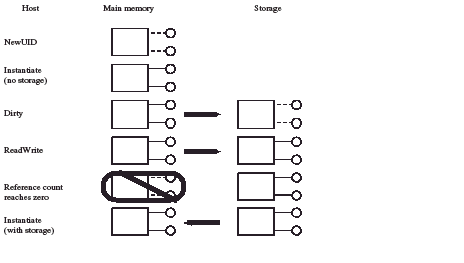
Creating a persistent object
Creating a new instance of a persistent object differs from creating a nonpersistent object, because it requires a unique identifier to associate the object with its record in the database. For the CreateObject and CreateObject2 methods used to create persistent objects, see <SDK>/source/public/includes/CreateObject.h.
For examples of the creation of persistent objects, see the CreateWidgetForNode method in <SDK>/source/sdksamples/paneltreeview/PnlTrvTVWidgetMgr.cpp or the StartupSomePalette method in <SDK>/source/sdksamples/dynamicpanel/DynPnPanelManager.cpp.
You also can call IDataBase::NewUID method to create a new UID in the database. It adds an entry to the database relating the UID to the class of the object being created; however, the object is not instantiated yet, and no other information about it exists in the database.
Instantiating a persistent object
Before you instantiate a new object, use the InterfacePtr template to retrieve one of the object's interfaces. Pass the returned InterfacePtr to the IDatabase::Instantiate method, which calls the database to instantiate the object.
There is only one object in memory for any UID and database. This method checks whether the object already is in memory and, if so, returns a reference to that object. If the object is marked as changed, it is written to the database. For more information, see "Reading and writing persistent data" in Implementing persistent objects. If the object is not in memory, the method checks for previously stored data in the database. If data is found, the method instantiates the object from this data. Otherwise, the method instantiates the object from the object's constructor. Each implementation has a constructor, so the boss and all its implementations are instantiated.
An object is stored to the database only if it is changed, making the default object data invalid. A single object could exist and be used in several user sessions without ever being written to the database. A persistent object whose data is not stored in the database is constructed from the object's constructor.
Whether it instantiates a new object or returns a reference to an object previously instantiated, IDatabase::Instantiate increments the reference count on the object and returns an IPMUnknown* to the requested interface, if the interface is available.
Using commands and wrappers
There are commands for creating new objects of many of the existing classes (for example, kNewDocCmdBoss, kNewPageItemCmdBoss, kNewStoryCmdBoss, and kNewUIDCmdBoss). When you need to create an object, first look for a suite interface, utility interface, or facade interface to make creating your object safe and easy. If no such interface exists, use a command if one is available, rather than creating the object with general functions.
Using a command to create an object protects the database. Commands are transaction based; if you use a command when the application already is in an error state, the command performs a protective shut-down, which quits the application rather than permitting a potentially corrupting change to be made to the document. Commands also provide notification for changes to the model, allowing observers to be updated when the change is made, including changes made with undo and redo operations.
When you implement a new type of persistent object, also implement a command to create objects of that type, using methods outlined in Implementing persistent objects.
Types of references to objects
There are four types of reference to a persistent object: UID, UIDRef, InterfacePtr, and UIDList. Each type of reference serves a different purpose. Understanding these reference types makes working with persistent objects easier.
Destroying an object
There are commands for deleting persistent objects. Use the command rather than calling the DeleteUID method directly, to be sure of cleaning up all references to the object or item references contained in the object.
When you implement a command to delete a persistent object, after you remove the references to the object, use DeleteUID to delete the object from the database, as follows:
To make a boss object persistent, add the IPMPersist interface. Any boss with this interface is persistent and, when an object of the boss is created, it is assigned a UID. Even though the object has a UID, and the UID has an entry in the (ClassID, UID) pairings in a database, the object does not automatically store data. It is up to the interface to store the data it needs. To implement this, add the ReadWrite method to the interface (see "Reading and writing persistent data" in Implementing persistent objects), and make sure the PreDirty method is called before information is changed (see "Marking changed data").
Adding the IPMPersist interface to a boss
All instances of IPMPersist must use the kPMPersistImpl implementation. For an example, see the kPstLstDataBoss boss class definition in <SDK>/source/sdksamples/persistentlist/PstLst.fr
Creating an interface factory for a persistent interface
For a persistent implementation, use the CREATE_PERSIST_PMINTERFACE macro.
Reading and writing persistent data
To store data, your interface must support the ReadWrite method. This method does the actual reading and writing of persistent data in the database. The method takes a stream argument containing the data to be transferred. Read and write stream methods are generalized, so one ReadWrite method handles transfers in both directions. For example, XferBool reads a boolean value for a read stream and writes a boolean value for a write stream. For an example, see the BPIDataPersist::ReadWrite method in <SDK>/source/sdksamples/basicpersistinterface/BPIDataPersist.cpp.
Marking changed data
When data changes for a persistent object that resides in memory, there is a difference between the current version of the object and the object as it exists in the database's storage. When this happens, the object in memory is said to be dirty, meaning it does not match the version in storage. Before a persistent object is modified, you must call the PreDirty method to mark the object as being changed, so it is written to the database. For an example, see the BPIDataPersist::Set method in <SDK>/source/sdksamples/basicpersistinterface/BPIDataPersist.cpp.
The PreDirty method called from within BPIDataPersist::Set is implementation-independent, so you can rely on the version provided by HELPER_METHODS macros defined in HelperInterface.h (DECLARE_HELPER_METHODS, DEFINE_HELPER_METHODS, and HELPER_METHODS_INIT).
This section discusses how streams are used to move information into and out of a document.
Streams are used by persistent objects to store their information to a database. Streams also are used by the host application, to move data like placed images, information copied to the clipboard, and objects stored in the database. IPMStream is the public interface to streams. Implementations of IPMStream typically use the IXferBytes interface to move data.
Stream utility methods (in StreamUtil.h) are helpers for creating all the common types of streams used to move information within or between InDesign databases. The stream utility methods and general read, write, and copy methods are needed any time you work with a stream.
IPMStream is a generalized class for both reading and writing streams. Any particular stream implementation is either a reading stream or a writing stream, and the type of stream can be determined with the IPMStream::IsReading and IPMStream::IsWriting methods.
Any persistent implementation has a ReadWrite method, which uses a set of data-transferring methods on the stream to read and write its data. (See "Reading and writing persistent data" in Implementing persistent objects). The IPMStream methods starting with the Xfer prefix are used for transferring the data type identified in the method name. For example, XferByte transfers a byte, XferInt16 transfers a 16-bit integer, XferBool transfers a Boolean value, and so on. All transferring methods are overloaded, so they can take a single item or an array of items. (The XferByte(uchar, int32) version typically is used for buffers.) Streams also handle byte swapping, if required. If swapping is not set (SetSwapping(bool16)), the default is to not do byte-order swapping.
Additional IPMStream methods, XferObject and XferReference, transfer boss objects and references to objects. XferObject transfers an owned object, and XferReference transfers a reference to an object not owned by the object using the stream. To decide which method to use, think about what should happen to the object if the owning object were deleted. If the object should still be available (as, for example, the color a page item refers to), use XferReference. If the item is owned by the object and should be deleted with the owner (as, for example, the page a document refers to), use XferObject.
If you must read from or write to a location the host application does not recognize, you must create a new type of stream. For example, you might need to create a new stream type to import and export files stored on an FTP site or in a database.
Stream boss
The first step in implementing a new stream is to define the boss. Typically, a stream boss contains IPMStream and any interface required to identify the type of information in the stream, the target or source of the stream, or both. This example creates kExtLinkPointerStreamWriteBoss, a pointer-based read-stream boss:
IPMStream is the only interface all stream bosses have in common. In the preceding example, the IPointerStreamData controls a stream that writes out to memory; it contains a buffer and a length.
The following is another example, showing kFileStreamReadBoss, a stream commonly used in importing:
IPMStream interface and the IXferBytes class
When implementing your own stream, take advantage of the default implementations of IPMStream, CStreamRead, and CStreamWrite. These default implementations use an abstract base class, IXferBytes, to do the actual reading and writing. To implement a stream for a new data source, you must create an IXferBytes subclass that can read and write to that data source.
This section discusses how to open a document that contains data saved by a plug-in that is no longer available.
Plug-ins you create can add data to the document. When your plug-in is present and loaded, it can open and interpret the data; however, if the user removes the plug-in and then opens the document, or gives the document to someone who does not have the plug-in, the plug-in is not available to interpret the data.
You have two ways to handle such situations:
The rest of this section describes these options.
The application can give a warning when it opens a document that contains data created by a plug-in that is not available. There are three warning levels: critical, default, and ignore. By setting the warning level, the plug-in can specify the relative importance of its data. Data created by the plug-in has the "default" warning level unless you override the setting and identify the data as more important (critical) or less important (ignored). This importance settings can be modified by adding resources to the plug-in's boss definition file:
You can set these warnings to use ClassID (when the plug-in creates new bosses) or ImplementationID (when the plug-in adds interfaces to existing bosses) values as triggers. Use kImplementationIDSpace to specify a list of ImplementationID values, and kClassIDSpace for ClassID values. You can put any number of IDs in the list, but all the IDs must be of the same type. Use a second resource to mark IDs of another type. the following examples set the warning level to ignore data stored by the PersistentList plug-in in the SDK by adding two resources to PstLst.fr:
This example marks implementation IDs as ignored:
This example marks boss classes as ignored:
You do not need to mark any IDs that do not appear in the document (for example, data that was written out to saved data) or implementations that are not persistent.
You do not need to mark IDs if you want the default behavior.
This alert is activated when a document is opened and contains data from one or more missing plug-ins that cannot be ignored. The document contains a list of the plug-ins that added data to it. Each piece of data added has an importance attached to it; this may be critical, default, or ignorable. Data marked as ignorable does not cause the alert to be activated. Data marked as critical or default causes the alert to be activated. In the case of critical data, the alert works more strongly; this is the only difference between critical and default data.
The alert tells the user data is missing, presents a list of missing plug-ins, and allows the user to continue or cancel the open operation. Each missing plug-in has the chance to add a string to the alert that specifies additional useful information (for example, a URL for purchasing or downloading the plug-in). The alert is modeled on the missing-font alert.
The "Don't Warn Again For These Plug-ins" option is deselected by default. If this option is selected, the alert is not activated the next time a document is opened and any subset of the listed plug-ins is missing (and no other plug-ins are missing). This allows users accustomed to seeing (and ignoring) alerts concerning specific plug-ins to automatically bypass the alert, while still getting warned about data from any plug-ins newly found to be missing. The alert is activated again if a document is opened that uses other missing plug-ins. The alert is activated again if the "Don't Warn Again For These Plug-ins" option is deselected.
If a plug-in creates persistent data in a document, these guidelines ensure that the document behaves gracefully if a user tries to open it when the plug-in is missing or if the document has been edited by a user who did not have the plug-in:
If a document contains data placed there by a plug-in that is not available, the user can choose to open the document anyway. If the data is completely self-contained, there may be no problem; however, if the plug-in's data depends on anything else in the document, undesirable things can happen.
Missing data not copied
InDesign maintains most data in a centrally managed model in which the core-content manager keeps track of what information is added to the document, handles conversion of the data, and provides a convenient mechanism for instantiating objects based on the data. This approach does not allow the data to be copied when the plug-in is missing, however, because the content manager would not be able to provide these services for the missing plug-in's copied data, and that potentially can leave the document in an invalid state. With the exception of those objects that hold onto only ClassID values, InDesign blocks copying data associated with missing plug-ins.
This means no attribute is copied if the plug-in that supplies the attribute is missing. This applies to all attributes: text, graphics, table, cjk, and so on. Furthermore, if a plug-in attached a data interface to an existing attribute, and the plug-in is missing, the attribute is copied but the add-in data interface is not. This is consistent with how InDesign handles UID-based objects.
Likewise, if a data interface is added to an XML element, the data interface is not copied if the plug-in that supplied it is missing.
There are several features based on an object from a required plug-in holding a ClassID from an optional plug-in, including adornments, text composer, pair-kern algorithm, section numbers, and unit defaults. In these cases, the consequences of losing track of the plug-in that supplied the data is much less severe. Conversion of these ClassIDs is quite unusual and could be handled if necessary by issuing new ClassIDs. Error handling in the user interface when the plug-in is missing is much more graceful.
Black-box data storage
A second, simpler data-model storage mechanism was added for software developers requiring that data (like text attributes) is copied with the text, and for developers who want to attach data to other ID objects, such that it gets copied even when the source plug-in is missing. This mechanism is black-box data storage.
In the simplest case, the black box is just a new persistent interface that sits on the object. A plug-in can store data in the box or fetch data out of the box. The data is keyed by a ClassID, which is supplied by the plug-in. Multiple plug-ins can store their data in the same black box, and each plug-in gets its own unique streamed access to its data. The black box just keeps track of the key, the length of the data, and the data stream. The software developer is responsible for handling everything else-conversion, swapping, and so on. Users do not get a missing plug-in alert for data placed in a black box.
Any UID-based object could have a black box. In addition, attributes and small bosses (used for XML elements) can have black boxes.
The following objects support black boxes:
For more information on the black-box mechanism, refer to IBlackBoxCommands, IBlackBoxCmdData, and IBlackBoxData in the API reference.
FixUpData
Suppose that a hyperlink attribute is linked to another frame, and the user can double-click the link to go to the frame. A plug-in supplies an observer, so if the frame is deleted, the link is severed. Now suppose that you give the document containing the hyperlinks to someone who does not have the hyperlink plug-in. This person edits the document, deletes the frame, saves the document, then returns the document to you. The document is now corrupted, because your plug-in was unable to delete the associated link, which now points to an undefined frame.
To restore the integrity of a document in this case, the plug-in can override the IPlugIn::FixUpData method. This method is called when the document is opened, if the plug-in was used to store data in the document and the document was edited and saved without the plug-in. In this case, the hyperlinks plug-in could override FixUpData to scan all its objects, checking whether the linked frame UIDs were deleted; when the document is opened with the plug-in, the method correctly severs the links.
This section describes types of conversion providers and the advantages of each type.
Converting persistent data from an old document to a new one is complex, because each plug-in can store data independently in the document. When the host opens a document created with an older version of the application or an older version of any plug-in used in the document, you must convert and update the older data to match the new format.
Versioning persistent data is the process of converting persistent data in a database from one format to another. The data in different formats usually resides in different databases; for example, data in a database (document) from a previous version of InDesign versus that in a database (document) from a newer version of InDesign. Just as each plug-in that has a persistent data implementation is responsible for the order of reading and writing its own data (thus implicitly defining a data format), each plug-in also is responsible for converting its own data from one format to another. Whether data in a database requires conversion usually is determined when the database is opened.
There are two approaches to converting persistent data:
As a plug-in developer, you want to ensure that your users can open documents with persistent data from an older version of your plug-in. To do this, your plug-in must provide data conversion functions. The best time to consider your data-conversion strategy is when you realize that your plug-in will store some data to a database. You need to implement data-conversion utilities in the following cases:
In any of these cases, the conversion manager needs to be notified how to convert the persistent data for use by the loaded plug-in.
Specifying how the persistent data format changed is somewhat different from adding persistent data to or removing it from a document. Besides telling the conversion manager to add or delete any obsolete data, the conversion provider has to be able to tell the conversion manager about every implementation in the plug-in that was ever removed, to keep the content manager up to date about the various persistent data formats.
At the very least, the resources required to support data conversion can help you keep a log of how your persistent data format has changed. Such a log can be useful.
Sample conversion scenario
Consider a plug-in with two released versions, 1 and 2, which use the same data format; in this case, both versions of the plug-in have the same format version number, 1. A new release of the plug-in, version 3, stores additional data, such as a time stamp. You must update the format version number to match the current plug-in version number; so, for plug-in version 3, the format version also would be 3. Because you changed the format version number, you must create a converter that converts from version 1 to version 3. The following table shows an example of version changes:
| Plug-in version | Format change | Format version |
|---|---|---|
| 1 | N/A (new plug-in) | 1.0 |
| 2 | No | 1.0 |
| 3 | Yes | 3 |
| 4 | Yes | 4 |
For a fourth version of the plug-in, you again change the format, allowing a date stamp to be signed. Change the plug-in and format version numbers to 4, and add an additional converter to convert from version 3 to version 4. Conversions from version 1 to version 4 are done by the conversion manager, which chains the converters together; the first converts from format version 1 to format version 3, and the second converts from format version 3 to format version 4).
Each document contains header information about the content, which includes a list of all plug-ins that wrote data to the document and the version number of the plug-in last used to write that data. When a document is opened, the application checks whether any plug-ins are missing or out of date. If a plug-in is missing, it might provide an alert embedded in the document. (See Missing plug-ins.)
If a plug-in is out of date, data written by the old plug-in must be updated to match the format required by the loaded plug-in. A plug-in can register a conversion service to do the update. The InDesign conversion manager (IConversionMgr) determines which conversions are required for opening the document and calls the appropriate plug-in to do the conversion.
When the persistent data for any plug-in changes, this is a document format change. Any of the following can change the document format:
When you make a format change, you must do two things to maintain backward compatibility:
Updating version numbers
Each plug-in has a plug-in version resource of type PluginVersion. The PluginVersion resource appears in the boss definition file. The first entry of this resource describes the application's build number; on the release build, this entry is the final-release version number. The second entry of the resource is the plug-in's ID, followed by three sets of version numbers, followed by an array of feature-set IDs. If any of the IDs in this list matches the current feature-set ID, the plug-in is loaded. To see an example, open any example .fr file in the SDK.
Each version number has a major number and a minor number. The first version number is the version of the plug-in, which gets updated for every release of the plug-in. The second version number is the version of the application with which the plug-in expects to run. This ensures that the user does not drop a plug-in compiled for one version of the application into an installation of another version of the application. The last number is the format version number, which indicates the version of the plug-in that last changed the file format; this is the version number written into the document, and it is the number the conversion manager checks to see whether conversion is required.
The format version number does not always match the plug-in's version number. The format version number does not generally change as often as the plug-in version number. The plug-in version number changes for every release of a plug-in, but the format version number changes only if the format for the data the plug-in stores in the document has changed and the conversion manager is required to convert the data.
Adding a converter
Converters can be implemented as conversion services. InDesign supports two types of service-provider-based data conversion:
A conversion service is responsible for all conversions done by the plug-in. A converter might at first handle only a single conversion, from the first format to the second. Later, if you change the format again, you can add another conversion to the converter, to convert from the second format to the third.
Suppose you market a plug-in that supplies a date stamp. You had released two versions (version 1.0 and version 2.0) of the plug-in without changing the persistent data created by the plug-in; so both releases have the same format version number (1.0). For the third released version of the plug-in, you add a time stamp. You must update the format version number to match the current plug-in version number; for example, for plug-in version 3.0, the format version also must be 3.0.
Suppose for the fourth released version of the plug-in (version 4.0), you again change the format, allowing a date stamp to be signed. You then change the format version number to 4.0 and add an additional converter, capable of converting from format version 3.0 to format version 4.0. Conversions from format version 1.0 to format version 4.0 can be done by the conversion manager, which chains the two converters together, using the first converter to convert from format version 1.0 to format version 3.0, and using the second converter to convert format version 3.0 to format version 4.0.)
Adding a converter (either schema-based or code-based) to your plug-in means adding a new boss with two interfaces, IK2ServiceProvider and IConversionProvider. The IK2ServiceProvider implementation, kConversionServiceImpl, is provided by the application. You need to supply the IConversionProvider implementation. Here is a sample boss:
Most of the work is done in the conversion provider supplied with the SDK.
The default implementation of IConversionMgr calls IConversionProvider::CountConversions and IConversionProvider::GetNthConversion to determine which conversions are supported by the converter. When you implement a new converter, CountConversions returns 1, and GetNthConversion returns fromVersion set to the version number before your change and toVersion set to the version number having your change in it. VersionID is a data type in the Public library; it consists of the PluginID value, the major format version number, and the minor format version number.
For a new converter, fromVersion should be VersionID(yourPluginID, kOldPersistMajorVersionNumber, kOldPersistMinorVersionNumber). The toVersion should be the new format version number.
Your new conversion is added as conversion index 0. For a new converter, it looks like this:
When adding another change after a changed version already exists, the change numbers should chain together so the conversion manager can do changes across multiple formats. So, if your plug-in used three formats-starting with version 1, then changed in version 3, and changed again in version 4-your plug-in should register one converter that handles the conversion from format version 1 to format version 3 and another converter that handles the conversion from format version 3 to format version 4. If necessary, the conversion manager can chain them together to convert a document from version 1 to version 4. The methods would look like this:
Next, tell the conversion manager which information you changed. The default implementation of IConversionMgr calls IConversionProvider::ShouldConvertImplementation with each implementation in the document supplied by the plug-in. Depending on the data status of the implementation, the plug-in must return kMustConvert when the content must be modified, kMustRemove when the data is obsolete and must be removed, kMustStrip when the content must be stripped, or kNothingToConvert for all other cases.
Using kTextFrameImpl as an example, define a method for IConversionProvider::ShouldConvertImplementation, returning kMustConvert when the tag is kTextFrameImpl and kNothingToConvert in all other cases. The plug-in should do this when the conversion manager is converting that plug-in's data and not performing another conversion, so check the conversion index and make sure it is the one that you added. It might look like the following:
Next, implement ConvertTag to do the actual conversion. Suppose the TextFrame ReadWrite method writes an integer value and a real value, and you are adding a boolean. The ConvertTag implementation might look like the following, which illustrates what most converters look like:
If the converter needs to convert a class, it implements ShouldConvertClass and ConvertClass. This is necessary only if the class is being deleted or is a container for some other data. (See "Containers and embedded data" in Converting data with the conversion manager).
Removing classes or implementations
If you remove a ClassID or an ImplementationID from a version of your plug-in, the identifier also must be removed from documents as they are converted. The conversion manager removes an identifier for you if you implement your converter to return invalid status. For example, to remove a tag, implement ConvertTag as follows:
Deleting a class is similar: implement ConvertClass to return kInvalidClass.
Changing an implementation in one class
Suppose a boss is defined with an IBoolData interface, implemented as kPersistBoolTrue, meaning it defaults to true. Suppose you change this to kPersistBoolFalse. When you read an old document with the new boss, you want it to use the new implementation. You would then write a converter to take the data stored as kPersistBoolTrue and switch it to be stored as kPersistBoolFalse. When you first access the boss, it has the old value. If you do not make a converter, the boss will not read the old data, because there is no interface in the new boss using the kPersistBoolTrue ImplementationID. Instead, the boss looks for kPersistBoolFalse but does not find it, because the old boss did not have it; therefore, the value is false, because it is the default value instead of the old value.
To change the ImplementationID of the data in the document, make a conversion method to catch the old ImplementationID and change it to the new one. Do this only for your boss; do not change other bosses using kPersistBoolTrue. Your method might look like this:
forClass is the boss in which the data was found. The conversion should be done only if forClass is the one you want changed.
Also implement ShouldConvertImplementation. forClass is either the class in which the data was found or kInvalidClass if any class should match. The implementation of ShouldConvertImplementation looks like this:
Containers and embedded data
InDesign does not have many instances of containers. One example is in the text attribute code. A text style is a UID-based boss object containing an implementation, TextAttributeList, that contains a list of attribute bosses (Bold, Point Size, Leading, and so on). These attribute bosses are not UID-based bosses; instead, TextAttributeList streams the ClassID for a boss, followed by the boss's data, then streams the next boss in the list. TextAttributeList, therefore, must call the stream's content tracker to notify the content manager that a new class was added to the document.
The following example illustrates why this is important.
Suppose a new Red-Line plug-in adds an attribute to the style and the text does not compose correctly if the Red-Line plug-in is removed. Red-Line can list the attribute as critical, so the host provides a strongly worded warning when the user tries to open the document without the Red-Line plug-in. However, if TextAttributeList does not register the attribute boss with the content manager, the application never knows the attribute is in the document and cannot warn the user. Suppose the Red-Line plug-in is updated, and the attribute boss in particular is updated to store its data differently. The Red-Line plug-in registers a converter handling the format change. If the host does not know the attribute appears in the document, the Red-Line converter is never called to perform the conversion. The document appears to open correctly, but it crashes on the attribute's ReadWrite method the first time the style is read.
For the Red-Line attribute to be converted, TextAttributeList must register a converter. If the content manager was notified when the attribute was streamed, the conversion manager knows the attribute needs to be converted. It even knows the attribute was streamed by TextAttributeList. But the conversion manager has no way of knowing where the attribute is inside the data streamed by TextAttributeList; therefore, TextAttributeList should register a converter that calls back to the conversion manager to convert each piece of embedded data. Otherwise, the embedded data is not converted.
Content manager
The host has a content manager that tracks what data is stored in the document, which plug-in stored it, and the format version number of the plug-in last used to write the data.
Think of this as a table attached to the root of the document: every ImplementationID part of the document appears in the table. This table also includes all ClassID values in the document. The following tables are an example.
This table shows version information:
| ImplementationID | PluginID | Format version number (only minor number) |
|---|---|---|
| kSpreadImpl | kSpreadPluginID | 0 |
| kSpreadLayerImpl | kLayerPluginID | 0 |
| kTextAttrAlignJustImpl | kTextAttrPluginID | 1 |
| kCMSProfileListImpl | kColorMgmtPluginID | 3 |
| ... | ... | ... |
This table shows class IDs in the document:
| ClassID | Plug-in ID | Format version number (only minor number) |
|---|---|---|
| kSpreadBoss | kSpreadPluginID | 1 |
| kSpreadLayerBoss | kLayerPluginID | 1 |
| kTextAttrAlignBodyBoss | kTextAttrPluginID | 3 |
| kDocBoss | kDocFrameworkPluginID | 1 |
When an object is streamed to a document, the document receives the ClassID of the object and the data streamed by each of the object's ReadWrite methods. The data written by a ReadWrite method is marked with the ImplementationID of the ReadWrite implementation; this way, when the data is read later, the system knows which C++ class to instantiate to read the data. IContentMgr maintains an overall list of the ClassID and ImplementationID values used in the document. When a new ClassID or ImplementationID is added to the document, IContentMgr checks which plug-in supplied the ClassID or ImplementationID, notes the plug-in ID and the format version number, and adds the new entry to the table.
The plug-in supplying a ClassID is the one supplying the class definition. Only the plug-in supplying the original class definitions is considered; add-in classes do not count. The plug-in supplying an ImplementationID is the one that registered a factory for the ImplementationID.
This data is used to detect missing plug-ins and manage document conversion. When the user opens a document containing data supplied by a missing plug-in, the host alerts the user that the document contains data from a missing plug-in. The host detects missing plug-ins by looking in the content manager to see which plug-ins supplied data to the document and checking this list against the list of loaded plug-ins to see whether any are missing.
This data also is used for document conversion. When the user opens a document, the default implementation of IConversionMgr checks the format version number of the plug-ins supplying data to the document and compares it with the format version number of loaded plug-ins. Any mismatch means a conversion is required before the document can be opened. If there is a format version change without a supplied data converter, the document will not open.
Conversion manager
When a document is opened, the conversion manager is called to check whether any data in the document requires conversion. If the data requires conversion and a converter is available, the document is converted and opens as an untitled document. If a converter cannot be found, the host displays an alert message that warns the user the document cannot be opened because it cannot be converted.
This initial check, implemented in IConversionMgr::GetStatus, happens very early in the process of trying to open the document, before any objects in the document are accessed (that is, before any of their ReadWrite methods are called). This is critical, because a ReadWrite method will not succeed if the object needs to be converted. The conversion manager accesses the content manager (converting it if necessary), and uses the content manager to find out what plug-ins supplied data to the document. If any plug-ins used in the document have different formats than the formats of the loaded plug-ins, conversion is necessary. Next, the conversion manager sees whether there is a converter to convert from the format in the document to the format associated with the loaded plug-in. If such a converter is available, conversion is possible; the document may be closed and opened again as an untitled document.
If the GetStatus method returns with a result indicating conversion is not necessary, the open operation proceeds without calling the conversion manager again. If the GetStatus method returns with a result indicating conversion is necessary but impossible, the open operation is aborted. If the GetStatus method returns with a result indicating conversion is required and a converter is available, the conversion manager's ConvertDocument method is called to perform the conversion.
The first thing ConvertDocument does is compile a list of the classes and implementations in the document that must be converted. A plug-in may have many different implementations that wrote data to the document, but only one of these implementations might require conversion. The conversion manager uses the content manager to iterate over classes and implementations supplied by the plug-in, and the conversion manager calls the converter to find out which classes and implementations require conversion. Each class or implementation in the document that the converter says must be converted is added to the list of classes or list of implementations to be converted. Other data written by the plug-in is ignored by the converter; it is not converted.
The next step is to iterate over the UIDs in the document. For each UID, the conversion manager gets the class of the UID. If the class is on the list of classes to be converted, the conversion manager calls a converter for the class. If, as is more common, the class contains an implementation needing to be converted, the conversion manager opens an input stream on the UID and iterates through the implementations in the UID. If any implementation in the UID requires conversion, an output stream is opened on the UID. Any implementation not requiring conversion is copied to the output stream. If an implementation requires conversion, its converter is called. The converter gets passed the input stream and the output stream. The converter reads from the input stream in the old format and writes to the output stream in the new format.
After the UID iteration is completed, the content manager is called to update the format numbers for all plug-ins that were outdated, to show their data was converted and is up to date. After this, it is safe for ReadWrite methods to be called on objects in the document.
If any converter requires access to another object to do its conversion, it is called in the last phase of conversion. For example, suppose there was one document-wide preference setting for whether text in frames has smart quotes turned on, but you want to make this a per-frame setting. The text frame must store a new flag that indicates whether smart quotes are on or off. The converter adds a new flag in the first phase of conversion, but the converter cannot set the correct value for the flag until the preferences are converted. So, the converter needs to be called once again, after the first phase is complete and it is safe to instantiate the preferences, to get the value of the document-wide smart-quotes setting so the converter can set the frame's new smart-quotes setting accordingly.
To perform format conversion without the conversion manager, the persistent data itself must identify the version of the plug-in that originally wrote the information. To use this method, add a version number to the implementation classes, and implement the ReadWrite method to write the version number first whenever the method writes data, as shown in the following figure. This method has the advantage of forward compatibility.
The following figure shows persistent data with version number:

For example, suppose the first version of your plug-in stores two-byte values, fOne and fTwo, and uses a byte value to store the data's version number. The ReadWrite method for this implementation would be something like the following example, which supports multiple versions (version 1 of the plug-in):
The second version of this plug-in modifies the data format by adding a 16-bit integer value, fThree. In this version, your ReadWrite method must be able to read data in either format, but it always must write data back in the new format. The following example shows a ReadWrite method supporting multiple versions (version 2 of the plug-in):
This code both reads and writes all data for this implementation. It could check whether the stream is a reading or writing stream and perform only the needed operation, but the dual-purpose code actually is simpler and accomplishes the same thing. If the stream is a ReadStream, the version is initialized as 0x02 but immediately replaced by the contents of the first byte in the stream, and the rest of the stream is processed according to the version number found. If this plug-in encounters data claiming a version number greater than 2, only the data it understands (processed by the else clause) is read. This method allows the version 2 plug-in to work with data from both earlier and later versions. Each new version of the plug-in using this method must preserve the portion of the stream previous versions created and add new information only to the end.
When using this approach, the plug-in's data version number must not change between versions of the plug-in, but only when a data converter is being supplied to convert the data from one version to another.
This section explains the fundamental elements and ODFRez resources you need when incorporating a converter in your plug-in.
PluginVersion is a resource included in every InDesign and InCopy plug-in. Part of the resource is the declaration of a persistent data format number, like the following:
For an example, see the resource definition in <SDK>/source/sdksamples/basicdialog/BscDlg.fr.
Each plug-in specifies a different format number. These format numbers are stored in documents, so when a document is opened, the content manager can determine whether data conversion is needed. This determination is made by comparing the format numbers stored in the document for each plug-in with the format numbers declared by loaded plug-ins. If the format numbers are different, the conversion manager is called upon to do a data conversion.
Format number values must meet the following criteria:
Format-number values are just numbers; however, you might find it easier to use #define macros for format numbers instead of using their values directly.
The following table lists format-number macros and their values from InDesign SDKs. See <SDK>/source/sdksamples/common/SDKDef.h.
| Version | Macro: Major | Macro: Minor | Tuple |
|---|---|---|---|
| 1.0 | kSDKDef_10_PersistMajorVersionNumber | kSDKDef_10_PersistMinorVersionNumber | {0, 307} |
| 1.5 | kSDKDef_15_PersistMajorVersionNumber | kSDKDef_15_PersistMinorVersionNumber | {1, 0} |
| 1.0J | kSDKDef_1J_PersistMajorVersionNumber | kSDKDef_1J_PersistMinorVersionNumber | {2, 1} |
| 2.0 / 2.0J | kSDKDef_20_PersistMajorVersionNumber | kSDKDef_20_PersistMinorVersionNumber | {4, 1} |
| CS / CSJ (3.0 / 3.0J) | kSDKDef_30_PersistMajorVersionNumber | kSDKDef_30_PersistMinorVersionNumber | {5, 1} |
| CS2 / CS2J (4.0 / 4.0J) | kSDKDef_40_PersistMajorVersionNumber | kSDKDef_40_PersistMinorVersionNumber | {6, 1} |
| CS3 / CS3J (5.0 / 5.0J) | kSDKDef_50_PersistMajorVersionNumber | kSDKDef_50_PersistMinorVersionNumber | {7, 1} |
| CS4 / CS4J (6.0 / 6.0J) | kSDKDef_60_PersistMajorVersionNumber | kSDKDef_60_PersistMinorVersionNumber | {8, 1} |
| CS5 / CS5J (7.0 / 7.0J) | kSDKDef_70_PersistMajorVersionNumber | kSDKDef_70_PersistMinorVersionNumber | {9, 1} |
| CS6 / CS6J (8.0 /8.0J) | kSDKDef_80_PersistMajorVersionNumber | kSDKDef_80_PersistMinorVersionNumber | {10, 1} |
With the first format change for a plug-in, you must add a converter (either schema-based or code-based) to your plug-in (only one converter per plug-in). See "Adding a converter" in Converting data with the conversion manager.
The schema resource defines which formats of which implementations the converter should handle. The schema resource is defined in your .fr file and compiled using the ODFRC (Open Document Framework Resource Compiler). See the following example and <SDK>/public/includes/Schema.fh.
Examples
When you define a schema resource, you explicitly state which format number of which implementation it defines. It knows which plug-in contains the implementation, because it is defined implicitly to be the plug-in that contains the schema resource. In other words, all schemas defined in plug-in A are for implementations provided by plug-in A. The schema-based converter uses the information in this resource (or the SchemaList resource) to determine how to map persistent data from one format to another.
In the following example, (1) identifies the schema resource ID. The value does not matter, as long as it is unique among all schema resources compiled into the plug-in. The first item in the schema specifies the implementation ID, and the second item specifies the format number as a tuple {1, 0}. Next comes the schema field list. Curly brackets ( { } ) delimit the list, and commas separate the individual fields. Each field has a type, name, and default value. It is extremely important each field name is unique and these values are not reused when a field is deleted. Field names must be unique among the schemas that describe different formats of the same implementation, because this is what allows data mapping between different format numbers.
The following is a schema resource from <SDK>/sdksamples/snapshot/Snap.fr:
In the following example (based on the preceding Snap.fr example), there is a new schema resource ID (2). Inside the schema, the following changes occurred:
This example is a hypothetical schema resource:
Default values
Default values in a schema are used only when the associated field is added to the data stream by conversion. For example, if an implementation originally contained only one int32 value but now also needs a bool16 value, the first schema lists only the int32 and the second schema lists both the int32 and the bool16. When the conversion runs, the schema converter writes a bool16 into the output stream, using the value specified as the default. Because the int32 already existed, the default value specified by the schema is not used.
Suppose you have an implementation with two int32 values. In your constructor, you give them values of 11 and 52. The schema should reflect this. If you later decide 53 is a better default value for the second one, change the schema to match. In this case, however, you do not need a new schema.
The SchemaList resource allows you to specify several schemas in one resource, for convenience. The following example shows the two previous schema resources combined in one SchemaList.
Even if initially you have only one Schema inside your SchemaList, it is a good idea to create this resource because, over the course of development, this SchemaList resource acts as a persistent data format log.
This example shows a hypothetical SchemaList resource:
The possible types for schemaTypeIdentifier (see the preceding example) are the following. See Schema.fh for their definitions.
To instruct the schema-based converter to add or remove implementations or an entire boss, specify a DirectiveList resource to your resource file, as shown in the following example. (The DirectiveList resource formerly was known as BossDirective.) The DirectiveList resource is defined in your .fr file and compiled using ODFRC.
A DirectiveList resource is required each time you do any of the following:
The DirectiveList resource serves several purposes:
The following table lists the possible directives.
| Directive | Description |
|---|---|
| IgnorePlugin | Marks a plug-in as ignorable. |
| MoveClass | Moves a boss class from one plug-in to another. |
| MoveClassToPlugin | A boss was moved from one plug-in to another. |
| MoveImplementation | Moves an implementation from one plug-in to another. |
| MoveImplementationToPlugin | An implementation was moved from one plug-in to another. |
| RemoveAllImplementation | Removes an implementation from all boss classes. |
| RemoveAllOtherImplementation | Removes an implementation from all boss classes. |
| RemoveClass | Removes a boss class from a plug-in. |
| RemoveImplementation | Removes an implementation from a boss class. |
| RemoveOtherClass | Removes a boss class from another plug-in. |
| RemoveOtherImplementation | Removes an implementation from a boss class. |
| RemovePlugin | Removes an entire plug-in. |
| RenumberPlugin | Renumbers an entire plug-in. |
| ReplaceAllImplementation | Replaces one implementation with another in all plug-ins. |
| ReplaceClass | Replaces one boss class with another. |
| ReplaceImplementation | Replaces one implementation with another in a specific plug-in. |
Suppose an implementation contains three Boolean flags followed by four uint32 values. The schema could contain seven separate fields, or it could define two array fields, as in this example:
The number of default values statically determines the number of elements in each array. Note that the set of default values is enclosed in braces.
If the quantity of array elements is dynamic or an array consists of structures rather than single elements, use a FieldArray, which is a type of field, like Bool16, Uint32Array, or any of the other types in Schema.fh.
In the following example, the Bar implementation differs slightly from the previous example. Instead of having three flags followed by four values, it has a value associated with each flag, and the number of (flag, value) pairs is dynamic:
The syntax looks slightly complicated because of ODFRC limitations, but it is fairly straightforward. The schema contains only one field; its type is FieldArray, and its name is kBarPairs.
Following the field's name is its iteration count. Because this is an attribute of the FieldArray, it has a type but not a name. It also has a default value, which usually is zero. The counter might be a signed or unsigned integer that is 8, 16, or 32 bits wide.
Following the iteration count is the list of iterated fields. Each has a type, name, and default value, like any other field. The default value is not used unless the iteration count has a nonzero default. In the preceding example, the output stream would simply be "0". If the default iteration count were 2, the output would be "2, kFalse, 0, kFalse, 0".
FieldArrays can be nested up to three levels deep.
An important variant of the FieldArray type is the FieldIf type. Use this construct to include a block of fields zero times if a condition is not met or once if the condition is met. The conditional value can be of type Bool8, Bool16, ClassID, or ImplementationID. If the conditional value is of type ClassID or ImplementationID, the fields are included if the ID is valid.
The following is a slight variant of the preceding example:
In this case, kBarOption and kBarValue are included zero or one times, depending on the Bool16 value.
FieldIf constructs can be nested up to three levels deep.
This chapter describes InDesign's command architecture. It also outlines how to find and use the commands provided by the InDesign API, how to implement new commands of your own, and other extension patterns associated with commands.
This section introduces the generic command pattern, databases that provide persistence to the application's objects, and models that represent the application's objects in memory.
The intent of the command pattern is as follows: "Encapsulate a request as an object, thereby letting you parameterize clients with different requests, queue or log requests and support undoable operations." (This is described in Gamma, Helm, Johnson, and Vlissides, Design Patterns, Addison-Wesley, 1995.) The structure of this pattern is shown in the following figure.
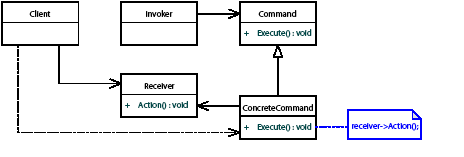
This pattern decouples the object that invokes an operation from the object that implements it. The client wants an operation to be performed, the receiver knows how to perform the operation, and the two are decoupled by this pattern. The command declares an interface for executing an operation. The client does not send messages directly to the receiver; rather, the client creates a concrete command object and sets its receiver. The concrete command implements execute by calling the corresponding operation on the receiver. The invoker asks the command to carry out the request, which causes the receiver to perform the operation.
Within the InDesign API, an implementation of the command pattern is used in situations where preventing data corruption is paramount and users must be able to undo or redo changes.
A persistent object has its state maintained outside the application runtime. It can be removed from main memory and returned again, unchanged. The application maintains persistent objects in a database. A database on disk is an opaque binary file in the operating system's file system. This database file stores the serialized state of a collection of objects. The set of objects stored in a particular database is collectively known as a model. For example, an InDesign document file like Untitled-1.indd is a database file that represents the state of an instance of a document model.
Objects are stored in a database in the following format:
The class that represents a database is IDataBase.
For more detail, see Persistent Data and Data Conversion.
Databases must be consistent and stable. Some databases also need to support undoability-the ability for a user to undo or redo changes. For example, the ability to undo changes made to a document is required; however, there is no requirement to undo changes made to the database that persists the user interface state.
The table in Command managers, databases, and undo support shows the databases that exist and their support for undoability. If a database supports undoability, that support cannot be turned off. All changes to objects that persist in the database must be undo-able. Turning off undo support is not allowed, because it would disable error handling and increase the risk of document corruption.
A model is a collection of objects backed by a database for persistent storage. A model is a tree-structured graph of objects. The ownership relationships between objects in a model defines this tree structure. Ownership relationships are just parent-child relationships within the tree.
Document model
Documents are represented by the document model. The following figure shows an example of objects in a document model (instance diagram):
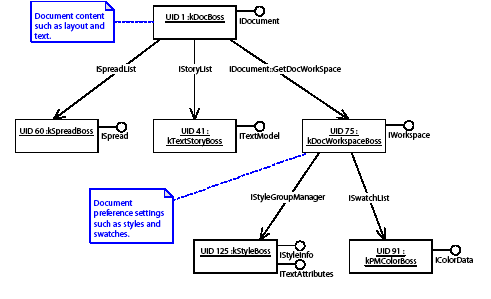
The document (kDocBoss) is the root object in the document model. It owns a collection of spreads (kSpreadBoss), stories (kTextStoryBoss), a workspace (kDocWorkspaceBoss), and so on. These objects may own further objects specific to their domain. The document's workspace owns objects like styles and swatches, which can be used throughout the document.
The database file that provides persistence for a document model is an end-user document file; for example, a file Untitled-1.indd saved from InDesign.
Defaults model
Global preference settings are represented by the defaults model. The following figure shows an example of objects in the defaults model (instance diagram):
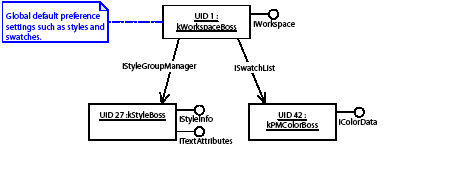
The workspace (kWorkspaceBoss) is the root object in a defaults model. It owns the objects that represent default preference settings like styles, swatches and so on. The defaults model is global and is accessed from the session (kSessionBoss) via the ISession interface. When a new document is created, preference settings can be copied from the defaults model into the document's workspace (kDocWorkspaceBoss).
The database file that provides persistence for this model is an application defaults file. For example, the file named InDesign Defaults is the database file used by InDesign to persist the defaults model.
Session model
A session of an application is represented by the session model. shows an example of objects in the session model (instance diagram):
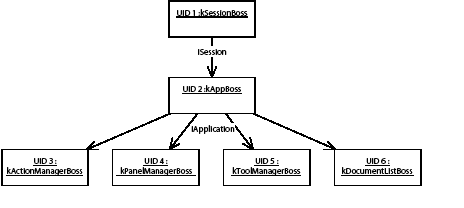
The session (kSessionBoss) is the root object in the session model. This model owns application-related objects that must persist from session to session. For instance, user interface objects are found here, together with other objects that store the application 's type system (the boss classes provided by all registered plug-ins).
The database file that persists objects in this model is the application's saved data file. For example, the file named InDesign SavedData is the database file used by InDesign to persist the session model.
Books, asset libraries, and other models
Several other features in an application have their own dedicated model, together with a database that provides that model with persistence. Prominent examples are books, asset libraries, and the scrap. See the table in Command managers, databases, and undo support for the level of undo support provided by their databases.
This section describes how commands are used in the application. It includes sections on the CmdUtils class, which is fundamental to the processing of commands, and how to use command sequences to group multiple commands into one logical unit.
Within the application, the most prevalent use of commands by client code is to modify persistent objects in the document model or defaults model. For example, plug-ins use commands to create frames in a document or modify the default text style.
Commands encapsulate the changes made to persistent objects into a database transaction. Encapsulating changes in this way helps prevent corruption. Furthermore, any change to the state of persistent objects that needs to support undo must be made using a command.
Commands change persistent objects by doing the following:
A command is processed by the application; this means an instance of the command is passed to the application to be executed. A command can change persistent data within only one database each time it is processed. The processing of a command moves the database from one consistent state to another.
When a command is used to modify objects that persist in a database that supports undo, that command can manifest on the Undo and Redo menu items, and the database automatically reverts the state of affected objects on undo and restore the changed state on redo.
The InDesign API provides commands for plug-ins to use. See Command processing and the CmdUtils class and "Key client APIs".
Plug-ins also can introduce new commands using the command extension pattern. See Command. This is required when a plug-in adds custom persistent data to a document, defaults, or other objects that persist in a database that supports undo. The extension patterns named persistent interface and persistent boss are ways in which custom persistent data can be added to a database. See "Persistent interface" on page 63 and "Persistent boss".
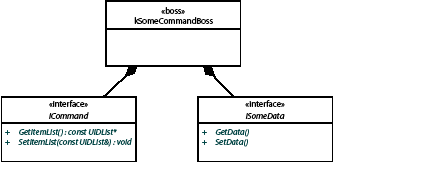
Commands implement the protocol used to modify objects that persist in a database that supports undo. A client initiates this protocol by instantiating a command and passing it off to the application for processing. The client also is responsible for initializing the state of the command, including the setting of parameters. In general, the command pattern supports two mechanisms for parameter passing:
These two approaches for passing parameters are shown in the following figure. There is a command boss class showing two aggregated interfaces, ICommand and a data-carrying interface (ISomeData). Parameters can be passed through the item list in ICommand, the data-carrying interface, or both.
Each command has a property called undoability (see ICommand::Undoability), which determines whether the command name can appear in Undo and Redo menu items (that is, whether the changes made by the command can be undone or redone in a distinct step).
Changes made to objects that persist in a database that supports undo must be undoable. To achieve this, the various extension patterns involved, such as commands and persistent interfaces, must be implemented following the rules described in this chapter. The database then automatically reverts the state of affected objects on undo and restores the changed state on redo. The undoability of a command (kRegularUndo / kAutoUndo) has no effect on this behavior. It affects only whether the command appears as a distinct step in Undo and Redo menu items.
Client code uses commands when changing objects that persist state in any database that supports undo. For example, commands are used to change objects in the document model or the defaults model. The level of support for undo of each database is given in the table in Command managers, databases, and undo support.
To change the objects, client code creates instances of one or more commands and submits these instances to the application for execution. For example, to create frames in a document, a plug-in either creates commands to be processed and passes them to the application or calls a helper class that encapsulates both the creation and request for processing. The helper classes provided by the InDesign API are introduced in Command facades and utilities.
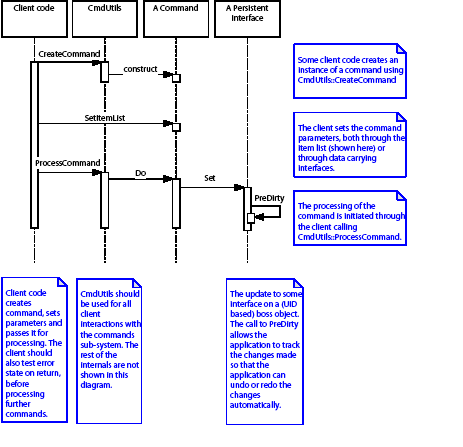
Client code that must create commands uses the CmdUtils class. CmdUtils::CreateCommand creates an instance of a specific command. The client code parameterizes the command, using the command's item list and data interfaces. The client code submits the command to the application for execution, by calling CmdUtils::ProcessCommand. Client code can group the commands it processes into command sequences, using methods and classes provided by CmdUtils. Guidance on processing commands and command sequences is in Command-processing APIs and Commands.
The sequence of calls involved in processing a command is shown in the following figure. The client code creates the command, populates the item list and other data interfaces, then passes the command off for processing.
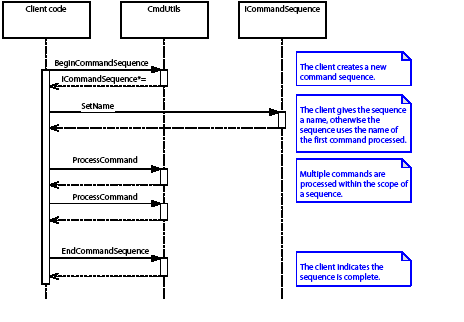
A command sequence (see ICommandSequence) groups a set of commands into a single undoable step that changes the model from one consistent state into another. The command sequence manifests on the Undo and Redo menu items as a single item.
Command sequences can be nested. For example, say you begin a sequence in one method, then call a second method that begins a second sequence. The second sequence is said to be nested within the first. When sequences are nested, only one sequence-the outermost one-appears on Undo and Redo menu items.
Command sequences assimilate all commands are processed within their scope, whether the command is processed directly from within the sequence or indirectly through subcommands (commands processed by a command). See Commands for how to write code that uses command sequences.
A typical scenario for a command sequence is shown in the following figure. Between the BeginCommandSequence and EndCommandSequence calls, all commands processed act as a single set of changes; only one element will appear on Undo and Redo menu items.
A command sequence can change persistent objects in more that one database. (A command, on the other hand, can change objects only in one database each time it is processed.) Operations that change objects in two or more documents can be implemented using a command sequence. Such a set of modifications manifests in Undo and Redo menu items for all affected documents.
A command sequence has limited support for error handling: the sequence either succeeds entirely or fails. An abortable command sequence (see IAbortableCmdSeq) allows more sophisticated error handling, to allow for fail/retry semantics. Abortable command sequences incur a significant performance overhead and should be used only where absolutely necessary. Guidance on using these types of sequence is in Commands.
This section describes how command managers relate to the application's databases.
The application object model realizes a tree-structured graph of boss objects. Within this tree are several distinct models, notably the session model, the defaults model, and one or more document models (see Models). Each model has a distinct database that provides persistence for its objects (see "Databases and undoability"). Each database has an associated boss, called a command manager. When commands are used to change objects in a model, the command manager is responsible for executing the commands.
The following figure shows that the application object model has several distinct databases that provide persistence for its objects. The diagram shows some of the objects in an InDesign session (with two open documents) and the databases with which these objects are associated. Each UID-based object refers to its associated database through its IPMPersist interface. The defaults model, represented by an instance of kWorkspaceBoss, persists in the InDesign Defaults database file. Each document model, represented by an instance of kDocBoss, persists in an InDesign document database file. The session model, represented by the instance of kSessionBoss and the child objects that do not belong to any other model, persists in the InDesign SavedData database file.
Each database has an associated command manager (see objects in the following figure that have an ICommandMgr interface). The command manager is responsible for managing database transactions and executing the commands that change the objects that persist in the database. If an object has an ICommandMgr interface, it is the root object of its associated database. This is shown in the figure. Key objects that are command managers are listed in the table in Command managers, databases, and undo support; for the complete list, refer to ICommandMgr in the API Reference.
The following figure shows models and databases in an indesign session (object diagram):
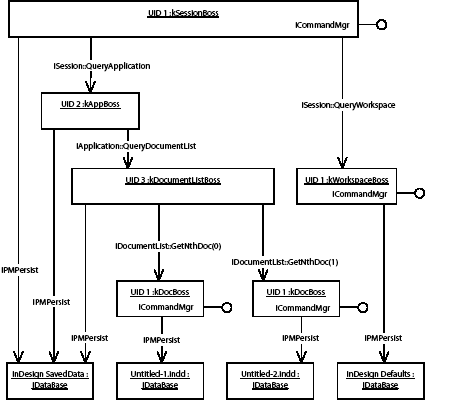
The following table shows frequently used databases and their support for undoability:
| Command manager / root boss class | Database | Undo support | Example filename and use |
|---|---|---|---|
| kSessionBoss | Application SavedData | None | InDesign SavedData User interface objects like tools, menus, panels, dialogs, controls, and string translations. Objects that define the application object model, like plug-ins and boss classes. |
| kWorkspaceBoss | Application Defaults | Full | InDesign Defaults Default resources like swatches, fonts, and styles inherited by new documents. |
| kDocBoss | InDesign Document | Full | Your.indd Document content like spreads, pages, page items, and text. |
| kBookBoss | InDesign Book | Partial | Your.indb A collection of InDesign documents and associated resources. |
| kCatalogBoss | InDesign Asset Library | Partial | Your.indl A collection of page items. |
| Clipboard/scrap | Application ClipboardScrap | Partial | . |
Each database has a level of support for undo which is fixed when the database is created and can be one of the following:
Objects that persist in a database with full or partial support for undo must be modified using commands. For example, a plug-in must process commands to change document content such as spreads, pages, or page items.
Objects that persist in a database without support for undo can be modified by calling mutator methods on persistent interfaces directly. Commands are not required. For example, a plug-in can call interfaces on user interface objects, such as widgets, that set state directly.
This section describes how a command is passed through the application until it is processed.
The session (see the ISession interface) has a singleton instance of the command processor (see kCommandProcessorBoss and the ICommandProcessor interface). The command processor is the core application component to which all commands are submitted via CmdUtils.
The command processor's structure is shown in the following figure. A command targets one or more objects for change, and these objects persist in a particular database. Normally, client code creates a command instance and sets this target by passing parameters to the command (see Command parameters). The client code submits the command instance for processing using CmdUtils. The following figure shows the internal collaboration between the objects involved.
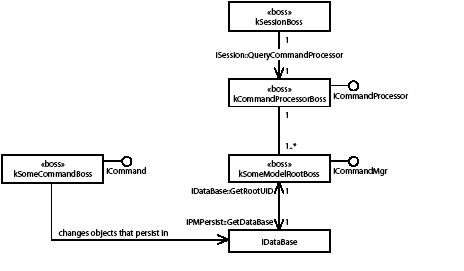
The command processor examines the command and determines which database contains the objects the command changes. Each database has an associated command manager boss (see ICommandMgr interface), shown in the preceding figure as the boss class named kSomeModelRootBoss. For example, the root of the document model is kDocBoss, and kDocBoss is a command manager. The command processor calls the associated command manager to execute the command.
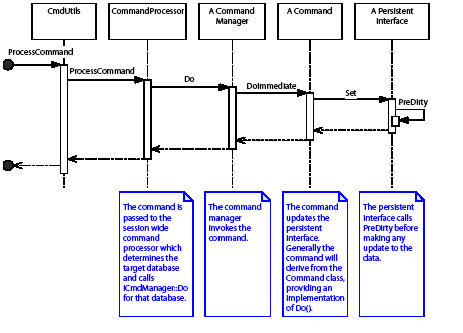
The following figure shows the internal processing of a command. The call to process a command is passed to the session-wide command processor. This determines which database is targeted by the command, and the command is passed to the command manager for the specified database. The command manager processes the command, and the command updates an interface on a persistent (UID based) boss object. On completion, control returns to the client that initiated the process.
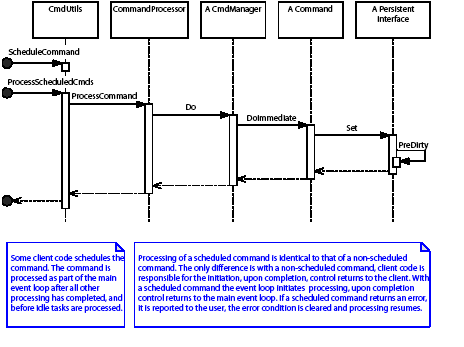
Commands can be scheduled for later processing, using CmdUtils::ScheduleCommand. The command is placed in a queue and processed when the application is idle as part of the main event loop, before idle tasks are processed. The sequence of calls involved in processing a scheduled command is shown in the following figure. Compare this with the more normal case of immediately processing a command, shown in The command processor. In the following figure, the scheduled command is passed to the command processor (through the CmdUtils::ScheduleCommand call). At some later time, after all other processing is complete and control is returned to the main application event loop, all scheduled commands are processed.
Guidance on using scheduled commands is in Commands.
A snapshot is a copy of the state of an interface at a particular time. Undo and redo are achieved automatically by the application, which keeps snapshots of the interfaces changed within an undoable transaction. The snapshots are kept in the command history (see Command history) of the database with which the interface is associated.
The way in which an IPMUnknown interface is implemented determines whether its data is persistent and/or needs a snapshot to support undo or redo:
Consider a database to be the state of the persistent object model. For example, a document database is the state of the document object model (kDocBoss and all its dependents) at a particular time. Persistent interfaces (on dependent objects) are called to serialize their state to the database when necessary, via their ReadWrite method.
The command history (ICmdHistory) provides a history of the undoable operations that were performed on each database. It records the state changes made by a particular command or command sequence, for the purposes of undo and redo. The name of the first command or command sequence processed to perform an operation on the model appears as a named step in the command history. These steps manifest as Undo and Redo menu items. The command history is used to automatically revert the state of affected objects on undo and to restore the changed state on redo.
The database and its command history are related but distinct states.
To maintain the command history, the database monitors which of its objects change when commands are processed. It tracks the UIDs that are deleted, created, or undeleted. It tracks persistent interfaces, snapshot interfaces and snapshot view interfaces that are modified, and it takes snapshots of them. This information is kept in the command history as a set of CmdStackItem objects. (CmdStackItem is opaque on the SDK; third parties cannot access its data.) When undo is invoked, the application automatically reverts the database state to its previous revision, using this information. When redo is invoked, the application automatically restores the database state to its next revision.
See the following figure. The command processor (kCommandProcessorBoss) aggregates the command history (interface ICmdHistory), which is responsible for maintaining the state changes made by a particular command or command sequence (which manifests on the Undo and Redo menu). This state, represented as CmdStackItems, is used to move the model to previous and next states on undo and redo. The CmdStackItem encapsulates all data required for an undo and redo that occurred while processing a command or command sequence.
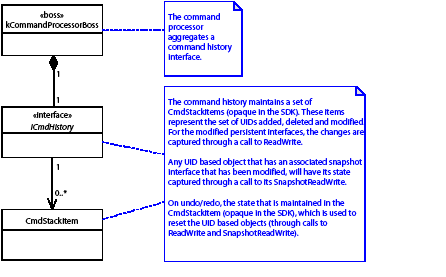
Sometimes it is desirable to extend the scope of an existing step shown in the Undo and Redo menus to include functionality that occurs after the step finished. This can be done using either of the following:
To enable a user to undo or redo a change, the objects changed must:
The application maintains the state required for undo/redo of changes made to persistent objects, as commands are processed. Each database that supports undo has a command history in which the necessary information is recorded, as described in Command history. Each persistent interface on a UID-based boss object has its ReadWrite method called to add the state to the command history (for undo and redo) and to the database (to persist its state). On undo, the ReadWrite method is called to reset the state back to that from before the action, and on Redo, the ReadWrite method is called again to set the state back to that from the initial action. The sequence of calls to a persistent interface is shown in the architecture figure in "Persistent interface" on page 63. Snapshot interfaces are called on their SnapshotReadWrite method using a similar approach; see the architecture figure in "Snapshot interface".
The command processor records in the command history the set of undoable operations it has performed (see the ICmdHistory interface on kCommandProcessorBoss). The steps in the command history appear in Undo and Redo menu items and are modelled internally using CmdStackItems. (These are internal only. Discussion is provided here to give some notion of how the command processor works.) This is shown in the following figure.
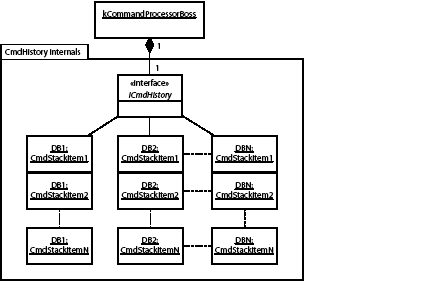
The command history maintains a stack of CmdStackItem objects for each database that supports undo; see the preceding figure. A CmdStackItem (opaque in the SDK) represents the set of changes made by the sequence or command that manifests on the Undo and Redo menus. It contains data gathered during a database transaction for the purposes of undo and redo. On undo/redo, the "current" CmdStackItem is used to revert the state of the model. The CmdStackItem encapsulates all data required for an undo/redo that occurred while processing a command or command sequence. This includes all changes to persistent interface and snapshot interface data that were predirtied. The CmdStackItem also maintains any inval handler cookies (see "Inval handler") created as part of the sequence.
Each step has a name of either a command or a command sequence that performed the operation. On undo, the application automatically reverts the database to its state before the operation was performed. On redo, the application automatically restores the database to its state after the operation was performed.
The following extension patterns are called at undo or redo:
A command can initiate notification, so observers interested in changes to the objects it modifies are notified. See Notification.
Commands also can be processed within observers and responders. Take care with commands that modify the model in this way. See Notification for further discussion of model changes within the context of notification.
If you are implementing your own command, see Command for additional information on notification in the command extension pattern.
In response to a user gesture or another event, the application calls a plug-in to carry out an action. For example, the user creates a text frame. In this case, the plug-in creates and processes the commands that perform the action. On detecting an error, a plug-in normally sets the global error code (see ErrorUtils) to something other than kSuccess and returns. When control returns to the application, the global error code is checked. If it is set, the database is reverted to the state it had before the modifications began. Extension patterns that participated in the transaction being rolled back are called as follows:
When the application returns to its main event loop, it informs the user through an alert, using the string associated with the error code that is set (see Error string service). The global error code is then cleared, and the application continues.
Plug-in code that processes commands or command sequences must check for errors. CmdUtils::ProcessCommand returns an error code that should be checked for kSuccess before continuing. Alternatively, you can check the global error code using ErrorUtils. Details are in Commands. If a plug-in tries to process a command while the global error code is set, protective shutdown occurs to protect the integrity of the document or defaults databases (see Protective shutdown).
Command implementation code also must check for errors. If a command encounters an error condition within the scope of its Command::Do method, it should set the global error code using ErrorUtils and return. Details on error handling is in the command extension pattern; see Command.
Plug-in code that requires more sophisticated error handling, to allow for fail/retry semantics, must use an abortable command sequence. For information on using abortable command sequences, see Commands.
Protective shutdown is a mechanism that helps prevent document corruption. Any attempt to process a command when the global error code is set (to something other than kSuccess) causes a protective shutdown. The application creates a log file describing the problem it encountered and then exits.
This section summarizes the APIs a plug-in can use to interact with commands.
There are many command-related boss classes named k<whatever>CmdBoss, but in many cases you do not need to instantiate these commands, as there are command facades and utilities in the API that encapsulate parameterizing and processing these commands.
Interfaces like those in the following table are examples of command facades and utilities. These encapsulate processing of many commands required by plug-in code. These interfaces are aggregated on kUtilsBoss; the smart pointer class Utils makes it straightforward to acquire and call methods on these interfaces. You can call their methods by writing code that follows this pattern:
| API | Used for manipulating... |
|---|---|
| IDocumentCommands | Documents. |
| IPathUtils | Frames and splines. See Layout Fundamentals for other APIs that help with layout. |
| IGraphicAttributeUtils | Graphic attributes. See Graphics Fundamentals for other APIs that help with graphics. |
| ITextModelCmds | Text. See Text Fundamentals for other APIs that help with text. |
| ITableCommands | Tables. See Tables for other APIs that help with tables. |
| IXMLUtils | XML. See XML Fundamentals for other APIs that help with XML. |
| kUtilsBoss | Refer to kUtilsBoss in the API Reference for a complete list of command facades and utilities. |
These utility classes abstract over low-level commands. Before using commands, always look for such a utility to see if there is a method that serves your purpose on one of these interfaces. By doing so, you avoid the increased chance of confusion and error that comes with processing commands. Your use case may require you to process some commands, if the utilities do not provide all of the functionality you require.
As used in the application, command "facade" and "utility" are just different names for the same thing, a class that reduces and simplifies the amount of client code you need to write to change objects in the model. They decouple client code from command creation, initialization, and processing.
When implementing custom commands, it is advisable to provide your own command facade or utility. If you want to share your class with other plug-ins, implement it as an add-in interface on kUtilsBoss; for example, see XDocBkFacade. If the class is used only by one plug-in, a C++ class is sufficient; for example, see BPIHelper.
The classes used when writing client code to process commands are listed in the following table.
| API | Description |
|---|---|
| CmdUtils | Provides methods that create, process, or schedule commands and manage command sequences. |
| PersistUtils | Provides methods like GetDataBase, GetUID, and GetUIDRef, which are used to identify the objects to be operated on by a command. |
| ErrorUtils | Provides access to the global error code. |
For information on finding and processing the commands provided by the API, see Commands.
This section summarizes the mechanisms a plug-in can use to extend the command subsystem.
Description
Suppose:
Architecture
To implement a command:
Best practices
See also
Description
Suppose error conditions can occur in your plug-in, and you need to inform the user of these errors.
Architecture
Sometimes, error conditions can occur in your plug-in, often within commands or command sequences. When control is returned to the application by your plug-in, and the global error code is set to something other than kSuccess, the user is informed and the model is reverted back to the last consistent state. An error string service provides the ability to map error codes onto error strings. To handle this:
See also
For sample code: BPIErrorStringService from the BasicPersistInterface plug-in.
Description
Suppose you need to add custom data to an existing object in the model and have that persist. For example, you want frames in a document to have a set of custom properties that you control.
Architecture
The state of a persistent interface that is associated with a database that supports undo is captured by the application before it is changed; its state is reverted on undo and restored on redo. The state is saved in the command history (see Command history) for undo and redo, and in the database for persistence. The following figure shows the typical sequence of calls made to modify persistent interface, and when that modification subsequently is undone or redone.
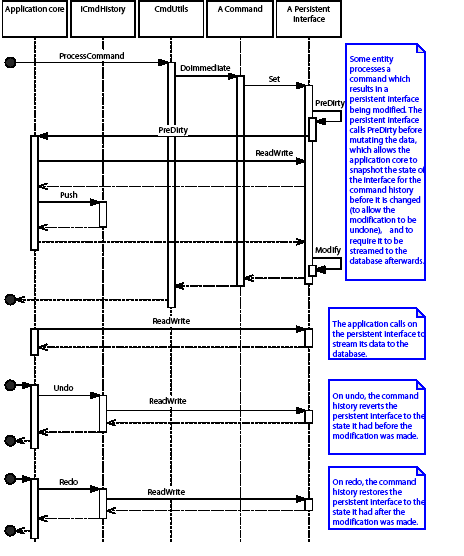
To implement a persistent interface:
See also
Description
Suppose you need to add a new type of persistent object to the model. For example, you need to add a list of custom style objects to defaults.
Architecture
To implement a persistent boss that has a UID:
See also
Description
Suppose you have an object containing transient data, which depends on model objects that persist in a database that supports undo, and:
For example, the text state (see the ITextState interface) caches the text attributes that are applied to the "text caret"; the next text insertion uses these attributes. This cache is implemented as a snapshot interface and maintained on undo and redo.
Architecture
The state of an snapshot interface is captured by the application before it is changed; its state is reverted on undo and restored on redo. The state is saved in the command history (see Command history) for undo and redo. The following figure shows a typical sequence of calls for a snapshot interface when it is modified, and when that modification is subsequently undone or redone.
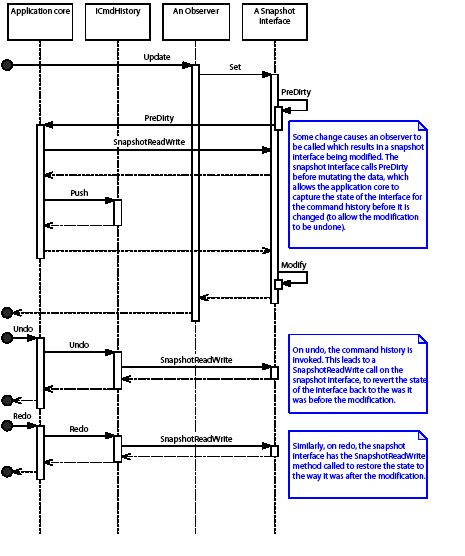
Often, an observer or responder is used to modify a snapshot interface, as shown in GTTxtEdtSnapshotInterface. Before changing any data, the snapshot interface implementation calls PreDirty, indicating to the application that the SnapshotReadWrite method should be called to capture the state of the interface (this state is associated with the CmdStackItem for the current sequence)). On undo or redo, the SnapshotReadWrite method is invoked with the data associated with that particular sequence on the Undo and Redo menus.
To implement a snapshot interface:
See also
Description
Suppose you have an object that depends on model objects that persist in a database that supports undo, and:
For example, an observer might watch a subject that can be deleted from the model. Typically, such observers are attached to the subject when it is created and detached just before it gets deleted. If an object is created, the observer is attached. If there is an undo at this point, the observer should be detached; a subsequent redo should result in the observer being re-attached. Similarly, if an object is deleted, the observer is detached. At this point, an undo should result in the observer being attached; a subsequent redo should result in the observer being detached.
Consider an observer that attaches to a spread (see kSpreadBoss). When a spread is created, the observer gets attached to the new spread. If the creation of the spread is undone, this observer must be detached before the undo takes place. If the creation of the spread is redone, the observer must be reattached after the redo takes place. The inval handler extension pattern allows for this. The GoToLastTextExit plug-in provides sample code that shows how to use an inval handler to manage the attachment and detachment of an observer that watches stories in a document.
Architecture
Inval handlers allow plug-in code to be called at undo and redo. There are two parts to the mechanism:
Inval handlers are used in situations where a plug-in needs to achieve more than the restoration of the state (through persistent interfaces and snapshot interfaces), and the lazy notification broadcast occurs too late to meet this need. The plug-in has code that must be called immediately at undo or redo.
To implement an inval handler:
The following figure shows the lifetime of a typical inval handler.
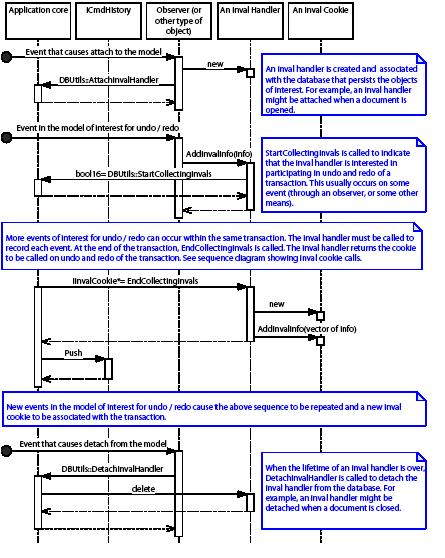
The following figure shows the typical sequence of calls made to an inval cookie on undo. On undo, any inval cookies that were previously associated with the CmdStackItem are called. The inval cookie setting the error state aborts the undo (the model is reset to the state from before the undo).
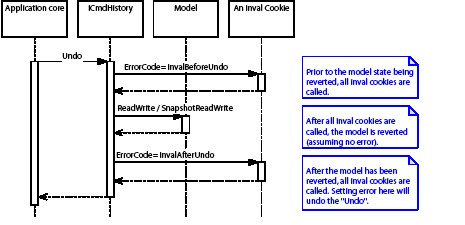
There are times where the lifetime of an inval handler does not match that of the command history. Inval handlers can be attached and detached at any time, asynchronously with anything else happening in the model. This means there are entries in the command history that do not have corresponding inval cookies for a particular inval handler. In this situation, the inval handler's BeforeRevert_InvalAll and AfterRevert_InvalAll methods are used to provide the opportunity to rebuild the required state directly.
There are times when an inval cookie instance can be asked to merge another instance. This causes the IInvalCookie::Merge method to be called, to merge cookies that were returned by each call to IInvalHander::EndCollectingInvals within one undoable transaction. For example, this can happen at the end of an abortable command sequence.
See also
Description
Suppose you have a user interface object like a widget, which has data that depends on model objects that persist in a database that supports undo, and:
Architecture
A snapshot is taken of the state of a snapshot view interface, before it is changed, reverted on undo, and restored on redo. It is very similar to a snapshot interface (see Snapshot interface). The distinction is that the database with which a snapshot interface is associated is fixed and implicitly defined by the persistent boss on which it is aggregated. A snapshot view interface, on the other hand, is part of a user interface object and must explicitly identify the database containing the model objects on which it depends. Also, it is not one specific database. For example, a widget that tracks some state in the front document must change the database on which its snapshot view interface depends, when the front document changes.
To implement a snapshot view interface, follow the steps described under CViewInterface in the API Reference.
See also
The CViewInterface template class in the API Reference.
Notification patterns inform interested parties of certain changes. This chapter describes the prevalent notification patterns used by products in the InDesign family.
Notification is a mechanism by which an interested object can be made aware of changes in other components or subsystems. This section focusses on two prevalent notification patterns, the observer and the responder.
The observer pattern is described in Design Patterns by Gamma et al. The intent of the pattern is to "Define a one to many dependency between objects so that when one object changes state, all its dependents are notified and updated automatically." The following figure shows the structure.
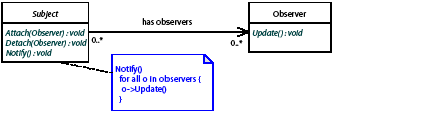
The pattern consists of a subject and one or more observers. A subject is an object that needs to inform other objects that are interested in changes to the subject's state. An observer is an object that needs to keep its state consistent with the state of a subject. A subject can have an association with multiple observers. An observer can observe multiple subjects.
The association between observers and subjects is managed through Attach and Detach calls. Any change to the subject is declared through a call to the Notify method, which in turn calls Update on any associated observers.
The subject supports three operations:
The observer supports one operation:
Typically, when a client wants to be notified of changes in a subject, it calls Attach, passing an observer that will be the recipient of update messages.
Any update to the subject that could be of interest to observers results in a call to the subject's Notify method. The subject, in turn, iterates through all attached observers, calling their Update operations.
At any point, a client can remove the observer from the subject, using Detach. The observer no longer receives update events from that subject.
For more information, see Observers.
With the observer pattern, notification is provided when an object is modified. The responder pattern provides notification on an event. Notification consists of a signal sent from one party to a responder that can react to the event. The application predefines a set of events and corresponding signals in which responders can register interest. For example, signals are associated with document events like create, open, save, and close. A responder that registers interest in the document open event is called each time a document is opened. The following figure shows the structure.

The pattern consists of a signal manager and responders. The signal manager is the object responsible for notifying responders of some event. A responder is an object that is called as a result of that event. A responder registers its interest in a particular event using the service provider extension pattern. A responder is a service provider, although this is not shown explicitly in the figure. For more information, see Responders.
This section describes the implementation of the observer pattern (see Observer pattern) within the application. The implementation consists of two interfaces, a subject (see the ISubject interface) and an observer (see the IObserver interface), as shown in the following figure.
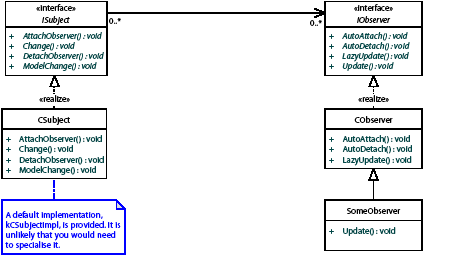
A subject is an object potentially of interest to other objects. Within the application, any object that maintains state of interest to other objects is a candidate for being a subject. An object with an ISubject interface is a subject. The interface supports the following key operations:
Change manager
Subjects within the application defer the functionality required to track the subject and observer dependencies to the change manager (the IChangeManager signature interface). The ISubject interface forms a facade over the change manager. It is unlikely third-party developers need to interact with the change manager directly. It is not considered further here.
An observer is an object interested in changes to a subject. Any object within the application object model can be an observer by aggregating the IObserver interface. The interface supports the following key operations:
Normally, an observer attaching to a subject indicates a protocol of interest. This protocol (identified by type PMIID) allows the observer to be called only for a subset of the total set of messages being broadcast by the subject. Generally, the protocol is synonymous with a data interface on the subject. Observers interested in changes to a specific data interface on the subject attach using the PMIID of the data interface.
The following figure shows a subject, kSomeSubjectBoss, that aggregates a data interface, ISomeData. The observer, kSomeObserverBoss, is interested in changes to this data interface. The observer attaches to the subject, specifying IID_ISOMEDATA as the protocol of interest. This corresponds to the PMIID of the data interface. After the data interface is modified, the ISubject::ModelChange or ISubject::Change method is called to broadcast notification. Observers are called via their Update or LazyUpdate methods, with a message protocol of IID_ISOMEDATA.
The object that actually modifies the data interface and calls the ISubject interface to broadcast notification is not shown in this figure. If the subject object is part of a document or defaults, the object that calls the mutator method on the data interface normally is a command (see Commands). The command calls ISubject::ModelChange if it performs notification. If the subject object is a user interface object, mutator methods on the data interface itself normally call ISubject::Change to broadcast notification.
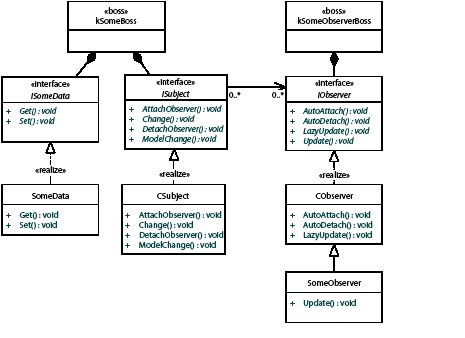
Within the application, subjects are split into distinct "types." The type of object a subject is determines the method on ISubject that is called to perform notification. The types of subject are as follows:
Within the application, observers are split into distinct "types." The type of subject object an observer is watching determines the type of observer. The types of observers are as follows:
The application supports two types of notification, regular and lazy. If an observer needs to be called as soon as a subject broadcasts the change message, it should request regular notification. If the observer can afford to wait until idle time before being notified that a change of interest occurred, it can register for lazy notification. When an observer attaches to a subject, it defines whether it wants to attach for regular notification, lazy notification, or both.
Regular notification
Regular notification is passed to an observer via the IObserver::Update method.
With regular notification, an observer is called within the scope of the call to a subject's ISubject::Change (or ISubject::ModelChange) method. The following figure shows the typical sequence of calls made when a subject notifies an observer using regular notification.
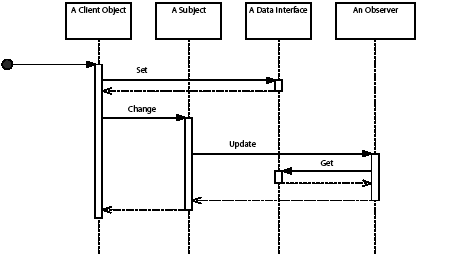
A client object is called and modifies some data interface, then broadcasts notification about the changes it makes. It mutates the state of a data interface and then calls ISubject::ModelChange. Observers get called via IObserver::Update and can retrieve the state of the data interface. The subject and the data interface are most often on the same boss object, but not always.
If a change is undone or redone, the observer is not notified. That is, the Update message is not rebroadcast. See the figure on page 81 for the sequence of calls made on undo.
Lazy notification
Lazy notification is passed to observers via the IObserver::LazyUpdate method. Lazy notification is available only to observers of subject objects associated with persistent databases supporting undo.
Lazy notification is used when observers do not need to be in tight synchronization with changes being made to the subject objects they observe. Rather than participating in each change that occurs on a subject object, observers using lazy notification are notified after all updates are made and the application is idle.
When the state of an object in the model is changed (for instance, by a command), and notification is required, the notification always is broadcast by calling ISubject::ModelChange. The ISubject::ModelChange method queues a message to be broadcast later. Once the application is idle, observers get called with this message via the IObserver::LazyUpdate method, as shown in the following figure.
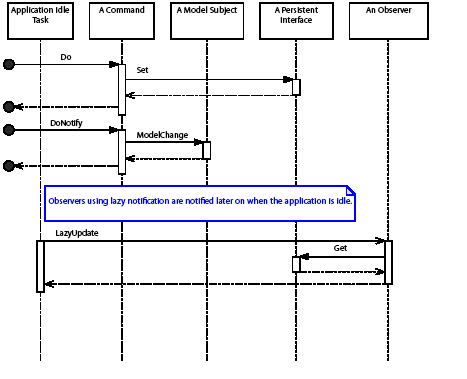
Regardless of the number of changes made to the persistent interface, only one LazyUpdate call is made per sequence for a given message protocol.
An implication of this is that ordering of lazy notification with respect to other lazy notification messages cannot be guaranteed. Lazy notification can be thought of as a message indicating a change was applied to an object some time in the past. The observer is responsible for determining the nature of the change.
An observer that registers for lazy notification is not guaranteed to receive all messages. For example, suppose an observer is attached to a page item and is watching for the page item to move. If a sequence moves the page item and then deletes it, a lazy update message for the move is not sent to the observer. If a subject object is deleted, any lazy notification messages being queued for that object are purged.
We recommend any model observer used to keep some user interface component synchronized with the model should use lazy notification. This eliminates any unnecessary refresh of user interface data. An example use of lazy notification is a user interface panel that reports information about the set of text frames in a document. The user interface panel is associated with a model observer watching for textual changes or the addition or removal of text frames. These operations result in the panel being updated. There is no real requirement for the panel to be updated in real time as these changes are made; the panel should be updated when the text updates are complete (and the application is idle). Lazy notification enables this by sending a single IObserver::LazyUpdate message to the observer when the move is complete.
If a change is undone or redone, the observer is notified; that is, the LazyUpdate message is rebroadcast. The sequence of calls made to an observer's LazyUpdate method on undo is shown in the following figure.
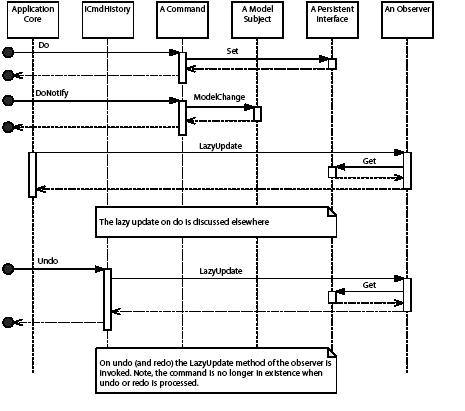
Both notifications
An observer can register for both regular and lazy notification. The following figure shows the sequence of calls this might involve.
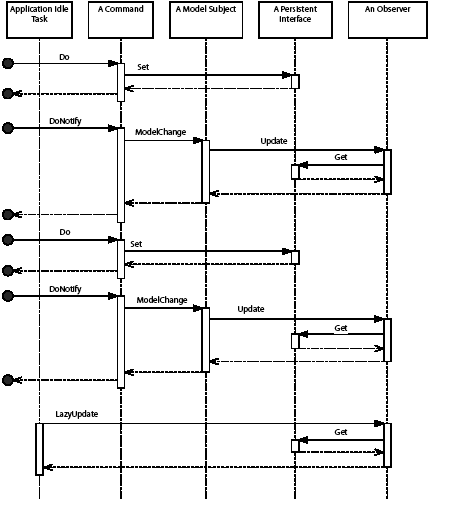
While every ISubject::ModelChange message sent to the subject is propagated to the observer via IObserver::Update, only one IObserver::LazyUpdate call is made, regardless of the number of changes made in a single transaction. For example, if multiple updates are made on an object, the update messages being transmitted using a single protocol identifier, and the lazy update method is called only once.
On undo or redo, only the LazyUpdate messages are rebroadcast.
Registering for both notifications allows an observer to have the rich context of the Update message and have to rebuild their view of the model only on rarer undo/redo events.
Lazy notification data
With regular notification, the observer (IObserver::Update) method is passed a context about what caused the change (usually, the command that initiated the notification). With lazy notification (IObserver::LazyUpdate), the observer gets notified only that something changed. The observer must be capable (for instance, by examining the model) of deducing or otherwise rebuilding the set of information it requires. In some cases, the time this takes causes performance issues; therefore, the API provides lazy notification data as an optimization.
Lazy notification data objects are data-carrying (C++) objects created by the message originator. For example, a command that deletes a document page object (kPageBoss) might create a lazy notification data object and populate it with the UID of the deleted page. Generally, this lazy notification data object is passed to observers via IObserver::LazyUpdate. There are situations where the lazy notification data objects associated with a change are purged (for example, in low memory condition), and the observer is called with a nil-pointer; therefore it is important that observers be designed to deal with this.
The lazy notification data objects used within the application are not documented in the public API.
Only observers registered for lazy notification are signalled when an object they are associated with is modified through an undo or redo action. For each undo or redo, the observer receives one call (per message protocol), regardless of the number of changes made to the subject object.
If the observer performs model modifications using commands, on undo or redo these are automatically undone or redone as required. For observers watching the model to update some aspect of the user interface, lazy notification should give the required update. If there are more exotic requirements for notification on undo and redo, two other patterns exist: see the Snapshot interface and Inval Handler extension patterns in Commands.
This section discusses how observers are attached to particular subjects.
Determining the subject
Before being able to attach and detach observers, an understanding of both the subject to attach to and the protocol to listen along is required. The sample code provided as part of the SDK has examples for many key events of interest. Similarly, Adobe InDesign SDK Solutions has advice on detecting when events occur for domains like layout, text, XML, and so on.
If neither of these resources provide the answer, the debug version of the application can be used. In the Test menu is the Spy command. It can be configured to log all executing commands, along with the subjects that are notified, the protocol used for notification, and the change that occurs. Perform the action of interest, and Spy provides the information required to observe the action.
Attaching and detaching subjects
In most situations, an observer understands the subjects in which it is interested and how to attach to them. Such an observer attaches to the subjects in the IObserver::AutoAttach call and detaches in IObserver::AutoDetach. For example, an observer on a panel can discover the widgets it contains (see the IPanelControlData interface) and attach to their subject interface.
Using a responder to attach and detach an observer
Sometimes, an observer is required based on an action within the application. Responders (see Responders) are called on different application events and can be used to manage the association between an observer and a subject. For example, a responder can be called when documents are created, opened, or closed. On create or open, the responder can attach an observer to the document. On close, the responder can detach the observer.
Using an observer to attach and detach another observer
Sometimes, an observer attaches and detaches a second observer based on notification received by the first observer. This pattern commonly is seen in user interface objects that view objects in the front most document. The active context (see kActiveContextBoss, the IActiveContext interface, and the IID_IACTIVECONTEXT protocol) is the subject that is updated when the user chooses the document on which to work. The user interface object has a first observer that watches the active context. This observer attaches and detaches a second observer to the subjects of interest in the front-most document.
Observing a subject that can be deleted
Sometimes, a client object needs to observe a subject created as part of an undoable action. To do this, a pattern involving two observers and an inval handler can be used (inval handlers are described in Commands). The first observer watches for create events for the subject and attaches the second observer to the newly created subject. To ensure this second observer gets detached if the create action is undone, the first observer also must set up an inval handler. The inval handler provides a mechanism to detach the observer on undo and reattach it on redo.
Observing a subject that can be deleted as part of an undoable action is similar. On undo, the observer must be reattached; on redo, it must be detached. Again, this requires the use of an inval handler.
The application supports a large object model. Any object is a candidate for becoming a subject (and thousands of subjects exist). Management of observers interested in the set of messages broadcast from a subject can be difficult, if many instances of a subject can exist. For example, consider objects in the page item hierarchy (which can be deleted and recreated, undone and redone, as a consequence of user actions). It is difficult and undesirable to maintain an observer on each page item. To solve this problem, as well as the actual subject object broadcasting the change message, the document's subject also broadcasts the change. This means any observer associated with the ISubject interface on the document (kDocBoss) subject is notified, without the overhead of managing the association with finer-grained objects within the document.
Notification of changes to page items are broadcast on the document subject using IPageItemUtils::NotifyDocumentObservers. Some other types of object use the ISubject interface of the document (see kDocBoss) directly to notify of a change.
This section details some considerations around the use of model observers within the application.
Observers "watch" model data for two primary reasons:
Error state
Model observers that extend functionality can set the global error state either directly (using ErrorUtils::PMSetGlobalErrorCode) or indirectly (through processing of commands). Generally, observers are notified during the processing of a command or sequence of commands. If the application tries to process a command when the global error state indicates anything but success (kSuccess), a protective shutdown is invoked to protect the integrity of open documents.
An observer setting the global error state either aborts the current change (that is, the current change is undone) or causes the shutdown of the application. The behavior is determined on a per-use basis and can be complicated by the use of commands in different scenarios. For example, the creation of a text story object (kTextStoryBoss) can occur through the type text tool or from an import and place operation. The type text tool is straightforward, and an observer setting global error state causes the change to be undone. For import and place, however, the story creation occurs as part of a longer sequence of commands. A similar observer setting global error state causes an application shutdown as further commands are processed.
Unless it is explicitly suggested that it is appropriate to set error state in an observer of a particular subject change, an observer should not set error state. Also, an observer that uses objects that potentially set error state (such as commands) should test for and consume any errors, taking appropriate remedial action.
Model modifications
A common pattern involves calling commands within an observer to make further modifications to the model. This can lead to problems. If the observer is notified as part of a sequence of commands, and the commands that are due to be processed after the current notification phase ends make any assumptions about the state of the model, instability and document corruption can result.
For example, consider a sequence of two commands. The first inserts text into a text story object (kTextStoryBoss). The second changes the color of the newly inserted text to blue. Pseudo-code for this sequence is in the following example.
At some point, a third party decides to extend the text functionality by writing a macro expander, the purpose of which is to expand known acronyms as text is entered into stories. The third party uses an observer that is notified when text is added to a story. If the observer modifies the model, specifically changing the number of characters entered into the story, it breaks the sequence in the example. The stringLen value is no longer valid.
If there is no risk of side effects from the model change within an observer (for example, the observer modifies custom data, not the core application data on the object), it is safe to proceed with the change. If there is a need to perform further modifications on the core application data, consider factoring the change to execute as a separate task (possibly on application idle).
In the preceding example, the observer might mark some custom, persistent data in the story, indicating it needs to be processed, and schedule a custom command. The custom command examines the story, determines whether the macro expansion operation is still valid, and updates the story if required. No assumptions can be made about what might occur between marking the story in the observer and the follow-on processing (for example, the document could close, further updates could occur, or the application could terminate).
Commands that delete objects generally prenotify, so subject observers get an opportunity to tidy up associated objects before the object is deleted. Observers called in this context should ensure the command state is CommandState::kNotDone.
This section describes the implementation of the responder pattern (see Responder pattern) within the application. The responder pattern provides notification that a specific event has occurred. For example, a responder can be called when a document is created, opened, or closed. The following figure shows the general structure.
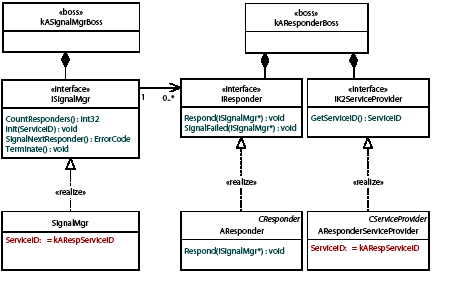
The components to the responder pattern shown in this figure are as follows:
A signal manager is an object that controls the calling of responders. A boss class that has an ISignalMgr interface is a signal manager. A signal manager is called by some other object that wants responders to be notified when an event of interest has occurred. The object that calls a signal manager is often a command (see interface ICommand). For example, the command that opens a document calls the signal manager to notify responders which have registered an interest in this event.
Responders are service providers. Each event for which a responder can be notified has a corresponding ServiceID. The application predefines a set of events and corresponding ServiceIDs in which responders can register interest. For example, the open document event has a ServiceID of kOpenDocSignalResponderService. See Notification.
When a particular event occurs the signal manager is called to signal all responders that have registered interest. The signal manager uses the service registry (not shown in the preceding figure) to find the responders that need to be called for the event.
If a responder sets the global error state, the signal manager is responsible for calling previously signalled responders indicating there was an error condition (allowing the responder to take whatever action might be necessary) and the action is aborted.
A responder is a boss class that supports two specific interfaces, the service provider interface (IK2ServiceProvider) that identifies the events the responder is interested in, and the responder interface (signature interface IResponder) that is called for a particular event.
Responder registration
Each event for which a responder can be called has a corresponding ServiceID. A responder registers for one or more of these events by returning the ServiceIDs for the events of interest via its IK2ServiceProvider implementation. See the Notification for details on the predefined events the application makes available. For sample code, see the DocWchServiceProvider class in the DocWatch plug-in.
Responder implementation
The responder is called via IResponder::Respond on an event of interest. The Respond method performs whatever functionality is required and returns.
If the global error state is set (ErrorUtils::PMSetGlobalErrorCode) by a responder, any previously signalled responders have their IRespond::SignalFailed method called to indicate failure. The SignalFailed method performs the function needed to recover. For example, if the Respond method attached an observer to an object, the SignalFailed method detaches that observer.
Both methods receive a pointer to a signal manager interface, so they can find out information about the event. Typically, the Respond and SignalFailed methods query the signal manager interface for other contextual interfaces. For example, the document signal manager (see kDocumentSignalMgrBoss) provides context in the IDocumentSignalData data interface. Responders that register for document signals like kAfterOpenDocSignalResponderService use this data interface to access the document being opened.
The Respond and SignalFailed methods often call the service manager using the ISignalMgr::GetServiceID method, to verify the ID of the service that occurred. This allows one responder implementation to be handle more than one type of event
For sample code, see the DocWchResponder class in the DocWatch plug-in.
Responder implementations can perform follow-on modifications to the model. For example, a responder called as the result of a command modifying the model can make further changes to the model by calling other commands.
Take care that these modifications do not interfere with the model data on which the signal is based. For example, if a responder signalled on a create story signal (kNewStorySignalResponderService) deletes or otherwise modifies the created story, commands, observers, and responders that might follow the errant responder could make assumptions about the state of the story. Avoid direct modifications that interfere with the data on which a responder is based. If such a change is required, consider using the responder to set an associated, independent state that can be used by an idle task (or similar) to perform the actual modification on the model. This technique guarantees the model is in a consistent state before modifications are made.
Responders are designed to accommodate error; however, in practice, how a particular signal service deals with error state is implementation dependent.
If a responder sets global error state, the signal manager calls all previously signalled responders via IResponder::SignalFailed and aborts the action. The ability to clean up a failed action is implementation and context dependent. For example, the creation of a text story object (kTextStoryBoss) can occur as a result of using the type text tool or importing a file. In the case of importing a file, the responder is called from a much deeper stack than in the case of using the type text tool. The implementation in the latter case does not handle aborting the import from a responder.
Another implication of the IResponder::SignalFailed method being called on error is the method must be able to consume and take remedial action for any errors caused within the method. There is nothing the application core can do if an IResponder::SignalFailed method itself fails; the condition is indeterminate.
No guarantees can be made about the order in which responders are called to react to an event. If a client requires a particular responder to be called before another, the implementation of the second responder should call ISignalMgr::SignalResponder (identifying the first responder) at the start of its respond method. Even though the signal manager's iteration of the responders has been short-circuited by calling one of the responders directly, no responder is called more than once.
Responders for the predefined events made available by the application are not called at undo or redo of an operation.
If a responder processes commands to make follow-on changes to the model, these changes are undone automatically as part of an undo operation; the client code need to manage this. The same is true for redo of an operation.
If a responder is being used to attach an observer to a newly created model object, that observer must be detached on undo and reattached on redo. Similarly, if a responder is being used to detach an observer from a model object about to be deleted, that observer must be reattached on undo and detached on redo. To achieve this, the undo or redo actions need to be tracked using an inval handler. See Commands for a description of the inval handler extension pattern.
If the responder is being used for a nonmodel based activity (for example, keeping a log of specific operations), and the undo or redo actions need to be tracked, an inval handler again is required.
The following table shows key client APIs for observers and responders.
| API | Note | |
|---|---|---|
| Observers | IObserver | Client code mainly calls AutoAttach and AutoDetach to have an observer attach or detach automatically to or from the subject(s) of interest. |
| ISubject | Client code mainly calls AttachObserver and DetachObserver methods to attach or detach an observer. | |
| Responders | ISignalManager | If you are extending the application and need to signal new types of events to responders you will call the signal manager to perform the notification. Often this notification is performed by a custom command that you provide. Signal managers in the application use the default implementation, kSignalMgrImpl, provided by the API. This default implementation provides all functionality for the signal manager, it is unlikely that a third party developer would need to further specialize it. |
This section describes the mechanisms a plug-in can use to receive notification.
Description
This observer is attached to the subject object for a user interface artifact and called on a user interface event, such as selection of a checkbox or activation of a button.
Architecture
To implement a user-interface observer:
See also
Description
A model observer provides an extension point for when a persistent object supported by an application database supporting undo is updated.
Architecture
To implement a model observer:
See also
Description
Selection observers provide an opportunity for client code to be called when there is a change in the active selection.
See also
Description
As well as notifying a change on a subject, often the notification is repeated on the document for a subject. This allows observers to watch for a change of interest on a document (rather than attach/detach from every object within the document). For example, an observer interested in page items being moved around the layout does not need to attach to each page item (and detach if the page item is deleted, reattaching if it is undeleted, and so on), but attaches to the document instead.
A document observer is a special example of a model observer, using the document object (kDocBoss) as the subject.
See also
Description
A context observer is an observer that watches the active context.
Architecture
The active context object (kActiveContextBoss) is session wide and available from the session object (kSessionBoss) through the ISession::GetActiveContext call. An active context observer is an observer attached to the subject interface on the active context object. Active context notifications always are broadcast on the IID_IACTIVECONTEXT protocol. Only regular notification is available. The change context provided is another IID, indicating the type of contextual change that occurred. The common contextual changes of interest are shown in the following table.
| changedBy | Note |
|---|---|
| IID_IDOCUMENT | The active document changed. |
| IID_ICONTROLVIEW | The active layout view changed (for example, when the document has multiple layout views open). |
| IID_ISPREAD | The current spread changed. |
| IID_ISELECTIONMANAGER | The type of selection changed. |
To implement a context observer:
The following example shows how to detect when the active document has changed.
See also
Description
If there is a need for a boss class to be observable, it needs to be a subject.
Architecture
To turn a boss class into a subject:
See also
Description
A responder provides notification of an event, such as document open.
Architecture
To implement a responder:
See also
This chapter describes the InDesign/InCopy selection architecture. The selection architecture is based on the concept of suites-abstract interfaces that allow client code to interact with an abstract selection. A suite remains neutral to the underlying format of the objects that are selected.
A selection is whatever is chosen or picked out. For instance, when a user selects a range of text with the Text tool, the user chooses a range of characters. In this case, the selection is a choice of characters from the text model. Highlighting in the user interface is incidental feedback that helps the user make the intended selection. Usually, making a choice using selection is a precursor to modifying the properties of the model underlying the selection. Selection primarily is about targeting objects on which to perform some action, and the selection subsystem exists to mediate changes to those objects.
It is necessary to distinguish between the format of a selection and its content, the selection target. A selection format describes the model format of a selectable object, like the layout (frames), text, table cells, or XML structure. Each of these has a distinct arrangement of objects that represents its model. A selection target specifies a set of selected objects of a given selection format, like particular frames or a specific range of text.
The principal goal of the selection subsystem is to hide all details about formats and targets from client code. Client code needs ask only "Can this client code do this operation to the selection?" If yes, the client code can try to change the properties of the selection target. This encapsulation is achieved by means of the facade pattern discussed in "Design patterns".
InDesign 2.0 included support for a handful of selection formats, including layout objects (frames), text, table cells, and XML-structure items. InCopy CS added support for other selection formats, like notes.
The following table shows selection formats and their targets:
| Selection format | When obtained | Selection target |
|---|---|---|
| Application defaults | No documents are open. | Global preferences |
| Document defaults | Document is open with nothing selected. | Document preferences |
| Galley text | Insertion position is in text, or text range is chosen in Galley view. | Range of characters in a text model (ITextTarget) |
| Layout | One or more page items are chosen in a layout view. | Layout objects (see ILayoutTarget) |
| Note | Insertion position or text range is chosen in a note view. | Range of characters in note text (ITextTarget) |
| Story editor text | Insertion position is in text, or text range is chosen in a story-editor view. | Range of characters in a text model (ITextTarget) |
| Table (table cells) | One or more table cells are chosen in a layout view. | Table cells in a table model (ITableTarget) |
| Text | Insertion position is in text, or text range is chosen in a layout view. | Range of characters in a text model (ITextTarget) |
| XML structure | One or more nodes are chosen in an XML-structure view. | Elements/attributes in the XML structure (IXMLNodeTarget) |
A key task for a plug-in developer is writing model code that extends some aspect of the document model. For instance, if your principal requirement is adding private data to the layout model (see the BasicPersistInterface sample plug-in), the data added extends the layout model and persists with document contents. The command pattern, used in the application API to support undo and preserve document integrity, requires you to write further code to change your model. The API already uses the facade pattern, like ITableCommands and IXMLElementCommands, to hide the complexity of parameterizing and processing low-level commands.
The selection architecture is an instance of the facade pattern, in that it makes client code easier to write by defining a high-level interface on top of the selection subsystem. The selection architecture shields client code from requiring detailed knowledge of what was selected in the selection subsystem. A facade also makes software maintenance easier, because a facade weakens the coupling between a subsystem and its clients. This weak coupling allows the subsystem components to be varied without necessarily affecting its clients.
The most important objective of the selection architecture is to ensure that new selection formats can be added easily.
To support new selection formats without rewriting large parts of the application, client code must be decoupled from the selection format. Client code must not need to know the selection's subject identifier, meaning client code must not need to know which objects are selected or any boss object associations in the underlying model (for example, the architecture of a text frame). Client code also must not need to know any commands that manipulate the objects.
To achieve this goal, the selection architecture makes extensive use of suites that are neutral to selection format. A suite provides a high-level, model-independent API that encapsulates the details of the boss classes, interfaces, and commands in the underlying model. Clients interact with suites instead of directly with the selected objects. In programming terms, a suite is a layer of abstraction that sits on top of the selection and provides a narrow API through which client code communicates its intent with respect to the portion of the model selected. In design-pattern terms, a suite represents a facade that makes it easier to write client code. Writing code that sits on the model-manipulation side requires an understanding of the selection architecture and the model.
The following figure shows the layers of encapsulation in the selection architecture. Client code communicates through suites on an abstract selection boss (ASB) class. In turn, these suites communicate with concrete selection boss (CSB) suites on one or more CSB classes. The CSB suites deal with the selection format of only their CSB, and they know how to access and change objects only in the part of the model the CSB manipulates.
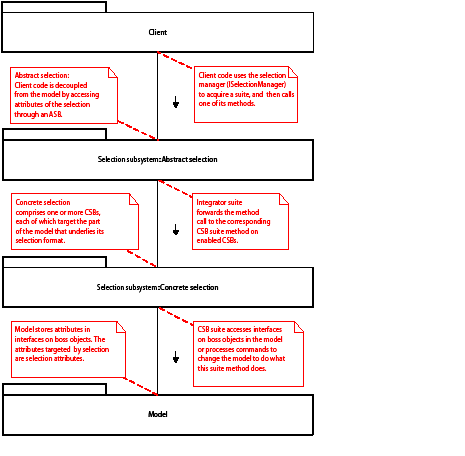
A window can have one or more views that can support selection. Each view that uses selection instantiates a selection subsystem. In general, client code can remain unaware of what selection subsystem is in operation. While software developers need to be concerned about selection formats if they are writing code that manipulates the model, there is less need to be concerned about selection subsystems. For more information about selection subsystems, see Selection architecture.
To write code that uses selection to choose attributes of the model to be displayed or changed, it is important to understand the structure that owns the selection format. To illustrate this, a schematic diagram of the selection subsystem used by the layout view (kLayoutWidgetBoss) to edit design documents is shown in the following figure. It presents the static structure and highlights important boss classes and interfaces.
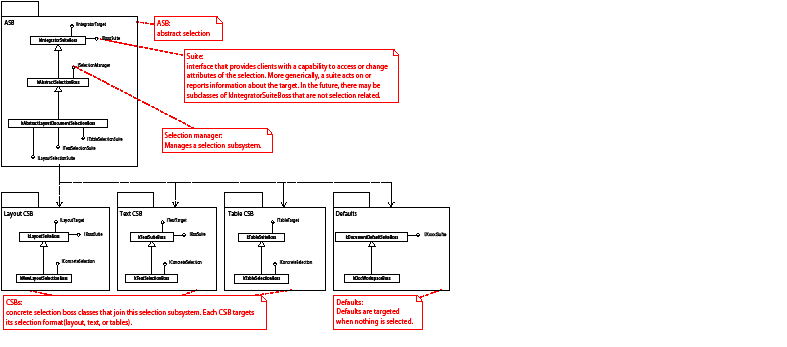
The ASB provides the suites called by client code. In this figure, interface IXxxxSuite illustrates such a capability. The suite implementation on the ASB is an integrator suite; its responsibilities are described in detail in Integrator suites on page 108. For now, think of these suites as forwarding any calls they receive to corresponding suites on the CSBs. Further implementations of IXxxxSuite are provided on each CSB that supports the capability. These implementations are CSB suites; their role is discussed further in "CSB suites"
In the figure, you can see that IXxxxSuite is implemented on the layout CSB and the text CSB. This means layout and text selections have its capability. Also, when nothing is selected, client code still has the capability represented by IXxxxSuite, because the ASB then targets defaults and finds an implementation of the suite on kDocumentDefaultSuiteBoss. For more information on how to use suites to manage preferences, see Selection architecture. Table selections do not have the capability represented by IXxxxSuite, because there is no implementation of the suite on the table CSB.
ISelectionManager is the signature interface that identifies a boss class as an ASB. To obtain a suite, client code queries an ISelectionManager interface for the suite of interest. If the suite is available, its interface is returned; otherwise, nil is returned. The ASB is not a normal boss class; all suite interfaces are aggregated on the ASB, but an interface pointer is returned to client code only when an active CSB (or the default CSB) that supports the suite exists. The ASB uses a special implementation of IPMUnknown to control whether a query for an interface returns the interface or nil.
Suite implementations get added to suite boss classes. The following suite boss classes are in the preceding figure:
A suite boss class has a target (like IIntegratorTarget or ILayoutTarget) and a collection of suite implementations. The figure shows how the selection extends the suite boss classes. Other boss classes extend the suite boss classes in different ways. For example, scripting uses the suite boss kTextSuiteBoss to manipulate text content.
Each box in the figure is a self-contained, portable unit. This is one reason why the selection architecture is not coupled to a view, and CSBs do not have pointers to their ASB. This design allows reuse of suite boss classes by other features in the future. A catalogue of suite boss classes is provided in the table in Custom suites.
Each selection format has a CSB that extends its suite boss class. IConcreteSelection is the signature interface that identifies a boss class as a CSB. Only those CSBs that join the selection subsystem used by the layout view are shown in the the preceding figure. Other CSBs exist and are used by other subsystems. For a complete list of all CSBs, refer to the API Reference for IConcreteSelection. To understand more about the responsibilities of a CSB, see Concrete selection bosses.
Also, the ASB supports a set of interfaces that allows the selection content to be set programmatically. ISelectionManager provides the ability to select/deselect all objects. Each selection format provides an interface to allow the selection target to be varied. In the preceding figure, for example, ILayoutSelectionSuite allows page items to be selected, and ITextSelectionSuite allows text to be selected.
The selection architecture isolates client code from model code by means of an ASB. The ASB provides suite interfaces, which are collections of capabilities, as well as other interfaces needed for managing the selection. The main point to understand about the ASB is that it implements the facade for the selection subsystem. Client code interacts with the facade (a suite on the ASB). Writing client code to take advantage of the selection architecture is straightforward; you need to understand only the facade. To write model code and code to change your model or the existing document model, however, it is important to understand how to interact fully within the selection subsystem, and this is less straightforward.
The client code in the following example uses a parameter to determine which selection manager (ISelectionManager) to use by calling IActiveContext::GetContextSelection. The client code then queries for the suite of interest, IFooSuite. If the suite is available, the client checks to see if the capability it wants is enabled by calling IFooSuite::CanDoSomething. If so, the client uses the capability on the selection by calling IFooSuite::DoSomething. If someone were to create a new selection format and add support for IFooSuite, this client code would work. It does not need to know any details of how IFooSuite is implemented on any specific selection format.
In most cases, either client code is passed a parameter that identifies the selection manager to query for a suite, or the selection manager is implied by the kind of code being written.
A CDB is a boss class that encapsulates a selection format. It supports the manipulation and observation of the selected objects in the part of the model where the objects are located.
This section describes the available selection formats and their associated CSB. The key properties of each CSB are tabulated. The following table describes the label for each field.
| Label | Specifies |
|---|---|
| CSB | The boss class that represents this concrete selection. |
| CSB name | The name of the CSB that represents this concrete selection. |
| Description | A general description of this concrete selection. |
| Selection attribute extensibility | Indicates whether this concrete selection can be extended to notify of changes to new selection attributes introduced by third-party software developers. Each CSB is responsible for defining the mechanism used to call selection extensions when selection attributes change. Some CSBs allow the mechanism to be extended. See Selection extensions and "Selection observers". |
| Selection format | The format of the objects this concrete selection makes selectable. |
| Selection suite | The interface that can specify the set of objects selected for this concrete selection. |
| Suite boss class | The boss class to which suites get added that extend the attributes that can be manipulated by this concrete selection. A list of all suites supported by the CSB is in the documentation for this boss class. Custom suites get added to the suite boss class. |
| Target | The interface that identifies the set of objects selected for this concrete selection. |
Layout selections-made with the Selection tool or programmatically-are represented by the layout CSB. For examples of the suites available, see IGeometrySuite, ITransformSuite, and IGraphicAttributeSuite. For a complete list of available suites, refer to the API Reference for kLayoutSuiteBoss. Also see the follo wing figure and table.
This figure shows a layout selection containing a page item:
The following table shows the layout-selection CSB:
| CSB Name | Layout CSB |
| Selection format | Layout objects like frames and other kinds of page items. |
| CSB | kNewLayoutSelectionBoss. |
| Suite boss class | kLayoutSuiteBoss. |
| Target | ILayoutTarget. |
| Selection suite | LayoutSelectionSuite. |
| Selection attribute extensibility | Extensible. The CSB has a shared observer attached to the document's subject (kDocBoss). Selection extensions define CreateObserverProtocolCollection to extend the protocols that are attached. Selection extensions define SelectionAttributeChanged to handle change broadcasts. |
Table selections-made with the Type tool or programmatically-are represented by the table CSB. For an example of a suite, see ITableSuite. For a complete list of available suites, refer to the API Reference for kTableSuiteBoss. Also see the following figure and table.
This figure shows a table selection containing table cells:

This table shows the table-selection CSB:
| CSB Name | Table CSB |
| Selection format | Table cells. |
| CSB | kTableSelectionBoss. |
| Suite boss class | kTableSuiteBoss. |
| Target | ITableTarget. |
| Selection suite | ITableSelectionSuite. |
| Selection attribute extensibility | Extensible. The CSB has a cell focus (ICellFocus) that monitors table-attribute changes in the selection. Changes to custom table attributes also are detected by this CSB. Also, the CSB has a shared observer attached to the document's subject (kDocBoss). Selection extensions define CreateObserverProtocolCollection to extend the protocols that are attached. Selection extensions define SelectionAttributeChanged to handle change broadcasts. |
Text selections in the Layout view-made with the Type tool or programmatically-are represented by the text CSB. Text selection take one of two principal forms, a selected range of characters in a story (TextRange) or an insertion point within a story (represented by a TextRange with zero span). Although it may not seem intuitive that an insertion point is considered a text selection, it is considered a selection from the viewpoint of selection management.
For examples of the suites available, see ITextEditSuite and ITextAttributeSuite. For a complete list of available suites, refer to the API Reference for kTextSuiteBoss. Also see the following figures and table.
This figure shows a text selection containing a range of characters:
This figure shows a text selection containing an insertion point:
This table shows the text-selection CSB:
| CSB name | Text CSB. |
| Selection format | Text. |
| CSB | kTextSelectionBoss. |
| Suite boss class | kTextSuiteBoss. |
| Target | ITextTarget. |
| Selection suite | ITextSelectionSuite. |
| Selection attribute extensibility | Extensible. The CSB has a text focus (ITextFocus) on kTextSelectionFocusBoss that monitors text-attribute changes; this picks up changes to custom text attributes. Also, the CSB has a shared observer attached to the document's subject (kDocBoss). Selection extensions define CreateObserverProtocolCollection to extend the protocols that are attached. Selection extensions define SelectionAttributeChanged to handle change broadcasts. |
The following figure shows a text selection in a table cell. Although the selection is inside a table, this is a text selection and not a table selection. The selected text is indicated by the ITextTarget target interface. The table implied by this selection is indicated by ITableTarget, a secondary targeting interface provided by text selection.

Text selections in the galley view-made with the Type tool or programmatically-are represented by the galley-text CSB. The galley-text CSB represents text selection made in a galley view window.
Text selection uses many subsystems. For the most part, client code can remain unaware of what subsystem is in operation, but suite developers need to know, because the CSB that supports text selection in the galley view is different than the one that supports it in the layout view. If you do not add your suite to the appropriate suite boss class, your suite might not be available when you want it. In most cases, the same suite implementation can be reused. For an example of a suite that is available, see ITextEditSuite. For a complete list of available suites, refer to the API Reference for kGalleyTextSuiteBoss. Also see the following figure and table.
This figure shows a galley text selection containing a range of characters:

| CSB name | Galley text CSB. |
| Selection format | Galley text. |
| CSB | |
| Suite boss class | |
| Target | |
| Selection suite | |
| Selection attribute extensibility | Limited extensibility. The CSB has a text focus (ITextFocus) on kTextSelectionFocusBoss, which monitors text-attribute changes. Changes to custom text attributes are picked up by this. |
The story editor is available in InDesign and InCopy.
Text selections by the story editor are similar to galley text selection. The story-editor CSB extends the galley-text CSB, and both share the same suite boss class, kGalleyTextSuiteBoss. For an example of a suite that is available, see ITextEditSuite. For a complete list of available suites, refer to the API Reference for kGalleyTextSuiteBoss. Also see the following figures and table.
This figure shows a story-editor text selection in InCopy:

This figure shows a story-editor text selection in InDesign:

This table shows the story-editor text-selection CSB:
| CSB name | Story-editor text CSB. |
| Selection format | Story editor text. |
| CSB | kStoryEditorSelectionBoss. |
| Suite boss class | kGalleyTextSuiteBoss. |
| Target | ITextTarget. |
| Selection suite | ITextSelectionSuite. |
| Selection attribute extensibility | Limited extensibility. The CSB has a text focus (ITextFocus) on kTextSelectionFocusBoss, which monitors text attribute changes. Changes to custom text attributes are also picked up by this. |
When text is selected in a note, the CSB involved is not the same as the one used for normal text selection. The note-text CSB represents text selection made in a note. For an example of a suite that is available, see INoteSuite. For the complete list of available suites, refer to the API Reference for kNoteTextSuiteBoss. Also see the following figure and table.
This figure shows a note selection:

This table shows the note text-selection CSB:
| CSB name | Note text CSB. |
| Selection format | Note text. |
| CSB | kNoteTextSelectionBoss. |
| Suite boss class | kNoteTextSuiteBoss. |
| Target | ITextTarget. |
| Selection suite | ITextSelectionSuite. |
| Selection attribute extensibility | Limited extensibility. The CSB has a text focus (ITextFocus) on kTextSelectionFocusBoss, which monitors text attribute changes. Changes to custom text attributes are also picked up by this. |
XML selections in the structure view (the left panel of the following figure) -made with the Selection tool or programmatically-are represented by the XML CSB. There is a selection subsystem associated with the XML structure view that is distinct from the selection subsystem associated with the layout view, even though both views are displayed in the same window. Do not confuse XML selection with the XML tags shown in the layout view (the right panel of the following figure). For examples of suites that are available, see IXMLStructureSuite and IXMLTagSuite. For a complete list of available suites, see the documentation for kXMLStructureSuiteBoss. Also see the following figure and table.
This figure shows XML node selections in an XML-structure view:
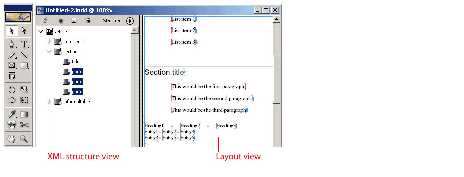
This table shows XML-selection CSB:
| CSB name | XML CSB |
| Selection format | XML node (element, attribute, or both) |
| CSB | kXMLStructureSelectionBoss |
| Suite boss class | kXMLStructureSuiteBoss |
| Target | IXMLNodeTarget |
| Selection suite | IXMLNodeSelectionSuite |
| Selection attribute extensibility | Not extensible. |
When a document is open but nothing is selected, the document workspace (kDocWorkspaceBoss) becomes the selection subsystem's target. For more information, see Selection architecture. Also see the following figure and table.
This figure shows document defaults: An open document with no selection:
This table shows document-defaults CSB:
| CSB name | Defaults. |
| Selection format | Preferences maintained as data interfaces on kDocWorkspaceBoss. |
| CSB | kDocWorkspaceBoss. (Strictly speaking, this is not a CSB, because it does not aggregate IConcreteSelection; however, kDocWorkspaceBoss often is referred to as the defaults CSB.) |
| Suite boss class | kDocumentDefaultSuiteBoss. |
| Target | NA |
| Selection suite | NA |
| Selection attribute extensibility | Extensible. The CSB has a shared observer attached to the document workspace's subject (kDocWorkspaceBoss). Selection extensions define CreateObserverProtocolCollection to extend the protocols that are attached. Selection extensions define SelectionAttributeChanged to handle change broadcasts. |
When no document is open, a special selection subsystem (the workspace selection, kAbstractWorkspaceSelectionBoss) is activated. It targets application-wide defaults on kWorkspaceBoss. For more information, see Selection architecture. Also see the following figure and table.
This figure shows application defaults: No document open:
This table shows application-defaults CSB:
| CSB name | Defaults. |
| Selection format | Preferences maintained as data interfaces on kWorkspaceBoss. |
| CSB | kWorkspaceBoss. (Strictly speaking, kWorkspaceBoss is not a CSB, because it does not aggregate IConcreteSelection; however, kWorkspaceBoss often is referred to as the defaults CSB.) |
| Suite boss class | kApplicationDefaultSuiteBoss. |
| Target | NA |
| Selection suite | NA |
| Selection attribute extensibility | Extensible. The CSB has a shared observer attached to the session workspace's subject (kWorkspaceBoss). Selection extensions define CreateObserverProtocolCollection to extend the protocols that are attached. Selection extensions define SelectionAttributeChanged to handle change broadcasts. |
An integrator suite is an implementation of a suite that was added to kIntegratorSuiteBoss, which is part of an ASB. Consequently, an integrator suite sometimes is known as an ASB suite. All communication between client code and the selection is performed using the integrator suite. A properly designed suite API is neutral to selection format, meaning there are no references to a specific selection format. This is essential to avoid tight coupling between the client code and the model.
The purpose of an integrator suite is to iterate over the concrete-selection formats supported by the suite or, more formally, to integrate over the integrator target (represented by IIntegratorTarget). Although it may seem that "iterator" may be a more appropriate name, "integrator" is correct in this context, because it means "to join together." In the mathematical sense, "integrate" also can refer to summation, and the integrator suite performs a summation over the capabilities of individual selection-for mat-specific suites.
The implementation of an integrator suite is very stereotypical; it delegates any call to CSB suites on CSBs that are active (that is, on CSBs that have a selection). Integrator-suite implementations should be based on templates provided by the SDK. The templates reduce the amount of code you need to write.
An example of an integrator suite is the kTableSuiteIntegratorImpl implementation of ITableSuite on kIntegratorSuiteBoss. Both text (kTextSuiteBoss) and table selections (kTableSuiteBoss) provide support for ITableSuite. The client code is shielded from the selection format that is providing the implementation. Integrator suite calls are forwarded to the selection-format –specific implementations on the CSB suites.
A CSB suite is a suite implementation on a CSB. CSB suites receive calls forwarded from integrator suites when they are called by client code.
CSB suites exist to do model-specific work, like navigating relationships between objects in the model and processing of commands. When you manipulate the model from within a CSB suite, you interact with objects in a specific selection format (for example, by means of target interfaces like ITextTarget or ILayoutTarget). There are several CSBs that extend suite-boss classes; for example, kTextSelectionBoss subclasses kTextSuiteBoss. For a complete list of CSBs, refer to the API Reference for the IConcreteSelection interface, from which you can examine the documentation page for each CSB to see which suite boss it extends.
A key concept in the selection architecture is that client code should be insulated from code that accesses and modifies the model (both the document and associated data). Code that works in terms of UID, UIDRef, or UIDList values that relate to stories (kTextStoryBoss objects) or layout objects (for example, something that exposes an IGraphicFrameData interface) interacts with a portion of the document model.
A selection of objects that is represented, for example, as a UIDList (as would have been the case in the old selection architecture) is tightly coupled to the model. Such tight coupling makes it very difficult to add new selection formats, because client code already has detailed knowledge about what is in a selection. Also, with such tight coupling, you cannot change the way in which the model is represented without breaking client code, because the client code has detailed model knowledge.
To add new selection formats, the client code needs to be decoupled from the selection formats. This means client code should be neutral with respect to selection format when dealing with the selection. The client code communicates by means of ASB suites. These suites, in turn, communicate with CSB suites. The CSB suites deal only with the model format of their CSB; they do not even know about the ASB. This is necessary because an alternative use for suites is scripting, which most likely does not have an analog to the ASB.
In the StrokeWeightMutator sample plug-in, the stroke-weight drop-down widget is enabled when the stroke weight of whatever is selected can be changed. These steps are followed:
When the widget handles a user click to change the stroke weight, the widget calls IStrokeAttributeSuite::ApplyStrokeWeight on the integrator suite to dispatch to the CSB suites, which change the value stored in the model. The widget synchronizes what it displays with any changes to the selection using a selection observer. It is sent a message when the stroke weights displayed in the widget need to be refreshed. (See Selection observers.)
If you are writing client code that modifies the properties of an abstract selection and can use a preexisting suite, your responsibilities are minor. Query the selection manager (ISelectionManager) that represents the abstract selection for the suite you want (like ITextAttributeSuite to change properties of text in a selection) and, if you get the suite, use it. Look for a code fragment showing these responsibilities for the ITextMiscellanySuite suite.
You must understand how to query the abstract selection for a particular capability. To understand what suites are provided by the API, refer to the API Reference and examine the boss classes that aggregate ITextMiscellanySuite, to see the selection formats that support this particular capability.
If you are writing code that needs to update when the selection changes, implement a selection observer (see Selection observers). If there is a preexisting suite that informs your client code of the changes you are interested in, your selection observer looks for messages from this suite. For example, ITextAttributeSuite notifies clients when a text-attribute change happens to the selection. Otherwise, implement a custom suite to inform client code about the changes of interest (see Custom suites).
If you have any client code that depends on the state of the selection, write a custom suite to access that state. For example, the BasicMenu sample implements a custom suite because it has menu items that need to know whether a page item is selected. A suite is required because the client code needs to access a selection target interface to determine whether a page item is selected.
If you are writing code that changes the existing document model (for example, you are implementing or processing commands that change this model), and you want to use selection to target the objects, you must create a suite.
If you are writing code that extends the document model (for example, you are adding a custom data interface to the layout model, like BasicPersistInterface), and you want to use selection to target the manipulation of this data, you must create a suite.
The model also extends to default preferences; changes to the application's default preferences and the document default preferences can be mediated by the selection subsystem.
When writing a custom suite that you want to make available to client code in one or more selection formats, provide two implementations, one relating to abstract selections and another to concrete selections. The former (see Integrator suites on page 108) is added to the kIntegratorSuiteBoss suite boss class, and the latter (see "CSB suites" on page 109) is added to the selection-format-specific suite boss classes. For details about the selection formats that can be of interest to client code, see "Concrete selection bosses". The following table lists suite boss classes.
| Suite boss class | Selection format | Rationale |
|---|---|---|
| kApplicationDefaultSuiteBoss | Application defaults | If you want your suite to be available to client code when no documents are open, add the suite to this boss class. |
| kDocumentDefaultSuiteBoss | Document defaults | If you want your suite to be available to client code when a document is open but nothing is selected, add the suite to this boss class. |
| kGalleyTextSuiteBoss | Text in InCopy Galley or Story Editor views (ITextTarget) | If you want your suite to be available to client code during galley- or story-editor-view text selections, add the suite to this boss class. |
| kIntegratorSuiteBoss | Abstract (IIntegratorTarget) | Required for any custom suite. |
| kLayoutSuiteBoss | Layout (ILayoutTarget) | If you want your suite to be available to client code during layout selections, add the suite to this boss class. |
| kNoteTextSuiteBoss | Text in InCopy Note (ITextTarget) | If you want your suite to be available to client code during note selections, add the suite to this boss class. |
| kSelectionInterfaceAlwaysActiveBoss | . | If you want your suite to be available to client code regardless of the kind of concrete selection that exists, add the suite to this boss class. |
| kStoryEditorSuiteBoss | Text in Story Editor view (ITextTarget) | (Not supported.) If you want the story editor suite to be different from that for InCopy Galley view, add the suite to this boss class. |
| kTableSuiteBoss | Tables (ITableTarget) | If you want your suite to be available to client code during table selections, add the suite to this boss class. |
| kTextSuiteBoss | Text (ITextTarget) | If you want your suite to be available to client code during text selections, add the suite to this boss class. |
| kXMLStructureSuiteBoss | XML structure, (IXMLNodeTarget) | If you want your suite to be available to client code during XML selections, add the suite to this boss class. |
A selection extension (ISelectionExtension) is a bridge between a suite implementation with an unknown interface and the selection architecture. A suite that requires advanced function registers a selection extension with the selection subsystem. The selection subsystem then communicates with the extension, which in turn forwards a message to the suite implementation. If your suite requires one or more of the services described in this section, you must implement a selection extension.
A suite may need to cache data to improve performance. You can add caches to suite implementations. In general, caches are added to CSB suite implementations. Cache validation should be delayed as long as possible. Rather than updating the cache every time a model change occurs, declare a Boolean cacheValid flag. When the model changes, set the flag to kFalse. Before accessing the cache, rebuild it if it is invalid. Thus, if your suite provides data to a user-interface panel and that panel is not visible, your suite does not needlessly consume CPU cycles recalculating cache values the user does not need.
Furthermore, caches should be enabled only on CSB boss classes, not suite boss classes. Because the scripting architecture extends suite boss classes, no caching should be done on them. If you are implementing a custom suite that needs a cache, add your cache interface only to the CSB. IConcreteSelection is the signature interface that identifies a boss class as a CSB. Your custom suite implementation can then perform a run-time check to see if your cache interface is available. If not, it can handle this situation gracefully and carry on without using the cache.
The design of some suites requires notification of selection changes. A selection extension allows your suite to be called by a CSB whenever the selection changes. A selection extension allows you to control whether clients of your suite-in the form of selection observers-get notified. (See Selection observers.)
There are two kinds of selection change events:
A suite that has a cache must mark its cache as invalid when notified the selection has changed. A suite needs to invalidate its cache when notified that a selection attribute changed only if the specific selection-attribute change affects this suite's cache. Many selection-attribute changes may not affect a particular cache.
Some suites need to perform an action on start-up or shut-down of a selection subsystem. Any such initialization is done by implementing a selection extension. Do not confuse this kind of start-up and shut-down with application services, like IStartupShutdownService, which are called for the application session. Selection subsystems get created and destroyed as the views that own them open and close.
Rarely, a CSB implementation needs to communicate with its integrator. Because there is no pointer on the CSB back to the integrator, a messaging system was created: IConcreteSelection::BroadcastToIntegratorSuite.
As described in Selection change notification, there are two kinds of selection change event: selection-changed event and selection-attribute-changed event. A selection observer (ActiveSelectionObserver) is the abstraction that allows client code to be called when a selection-changed event occurs. For more information, see the SelectionObserver.h header file.
Suites that need to communicate extra data to selection observers during the selection-changed event implement a selection extension. Suites that need to include information about a selection-attribute–changed event also implement a selection extension. (See Selection extensions.)
When a selection-changed event occurs, a selection observer's ActiveSelectionObserver::HandleSelectionChanged member method is called. On receiving this call, an observer can take action. For example, the observer can update some data displayed in a user-interface widget. Optionally, before taking action, the observer can examine the message parameter (ISelectionMessage) and look for extra data placed there by a suite.
When a selection-attribute–changed event occurs, a selection observer's ActiveSelectionObserver::HandleSelectionAttributeChanged member method is called. On receiving this call, an observer must call ISelectionMessage::WasSuiteAffected before taking action. There are many kinds of selection attributes, and they can be given meaning only by the CSB suite. It examines the broadcast from the selection format that changed (originating from a command notification that the model was updated), then passes a model-independent message about the change to selection observers. A selection observer may be called when any attribute of the selected objects changes, so a selection observer can receive messages that do not affect it. The selection observer must filter these calls, so it does not needlessly take action and waste CPU cycles. For sample code, see BasicPersistInterface.
A utility interface for selection (ISelectionUtils) is provided on kUtilsBoss. For detailed information on the member methods, refer to the API Reference for ISelectionUtils.
Some member methods provided by ISelectionUtils allow you to access the active selection. Most client code does not need to depend on the active selection, because client code normally is given access to the selection manager to use. If you want the active selection, ISelectionUtils::GetActiveSelection returns the selection manager from the active context. There also are other member methods, like QueryActiveLayoutSelectionSuite and QueryActiveTextSelectionSuite, that depend on the active selection manager; these should be used only by client code that needs to work with the active selection.
You must separate your model operations from your user-interface (UI) operations by placing them into different plug-ins. This chapter discusses this required separation.
InDesign requires that model and UI components be in separate plug-ins. Plug-ins must declare whether they support model or UI operations, and model plug-ins must not depend on UI plug-ins or libraries.
This is required in InDesign Server, InDesign, and InCopy to support multithreading.
You must separate model and user interface (UI) components into different plug-ins.
This required separation offers several benefits:
A plug-in must identify itself as either model or UI; it cannot be both. Refer to Multithreading for additional information. The plug-in type is identified in the plug-in's PluginVersion resource in its .fr file. If you do not specify either model or UI, you will get an error in the PluginVersion resource when ODFRC tries to compile your resource file.
To specify this, #include PlugInModel_UIAttributes.h in your .fr file and add a line (before the version and after the feature set) that contains kUIPlugIn or kModelPlugIn. For example, in the framelabel sample application, in FrmLbl.fr, this declares the plug-in to be a model plug-in (kModelPlugIn):
The following are model components:
The following are UI components:
The following selection suite bosses are part of the model:
AddIns that add model suites to these bosses belong in the model. Most suites are model suites, but there are some view (UI) suites. These would be suites that operate on the user interface; for example, IDragDropSourceSuite and IEyeDropperSuite. The AddIns for such UI suites belong in the user interface.
When identifying whether a suite is model or UI, be careful when you see "selection" in a method name. For example, the ITextMiscellanySuite suite has a GetFirstSelectedWord method. This method probably should be named GetFirstWord or GetFirstTargetedWord. Just because a method name contains "selection" does not necessarily mean that the suite is a UI suite. As n oted above, often a better word to use in the method is "target," as suites operate on targeted data. One kind of target is the selection, but scripting also can target data and use suites to operate on that data. The kind of target is abstracted out of the suite.
Other user-interface-specific bosses to which plug-ins often add interfaces are kSelectionInterfaceAlwaysActiveBoss and kAbstractLayoutDocumentSelectionBoss. kSelectionInterfaceAlwaysActiveBoss is a special class used only by the selection subsystem to determine which interfaces to always "leave on." The kAbstractLayoutDocumentSelectionBoss and the others that sub-boss from kAbstractSelectionBoss also are only user interface.
It is possible that your plug-in violates the requirement for separating model and UI operations, whether you are aware of the violation or not. There are three ways to detect plug-ins that mix model and UI components:
The debug build of InDesign Server includes an extra script provider to help determine whether any plug-ins mix model and UI components. Specifically, the script provider iterates through the object model and reports bosses that aggregate interface implementations with well-known user-interface-related IIDs, which include the following:
This script provider adds the following read-only properties to the Application script object, exclusively in the debug build:
For more information on scripting objects that you can use for testing, and for sample scripts, see "Scripting objects you can use for testing" in the 'Getting Started' guide.
Check your model plug-in project for the following links, remove them if they exist, and rebuild the plug-in project:
If you get linker errors, modify your code to remove dependencies on these user-interface-related components.
If you are developing a plug-in for Windows, you can use Dumpbin to see whether your plug-in (.pln file) imports any symbols from WidgetBin.dll. DUMPBIN is installed with Microsoft ® Visual Studio 2017. To locate it, run the appropriate command prompt for VS 2017 based on your system, and then navigate to folder VCToolsInstallDir%. Then go to sub-folder bin[Hostx86 or Hostx64][x86 or x64].
For more information, type "dumpbin /?" after opening above mentioned command window and going to the appropriate folder.
When InDesign Server launches, it will not load any model plug-in that links against InDesignModelAndUI or WidgetBin. However, InDesign Server cannot detect the following situations and will therefore load them; this causes severe runtime problems, including crashes or corrupt documents:
When InDesign Server tries to load a plug-in with UI components, you might see warning messages on the console window or log at startup, or asserts might be raised when you try to instantiate it or use it. For example, if a boss named kCHDMPanelWidgetBoss in your plug-in inherits from kPalettePanelWidgetBoss in the WidgetBin plug-in:
Because the WidgetBin plug-in is not available in the InDesign Server object mode or background threads, the object model cannot set up this boss properly and you might get asserts or other problems.
If you are converting existing plug-ins that mix model and UI components, follow the instructions in the preceding sections and then review this section.
If you have model and UI components in the same plug-in, the easiest way to separate the components into different plug-ins is to leave the model components in the existing plug-in and move the UI components to a new plug-in.
If you move your UI components to a new plug-in (with a new plug-in prefix ID), the ActionIDs should move with the components. This means that the value of ActionIDs changes. Some ActionIDs are hard-coded in keyboard shortcut files (if you ship them), so when you change the value of an ActionID, each keyboard shortcut file that maps that ID to a shortcut needs to be fixed. You can do this on an action-by-action basis, using the InDesign keyboard shortcut editor.
This section provides general guidelines for data conversion. For details on data conversion, see Versioning Persistent Data.
If you are moving UI operations out of a model plug-in into a new UI plug-in–which is the recommended strategy–you most likely will not need to do any data conversion. If, however, you have model data in a UI plug-in that you want to move out, here's the process for doing so.
Moving persistent data from a UI plug-in to a model plug-in is fairly straightforward, as long as all previous conversions were handled by schemas. Even if the UI plug-in contains code conversions, this is not difficult after you understand the steps. The following steps apply only if code converters need to be moved from a UI plug-in to a model plug-in.
Mainly, the conversion manager needs to be notified of the conversion change to both the UI plug-in and the model plug-in. To convert the data:
This chapter describes how InDesign and InCopy use multithreading and explains how to ensure that your plug-ins are thread safe.
This chapter covers the following:
This section defines multithreading and explains its purpose
Not long ago, application developers could count on improvements in performance because radically faster CPUs regularly became available. For decades, processors (CPUs) increased in speed exponentially, doubling roughly every two years. Presently, CPU makers are facing limitations that make it difficult or impossible to continue to improve CPU speeds at this rate. The complexity of applications and the need to continue to sell CPUs call for improved performance.
CPU makers are now attempting to improve performance by adding multiple cores. A multicore machine has multiple processing units, meaning that it is essentially a multiprocessor machine. Machines with two, four, or eight cores are now commonly seen. It is reasonable to expect to see machines with many more cores. These machines may be referred to as many-core machines, and they very well might ship with hundreds of cores.
While the old processor improvements helped any application to run faster, improving performance by adding processors is highly dependent on whether software is written to take advantage of the separate processors. Most applications, including prior versions of InDesign, have not been designed to do this. The challenge for application developers now is to take advantage of multiple processors within a single application. In some sense, it is similar to the change that takes place when a company grows from a one-man operation to one with numerous employees.
Multithreading is a way of simultaneously executing multiple software operations within the same program. Each such operation is said to occur in a separate thread. Threads can operate on data that is global (shared with other threads) or local (specific to the thread).
Computers with multiple processors can simultaneously execute multiple threads. In most cases, there will be more threads of execution than processors. Where fewer processors exist than threads of execution, the operating system suspends and revives threads as necessary. More available processors ultimately equals more available processing time.
Multithreading allows InDesign to take advantage of multiple processors. This provides opportunities to improve performance and responsiveness.
In general:
This section describes the InDesign approach to multithreading.
Multithreading for InDesign focuses on model operations because this yields the greatest impact on performance. This approach leans heavily on the InDesign database and requires model/user interface (UI) separation, a practice previously required only by InDesign Server.
To support model-based threading, InDesign has a means for multiple threads to operate on a single InDesign database. This mechanism is called database and merging. It allows the document database to be cloned at a particular point, operated on by a background thread, and, if necessary, merged back into the actual database. While this capability is not publicly exposed in the InDesign SDK, it is important to understand because all model code can be called by background threads. It is your responsibility when developing plug-ins to ensure that your code is thread safe.
Most InDesign execution occurs on the main thread. This includes all user interactions and launching the product. It is in the main thread that InDesign responds to typing and mouse events. It is also in the main thread that changes to a document become visible. Both model and UI operations can be carried out in the main thread.
Any additional thread is referred to as a background thread. Background threads have no access to object-model constructs that come from UI plug-ins. They are limited to model operations and thus resemble instances of InDesign Server. Model operations are equivalent whether run on the main thread or a background thread; they must produce the same results in either case.
InDesign applies multithreading to only the following features:
While this list isn't large, keep the following in mind:
Multithreading has several effects on InDesign's behavior:
Ensuring thread safety is the process of following the rules that make plug-in code safe to run in the InDesign multiple-threaded environment. As a plug-in developer, this is where you will spend your time supporting multithreading. All model code must be made thread safe. (UI operations always run on the main thread. They do not have to be made thread safe.)
This section provides an overview and detailed steps on how to make your plug-in thread safe.
InDesign's multithreading environment provides a separate execution context (a cloned copy of the database) for each thread. Making a plug-in thread safe amounts to making all components safe to be instantiated and operated on by multiple threads simultaneously.
Threads do not share object-model instances. They do share globals and statics, so a big part of your effort is removing or synchronizing such variables.
The following rules summarize what plug-in developers must do to support multithreading:
We recommend the following steps for porting plug-ins from prior versions of InDesign or developing new plug-ins to support multithreading:
Refer to the rules in this section while developing plug-ins to ensure that your plug-in is thread safe.
A model boss cannot derive from a UI boss
For example:
This code generates the following assert on startup:
Model plug-ins cannot refer to classes or implementations in UI plug-ins
Model plug-ins must not depend on UI classes or implementations. For example:
These two scenarios generate the following assert on startup:
UI classes derived from a model class cannot override model implementations in the base class
Allowing such an override would result in different boss definitions in the main and background threads. For example:
This situation is detected at startup and you get the following error message in a dialog box:
There are some thread-safety concerns when calling and implementing service providers. Some service providers are available on both the main and background threads, while others are available only on the main thread. To facilitate this, IK2ServiceProvider now contains a method called GetThreadingPolicy(). Implementations of IK2ServiceProvider::GetThreadingPolicy() can return either
Like all boss objects, service providers that are implemented in UI plug-ins are not available on background threads. Such implementations should return kMainThreadOnly; they should never return kMultipleThreads. Violating this causes an assert in the debug build.
The SDK includes CServiceProvider, a default implementation of IK2ServiceProvider. CServiceProvider is the standard base class for service providers. It provides a default implementation of GetThreadingPolicy that returns a threading policy based on the plug-in in which the service provider boss resides. If the boss comes from a UI plug-in, it returns kMainThreadOnly. If the service is in a model plug-in, it returns kMultipleThreads. A service from a model plug-in can override IK2ServiceProvider::GetThreadingPolicy and return kMainThreadOnly to restrict itself to the main thread.
Typically, service providers are used to identify some other extension pattern, such as a responder or startup/shutdown service. Most implementations, like kResponderServiceProviderImpl, inherit their behavior from CServiceProvider, although any subclass can override GetThreadingPolicy.
Startup/shutdown services are a type of service provider. Each startup/shutdown service must provide implementations for both of the following:
The implementation of IK2ServiceProvider identifies itself as a startup/shutdown service by returning kStartupShutdownService in GetServiceID() or GetServiceIDs(). As described above, it identifies a threading policy by what it returns in GetThreadingPolicy(). Returning IPlugIn::kMainThreadOnly restricts the service to startup and shutdown of the main thread. Returning IPlugIn::kMultipleThreads means the service will be called on both the main thread and background thread startup and shutdown.
However, it is unlikely that you will need to provide a custom implementation of IK2ServiceProvider, because the SDK includes service-provider implementations for application startup, thread startup, and a combination:
InDesign uses several APIs and libraries to support making code thread safe. This amounts to a mixture of the Boost.Threads Library and some Adobe-authored implementations.
Boost.Threads
Before you start using the recipes and code, it is best to develop some background on writing thread-safe code outside of InDesign. The following article is a good introduction to threading with Boost. The "Thread Creation" section is of limited value in porting InDesign plug-ins, but the sections explaining mutexes, conditional variables, thread-local storage, and once routines are directly relevant.
(There is an update to the article that is of less value to making InDesign plug-ins thread-safe, as it deals more with managing threads.)
If you use Boost.Threads in your code, you must link against the correct library files in the various configurations of your project files. On Windows, use the BoostThreadLib macro that is defined in the platform-specific vsprops files (for example, DebugWin32.vsprops and Debugx64.xvsprops). The correct path is already defined for each platform; you simply have to add "$(BoostThreadLib)" to each of the Additional Dependencies (AdditionalDependencies in the XML) settings for the linker.
Mac OS projects that use the included xcconfig files are also configured to link against the correct frameworks:
IDThreading and IDThreadingPrimitives
A handful of threading constructs are provided in Adobe-authored headers. Two files in particular provide some useful tidbits:
This section describes additional situations that Adobe encountered when making InDesign and SDK samples thread safe. You may encounter these situations when developing or porting plug-in code.
Synchronizing an operation amounts to preventing other threads from executing the same code. If you need to synchronize an operation, you can do so with boost::mutex. Mutex is short for mutual exclusion. It is a construct that allows you to ensure that only one thread can execute a particular piece of code at a time.
The basic steps are as follows:
See SDKODBCCache::Rebuild() for an example of using a mutex to provide exclusive access to a method that rebuilds a cache. This particular code prevents other threads from building the cache while it's under construction.
If your plug-in code includes a singleton object, you must ensure that it is created in a thread-safe manner, that is, to prevent more than one thread trying to simultaneously create such an object. Such an attempt could result in more than one copy of the singleton, because there is an opportunity for a second thread to create the object between the original creation of the object and when it's marked as created. This eventually results in invalid results and unpredictable behavior in your plug-in.
To ensure that only one thread can create a singleton, use boost::call_once to initialize the single object. This construct guarantees that a particular function can be called only once by an application, even if multiple threads reach the call_once statement simultaneously. To construct the initial singleton instance:
For sample code, see SDKODBCCache::Instance().
It is not uncommon for a global variable to be used as a flag to prevent reentrancy into a particular function. There are two ways to deal with this situation; which is appropriate depends on the code that calls the method:
For an example of using thread-local storage to prevent reentrancy, see TranFxMatteFactory::GetPaintedBBoxWithoutMatte().
You can optionally code an InDesign plug-in or script to asynchronously export IDML and PDF. If you do this, be aware that the main thread continues to execute your code while the export continues on a background thread, so control returns to your code before the export operation is complete. Therefore, immediately after starting the export thread, your code can't do operations such as checking the results of the export or copying the exported file, because the operation might not have completed.
Asynchronous export from C++ is straightforward. IExportProvider contains methods that facilitate asynchronous file export:
Export calling code typically looks something like the following:
This continues to work for ExportToFile(), but a similar pattern when calling AsynchronousExportToFile() is incorrect. That is because the export will still be in progress on a background thread. It will not have set the global error code, so the following code is incorrect:
Instead, a plug-in that needs to check the status of an export must provide an export responder. (If the event is started from a script, you could use attachable events for a similar effect.) Such a responder receives notifications before export, after export, and upon export failures. Such a responder boss will include an IK2ServiceProvider implementation that specifies one or more of the following services in GetServiceID() or GetServiceIDs():
The responder would then respond to these conditions in its IResponder::Respond() implementation, which is called with an ISignalMgr pointer. This object is an ISignalMgr on the kExportProviderSignalMgrBoss. It can be queried for an instance of IExportProviderSignalData.
This interface can be used to determine useful information about the file, such as the source document or the destination file.
InDesign creates a background task for each asynchronous export. Use ITaskMonitorFacade to monitor background tasks. This facade provides methods to get a TaskInfo (a class that provides information about the background task) instance for one or all background tasks. TaskInfo::WaitForTask() causes the caller to wait for a background task to complete. TaskInfo::Cancel() cancels the background task. Cancels occur asynchronously, so code should call the appropriate wait method before continuing. ITaskMonitorFacade includes utility methods that can be used to wait for or cancel all background tasks.
Testing your plug-ins for thread safety takes some creativity. Your testing must cover more than simply whether your feature behaves in the UI or with scripting. You should attempt to verify that your model plug-in behaves appropriately when exercised simultaneously on the main thread and on a large number of background threads. Consider the following recommendations when testing for thread safety:
This chapter describes the features and supporting architecture of the layout subsystem, as well as how a client can use these features and the layout-related extension patterns in the InDesign API.
For use cases related to layout, see Layout.
The following figure shows a facing-pages publication with three pages arranged over two spreads. The document is presented for edit in the layout presentation. The Pages panel is used to edit the spreads and pages, including the master spreads and master pages. The Layers panel is used to edit the layers and to list objects in the active spread.
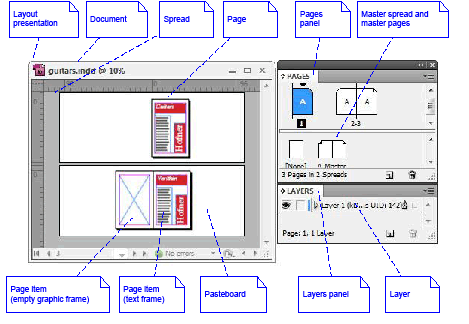
Some basic terms are given below. A full layout-related glossary is in Terminology.
This section introduces the data model on which the layout subsystem is based. The boss classes and interfaces that represent spreads, pages, and page items in a document are described in general.
This section shows how the items introduced in Concepts are represented by boss classes and interfaces in a document. The following figure shows the overall arrangement.
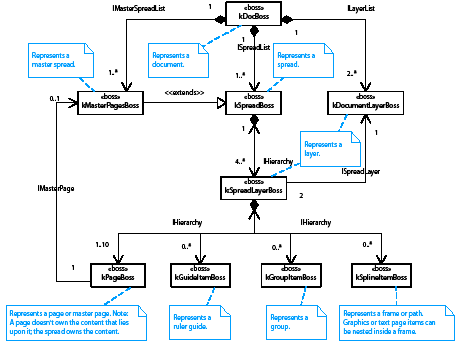
A document (kDocBoss) comprises one or more spreads (kSpreadBoss) and master spreads (kMasterPagesBoss). The ISpreadList interface lists the spreads. The IMasterSpreadList interface lists the master spreads.
Each spread contains one or more pages (kPageBoss), ruler guides (kGuideItemBoss), frames (kSplineItemBoss), paths (kSplineItemBoss), or groups (kGroupItemBoss). These objects are arranged in a spread in a tree represented by the interface IHierarchy.
Frames and groups have additional page items nested within them.
The objects in a layout are layered, and this layering is reflected within each spread. A layer is represented by a document layer (kDocumentLayerBoss) that has two corresponding spread layers (kSpreadLayerBoss) in each spread. The document layers are listed by the ILayerList interface; the spread layers are the immediate children of a spread on the IHierarchy interface.
A spread (kSpreadBoss) contains 2n spread layers as children, where n is the number of document layers. All the immediate children of a spread must be spread layers (kSpreadLayerBoss).
The preceding figure shows a document that has at least two layers:
The remaining layers-and there always is at least one other layer in the ILayerList interface-are the layers to which guides (kGuideItemBoss), frames (kSplineItemBoss), paths (kSplineItemBoss), and groups (kGroupItemBoss) can be assigned. Each of these layers is represented by a document layer that has two corresponding spread layers. When a page item is assigned to belong to a particular layer, the object becomes owned by the corresponding spread layer through IHierarchy. Changes to document layers are document-wide, meaning changes to document layers affect all spreads in the document, including master spreads. For more information about layers, see Spreads and pages.
The preceding figure also shows that master spreads (kMasterPagesBoss) have the same organization as spreads. A master spread (kMasterPagesBoss) contains master pages (kPageBoss), which provide background content for other pages. Master spreads form their own hierarchy, and each page connects to its master by the interface IMasterPage. For more information, see Master spreads and master pages.
The key interfaces involved in the layout data model are summarized in the following table. For more information, refer to the API Reference for these interfaces.
| Interface | Note |
|---|---|
| IDocumentLayer | Signature interface for a document layer (kDocumentLayerBoss). Stores a document layer's properties. Has an associated content-spread layer and guide-spread layer. |
| IHierarchy | Connects boss objects in a tree that represents a layout hierarchy. Provides a mechanism to find parent and child objects and interfaces. See Parent and child objects and IHierarchy. |
| ILayerList | List of document layers (kDocumentLayerBoss) in a document. A layer is represented by a kDocumentLayerBoss object that has two associated kSpreadLayerBoss objects in each spread. |
| IMasterPage | Stores the master spread (kMasterPagesBoss) associated with a page (kPageBoss) and the index of the master page within the master spread on which this page is based. |
| IMasterSpread | Signature interface for a master spread (kMasterPagesBoss). Stores the name of a master spread and contains the incremental information that defines a master spread. This information is beyond what is contained in a spread. |
| IMasterSpreadList | List of the master spreads (kMasterPagesBoss) in a document. |
| ISpread | Signature interface for a spread (kSpreadBoss). Contains useful methods for discovering the page items that lie on a page or spread and for navigating between document layers (kDocumentLayerBoss) and spread layers (kSpreadLayerBoss). A document is laid out as a set of spreads in which each spread contains one or more pages and other page items. |
| ISpreadLayer | Signature interface for a spread layer (kSpreadLayerBoss). A spread layer is the container for the page items in a layer through the IHierarchy interface on the kSpreadLayerBoss. The ISpreadLayer interface maintains a relationship back to the corresponding document layer boss (kDocumentLayerBoss). |
| ISpreadList | List of the spreads (kSpreadBoss) in a document. |
The SnpInspectLayoutModel code snippet can inspect the layout hierarchy. Run the snippet in SnippetRunner to create a textual report for a document. See SnpInspectLayoutModel for sample code that examines the layout hierarchy in various ways.
A page item can contain other page items. The containing object is the parent; the contained objects are the children. Child index order defines z-order, the order in which objects draw; the child with index 0 draws first (behind), and the child with index n-1 draws last (in front). This association between page items is implemented by the IHierarchy interface, as shown in the following figure.

kPageItemBoss is the abstract base class for objects that participate in the layout hierarchy. IHierarchy is a required interface. Subclasses of kPageItemBoss include spreads (kSpreadBoss), spread layers (kSpreadLayerBoss), and frames (kSplineItemBoss). To see all subclasses, refer to the API Reference for kPageItemBoss. Each subclass of kPageItemBoss may have different constraints on the number and type (boss class) of children it can contain.
The child objects contained within the parent are said to be nested. The following figure shows an example. The object diagram is an example of how the internal representation changes when a circle is nested inside a square using cut and paste. The parent-child association between boss objects in a layout is realized by the IHierarchy interface. When the circle is cut, the association with its initial parent, the spread layer, is broken. When the circle is pasted, it is associated with its new parent, the square. The square becomes a frame, because it now contains the circle. The drawing of the circle is then clipped to its frame.
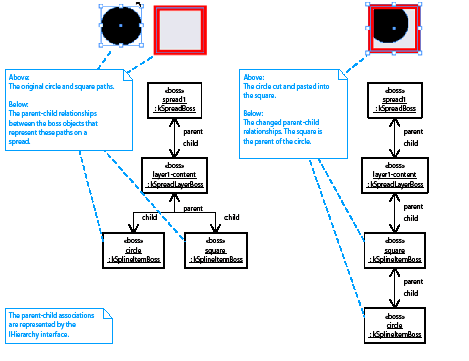
The low-level commands used to edit the hierarchy programmatically are kAddToHierarchyCmdBoss and kRemoveFromHierarchyCmdBoss. A utility interface, IHierarchyUtils, provides a facade that processes these commands. For more information, refer to the API Reference.
The boss objects in the hierarchy illustrated above can be visited using a recursive function, as shown in the following example, which visits each child boss object in a hierarchy:
A spread is the primary container for layout data. A spread contains a set of pages on which the page items that represent pictures, text, or content of another format are arranged. A spread owns all the objects it contains, including its pages, ruler guides, frames, paths, groups, and any nested content. The objects in a spread are organized into layers, so the user can control whether the objects assigned to a layer should be displayed or editable. See the following figure for the user's perspective. The publication shown is a facing-pages document with one spread, one page, and one layer.
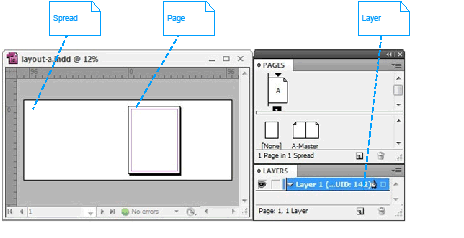
The following is an object diagram showing the layout-related boss objects that exist in a publication containing a ruler guide and graphic frame on a page. The sample document (kDocBoss) contains a spread (kSpreadBoss), page (kPageBoss), graphic frame (kSplineItemBoss), and ruler guide (kGuideItemBoss). The content of the spread is layered on spread layers (kSpreadLayerBoss) that map onto corresponding document layers (kDocumentLayerBoss). There are two document layers (kDocumentLayerBoss), the pages layer and layer 1. The page, graphic frame, and ruler guide are arranged on spread layers (kSpreadLayerBoss) under the spread's IHierarchy interface.
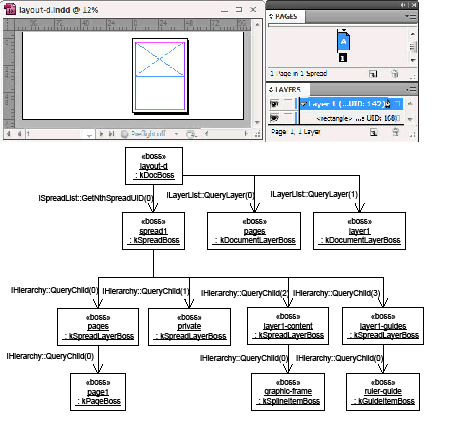
A layer is represented by a kDocumentLayerBoss object with two corresponding kSpreadLayerBoss objects in each spread.
The pages layer is the layer to which pages (kPageBoss) are assigned. In the figure, the pages layer is represented by the kDocumentLayerBoss object named "pages" and the kSpreadLayerBoss objects named "pages" and "private." The pages document layer (kDocumentLayerBoss) always is at index 0 in the layer list (ILayerList). The first child on the spread's hierarchy always is the associated page's spread layer and contains the spread's pages (kPageBoss). The second child of the spread is a private spread layer that always is empty. Pages are drawn behind all other objects, because they always are stored on the spread's hierarchy at child index 0. Note that the pages layer is not shown in the Layers panel.
In the preceding figure, Layer 1 is represented by the kDocumentLayerBoss object layer1. It has two corresponding spread layers (kSpreadLayerBoss) on the spread's hierarchy:
The order of these spread layers can vary, depending on whether guides are being drawn behind or in front of content. The preceding figure illustrates the order when guides are drawn in front of content.
The code in the following example visits each child boss object of the spread shown in the preceding figure. (For the implementation of VisitChildren, see the example in Parent and child objects and IHierarchy). All boss objects on the spread's hierarchy are visited by the code in the following example, including the spread layer and page boss objects.
In contrast, the code shown in the following example filters the objects by the pages on which they lie. The method ISpread::GetItemsOnPage calculates which items lie on a page. Because pages do not own the items that lie on them (spreads own the items), the calculation of which items lie on a page is geometrical, comparing the intersection of the bounding box of each item with the bounding box of the page. (For details, see ISpread::GetItemsOnPage.) If this code is run on the spread shown in the preceding figure, the only object that appears in the list itemsOnPage is the graphic frame. The ruler guide is not returned as an item, because it is a pasteboard-ruler guide; if the ruler guide were a page-ruler guide, the code in the following example would list it.
The SnpInspectLayoutModel code snippet can inspect the spreads in a document and their associated hierarchy. Run the snippet in SnippetRunner to create a textual report. For sample code, see SnpInspectLayoutModel::ReportDocumentByHierarchy.
Layers are presented to the user and edited with the Layers panel. Layers can be shown or hidden, locked or unlocked. By rearranging the order of layers, the user can control the front-to-back order in which page items assigned to those layers draw. The user also can change the layer to which a selected page item is assigned, by dragging and dropping in the Layers panel.
The following figure shows the user's perspective of a layer. The document shown is a facing-pages document with one spread, one page, and one layer.
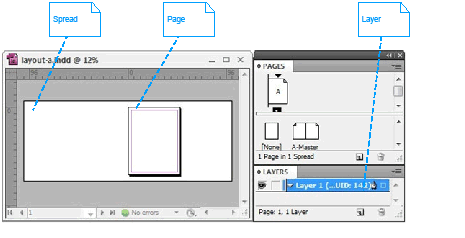
The following figure is an object diagram showing the layout hierarchy that results when a new layer is added to the document in the frame-and-ruler diagram in Spreads and pages. The diagram shows a document (kDocBoss) containing one spread (kSpreadBoss), one page (kPageBoss), and three layers. Each layer is represented by one kDocumentLayerBoss object that has two corresponding kSpreadLayerBoss objects in each spread. The pages layer that stores the page (kPageBoss) is represented by the kDocumentLayerBoss object named "pages" and the kSpreadLayerBoss objects named "pages" and "private." Layer 1 is represented by the objects layer1, layer1-content, and layer1-guides. Layer 2 is represented by the objects layer2, layer2-content, and layer2-guides. A graphic frame (kSplineItemBoss) and a ruler guide (kGuideItemBoss) are assigned to Layer 1. Layer 2 is empty.
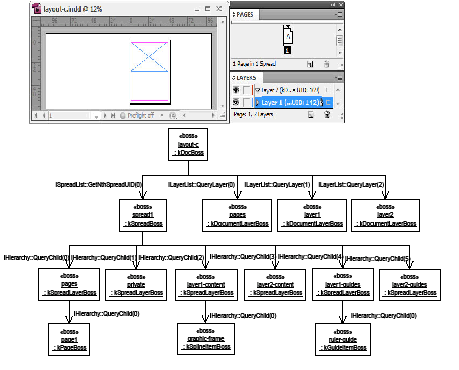
When a new layer is added, three new objects are created:
This figure shows that, when a document layer is created, two corresponding spread layers are added to each spread. When a document layer is deleted, its corresponding spread layers are removed from each spread. Document-layer edits are document-wide; that is, they affect all spreads in a document.
Content-spread layers are stored contiguously in the spread's hierarchy (IHierarchy). Guide-spread layers also are stored contiguously. For example, the layer1-content and layer2-content objects in this figureare contiguous content-spread layers, and layer1-guides and layer2-guides are contiguous guide-spread layers.
The order of content-spread layers and guide-spread layers as child objects of the spread's hierarchy (IHierarchy) varies, depending on whether guides are being drawn in front or in back of content. Ruler guides are kept in a distinct spread layer, to allow them to be drawn in front of or behind other content, or even to turn them off completely, as determined by a preference setting. (See Guides and grids.) This figure shows the order when guides are drawn in front of content. The corresponding index order is as follows:
If guides are drawn behind other content, the index order of spread layers in the spread's hierarchy (IHierarchy) is as follows:
The spread's ISpread interface has methods that return the spread layer associated with a given document layer. (See Navigating spread content using ISpread). The associations are calculated using the following algorithm.
The indices of the pages-spread layer and private-spread layer are fixed:
Variable definitions:
If guides are displayed in front of content, the following calculations are used:
If guides are displayed behind content, the following calculations are used:
There are layer options that can be controlled via the Layers Options dialog. User can double click on a layer name in the Layers panel to bring up the Layer Options dialog, as shown in the following figure.
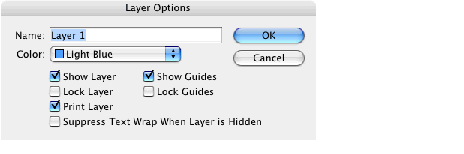
The attributes in the Layer Options dialog are managed by the IDocumentLayer interface, which is aggregated on the kDocumentLayerBoss. The following table lists some of the commands that can be used to modify layer options.
| Command | Note |
|---|---|
| kChangeLayerNameCmdBoss | Changes the name of the layer. |
| kIgnoreHiddenTextWrapCmdBoss | Sets text-wrap options for a document layer. |
| kLockGuideLayerCmdBoss | Locks or unlocks a guide layer. When the guide layer is locked, nothing in that layer (that is, guides) can be selected. |
| kLockLayerCmdBoss | Locks or unlocks a layer. A "locked" layer means that nothing in that layer can be selected. Layers are unlocked by default. |
| kPrintLayerCmdBoss | Sets the printability of the layer. A nonprintable layer does not print or export. |
| kSetLayerColorCmdBoss | Changes the layer color. |
| kShowGuideLayerCmdBoss | Sets the visibility of the guide layer. An "invisible" layer is not displayed on the screen. |
| kShowLayerCmdBoss | Sets the visibility of the layer. An "invisible" layer is not displayed on the screen. |
Use the commands in this table whenever possible to modify layer options.
The SnpPrintDocument.cpp SDK snippet allows the user to select which layer to print. It uses kPrintLayerCmdBoss to set the printability for each layer. For more information, see the snippet source code.
Layers in a basic document shows the content of a spread is stored on its IHierarchy interface. Locating content using IHierarchy can be laborious. Alternately, the ISpread interface makes it easy to examine the content of a spread, as shown in the object diagram in the following figure.
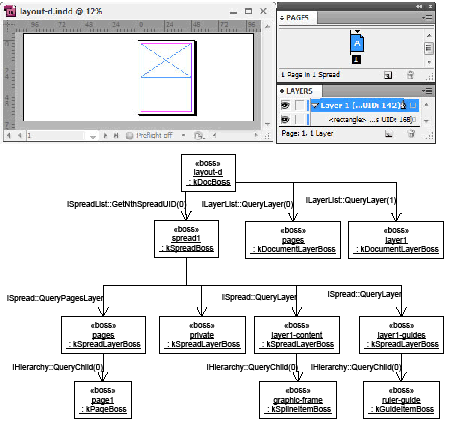
This figure shows that you can use the ISpread interface on a spread (kSpreadBoss) to find the guide or content spread layer associated with a document layer. (For more information, see ISpread::QueryLayer.) You also can discover which page items lie on a given page. (For more information, see ISpread::GetItemsOnPage.)
Using ISpread to discover the content of a spread is much easier than using IHierarchy.
When run on the document shown in this figure, the code in the following example visits the content of spread layer layer1-content if parameter wantGuideLayer is kFalse. The code visits the content of spread layer layer1-guides if parameter wantGuideLayer is kTrue.
This code iterates over spreads in a document, then iterates over document layers to visit items on the spread layer associated with each document layer:
A master spread is a special kind of spread that contains master pages. A master page is a page that contains background content for another page. When a page is based on a master page, the page items that lie on the master page also appear on the page. A master page eliminates the need for repetitive page formatting and typically contains page numbers, headers and footers, and background pictures. The layout presentation is used to edit the content of master spreads. The Pages panel is used to arrange the pages in a master spread and to assign a master page to a page.
The following figure shows the user's perspective on master spreads and master pages. The publication shown is a facing-pages document with a master spread containing two master pages.
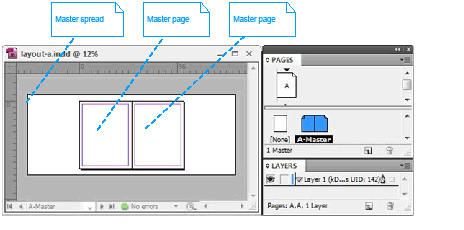
A master spread (kMasterPagesBoss) is a special kind of spread; it extends the spread boss class (kSpreadBoss). The content of a master spread is organized the same way as a spread: each has a hierarchy (IHierarchy) with spread layers acting as parent objects for content. Compare the spread shown in the frame-and-ruler figure in Spreads and pages to the master spread shown in the following figure. The document (kDocBoss) shown contains a master spread (kMasterPagesBoss) with two pages (kPageBoss), and two paths (kSplineItemBoss) in the form of a square and a circle.
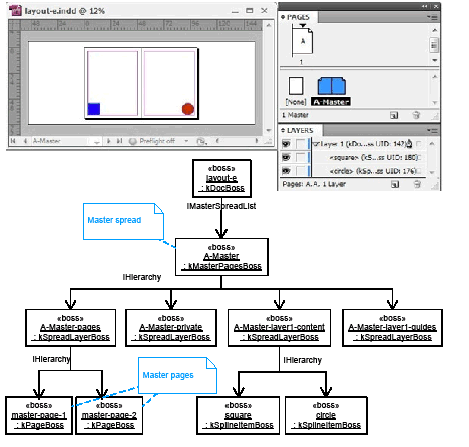
When a page is based on a master page, the page items that lie on the master page also appear on the page. When the master spread in this figure is applied to page 1 of the facing-pages document in the frame-and-ruler figure, page items from the master page appear on page 1. The circle in the screenshot of page 1 in the following figure is an object from the master spread.
The following figure is an object diagram showing a one-page document that has a master (A-Master) applied. The circle drawn on page 1 is an object inherited from the associated master page. The boss objects that represent the spread and the master spread it is based on are shown. The association between a page (kPageBoss) and its master page is implemented by the IMasterPage interface. The screenshot shows that filtering of the objects on the master spread is being performed. Objects that intersect the bounding box of the master page associated with the page are drawn; other objects on the master spread are filtered out. The circle is the only object from the master spread to draw, because it is the only object that intersects the bounding box of the master page associated with page 1.
This figure shows a spread based on a master spread:
When two new pages based on the master shown in the first figure in this subsection are added to the document, the layout hierarchy is as shown in the following figure. The object diagram shows the boss objects that represent three pages in a facing-pages document based on the same master spread. The circle and square objects drawn on pages 1, 2, and 3 come from the master.
The following figure shows two spreads based on a facing-pages master spread:
The master spread (kMasterPagesBoss) associated with a page (kPageBoss) is found by calling IMasterPage::GetMasterSpreadUID. The associated master page (kPageBoss) within that master spread is calculated by calling update to IMasterPage::GetMasterSpreadPageIndex. The calculation depends on the index position (0, 1, 2, ...) of the page within its spread and the document set-up. Given the result returned by IMasterPage::GetMasterSpreadPageIndex, ISpread::GetNthPageUID can be called to get a reference to the master page (kPageBoss), or ISpread::GetItemsOnPage can be called to calculate the objects on the master spread that intersect the bounding box of the master page.
To base a page or set of pages on a master spread, process the kApplyMasterSpreadCmdBoss command.
Page items from a master spread can be overridden. For example, to change the fill color of the circle on page 1 in the preceding figure, a master page item override is created. A record of the override is kept by the page (kPageBoss) in the IMasterOverrideList interface.
Overrides to master-page items are applied programmatically with kOverrideMasterPageItemCmdBoss.
Even when a master-page item is overridden, changes made to its counterpart on the master still can effect page items. An overridden page item continues to inherit all properties of its master counterpart that are not overridden. For example, if the only property that was overridden on page 1 is the fill color of the circle, modifying the position of the circle in the master causes the position of the circle to be updated on the pages based on that master (pages 1 and 3). The application of the initial fill-color override creates a copy of the circle (kSplineItemBoss) object on spread 1; a record of the override is kept in IMasterOverrideList on page 1. The circle on spread 1 is a controlled page item; the circle on the master spread is the controlling page item. Master page items maintain a list of controlled page items in the IControlledPageItems interface, which represents the page items for which overrides were made. An overridden master-page item on a spread maintains a reference to its controlling master-page item, in the IControllingPageItem interface.
A master page can be based on another master page. The association is maintained by the IMasterPage interface as it is for a normal page (kPageBoss) owned by a spread (kSpreadBoss). For example, consider two masters, A and B, with different sets of page items. When you drag master A onto master B in the Pages panel, master B becomes based on master A. Master page items on master A appear on master B; however, the page items on master B inherited from master A remain owned by master A. If you alter the page items on master A, the change is inherited by master B. Master B can override page items from master A for individual properties, just as the master-page items on a spread can be overridden.
A page item is a path, frame, group, picture, text frame, or page-item type that represents content the user creates and edits on a spread. For general information about the organization of page items in a spread, see Spreads and pages.
A path represents a straight line, curved line, or closed shape like a rectangle, ellipse, or polygon. A path comprises one or more segments, each of which may be straight or curved. Each path is open (the default) or closed. Graphic attributes are properties that control how the path is formatted when drawn, like stroke weight and color. For more information about paths, see the "Paths" section of Graphics Fundamentals. A frame is simply a path that contains-or is designated to contain-other objects, like a graphic page item, text page item, or page item that represents another type of content.
Frames and paths are represented by the same boss class, kSplineItemBoss.
A path can become a frame, and a frame can become a path. The difference between a path and a frame is the state of the interfaces on kSplineItemBoss. A path is a kSplineItemBoss object that contains no children in its IHierarchy interface. A graphic frame is a kSplineItemBoss object that contains a graphic page item in its IHierarchy interface. (For more information about graphic page items, see the "Graphic Page Items" section of Graphics Fundamentals). A text frame is a kSplineItemBoss object that contains a text page item (kMultiColumnItemBoss). (For more information on text page items, see Text Fundamentals.
The following figure shows a square path, an empty graphic frame, a graphic frame displaying a picture, an empty text frame, and a text frame containing text. The object diagram shows a square being used as a path and as a frame.
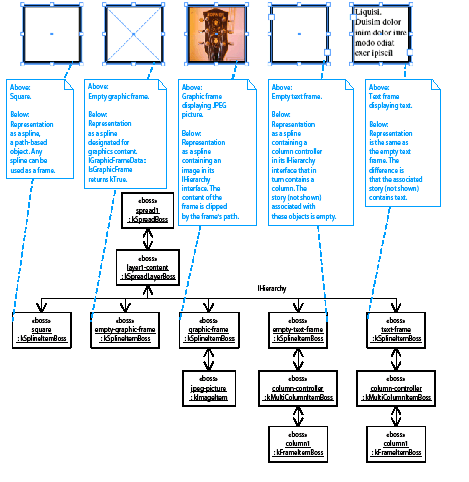
The toolbox palette provides the user with several path-drawing tools. The Rectangle, Ellipse, Polygon, and Line tools create basic shapes. The Rectangle Frame, Ellipse Frame, and Polygon Frame tools create basic graphic-frame shapes. The Pen and Pencil tools create free-form shapes. When one of these tools is used to draw a path, a spline item (kSplineItemBoss) is created to represent the path. The IPathGeometry interface on kSplineItemBoss describes the points in the path. Other interfaces on kSplineItemBoss provide properties like stroke weight and stroke color that control how the path is drawn. When a path is used as a frame, the content is clipped by the frame's path.
IGraphicFrameData is a frame's signature interface. IGraphicFrameData stores data that distinguishes whether the boss object represents a frame or a path. IFrameType is an alternative signature interface. It provides an easy-to-use interface that indicates whether the object represents a path or a frame. Major interfaces on kSplineItemBoss, the boss class representing paths and frames, are shown in the class diagram in the following figure and summarized in the following table. For more information on the interfaces noted and details of the other interfaces on kSplineItemBoss, refer to the API Reference.
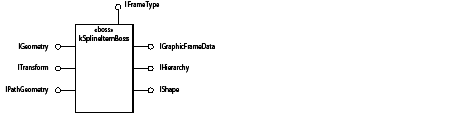
The following table lists Key kSplineItemBoss interfaces:
| Interface | Note |
|---|---|
| IFrameType | Indicates whether the boss object is a path or frame. |
| IGeometry | Stores the bounding box of the boss object in inner coordinates. See Bounding box and IGeometry. |
| IGraphicFrameData | Stores whether the boss object is a graphic frame and provides other helper methods to determine the content of a frame. |
| IHandleShape | Draws selection handles on the boss object's bounding box. These selection handles are used to move and resize the object. |
| IHandleShape (IID_IPATHHANDLESHAPE) | Draws selection handles on the points in the boss object's path. These selection handles are used to edit the path points. |
| IHierarchy | Connects the boss object into a tree that represents a layout hierarchy. Provides mechanism to find parent and child objects and interfaces. The objects the boss object contains are the children of the IHierarchy interface. The object in which the boss object is contained is its parent. The child-index order in IHierarchy defines the z-order of child objects. See Parent and child objects and IHierarchy. |
| IPageItemAdornmentList | A list of adornments that the page item object may have. For details, see Graphics Fundamentals. |
| IPathGeometry | Stores the points in the boss object's path in inner coordinates. The interface can describe multiple paths. |
| IScrapItem | Creates commands that can copy and paste the boss object. Different types of page items need to transfer different kinds of data. For example, a path transfers a description of its shape, and a text frame transfers text as well as a description of the frame. |
| IShape | Draws the boss object. |
| ITransform | Represents any transformation applied to the boss object (for example, translation, rotation, scaling) in a transformation matrix (PMMatrix). See Transformation and ITransform. |
A frame can contain at most one child in its hierarchy (IHierarchy). The child boss object is the content of the frame. The child may be one of the following boss classes: kSplineItemBoss, kGroupItemBoss, a graphics page item (for example, kImageItem, kSVGItem, kPlacedPDFItemBoss, and kEPSItem), a text page item (kMultiColumnItemBoss), or another content page item.
A frame can be owned by one parent using its hierarchy (IHierarchy) interface. Typically, a frame on a spread is owned by a spread layer (kSpreadLayerBoss), but a frame also can be owned by other boss objects. For example, a frame that is part of a group is owned by the kGroupItemBoss, a frame nested inside a frame is owned by a kSplineItemBoss, and an inline frame is owned by a kInlineBoss.
Paths and frames are created programmatically using IPathUtils. For sample code, see SDKLayoutHelper::CreateRectangleGraphic, SDKLayoutHelper::CreateSplineGraphic, SDKLayoutHelper::CreateRectangleFrame, and SDKLayoutHelper::CreateTextFrame. The frame for a page item can be created when a file is placed.
For sample code that can be used to examine the content of a frame, see the example in Parent and child objects and IHierarchy on page 142. For sample code that can be used to discover frames in a document, see the examples in "Spreads and pages".
The SnpInspectLayoutModel code snippet can inspect the spreads in a document and their associated hierarchy, including their frames. To create a textual report, run the snippet in SnippetRunner. For sample code, see SnpInspectLayoutModel::ReportDocumentByHierarchy.
A graphic page item represents a picture. The following table shows the boss classes that represent graphics-format files that are imported and placed in a document. Graphic page items are contained in frames (kSplineItemBoss) when placed on a spread. For more information, see "Graphic Page Items" in Graphics Fundamentals.
| Boss class | Represented graphics format |
|---|---|
| kDCSItemBoss | DCS |
| kEPSItem | EPS |
| kImageItem | Raster image formats (for example, TIFF, JPEG, PNG, GIF) |
| kPICTItem | PICT |
| kPlacedPDFItemBoss | |
| kSVGItem | SVG |
| kWMFItem | WMF |
A text page item represents a visual container that displays text. The following table shows the boss classes that participate in the display of text. Text page items are contained in frames (kSplineItemBoss) when placed on a spread. For more information, see Text Fundamentals.
| Boss class | Represents |
|---|---|
| kFrameItemBoss | Column |
| kMultiColumnItemBoss | Column controller |
An interactive page item represents an item in a multimedia format. The following table shows the boss classes that represent interactive page items. Interactive page items are contained in frames (kSplineItemBoss) when placed on a spread.
| Boss class | Represents |
|---|---|
| kMoviePageItemBoss | Movie |
| kMultiStateObjectItemBoss | MultiStateObject |
| kPushButtonItemBoss | Button |
| kSoundPageItemBoss | Audio |
Grouping is a way to combine two or more objects so they can be worked with as a single object. The objects in a group move, transform, copy, and paste as a unit. Grouping boss objects results in the creation of a kGroupItemBoss to represent the group. The grouped objects become the children of the group in its IHierarchy interface. Unlike a frame, a group does not have a path that clips its content when drawn. The geometry and shape of the group is defined by the objects in the group.
The object diagram in the following figure shows an example of how the internal representation changes when two objects are grouped.
This figure shows the grouping of two kSplineItemBoss path objects:
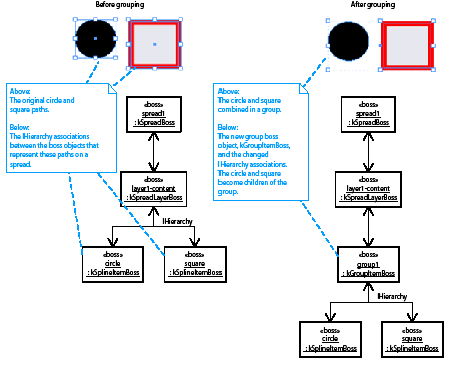
A group must contain at least two children in its IHierarchy. The only boss classes that can be part of a group are kSplineItemBoss and kGroupItemBoss. In other words, only frames, paths, and groups can be grouped. To put a graphic page item-such as an image (kImageItem)-into a group, that item must be contained in a frame (kSplineItemBoss).
There is no signature interface on kGroupItemBoss that identifies a boss object uniquely as a group. To test for a group, call IPageItemTypeUtils::IsGroup.
Objects are grouped using the kGroupCmdBoss command and ungrouped using the kUngroupCmdBoss command. Selected objects can be grouped and ungrouped using IGroupItemSuite.
The kPageItemBoss boss class is the abstract base class for page items. The kDrawablePageItemBoss boss class is the abstract base class for page items that can be selected and edited on a spread. These abstract classes are subclassed and implemented by the set of page items that can be created and edited on a spread, such as kSplineItemBoss, kGroupItemBoss, and kImageItem.
In general terms, a page item is any object that can participate in a hierarchy (IHierarchy). This perspective is valid and includes spreads (kSpreadBoss) and pages (kPageBoss) as page items. There is an alternative, more advanced definition of page item. To see all subclasses of kPageItemBoss, refer to the API Reference for kPageItemBoss.
Guides and grids are used to align and position objects. Some, like ruler guides, can be dynamically created and changed. Others, like the margins of a page, are static properties of an object.
A ruler guide is a horizontal or vertical guide line used to align and position objects on a spread. Ruler guides are represented by the kGuideItemBoss boss class and are a type of page item. Ruler guides are represented as page items, because ruler guides share many behaviors of page items. Ruler guides can be associated with a layer, moved around on a spread, and copied and pasted. The signature interface that identifies a boss object as a ruler guide is IGuideData, which stores the properties of the guide. There are two kinds of ruler guides: page guides span a specific page, and pasteboard guides span the pasteboard of a spread.
Ruler guides are kept in their own spread layer (kSpreadLayerBoss) in the spread hierarchy (IHierarchy), so ruler guides can be drawn in front or back of other content or completely hidden. For a description of this organization, see Layers.
Ruler guides are created by the kNewGuideCmdBoss command. They can be changed by the kMoveGuideRelativeCmdBoss, kMoveGuideAbsoluteCmdBoss, kSetGuideViewThresholdCmdBoss, kChangeGuideColorCmdBoss, kSetGuidesBackCmdBoss, kSetGuideOrientationCmdBoss, and kSetGuideFitToPageCmdBoss commands.
Guide preferences are stored in the IGuidePrefs interface on the document workspace (kDocWorkspaceBoss). A distinct set of preferences that are inherited by new documents is maintained on the session workspace (kWorkspaceBoss). The kSetGuidePrefsCmdBoss command is used to manipulate these preferences.
Margin guides represent the margins of a page. Column guides represent columns on a page. Each page (kPageBoss) has its own margin and column settings stored in IMargins and IColumns interfaces, respectively.
The margins for a page can be changed using kSetPageMarginsCmdBoss. The columns for a page can be changed using kSetPageColumnsCmdBoss and kSetColumnGutterCmdBoss.
The document grid is a grid (like graph paper) across a spread, on which page items can be aligned.
Grid preferences are stored in the IGridPrefs interface on the document workspace (kDocWorkspaceBoss). A distinct set of preferences that are inherited by new documents is maintained on the session workspace (kWorkspaceBoss). The kSetGridPrefsCmdBoss command is used to manipulate these preferences.
The baseline grid is used to align the baseline of text across multiple columns on a spread.
Baseline-grid preferences are stored in the IBaselineGridPrefs interface on a story (kTextStoryBoss), the document workspace (kDocWorkspaceBoss), and the session workspace (kWorkspaceBoss). When a new story is created, the preferences in the document workspace are inherited by the story. New documents inherit preferences from the session workspace. The kSetBaselineGridPrefsCmdBoss command is used to manipulate these preferences. Each story can override its baseline-grid preference settings.
If snapping is on, when the user drags an object within a certain distance of a guide or grid, the object's position is snapped to the guide or grid. If snapping is off, an object can be moved freely. Snapping is implemented by interaction between three main objects:
Snap preferences are stored in the ISnapToPrefs interface on the document workspace (kDocWorkspaceBoss). A distinct set of preferences that are inherited by new documents is maintained on the session workspace (kWorkspaceBoss). The kSetSnapToPrefsCmdBoss command is used to manipulate these preferences.
The interfaces that store the major preference settings related to layout are summarized in the following table. Unless noted otherwise, each interface is present on the session workspace (kWorkspaceBoss) and document workspace (kDocWorkspaceBoss). kWorkspaceBoss contains the settings inherited when a new document is created. kDocWorkspaceBoss contains the settings for the document. For more information about the interfaces and commands listed, refer to the API Reference.
This section describes the coordinate spaces used by layout, and the arrangement of the layout-related interfaces that store geometric data.
Coordinate systems define the geometrical location of objects in a document and the canvas on which drawing occurs. Coordinate systems determine the position, orientation, and size of the text, graphics, and images that appear on a page.
InDesign uses two-dimensional graphics. Position is defined in terms of coordinates on a two-dimensional surface (a Cartesian plane). A coordinate is a pair of real numbers, x and y, that locate a point horizontally and vertically within a two-dimensional coordinate space. A coordinate space is determined by the location of the origin, the orientation of the x and y axes, and the lengths of the units along each axis.
InDesign defines several coordinate spaces in which the coordinates that specify objects are interpreted. The following sections describe these spaces and the relationships among them. Transformations among coordinate spaces are defined by transformation matrices, which can specify any linear mapping of two-dimensional coordinates, including translation, scaling, rotation, reflection, and skewing. Matrices are used to move from one coordinate space to another.
The approach used by InDesign aligns with PostScript and Adobe PDF. for more information, refer to the Adobe PDF Reference (http://www.adobe.com/devnet/pdf/pdf_reference.html ). Computer Graphics Principles and Practice (Foley, James D., et al., Addison-Wesley, 1990) also provides useful theory on two-dimensional geometrical transformation.
A transformation matrix specifies the relationship between two coordinate spaces as a linear mapping of one coordinate space to another. By modifying a transformation matrix, objects can be scaled, rotated, translated, or transformed in other ways.
In InDesign, a transformation matrix is specified by six numbers in the form of a PMMatrix. In its most general form, this PMMatrix is denoted [a b c d e f]; it can represent any linear transformation from one coordinate system to another.
The PMMatrix patterns that specify the most common transformations are as follows:
The pasteboard coordinate space is the global coordinate system that encloses all objects in a document, as shown in the following figure.
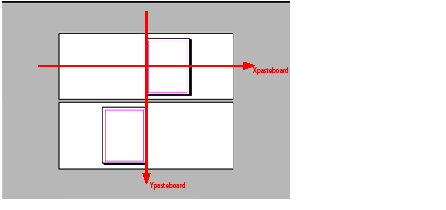
All objects in a layout can have their coordinates expressed in pasteboard coordinates. The origin is the center of the first spread. The x axis increases from left to right; the y axis decreases from up to down. The length along each axis is measured in the PostScript unit of points. For example, the following figure shows the pasteboard coordinates of the bounding boxes for the spreads and pages in a basic document. The figure shows the pasteboard coordinates of the bounding box of each spread and page in a facing-page document with letter-sized pages of width 612 points and height 792 points. All values shown are in PostScript points.
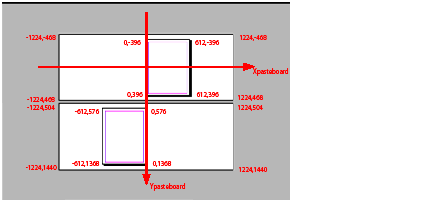
The unit in which all measurements are stored in a document is the PostScript point. The unit in which measurements are shown in the user interface is controlled by a preference (see Measurement units).
Each page item has its own coordinate system, known as its inner coordinate space. Each page item has an associated parent coordinate space. The inner coordinate space and its relationship with its parent coordinate space are defined by three interfaces:
The following figure shows a square containing a rectangular child page item as an example of a parent page item. The inner coordinate system of the parent as defined by its IGeometry interface is shown.
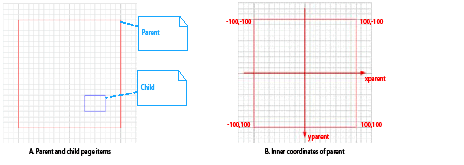
In the A part of this figure, the parent is a square (kSplineItemBoss), 200 points wide. The child is a rectangle (kSplineItemBoss), 40 points wide and 30 points high. The square is used as a frame for the rectangle; this association is defined by the IHierarchy interface. The objects are shown on a document grid with a grid line every 100 points and subdivisions every 10 points.
In the B part of this figure, the bounding box stored by the square's IGeometry interface defines the origin of the object's inner coordinate space and the orientation of its x and y axes. The coordinates of the bounding box of the square in its inner coordinate space are shown, together with the x and y axes these coordinates imply. For a parent object, this is known as the parent coordinate space.
The IGeometry and ITransform interfaces on the child object express the coordinate system relationship to the parent. There is more than one way to arrange this data. In the following figure, the child's coordinate system (the rectangle) is coincident with the parent's coordinate system (the square).
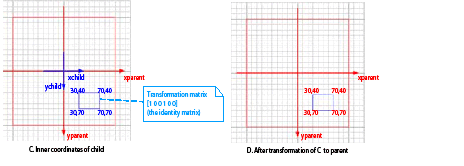
In the C part of this figure, the rectangle has its own inner coordinate space. The bounding box stored by the rectangle's IGeometry interface is shown. This bounding box defines the origin of the object's inner coordinate space and the orientation of its x and y axes, labeled xchild and ychild. The transformation matrix defined by the rectangle's ITransform interface maps the rectangle's inner coordinate space (the child coordinate space) into the square's coordinate space (the parent coordinate space). In the arrangement shown, the parent and child coordinate systems are coincident; therefore, the transformation matrix in ITransform is the identity matrix.
In the D part of this figure, when the bounding box of the child (the rectangle) is transformed using the child's transformation matrix to the parent coordinate space (the square), the coordinates are expressed in the parent coordinate space as shown.
In the arrangement shown in the following figure, the child coordinate space is not coincident with its parent coordinate space. Instead, the origin of the rectangle's coordinate space is located at the rectangle's center.
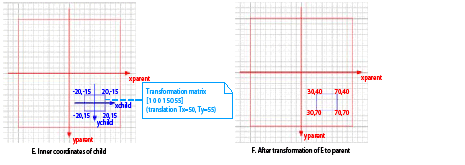
In the E part of this figure, the origin of the rectangle's inner coordinate space is located at its center. The coordinates of the bounding box defined by the rectangle's IGeometry interface, are shown together with the x and y axes these coordinates imply, labeled xchild and ychild. The transformation matrix defined by the child's ITransform inter face specifies the translation required to map to the parent coordinate space.
In the F part of this figure, when the bounding box of the child (the rectangle) is transformed using the child's transformation matrix to the parent coordinate space (the square), the coordinates are expressed in the parent coordinate space as shown.
A comparison of this figure and the one that precedes it shows that, after transformation, the bounding box of the rectangle in its parent's coordinate space is the same.
Tools like the Rectangle tool use a tracker (CPathCreationTracker) to create a path (kSplineItemBoss) whose coordinate system is coincident with their parent coordinate system as shown in the preceding figure with parts C and D. Facades like IPathUtils often are used to create a path (kSplineItemBoss) arranged as shown in the preceding figure with parts E and F.
Spread coordinate space is the coordinate system of a spread (kSpreadBoss). Each spread has its own coordinate space, also known as the inner coordinate space for a spread. The origin of the spread coordinate space is the center of the spread. The parent coordinate space is pasteboard coordinate space. Unlike other page items, the parent of a spread is not defined by IHierarchy; the parent of a spread is fixed as the document (kDocBoss). See the following figure.
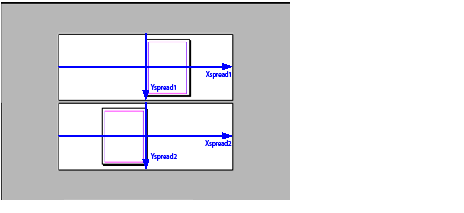
In spread coordinates, the bounding box of each spread is identical. It is returned by IGeometry::GetStrokeBoundingBox. The spread's (kSpreadBoss) implementation of IGeometry determines the bounding box using the IPasteboard interface. The spread's ITransform interface stores a transformation matrix that translates the spread coordinate space to pasteboard coordinate space. This matrix is a translation matrix [1 0 0 1 0 Ty], where Ty specifies the spread's offset in the vertical dimension.
The following figure shows the spread coordinates of the bounding box of each spread and page in a basic facing-page document with letter-sized pages 612 points wide and 792 points high.
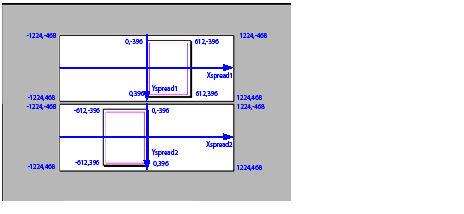
Each page has its own coordinate space, also known as the inner coordinate space for a page (kPageBoss). The parent coordinate space for page coordinate space is spread coordinate space. The origin of page coordinate space is the top-left corner of the page. See the following figure.
In page coordinates, the bounding boxes of each page(kPageBoss) in a document can be different. They are returned by IGeometry::GetStrokeBoundingBox. The page's ITransform interface stores a transformation matrix that translates the page coordinate space to spread coordinate space.
The following figure shows the page coordinates of the bounding box of each page in a facing-page document with letter-sized pages 612 points wide and 792 points high.
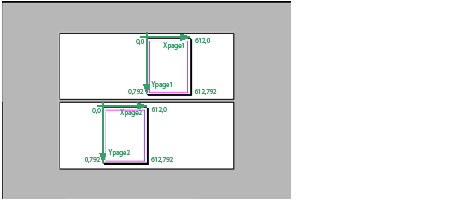
Each page item has its own coordinate space, known as its inner coordinate space. The page item's bounding box is stored in interface IGeometry. The geometrical data stored in IGeometry and other data interfaces specific to the page item type are in the inner coordinate space of the page item. For example, the points that describe a path in interface IPathGeometry are stored in the inner co ordinate space. A transformation matrix that transforms from inner coordinate space to parent coordinate space is stored in the ITransform interface. The parent coordinate system is defined by the IHierarchy interface.
For more information, see Inner coordinate space and parent coordinate space.
The bounding box (IGeometry::GetStrokeBoundingBox) is the smallest rectangle (PMRect) that encloses a geometric page item:
For illustrations, see Spread coordinate space and "Page coordinate space".
A page item stores the data that describes its geometry in its inner coordinate space. For example, the bounding box in IGeometry and the points that describe a path in interface IPathGeometry are stored in inner coordinate space (see Inner coordinate space and parent coordinate space). This stored data is independent of any transformation that may be in effect. Transformation (for example, scaling and rotation) is described by the page item's ITransform interface.
The IGeometry::GetPathBoundingBox method gives the path bounding box, the bounding box of a path excluding the effects of adornments.
The IShape::GetPaintedBBox method gives the painted bounding box, the bounding box of the page item including the effect of adornments.
The following table lists some useful geometry-related APIs.
| API | Note |
|---|---|
| IGeometry | Stores the bounding box of a page item. |
| IGeometryFacade | Positions and resizes page items. |
| IGeometrySuite | Positions and resizes objects currently selected. |
A page item has its own coordinate space, its inner coordinate space. (See Inner coordinate space and parent coordinate space.) The coordinates of the points that describe the page item are stored in this inner coordinate space. A transformation matrix (PMMatrix) that maps from inner coordinate space to the parent coordinate space is stored in the ITransform interface. Scaling, rotation, and other transformations that may be in effect are represented in this matrix. Points in inner coordinate space are mapped to the parent coordinate space using the matrix obtained from ITransform::GetInnerToParentMatrix. There are useful functions in TransformUtils.h that help to get the transform matrix (InnerToParentMatrix) and perform transform calculations. For details, refer to the API Reference.
For example, to calculate the bounding box of a page item in its parent coordinate space, get the bounding box from the page item (IGeometry::GetStrokeBoundingBox), and apply its transformation matrix (ITransform::GetInnerToParentMatrix). The calculated bounding box takes into account all scaling, rotation, and other transformations that are applied. The parent could be a group (kGroupItemBoss), frame (kSplineItemBoss), spread (kSpreadBoss), or other kind of page item.
A transformation matrix can be inverted (PMMatrix::Invert) to create a matrix that performs the inverse transformation. For example, if you have a matrix that transforms from inner coordinate space to parent coordinate space (InnerToParentMatrix), the inverse matrix can be used to transform points from parent coordinate space to inner coordinate space.
The matrix that transforms from inner coordinate space to pasteboard coordinate space is returned by ITransform::GetInnerToRootMatrix. To access it, we recommend you use a helper function, InnerToPasteboardMatrix. This code walks up the hierarchy (IHierarchy) and concatenates the transformation matrix (ITransform::GetInnerToParentMatrix) of each page item. The end result is a matrix that maps from the inner coordinates of the page item it started from into pasteboard coordinates.
To compare the coordinates of two or more page items, the coordinates first should be transformed to a common coordinate space. The pasteboard coordinate space often is used for this purpose.
When creating a path (kSplineItemBoss), it often is useful to specify its position in pasteboard coordinates. You often position new page items relative to an existing boss object, like a spread, page, or frame. For example, to determine a position relative to a page, you first need the IGeometry interface of the page (kPageBoss); then you can call InnerToPasteboard to transform points on that page into pasteboard coordinates. When you have the points described in pasteboard coordinates, you can use IPathUtils to create the path. Alternately, you can describe the points in the parent coordinate space as shown by the sample code in SnpCreateFrame and SDKLayoutHelper.
The following table lists some useful transformation-related APIs.
| API | Note |
|---|---|
| ITransform | Stores the page item's transformation matrix. |
| TransformUtils | Utility functions for transform calculations. See methods like InnerToPasteboard and PasteboardToInner in TransformUtils.h. |
| ITransformFacade | Scale, rotate, skew, or move page items. |
| ITransformSuite | Scale, rotate, skew, or move objects currently selected. |
The internal unit of measurement used by the application is PostScript points. All measurements in a document are stored in the internal measurement unit as PMReal values. The user can choose to work in other measurement units, like centimeters, inches, picas, or ciceros. The user's preferred measurement unit is converted to and from the standard internal unit (PostScript points) at the boundary between the user interface and the document model.
Unit-of-measure service
The conversion from a specific measurement unit to the internal measurement unit is performed by a unit-of-measure service.
A unit-of-measure service is a boss class that aggregates the IUnitOfMeasure and IK2ServiceProvider interfaces. IUnitOfMeasure is the interface responsible for converting between the unit of measure and the internal unit of measure. IUnitOfMeasure also has methods for producing a formatted string representation from units and tokenizing a string to produce a formatted number from the string. The measurement units supported by the application can be extended. For more information, see Custom unit-of-measure service.
Common unit-of-measure services include kPointsBoss, kInchesBoss, kInchesDecimalBoss, kMillimetersBoss, kPicasBoss, kCicerosBoss, and kCentimetersBoss.
Measurement-unit preferences
The user's preferred measurement unit is stored in the IUnitOfMeasureSettings interface. The session workspace (kWorkspaceBoss) stores the measurement-unit preferences inherited by new documents. The document workspace (kDocWorkspaceBoss) stores the document's preferences. The user changes these preferences by choosing Edit > Preferences > Units & Increments and using the resulting dialog box. To change these preferences programmatically, use the kSetMeasureUnitsCmdBoss command.
The following is a class diagram of IUnitOfMeasureSettings.

The measurement system, IMeasurementSystem, is an interface aggregated on kSessionBoss that is used to help locate and use a unit-of-measure service. Unit-of-measure services can be referred to by either their ClassID or an index the measurement system assigns. The index assigned by the measurement system is used while referring to a unit of measure in memory, but this index should be converted to a ClassID when writing or reading from a stream. The following figure is a class diagram of IMeasurementSystem.

The core geometrical data types are as follows:
The core geometrical-collection data types are as follows:
This section describes the objects that present the layout to the user and allow the content to be edited interactively.
The layout of a document is presented within a layout presentation. A document has a layout presentation (kLayoutPresentationBoss) for each view of the publication's layout. A layout presentation is implemented by kLayoutPresentationBoss and its associated widgets. The pages and spreads are presented by the layout view (kLayoutWidgetBoss). The general arrangement is shown in the class diagram in the following figure.
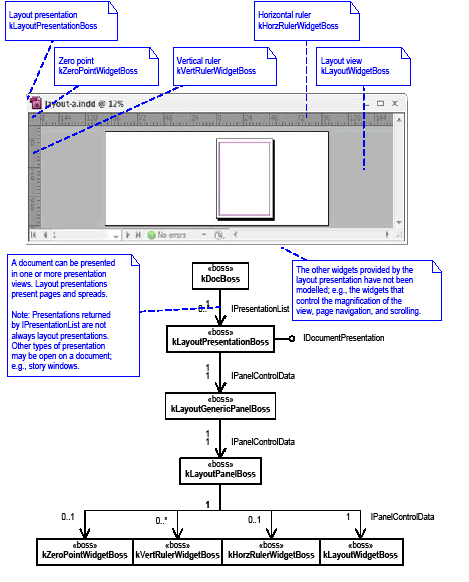
The application may have several layout presentations open at once, each displaying different documents or different views of the same document, as shown in the class diagram in the following figure. The figure shows a screenshot of the application with three layout presentations open. The boss classes and interfaces that are required to discover the open documents under the current session also are also shown. Each document knows the windows that are open on it by means of the IPresentationList interface on kDocBoss.
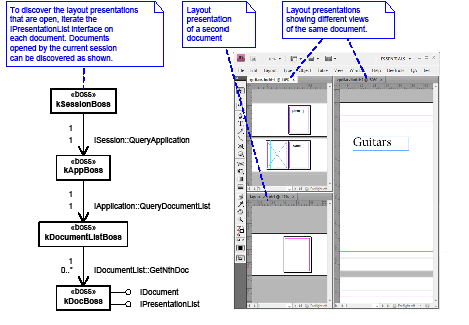
A document does not need to have a presentation view. Documents that do not have a presentation view can be edited programmatically. Sometimes this called editing a headless document.
The layout view presents the layout of a document and is represented by the kLayoutWidgetBoss boss class. Documents can contain a variety of objects, like spreads, pages, frames, text, and graphics. The document stores these objects; the layout view displays them and allows them to be edited interactively. The layout view is part of a layout presentation (see the layout presentation class diagram in Layout presentation).
Only the visible part of a document is presented in layout view. The layout presentation controls which part of a document is visible using magnification and page navigation widgets, etc. Other panels, like the Pages and Navigation panels, also may adjust the view.
The layout view sometimes is known as the layout widget.
The layout view causes the visible objects to draw by discovering the spreads that are visible and calling each spread to draw. The general arrangement is shown in the class diagram in the following figure.
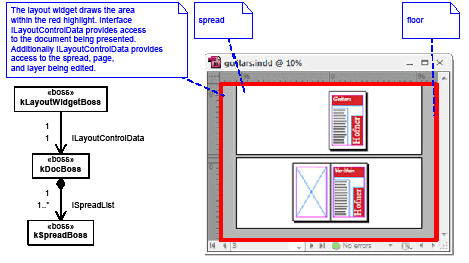
The layout view uses its ILayoutControlData interface to get to its associated document. The ISpreadList interface on the document provides access to any particular spread. The IHierarchy interface can be used to access children of the spread. For reasons of efficiency, navigation of the layout hierarchy during a window draw is somewhat more selective than shown in the figure in Layout view. Portions of spreads that are not visible in a window are not called to draw. The layout view also discriminates between redrawing an entire window and drawing only the region that changed. These two strategies mean page items are not guaranteed to be called to draw during every window draw.
The current spread is the spread (kSpreadBoss) targeted for edit operations. Normally, new page items created by the tools that handle user actions in the layout view are created in the current spread. Each view (kLayoutWidgetBoss) stores a reference to its current spread in ILayoutControlData::GetSpreadRef. The current spread is set in the user interface by clicking on a spread in the layout view. The tool that handles the click processes the kSetSpreadCmdBoss command. A reference to the current spread of the view that most recently edited the document (kDocBoss) is stored in the IPersistUIDData interface with PMIID IID_ICURRENTSPREAD.
The active layer is the layer targeted for edit operations. New page items created by the tools that handle user actions in the layout view are assigned to the active layer. Each view (kLayoutWidgetBoss) has a reference to its active layer (kDocumentLayerBoss) given by ILayoutControlData::GetActiveDocLayerUID. The active layer is set in the user interface by clicking on a layer in the Layers panel, which then processes the kSetActiveLayerCmdBoss command. A reference to the active layer of the view that most recently edited the document can be found by calling ILayerUtils::QueryDocumentActiveLayer.
When creating a page item programmatically, choose its parent boss object. Normally, this is a spread layer (kSpreadLayerBoss). If you have access to a layout view, ILayoutControlData::QueryActiveLayer returns the hierarchy of the spread layer to use.
The relationship between layout-presentation coordinates and layout-view coordinates is relatively static and is described by the respective IControlView implementations. When the user hides the rulers, the layout-view coordinate space is coincident with the layout-presentation coordinate space. The relationship between pasteboard coordinates and layout-view coordinates is stored in the layout view's IControlView interface. The layout view's IControlView::GetContentToWindowTransform method returns the transform that maps from pasteboard coordinates to layout-view coordinates. See the following figure.
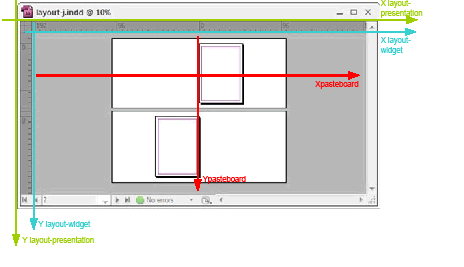
As the user zooms and scrolls the view, the relationship between layout-view coordinates and pasteboard coordinates changes. The layout view (kLayoutWidgetBoss) has an IPanorama interface to track the scroll and zoom changes. The relationship between the pasteboard and layout-view coordinate systems is stored in the layout view's IControlView interface. The layout view's IControlView::
Global-screen coordinates can be converted to pasteboard coordinates using ILayoutUIUtils::
This section summarizes the APIs provided to manipulate layout-related objects. For more information, refer to the API Reference.
The layout view (kLayoutWidgetBoss) displays a document for editing and provides some important data interfaces, summarized in the following table. The layout view can be obtained in several ways, one of which is calling ILayoutUIUtils::QueryFrontLayoutData.
| API | Note |
|---|---|
| ILayoutControlData | Data interface that refers to the document being viewed and the spread, page, and layer currently selected |
| ILayoutControlViewHelper | Helper routines for performing page item hit-testing |
This table summarizes the suite interfaces that manipulate layout-related objects that are selected. To obtain a suite, client code can query a selection manager interface (ISelectionManager) for the suite of interest. If the suite is available, its interface is returned; otherwise, a nil pointer is returned. For details of how to obtain the selection manager, see Selection. Given a selection manager, you can call suite methods using code that follows this pattern:
| API | Description |
|---|---|
| IAlignAndDistributeSuite | Aligns and distributes objects that are selected. |
| IArrangeSuite | Brings forward, sends backward, or performs other z-order-related operations on objects that are selected. |
| IFrameContentSuite | Content-fitting operations and frame conversion operations on objects that are selected. |
| IGeometrySuite | Positions and resizes objects that are selected. |
| IGroupItemSuite | Groups and ungroups objects that are selected. |
| IGuideDataSuite | Manipulates the properties of guides that are selected. |
| ILayerSuite | Manipulates document layers. |
| ILayoutHitTestSuite | Hit-tests objects that are selected. |
| ILayoutSelectionSuite | Sets the page items that are selected. |
| IMasterPageSuite | Manipulates master page item overrides. |
| IPageItemLockSuite | Locks or unlocks objects that are selected. |
| IPathOperationSuite | Performs path operations of selected page items. |
| IPathSelectionSuite | Performs path selections. |
| IReferencePointSuite | Manipulates reference point. |
| ITransformSuite | Scales, rotates, skews, or moves objects that are currently selected. |
There are many command boss classes related to layout, as summarized in Commands that manipulate page items. When possible, try to avoid to avoid processing low-level commands when possible; instead, look for a facade or utility, to see if there is a method that serves your purpose on one of these interfaces. Facades encapsulate parameterizing and processing the low-level commands. For example, to add an item to a page-item hierarchy, you could process kAddToHierarchyCmdBoss, but instead you should use IHierarchyUtils::AddToHierarchy, which provides a ready-made facade.
The facades and utilities related to layout are listed in the following tables. These interfaces are aggregated on kUtilsBoss. The Utils smart pointer class makes it straightforward to acquire and call methods on these interfaces. You can call their methods by writing code that follows this pattern:
This table lists layout facades and utilities:
| API | Description |
|---|---|
| IGeometryFacade | Positions and resizes page items. |
| ITransformFacade | Scales, rotates, skews, or moves page items. |
| IPageItemNameFacade | Gets and sets page item names. |
| IPageItemVisibilityFacade | Shows and hides page items. |
| IPathUtils | Creates and works with paths (kSplineItemBoss). |
| IFrameContentUtils | Helps work with text or graphic-frame content. |
| IHierarchyUtils | Adds and removes page items from a hierarchy (IHierarchy). |
| IImageUtils | Helper functions to get image information. |
| ILayoutUIUtils | Helper functions related to the layout user interface. Most of these are related to the active or front document. |
| ILayoutUtils | Helper functions related to layout. Most of these are related to pages or the page-item hierarchy. |
| IMasterSpreadUtils | Helper functions for master spreads and master page items. |
| IPageItemUtils | Page-item helper functions, like cache and change notifications. |
| IPageItemTypeUtils | Helps determine the type of a page item (for example, path, frame, and image). |
| IPasteboardUtils | Helps determine the spread by location or gets the location of page items. |
| IPathInfoUtils | Helps get path information. |
| IPathPointUtils | Stores path points during path-point transformation. |
| IPathUtils | Creates and manipulates path page items. |
| IRefPointUtils | Utility interface for functions that compute reference points. |
| ITransformUpdateUtils | Helps determine values relative to the zero point. |
| IValidateGeometryUtils | Validates transformation data. |
This table lists layout helper classes:
| API | Note |
|---|---|
| Arranger | Brings to front, sends to back, and performs other z-order-related operations. See ArrangeUtils.h. |
| TransformUtils | Utility functions for transform calculations. See methods in TransformUtils.h, such as such as InnerToPasteboard and PasteboardToInner. |
This section summarizes the mechanisms a plug-in can use to extend the layout subsystem.
A new-page-item responder lets a plug-in receive notification when a new page item (for example, frame, path, group, or image) is created by kNewPageItemCmdBoss. For the complete list of page item types, see Page items.
A new-page-item responder often is used to detect the creation of a specific type of page item. For example, to detect the creation of a graphic frame, implement a new-page-item responder that gets a reference to the new page item (INewPISignalData::GetPageItem) and then checks whether it is a graphic frame (IPageItemTypeUtils::IsGraphicFrame).
Another common use of a new-page-item responder is initializing a custom data interface on a page item from defaults.
Consider the case where you defined a custom data interface and added this data interface to the document workspace (kDocWorkspaceBoss) to store default data. You also added this data interface to kDrawablePageItemBoss to store the settings per page item, and you want the default data to be inherited when new page items are created. In this case, you can implement a new-page-item responder that copies the data from defaults into the new page item. For an implementation of this pattern, see BasicPersistInterface.
A new-page-item responder is a service provider characterized by the following:
Sample code
BasicPersistInterface copies data from defaults into new page items.
A custom page item lets a plug-in extend the set of objects that can be laid out on a page. A custom page item gives the plug-in control of how the object is drawn and how it behaves when selected and manipulated by the user. A common use of a custom page item is adding support for a graphics format for which the application provides no native support. In this case, the custom page item also requires a custom import provider (IImportProvider), to allow files of that graphics format to be placed. Some custom page items also may require custom tools to be implemented to create and manipulate the custom page items.
Implementing a custom page item can be complex. Before beginning development of a custom page item, evaluate whether another type of extension pattern-like a page-item adornment or draw-event handler-might meet your needs. If you do need to implement a custom page item, study the subclasses of kPageItemBoss to see if there is an existing page item that is a close match to what you need. (Refer to kPageItemBoss in the API Reference.) If an existing page item comes close to meeting your needs, use this boss class as the base class for your implementation. The examples provided in the SDK show only the basics of what is involved.
Sample code
Plug-ins can extend the set of measurement units supported by the application by defining a unit-of-measure service. The following steps outline what a plug-in needs to do to make a custom unit of measure appear in the Edit > Preferences > Units & Increments dialog box:
Rulers
Rulers are displayed by the ruler widgets (kHorzRulerWidgetBoss and kVertRulerWidgetBoss). The presentation of the ruler is described by the data defined in the ODFRez resource type, RulerDataType. This type describes the font, associated unit-of-measure service ClassID, and tick-mark layout. For more details, see RulerType.fh.
Typically, a ruler is associated with a particular unit-of-measure service. The resource description for the ruler is in the same plug-in as the unit-of-measure service. The unit-of-measure service returns the resource ID of its ruler description in its implementation of IUnitOfMeasure::GetRulerSpecRsrcSpec.
When a new view is created on a document, the preferred measurement unit is determined. Then, the associated unit-of-measure service is queried for the resource ID of its ruler description. If one exists, that description is used to create a new ruler as part of the new view of the document.
Sample code
CustomUnits creates a custom unit. In addition, it provides a resource description of how the ruler tick markers are specified for the custom units. CstUniRuler.fr from the sample shows a sample ruler resource.
This table lists commands that create page items
| Command | Description |
|---|---|
| kCreateMultiColumnItemCmdBoss | Creates a new text frame. |
| kImportAndLoadPlaceGunCmdBoss | Combination of kImportPIFromFileCmdBoss and kLoadPlaceGunCmdBoss. |
| kImportAndPlaceCmdBoss | Combination of kImportPIFromFileCmdBoss and kPlacePICmdBoss. |
| kImportPIFromFileCmdBoss | First, this command imports a file. If what is imported is a story, a multicolumn item is created. If what is imported is not in a graphic frame, a new graphic frame is created and the imported file is put into the frame. The UID of the new item is returned on the command's item list. |
| kLoadPlaceGunCmdBoss | Loads the item specified on the command's item list into the place gun. Only one item can be loaded by this command. |
| kNewPageItemCmdBoss | Used to create a new page item. You will need to use this command only if you are creating a custom page item. Do not use this command to create a page-item type supplied by the API, a kSplineItemBoss, kImageItem, or kMultiColumnItemBoss. Each page-item type provides a command to create it. The newly created page item can be any simple page item that supports the IGeometry interface. All attributes for the new page item are stored in the INewPageItemCmdData interface. The UID of the new page item is returned in the command's item list. If the parent is supplied, the new page item is added to the hierarchy. |
| kPlaceGraphicFrameCmdBoss | Creates a graphic frame and places an image item into it. The item to be placed can be passed through the command's item list or placed from the place gun. To use the place gun, set the usePlaceGunContents parameter on the IPlacePIData interface to kTrue, and do not set the command's item list. When passing the UID of the placed item using the command's item list, set the usePlaceGunContents parameter to kFalse. |
| kPlaceItemInGraphicFrameCmdBoss | Places a page item into an existing graphic frame. The page item can be passed into the command's item list, or it can be placed from the place gun. The UID of the graphic frame is returned on the command's item list. |
| kPlacePICmdBoss | Places a page item. This command does not create a new page item. It command takes an existing page item from the command's item list or the place gun, then places the page item into the page item hierarchy. |
| kReplaceCmdBoss | Replaces one page item with another. Both the old page item and the new page item are specified in the IReplaceCmdData interface. |
The following table lists commands that add/remove a page item to/from a hierarchy:
| Command | Description |
|---|---|
| kAddToHierarchyCmdBoss | Adds the page item in the command's item list to the parent specified in the IHierarchyCmdData interface. The index position for the page item also is specified on the IHierarchyCmdData interface. For example, when a new page item is created, it calls this command if the new item's parent was supplied. |
| kRemoveFromHierarchyCmdBoss | Removes a page item from its parent when deleting a page item or detaching the imported content from the imported frame. |
The following table lists commands that position page items:
| Command | Description |
|---|---|
| kAlignCmdBoss | Aligns the page items in the command's item list to the alignment type specified in the IIntData interface. The command itself is a compound command made up of a set of move-relative commands. Since the move commands are undoable, the align command also is undoable. |
| kCenterItemsInViewCmdBoss | Moves a set of page items so they appear centered in the current view. This command is not undoable. |
| kFitPageItemInWindowCmdBoss | Used to make the current selected page items fit in a window. This command is not undoable. |
| kMoveToLayerCmdBoss | Moves the page items specified on the command's item list to the document layer specified on the IUIDData interface. The page items appear in the same z-order relative to each other as before in front of the new layer. This command does not move the items that are children of a group or a graphic frame, nor does it move standoffs. |
| kMoveToSpreadCmdBoss | Like kMoveToLayerCmdBoss, except kMoveToSpreadCmdBoss moves the page items from one spread to another. |
The following table lists commands for content fitting:
| Command | Description |
|---|---|
| kAlignContentInFrameCmdBoss | Aligns the contents in the command's item list to the specified corners of their respective frames. The corner, which is the same for all items, is specified on the IAlignContentInFrameCmdData interface. This command ignores frames without content. The command's item list holds the UIDs of the contents, not the UIDs of the frames that contain the contents. This command sends out a notification that the content's subject has changed. |
| kCenterContentInFrameCmdBoss | Positions the contents at the centers of their respective frames. The content UIDs are stored in the command's item list. |
| kFitContentPropCmdBoss | Takes a list of frame content and modifies the content size and transformation to fit the frames and maintain the content's proportions. |
| kFitFrameToContentCmdBoss | Resizes each frame in the command's item list to fit its content's path bounding box. This command takes a list of page items, filters out the empty frame and nongraphical frame, and transforms the frame's path geometry. The text frames are still in the command's item list, even though they are not affected by this and other commands. |
The following table lists commands that designate the type of a frame:
| Command | Description |
|---|---|
| kConvertFrameToItemCmdBoss | Takes a list of graphic frames and text frames with no content and converts them to graphic items (unassigned), which are neither text frames nor graphic frames. This command sets the graphic-frame attribute of the specified page items to kFalse. |
| kConvertItemToFrameCmdBoss | The opposite of kConvertFrameToItemCmdBoss. kConvertItemToFrameCmdBoss sets the graphic-frame attribute of the specified page items to kTrue and converts unassigned graphic items to graphic frames. It command also converts empty text frames to empty graphic frames. |
| kConvertItemToTextCmdBoss | Converts unassigned page items and empty graphic frames to empty text frames. |
The following table lists commands that copy and paste page items:
| Command | Description |
|---|---|
| kCopyCmdBoss | A generic command for copying page items from one document to another. This command applies to any page item that supports the IScrapItem interface. |
| kCopyImageItemCmdBoss | Copies the specified image item to the specified target. Both the image item and the target are specified in the ICopyCmdData interface. |
| kCopyPageItemCmdBoss | Copies one or more page items to the specified parent object, if any. A UIDList of the page items created is returned in the command's item list. |
| kDuplicateCmdBoss | Duplicates the items specified in the command's item list. The page items in the command's item list are duplicated if the command is prepared successfully. |
| kPasteCmdBoss | Pastes one or more page items to the specified database in the command's ICopyCmdData interface. The UIDList of the items to paste are passed to the command in the ICopyCmdData interface. |
| kPasteGraphicItemCmdBoss | Used for pasting EPS, image, and PDF items into the destination database. The difference between kPasteGraphicItemCmdBoss and kCopyPageItemCmdBoss is that if the specified parent is a graphic frame, the graphic item (EPS, image, PDF) is created as a child of the frame. If no frame is specified as the parent, kPasteGraphicItemCmdBoss creates a new rectangular frame as its parent and applies all its transformation values to the frame, so it appears in the correct location. |
| kPasteInsideCmdBoss | Pastes the specified content into a frame and, if necessary, deletes previous content. The pasted content is aligned to the top left. |
The following table lists commands that transform page items:
| Command | Description |
|---|---|
| kTransformPageItemsCmdBoss | Performs various page-item transformations, such as move, rotate, scale, and skew. The caller needs to pass in appropriate data. |
| kTransformPathPointsCmdBoss | Transforms path points of page items. The transformation could be move, rotate, scale, skew, etc. The caller needs to pass in appropriate data. |
The following table lists commands that group page items:
| Command | Description |
|---|---|
| kGroupCmdBoss | Groups selected items in the list and creates a new page item consisting of the group. The parent for the group is the same as the parent of the last item in the sorted selected-item list. The UID of the new group page item is returned in the command's item list. This command requires that the items to be grouped have valid parents, because only items at the same level in the hierarchy can form a group. For example, it is invalid to try to group an image with the spline item that contains it (or any other splines not at the same level as the image of the document hierarchy). |
| kUngroupCmdBoss | Ungroups the items specified in the command's item list. The parent of the group becomes the parent of all ungrouped items. |
The following table lists commands that lock page items:
| Command | Description |
|---|---|
| kSetLockPositionCmdBoss | Used to lock/unlock the page items. (See the ILockPosition interface.) |
The following table lists commands that delete page items:
| Command | Description |
|---|---|
| kDeleteCmdBoss | Deletes the page items specified in the command's item list. Any groups left empty by the deletions also are deleted. |
| kDeleteFrameCmdBoss | Deletes both the frame and its contents. In general, you should avoid directly calling this command. Instead, use the GetDeleteCmd method of the IScrapItem interface to delete the frame. |
| kDeletePageItemCmdBoss | Deletes the page items specified in the command's item list and removes the items from the hierarchy. In general, you should avoid directly calling this command. Instead, use the GetDeleteCmd method of the IScrapItem interface to delete the page item. |
| kDeleteImageItemCmdBoss | kDeleteImageItemCmdBoss is a subclass of kDeletePageItemCmdBoss. The purpose of kDeleteImageItemCmdBoss is to release an image object when the page item is deleted. This command deletes the image items on the command's item list. If the ClassID of any item is not kImageItem, that item is not deleted. |
| kDeleteLayerCmdBoss | Deletes the layer specified on the command's item list. The layers in the item list must be in the same document. After this operation, all page items on the layer list also are deleted. |
| kDeletePageCmdBoss | Deletes the pages specified on the command's item list. Page items on the pages also are deleted. If the spread is left without pages by this command, the spread also is deleted. If page reshuffling is specified on the IBoolData interface, the remaining pages in the affected spread and pages in the spreads that follow are reallocated so each spread has the number of pages specified in the page set-up preferences for the document. |
| kDeleteSpreadCmdBoss | Deletes one or more spreads and all their pages and page items. If the deletion would leave the document without spreads, the command is aborted and nothing is deleted. The list of spreads to delete is specified in the command's item list. |
| kDeleteUIDsCmdBoss | Deletes the UIDs specified on the command's item list. |
| kRemoveInternalCmdBoss | Used when you delete a page item with embedded data. This command removes the embedded data from the publication. |
This chapter explains how the appearance of page items is specified, how page items are drawn, and how you can customize how page items are drawn.
The objectives of this chapter are as follows:
For definitions of terms, see the "Glossary."
This section shows how a path is defined and drawn according to its control points.
Paths
Paths can be created using various tools in InDesign. Shape tools and Frame tools create closed paths, the Pencil tool creates continuous smooth paths with lots of anchor points, and the Pen tool allows you create paths with great precision.
A path page item may have one or more paths. For example, a line, a rectangle, or an oval consists of one path; a compound path, two or more paths.
Path points
A path is defined by its path points. A path may have one or more path points. Path points are represented by PMPathPoint objects. There are three types of path points:
A PMPathPoint object stores three PMPoint objects, represented as pairs of (x,y) coordinates. These PMPoint objects represent the anchor point, the left-direction point, and the right-direction point, respectively (see the figure in Path drawing). For a kL path point, the left- and right-direction points are the same as the anchor point.
The following figure shows examples of path points. In part A, the line consists of two kL points. In part B, the middle kCK point has two direction points that are not on a line with the anchor point. In part, the middle kCS point's anchor point and two direction points form a line.
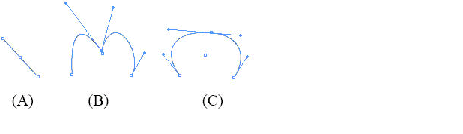
Path drawing
A path is controlled by its path points. InDesign draws Bezier curves based on the path points.
The following figure shows an open path with six path points.
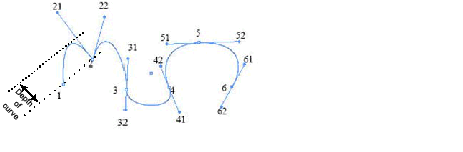
In the figure, note the following:
If a path is closed, the last segment is controlled by the last and first path points.
For more details, see PMBezierCurve.h.
Winding rule
The winding rule determines whether a given point is inside or outside the area defined by a path. InDesign supports both even-odd and nonzero winding rules:
For details, refer to the book PostScript Language Reference, available on the Adobe Web site.
The winding rule of an object is stored as a graphic attribute of the kGraphicStyleEvenOddAttrBoss page item; therefore, you can get or set the winding rules through IGraphicsAttributeUtils the same way as other graphic attributes. For more information, see Graphic attributes.
Path page-item structure
Paths can exist on any page item that defines an IPathGeometry interface. The following figure show the relationship among page item, path, path point, and point. A path can be viewed as connected path segments or connected path points.
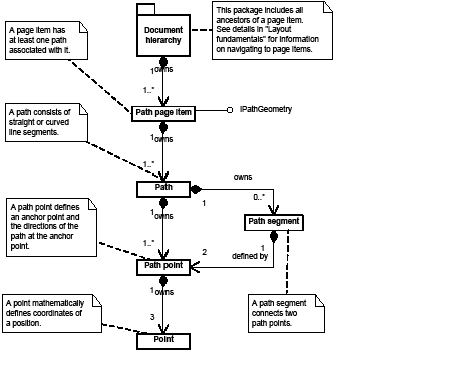
Path geometry
There is no object in the InDesign object model that maps to a single path directly; instead, all path points of all paths of a page item are stored using the interface defined by the IPathGeometry class. IPathGeometry is the signature interface of a path page item. It has methods to access path information of a page item, like the number of paths the page item has and whether a path is open or closed.
Paths are differentiated using a path index. Methods for accessing path points normally require a path index parameter.
The PMPathPointList type is defined as K2Vector <PMPathPoint>. An item of this type stores a list of path points; for example, all path points of a path. Unlike with IPathGeometry, path points stored in an item of type PMPathPointList are not divided into paths by path index.
The most common path page item is the spline item, represented by kSplineItemBoss. Spline items include paths (lines, curves, frames) like those shown in Path points and "Path drawing". There are several other kinds of paths, including image-clipping paths, text-wrap paths, and text outlines. All paths use IPathGeometry to store paths.
You can access paths of a page item through the interface defined by the IPathGeometry class. InDesign also encapsulates some complex manipulations into several high-level path operations, which are provided as commands and selection suites.
Compound paths
You can combine two or more paths, compound paths, grouped page items, text outlines, text frames, or other shapes that interact with and intercept one another to create a new compound path. The advantage of a compound path over individual paths is that a compound path is a single object, so you can apply attributes to the compound path as a whole.
Use kMakeCompoundPathCmdBoss to create a new compound path and kReleasePathsCmdBoss to split a compound path into individual paths.
Comparing compound paths and groups
Both compound paths and groups involve combining multiple page items as a whole. The main difference between compound paths and groups is that making compound paths combines all items together into one page item (all other original page items are deleted), whereas grouping does not delete the original page items; they are just moved into the new group item. See the following figure. The steps in the figure are explained below.
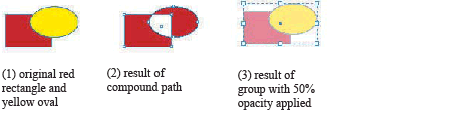
In this figure:
Path-finder operations
Path-finder operations, also referred to as compound-shape operations, combine shapes enclosed by the paths. InDesign supports adding, subtracting, intersecting, excluding-overlap, and minus-back operations. The following figure illustrates the results of these path finder operations.
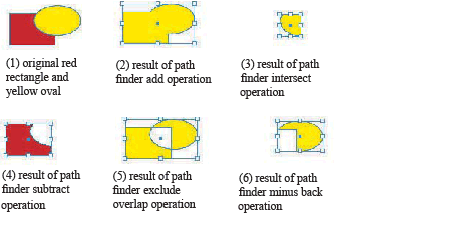
You can use kMergePathCmdBoss or IPathOperationSuite to achieve the effect.
Path-finder operations require exactly two input objects. The attributes of the front object are retained by the result object, except in the case of the subtract operation.
Shape conversion
Shape conversion changes the current shape to a new shape. InDesign can convert to various shapes, including lines, triangles, rectangles with corner effects, ovals, and polygons. The following figure shows the result of converting a rectangle and an oval to inverse-rounded rectangles.
The command to achieve this effect is kConvertShapeCmdBoss. It gets the bounding box of the current shape, then inserts or changes path points in the IPathGeometry object to represent the desired shape, so the resulting page item maintains the same bounding box as the original shape.
IConvertShapeSuite takes shape type, corner effects, and several other parameters. You can use this method to convert a shape to a new shape with a new combination of attributes, like shape type, corner effects, and number of polygon sides.
This section discusses the concepts and data model for graphic page items, as well as graphic page-item special operations, like setting clipping paths and text-wrap contours. This section also covers importing and exporting graphics files.
Computer graphics fall into two main categories, vector graphics and raster images.
InDesign can import raster images, vector graphics, or a combination of both, depending on the graphics-file format.
Raster images
Raster images, or bitmap images, are the most common electronic medium for such continuous-tone images as photographs or images created in painting programs like Adobe Photoshop ®. Raster images are resolution dependent.
InDesign supports almost all popular raster-image formats, including PSD, JPEG, TIFF, GIF, PNG, BMP, and Scitex, all of which are represented by kImageItem boss, which is discussed in more detail in "Graphic page-item boss-class inheritances" (in Graphic page-item data model).
An alpha channel is an invisible channel that defines transparent areas of a graphic. The alpha channel is stored in a graphic with the RGB or CMYK channels. A user can create alpha channels using background-removal features in Photoshop.
Vector graphics
Vector graphics use geometrical formulas to represent images. Paths created using the drawing tools in the InDesign Toolbox are examples of vector graphics.
Vector graphics are more flexible than bitmaps, because vector graphics can be resized without losing resolution. Another advantage of vector graphics is that their representations often require less memory than representations of bitmap images.
Vector-graphic formats can differ dramatically. InDesign supports import and export of most common vector graphics (see the following table).
| File format | Import | Export | Related page-item boss |
|---|---|---|---|
| DCS | Yes | No | kEPSItem |
| EPS | Yes | Yes | kEPSItem |
| Yes | Yes | kPlacedPDFItemBoss | |
| PICT | Yes | No | kPICTItem |
| SVG | No | Yes | N/A. You can export various content or documents to SVG file format, but there is no page item for SVG format. |
| WMF | Yes | No | kWMFItem |
For more information on importing vector graphics, see Graphics import. For more information on exporting vector graphics, see "Export to graphics file format".
Content fitting
Sometimes the size of the graphic page item is not the same as the size of the parent graphics frame, causing the graphic to be displayed incorrectly. Usually, end users can move, resize, or rotate the graphic page item or the graphics frame in the same way as any other page item.
Taking advantage of the relationship between the graphic page item and the graphics frame, InDesign has several content-fitting options:
If there is a selection, we recommend you use IFrameContentSuite or IFrameContentFacade where possible to perform these operations, though individual commands for these operations do exist.
Clipping paths
A clipping path crops part of the image so only part image appears through the shape you create. The clipping path is stored separately from its graphics frame, so you can freely modify one without affecting the other. The clipping path does not change the image; the clipping path affects only how the image is drawn.
Clipping paths can be created in the following ways:
When you set or generate a clipping path, the clipping path is attached to the image, resulting in an image that is drawn clipped by the path and cropped by the frame.
IPathGeometry aggregated on the graphic page-item bosses stores the clipping path. For more information on how a path is defined, see Path geometry.
The IClipSettings interface is aggregated on kWorkspaceBoss, kDocWorkspaceBoss, and each graphic page-item boss, to define preferences or individual graphic page items' clipping-path settings. For more details on IClipSettings, refer to the API Reference.
Not all settings in IClipSettings are required to determine a clipping path. For example, if you choose the kClipEmbeddedPath type, you need to know only the embedded path index. Settings like threshold, tolerance, and inset are required only to detect edges. We highly recommend you use the IClippingPathSuite selection-suite interface.
Text wrap
You can wrap text around the frame of any page-item object.
The text-wrap data model is discussed in detail in the second volume of this guide: "Text Fundamentals". The path the text wraps around is defined by a separate page item, kStandOffPageItemBoss, which is accessible through IStandOffData, aggregated both on the graphic-frame boss (kSplineItemBoss) and graphic page-item boss (See the figure in "Graphic page-item class hierarchy"). Whenever the text-wrap object changes, the path is copied to the IID_ITEXTWRAPPATH interface (same implementation as IPathGeometry) of the graphic page-item boss; this improves the performance of text composition and screen redrawing.
What makes the graphic page item special in text wrapping is that you can specify the contour options when the text-wrap mode is set to Wrap Around Object Shape. In addition to setting the text-wrap contour to the stroke bounding box of the graphics frame that owns a graphic page item, you also can specify that text wrap around any of the following:
As with the clipping path setting, contour options for text wraps are specified by IStandOffContourWrapSettings aggregated on kWorkspaceBoss, kDocWorkspaceBoss, and individual graphic page-item bosses. We highly recommend you use ITextWrapFacade to manipulate text wraps, including setting contour options.
Display performance
Display performance is used to set the balance between graphic display speed and quality. You can specify the quality of how raster images, vector graphics, and transparencies are drawn to the screen. A display performance group is a set of values for these categories.
The following display performance groups are available:
These display performance groups are session preferences, represented by IDrawOptions, aggregated on kWorkspaceBoss (see the following figure). The interface stores an array of DrawOptionsSet (also defined in IDrawOptions.h), corresponding to the fast, typical, and high-quality groups, respectively. Each group itself, represented by a DrawOptionsSet, has a set identifier and defines the qualities for each category, including vector, raster, and transparency. (For details, refer to the API Reference.) The array of DrawOptionsSet defines a two-dimensional map that indicates whether the graphic page item should be displayed as a gray box, proxy image, or a high-resolution graphic, given a display group (such as fast) and a category (such as raster). You can contain the current active group by calling IDrawOptions::GetActiveSetID, and can set groups through the Edit > Preferences > Display Performance menu.
Display-performance settings are not document-level preferences; instead, they are set as view preferences. IDrawOptionsSetID, aggregated on kLayoutWidgetBoss (see the following figure), allows each layout presentation to have different default settings, even if they are of the same document. IDrawOptionsSetID stores a DrawOptionsSet as default settings when importing graphic page items. These settings can be set through the View > Display Performance menu.
Individual graphic page items can have their own display-performance overrides. IDrawOptionOverrides, aggregated on kDrawablePageItemBoss-which is inherited by all graphic page item bosses (see the following figure)-stores a display-performance group (DrawOptionsSet) for each graphic page item. Display performance overrides can be set through the Object > Display Performance menu. The IDisplayPerformanceSuite selection-suite interface facilitates the manipulation of display-performance settings.
The display-performance object model is summarized in the class diagram in the following figure.
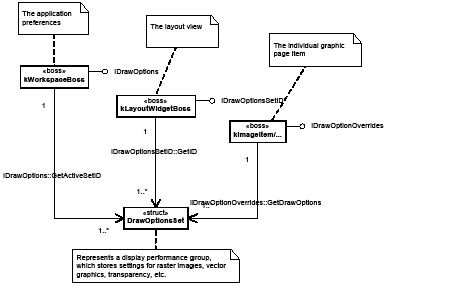
Drawing a graphic page item
Changing display performance from typical to fast does not replace a proxy image with a gray box directly. In fact, changing display performance does not change the instance of the graphic page item at all. The effect is achieved by invalidating the layout and letting the page-item drawing process take care of displaying.
Drawing a layout containing graphic page items follows a generic drawing process detailed in Dynamics of drawing. A graphic page item is drawn in the following steps:
You can participate in the graphic page-item drawing process by implementing the custom, drawing event-handler extension pattern, described in Extension patterns.
This section illustrates the data model and common interfaces for graphic page items.
Graphic page-item boss-class inheritances
Although graphic page items are represented by various boss classes (kImageBoss and bosses for vector graphics in the table in Vector graphics), they share similar interfaces and demonstrate similar properties.
kImageItem (the boss representing raster images), kPlacedPDFItemBoss, kEPSItem, kPICTItem, and kWMFItem directly or indirectly inherit from kDrawablePageItemBoss, which aggregates interfaces necessary for page-item drawing. For the complete inheritance graph for the bosses, refer to the API Reference; search for kDrawablePageItemBoss.
Graphic page-item class hierarchy
Graphic page-item boss classes have the following characteristics:
The following figure is a simplified view of the graphic page items in the class hierarchy of an InDesign document. ILinkObject provides access to the link object, which can be used to access the linked graphic resource. If the link is embedded, IStoreInternal provides access to kPMPersistDataBlobBoss, which stores the bitmap of the image. IImageDataAccess provides access to the proxy image, and the bitmap of the images also are stored as kPMPersistDataBlobBoss, which is accessible through IPersistUIDData on kImageInDB. Navigation from the document root to the kSplineItemBoss is wrapped into a package, which is discussed in Layout Fundamentals.
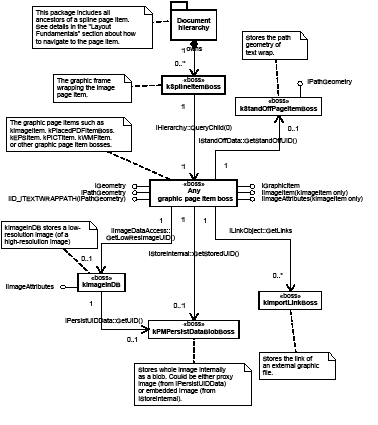
Graphic page-item interfaces
Several common interfaces are aggregated on graphic page-item bosses to provide features specific to graphic page items. These interfaces are either aggregated directly on the boss (for example, kPlacedPDFItemBoss), or aggregated by way of their parent bosses (for example, kImageBaseItem, the parent of kImageItem, or kDisplayListPageItemBoss, the parent of all other vector graphic page item bosses). The following table summarizes these important interfaces and their uses.
| Interface ID | Interface | Description |
|---|---|---|
| IID_IGRAPHICITEM | IIntData | This is the signature interface for all graphic types (raster, EPS, etc.). The integer data is never used. |
| IID_IIMAGEITEM | IImageItem | Aggregated onto kImageBaseItem, this interface provides access to the embedded color profile of the image. More importantly, testing the presence of this interface verifies that a page item boss is a raster image. |
| IID_IGEOMETRY | IGeometry | This interface defines the geometry (position, size, etc.) of a graphic page item. It is used for calculating cropping during the graphic page-item drawing process. |
| IID_IPATHGEOMETRY | IPathGeometry | This interface stores the clipping path of a graphic page item (see Clipping paths). |
| IID_ITEXTWRAPPATH | IPathGeometry | This interface stores the text-wrap path; however, this path is only a cache (or mirror) of the text-wrap path. The real path is stored at IPathGeometry on kStandOffPageItemBoss. Every time the real text-wrap path is changed, this path is updated. (See Text wrap). |
| IID_IIMAGEATTRIBUTES | IImageAttributes | This interface stores a set of tags to describe the attributes of a raster image. Predefined tags are defined as enumerators, each of which describes the type, length, and data of a raster image. These tags are crucial in defining image item properties, such as alpha channel, clipping path, and color profile. |
Proxy images
When a graphic is placed, the contents of the original file are not actually copied into the document. Instead, InDesign creates a link to the original file on the disk and adds a screen-resolution bitmap image (the proxy image) to the layout, so you can view and move the graphic. When you export or print, InDesign uses the link to retrieve the original graphic, creating the final, desired, full-resolution output. Although end users can set preferences to tell InDesign to show high-resolution images (see Display performance), by default InDesign shows a low-resolution proxy image for performance reasons; the proxy image is created by processing kCreateLowResImageCmdBoss during the import process.
A proxy image is represented by the boss kImageInDB, which is accessible from the graphic page item through IImageDataAccess::GetLowResImageUID. The connection is established during the image-import process. For the data model of the proxy image in relation to the graphic page items, see Graphic page-item class hierarchy on page 200 and "Graphic page-item examples".
One of the most important interfaces on kImageInDB is IPersistUIDData, which holds a UID pointing to an instance of kPMPersistDataBlobBoss, which stores the bitmap of the proxy image.
The proxy image is not always created by asking the image-import filter for the data. For raster images, if image auto-embedding is allowed in the image-import preferences, and the image is smaller than a predefined amount (defaults to 48 KB, accessible through ILinkState::GetEmbedSize), the original high-resolution image is embedded directly.
Creating a proxy image is aided by the IImageStreamManager interface, which provides a mechanism to convert the source-image format to a destination-image format according to the image attributes.
Graphic page items and links
Every graphic page item that was placed from a file has an associated link. End users can choose the Embed Link menu in the Links panel's menu to embed the link manually. The file remains in the Links panel, marked with an embedded link icon.
As a software developer, you also can use ILinkFacade::EmbedLinks to embed the image link (ILinkFacade is aggregated on kUtilsBoss). kStoreInternalCmdBoss, processed internally, reads the original high-resolution file and stores the image data as a data blob, referenced by the IStoreInternal interface on the graphic page item.
Embedding a link is not the same as embedding the small image to create a proxy image, discussed in Proxy images:
New graphics can be placed into a layout with or without an existing graphics frame. This section illustrates how instances of graphics objects evolve as you place a PDF file, replace it with an image, move the image around, embed a link, and set clipping-path and text-wrap contour options.
Begin with an empty graphics frame
We start exploring the graphics object model by examining an empty graphics frame. The following figure shows a screenshot and the object model when only an empty graphics frame is created. The graphics frame is represented by kSplineItemBoss, and it does not have any hierarchical children.
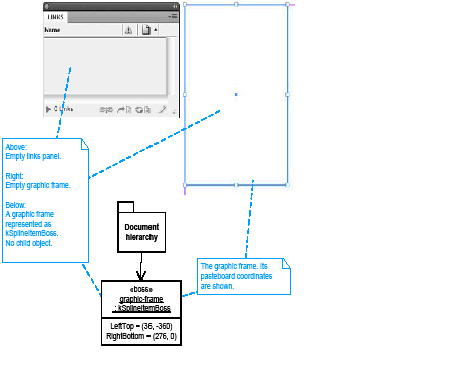
Place a PDF item in a graphics frame
Next, we place a PDF file into the graphics frame. During import, InDesign creates a kPlacedPDFItemBoss object to represent the PDF item and adds it as a child of the graphics frame. The following figure shows the object model of the graphics frame with a PDF item. A few other objects are created to represent information of the PDF item. New objects are marked in yellow.
Comparing this figure to the figure in Graphic page-item examples, notice that the Links panel shows a link to the external PDF file. The link is represented by kImportLinkBoss through ILinkObject, aggregated on kPlacedPDFItemBoss.
A proxy image is created for the PDF item as kImageInDB boss (UID 0xcd), and the proxy image bitmap is represented by kPMPersistDataBlobBoss (UID 0xce).
By default, a graphic page item is put into the graphics frame with an offset of (0,0) in inner coordinate space, so the PDF item has the same PMRect::LeftTop position (obtained from IGeometry::GetPathBoundingBox) on the pasteboard as the graphics frame. Although the PDF item is slightly wider than the frame (PMRect::RightBottom member), InDesign does not draw that part, because it is cropped by the frame.
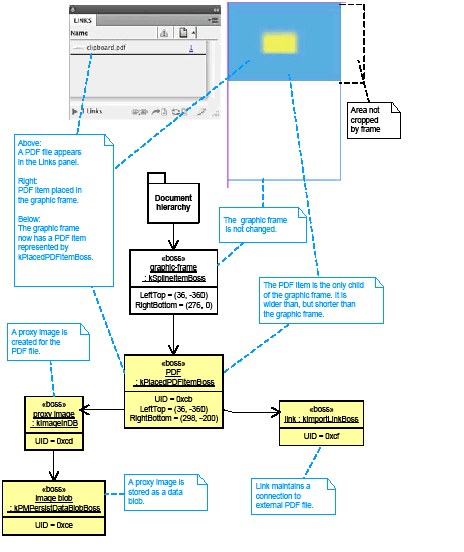
Replace a PDF item with an image
Next, we import an image file to replace the PDF item and examine the changes to the object model. The following figure shows the screenshot and object model after the change. Again, new objects are marked in yellow. Note the following:
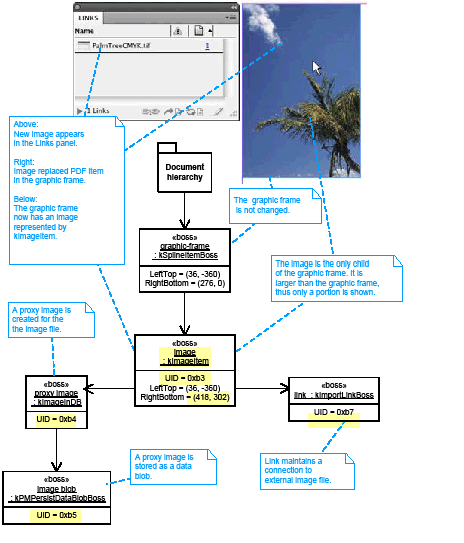
Move an image within a frame
You may have noticed the palm tree image is large, and we can only see a small part of the tree. Now we move the image a little bit within the graphics frame, using the Direct Selection tool. The following figure shows the resulting object model. Everything is the same, except the pasteboard coordinates of the image item. The changed object is marked by a red circle; changed values are marked in yellow. The coordinates represent the bounding box of the image item.
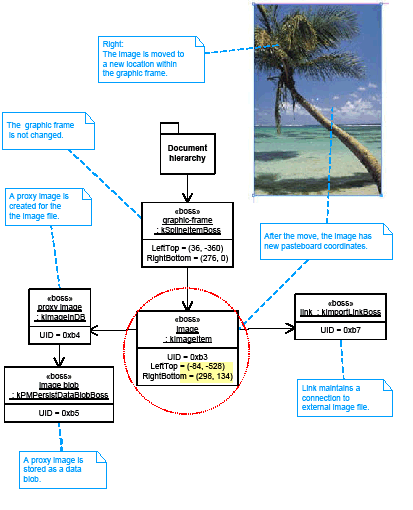
Embed an image's datalink
Next, we manually embed the image into the document by choosing Embed Link on the Links panel menu. The following figure shows the changed object model after the image is embedded. The new object is within the red circle, marked in yellow. A new kPMPersistDataBlobBoss is created to store the embedded image information. Other bosses-including the link object (kImportLinkBoss)-do not change.
There are two kPMPersistDataBlobBoss objects in the object model, but they represent different things. The one accessible through IPersistUIDData on the proxy image:kImageInDB boss represents the proxy image; the other-accessible through IStoreInternal on the image:kImageItem boss-represents the embedded image data.
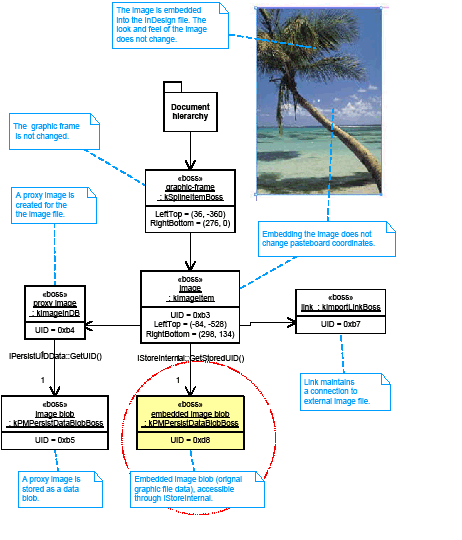
Setting clipping path and text wrap
Let's use a different image to set clipping-path and text-wrap options. In this section, we place a linked image, overlap it on top of a text frame, and examine how the image and text frame change when you set clipping-path and text-wrap options.
The following figure shows examples of clipping-path options. In the left screenshot, no clipping path was set, so the image overlaps the background text. The center screenshot shows the result of the clipping-path Detect Edges option (with the Threshold parameter set to 150). Although Detect Edges can detect most of the contours of the bottle, the result looks even better if you use the existing Photoshop paths, as shown in the right screenshot.
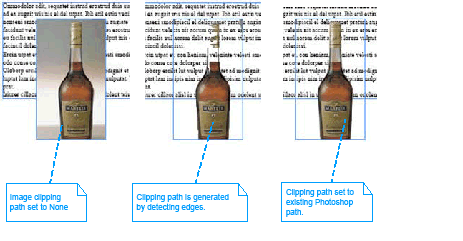
Reminder: The clipping path is stored with the IPathGeometry interface of the graphic page item, so no extra object is created. For the graphic page item's class diagram, see the figure in Graphic page-item class hierarchy; for descriptions, see "Clipping paths".
Now we set the text wrap of the image item, shown in the following figure. All three screenshots were taken with the text wrap set to wrap around the graphic page item's object shape. The left screenshot shows the result when the text-wrap contour option is set to Same As Clipping, with clipping-path type set to Detect Edges. The top-right corner of the bottle frame does not have text, because a small part of the image is there. You can set the contour option to use existing Photoshop paths independent of the clipping path, shown in the center screenshot. You also can set both the clipping path and text-wrap contour options to use the Photoshop path, which produces the best result, as shown in the right screenshot.
Object model changes after setting the text-wrap options are shown in the lower part of the figure. A new kStandOffPageItemBoss object -within the red circle, marked in yellow-is created to hold the text-wrap path. For information on how this affects text composition, see Text Fundamentals.
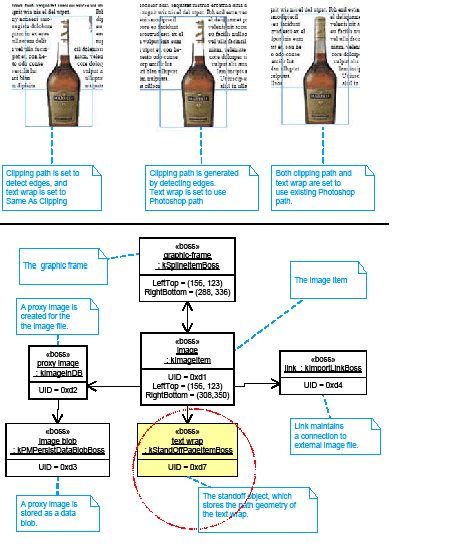
Overview of the import process
When a user chooses to place a graphic into a document, InDesign performs a sequence of steps to import the graphics file as a graphic page item. The following figure shows the steps involved in importing PDF, EPS, and image files.
You also can import another InDesign document to a document. The import process works like PDF import. The only difference is that importing an InDesign document also imports swatches, inks, fonts, links, and so on and creates secondary links if the document being imported also contains links. You can set InDesign document-import options like other graphic file types; see "InDesign document-import preferences" (in Graphics import).
You can also import multimedia files such as movie clips and sounds. See Rich Interactive Documents.
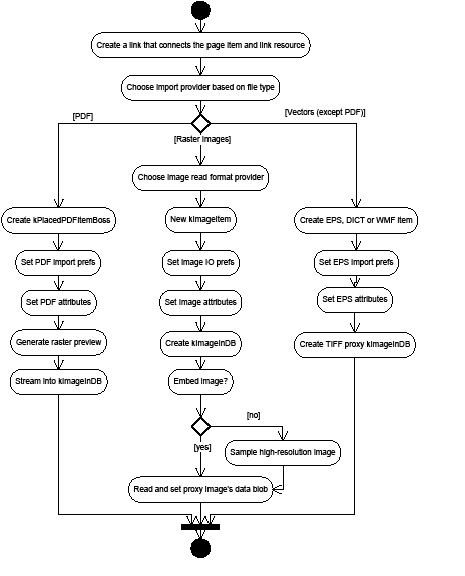
At a high level, the process involves the following steps:
| Import provider | Filename extension | Page-item boss |
|---|---|---|
| kEPSPlaceProviderBoss | AI, EPS, DCS | kEPSItem |
| kEPSPlaceProviderBoss | PCT, PIC | kPICTItem |
| kEPSPlaceProviderBoss | WMF, EMF | kWMFItem |
| kImagePlaceProviderBoss | TIF, TIFF, SCT, PSD, PNG, PCX, JPEG, JPG, GIF, DIB | kImageItem |
| kPDFPlaceProviderBoss | kPlacedPDFItemBoss | |
| kNativeImportServiceBoss | INDD | kInDesignPageItemBoss |
Import options
To control how the file should be imported, end users can choose Show Import Options in the Place dialog box, which allows the user to set import options through an Import Options dialog box. The specific options depend on the file type and graphics data in the file.
PDF-import preferences
The IPDFPlacePrefs (IID_IPDFPLACEPREFS) interface allows you to set various PDF import options, like how to crop the graphic and which pages to import. If the PDF file contains layers, you can set up layer information on the dialog using IGraphicLayerInfo.
Both interfaces are aggregated on kWorkspaceBoss. IGraphicLayerInfo can be initialized by the imported file before bringing up the Import Options dialog. The following table lists some default settings of IPDFPlacePrefs.
For details, see Import and Export.
| Preference | Default value |
|---|---|
| Crop | kCropToContent |
| Page number | 1 |
| Proxy resolution | 72 |
| Show preview | kTrue |
| Transparent background | kTrue |
EPS-import preferences
IEPSPreferences (IID_IEPSPREFERENCES) also is aggregated on kWorkspaceBoss. Some settings are set programmatically; for example, importing an EPS graphic from a file (not from the clipboard) automatically sets the import mode to "import whole" (kImportWhole). The following table lists some default settings of IEPSPreferences.
| Preference | Default value |
|---|---|
| Import mode | kImportWhole |
| Display resolution | 72 |
| Read OPI comments | kDontReadOPIComments |
| Create frame | kDontCreateFrameFromClipPath |
| Create proxy | kCreateIfNeeded |
Image-import preferences
The Raster Image Import Options dialog box uses separate panels to set raster image-specific import options, like color profile and clipping path. Usually, InDesign uses session preferences (IImageIOPreferences on kWorkspaceBoss) to import an image file. The following table lists some of the default settings.
| Preference | Default value |
|---|---|
| Allow auto-embedding | kTrue |
| Create clip frame | kTrue |
| Preview resolution | 72 |
When auto-embedding is allowed and the image size is small, InDesign automatically embeds the high-resolution image as the proxy image, so the data and the interfaces of kImageInDB reflect the high-resolution image rather than a new, low-resolution image.
InDesign document-import preferences
Placing InDesign document directly into an InDesign document has advantages in the publishing workflow, including automatically maintained links, fonts, swatches, links and so on. The IImportDocOptions (IID_IIMPORTDOCOPTIONS) interface allows you to set various InDesign document-import options, like how to crop the pages, which pages to import, and where to display previews. IGraphicLayerInfo let you set up layer information on the dialog to choose which layer to import.
Both IImportDocOptions and IGraphicLayerInfo are session preferences aggregated on kWorkspaceBoss. They also store information to pass to kImportDocCmdBoss, if you want to use the command directly to place InDesign files. The following table lists some default settings of IImportDocOptions.
| Preference | Default value |
|---|---|
| Crop | kCropToPage |
| Page number | 1 |
| Show preview | kTrue |
Image-import filters
You may have noticed in the table in Overview of the import process that the same kImagePlaceProviderBoss is used for importing various kinds of raster images. These raster images have different file formats and, therefore, they need different ways to read data. InDesign provides another level of abstraction: the image-import provider queries for service providers that support kImageReadFormatService. This mechanism also serves as another extension pattern software developers may implement to support new raster-image formats.
InDesign implements a set of providers to read various image formats, to import TIF (TIFF), SCT, PSD, PNG, PCX, JPEG (JPG), GIF, and DIB files. These providers serve as the image-import filters. When InDesign is instructed to place an image, it iterates over all the providers until it finds one that can import the image. See the following table for a list of these providers.
| File type | Image read-format provider |
|---|---|
| TIF | kTIFFImageReadFormatBoss |
| SCT | kSCTImageReadFormatBoss |
| PSD | kPSImageReadFormatBoss |
| PNG | kPNGImageReadFormatBoss |
| PCX | kPCXImageReadFormatBoss |
| JPEG | kJPEGImageReadFormatBoss |
| GIF | kGIFImageReadFormatBoss |
| DIB | kDIBImageReadFormatBoss |
InDesign supports exporting all or part of a document to PDF, EPS, SVG, and JPEG formats.
All the export processes are alike at a high level: exports are implemented using the IExportProvider service-provider mechanism. Each type of export destination format provides export services. The following table lists export providers that export to a graphics file format.
| Export destination | Export provider |
|---|---|
| kPDFExportBoss | |
| EPS | kEPSExportBoss |
| SVG | kSVGExportProviderBoss |
| JPEG | kJPEGExportProviderBoss |
For examples of export provider implementations, see SDK samples like CHMLFilter, TextExportFilter, and XDocBookWorkflow.
Each export provider has a corresponding command that exports content to a desired file format in the following two stages:
Export to PDF and EPS are discussed in detail in the "Exporting to EPS and PDF" section of Printing. PDF import and export also are discussed in Import and Export.
Only SVG and JPEG export are discussed in this section. The following figure shows high-level activities of SVG and JPEG export.
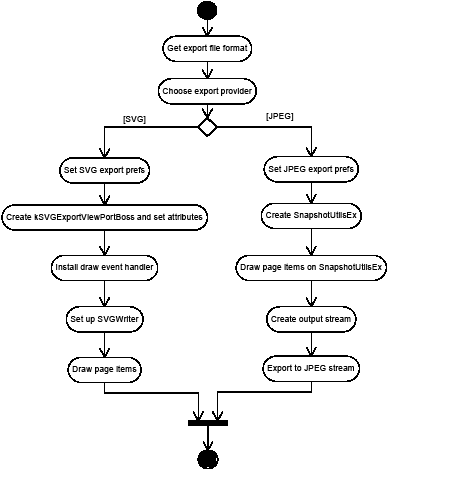
SVG export
SVG export preferences
Settings for SVG export are stored with the ISVGExportPreferences interface on kWorkspaceBoss. For details, refer to the API Reference.
End users can modify the preferences through the SVG Export Options dialog box. You also can change the preferences programmatically, with the kSVGExportSetPrefsCommandBoss command. The following table lists some of the default SVG-export preferences.
| Preference | Description | Default value |
|---|---|---|
| Embed fonts | Whether to embed fonts in the SVG file | kTrue |
| Embed image | Whether the image should be embedded in the SVG file | kTrue |
| Export bitmap sampling | Sampling quality | kHiResSampling |
| Image format | Image format | kDefaultImageFormat, which is set to the same as kPNGImageFormat |
| JPEG quality | Image quality | kJPEGQualityMed |
| Page item export | Whether to export the selected page item only | kFalse |
| Range format | The range of pages to export | kAllPages |
Exporting to SVG format
InDesign exports to SVG format by drawing page items and documents to a special viewport, kSVGExportViewPortBoss. For more information about viewports, see Data model for drawing. kSVGExportCommandBoss aggregates ISVGExportController, which controls the drawing process and hides much of the complexity involved in SVG export. kSVGExportViewPortBoss aggregates ISVGWriterAccess, which helps in writing contents to an SVG file stream.
JPEG export
JPEG export preferences
Settings for JPEG export are stored with the IJPEGExportPreferences interface on kWorkspaceBoss. For details, refer to the API Reference.
End users can modify the preferences through the JPEG Export Options dialog box. You also can change the preferences programmatically, with the kJPEGExportSetPrefsCommandBoss command. The following table lists some of the default JPEG-export preferences.
| Preference | Description | Default value |
|---|---|---|
| Export bitmap sampling | Sampling quality | kHiResSampling |
| JPEG quality | Image quality | kJPEGQualityMed |
| Range format | The range of pages to export | kAllPages |
Exporting to JPEG format
kJPEGExportCommandBoss creates a SnapshotUtilsEx object and draws document contents on it. kJPEGExportCommandBoss then calls SnapshotUtilsEx::ExportImageToJPEG to write to the file stream. SnapshotUtilsEx also has methods to export to TIFF and GIF formats, so you can export to TIFF and GIF if you write your own export command, though you may need to provide your own image-write format boss. In the case of JPEG, the write-format boss provided is kJPEGImageWriteFormatBoss. For more information on SnapshotUtilsEx, see Snapshots. For use of SnapshotUtils (the older version of SnapshotUtilsEx, see the Snapshot SDK sample plug-in).
This section examines the data model for swatches, colors, and gradients.
This section covers the representation of color, a fundamental graphic property, in the InDesign API. When we talk about color in the context of InDesign, we refer to the following:
The following figure shows some key color-related concepts and how they appear in the user interface.
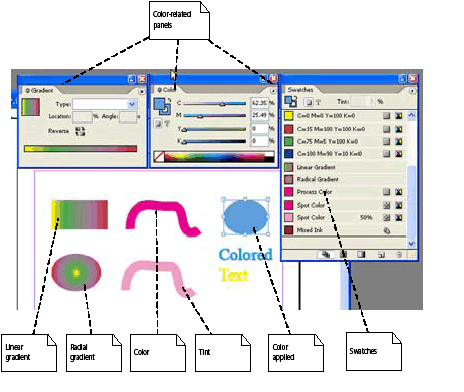
The following figure shows some of the key color-related concepts and the relationships among them.
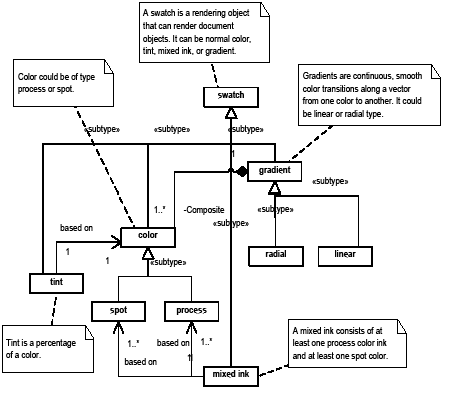
The following figure is a UML class diagram involving color-related boss classes. It shows the relationship among color and swatch–related boss classes. The relationships also apply if you replace kDocWorkspaceBoss with kWorkspaceBoss.
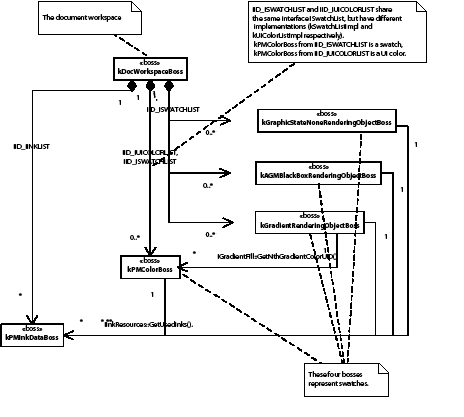
Comparing this figure to the to the conceptual diagrams, note the following:
When swatches are created, modified, or deleted, the state of the swatch list changes. For a detailed discussion of these changes, see Swatch-list state.
A swatch is an abstraction that can represent a color, gradient, tint or mixed ink.
A rendering object implements the IRenderingObject interface. IRenderingObject represents information about a color or gradient and exposes capabilities to render this information to a device. The following are some of the boss classes that expose the IRenderingObject interface:
Some methods of IRenderingObject take an IGraphicsPort item as an argument. IGraphicsPort is an interface with methods that parallel PostScript operators like setcolorspace. The key responsibility of the rendering object implementation is to set up the color space, tint, and color components to draw to the graphics port. IRenderingObjectApplyAction is another required interface on rendering objects. For more details on IRenderingObject, IRenderingObjectApplyAction, IGraphicsPort, and the other interfaces on rendering object boss classes, refer to the API Reference.
Color is represented by the kPMColorBoss class, responsible for representing solid colors, including tints and mixed inks. In addition to the signature interface for a rendering object, IRenderingObject, kPMColorBoss aggregates several other interfaces, including the following:
There are three color spaces of interest:
See Color management.
Gradients are represented by the kGradientRenderingObjectBoss boss class, which aggregates IRenderingObject as well as IGradientFill, representing gradient-specific properties. For details, refer to the API Reference.
Gradients can be linear or radial; see the enum declaration of GradientType in GraphicTypes.h. A gradient consists of one or more ranges of color, which are smooth interpolations between gradient stop positions. The color is defined only at the gradient stop positions, with calculated color values at intermediate positions. For more detail on working with gradients, see "Gradients" in InDesign Help.
Rendering objects (IRenderingObject) are referenced in a swatch list (ISwatchList). The swatch list (ISwatchList) is exposed on workspaces (IWorkspace). For examples of the swatch list (and ink list) when an end user creates and applies swatches to page items in a document, see Swatch-list state.
If you create a color through the Color panel, or create a new gradient through the Gradient panel and then apply the gradient to a page item without creating a swatch beforehand, an unnamed (or local) swatch is created in the swatch list. The unnamed swatches do not appear in the Swatches panel, but they can be used for the strokes and fills of document objects by client code.
User-interface color list
Colors and color names that appear in the application user interface in places like the Layers panel and Tags panel are not the same ones used in representing color in the document. User-interface colors also are stored in an ISwatchList interface on workspaces (IWorkspace), but with the interface identifier IID_IUICOLORLIST.
User-interface colors are normally RGB only. A key utility interface for working with user-interface colors is IUIColorUtils. User-interface colors are represented by kUIColorDataBoss rather than a rendering-object boss class.
Colors are ultimately printed by means of inks; for example, CMYK color separation is performed before printing to a four-color press. Inks are represented by the kPMInkDataBoss boss class.
The rendering object classes like kPMColorBoss or kGradientRenderingObjectBoss aggregate the IInkResources interface, with which you can refer to the inks used in a color (or other page item) by using the IInkResources::GetUsedInks method, then querying for IPMInkDataBoss.
IInkData::GetInkUIDList returns an empty list when the color type is process. IInkData is an interface on kPMColorBoss.
There is an IInkList interface on the workspace boss classes that specifies the inks needed for all swatches in the document and application. The ink list contains process inks and zero or more spot inks.
The relation between inks and the swatch list is fairly direct: adding a new spot color to the swatch list and applying it to a document object results in a new entry in the ink list. However, creating another swatch that is a process color and applying it does not necessarily change the entries in the ink list, if the process inks needed to print this new color already are in the ink list.
The ink-manager feature (Ink Manager in the Swatches panel menu) shows the inks associated with the contents of the swatch list. For example, if the swatches in the document were defined in terms of four process colors and two spot colors, the ink-manager user interface is similar to that shown in the following figure. For information on how to work with the ink manager and iterate through the ink list, see the "Graphics" chapter of Adobe InDesign SDK Solutions.
It is necessary to preflight documents to ensure they print correctly when submitted to the press. As far as color is concerned, it is necessary to identify the inks that must be loaded in the press for a job to print correctly.
The purpose of color management is to get accurate color on all kinds of devices. Color-management modules provide color-conversion calculations from one device's color space to another, based on ICC device profiles. For detailed descriptions of the color spaces used by InDesign, see Color spaces.
An ICC profile is a record of the unique color characteristics of a color input or output device. An ICC profile contains data for the translation of device-dependent color to L*a*b* color. The following illustrates the concept of translation from the L*a*b* color space to RGB and CMYK color spaces using ICC profiles:
With an ICC profile, color-management systems can do the following:
Color management within InDesign is relatively complex because of the following:
There are three levels of ICC profile sets involved in InDesign:
InDesign features relating to color management are described comprehensively in "Color Management" in InDesign Help.
The implementation of color management is somewhat complex. The class diagram in the following figure illustrates some color management-related boss class relationships in InDesign.
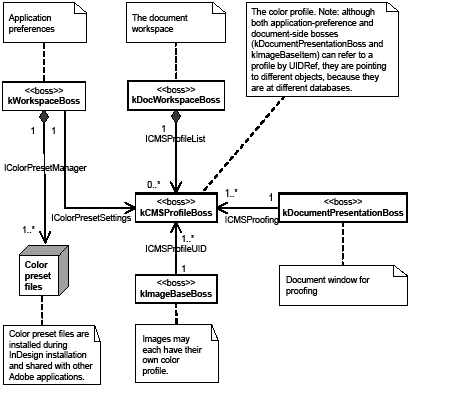
Color presets
Outside the application, predefined Adobe color-management settings are stored in color preset files, which are saved at the following location:
These presets are shared among all Adobe Creative Suite ® applications, to make it easier to achieve consistent color across the suite. The kWorkspaceBoss boss class aggregates the IColorPresetsManager interface, which is responsible for managing the presets, like loading color preset files and saving customized presets. The settings of the current preset are populated into the IColorPresetsSettings interface on kWorkspaceBoss.
The IColorPresetsSettings interface stores the working color-management settings of the application, like RGB and CMYK, the ICC profile, and color-management policies. In the user interface, the color-management settings are accessed through the Color Settings dialog box.
Color profile
The kCMSProfileBoss boss class represents a color profile. The ICMSProfile interface on kCMSProfileBoss stores information about the type and category of the profile. This interface has a method for getting and setting profile data by accessing the IACESpecificProfileData interface on the same boss.
The ICMSProfileList interface, exposed on workspaces (IWorkspace), indicates which profiles are used, as either document profiles or image profiles, and which are assigned to specific document categories (for example, document CMYK and document RGB). A profile can be assigned to each category of a document through Edit > Assign Profiles.
Image settings
Any imported image can have either an embedded profile or a profile already assigned to it. (See Object > Image Color Settings.) The ICMSItemProfileSource interface aggregated on the kImageBaseItem boss class stores the basic profile-assignment type (see the enumeration ICMSItemProfileSource::ProfileSourceType) and the name of the image's embedded profile, if any.
If an image uses an external profile or an embedded profile, an interface IPersistUIDData (with interface identifier IID_ICMSPROFILEUID) stores the UID of an instance of kCMSProfileBoss, so you will be able to instantiate an interface on kCMSProfileBoss from this UID and get the profile data needed.
There is no link from a specific profile to the images that use that profile. To find the images that use a specific profile in the profile list, you need to iterate through all images using the links manager (ILinksManager).
Rendering intent
The ICMSSettings interface is aggregated on docworkspace (kDocWorkspaceBoss) and the kImageBaseItem boss class, a superclass for image boss classes, which stores rendering-intent information for document and image page item. Please use the ICMSUtils interface to set rendering intent, rather than manipulating the ICMSSettings interface directly.
For application defaults, rendering intent are determined by IColorPresetsSettings interface aggregated on kWorkspaceBoss. You can use GetIntent and SetIntent methods to manipulate rendering intent.
Proofing
The ICMSProofing interface is aggregated on kWorkspaceBoss, kDocumentPresentationBoss, and several user-interface panels. The implementation on kWorkspaceBoss is a proofing preference, and the implementation on kDocumentPresentationBoss is responsible for setting up drawing when users choose to proof their design using the Proof Setup dialog box. This ICMSProofing interface stores the proofing settings as well as a proofing profile.
A graphic attribute describes an aspect of how a page item should be drawn. There are many kinds of graphic attribute for properties like stroke color, fill color, stroke type, and stroke weight. This section introduces the concepts involved and describes specific sets of graphic attributes for features like page-item rendering.
The following figure is a conceptual model of the graphic attributes associated with a page item.
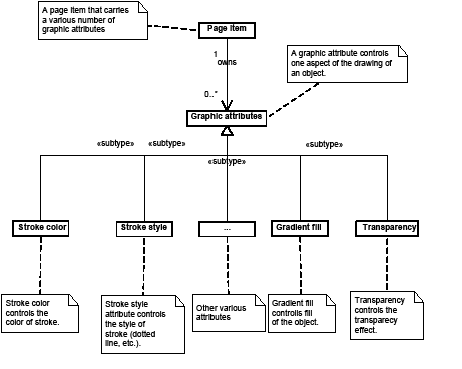
A page item owns a collection of graphic attributes, specifying properties that control how the page item is drawn, like stroke color, stroke style, and transparency. Each attribute is responsible for a single aspect of how the page item is drawn. A list of graphic attributes is represented by IGraphicStyleAttributeBossList.
The following figure shows the graphic-attribute UML class model of a drawable page item.
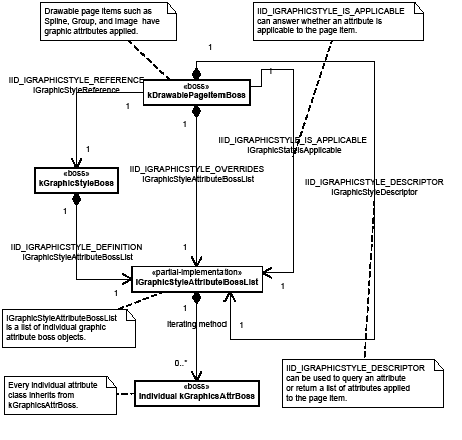
There are several important interfaces on a page item responsible for managing graphic attributes:
For details on each interface's responsibilities, refer to the API Reference.
Graphic attributes are represented by boss classes with the signature interface IGraphicAttributeInfo. The graphic attributes in the application appear in the API Reference for IGraphicAttributeInfo. Typically, they derive from the kGraphicsAttrBoss boss class.
The IGraphicAttributeInfo interface stores the name and type of the attribute. Some graphic attributes have corresponding text and table attributes. See Mapping graphic attributes between domains.
Graphic attributes have additional data interfaces that specify their values. Because there are many graphic attributes, sometimes it is a challenge to determine which attribute boss corresponds to which attribute. For a description of attributes, see Catalog of graphic attributes.
Most of the attributes represent a single value, like a Boolean, int16, int32, PMPoint, or PMReal. These simple attributes generally are backed by interfaces like IGraphicAttrBoolean, IGraphicAttrInt16, IGraphicAttrInt32, IGraphicAttrPoint, and IGraphicAttrRealNumber. For example, kGraphicStyleEvenOddAttrBoss (IGraphicAttrBoolean) corresponds to the even-odd fill rule when you have a compound path; set it to kTrue to use the even-odd rule or to kFalse to use the default InDesign fill rule (nonzero winding fill rule).
Some other attributes have UID values. For example, attributes related to object rendering refer to a rendering object through the IPersistUIDData interface. For more information, see Rendering attributes.
Some other attributes have ClassID values, which are all stored with IGraphicAttrClassID. These attributes are used to specify stroke effects of a page item. See Stroke effects.
A graphic style (kGraphicStyleBoss, UID-based) is a collection of graphic attributes. The IGraphicStyleNameTable interface exposed on workspaces (IWorkspace) stores the names and UIDs of graphic styles.
There are two key interfaces on kGraphicStyleBoss:
Only [No Style] is used in InDesign and InCopy. kGraphicStyleNoneBoss implements the default [No Style], which is set up during application start-up (for the session workspace) and document creation (for document workspace). This style stores default settings of various graphic attributes, like stroke weight as 1.0 and stroke type as solid line.
Although there still is a public API to work with user-named graphic styles, these are deprecated since the introduction of object styles. Adobe applications do not define user-named styles using graphic styles as the container. We recommend you avoid using graphic styles for this purpose in your plug-ins. User-named styles are supported by the object styles feature.
An object style is a style that defines the appearance of a page-item object. An object style contains settings of a set of attributes, including graphic attributes and text attributes. An object style is a superset of graphic style.
Graphic state is the representation of the current state of things related to the graphic attributes. Usually this is a collection of graphic attributes for the current selection or, if there is no selection, the current defaults. The graphic state is represented by kGraphicStateBoss.
An active graphic state refers to the graphic state at the current context. Active graphic state can be accessed through IGraphicStateAccessor, aggregated on kDocWorkspaceBoss or kWorkspaceBoss. A reference to an interface of the active graphic state also can be acquired through IGraphicStateUtils::QueryActiveGraphicState, aggregated on kUtilsBoss.
The kGraphicStateBoss boss class aggregates interfaces like IGraphicStateRenderObjects and IGraphicStateData.
This interface is key to the graphic state. It can be acquired from the IGraphicStateUtils utility interface by querying active graphic state or the graphic state of a specific database. For sample code that shows how to acquire the interface, see the "Graphics" chapter of Adobe InDesign SDK Solutions.
Given this interface, you can query the current IRenderingObject interface for the specified rendering class or the active rendering class in the graphic state. The active rendering could be fill or stroke.
Changing the graphic state
Changing any graphic attributes changes the graphic state. Virtually every user-interface action-like selecting a new swatch, picking a color in the Color Picker panel, switching fill and stroke, selecting a different stroke style, changing selection, or changing the front document-causes a change to current active graphic state. You can use methods on IGraphicAttributeUtils or IGraphicSta teUtils to acquire appropriate commands.
kGraphicStateBoss also aggregates an ISubject interface. Changes to the graphic state can be observed by listening along the IID_IGRAPHICSTATE_RENDEROBJECTS and IID_IGRAPHICSTATE_DATA protocols.
Creating new page items using default attributes
When a new page item is created, default attributes in the graphic-state boss objects are copied and applied to new page items when you specify INewPageitemCmdData::kDefaultGraphicAttributes as attrType parameter on spline creation methods on IPathUtils.
Some graphic attributes also can be applied to text or tables. For example, the following figure shows stroke and fill colors and gradients applied to text, table cells, and a spline item. Although the intent is the same in each case, the attributes differ in each case. Text and tables have some attributes corresponding to the graphic attributes.
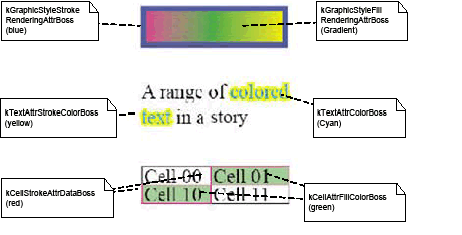
There are independent attributes for each of these domains. For example, an attribute represented by kGraphicStyleFillRenderingAttrBoss on a spline page item is represented by the kCellAttrFillColorBoss type when the attribute is applied to a table cell, and it is represented by the kTextAttrColorBoss type when the attribute is applied to a text run.
When a graphic attribute is applied to a text run, there is a conversion process in which a new text attribute is applied as an override to the run. The same applies when trying to apply a graphic attribute to a table; the graphic attribute can be converted to a corresponding table attribute.
Not all graphic attributes apply to text or tables. The IGraphicAttributeInfo::IsTextAttribute and IGraphicAttributeInfo::IsTableAttribute methods return kTrue if the corresponding attribute in the respective domain exists. IGraphicAttributeInfo::CreateTextAttribute returns a text attribute that maps onto the equivalent graphic attribute. Similarly, IGraphicAttributeInfo::CreateTableAttribute returns a table attribute that maps onto the equivalent graphic attribute. Each of these methods is expected to return a nonzero value if the Is <XXX>Attribute method returns kTrue.
The selection suites (for example, IGraphicAttributeSuite and IGradientAttributeSuite) make it straightforward for client code to change the properties of a selection; the client code needs to work with only the graphic attributes. There is no need to worry about whether the selection is text, choosing the specific text attribute, and whether the selection is text, table, or layout.
The mapping between different domains is hard-coded. New graphic attributes added by third-party software developers may provide their own mapping by overriding the default implementations of IGraphicAttributeInfo. The mappings between graphic attributes and text attributes, and between graphic attributes and table attributes, are shown in the tables in Mappings between attribute domains. Note that the mapping between graphic attributes and table attributes is many-to-one rather than one-to-one because; for example, the kCellStrokeAttrDataBoss boss class can represent information about multiple stroke parameters, whereas each of the corresponding graphic attributes refers to one parameter.
A rendering attribute refers to a swatch to be used when drawing an aspect of a page item. Rendering attributes are a special kind of graphic attribute that refer to their associated swatch by UID. The swatch can be a color, gradient, tint, etc.
A page item's stroke, fill, or gap can be rendered independently. The following table lists color-rendering attributes.
| Rendering-attribute class | Description |
|---|---|
| kGraphicStyleFillRenderingAttrBoss | Fill rendering object |
| kGraphicStyleFillTintAttrBoss | Fill tint |
| kGraphicStyleGapRenderingAttrBoss | Gap rendering object |
| kGraphicStyleGapTintAttrBoss | Gap tint |
| kGraphicStyleStrokeRenderingAttrBoss | Stroke rendering object |
| kGraphicStyleStrokeTintAttrBoss | Stroke tint |
Page items also can be rendered using gradients; however, multiple graphic attributes are needed to represent a gradient. For example, you need to specify gradient fill angle, center, and length. There is no characteristic signature for a gradient attribute other than the boss class name; for the canonical graphic attributes, the boss-class name is of the following form:
A list of these boss classes is in the master attributes list in Catalog of graphic attributes.
You can use the same color-rendering attributes class name to apply gradient attributes to page items. IRenderingObjectApplyAction::PreGraphicApply automatically forwards the attributes to appropriate gradient attributes. For example, if you are supplying kGraphicStyleFillRenderingAttrBoss, the method adds attributes including the following:
The situation gets more complicated by the possibility of applying gradients to table cells; when a gradient is applied to a table cell, additional cell-specific attributes are involved. For example, kCellAttrGradientFillBoss and kCellAttrGradientStrokeBoss are table-cell attributes representing properties of gradients.
There are several graphic attributes that define the look and feel of the stroke of a page item. Some of these attributes are straightforward, like kGraphicStyleStrokeWeightAttrBoss, which defines stroke weight.
A path stroker is responsible for the basic drawing of a path. To find existing path-stroker boss classes, refer to the API Reference for IPathStroker. For information on how to add custom path strokers, see Custom path-stroker effects.
IPathStrokerList allows you to access the list of available path strokers. IPathStrokerUtils provides utility methods to do the same thing.
The kGraphicStyleStrokeLineImplAttrBoss boss class specifies the class ID of a path stroker that applies to a particular path.
A path-corner effect draws the corners of a stroked path. For a list of path-corner-effect boss classes, refer to the API Reference for IPathCorner. For information on how to add custom path corners, see Custom corner effects.
The kGraphicStyleCornerImplAttrBoss boss class specifies the class ID of the corner effect.
A path-end stroker (IPathEndStroker) draws the start and end of a stroked path. To find path-end strokers, refer to the API Reference for IPathEndStroker. For information on how to add custom path ends, see Custom path-end effects.
The kGraphicStyleLineEndStartAttrBoss boss class specifies the class ID of the line-end (for example, arrow) style at the starting side of a line. The kGraphicStyleLineEndEndAttrBoss boss class specifies the class ID of the line-end style at the terminating side of a line.
Transparency effects are a set of graphic attributes that define color blending for overlapped page items and backgrounds. Common transparency effects include basic transparency, drop shadow, and feather. The following figure shows examples of transparency effects supported in InDesign.
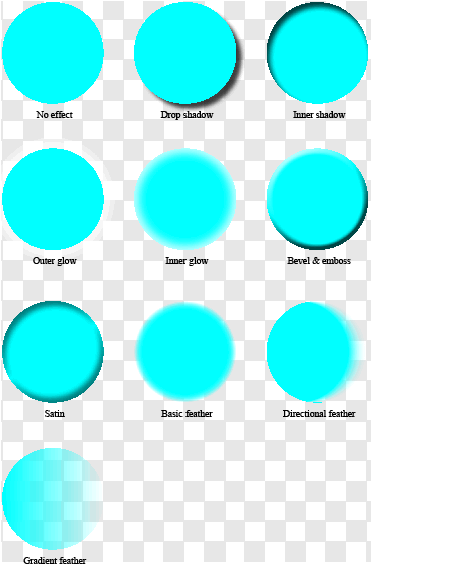
These transparency effects can be divided into two classes:
Common controlling parameters
Different transparency effects are controlled by different sets of parameters, Some of these parameters are used commonly in defining different transparency effects.
Opacity
Opacity is the converse of transparency. It represented by the following formula:
opacity = (1.0 - transparency)
Opacity is expressed as a percentage, where 0% is completely clear and 100% is completely opaque. Page items can have individual opacities assigned to them. Items can be grouped and have a group opacity assigned, which is combined with the individual opacities to calculate the resultant color on the backdrop.
Blending mode
Blending mode defines how the background (backdrop) and foreground (source) colors interact. In the physical world, transparency is the result of light passing through translucent materials. Blending modes are somewhat different: they do not try to model the complex physics of transparency; rather, they are analytic expressions that produce interesting visual effects. The following blending modes are encountered often: normal, multiply, and screen. There also are blending modes related to color spaces, like hue, saturation, and color-blending modes.
Blending modes are vector functions that take as input the object source color and backdrop color and produce a resulting color that is the new color of the backdrop. This is not pixel-based blending; rather, this is in terms of points with no dimension. The colors that are the input for a blending function need to be specified in a common blending-color space (document CMYK or RGB). This is specified document-wide through the Edit menu.
A blending mode is described by an analytic expression that specifies how to calculate the resultant backdrop color given the mode, current backdrop color, foreground color, and opacities of the background and foreground. Ordinarily, a blending function is a vector function:
C_r = F(Mode, C_b, C_f, O_b, O_f)
where C_r is the resultant backdrop color, Mode is the blending mode, C_b is the current backdrop color, O_b is the opacity of the backdrop, and O_f is the opacity of the foreground (source object).
In general, the blending function gives the resulting color at a point. The two-dimensional coordinates in the backdrop plane also can be specified in the expression above, to give an exhaustive expression for a blending function.
Normal blending mode is a trivial blending mode, which specifies that the resulting blend is the value of the source color. The result of a normal blend is given by the following formula:
B(C_b, C_s) = C_s
where B is the blending function, C_b is the backdrop color, and C_s the source-object color.
Multiply-blending mode is the scalar product of the backdrop color and the source object color. For an additive color space like RGB, the multiply-blending mode is calculated by taking the component-wise product of the two vectors. The multiply blending mode is given by the following formula:
B(C_b,C_s) = C_b•C_s
With an additive color space, the resulting blend color is darker than either of the two inputs, so the multiply-blending mode also is referred to as shadow mode.
For a subtractive color space like CMYK, it is necessary to take the reciprocal of the colors. The expression for the blending mode is identical to the above, but with the substitution of (1-c) for the color.
Screen-blending mode often is referred to as highlight mode. The analytic expression for screen blending mode is given by the following formula:
B(C_b, C_s) = 1 - (1-C_s)•(1-C_b)
This can be thought of as the reciprocal of multiply mode, in the sense that it is multiplying the reciprocal input colors and using the reciprocal of the result. The resulting components are larger than the corresponding input components, so the net effect is a highlight of the two colors.
Position
Position determines the location of a transparency effect. It could be specified as an X offset-Y offset pair or a distance-angle pair. They can be used to calculate each other. InDesign also have a concept of global light, which is the angle of the light and is maintained the same for every object of a document.
Size
Size refers to the size of a transparency effect. It is specified in number of points. For example, a drop shadow with size of 0p5 mains the shadow width is 5 points.
Spread
Adding spread outsets the object's outline before blurring, so the effect seems bolder. Spread is expressed as a percentage of the blur width. Typically, spread is for outer effects, Spread is the percentage of the size or blur width that is simply outset rather than tapered off. For example, for a drop shadow with a blur width of 10 points and a spread of 0%, you get 10 points of blur. If the spread is 50%, however, you get 5 points of outset and 5 points of blur. If the spread is 100% you get 10 points of outset and no blur.
Noise
Random noise can be added to the transparency effect, to give it a rougher appearance.
Choke
Choke is conceptually the same as spread, but for effects that go "inward," like inner glow. For example, an inner glow with size 10 points and spread 50%, you get 5 points of inset and 5 points of blur.
Feather width
Feather width is conceptually the same as size, simply the total amount of inset applied. For example, if you have 10 points of width, the feather extends from the edge of the object to 10 points inside the object. For directional feather, you can specify width in four directions.
Basic transparency
Basic transparency is an effect that lets the viewer see through an object. The Transparency panel in the user interface allows end users to specify the transparency attributes of selected page items, including blending mode, opacity, whether these should be isolated, and whether knockout is required.
Transparency in group items
A group item is a collection of one or more page items. Transparency can be applied to a page item or a group item. Transparency groups are constructs to work around real-world problems involving grouped transparent objects. The application allows the assignment of opacity, knockout, and isolation properties to transparency groups (that is, collections of page items). These group properties determine how a group of page items interact transparently with the backdrop. It also is possible to specify knockout and isolation properties for one page item.
Group attributes combine with those of the objects in the group. For example, if objects have 50% opacity and the group has 50% opacity, the resulting opacity of the composited objects is equivalent to an object with 25% opacity.
These group properties are independent of, and in addition to, the opacities and blending modes of the individual objects. The objects interact with each other and the backdrop using their individual opacity and blending modes. The group opacity and group-blending mode do not affect the interaction of the individual objects with each other, but they do affect the interaction of these objects with the backdrop.
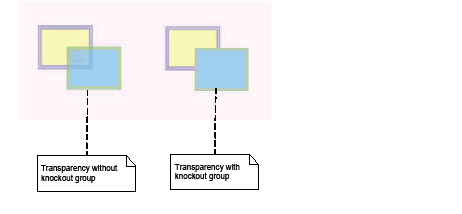
Drop shadow
In the real world, drop shadow is generated when light is blocked by an object. As represented in graphics, drop shadow is a blurred representation of the shape of an object, offset by a user-specified distance and drawn below the object.
The parameters that control a drop shadow include the ones listed in the following table.
| Parameter | Description |
|---|---|
| Blending mode | See Blending mode. |
| Noise | See Noise. |
| Object-knockout shadow | Object does not interact with shadow. |
| Opacity | See Opacity. |
| Position | See Position. |
| Shadow honors other effects | Shadow can be the result when combined with other transparency effects. |
| Size | See Size. |
| Spread | See Spread. |
Inner shadow
Inner shadow is very similar to drop shadow. It adds a shadow that falls just inside the edges of the object, giving the object a recessed appearance. The parameters that control an inner shadow effect are like those of drop shadows., as shown in the following table.
| Parameter | Description |
|---|---|
| Blending mode | See Blending mode. |
| Choke | See Choke. |
| Noise | See Noise. |
| Opacity | See Opacity. |
| Position | See Opacity. |
| Size | See Size. |
Outer and inner glow
Glow is a graphic effect that makes an object appear to shine as if with intense heat. Outer glow refers to the glow effect applied to the outside edges of the object; inner glow refers to the glow effect applied to the inside edges. The parameters that control outer glow are listed in the following table.
| Parameter | Description |
|---|---|
| Blending mode | See Blending mode. |
| Noise | See Noise. |
| Opacity | See Opacity. |
| Size | See Size. |
| Spread | See Spread. |
| Technique | The method to produce angled corners. You can get a smooth/rounded effect (softer) or a mitered effect (precise). |
The parameters that control inner glow are listed in the following table.
| Parameter | Description |
|---|---|
| Blending mode | See Blending mode. |
| Choke | See Choke. |
| Noise | See Noise. |
| Opacity | See Opacity. |
| Size | See Size. |
| Source | Indicates the "polarity" of the glow. "Center" means the center of the object glows and the edges do not. "Edge" means the opposite. |
| Technique | The method to produce angled corners. You can get a smooth/rounded effect (softer) or a mitered effect (precise). |
Bevel and emboss
The bevel and emboss effect is a kind of simulation of how an object would look if it were "puffed up" into the third dimension. The parameters that control bevel and emboss are listed in the following table.
| Parameter | Description |
|---|---|
| Style | A choice of inner bevel, outer bevel, emboss and pillow emboss. |
| Direction | Indicates whether the object appears to be "sunken" or "raised." |
| Technique | Simulate effect made with smooth, chisel hard and chisel soft. |
| Soften | The amount of blurring, more or less, that is applied to the beveled result. This softens the effect so your bevel is not so harsh. |
| Size | Width of the effect. See Size. |
| Depth | Determines the intensity or sharpness of the bevel. |
| Angle | The direction in the page-plane of the light source. |
| Altitude | The angular distance above the page plane. |
| Highlight-blending mode | See Blending mode. |
| Highlight opacity | See Opacity. |
| Shadow-blending mode | See Blending mode. |
| Shadow opacity | See Opacity. |
Satin
Satin applies interior shading that creates a satiny finish. The following table lists its controlling parameters.
| Parameter | Description |
|---|---|
| Blending mode | See Blending mode. |
| Opacity | See Opacity. |
| Angle | The direction of the light to create effect. |
| Distance | The distance of the light to satin effect. |
| Size | See Size. |
Feather effects
Feather is a graphic effect that allows designers to create a smooth edge around a frame. InDesign support three types of feathers: basic, directional, and gradient. The parameters that control a basic feather effect are listed in the following table.
| Parameter | Description |
|---|---|
| Feather width | See Feather width. |
| Corners | Diffused, sharp, or rounded. |
| Choke | See Choke. |
| Noise | See Noise. Feather noise is added only to the feather region. |
Directional-feather effect feathers only on selected sides of an object and takes additional parameters, listed in the following table.
| Parameter | Description |
|---|---|
| Angle | The direction of the feather. |
| Choke | See Choke |
| Feather widths | See Feather width. |
| Noise | See Noise. |
| Shape | First edge only, leading edges, or all edges. |
Gradient effect creates a linear or radial gradient of opacity around an object and allows parameters to define a gradient, like gradient stops, gradient type and angle; see the following table.
| Parameter | Description |
|---|---|
| Gradient stops | Defines the gradient |
| Gradient type | Linear or radial gradient |
| Angle | The direction of the gradient |
PostScript and PDF 1.3 have no representation of transparency information. To print or export spreads with transparent information, it is necessary to generate nontransparent representations of the effects of transparency; this is known as flattening. In some cases, the interactions may be among areas of solid color, in which case they can be replaced by a solid color in each region of interaction. If images are involved, a composite image must be calculated that reflects the contributions of the objects being composited, including any solid-color areas.
Dealing with text and gradients requires the application of additional rules. If a section of the page is particularly complex, it can be faster to rasterize the area than to try to calculate all the interactions; the flattener user interface supports this feature.
The flattener is an Adobe core technology. Its implementation comes from the Adobe Graphics Manager (AGM) library, and it is used in other Adobe applications that support transparency within vector graphics, such as Illustrator.
The end user has a degree of control over how the flattener is used. The Print dialog box has an option to parameterize the flattener. The user may choose flattener presets and specify, for example, that high quality is preferred over high speed. There is a trade-off between precision of results and resources used. The lower the resolution, the quicker and less memory-intensive the calculation.
Flattening is a complex and potentially resource-expensive process. Various optimizations are required to implement transparency effectively, such as caching high-resolution images to file, to ensure that the memory requirements are minimized. There also are complexities introduced by OPI image substitution, because printing with transparency requires that embedded files write graphic primitives into the output stream.
Transparency features are complicated, but the principles of their implementation are not. Basically, transparency implementation involves the following related aspects:
The boss classes responsible for transparency behavior are delivered mainly by the Transparency plug-in. The user interface to the effects is supplied by the TransparencyUI plug-in.
Transparency information is represented by graphic attributes, and transparency is rendered to a device through page-item adornments.
Defining transparency: graphic-attribute bosses
Transparency effects are defined programmatically as a set of graphic attributes. These attribute boss classes derive from kGraphicsAttrBoss and aggregate a collection of interfaces that set and get a variety of graphic-attribute data types. For general information about graphic attributes, see Graphic attributes. For a summary of the transparency-attribute boss structure, see "Transparency-attribute boss structure".
Transparency-attribute targets
Transparency effects can be applied to the object, stroke, fill, or content. They are called transparency targets. Accordingly, transparency attributes can be categorized into different targets. Attribute targets are defined as enums in IXPAttributeSuite::AttributeTarget.
Transparency-attribute groups
Each transparency effect has a set of attributes to represent the parameters that control the effect. Accordingly, transparency attributes can also be categorized into groups. Each group corresponds to each transparency effect. Transparency-attribute groups are defined as enums in IXPAttributeSuite::AttributeGroup.
Transparency-attribute data types and values
Different transparency attributes hold different types of data. The IXPAttributeSuite::AttributeDataType enum defines all possible data types a transparency attribute can have.
IXPAttributeSuite::AttributeValue is a class that can hold values for any of the attributes. It serves as a generic container for get and set functions.
Transparency-attribute boss structure
Transparency-attribute bosses are organized as a three-level inheritance. The most generic level is the kGraphicsAttrBoss. This implies transparency attributes work and can be manipulated the same way as any other graphic attributes.
The next level is attribute groups. These attribute group bosses inherit from kGraphicsAttrBoss and aggregate the IID_IOBJECTSTYLEATTRINFO interface with the kXPAttrInfoImpl implementation. These groups correspond to the transparency effects; see the following table.
| Group-attribute boss | Transparency effect |
|---|---|
| kDropShadowAttrBoss | Drop shadow |
| kVignetteAttrBoss | Basic feather |
| kXPAttrBoss | Basic transparency |
| kXPBevelEmbossAttrBoss | Bevel and emboss |
| kXPDirectionalFeatherAttrBoss | Directional feather |
| kXPGradientFeatherAttrBoss | Gradient feather |
| kXPInnerGlowAttrBoss | Inner glow |
| kXPInnerShadowAttrBoss | Inner shadow |
| kXPOuterGlowAttrBoss | Outer glow |
| kXPSatinAttrBoss | Satin |
The bottom level has the real transparency attributes that define every transparency. For example, kXPBasicOpacityAttrBoss, kXPStrokeBlendingOpacityAttrBoss, kXPFillBlendingOpacityAttrBoss, and kXPContentBlendingOpacityAttrBoss inherit from kXPAttrBoss and aggregate the IID_IGRAPHICATTR_REALNUMBER interface. They define the opacity attribute of basic transparency for object, stroke, fill, and content targets, respectively.
Transparency-attribute types
There are about 400 transparency attributes. You may still access them in the general graphic-attribute way; however, the InDesign API also provides utility functions in IXPAttributeUtils to manipulate transparency attributes more effectively. Part of that is the concept of transparency-attribute types.
Transparency-attribute types are defined as enums in IXPAttributeSuite::AttributeType. These enums are divided into segments according to transparency targets and transparency groups. The BASE_XP_ATTR(t,x) macro generates the base index of the segment. For example, if you want to know the enum value of the first transparency attribute for controlling inner shadow on the stroke of an object, use kStrokeInnerShadowBaseID + 1. kStrokeInnerShadowBaseID is calculated as BASE_XP_ATTR(kTargetStroke, kGroupInnerShadow).
A transparency-attribute type has a one-to-one mapping to transparency-attribute boss. You can translate between AttributeTypes and attribute-boss ClassIDs using the GetAttributeClassID and GetAttributeFromClassID methods on IXPAttributeUtils.
Drawing transparency: adornment bosses
To create a transparent rendering for an object, add an IAdornmentShape implementation to the adornment boss class that provides the behavior for the object. The kBeforeShape and kAfterShape flags specify when to draw in response to the IAdornmentShape::GetDrawOrderBits method. The IAdornmentShape::GetPaintedAdornmentBounds method specifies the adornment bounding box. Bound of the outer effects are larger than the object's bounds.
The following table lists the adornment bosses responsible for drawing transparency effects. One adornment boss can draw multiple effects. The primary reason we do not have one adornment for every effect is to limit the total number of adornments of a page item, for performance reasons.
| Boss-class name | Description |
|---|---|
| kXPDropShadowAdornmentBoss | Draws knockout drop shadows and outer glow. |
| kXPPageitemAdornmentBoss | Draws blending and nonknockout drop shadows. |
| kXPVignetteAdornmentBoss | Draws basic feather, directional feather, and gradient feather. |
| kXPInnerEffectsAdornmentBoss | Draws inner effects, like inner shadow, inner glow, bevel and emboss, and satin. |
Printing transparency: flattening
Before transparency is printed, transparency effects must be flattened. You can choose different flattener presets to represent transparency using nontransparency representation, then print the result as normal page items.
Managing flattener presets
Flattener presets are represented by kXPFlattenerStyleBoss. The key interface is IFlattenerSettings, which defines settings of presets, directly corresponding to the Flattener Preset Options dialog box.
The flattener preset is an application-wide preference. The IFlattenerStyleListMgr interface is aggregated on kWorkspaceBoss and is responsible for managing all flattener presets. As with other general presets, like print presets, the IFlattenerStyleListMgr implementation hooks flattener presets into the generic presets dialog and provides an entry point for adding, deleting, and editing flattener presets with respective commands.
The kSpreadBoss also aggregates IFlattenerSettings, which allows the spread to override the flattener settings for a specific spread.
Printing-related bosses
Transparency participates in the printing process by iterating spreads for pages containing transparency effects that require flattening. With these bosses, the print command can examine transparency use, setting up viewport attributes and so on. Together with drawing in the spread and page item, InDesign can achieve results that appear as if there are transparency interactions, even though these are accomplished through flattened, opaque, drawing instructions. See the following table.
| Boss-class name | Description |
|---|---|
| kXPGatherProviderBoss | A document iterator provider that gathers document-wide use of transparency. |
| kXPPrintSetupServiceBoss | Implements print services to set up global color profiles. |
| kXPDrwEvtHandlerBoss | Transparency start-up and shut-down. Hooks transparency into the draw manager. |
Drawing documents to the screen really means drawing to an application-layout presentation, which is a platform-independent construct containing layout widgets that display the contents of the document. Layout presentation is represented by kLayoutPresentationBoss, with the key interface IDocumentPresentation. Note that kLayoutPresentationBoss is inherited from kWindowBoss; however, it is very important not to use the IWindow interface for any layout-presentation operation. Instead, always use IDocumentPresentation for operations like minimizing the view. The IWindow on a kLayoutPresentationBoss is only for internal use. There may be several layout presentations open at the same time; these can be hosted in one operating-system window as tabbed document presentation views, or each layout presentation can be hosted inside its own operating-system window.
In addition to the layout presentation, there are other windows/view containers in InDesign. Dialog boxes and pop-up tips are application windows and are represented by the platform-independent kWindowBoss object. The panel container, often referred to as palette, is represented by a PaletteRef. For more detail on these interfaces and their responsibilities, refer to the API Reference.
To summarize, the application manages two main categories of views:
Most of the detail in the remainder of this section concerns drawing a layout.
Drawing requires a graphics context. When page items are called to draw, they are provided with a GraphicsData object, which contains a pointer to an InDesign graphics context. Using the application's graphics context, page items can perform platform-independent drawing to several of device contexts: screen, print, or PDF.
The graphics context for application drawing is described by an object derived from IGraphicsContext, an abstract-data container interface. This interface is not aggregated on boss classes, nor is it derived from IPMUnknown. Instead, implementations of IGraphicsContext are specialized for different drawing devices.
A graphics context is instantiated based on a viewport boss object (see Viewport), IControlView interface pointer, and update region. Several important pieces of information are stored in the graphics context object, including the following:
The transform describes the relationship of the content coordinates to the drawing-device coordinates. For screen drawing, the drawing device is a window. The transform is based on the IControlView implementation supplied at the time of the graphics-context instantiation. During a normal screen-drawing sequence, this is the IControlView implementation on the kLayoutWidgetBoss that instantiates the graphics context, so the transform is initialized to be pasteboard to the application-window coordinates. During the drawing sequence, this transform is modified to represent parent-window coordinates. For a description of coordinate systems related to drawing, see Chapter 7, "Layout Fundamentals."
Screen draws do not paint the entire document and then copy only a portion of it to the window. Instead, only the region of the window marked invalid is redrawn. The clip region stored in the graphics context is applied like a mask, discarding any drawing outside the clip bounds. During a drawing sequence, the clip represents the update region in the window and is stored in window coordinates.
For drawing to the screen, AGM is used to provide the graphics context. An offscreen context is used for drawing, to facilitate a smooth, flicker-free screen update. The drawing code renders off-screen, and the result of the completed drawing is subsequently copied to the screen. For more details, see Offscreen drawing. The use of off-screen contexts is transparent to page items when they draw. The graphics context provided to the page item hides these implementation details.
The application 's platform-independent API for drawing is provided by the viewport. Page items use the IGraphicsPort interface on the viewport boss object for drawing. The viewport boss object does not draw directly to the platform window; instead, the viewport boss object draws through the AGM, which is specialized for the type of drawing device (for example, PostScript printing or the screen). The specialization is transparent to clients of the graphics context and the viewport boss object.
A viewport boss object operates as a wrapper between the drawing client (often a page item) and the underlying AGM code that defines the graphics context for the output device. There are several different types of viewport boss classes, each tailored to a particular type of drawing output. For a list of relevant boss classes and the responsibilities of the interfaces on the boss classes, refer to the API Reference for IViewPort. For example, kWindowViewPortBoss is used for drawing to application windows.
Layout drawing is the process of drawing page items to the layout presentation. Layout is described in depth in Layout Fundamentals. For more detail on how individual page items are drawn, see "Drawing page items".
Invalidating a view
InDesign drawing occurs in response to invalidation of a view, or region. Although InDesign provides platform-independent APIs for invalidating a view, the APIs simply forward the invalidation to the operating system. The invalidation state is maintained by the operating system, which generates update events to the application.
Invalidation can be caused by changes to the model (persistent data in a document) or direct invalidation. Both use the same mechanism to invalidate a view.
Changes to the model are broadcast to interested observers with regular or lazy notification. For example, the application uses an observer on the layout widget to monitor changes to page items in the layout. When the observer receives notification of a change, it asks the subject of the change to invalidate a region based on its bounding box.
Views can be directly invalidated by using the ILayoutUtils::InvalidateViews method. The collaboration of boss objects is shown in the following figure.
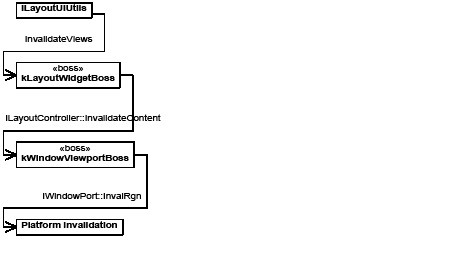
The ILayoutUtils::InvalidateViews method uses a document pointer to locate the views for a document. For each view, the method gets the ILayoutController interface on the kLayoutWidgetBoss and calls ILayoutController::InvalidateContent, which creates an invalidation region equal to the view's window. The invalidation region is passed to the IWindowPort::InvalRgn method on the IWindowPort interface of the kWindowViewPortBoss corresponding to the window. This method then passes the invalidation region to the operating system.
The invalidation region is then accumulated by the operating system, which generates a paint message. The operating system sends an update message (event) to the InDesign event dispatcher, where the message is wrapped in a platform-independent class and routed to the event handler on the appropriate window.
The window's event handler calls indirectly the IControlView::Draw method. At that point, the drawing sequence begins following the pattern for drawing a widget hierarchy; Draw uses the IPanelControlData interface to locate each of its children and call Draw on the child's IControlView interface. This means the kLayoutPanelBoss is called to draw, and it iterates each of its child widgets (scroll bars, the layout widget, rulers, etc.).
The drawing sequence concludes with validating the contents of the window. This completes the update cycle, from invalidation to redraw.
Layout drawing order
Layout presentations are updated in several steps that allow better performance and the opportunity to interrupt the drawing. Good performance is achieved by specializing the drawing operations according to the view's z-order, whether the invalidation is due to a selection change or because all objects changed.
At the level of the kLayoutWidgetBoss, several decisions are made behind the scenes for the sake of drawing performance. The IControlView implementation on the kLayoutWidgetBoss chooses what to draw based on the window's z-order, the selection, and the update region.
Foreground and background drawing
If the window is the front view, two views may be drawn: a background view containing all objects and a foreground view containing only the decorations for the selection. Offscreen graphics contexts are created and cached for both views (see Offscreen drawing). If the update region overlaps the window or the current front view was not the last view to have been drawn, the background view is redrawn. If the selection is not empty, the foreground view also is redrawn.
Based on the above rules, the kLayoutWidgetBoss IControlView filters the visible spreads and calls their IShape::ProcessDrawShape methods through the InDesign draw manager. This filtering means page items are not guaranteed to be called for a screen draw. The background draw then propagates through the layout hierarchy, as described in Spread-drawing sequence.
After the background draw is complete, if the selection is empty, the background image is copied to the window and the draw is complete. If the selection is not empty, the foreground draw starts by copying the background image to the foreground offscreen context. The selection is drawn to the foreground, then the foreground image is copied to the window.
The use of foreground and background draws means a page item could be called twice during a redraw: the first call to IShape::ProcessDrawShape in the order of the layout hierarchy for the background draw, and the second call to HandleShape::DrawHandleShape in the order of the selection list for the foreground draw.
If the window is not the front view, a more abbreviated drawing sequence takes place. Both the document items and the selection are drawn to a foreground offscreen context, and it is copied to the screen.
Z-order
Z-order is the order (depth) of page item objects in the direction perpendicular to the screen. Z-order determines which object or part of an object is visible to the user. InDesign handles three levels of z-order:
Draw manager
Conceptually, kLayoutWidgetBoss calls each spread to draw. In reality, kLayoutWidgetBoss calls through the InDesign draw manager. The draw manager is an interface that exists on each viewport and is used to set clipping areas and initiate the drawing of any page element and its children to that viewport. The draw manager can be used for drawing to the screen, PDF, and print. Drawing in InDesign occurs on a spread-by-spread basis and is hierarchical. Without a service like the draw manager, it would be hard to change the behavior of drawing in a subhierarchy. Optionally, you can create a kDrawMgrBoss and use the IterateDrawOrder method, which allows clients to iterate the document in the same manner as drawing, calling a client-provided callback routine for every page item in the hierarchy, but without a graphics context.
Funneling all drawing activity through the draw manager provides three important features for changing the behavior of drawing operations:
Clipping and filtering provide a means to select items for the draw based on regions. The draw manager maintains the current values for the clip and filter regions. Interruption of the drawing sequence relies on the broader mechanism of drawing events. As items draw, they broadcast standard messages that announce the beginning and end of discrete drawing operations. Drawing events are received by special handlers that register interest in particular types of messages, and each drawing-event handler has the opportunity to abort the draw at that point. Clients of the draw manager (like the layout widget) install a default drawing-event handler.
The draw manager provides services for hit testing, iterating the drawing order, and drawing. Detail about how spreads are drawn is described in Spread-drawing sequence.
When page items are called to draw, they are passed information about their drawing context, including a GraphicsData object and IShape drawing flags (for example, kPatientUser). For more information, refer to the API Reference for these types. Page items use this information to perform their drawing operations.
The IGraphicsPort interface is the InDesign interface for drawing and is aggregated on all viewport boss classes. The IGraphicsPort interface is used by all drawing interfaces on a page item, regardless of the output device.
The viewport settings can be modified using IGraphicsPort methods. The IGraphicsPort::gsave and IGraphicsPort::grestore methods effectively push the current port settings onto a stack and pop the old settings when desired. These methods are used to save the current port settings when setting the port's transform to a new space. For example, when a page item is called to draw, it should save the port settings, set the port to its inner coordinate space, draw, and restore the port before returning.
The IGraphicsPort implementations provide methods very similar to PostScript graphics operators. These methods support drawing primitives, port-transformation manipulation, and changing port-clip settings. For a complete list of the methods, refer to the API Reference for IGraphicsPort.h. Line-drawing methods like IGraphicsPort::lineto, IGraphicsPort::moveto, IGraphicsPort::curveto, IGraphicsPort::closepath, IGraphicsPort::fill, and IGraphicsPort::stroke are available. If a path is defined in the port, it can be discarded using the IGraphicsPort::newpath method. These methods are demonstrated in the "Graphics" chapter of Adobe InDesign SDK Solutions. Control over the color space, color values, gradient, and blending modes also is available through IGraphicsPort methods.
See the following table for a list of interfaces for drawing page items.
| Interface | Function |
|---|---|
| IGraphicStyleDescriptor | Renders graphic attributes. |
| IHandleShape | Renders selection handles. Called during foreground drawing. |
| IPageItemAdornmentList | Lists adornments for a page item. |
| IPathPageItem | Renders low-level draws for path, fill, and stroke. |
| IShape | Renders path, fill, and stroke. Called during background drawing. |
IShape, IPathPageItem, and IHandleShape are directly involved in drawing a page item. IShape is the main interface for drawing the page item and is called when the entire page item needs to be rendered. Path-based items like spline bosses also have the IPathPageItem interface to handle the details of drawing their paths. IHandleShape is called when a page item is in the selected state and is used for drawing the decorations that denote selection. PathHandleShape is responsible for drawing path-selection handles.
IGraphicStyleDescriptor maintains the graphic attributes for the page item. The drawing process sets graphics port settings based on various graphic attributes.
IPageItemAdornmentList maintains a list of adornments for the page item. Adornments are drawn with the page item. This interface provides a means to enhance or decorate a page item's appearance. For more detail, see Spread-drawing sequence.
IShape is responsible for providing the drawing, hit testing, drawing-order iteration, and invalidation functions for page items. This interface is responsible for rendering a page item and is used during background draws to create the path, fill, and stroke of an object. For details, refer to the API Reference.
There are partial implementation classes like CShape and CGraphicFrameShape in the public API. For details, refer to the API Reference.
For details on the drawing sequence for a page item, see Drawing sequence for a page item.
The IHandleShape interface
The IHandleShape interface is responsible for drawing and hit testing for a page item's selection handles. This interface is defined in the abstract base class in IHandleShape.h.
As with the IShape class, the IHandleShape drawing sequence includes extensibility points in the form of adornment calls. For more detail, see Extension patterns. For more detail on its responsibilities, refer to the API Reference on IHandleShape.
Most page items (such as kSplineItemBoss) that aggregate IHandleShape (with the ID IID_IHandleShape interface) also have another implementation of IHandleShape which is based on PathHandleShape (with the ID IID_IPATHHANDLESHAPE interface). The implementation based on PathHandleShape inherits from the same superclass as IHandleShape; therefore, it has exactly the same public interface. The purpose of this interface is to draw path-selection handles. Observe the difference in the user interface by switching between the Selection and Direct Selection tools.
The IPathPageItem interface
The IPathPageItem interface encapsulates the specialized drawing functions for path-based page items. This class provides methods for operations like stroke, fill, clip, and copying a path to the graphics port. The CGraphicFrameShape class delegates these specific draw operations to the IPathPageItem class.
In this class, graphic attributes are used to control the appearance. The IPathPageItem::Stroke method first calls IPathPageItem::Setup, which initializes a set of default stroke properties and then tries to get the stroke graphic attributes, like stroke weight and a ClassID for a path stroker. The path stroker is a service provider that delivers the kPathStrokerService. The IPathPageitem::Stroke method then uses the stroke graphic attributes and path stroker to actually create the stroke.
A user-interface widget is any descendant of kBaseWidgetBoss. Drawing in a user-interface widget window -such as a palette, dialog box, or panel-is like drawing to the layout presentation. Instead of calling the draw method of the layout-control view, palette drawing calls IControlView::Draw methods of various IControlView implementations.
The first stage in creating an owner-drawn panel is constructing an AGMGraphicsContext object from the IControlView::Draw parameters and obtaining an IGraphicsPort from the graphic context.
Next, set colors and draw the items. This can be done through the IInterfaceColors interface, aggregated on kSessionBoss. There are a few standard interface colors common to drawing items in user-interface windows. User-interface colors are defined in InterfaceColorDefines.h. Next, set the color of the graphics port and draw items.
Each widget actually is a window, so the PMRect value from IControlView::GetFrame represents the coordinates of the widget in its parent widget. An IControlView::MoveTo(0,0) call is convenient for transforming the coordinates.
You can draw lines, boxes, and so on as you normally draw in the layout presentation, using the methods of IGraphicsPort. For drawing PMString, InDesign provides utility methods on the StringUtils class (DrawStringUtils.h) that let you measure a PMString and draw strings directly. For more details, refer to the API Reference.
For an example of an owner-drawn panel, with a custom IControlView::Draw implementation, see the SDK sample PanelTreeView in <SDK>/source/sdksamples/paneltreeview, and inspect PnlTrvCustomView.cpp.
Purpose of offscreen drawing
An offscreen drawing is simply a bitmap. The technique of offscreen drawing has been used for years by various applications to reduce screen flicker and improve performance when drawing to the screen. Mac OS X actually creates a separate offscreen buffer for each window, such that when an application tries to draw to a window, it actually is drawing to the offscreen buffer. The operating system then periodically transfers its offscreen buffer to the actual screen. This process is done at the operating-system level and decreases the number of cases in which InDesign needs to draw offscreen on Mac OS X.
Drawing layout offscreen
Offscreen drawing is used just about any time the layout presentation needs to update. InDesign maintains an offscreen representation of the layout presentation with everything except the current selection highlighting. Hence, when the selection changes, InDesign can very quickly redraw the screen from the offscreen buffer, followed by drawing the new selection.
The biggest area where offscreen drawing is used is the layout-control view. Drawing background and foreground in layout-control view is discussed in Layout drawing order. What must be emphasized here is that drawing the layout does not really draw to the screen directly; instead, drawing the layout actually draws offscreen.
Corresponding to background and foreground drawing, there are background offscreen buffers and foreground offscreen buffers. The background offscreen representation in InDesign is the offscreen buffer maintained by each layout view, containing everything except current selection highlighting. Each layout view has its own offscreen buffer. The background offscreen buffer is invalidated by querying for the ILayoutController of the IControlView interface for the layout and calling ILayoutController::InvalidateContent.
InDesign can be told to update a layout without dirtying the background offscreen buffer, by querying for the ILayoutController of the IControlView interface for the layout and calling ILayoutController::InvalidateSelection.
Palettes and dialog boxes are responsible for their own offscreen representations. In general, most panels do not use offscreen drawing; however, a few user-interface windows, like the Navigator panel, maintain their own offscreen representations. As mentioned above, Mac OS X provides offscreen buffers for all windows, so offscreen drawing on Mac OS X is not necessary if the goal is simply to avoid flicker.
Offscreen data
Drawing offscreen is drawing to the kOffscreenViewPortBoss. Besides other interfaces that are involved in drawing, one of the most important interfaces on kOffscreenViewPortBoss is IOffscreenPortData. This is the interface that stores a reference to the offscreen bitmap and distinguishes kOffscreenViewPortBoss from other viewports.
An offscreen bitmap is wrapped in the platform-independent IPlatformOffscreen. You can get and set bitmaps with IOffscreenPortData; however, you are not allowed to create bitmaps directly. Instead, you may want to aggregate an IOffscreenViewPortCache interface on the control-view boss class, so you can query background and foreground viewport data.
For more information, refer to the API Reference for IPlatformOffscreen, IOffscreenPortData, and IOffscreenViewPortCache.
Snapshots
A snapshot is a record of a part of the document view at a specific instant. SnapshotUtilsEx draws items into a memory-based graphics context, creating a bitmap (snapshot) that can be exported to a stream in several formats, like JPEG, TIFF, or GIF.
SnapshotUtilsEx also creates its own offscreen bitmap and uses an IDrawMgr to walk the IHierarchy and draw specific page items to the offscreen buffer; however, the internal implementation is different. Like layout offscreen, the viewport SnapshotUtilsEx interacts with is kAGMImageViewportBoss, the bitmap it draws to is of type AGMImageRecord defined in GraphicsExternal.h, and it uses IAGMImageViewPort to manipulate the bitmap. SnapshotUtilsEx does not interact with the layout's offscreen representation in any way.
SnapshotUtilsEx is very useful for creating proxy images of documents, since it uses the same draw manager to draw page items in memory, a much faster way. Sample code in the Snapshot sample plug-in and in SnpCreateInddPreview.cpp demonstrates the use.
The sample code in the SDK still uses SnapshotUtils. We recommend using the more recent SnapshotUtilsEx.
High-level APIs provided to manipulate paths are summarized in the following table. For details about them, refer to the API Reference.
| API | Description |
|---|---|
| IPathPointScriptUtils | Utility methods related to path point scripting (called by script providers). |
| IPageItemTypeUtils | Utilities to get the type of a page item. |
| IPathUtils | Path manipulations. |
| ISplineUtils | Utilities for spline-item manipulations. |
| IPathInfoUtils | Analyzes whether a list of PathInfo object forms a point or straight line. |
| IPathPointUtils | Utility methods related to path point transformations. |
| IPathOperationSuite | Manipulates paths on selected page items, including compound paths. Includes path-finder operations. |
| IConvertShapeSuite | Converts selected page items to a new shape. |
APIs provided to manipulate graphics are summarized in the following table. For details about them, refer to the API Reference.
| API | Description |
|---|---|
| IFrameContentSuite | Selection suite interface for content fitting and frame-content conversion. |
| IFrameContentFacade | Facade for content fitting and frame-content conversion. |
| IFrameContentUtils | Utility interface for determining various aspects of frame contents. |
| IClippingPathSuite | Gets and sets clipping path for selected graphics items. |
| ITextWrapFacade | Facade for manipulating text wrap. |
| IDisplayPerformanceSuite | Changes display performance settings for selection. |
| IImageObjectSuite | Accesses image layers. |
| IImageFacade | Facade for getting image information. |
| IJPEGExportSuite | Exports selection to JPEG file format. |
| ISVGExportSuite | Exports selection to SVG file format. |
Interfaces provided to manipulate color, swatch, ink, and color management objects are summarized in the following table. For details about them, refer to the API Reference.
| API | Description |
|---|---|
| IGradientAttributeSuite | A selection suite interface. Provides gradient attribute–related operations that apply to the application defaults, document defaults, text, layout, and tables. |
| ISwatchUtils | Utility interface to manipulate swatches. For example, this interface can be used to acquire the active swatch list, retrieve or instantiate new, persistent, rendering boss objects, and modify the properties of the swatch list. |
| IUIColorUtils | Utility interface for dealing with user-interface colors. |
| IInkMgrUtils | Utility interface for managing inks. For example, this interface can be used to acquire the active ink list and retrieve information about name, type, ink alias, and corresponding swatches of a spot ink. |
| IInkMgrUIUtils | Utility interface, mainly for calling the ink-manager dialog box. |
| IColorSystemUtils | Utility interface for color-rendering objects. For example, this interface can be used to get color space and color components of a given color swatch. |
| ICMSAttributeSuite | A selection suite interface. Provides color-management functionality for the selected image page item, like getting or applying color profile or rendering intent. |
| ICMSUtils | Utility interface for the color-management system. For example, this interface can be used to obtain CMSSettings and ProfileList. Provides wrappers for color-management commands. |
| ICMSManager | A manager interface that provides a generic wrapper around a color-management system (CMS). Access to the CMS typically is done by coordinating between this interface and a data interface for the specific CMS implementation. |
| IColorPresetsManager | A manager interface that manages a set of color preset files. For example, load or save a color preset, and get or set working RGB/CMYK profile and CMS policy. |
Since color-related objects like colors, swatches, inks, and color profiles are stored in the document or application database, you will need commands to manipulate them. The utility interfaces described above provide a higher-level abstraction that wrap the required commands. For a list of commands, refer to the API Reference.
APIs provided to manipulate graphic attributes are summarized in the following table. For details about them, refer to the API Reference.
| API | Description |
|---|---|
| IGraphicAttributeUtils | Exposes methods that can be used to create lists of attribute overrides and create commands to apply attribute overrides. It also exposes methods to read the graphic attributes of document objects. |
| IGraphicStateUtils | Exposes methods to create or process commands to apply overrides, swap stroke and fill, and so on. It also exposes a key method to acquire a reference to the active graphic state, which is discussed in detail in the "Graphics" chapter of Adobe InDesign SDK Solutions. |
| IGraphicAttributeSuite | Selection suite that can be queried for through an abstract selection (kAbstractSelectionBoss). It is aggregated on the concrete selection boss classes connected with application defaults, document defaults, layout, tables, and text. |
| IGraphicAttrProxySuite | Selection suite that switches graphic attributes between layout objects and text. |
| IStrokeAttributeSuite | High-level attribute suite interface specifically to get and set various stroke attributes. It uses IGraphicAttributeSuite to get and set appropriate data. |
| IXPAttributeSuite | Accesses or changes transparency attributes on the selected page items or group items. This header file also defines all transparency-attribute-related enums such as attribute types. |
| IXPAttributeUtils | Transparency-attribute-related utility functions |
| IXPAttributeFacade | High-level transparency-attribute facade. Defines methods to get and set all transparency attributes. |
| IXPUtils | Transparency utility functions. Mainly for flattening. |
| IXPManager | Transparency helper functions. |
There are command boss classes used to manipulate graphic attributes, graphic style, and graphic state. The utility interfaces described in the table in Graphic-attribute client APIs provide a higher-level abstraction that wraps the common commands. For a complete list of provided commands, refer to the API Reference.
You can provide custom graphic attributes that extend InDesign function for end users. As explained in Representation of graphic attributes, graphic attributes are applied to page items by adding to a list of attribute boss objects associated with the page item.
To define a customized graphic attribute:
If you implemented a custom graphic attribute, you are likely to use a page-item adornment to decorate the page item based on your graphic-attribute value. For an example, see the TransparencyEffect and TransparencyEffectUI sample SDK plug-ins.
You can provide custom path strokers with your own stroke implementation through a kPathStrokerService. The service provider should provide an implementation of IPathStroker, with IStrokeParameters used for storing parameters for the stroke. See Path stroker. To implement a custom path stroker:
To change only the dash and gap of a stroke, you do not need a custom stroke implementation. Instead, just apply the appropriate kDashedAttributeValuesBoss attribute.
You can provide a custom corner path with your own corner path implementation through a kPathCornerService. The service provider should provide an implementation of IPathCorner. See Path corners. To implement a custom corner effect:
You can provide a custom path-end effect with your own path-end implementation through a kPathEndStrokerService. The service provider should provide an implementation of IPathEndStroker. See Path-end strokers. To implement a custom path-end effect:
Page-item adornments customize the appearance of a page item, giving a plug-in the chance to add drawing when the page item is rendered. For example, if you want to add a drop shadow or label for a specific page item, a page-item adornment is one way to add these extra drawings.
Examples of page-item adornments in InDesign are the transparency drop shadow and feather effects, the graphics-frame outline path, and the empty-graphics frame indicator (the X inside the frame).
You can participate in page-item drawing by creating a custom page-item adornment. For example, you could provide an adornment to show in magenta type the width and height of each selected page item, as shown in the following figure.
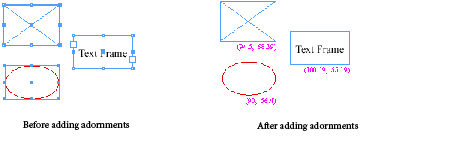
Architecture
Page-item adornments are represented by boss objects. There are two main types of page-item adornments:
The Draw methods on their implementations determine the appearance of the adornment. Page-item adornments are connected to page items through the IPageItemAdornmentList interface aggregated on the kPageItemBoss boss class. The following figure illustrates the basic data model for adornments. A page item aggregates the IPageItemAdornmentList interface, which stores a list of adornments the page item has.
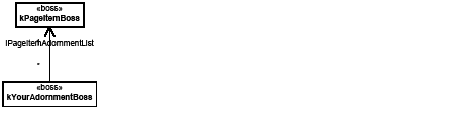
The IPageItemAdornmentList interface manages a list of the adornments for a page item. Each adornment in the list is drawn in an order determined by the value of its AdornmentDrawOrder. For page-item adornments, there are several opportunities within the drawing cycle to draw.
Each adornment can be drawn at one or more phases within the drawing cycle if you AND together the flags defined in the AdornmentDrawOrder enumeration (defined in IAdornmentShape.h and IAdornmentHandleShape). These values indicate when the adornment is to be drawn. Upon calling the command kAddPageitemAdornmentCmdBoss, the adornment is inserted into the list based on drawing order.
When adding an adornment to a page item, define the adornment as a new boss class that aggregates the IAdornmentShape or IAdornmentHandleShape interface. In a more complex case, you can use more than one adornment for a single page item.
When implementing IAdornmentShape, you can choose to provide hit testing and invalidation of the view, if needed. At a minimum, your implementation must draw the adornment.
When a page item is drawn, each attached adornment is called to draw through the IAdornmentShape interface. A page-item shape tells the drawing manager at which of the following times it should be drawn:
The drawing order controls when the adornment is called to draw. The following figure shows the drawing sequences for one rectangle spline item. When the adornments' drawing methods get called depends on the drawing order. For detailed information on page item drawing, see Drawing page items.
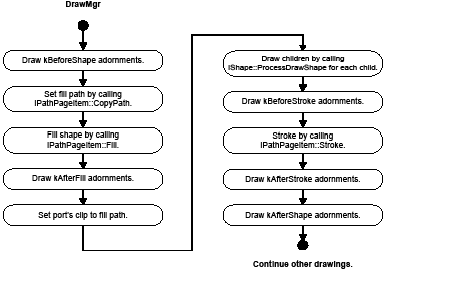
Implementing IAdornmentHandleShape lets you decorate the selection handles associated with a page item. This decoration can be drawn with IAdornmentHandleShape::kBeforeShape or IAdornmentHandleShape::kAfterShape; that is, before or after IHandleShape calls DrawHandlesImmediate.
Implementation hints
To implement a custom page-item adornment, you need to do at least the following:
For a sample showing how to implement a custom page-item adornment, see FrameLabel in the SDK; also see other samples that provide an implementation of IAdornmentShape, such as TransparencyEffect and CustomDataLink.
You can use a custom drawing-event handler to take control when a page item is being drawn at some point in the drawing cycle, to modify how the item draws or cancel it being drawn.
Architecture
Drawing events are messages that are broadcast at specific points in the drawing order. Each drawing event signals the beginning or end of a phase of drawing. Drawing events provide extensibility points in that drawing operations can be modified or cancelled in response to the event.
Drawing-event types are defined in DocumentContextID.h. Some of the generic drawing event types associated with shape drawing are shown in the following table.
| Drawing event | Use |
|---|---|
| kAbortCheckMessage | Opportunity to abort drawing of an entire item. |
| kBeginShapeMessage | Start of shape drawing. |
| kDrawShapeMessage | Shape drawing is about to begin. |
| kEndShapeMessage | End of shape drawing. |
| kFilterCheckMessage | Opportunity to filter drawing based on object type. |
In addition, there are other, more specific event types that signal the beginning and end of spread, layer, and page drawing. Drawing events are generated for each Draw method in the hierarchy: kBegin<XXX>Message, kEnd<XXX>Message, and kDraw<XXX>Message.
kBegin<XXX>Message is generated just before a call to the next level of the hierarchy (after any transformation is applied to the object). kEnd<XXX>Message is generated just after execution returns from a lower level of the hierarchy.
Registering and unregistering
There are two ways a plug-in can register or unregister for drawing events: as a service provider or using direct registration through the IDrwEvtDispatcher interface.
In the PrintSelection SDK sample, the kPrnSelDrawServicesBoss boss class does not provide an implementation for IK2ServiceProvider. This is because this particular sample uses the direct registration method; see the AfterPrintUI method in PrnSelPrintSetupProvider.cpp.
Unregistering is similar to registering, except the call to UnRegisterHandler is on the IDrwEvtDispatcher interface.
Drawing event-handling priorities
Drawing event handlers register their prioritized interest in particular types of drawing events. Priorities are defined in IDrwEvtDispatcher.h. When a handler registers for an event, it must pass a priority to RegisterHandler. The priorities include the following:
As each event is processed, handlers are called in order, from the kDEHInitialization priority down to kDEHPostProcess. If two handlers have the same priority for the same event, the handler registered first is called first. The return code for handlers registered using the kDEHInitialization priority is ignored. For additional information about return codes for the other priorities, see Handling drawing events.
Handling drawing events
The drawing-event handler's HandleEvent method takes two parameters: a ClassID that is the eventID (see DocumentContextID.h) and a void pointer to a class containing the event data. For drawing events, this pointer must be cast to the DrawEventData class (see IDrwEvtHandler.h) to access the data.
In the HandleEvent method of the drawing-event handler, if the method returns kTrue, it is assumed the event was properly handled and no other event handlers are called for the event; therefore, the drawing at that step ceases. If the method returns kFalse, the drawing event is considered not handled, and the drawing step proceeds. A drawing-event handler that modifies or decorates the drawing of an object but does not replace it returns kFalse. Also, kEnd<XXX>Message does not look at the return code from the event handler, because the draw operation already completed.
Implementation
A custom drawing-event handler is an extension pattern to let third-party code participate in drawing or printing or interrupt the drawing or printing of a page item. The following steps summarize how to implement a custom drawing-event handler. The signature interface of the pattern is IDrwEvtHandler.
For sample code, see BasicDrwEvtHandler and other samples that implement IDrwEvtHandler in the SDK.
When the application starts, it initializes a swatch list by creating several default swatches (rendering objects). There are reserved swatches: None, Paper, Black, and Registration. The following table lists the initial state of swatch list. Notice there are several invisible, unnamed swatches that are created but do not show up in the Swatches panel.
| Index | UID | Rendering object | Swatch name | Color or gradient information |
|---|---|---|---|---|
| 0 | 11 | kPMColorBoss | Black (reserved) | kPMCsCalCMYK(0,0,0,1) |
| 1 | 18 | kPMColorBoss | C=0 M=0 Y=100 K=0 | kPMCsCalCMYK(0,0,1,0) |
| 2 | 19 | kPMColorBoss | C=0 M=100 Y=0 K=0 | kPMCsCalCMYK(0,1,0,0) |
| 3 | 20 | kPMColorBoss | C=100 M=0 Y=0 K=0 | kPMCsCalCMYK(1,0,0,0) |
| 4 | 21 | kPMColorBoss | C=100 M=90 Y=10 K=0 | kPMCsCalCMYK(1,0.9,0.1,0) |
| 5 | 22 | kPMColorBoss | C=15 M=100 Y=100 K=0 | kPMCsCalCMYK(0.15,1,1,0) |
| 6 | 23 | kPMColorBoss | C=75 M=5 Y=100 K=0 | kPMCsCalCMYK(0.75,0.05,1,0) |
| 7 | 12 | kPMColorBoss | Cyan | kPMCsCalCMYK(1,0,0,0) |
| 8 | 13 | kPMColorBoss | Magenta | kPMCsCalCMYK(0,1,0,0) |
| 9 | 14 | kGraphicStateNoneRenderingObjectBoss | None (reserved) | N/A |
| 10 | 15 | kPMColorBoss | Paper (reserved) | kPMCsCalCMYK(0,0,0,0) |
| 11 | 16 | kPMColorBoss | Registration (reserved) | kPMCsCalCMYK(1,1,1,1) |
| 12 | 17 | kPMColorBoss | Yellow | kPMCsCalCMYK(0,0,1,0) |
| 13 | 97 | kPMColorBoss | (invisible) | kPMCsCalCMYK(0,0,0,1) |
| 14 | 99 | kPMColorBoss | (invisible) | kPMCsCalCMYK(0,0,0,0) |
| 15 | 98 | kGradientRenderingObjectBoss | (invisible) | Stop 0 UID=99, Stop 1 UID=11 |
| 16 | 100 | kAGMBlackBoxRenderingObjectBoss | (invisible) | N/A |
The following table illustrates initial ink list. (UIDs are not necessarily the same for different workspaces.)
| Index | UID | Name | Type |
|---|---|---|---|
| 0 | 7 | Process Cyan | Process |
| 1 | 8 | Process Magenta | Process |
| 2 | 9 | Process Yellow | Process |
| 3 | 10 | Process Black | Process |
Adding a custom color swatch, PANTONE 368 C, causes an additional swatch-list entry to be created. For information on how to add a color swatch, see the "Graphics" chapter of Adobe InDesign SDK Solutions. Note the following:
The following table illustrates the new state of the swatch list, and the second table illustrates the new state of the ink list.
| Index | UID | Rendering object | Swatch name | Color or gradient information |
|---|---|---|---|---|
| 0 | 11 | kPMColorBoss | Black (reserved) | kPMCsCalCMYK(0,0,0,1) |
| 1 | 18 | kPMColorBoss | C=0 M=0 Y=100 K=0 | kPMCsCalCMYK(0,0,1,0) |
| 2 | 19 | kPMColorBoss | C=0 M=100 Y=0 K=0 | kPMCsCalCMYK(0,1,0,0) |
| 3 | 20 | kPMColorBoss | C=100 M=0 Y=0 K=0 | kPMCsCalCMYK(1,0,0,0) |
| 4 | 21 | kPMColorBoss | C=100 M=90 Y=10 K=0 | kPMCsCalCMYK(1,0.9,0.1,0) |
| 5 | 22 | kPMColorBoss | C=15 M=100 Y=100 K=0 | kPMCsCalCMYK(0.15,1,1,0) |
| 6 | 23 | kPMColorBoss | C=75 M=5 Y=100 K=0 | kPMCsCalCMYK(0.75,0.05,1,0) |
| 7 | 12 | kPMColorBoss | Cyan | kPMCsCalCMYK(1,0,0,0) |
| 8 | 13 | kPMColorBoss | Magenta | kPMCsCalCMYK(0,1,0,0) |
| 9 | 14 | kGraphicStateNoneRenderingObjectBoss | None (reserved) | N/A |
| 10 | 167 | kPMColorBoss | PANTONE 368 C | kPMCsCalCMYK(0.57,0,1,0), Spot |
| 11 | 15 | kPMColorBoss | Paper (reserved) | kPMCsCalCMYK(0,0,0,0) |
| 12 | 16 | kPMColorBoss | Registration (reserved) | kPMCsCalCMYK(1,1,1,1) |
| 13 | 17 | kPMColorBoss | Yellow | kPMCsCalCMYK(0,0,1,0) |
| 14 | 97 | kPMColorBoss | (invisible) | kPMCsCalCMYK(0,0,0,1) |
| 15 | 99 | kPMColorBoss | (invisible) | kPMCsCalCMYK(0,0,0,0) |
| 16 | 98 | kGradientRenderingObjectBoss | (invisible) | Stop 0 UID=99, Stop 1UID=11 |
| 17 | 100 | kAGMBlackBoxRenderingObjectBoss | (invisible) | N/A |
Ink list after a stop color is added to swatch:
| Index | UID | Name | Type |
|---|---|---|---|
| 0 | 7 | Process Cyan | Process |
| 1 | 8 | Process Magenta | Process |
| 2 | 9 | Process Yellow | Process |
| 3 | 10 | Process Black | Process |
| 4 | 166 | PANTONE 368 C | Spot |
The user also may add a custom gradient. Adding a gradient may add additional colors for a gradient stop. Similar to what occurs when adding a custom color swatch, new entries are created for these added colors and gradients. For information on adding a gradient swatch, see the "Graphics" chapter of Adobe InDesign SDK Solutions. The following table lists only the new entries for the swatch list, and the second table illustrates the updated ink list.
This table shows new entries in the swatch list after adding a custom gradient:
| Index | UID | Rendering object | Swatch name | Color or gradient information |
|---|---|---|---|---|
| 13 | 169 | kPMColorBoss | Stop 1 | kPMCsCalCMYK(0.2,1,0.5,0) |
| 14 | 171 | kPMColorBoss | Stop 2 | kPMCsCalRGB(0,1,0.5) |
| 15 | 173 | kPMColorBoss | Stop 3 | kPMCsCalCMYK(0,0.3,0.9,0) |
| 16 | 174 | kGradientRenderingObjectBoss | Tie-dye | Stop 0 UID=169, Stop 1UID=171, Stop 2 UID =173 |
The new gradient, Tie-dye, has three stops, so these three color swatches (Stop 1, Stop 2, and Stop 3) also are inserted into the swatch list.
For the existing swatches we did not list here, the swatch data did not change, but their indices were changed to make room for new swatches. The new swatches are inserted continuously, because these new swatch names happened to be in continuous position with existing names.
This table show the ink list after a gradient with three-stop colors is added to a swatch:
| Index | UID | Name | Type |
|---|---|---|---|
| 0 | 7 | Process Cyan | Process |
| 1 | 8 | Process Magenta | Process |
| 2 | 9 | Process Yellow | Process |
| 3 | 10 | Process Black | Process |
| 4 | 166 | PANTONE 368 C | Spot |
| 5 | 168 | Stop 1 | Spot |
| 6 | 170 | Stop 2 | Spot |
| 7 | 172 | Stop 3 | Spot |
Since the gradient stop colors are spot colors, they also are added to the ink list.
When an instance of a color is chosen with the Color Picker panel and applied to a page item, a new, unnamed swatch entry is added to the end of the swatch list. See the following table.
| Index | UID | Rendering object | Swatch name | Color or gradient information |
|---|---|---|---|---|
| 22 | 177 | kPMColorBoss | (invisible) | kPMCsCalCMYK(0.4715,0,0.75,0) |
Unnamed swatches are not sorted, so a new unnamed swatch is appended at the end. After the previous step (adding a gradient), there were 22 swatches total in the list, so this step adds the swatch at index 22.
Unnamed swatches do not appear in the Swatches panel, but they can be used for the strokes and fills of document objects by client code. When a color is chosen through the Color panel, the active graphic state changes, and a new swatch may be created. A new swatch is created in the swatch list only if the new color is applied to a document object; that is, if there is an active selection when the color is created or the color is applied to an object like a spline page item.
Because the added unnamed color is a process color, the inks this color uses to print (that is, Process Cyan, Process Magenta, Process Yellow, and Process Black) already are in the ink list, so the ink list does not change. Applying a new gradient to a page-item object through the Gradient panel results in a similar state.
There are three common color spaces: RGB, CMYK, and L*a*b*.
RGB color spaces
RGB is a device-dependent color model. It is the native color model of monitors, scanners and digital cameras.
The kPMCsCalRGB space denotes calibrated RGB. Although the space is device-dependent, coordinates within this space are not arbitrary. There are several, slightly different color spaces that use the RGB color model:
CMYK
Like RGB, CMYK is a device-dependent color model. It is the native color model of most printers. Many color spaces use the CMYK color model. For example, the InDesign color-management user interface lets the end user specify any of the following:
The choice of color space is governed by expectations about the properties of the press on which the job will be printed.
LAB
L*a*b* (1976 CIE L*a*b* Space) is device-independent and is the basic color model in PostScript. L*a*b* is used for color management as the device-independent model of the ICC device profiles.
L*a*b* was standardized in 1976 to provide a space that is perceptually uniform. L*a*b* has its basis in the CIE standard observer, derived by analysis of the physiology of the retina and the early visual pathways.
The terms L*, a*, and b* refer to coordinate axes within the space. L is a function of luminance, the physical correlate of brightness. The other coordinates are less easily understood in physical terms and better regarded as mathematical abstractions.
There are many graphic attributes in the application. Sometimes several attributes collaborate to implement a feature, like transparency; sometimes the values of some attributes are important, like color and stroke-line implementations.
The following figure is a master list of graphic attributes. The attribute boss class, name, and interface that store the attribute value are listed. Other information is provided in the boolean matrix on the right of the table.
The list can be obtained from the API Reference in two ways:
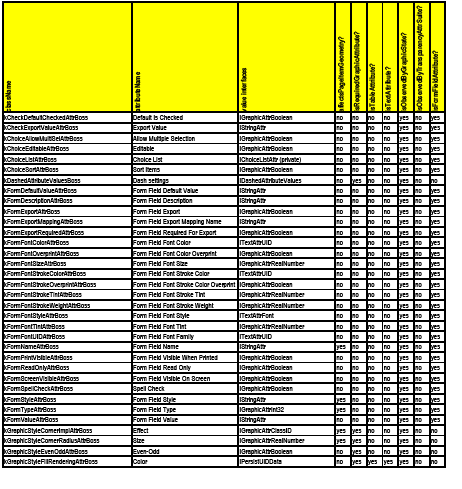
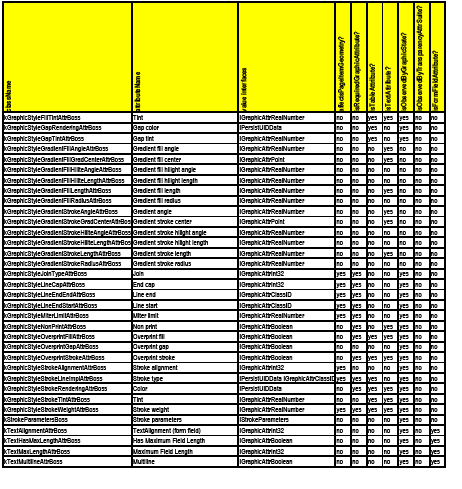
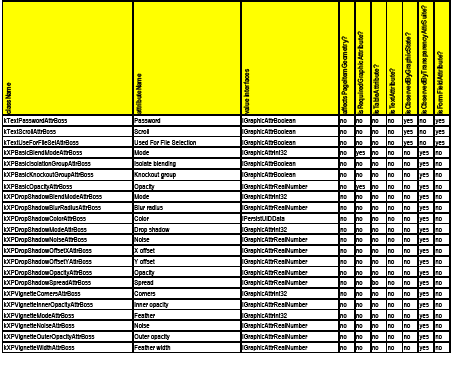
Some boss classes inherit from kGraphicsAttrBoss and implement IGraphicAttributeInfo. They are the base classes for graphic attributes, but they do not represent standalone attributes. These bosses are excluded from the master attributes list and are listed in the following table for reference.
| Boss ID | Description |
|---|---|
| kVignetteAttrBoss | Parent attribute boss for all basic feather attributes. |
| kDropShadowAttrBoss | Parent attribute boss for all drop-shadow attributes. |
| kXPAttrBoss | Parent attribute boss for all basic-transparency attributes. |
| kXPInnerShadowAttrBoss | Parent attribute boss for all inner-shadow attributes. |
| kXPOuterGlowAttrBoss | Parent attribute boss for all outer-glow attributes. |
| kXPInnerGlowAttrBoss | Parent attribute boss for all inner-glow attributes. |
| kXPBevelEmbossAttrBoss | Parent attribute boss for all bevel and emboss attributes. |
| kXPSatinAttrBoss | Parent attribute boss for all satin attributes. |
| kXPDirectionalFeatherAttrBoss | Parent attribute boss for all directional-feather attributes. |
| kXPGradientFeatherAttrBoss | Parent attribute boss for all gradient-feather attributes. |
| kDefaultGraphicsAttrBoss | Parent of kGraphicStyleNonPrintAttrBoss. |
| kStrokeEffectGraphicsAttrBoss | Parent of all stroke-effect attributes (line cap, join type, etc.). |
| kCornerEffectGraphicsAttrBoss | Parent of all corner-effect attributes (corner implementation, size). |
| kFillGraphicsAttrBoss | Parent of all fill attributes (gradient fill, gradient fill angle, fill color, overprint, etc.). |
| kStrokeGraphicsAttrBoss | Parent of all stroke attributes (gradient stroke, gradient-stroke angle, stroke color, stroke weight, etc.). |
| kGradientStrokeGraphicsAttrBoss | Gradient stroke itself is parent of all gradient-stroke attributes (length, gradient center, radius, etc.). |
| kGradientFillGraphicsAttrBoss | Gradient fill stroke itself is parent of all gradient fill attributes (length, gradient center, radius, etc.) |
The following table lists graphic-attribute-to-text-attribute mappings:
The following table lists graphic-attribute-to-table-attribute mapping:
Once the kLayoutWidgetBoss IControlView implementation obtains a list of the visible spreads, it has to ask each spread to draw through the InDesign draw manager. This section describes the overall sequence for drawing the layout hierarchy.
The collaboration for drawing the layout hierarchy is shown in the following figure. The IControlView implementation on the kLayoutWidgetBoss calls the draw manager once for each visible spread in the window's view. The draw manager is responsible for creating a GraphicsData object that describes the graphics context for the spread's drawing. Specifically, it sets the transformation matrix in the graphics port to support drawing in the spread's parent coordinate system, which is the pasteboard. The draw manager then calls the spread's IShape::ProcessDrawShape method to initiate the sequence of drawing that spread.
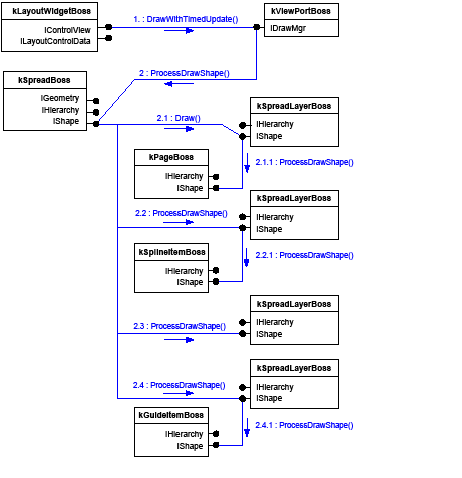
When an item's IShape::ProcessDrawShape method is called, it must draw itself, then its children. This action is analogous to the mechanism used for the IControlView interface on widgets. The IShape implementation provides methods for drawing an object and iterating over the object's children, asking each of them to draw. Before drawing, the IShape implementation sets the transformation matrix in the graphics port to the item's inner coordinates. This establishes the following conventions:
Iterating over the object's children is accomplished by using the IHierarchy interface on each page item. This interface provides methods for iterating over the layout hierarchy. For more information about the IHierarchy interface, see Chapter 7, "Layout Fundamentals."
After being called by the draw manager, spread drawing always follows the layout hierarchy. Users can control whether the guides appear in front of the content or behind it, and this affects the hierarchy. Assuming guides are behind the content, page layers are drawn first, followed by the content layers, then the guide layers. If the guide layers appear in front of the content, the guides draw before the content. All content on a given layer is drawn before proceeding to the next layer. Embedded children of a page item are called to draw before that item completes its drawing. For example, when the kSplineItemBoss is called to draw in step 2.2.1 of the preceding figure, if it had children, they would be called to draw as step 2.2.1.1 and 2.2.1.2. before returning to the kSpreadLayerBoss.
The port's transform can be modified by translations, scale factors, and rotations, and a new transform can be concatenated to the existing port. Concatenation is most often used when page items draw; it is how a page item sets the port to draw to its inner coordinates. The following example shows sample code demonstrating this operation. For more information on the application coordinate systems, see Chapter 7, "Layout Fundamentals."
The drawing sequence for a page item that implements IShape involves more than just the drawing instructions. Extensibility points are built into the sequence, in the form of drawing events and adornments. Extensibility points are described in Extension patterns.
Although each IShape implementation may have its own specific drawing sequence, all implementations follow these steps as guidelines:
There are types of page-item adornments other than kBeforeShape and kAfterShape. These may be called to draw at other points in the sequence. The use of graphics-port save and restore operations allows the adornments and child drawing routines to modify the port as needed and return it to a known state for the next drawing step.
For details of the code responsible for drawing, see the CShape.cpp and CGraphicFrameShape.cpp source code in the SDK, under <SDK>/source/public/libs/publiclib/pageitems/basicinterfaces. For examples of how to create your own shapes, also see the BasicShape and CandleChart sample plug-ins.
This chapter provides background on the fundamental concepts and subsystems that implement text features. It has the following objectives:
The following table lists resources for more information on relevant topics.
| For ... | Go to ... |
|---|---|
| More information on digital typography topics | http://www.adobe.com/products/type/adobe-type-references-tips.html |
| A glossary of typographic terms | http://www.adobe.com/products/type/adobe-type-references-tips/glossary.html |
| An overview of Adobe type technology | http://www.adobe.com/devnet/opentype.html |
| PostScript | http://www.adobe.com/products/postscript.html |
This section introduces the subsystems that implement the text architecture. The core text architecture can be divided into the following core subsystems: text content, text presentation, and text composition. Subsystems that extend the core include import and export, text styles, editors, and text search/replace.
The text-content subsystem manages the content of a story. It stores the characters and attributes that control the styled appearance of text.
The text-presentation subsystem deals with where the text glyphs appear on the page. Text is composed into frames that display a story. A frame is a visual container for text. Visually, a story is displayed through a linked set of one or more frames. The frames have properties-such as the number of columns, column width, and text inset-that control where text flows. Text-wrap settings on overlapping frames may affect this flow. After text is composed, it has a visual appearance and exhibits many of the same geometry traits as other page items.
The text-composition subsystem manages the process that flows text into a set of specified containers. Fonts provide the text-composition subsystem with the glyph dimensions it needs to arrange glyphs into lines of a given width.
This section describes how the raw character and formatting information for a story is maintained within the application. Text content represents the information required to render a set of characters. This information includes the Unicode character values, along with any formatting information that defines the appearance of text, contents of footnotes and tables, inline graphics, and styles that can be applied to text.
Text content within a document is represented by a story (signature interface ITextModel). A single, related set of text is maintained within a single story. The document can contain multiple stories. All stories within the document can be accessed through the IStoryList interface on the kDocBoss class. The following figure shows this relationship.
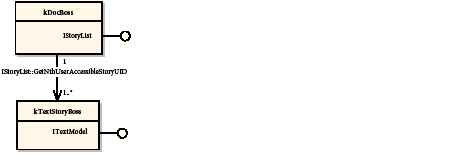
A document can contain private, feature-dependent stories, which are defined not to be user-accessible. Other features (like find/replace and spelling) ignore these stories. Programmatically, they can be accessed through the IStoryList interface, as with any other story.
Generally, stories are not directly created or deleted. The life-cycle of a story is controlled as a side effect of another operation. For example, creating a text frame using the Type tool causes a text story to be created, whereas linking two text frames together causes a story to be deleted. It is possible to control the lifetime of a story directly, though the story is still subject to the side effects of manipulating an associated text frame.
A story has a length, which can be accessed using ITextModel::TotalLength. A story has a minimum length of one character: a terminating kTextChar_CR, which is inserted into the story when the story is created. This character should not be deleted.
The textual content of a story is maintained independently from the visual containers in which it is contained; that is, its layout on the page. The text content from a story can be contained within one frame, flow between columns within a frame, or even flow between multiple frames. For example, the following figure shows three stories, each flowing through different sets of containers. The model used in maintaining the text content for each is the same. Determining where a particular glyph is rendered is the responsibility of the composer.
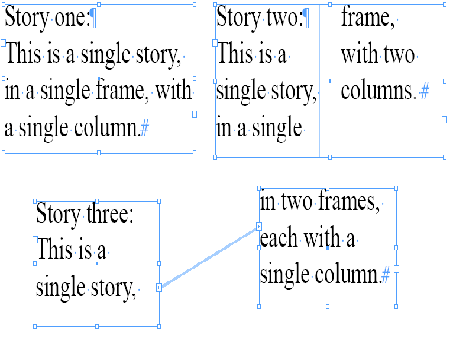
Information related to the text in a story is maintained by a set of strands. Strands represent parallel sets of information, each of which holds a component of the story. The strands intertwine to give a complete description of the story. Strands are identified using the IStrand signature interface. Some common strands are shown in the following figure, where the text story aggregates the strands representing the content:
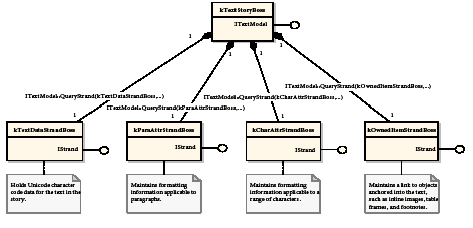
Strands
Strands (signature interface IStrand) model the linear behavior of text. Each strand represents a different aspect of textual information. A story can be thought of as the composition of the set of strands that contain information for a particular aspect of the story. The preceding figure shows a story with associated text, paragraph-attribute, and character-attribute strands. It also shows the owned item strand used to maintain objects within the text, like inline graphics.
Each strand has the same virtual length, equal to the value returned by ITextModel::TotalLength. Each position within a strand refers to the same logical position within the other strands and the story as a whole. For example, position 10 on the kTextDataStrandBoss relates to a particular character -the character at position 10 within the kCharAttrStrandBoss refers to formatting information applicable to this character. Any modification of the text length is reflected in each strand.
The following figure shows some text and how it might be represented on two strands. While the actual storage mechanism for the strands is of little interest, both strands have the same virtual length. A story (kTextStoryBoss) comprises a set of strands, each with the same length. The figure shows only the data (kTextDataStrandBoss) and paragraph-attribute (kParaAttrStrandBoss) strands.
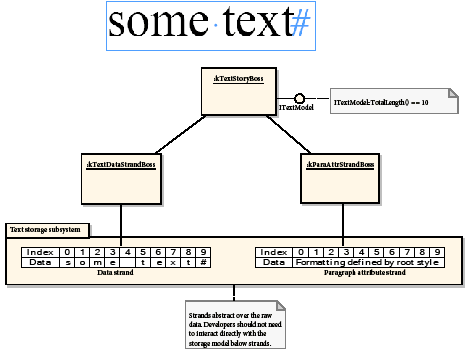
Formatting is defined in Text formatting.
Runs
Strands are further divided into runs. A run represents something about the content of a particular strand. For the kTextDataStrandBoss, a run is a manageable-sized chunk of text data. For the kParaAttrStrandBoss, a run exists for each paragraph in the story. For the kCharAttrStrandBoss, a run represents a sequence of characters that share the same formatting information. The semantics of a run is defined by its strand.
Owned items
Owned items (signature interface IOwnedItem) exist to allow some object to be associated with a particular TextIndex position in the text strand. Generally, features anchor the owned item into the text by placing a special character into the kTextDataStrandBoss; however, there is no requirement for associating an owned item with a special character in the data strand. The following figure shows an instance diagram associated with a story that contains an inline image. The story has the character "a" followed by an inline image, then the character "b." The owned item strand (kOwnedItemStrandBoss) maintains the UID of the inline object (kInlineBoss). The actual image (kImageItem-note the nonstandard name) is associated through the hierarchy (IHierarchy).
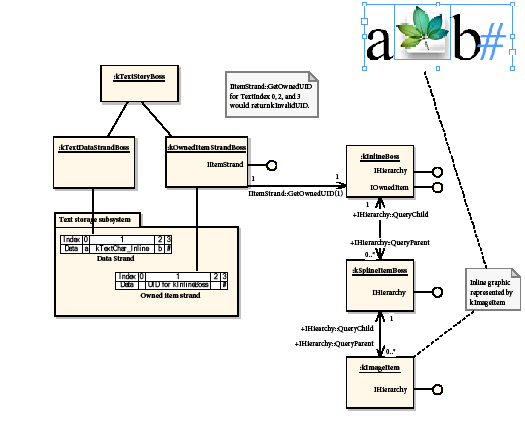
Anchored-item positioning
The positioning of an inline object relative to its anchor position in the text is controlled through the IAnchoredObjectData interface. The default behavior is defined by the IAnchoredObjectData on the session and document-workspace boss classes. Object styles also can define how an inline object is positioned (IAnchoredObjectData on kObjectStyleBoss). Specific inline objects can be modified (IAnchoredObjectData on kInlineBoss).
The placement of inline objects can be specified as any of the following:
As the content that contains the anchor is manipulated (by either adding text that causes the anchor to flow out of the initial frame or manipulating the frames in which the text is contained), the position of the inline object is updated automatically.
Story threads
Strands model the linear nature of text; however, not all text within a story is linear. For example, an embedded table can have cells with textual content that flows independently from the main text in the story. Story threads (signature interface ITextStoryThread) represent these distinct flows of text.
Each story has at least one story thread, the primary story thread, which represents the main text of the story. Other text elements (like footnotes) contained within a story are anchored off the primary story thread using owned items, as described in Owned items.
The interface that models story threads (ITextStoryThread) is maintained on the boss class related to the text it represents. For the primary story thread, the interface is found on the kTextStoryBoss. For footnotes, the interface is on kFootnoteReferenceBoss. The story thread maintains text indices that identify the range of text within the story that relates to the particular strands.
The following figure shows a story with only text within the primary story thread (that is, the story uses no features requiring other story threads). The story instance (kTextStoryBoss) has four associated strands. There is one story thread (ITextStoryThread) in this story.
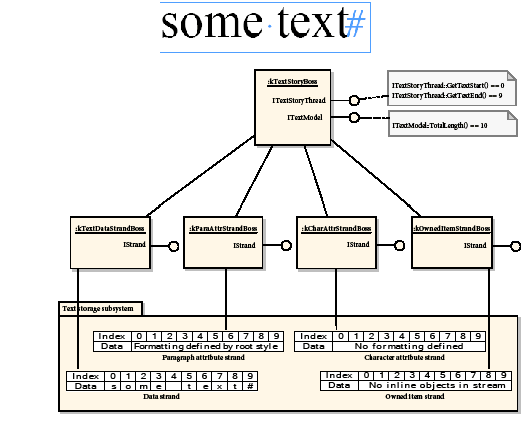
The primary story thread always begins at TextIndex 0. Other features, like footnotes and tables, use story threads to maintain the feature text as a distinct entity. The following figure shows an instance diagram of a story with a footnote. In the figure, a text-story thread (ITextStoryThread) maintains a relationship with some part of the text in a story. In this example, the primary story thread (on kTextStoryBoss) ranges between TextIndex 0 and 3, and the footnote (kFootnoteReferenceBoss) ranges between TextIndex 4 and 8.
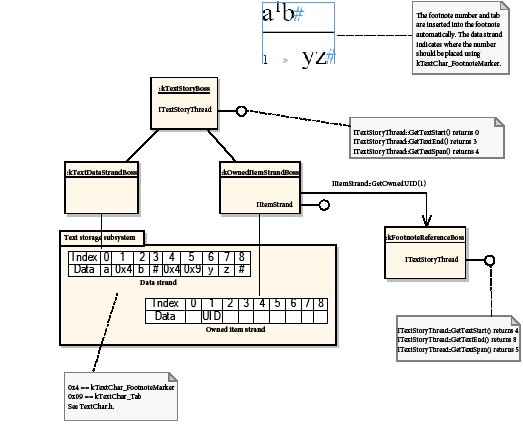
Story-thread dictionaries and hierarchies
Each distinct instance of a text feature within a story has a distinct text-story thread (ITextStoryThread), including the main story text (the primary story thread). Text-story threads are associated with a particular TextIndex, known as the anchor, obtainable with ITextStoryThreadDict::GetAnchorTextRange. This does not apply to the primary story thread, which is the only thread that always returns an anchor position of zero. An anchor for a footnote appears to the users in the user interface as the footnote-reference character. The anchor for a table appears as the table itself.
A text-story thread can contain anchors for other text story threads, subject to some restrictions; for example, footnotes can contain tables but not other footnotes. A feature does not need to associate the story thread with a particular TextIndex, in which case it is associated with the end of story marker for the primary text-story thread (these are unanchored threads).
A thread block is a contiguous text range (TextRange) that contains the contents for one text-story thread. If a text-story thread contains a set of anchors, the thread blocks associated with these anchors directly follow the thread block for this story thread. This is depicted in the following figure, which shows a story with two footnotes, one containing a two-cell table. Note how the thread blocks for the table directly follows the thread block for the footnote into which it is anchored. In the figure, ITextStoryThreadDict manages the story threads for a particular use of a feature. There is one story thread for the primary story, one for each footnote, and two for the embedded table.
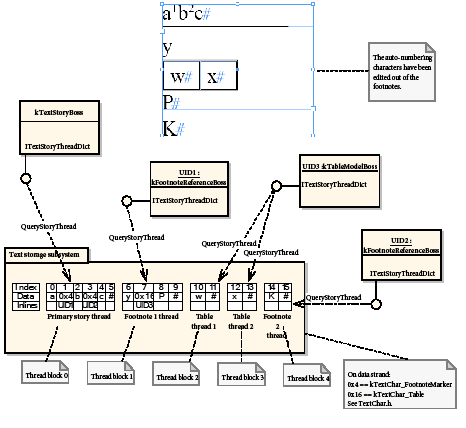
The text-story thread dictionary (ITextStoryThreadDict) maintains the set of story threads associated with a particular use of a feature. In the figure, each feature has one associated story thread, apart from the table. Each cell in the table has a distinct story thread. ITextStoryThreadDict is responsible for managing the set of threads in the table.
Text story threads have a hierarchical relationship (the root being the primary story thread). Individual features are responsible for managing a set of one or more story threads using the story-thread dictionary (ITextStoryThreadDict). In the figure, kFootnoteReferenceBoss (UID1) manages one text-story thread, while kTableModelBoss (UID3) manages two story threads, one for each cell. The story maintains a dictionary hierarchy (ITextStoryThreadDictHier), which provides the ability to iterate across all objects that contain a dictionary associated with the story.
This section describes how the style information that controls the look of text is maintained within the application.
Text attributes
The fundamental component for formatting text is the text attribute (signature interface IAttrReport). This is a lightweight, nonpersistent set of boss objects, each of which describes one text property; for example, the color or point size of text. Attributes are interpreted by the text-composition subsystem, to define how the text appears when composed.
Attributes target either arbitrary ranges of characters (like the color or point size of a set of characters) or a paragraph (like applying a drop cap or setting paragraph alignment).
Attributes are managed in an AttributeBossList list, a persistent container class. Consider an AttributeBossList list to be a hash table of attributes, the key being the ClassID. One implication of this is there can be only one instance of any particular attribute within an AttributeBossList list (for example, no conflicting text-color attribute within an AttributeBossList).
Attributes can be applied directly (within an AttributeBossList list) to the appropriate paragraph or character-attribute strand, or they can be applied to a text style. An example of applying the attribute directly to the strand would be italicizing text directly using the text editor. Such changes are local to the text being formatted and known as local overrides to the current style.
An attribute boss class that supports the IAttrImportExport interface can participate in the import and export of InDesign tagged text files.
Default attributes
The application provides a set of default attributes. These attributes are maintained within an AttributeBossList on both the session and document workspace. Default attributes define a set of overrides that are applied to any new stories created. These AttributeBossList lists reflect the state of the Character and Paragraph panels when no documents are open (session workspace) or new stories are created (document workspace). When a new document is created, the document workspace inherits the value of the default attributes from the session. The default attributes can be updated directly through the Paragraph and Character panels or by selecting styles in the styles panels; the defaults are updated to match the style.
Text styles
A text style (signature interface IStyleInfo) provides a mechanism to name and persist a particular set of text attributes with particular values. The application supports two kinds of styles for text, paragraph styles and character styles. Each style has an AttributeBossList list that maintains the set of attributes that apply to that style. Access to the attributes in a style is achieved through the ITextAttributes wrapper interface. Character styles are associated with character attributes; however, paragraph styles can be associated with both paragraph and character attributes. Paragraph styles are applied to whole paragraphs; character styles can be applied to arbitrary ranges of text.
All text must be associated with both a paragraph style and character style. To support this, the application defines two default styles: the root character style and the root paragraph style (known in the application user interface as [No Paragraph Style]). The root paragraph style contains a complete set of paragraph-based and character-based attributes. This defines the default look of text with no further formatting applied. The root character style is empty; it exists purely to provide a root for character styles.
Styles form a hierarchy rooted at the root style. Each style (except the root style) is based on another style, which becomes its parent. The AttributeBossList list for a particular style records only the differences from the style on which it is based; that is, the set of attributes that the particular style overrides. This is shown in the following figure. In the figure, the kStyleBoss for the root paragraph style defines all attributes with a default value. The kStyleBoss for the new style (Yellow Text) contains only the attributes that differ from the root style. The root character style contains no attributes; it exists to provide a root to the character-style hierarchy.
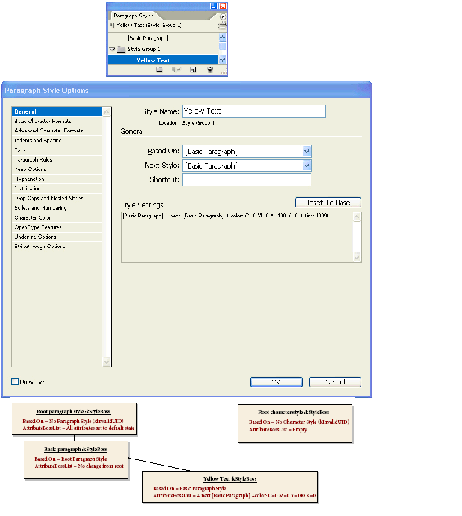
The application provides two basic styles, one for character attributes and one for paragraph attributes. These are the default styles applied to new stories (assuming no other style is selected in a styles panel). The basic styles cannot be deleted, but you can modify them with plug-ins. Initially, the basic styles are based on the root styles; however, a style's parent can be replaced with a different style.
Users can create, edit, and delete folders, called Groups, in the Character, Paragraph, and Object Styles palettes. A style group is a collection of styles or groups. The user also can nest groups inside groups and drag styles within the palette to edit the contents of a group. Styles do not need to be inside a group and can exist at the root level of the palette. The group concept also is available in the object style palette.
Character and paragraph styles are not required to have unique names across groups; however, sibling styles and groups-those at the same level in the hierarchy with the same parent-must have unique names. Style names are case-sensitive, so the user could have both "heading" and "Heading" in the same folder. A group and a style cannot have the same name. Because style names are not unique, they are displayed in the user interface as full paths.
The alphabetical sort is an action applied to the entire list of styles. Users can rearrange the styles and groups arbitrarily at any time; to view the list alphabetically, they can resort the list with the Sort By Name command. Styles are intermixed with groups for sorting. Sorting is undo-able. The sorting is language specific, based on the user-interface language. Reserved styles such as [Basic Paragraph] or [Basic Graphics Frame] are not reordered by this command.
Styles are accessible through the style group manager (signature interface IStyleGroupManager) on the document (kDocWorkspaceBoss) and session (kWorkspaceBoss) workspace boss classes. When a document is created, its style group manager inherits the existing set of styles from the session workspace. There are multiple style group managers supported by the workspaces, each identified by a distinct interface identifier; for example, IID_IPARASTYLEGROUPMANAGER and IID_ICHARSTYLEGROUPMANAGER. IStyleGroupManager has one automatically created object of type IStyleGroupHierarchy called "Root Hierarchy," represented by the kStyleGroupHierarchyBoss. IStyleGroupManager provides access to kStyleGroupHierarchyBoss through its GetRootHierarchy() method.
This Root Hierarchy is created on the first call to the GetRootHierarchy method. The kStyleGroupHierarchyBoss holds all the styles (kStyleBoss) and style groups (kStyleGroupBoss) at root level. The key interface on the kStyleGroupHierarchyBoss is IStyleGroupHierarchy, which stores the persistent UID-based style tree hierarchy so you can query information like parent/child node information. All children of this root hierarchy must support the IStyleGroupHierarchy interface; therefore, IStyleGroupHierarchy also is aggregated on the kStyleBoss and kStyleGroupBoss, so access to the style hierarchy also is available if you have access to the UID of any style or style group in the hierarchy. With IStyleGroupHierarchy, you gain access to the style-tree hierarchy the user sees in the style panel. IStyleGroupHierarchy has a method to traverse the style hierarchy, which should be used to iterate through all styles. IStyleGroupManager also provides two overloaded FindByName() methods that return the UID of a style or style group.
The following figure shows how to navigate the styles, given a particular workspace. The style group manager (IStyleGroupManager on document and session workspaces) provides access to all paragraph and character styles (kStyleBoss) through the GetRootHierarchy() method, which returns an IStyleGroupHierarchy on the kStyleGroupHierarchyBoss. kStyleGroupHierarchyBoss holds all the styles (kStyleBoss) and style groups (kStyleGroupBoss) at root level. Styles can be iterated over using IStyleGroupHierarchy::GetDescendents or accessed by name using IStyleGroupManager::FindByName. Given a particular style, the style it is based on can be accessed using IStyleInfo::GetBasedOn.
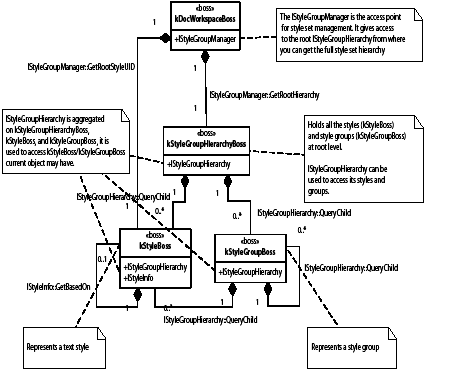
Sorting the style hierarchy is done through the IStyleGroupHierarchy::Sort() method, when it is invoked, it sorts its children and calls its children's Sort method. The call to Sort() on the root hierarchy recursively sorts all styles. This methods takes a flag to indicate whether to sort in descending/ascending order, all child or immediate child, etc.
Text formatting and stories
All text has an associated character- and paragraph-attribute style. This style is either the root style (which defines a default value for the complete set of attributes used in composition) or a style that records differences from the root style. Styles form a hierarchy in which the values of attributes in child nodes override those in parent nodes. As well as having the character and paragraph styles defined on the attribute strands, local overrides can be applied. This occurs when a formatting change is made without modifying a style; for example, selecting a word and making it bold.
Attributes describe one of the text 's appearance and are used by the composition engine when rendering the associated glyphs. IComposeScanner (on the kTextStoryBoss) provides APIs that allow the value of any attribute to be deduced for any TextIndex. The following figure shows an example of how styles and local attribute overrides combine to describe the exact look of text. The paragraph-attribute strand specifies the text will use the custom style pStyle and two local overrides. The overrides specify the body and last line of the paragraph are to be centered. The character-attribute strand specifies the root style for the word "Aliens," a local +bold override for the word "and," and the word "Earth" to use the custom style cStyle.
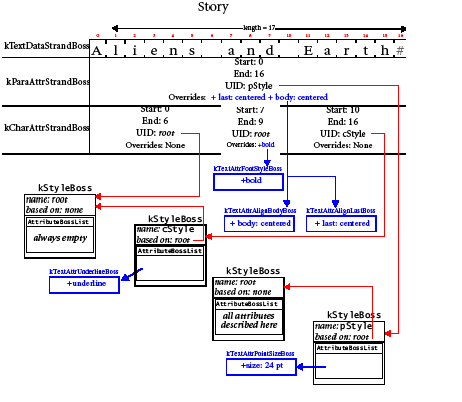
The following figure shows the major classes and associations for text content.
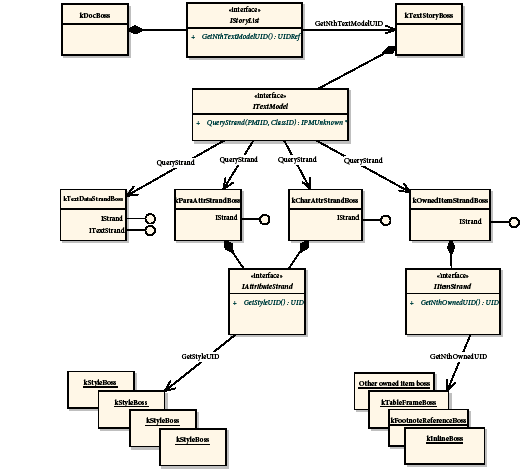
This section describes the presentation model responsible for managing the final look of text. The layout factors (such as the types of containers with which text can be associated) are described before the representation of the rendered text (the wax) is presented.
The text-presentation model represents both the information required to place a set of glyphs on a spread and the management of those glyphs within the application. This includes both the text layout and the wax components. Text layout is concerned with the containers for text and the attributes of a container that can affect how text is placed in respect to that container. The wax models the actual glyphs rendered into the layout.
Text layout defines the shape and form of the visual containers in which text is composed and displayed. The textual content is maintained in the text model of the story associated with the layout. This content is divided into one or more story threads, each representing an independent flow of text. See Story threads.
In text composition, text flows from the story thread into its associated visual containers to create wax that fits the layout. Text layout, in turn, displays the wax. When the layout is updated, text is recomposed to reflect the change.
The text frame is the fundamental container used to place and display text. Text frames have properties, like the number of columns, column width, gutter width, and text inset, that control where text flows. A text frame is represented by several associated boss classes.
The following figure shows a text frame containing two columns, with one line of text displayed in each column. The figure after it shows how this instance of a text frame is represented internally.
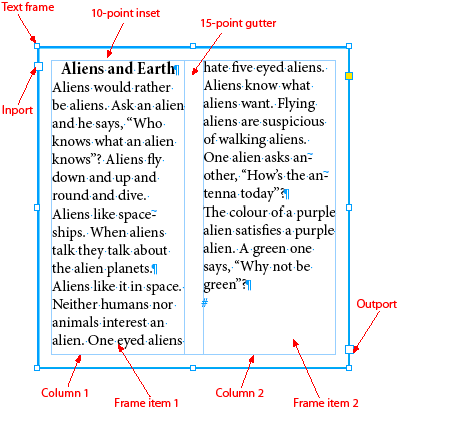
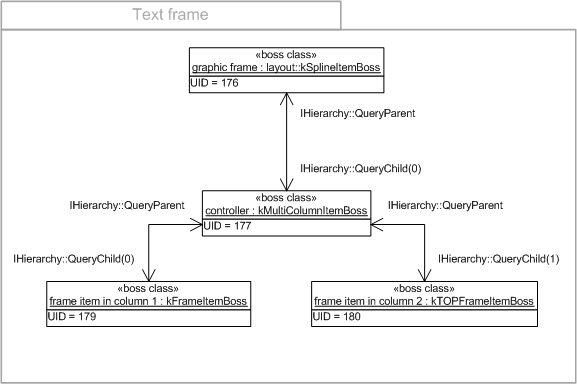
As shown in the following figure, a text frame consists of a graphic frame (kSplineItemBoss) containing one multicolumn item (kMultiColumnItemBoss). The multicolumn item (kMultiColumnItemBoss) is the controller for the text frame and contains one or more frame items (kFrameItemBoss). The ITextColumnSizer interface stores the major properties of the text frame, such as the number of columns. IMultiColumnTextFrame provides access to the associated story, frame list, and the range of text displayed.
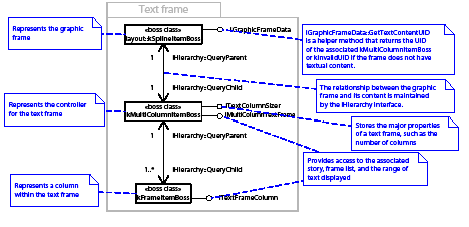
The relationship between the graphic frame (kSplineItemBoss) and its content is maintained by the IHierarchy interface. Use IHierarchy::QueryChild to navigate from the graphic frame to its associated multicolumn item, then onto individual columns. Conversely, use IHierarchy::QueryParent to navigate up from a column to the multicolumn item and on up to the graphic frame.
The following figure shows a text frame with more frame items than columns
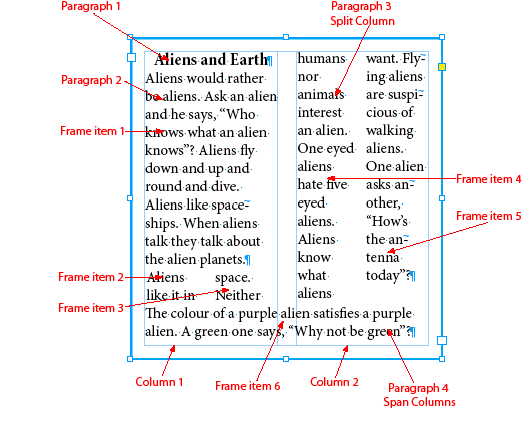
The number of columns is not always equal to the number of frame items (kFrameItemBoss). When a paragraph has Span Columns or Split Column style, the number of frame items is greater than the number of columns. For example, the text frame shown in Figure 13 has two columns and two frame items. If paragraph 3 is set to use Split Column style, and paragraph 4 to use Span Columns style, as shown in Figure16, there are now six frame items within the two columns in the text frame. You can use IHierarchy::GetChildCount or IParcelContainer::GetParcelCount to get the number of frame items.
A story (kTextStoryBoss) associates the text frames that display its content through the frame list (kFrameListBoss). Conversely, a text frame associates the story whose text it displays through the frame list. The following figures show the story and frame list objects for the example introduced in Text frame.

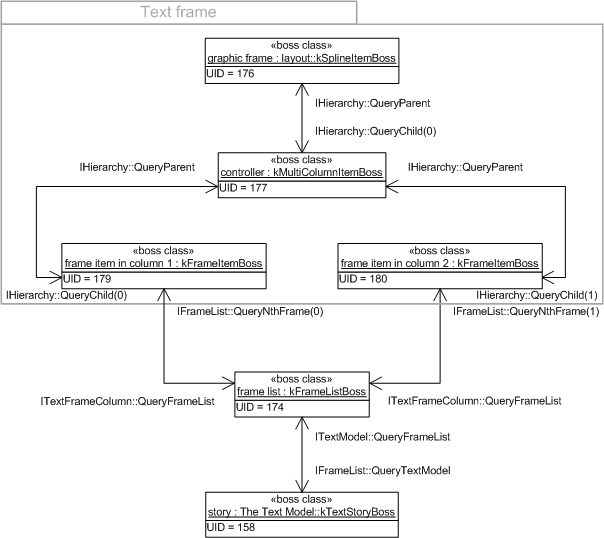
The following figure shows the general structure of the frame list (IFrameList) for a story.
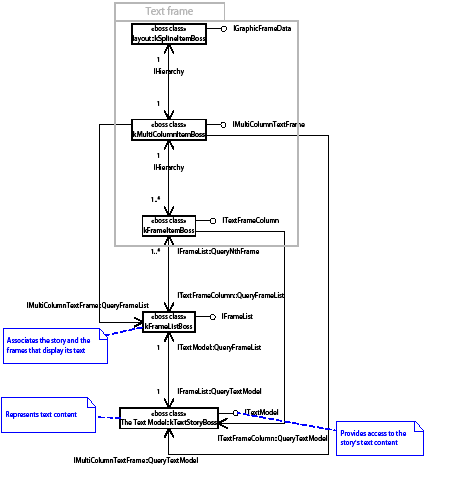
The text in a frame can be independent of other frames, or it can flow between threaded frames. Threading of text is the process of connecting the flow of text between frames. Do not confuse threading text between frames with text-story threads. The connections can be visualized by selecting a text frame and choosing View > Extras > Show Text Threads, as shown in the threaded text frames figure on page page 302. Threaded frames share a common underlying story (kTextStoryBoss) and can be on the same spread or different spreads in the same document.
The following figure shows two unthreaded text frames.
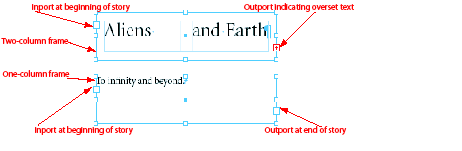
Because each text frame is associated with a distinct story, editing the text in one of the frames does not affect the text in the other frame (see the following figure).
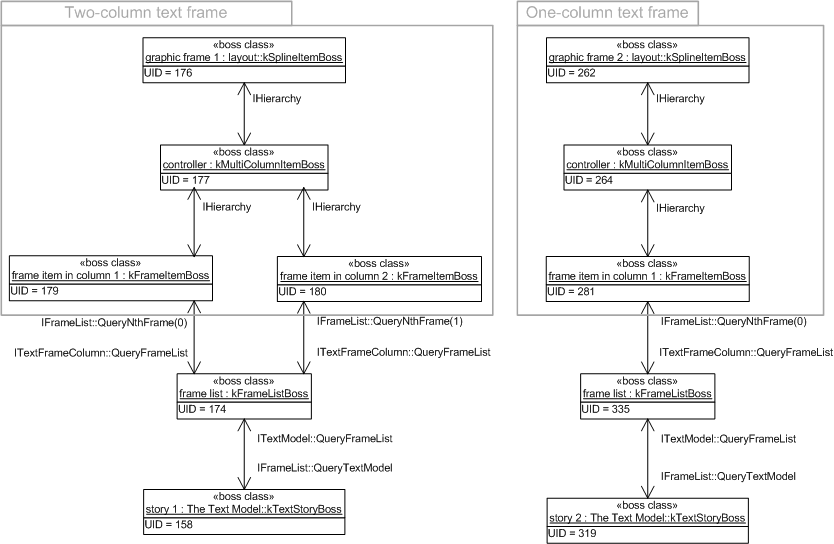
When the text frames that display a story cannot display all the text, the unseen text is called "overset text." A red plus sign (+) on the outport of the two-column frame indicates the story has overset text.
If the user clicks the outport of the two-column frame with the Selection tool and then clicks the inport of the one-column frame, the frames become threaded. In the following figure, the text from the two-column frame that was overset now flows through the one-column frame. During this process, the text from the story underlying the one-column frame is appended to the story underlying the two-column frame. The frame list (kFrameListBoss) and story (kTextStoryBoss) underlying the one-column frame are deleted.
This figure shows threaded text frames:
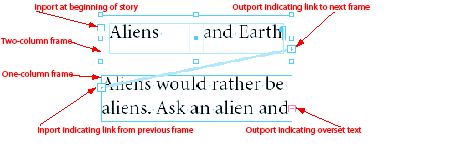
Once threaded, the two frames share the same underlying story (see the following figure, an instance diagram of threaded text frames).
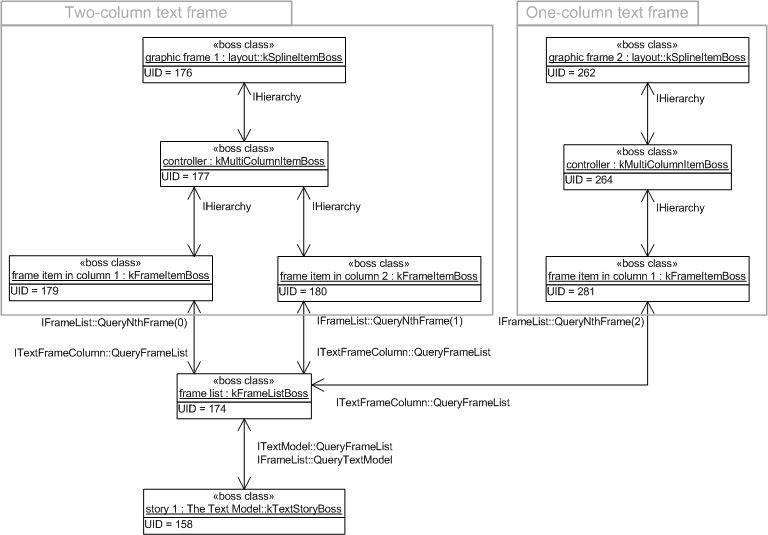
A flow of text content within a story is a story thread, is represented by a boss class with an ITextStoryThread interface. A parcel is a visual container into which the text of a story thread is flowed for layout and display. A parcel is represented by a boss class with an IParcel interface.
The text of a story thread (ITextStoryThread) can be composed into a list of parcels (IParcel) in a parcel list (IParcelList).
Examples of application-provided parcels are as follows:
The following figure shows how text frames support story threads and parcels. The text in the primary story thread is displayed through parcels given by the parcel list on the frame list. These parcels are the frame items of the text frames that display the story.
This figure shows the structure of the parcel implementation for text frames:
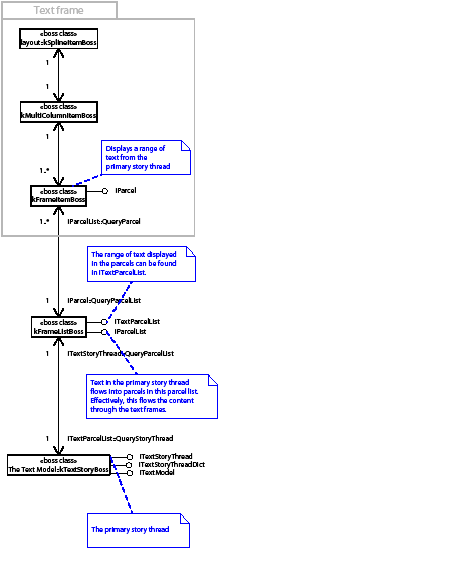
The following figure shows how tables support story threads and parcels. The text for the story thread of a table cell (kTextCellContentBoss) is displayed through the parcels given by its parcel list. These parcels are text cell parcels (kTextCellParcelBoss). For more information, see Chapter 1,"Tables."
This figure shows the structure of the parcel implementation for tables:
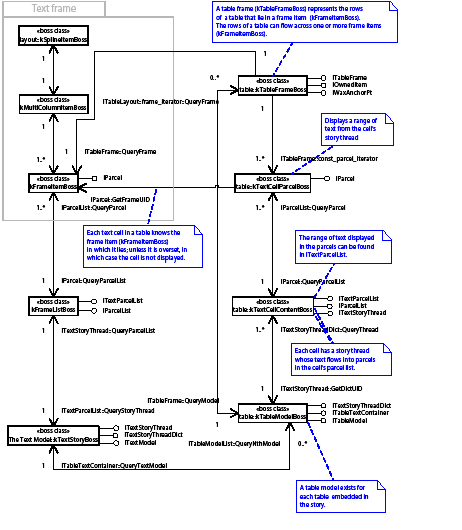
Each object that displays text is associated with a story thread. After composition, the object stores into the text model both the index (TextIndex) of the first character that it displays and the total number of characters that it shows. This text range is the span. The span is available on several interfaces (see the following tables). Note:
The ranges returned from these APIs are accurate only if the text in the object is fully composed. Before relying on these methods, you must check whether there is damage (see Damage) and whether the object needs to be recomposed.
This table lists the APIs that indicate the range of text displayed:
| API | Description |
|---|---|
| IFrameList | Gives the range of text displayed by each frame item (kFrameItemBoss). |
| ITextFrameColumn | Gives the range of text displayed by the frame item (kFrameItemBoss). |
| IMultiColumnTextFrame | Gives the range of text displayed by the multicolumn item (kMultiColumnItemBoss). |
| ITextParcelList | Gives the range of text displayed by a parcel. All objects that display composed text are a kind of parcel (IParcel). |
This table lists the APIs that find the parcel or frame displaying a specific TextIndex.
| API | Description |
|---|---|
| IFrameList::QueryFrameContaining | Use this method to find the frame item (kFrameItemBoss) that displays the character at a specific index (TextIndex) in the text model. |
| ITextModel::QueryTextParcelList | Call this to find the text parcel list associated with a given TextIndex. After you have the ITextParcelList, use ITextParcelList::GetParcelContaining, then IParcelList::QueryParcel. All objects that display composed text are a kind of parcel (IParcel). As a result, this approach finds parcels for text frames, table cells, or other new kinds of parcels. Note, however, that some text embedded in the text model may not be composed or displayed in a parcel. |
| IWaxIterator | After you know which text model (ITextModel) and what range of text you want, use this class to get the wax data. |
| TextIterator | After you know which text model (ITextModel) and what range of text you want, use this class to get the character data. |
The following figure shows a story displayed in a two-column frame. The range of text displayed in both columns is available in the IMultiColumnTextFrame interface on the multicolumn item (kMultiColumnItemBoss). The range of text available in each frame item (kFrameItemBoss) is available in both ITextFrameColumn and ITextParcelList.
This figure shows finding the range of text displayed in a frame or parcel:
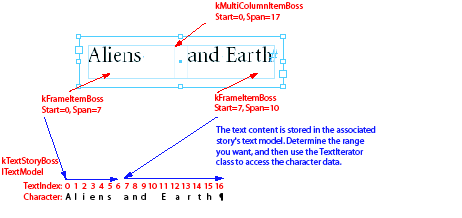
Conversely, you can discover the parcel (IParcel) displaying the character at a specific index (TextIndex) in the text model. It is possible the TextIndex of interest is overset text that is not displayed. The kind of parcel returned depends on the kind of story thread (ITextStoryThread) that owns the range of text in which the TextIndex lies.
For example, if the TextIndex lies in the primary story thread, it is in the range 0 to (ITextModel::GetPrimaryStoryThreadSpan - 1). The primary story thread is displayed by the text frames associated with the story. In this case, the frame item (kFrameItemBoss) that displays the desired TextIndex is determined. Alternately, the desired TextIndex can be in the range ITextModel::GetPrimaryStoryThreadSpan to (ITextModel::TotalLength - 1). Text in this range is associated with a table or other feature that embeds text in stories, like notes, footnotes, or tracked changes. If the feature displays composed text, the parcel displaying a specific TextIndex can be determined.
After text is composed, each line is represented by a wax line (kWaxLineBoss). The wax for a story is owned by the wax strand. A text frame is associated with its wax lines by the range of text displayed, which is obtained from ITextFrameColumn or ITextParcelList. The range of text displayed by the frame is maintained when text is recomposed. Wax lines are accessed using a wax iterator, IWaxIterator, which is a C++ helper class created by calling IWaxStrand::NewWaxIterator.
Consider the wax for a text frame with two columns, each displaying one line of text. See the following figure. Here, the wax line (kWaxLineBoss) objects do not have UIDs. They are managed by the wax strand (IWaxStrand on kFrameListBoss) that persists some wax data and regenerates the rest by recomposing the text when required.
This figure shows the structure of the wax for a text frame:
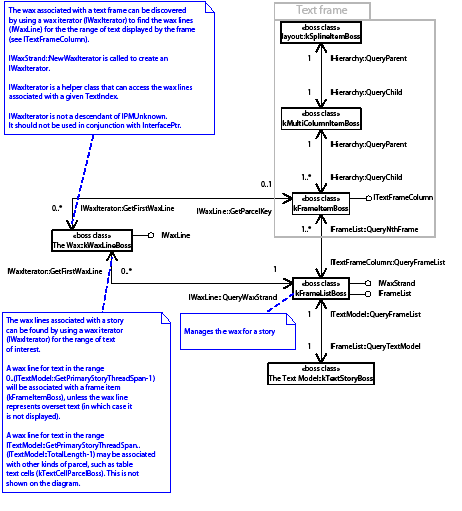
You manipulate text-frame options from the dialog box invoked by choosing Object > Text Frame Options. Default text-frame options store the properties inherited when a new text frame is created. The text-frame options are stored in the ITextOptions interface on the document workspace. A distinct set of defaults are maintained on the session workspace and are inherited. The following figures show the boss classes and interfaces involved.
This figure shows interfaces storing text-frame options on a text frame:

This figure shows interfaces storing default text-frame options:

In the following figure, the bounds of the page items that make up the text frame are tabulated in the inner coordinates of the spline. In the following table, the geometries of the multicolumn and column items are expressed in the coordinate space of their parent, the spline. Effectively, they share a common coordinate space.
This figure shows text-frame geometry:
| Item | Left | Top | Right | Bottom |
|---|---|---|---|---|
| kFrameItemBoss (left column) | -100.00 | -15.00 | -5.00 | 15.00 |
| kFrameItemBoss (right column) | 5.00 | -15.00 | 100.00 | 15.00 |
| kMultiColumnItemBoss | -100.00 | -15.00 | 100.00 | 15.00 |
| kSplineItemBoss | -100.00 | -15.00 | 100.00 | 15.00 |
Text inset, a property of a text frame, is an area between the edge of the frame and the area where text flows. If the text frame is regular in shape, you can specify the inset independently for each side (see the following figure).
With irregularly shaped frames, the inset follows the contour of the text frame, and there is only one inset value (see the following figure).
The following figure shows the structure of a text inset. The properties of the text inset are found in the ITextInset interface on the text frame's kSplineItemBoss. Even when there is no text inset in effect (all insets have a value of 0 points), a kTextInsetPageItemBoss is associated with the text frame and describes the contour of the text inset.
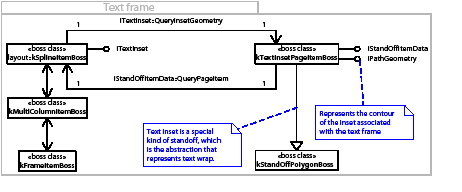
Text in a text frame is affected by other page items that have text wrap applied. Text wrap is represented by a standoff abstraction. A standoff describes whether there should be text wrap and, if so, the contour around which the text should be wrapped.
The following figure shows an empty graphic frame with text wrap set at a 4-point offset around the frame's path. The figure after it shows that if there is no intersection between the boundary of the standoff and the boundary of the text frame, then the text in the text frame is not affected.
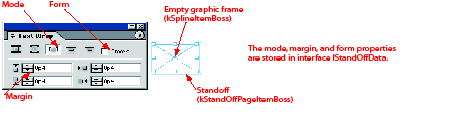

The following figure shows what happens when the empty graphic frame overlaps the text frame. The text within that frame is forced to wrap around the empty frame, which is said to repel the text. By inverting the text wrap, a page item can indicate it is to be used to attract text within its boundary rather than repel it.

This figure shows how this causes text to flow within the set boundaries.

The objects representing the text wrap for the sample are shown in the following figure.
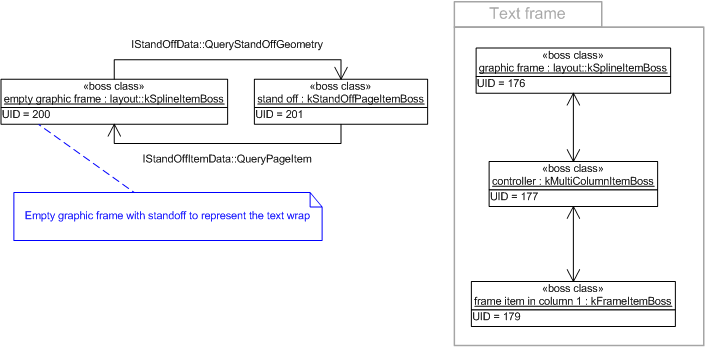
The general structure of text wrap is shown in the following figure.
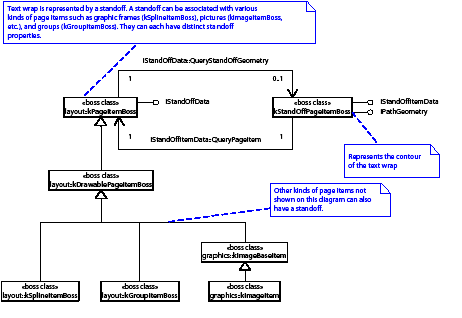
Properties of a standoff are found in IStandOffData on the page item with the standoff. Use IStandOffData::GetMode to obtain the kind of text wrap and IStandOffData::GetMargin to get the offsets. Each page item has distinct standoff applied, so the page item can be a graphic frame (kSplineItemBoss), a group (kGroupItemBoss), or another type.
When a text wrap is applied, a standoff boss class kStandOffPageItemBoss is associated with the owning page item. The standoff boss class is not part of the page item instance hierarchy; you do not navigate to it using IHierarchy. Instead, use IStandOffData::QueryStandOffGeometry to access the standoff boss class. The kStandOffPageItemBoss boss class has a path geometry that represents the contour of the standoff, and text in a text frame wraps to this contour.
Text on a path allows text to flow along the contour of a spline (kSplineItemBoss). Text on a path frame has an inport and an outport. As a result, you can thread text in other frames to and from it. The following figures show the objects involved in text on a path.
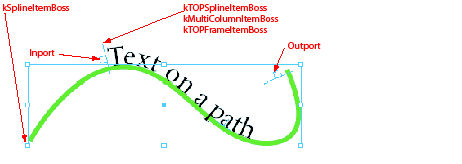
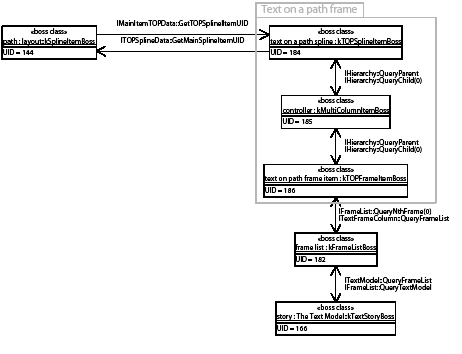
The following figure shows the structure of text on a path frame
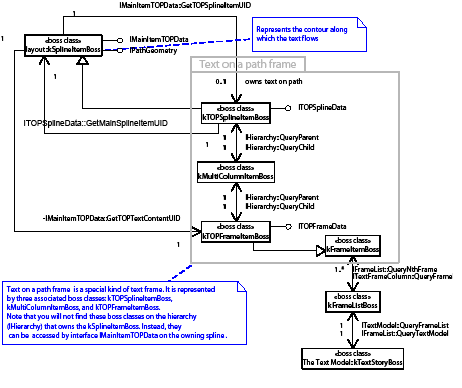
Text on a path can be associated with any spline (kSplineItemBoss). The structure of text on a path frame parallels that of a normal text frame. It is represented by three associated boss classes: kTOPSplineItemBoss, kMultiColumnItemBoss, and kTOPFrameItemBoss. You can navigate from a spline (kSplineItemBoss) to any associated text on a path (kTOPSplineItemBoss) using the IMainItemTOPData interface. You can navigate back using the ITOPSplineData interface. After you have an interface on the kTOPSplineItemBoss, you can navigate up and down the text on a path frame using IHierarchy.
The following figures show a text frame that also has text on a path running along its contour. In this example, the text displayed inside the frame and the text that runs its contour have distinct underlying stories. If they were threaded, they would be associated with the same story.
Text frame with text on a path:

Instance diagram for text frame with text on a path:
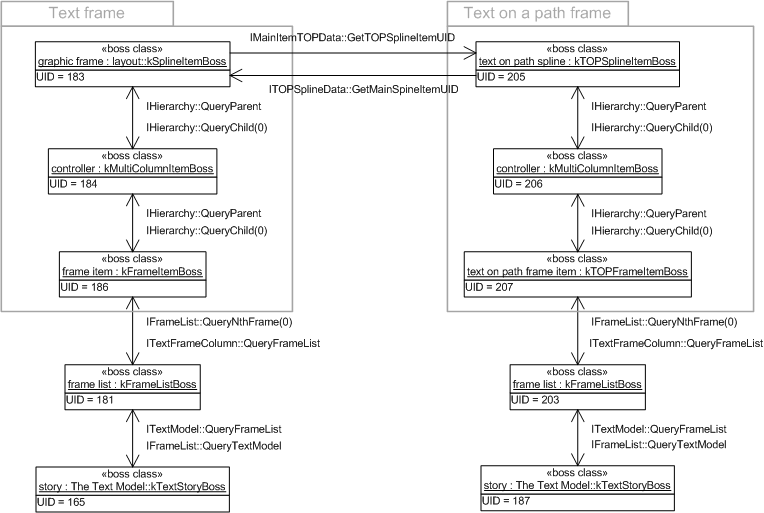
The output of text composition is called the wax. The wax is responsible for drawing and hit testing the text of a story.
The term "wax" comes from the manual paste-up process conventionally used to create magazine and newspaper pages before the advent of interactive pagination software. In the old process, typeset columns of text (galleys) were received from the typesetter. The galleys were run through a waxer, cut into sections, and positioned on an art board. Wax was used as an adhesive to stick the sections on the art board.
The art board in InDesign is a spread, and you can think of the galleys as text frames. The typeset columns of text are the wax generated by text composition. The wax adheres-fixes-the position of a line of text within a frame.
The frame list (kFrameListBoss) manages the wax for a story by means of the wax strand (IWaxStrand interface). The wax strand owns a collection of wax lines that contain wax runs, as shown in the following class diagram.
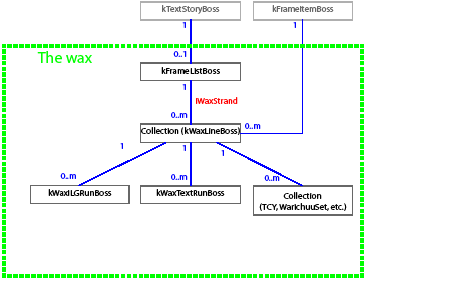
The wax is organized as a hierarchy of collections and leaf runs. The most common case is a series of wax lines, each with a collection of wax runs. A wax line is created for each line of text in a frame. A wax run is created each time the appearance of the text changes within the line. Examples of this include changes in point size, changes in font, and the interruption of the flow of text in a line because text wrap causes text to flow around another frame.
The IWaxStrand interface on kFrameListBoss owns all wax lines for a story and is the root of the wax tree. The IWaxIterator and IWaxRunIterator iterator classes provide access to wax lines and wax runs.
kWaxLineBoss typically represents the wax for one line of text. (Warichuu is an exception to this, where the Warichuu set contains multiple lines; all lines in the Warichuu set relate to one kWaxLineBoss object.) Each line owns its wax runs, collections of wax runs, or combination of runs and collections of runs. kWaxLineBoss provides access to its children through the IWaxCollection interface.
Any boss that supports the IWaxCollection interface is a parent in the wax hierarchy to boss objects that support the IWaxRun interface. A boss can support both the IWaxCollection and IWaxRun interfaces, creating levels in the hierarchy.
kWaxTextRunBoss is the object that represents the wax for ordinary text. This object stores the information needed to render the glyphs and provides the interfaces that draw, hit test, and select the text.
kWaxILGRunBoss represents the wax for inline frames. Inline frames allow frames to be embedded in the text flow. An inline frame behaves as if it were one character of text and moves along with the text flow when the text is recomposed. kWaxILGRunBoss provides the drawing, hit testing, and selection behavior for inline frames.
For a complete list of wax-run boss classes, refer to the API Reference for IWaxRun.
This section describes the wax generated for some sample text frames. To recreate these examples, use the Text tool to create the frames. If you use another tool, like the place gun or a graphic frame tool, the inner coordinate spaces for the frames will be different from those illustrated. For simplicity, use a sample page size 200 points wide and 100 points deep, and format text using 8-point type, the Times Regular font, and 10-point leading. All text is composed by the Adobe Paragraph Composer in a horizontal text frame.
Single line with no format changes
The wax generated for a single line of text with no format changes is shown in the following figure. This example has a frame 200 points wide and 30 points deep, containing one line of 8-point Times Regular text with 10-point leading. The first baseline offset setting for the frame is set to leading. This forces the baseline of the first line of text in the frame to be offset from the top of the frame by a distance equal to the leading value for the text (10 points).
Wax for single line with no format changes:
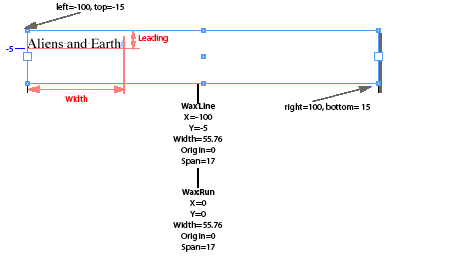
Each node in the wax tree records its position, its width, and a reference to the characters in the text model it describes. The origin records the index into the text model to the first character in the node. The span records the number of characters in the node.
Wax lines record their position in the inner coordinate space of the frame in which they are displayed. Wax runs record their position as an offset relative to the position of the wax line. Additional information is stored specific to the type of node-wax line or wax run.
The following figure exposes some additional data in the wax. A wax line stores the leading for the line. A wax run stores font name, a font-transformation matrix, glyph information, and other data necessary to describe how the text is to be drawn. A glyph is an element of a font.
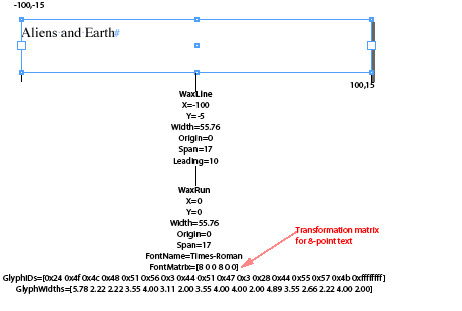
When a character is composed, its character code is mapped to its corresponding GlyphID from the font being used to display the character. The font provides the initial width of a glyph at a particular point size. This width may be adjusted by composition to account for letter spacing, word spacing, and kerning. The GlyphID values and their widths after composition are stored in the wax run, as shown in the preceding figure.
Generation of wax runs
Wax runs are generated for each set of format changes or line breaks that occur in the rendered text. The following figure illustrates the effect of applying text attributes that change text format.
This shows the wax for single line with format changes:
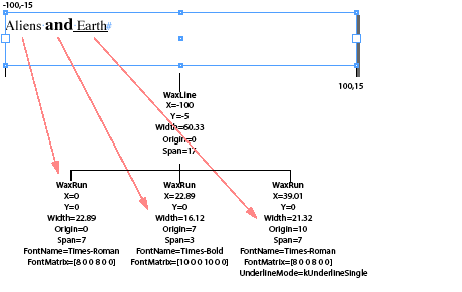
This figure shows how a wax run is created each time the text attributes specify the appearance of the text is to change. The arrows show the correspondence between the text drawn in the frame and the wax run that describes its appearance and location. A distinct wax run would be required for the following:
Text adornments provide a way for plug-ins to adorn the wax (composed text). Text adornments give plug-ins the opportunity to do additional drawing when the wax in a frame is drawn. The wax draws the text and calls the text adornments it is aware of to draw. For this to occur, the adornment must be attached to the wax.
Text adornments are boss objects attached by ClassID to an individual wax run. When the run is drawn, text adornments are given control using the ITextAdornment interface.
Calls to the ITextAdornment::Draw method are ordered by the priority value returned by the ITextAdornment::GetDrawPriority method. Higher-priority adornments (smaller numbers) are called before lower-priority adornments (larger numbers).
Text adornments cannot influence how text is composed; for example, they cannot influence how characters are built into wax lines and wax runs by the text-composition subsystem. Instead, text adornments augment the appearance of the text. A text adornment controls whether the adornment is drawn in front of or behind the text.
There are two types of text adornments: local and global.
Local text adornments
A local text adornment is controlled by one or more text attributes. A local text adornment provides visual feedback of the text the text attributes control. For example, an adornment can highlight the background on which the text is drawn or strike out text by drawing a line in the foreground.
The text attribute controls the process by interacting with text composition and associating the adornment with a drawing style (see IDrawingStyle and kComposeStyleBoss). This causes the text composer to attach the adornment to a wax run (see IWaxRenderData in The wax).
The following table shows the main text adornments used by the application and the text attributes that control them.
| Adornment classID | Attribute classID | Description |
|---|---|---|
| kTextAdornmentIndexMarkBoss | kTAIndexMarkBoss | Index mark |
| kTextAdornmentKentenBoss | kTAKentenSizeBoss, etc. | Adorns text for emphasis |
| kTextAdornmentRubyBoss | kTARubyPointSizeBoss, etc. | Annotates base text |
| kTextAdornmentStrikethruBoss | kTextAttrStrikethruBoss | Strikes through text |
| kTextAdornmentUnderlineBoss | kTextAttrUnderlineBoss | Underlines text |
| kTextHyperlinkAdornmentBoss | kHyperlinkAttributeBoss | Hyperlink mark |
To add a local text adornment, first add a new text attribute. In more complex situations, use multiple text attributes to control one text adornment. For example, kTAKentenSizeBoss, kTAKentenRelatedSizeBoss, kTAKentenFontFamilyBoss, and kTAKentenFontStyleBoss collectively control the kenten adornment implemented by the kTextAdornmentKentenBoss.
Local text adornments are attached to a drawing style and subsequently to an individual wax run. These adornments always are called to draw, although they can choose not to draw anything.
The following figure shows the sequence of calls that result in an adornment being associated with a particular wax run.
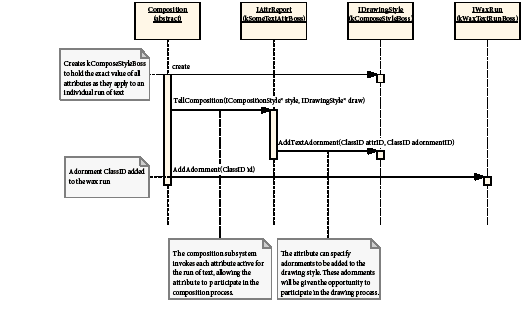
The composition subsystem calls the IAttrReport::TellComposition method of each attribute that applies to a particular range of text. This gives the attribute a chance to interact with the composition subsystem. This interaction includes the registering of adornments that are to be associated with the wax and called when the wax is drawn (IDrawingStyle::AddTextAdornment). The adornments are attached to the wax as ClassIDs (IWaxRun::AddAdornment); that is, the adornments are not instantiated at this point.
The following figure shows how adornments associated with a wax run are instantiated and called to draw.
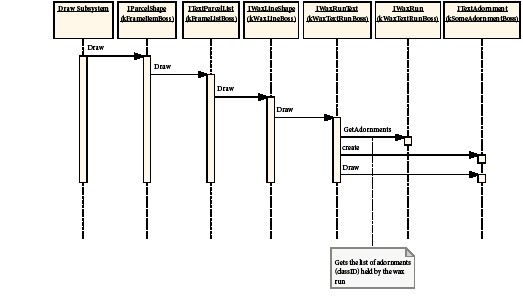
The Draw signal propagates to the wax run (IWaxRunText on kWaxTextRunBoss). The wax run (IWaxRun on kWaxTextRunBoss) is interrogated for the set of adornments registered through composition, as shown in the figure on page page 321. Each adornment (ITextAdornment) is created on whichever boss class it is represented on, and the Draw method is called.
It is possible to associate a data interface (ITextAdornmentData) during registration (IAttrReport::TellComposition). This interface allows control over whether the adornment is associated with wax runs.
Global text adornments
Global text adornments are attached to all wax runs, though they never have run-specific adornment data. Global text adornments provide the ability to draw something without requiring the text to be recomposed. Unlike local text adornments, global text adornments do not need to be attached to individual wax runs to draw; however, global text adornments are asked if they are active before they are called to draw.
For example, the Show Hidden Characters feature is implemented using a global text adornment, kTextAdornmentShowInvisiblesBoss. The adornment behaves as if it is attached to all runs, but is called only when the adornment requests draw.
The following table lists global text adornments.
| Adornment boss | Description |
|---|---|
| kTextAdornmentHJKeepsVBoss | Highlights keeps violations. |
| kTextAdornmentMissingFontBoss | Highlights missing fonts. |
| kTextAdornmentMissingGlyphsBoss | Highlights missing glyphs. |
| kDynamicSpellCheckAdornmentBoss | Squiggle line to mark spell checks. |
| kTextAdornmentShowInvisiblesBoss | Shows hidden characters. |
| kPositionMarkerLayoutAdornmentBoss | Draws position marker. |
| kTextAdornmentShowKinsokuBoss | Shows Japanese character line break. |
| kTextAdornmentShowCustomCharWidthsBoss | Marks character width as a filled rectangle. |
| kXMLMarkerAdornmentBoss | XML marker. |
Global text adornments are service providers. The ServiceID is kGlobalTextAdornmentService. Global text adornments aggregate the IK2ServiceProvider interface and use the default implementation kGlobalTextAdornmentServiceImpl.
Global adornments have the opportunity to participate in drawing if they are enabled. The following figure shows the sequence of events that cause IGlobalTextAdornment::Draw to be called. For brevity, the calls to the adornment to determine whether it is enabled (IGlobalTextAdorbment::GetIsActive) and to access the ink bounds of the adornment (IGlobalTextAdornment::GetInkBounds) are not shown.
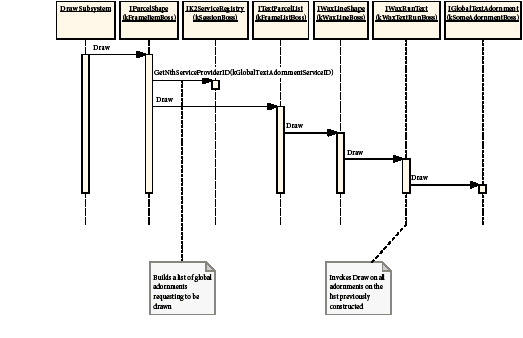
When a frame (IParcelShape on kFrameItemBoss) is instructed to draw, it queries the service registry (IK2ServiceRegistry on kSessionBoss) for the set of global text adornments that are enabled (IGlobalTextAdornment::GetIsActive). The frame calls Draw on the parcel list (ITextParcelList on kFrameListBoss), which causes the wax line (IWaxLineShape on kWaxLineBoss) and wax run (IWaxRunText on kWaxTextRunBoss) Draw methods to be called. During the drawing of the wax run, the global adornments built up previously (Draw from IParcelShape on kFrameItemBoss) have their Draw method called. Compare the preceding figure with the figure on page 322. The set of global adornments are global to the document (maintained by the service registry), whereas local adornments are local to a specific wax run.
This section describes the process of creating the final rendered text. It includes information for software developers who want to develop custom composition engines.
Text composition is the process of converting text content into its composed representation, the wax. The text-composition subsystem flows text content from a story thread maintained by a story into a layout represented by parcels in a parcel list. Story threads are described in Story threads on page 285; parcels and the wax, in "Text presentation". The following figure is an overview of text composition.
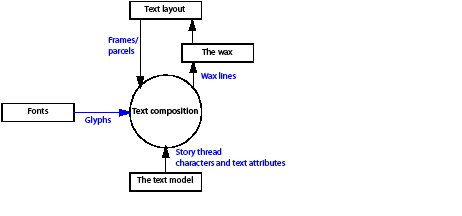
The following figure shows a sample text frame with no format changes. The figure shows the objects representing the story, the frame, and the composed text; it does not show the details of how the text actually gets composed.
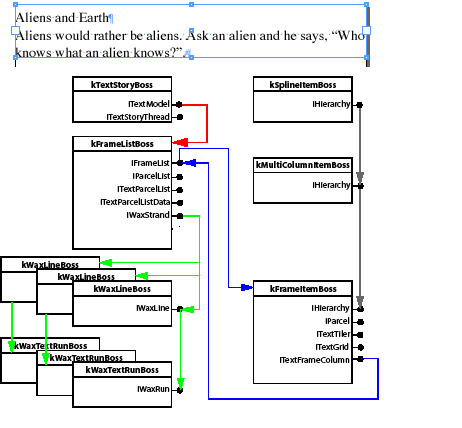
Text composition creates the wax lines (kWaxLineBoss) and their associated wax runs (kWaxTextRunBoss) using the primary story thread's content and layout as input.
Wax lines are added to the wax strand (IWaxStrand). Text composition also maintains the range of characters displayed in each parcel/frame (see Span).
There are two distinct phases of text composition:
Text composition toggles the wax between the states shown in the following figure.
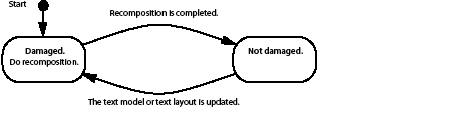
The flow of damage and recomposition is shown in the following figure.
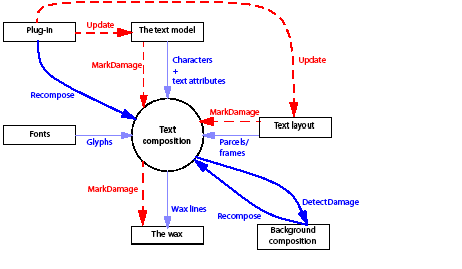
This figure shows that a plug-in can update the text model or text layout, causing the wax (the composed representation of the text) to be damaged.
The text-composition subsystem exposes interfaces that mark the damaged story, frame parcels, and wax. The damage-recording flow is represented by dotted lines in the figure. The text-composition subsystem also exposes interfaces that allow text to be recomposed. In the figure, the recomposition flow is represented by solid lines.
Background composition (see Background composition) is a separate process that drives text composition. Background composition runs as an idle task when the application has no higher-priority tasks.
Consider the example in which the plug-in shown in the figure is the text editor. In response to typing, the plug-in processes a command to insert the typed characters into the text model. This command calls text-composition interfaces that record the damage caused. Background composition detects the damage and recomposes the affected text.
Damage refers to changes that invalidate the wax for a range of composed text. Damage is recorded by marking the affected stories, parcels, frames, and wax. The damage indicates where recomposition is required and the type of damage that has to be repaired.
The change counter on the frame list is incremented whenever something happens that causes damage. No notification is broadcast when the change counter is incremented, so the change cannot be caught immediately; however IFrameList::GetChangeCounter returns a counter that is incremented each time any parcel in any frame in the frame list goes from undamaged to damaged, indicating some text in the frame list was damaged and must be recomposed.
Damage drives and optimizes the recomposition process. For example, recomposition can shuffle existing wax lines between frames to repair damage and avoid recomposing the text from scratch. Damage can be in the following categories:
This figure shows an orphan (left) and a widow (right):

Check for damage before relying on the information stored in the wax or the frame spans (see Span). If your plug-in detects damage, it can either stop with a suitable error or recompose the text.
Damage API
To detect damage, use the interface methods shown in the following table.
| Interface | Method |
|---|---|
| IStoryList | CountDamagedStories, GetLastDamagedStory, GetNthDamagedTextModelUID |
| IFrameList | GetFirstDamagedFrameIndex |
| IWaxLine | IsContentDamaged, IsDamaged, IsDestroyed, IsGeometryDamaged, IsKeepsDamaged |
| ITextParcelListData | GetFirstDamagedParcel, GetParcelIsDamaged |
| ITextParcelList | GetFirstDamagedParcel, GetIsDamaged |
Recomposition is the process of converting text from a sequence of characters and attributes into the wax (fully formatted paragraphs ready for display). The components of recomposition are as follows:
Recomposition API
To request recomposition, use the interface methods shown in the following table.
| Interface | Method | Description |
|---|---|---|
| IFrameList | QueryFrameContaining | Helper method that causes recomposition. |
| IFrameListComposer | RecomposeUntil, RecomposeThruTextIndex | Controls recomposition of frames in the frame list (kFrameListBoss). The methods delegate to the parcel list composer (ITextParcelListComposer). |
| ITextParcelListComposer | RecomposeThru, RecomposeThruTextIndex | Controls recomposition of parcels in a parcel list. This interface drives the recomposition for the parcel list. |
| IGlobalRecompose | RecomposeAllStories, SelectiveRecompose, ForceRecompositionToComplete | Provides methods that can be used to force all stories to recompose. This interface marks damage that forces recomposition to recompose the damaged element, even though they were not actually changed. |
The interfaces and methods in the following table are not normally called by third-party plug-ins but play a central role in the control of recomposition.
| Interface | Method | See |
|---|---|---|
| IRecomposedFrames | BroadcastRecompositionComplete | Recomposition notification |
| IParagraphComposer | Recompose, RebuildLineToFit | Paragraph composers |
The wax strand (IWaxStrand) manages the wax for a story and is responsible for updating the wax to reflect changes in the text model or text layout. The wax strand controls the existing wax and determines where a paragraph composer needs to be used to create new wax. The wax strand also manages the overall damage-recording process.
The lifecycle of the wax is as follows:
A paragraph composer (IParagraphComposer) takes no more than a paragraph of text and arranges it into lines to fit a layout. The paragraph composer creates the wax that represents the composed text. Plug-ins can introduce new paragraph composers. For more information, see Implementation notes for paragraph composers.
The text-composition architecture is designed for paragraph-based composition. The most significant implication of this design is that any change to text or attributes causes at least one paragraph's composition information to be reevaluated. For example, inserting one character into a paragraph potentially can result in changes to any or all of the line breaks in the paragraph, including those preceding the inserted character.
Avoiding recomposition of text and simply moving existing wax lines up or down is called shuffling. The performance improvement gained by shuffling is significant.
The wax strand can determine whether a wax line was damaged because of something that occurred around the wax line and not because the range of text it represents changed, in which case the wax strand knows that the result of recomposing the text is simply to move the wax line up or down. In this case, the content of the wax line after recomposition is identical to its content before recomposition.
For example, if you select and delete an entire paragraph of text, the next paragraph has not changed and does not need to be recomposed. By pulling the following paragraph up to the position occupied by the deleted paragraph, the wax strand avoids the cost of recomposition.
When shuffling, the wax strand implements some of the behaviors of a paragraph composer, such as dealing with the Space Before and Space After paragraph attributes.
In general, InDesign composes paragraphs relative to previous paragraphs so that text flows down and out of the layout geometry. After a paragraph is composed in a Parcel, it is never changed again unless its attributes or its geometry changes. But text composition cannot arrange wax lines well in one pass for some features, such as balance columns, vertical justification, and span columns. The composition for such features requires first making a valid composition outcome without any adjustments and then iteratively recomposing, changing some aspect of the geometry each time to achieve the desired balanced outcome. This is called iterative composition.
Vertical justification
The text frame justifies wax lines within it from the top, center, or bottom, or to fill the available area, according to the setting for vertical justification. Shuffling can be performed for vertical justification if the text container is rectangular. But for nonrectangular text frames, iterative composition is used because the container is not equal in width everywhere. ITextFrameOptionsData provides access to the vertical justification attribute.
Balanced columns
Column balancing is performed in a paragraph if the Balance Columns option of the text frame is turned on or if the Paragraph Layout attribute of the paragraph below it is set to Span Columns.
This action requires iterative composition to first determine the length of the wax lines and then to adjust and recompose. ITextFrameOptionsData provides access to the Balance Columns attribute.
Span columns
Within a multicolumn text frame, a paragraph with the Span Columns option stretches across multiple columns; this is called straddling or spanning. This style requires that text must be balanced in the columns preceding the spanning paragraph to determine the vertical position in those columns where the straddle must begin. InDesign dynamically establishes the Parcels to hold the spanning text in the IMultiColumnTextFrame. ICompositionStyle provides access to attributes such as span columns.
Background composition looks for damage, then fixes it by calling for recomposition. Background composition runs in the background as an idle task (IID_ICOMPOSITIONTHREAD on kSessionBoss) and recomposes text. Each time that InDesign calls background composition, it performs the following actions in priority order:
The actions are performed until the time slice allocated for background text composition expires. Background composition requests recomposition by calling the RecomposeUntil method on IFrameListComposer.
Plug-ins use commands to update the input data that drives text composition (the text model and text layout). The commands cause damage to occur. Recomposition subsequently recomposes the text and generates the wax to reflect the changes. Recomposition does not execute within the scope of a command; instead, the wax strand begins and ends a database transaction around the recomposition process. This means that recomposition cannot directly be undone; however, the commands used to update the input data are undoable. Undo causes damage, and recomposition repairs it to ensure that the wax (the text displayed) reflects the state of the text model and text layout.
The IRecomposedFrames interface on the frame list (kFrameListBoss) keeps track of which frames are recomposed, so text frame observers can be notified when recomposition completes. When InDesign calls the BroadcastRecompositionComplete method, each affected column (kFrameItemBoss) receives notification that it was recomposed. Observers attach to the kFrameItemBoss in which they are interested and then watch for the Update method to be called with theChange == kRecomposeBoss and protocol==IID_IFRAMECOMPOSER.
This section provides more in-depth background for software developers developing a custom paragraph composer for the application.
Paragraph composers
A paragraph composer (IParagraphComposer) takes up to a paragraph of text, arranges it into lines to fit a layout, and creates the wax that represents the text it composed. Plug-ins can introduce new paragraph composers.
The user selects the composer to be used for a paragraph from the menu on the Paragraph panel (see the following figure) or by using the Paragraph Styles palette. Selecting a paragraph composer sets the kTextAttrComposerBoss paragraph attribute to indicate which paragraph composer to use.
Hyphenation and justification (HnJ)
The term "hyphenation and justification" (‘HnJ') often is used in computer systems to refer to breaking of text into lines and spacing of text so it aligns with the margins. This term is not used in this application's API or documentation; however, the role performed by an HnJ system is similar to the role of a paragraph composer. Hyphenation is intimately associated with line breaking. In this application, the role is split out and implemented by a hyphenation service (IHyphenationService). A paragraph composer that needs to hyphenate a word uses a hyphenation service.
A paragraph composer's environment
Paragraph composers are called by the text-composition subsystem. When text is to be recomposed, the wax strand examines the paragraph attribute kTextAttrComposerBoss that specifies the paragraph composer to be used, locates it through the service registry, and calls the IParagraphComposer::Recompose method. This call gives the paragraph composer a context stored in the helper class in which to work.
The RecomposeHelper class is a wrapper of the story being recomposed. It stores information like the story 's compose scanner, tiler, starting index, text span, and position. The RecomposeHelper class definition is in IParagraphComposer.h.
The following figure shows an example of a paragraph composer called to compose text.
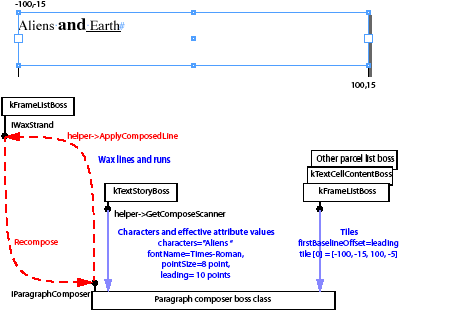
The following steps occur:
The scanner and drawing style
The scanner (IComposeScanner) provides access to both character and formatting (text attributes) information from the text model, as shown in the following figure. The drawing style (interface IDrawingStyle) represents the effective value of text attributes at a given index in the text model. The drawing style cached by interfaces on kComposeStyleBoss considerably simplifies accessing text-attribute values. These interfaces remove the need to resolve text-attribute values from their representation in the text model and the text styles it references. A drawing style applies to at least one character. The range of characters it applies to is a run. For more information on styles and overrides, see Text formatting.
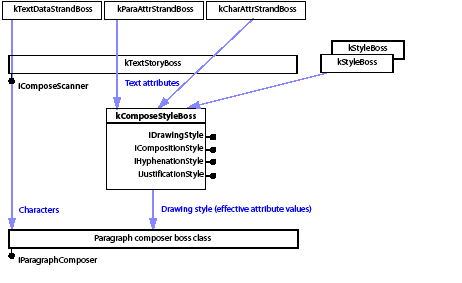
Fonts and glyphs
Fonts contain the glyphs that display characters for a typeface at a particular size. Paragraph composers use the drawing style (IDrawingStyle) to find the font to be used. The font APIs provide the metrics required to compose the text into lines composed of a run of glyphs for each stylistic run of text.
A font represents a typeface with a given size and style. A typeface, like Times, is the letters, numbers, and symbols that make up a design of type. A glyph is a shape in a font that is used to represent a character code on screen or paper. The most common example of a glyph is a letter, but the symbols and shapes in a font like ITC Zapf Dingbats also are glyphs. For more information, see the following figure and Fonts.

Tiles
Tiles (IParagraphComposer::Tiler) represent the areas on a line into which text can flow. Normally, there is only one tile on a line; however, text wrap may cause intrusions that break up the places in the line where text can go. The tiler takes care of this, as well as accounting for the effect of irregularly shaped text containers.
Intrusions are the counterparts of tiles. Intrusions are not the inverse of tiles: they do not specify the areas in the line where text cannot be flowed. From the perspective of ITextTiler, an intrusion is a horizontal band within a frame, in which text flow within the bounding box of the frame may be interrupted. Intrusions can be used to optimize recomposition. An intrusion is a flag that indicates that text cannot be flowed into the entire width of a line. Intrusions are caused by text wrap and nonrectangular frames.
The tiles returned for a line depend on the y position where they are requested, their depth, and their minimum width. The intrusions and tiles for some sample text frames are shown in the following figures.
Text frame with no intrusions:

Effect of image frame with text wrap:

Effect of two images with text wrap:

Effect of text inset:

Effect of nonrectangular frame:
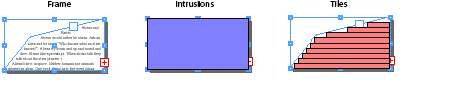
First-baseline offset
The first-baseline offset setting controls the distance between the top of a parcel or frame and the baseline of the first line of text it displays. Some sample settings are shown in the following figure.
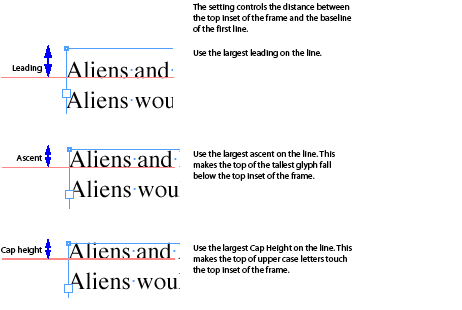
Control characters
A paragraph composer can apply an appropriate behavior to correctly implement the semantic intent of many control characters. For a complete list of control-character codes, see TextChar.h in the API Reference.
Inline frames
Inline frames (kInlineBoss) allow frames to be embedded in the text flow. An inline frame behaves as if it were one text character and moves along with the text flow when the text is recomposed. The kTextChar_ObjectReplacementCharacter or kTextChar_Inline character is inserted into the text data strand to mark the position of the inline frame in the text. The inline frames are owned by the owned item strand (kOwnedItemStrandBoss) in the text model. Paragraph composers obtain the geometry of the frame associated with the kInlineBoss by using ITextModel to access this strand directly. Inline frames are represented in the wax by their own type of wax run, kWaxILGRunBoss.
Table frames
Table frames (kTableFrameBoss) are owned items anchored on a kTextChar_Table character embedded in the text flow. Paragraph composers can and do compose text displayed in table cells.; however, they never compose (create wax for) the character codes related to tables (kTextChar_Table and kTextChar_TableContinued). When a paragraph composer encounters either of these characters, it should create wax for any buffered text and return control to its caller.
Creating the wax
During the process of building lines, a paragraph composer normally uses an intermediate representation of the glyphs, so it can evaluate potential line-break points and adjust glyph widths. The specific arrangement used depends on the overall feature set of the paragraph composer and is beyond the scope of this document. Once the line-break decisions are made, the paragraph composer must create wax lines and runs.
For details of the mechanics of the creation of wax lines and runs, see The wax. Once created by a call to RecomposeHelper::QueryNewWaxLine, new wax lines are added to the wax strand for a story with the following call:
The following figure shows an example of the wax generated by a paragraph composer.
Wax for a single line with format changes:
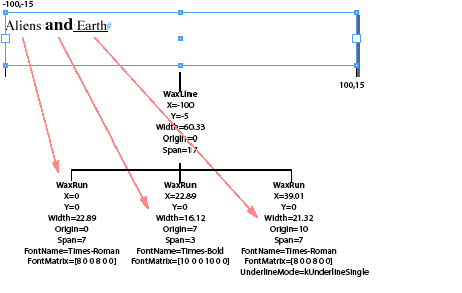
Adobe paragraph composers
Paragraph composers are implemented as service providers (IK2ServiceProvider) and can be located using the service registry. The ServiceID used to identify paragraph composers is kTextEngineService.
The following figure shows the paragraph composers provided by the application under the Roman feature set.
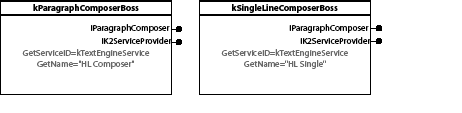
The following figure shows the paragraph composers provided under the Japanese feature set.
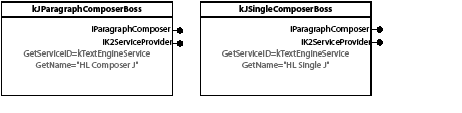
The following figure shows the world-ready composers that provide Middle Eastern support under the Middle Eastern version of InDesign and InDesign Server. Roman paragraph composers
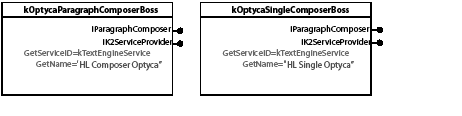
Key APIs
Class diagram
Paragraph composers are boss classes that implement IParagraphComposer, the interface called by the application to compose text. To be recognized as a text composer, the boss class also must implement a text-engine service (IK2ServiceProvider) with a ServiceID of kTextEngineService. The service also must provide a name (a translatable string) for the paragraph composer, which is displayed in the user interface. As output, composers generate wax lines (IWaxLine) and associated wax runs (IWaxRun) for up to one paragraph of text at a time. The following figure shows the class diagram of a custom paragraph composer.
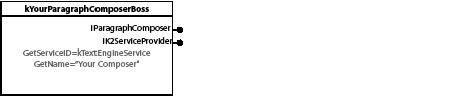
There are two distinct phases to text composition, and IParagraphComposer reflects these roles:
Recompose is called when text needs to be fully recomposed. Each time this method is called, it should compose at least one line and at most one paragraph of text into the passed-in helper. RecomposeHelper actually does all the work, by creating wax starting from the character in the story indicated by RecomposeHelper::GetStartingTextIndex. The top of the area text flows into is given by RecomposeHelper::GetStartingYPosition, and composition is done using the supplied scanner and tiler. The wax lines generated as a result are applied to the given wax strand.
RebuildLineToFit is called to regenerate the wax runs for a wax line from the minimal data stored on the disk. No line breaking or line positioning needs to be done here.
IComposeScanner is an interface aggregated on kTextStoryBoss. It provides methods that help access character and text-attribute information from the text model. It is the primary iterator for reading a story.
The following example shows QueryDataAt, which gets a chunk of data from the text model starting from a given TextIndex. QueryDataAt is a primary method text composition uses to iterate through the text model. QueryDataAt returns a TextIterator, which has its own reference count on the chunk of data in the model, and thus makes the TextModel lifecycle independent of the compose scanner cache. Optionally, QueryDataAt returns the drawing style and number of characters in the returned iterator. We recommend you always ask for the returned number of characters.
You also can acquire the drawing style by one of the methods listed in the following example. For more information on the methods in IComposeScanner, refer to the API Reference.
Acquiring IDrawingStyle from IComposeScanner:
QueryAttributeAt allows callers to query the effective value of one or more particular text attributes at a given position. For more details, refer to the API Reference.
IDrawingStyle, ICompositionStyle, IHyphenationStyle, and IJustificationStyle
IDrawingStyle provides access to text-attribute values like font, point size, and leading. If the text property you want is not in IDrawingStyle, you will find it in one of the other style interfaces on kComposeStyleBoss.
For details, refer to the API Reference for kComposeStyleBoss, IDrawingStyle, ICompositionStyle, IHyphenationStyle, and IJustificationStyle.
IPMFont and IFontInstance
IPMFont encapsulates the CoolType font API. It represents a typeface and can generate instances (IFontInstance) of it at various point sizes. IPMFont is not based on IPMUnknown, but IPMFont is reference counted and can be used with InterfacePtr. For details, refer to the API Reference.
IFontInstance encapsulates the CoolType font-instance API. IFontInstance represents an instance of a typeface at a given size. IFontInstance is not based on IPMUnknown, but IFontInstance is reference counted and can be used with InterfacePtr.
IFontInstance controls the mapping from a character code (UTF32TextChar) into the identifier of its corresponding glyph (GlyphID). For details, refer to the API Reference.
IParagraphComposer::Tiler manages the tiles for a parcel list and is used by paragraph composers to determine the areas on a line into which text can flow (see Tiles). It controls the content area bounds of each line.
The GetTiles method is used to get the tiles. If GetTiles cannot find large enough tiles in the current parcel that meet all the requirements, it returns kFalse and should be called again to see if the next parcel in the list can meet the request. If no parcel can meet the request, the tiler returns tiles into which overset text can flow.
GetTiles is a complex call to set up. To fully understand how to use it, refer to the API Reference and the text-composer samples (SingleLineComposer) provided in the SDK. The "TOP" abbreviation used in many of the parameter names is short for "top of parcel," because when a line falls at the top of a parcel, special rules apply that govern its height (see "First-baseline offset").
For Roman composers, a tile must be wide enough to receive one glyph plus any left and right line indents that are active. A heuristic often is used that approximates the minimum glyph width to be the same as the leading. The minimum tile height depends on the metric being used to compose the line. Normally this is leading, but the first line in a parcel is a special case in which the metric used may vary depending on the first-baseline offset (ascent, cap height, and leading) associated with the parcel. The pYOffset value indicates the top of the area for text to flow into. The pYOffset value actually is a position rather than an offset from the top of the parcel. The pYOffset value initially is the yPosition stored in RecomposeHelper when the IParagraphComposer::Recompose method is called. For more details, refer to the API Reference.
Scenarios
This section illustrates how text gets recomposed. The scenarios presented here demonstrate basic situations you may come across in developing a paragraph composer. To reduce complexity for these examples, assume the paragraph composer being called generates only one line for each call (a single-line composer).
Simple text composition
The following figure shows a simple composed text frame 200 points wide and 30 points deep, with its baseline grid shown. The text is 8-point Times Regular with 10-point leading, and the first-baseline offset for the frame is set to leading.
When text of the same appearance is flowed into the frame, the distance between the baselines of succeeding lines of text is set to the leading.
The wax strand examines the paragraph attribute that specifies which paragraph composer to use and locates it through the service registry. The paragraph composer is then asked to recompose the story from the beginning, causing text to flow into the frame starting from the top by calling IParagraphComposer::Recompose(helper).
The yPosition stored in the helper indicates the top of the area into which glyphs can flow. This is the baseline of the preceding line or the top of the parcel.
The composer examines the drawing style and its associated font and calculates the depth and width of the tiles it needs. The example uses 8-point text with 10-point leading and no line indents, so the minimum height and width is 10 points. The tiler is then requested for tiles of the required depth and minimum width at the given yPosition, and it returns the tile shown in the following figure.
Tiles for the first line:
The following sequence of actions then occurs:
The result is shown in the following figure. For more details, see the SDK sample code SingleLineComposer.
Tiles for the second and third lines:
Change in text height on line
As a line is composed, attributes that control the height of the line, like point size and leading, may change. The baseline of the text must be set to reflect the largest value of the metric, such as leading or ascent, that is being used to compose the text. To achieve this, the composer asks the tiler for tiles deep enough to take text of a given height. If an increase in text height is encountered as composition proceeds along a line, the tiler needs to be asked for deeper tiles to accommodate the text. It is the composer's responsibility to ensure the parcel can receive the deeper text.
For example, if the point size for the word "Ask" is changed to 16 points and its leading to 20 points, the text suffers change damage. The resulting sequence of recomposition is shown in the following figure.
Changing point size and leading of selected text:
Initially, the composer encounters 8-point text on 10-point leading, and it requests tiles of an appropriate depth. When the composer hits the style change to 16-point text and 20-point leading, it goes back to the tiler and gets a deeper tile. When the style changes back to the smaller point size, the composer already has a tile deep enough to take this text, so it fills the tile with glyphs and breaks the line. Note how the baseline is set to reflect the largest leading value encountered in the line.
Text wrap
Depending on the yPosition and depth of the tiles needed, the text-wrap settings on other page items or a change to the shape of the frame may become significant during recomposition. To illustrate this, in the following figure, a graphic with text wrap is added to the simple text-frame arrangement.
The preceding figure shows the text frame and the tiles the 8-point text flows into with 10-point leading. Note that the third line in the frame is affected by the text wrap and flows around the bounding box of the graphic.
The following sequence illustrates what happens when the point size for "Ask" is changed to 12 points and its leading is changed to 14 points. The initial case is shown in the following figure.
Changing the selection to 12-point text, 14-point leading:

The wax strand picks up the change damage and asks the paragraph composer to recompose the first line of the second paragraph. The baseline of the first line of text in the frame, -5 points, is at the yPosition stored in the RecomposeHelper.
The paragraph composer gets tiles deep enough to take the initial leading value (10 points) it encounters on the line, as shown in the following figure.
Composer begins to recompose:

The paragraph composer then encounters the run of text with the changed point size and leading. Because the text is deeper than the tiles the paragraph composer obtained, the composer goes back to the tiler and asks for a new set of tiles to receive the deeper text. This is shown in the following figure.
Composer asks for deeper tiles:
Because of the request for deeper tiles and the text-wrap setting on the graphic, the tiler returns the two tiles shown in the following figure, causing text to tightly wrap to the bounding box of the graphic.
The paragraph composer flows glyphs into the deeper tiles, generating a wax line with four wax runs: one for the tile to the left of the graphic and three in the tile to the right of the graphic. After this change, all text for the story cannot be displayed in the frame, so the story is overset, as shown in the following figure.
Fully recomposed frame:
It is important to note that the tiles returned by the tiler depend on the yPosition within the frame for which they are requested and the depth asked for by the caller.
Frame too narrow or not deep enough
IParagraphComposer::Recompose must return a wax line each time it is called; however, it is possible that a frame is too narrow to accommodate text, when either the indent settings for a paragraph are large or the text has a large point size. The result is overset text. Call the tiler (IParagraphComposer::Tiler's GetTiles()) repeatedly until it returns kTrue. The tiler iterates over all parcels; if none can accommodate the text, the tiler returns a tile into which overset text can flow.
This section explains how fonts fit into the InDesign text architecture. Fonts provide the basic information required to render glyphs. A font is identified by a font name (for example, "Minion Pro") and a face or style name (for example, "Bold" or "Heavy"). A rendered font also has a size; for example, this text is 11 points. A font of a specific point size is an instance of the font.
All rendered text in the application has an associated font.
Fonts have rights, which determine what can be done with a particular font. For example, a font can indicate that it should not be embedded in a PDF document or it should not be printed. The font subsystem provides access to these rights and implements the policies required to adhere to these rights.
Several factors affect which fonts are available within a document.
Font sources
Fonts become available for use in InDesign from the following managed locations monitored by CoolType:
Fonts also can become available from the following document-specific location:
The font manager provides these fonts to the user while the document is being edited.
System-wide fonts
When InDesign starts, it loads the system-wide fonts from the locations defined by the operating system. These fonts are located:
Adobe fonts
In prior releases, Adobe installed its own fonts in a common location for use in Adobe applications. Although Adobe now installs its fonts into the user-modifiable system-wide font folders, InDesign still loads fonts from these locations when it starts:
Application fonts
In prior releases, when InDesign started, it loaded any fonts in the folder named "Fonts" located in the same folder as the InDesign executable binary. Use of this folder is deprecated and might not be supported in future releases; however, InDesign currently still loads these fonts when it starts.
Document-installed fonts
When a document is opened, InDesign loads up to 100 fonts from the folder named "Document fonts" within the same folder as the document. These document-installed fonts are associated with that specific document, are available only to that document, and become unavailable when the document is closed.
Changes to font folders
For document-installed fonts, InDesign installs an internal copy of the fonts; after that, the document-installed font folder becomes irrelevant while the document remains open. InDesign then manages these fonts internally and will not be aware of any changes to the content of that folder until the document is closed and reopened.
This is different from the other three managed font locations. In those locations, Adobe's internal libraries watch the managed folders and communicate changes to InDesign. InDesign then dynamically changes its list of available fonts.
Missing fonts
There are times when the font manager gets a request for a font that is not available; for example, the font was removed from the system or the document was produced on a system with a different set of available fonts. The font manager resolves this situation by replacing the font with one that is available. The font manager warns the user when such a replacement occurs.
Duplicate fonts
It is possible for the same font to occur in more than one of the locations to which InDesign and the document have access. Identical fonts are fonts whose PostScript names and technology (OpenType, Type1, and so on) are identical. If one of the duplicate fonts occurs in the document-installed fonts folder, InDesign uses that font. If the duplicates occur elsewhere, InDesign resolves the situation by choosing one of the fonts to make available.
Font management within InDesign relies on a core piece of Adobe technology, CoolType. CoolType wraps the operating-system font services to provide a cross-platform abstraction and provides further services to clients.
The application wraps the CoolType representation of fonts, font groups, and font instances with application-specific types. This is shown in the following figure.
Accessing CoolType fonts in the application:
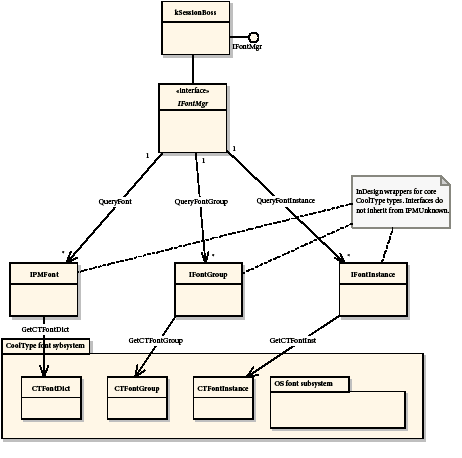
Session font manager
The session font manager, IFontMgr on kSessionBoss, provides access to the CoolType font wrappers. IPMFont is the representation of a font, IFontGroup represents a group of fonts that are in the same font family, and IFontInstance represents a particular font at a particular point size.
The session font manager provides access to all fonts and font groups that are available to the application and to all open documents in the InDesign session. Each font group also allows you to access each font in the group. The IFontMgr interface is aggregated on kSessionBoss.
CoolType
CoolType is the core technology through which InDesign accesses fonts.
The API provides the IFontGroup, IPMFont, and IFontInstance interfaces as shells through which InDesign calls CoolType. These are not standard interfaces; that is, they do not derive from IPMUnknown. You cannot create them using CreateObject or query them for other interfaces; however, these interfaces are reference counted, and you can manage their lifetime using InterfacePtr. See the following table and figure.
Interfaces that use CoolType:
| Interface | Description | How to get the interface | Code snippet with example of use |
|---|---|---|---|
| IFontGroup | Represents all font groups available to the application | IFontMgr::QueryFontGroup, FontGroupIteratorCallBack | SnpPerformFontGroupIterator |
| IPMFont | Provides extensive data related to a particular font. IPMFont provides font-name mapping calls and access to font metrics at a given point size. | IFontMgr::QueryFont, IFontMgr::QueryFontPlatform, IFontFamily, text attributes kTextAttrFontUIDBoss and kTextAttrFontStyleBoss, IStoryService, IWaxRenderData | SnpInspectFontMgr |
| IFontInstance | Represents an instance of a font of a given point size. Of interest if you need to write a paragraph composer or map character codes to GlyphIDs. | IFontMgr, IDrawingStyle, IStoryService | SnpInsertGlyph |
Accessing a font:

Fonts are used when composing text, because fonts define the characteristics of individual glyphs. kComposeStyleBoss is used by the composition engine. The IDrawingStyle interface provides access to the font (IPMFont) and the particular font instance (IFontInstance) being used.
Local font manager
Each open document has its own local font manager, ILocalFontManager, which inherits from IFontMgr. To ask the IDocument for its IFontMgr, make a request similar to the following:
You can cast the IFontMgr for a document to an ILocalFontManager. Getting the interface looks like this:
If there are document-installed fonts, the local font manager ensures that those fonts are used before any session managed fonts. If there are no document-installed fonts, ILocalFontManager provides essentially the same services as the document's IFontMgr. You can query whether a font was installed specifically for the document using IsDocumentInstalledFont.
Code snippet SnpInspectFontMgr.cpp has an example of how to use ILocalFontManager.
Within a document, fonts are represented by the font name (plus information on font style and point size). When the actual font is required, the font manager resolves the name-to-font (IPMFont or IFontInstance) mapping.
The document-font manager
The document-font manager (IDocFontMgr) provides access to all fonts that persist in a session or document workspace. The fonts that exist in a document include a set of default fonts, fonts used in visible stories, and fonts used for features that are modeled using the application text subsystem but not intended to be viewed or printed as part of a story (for example, text that exists in notes).
Fonts in the persistent document
Fonts are represented in the object model by kFontGroupBoss (signature interface IFontFamily). Each font used in a story results in an instance of this boss object. A font family along with a font style identifies a particular font in the font subsystem. The font family represents the name of the font (more correctly, the set of names that identify each font within a particular group). This decoupling between font and name in the document allows the font manager to resolve the font when required and take appropriate measures if the font is not available to the application. The relationship between font manager and fonts is shown in the following figure
How fonts persist in a document:
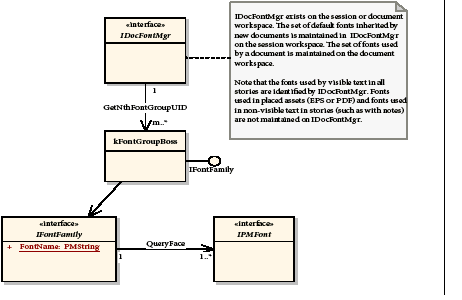
A font persists as a name, contained within a persistent implementation of IFontFamily. Access to these persistent objects is provided through the (session or document) workspace. IFontFamily::QueryFace requests the font from the font manager. If the returned IPMFont is non-nil, IPMFont::FontStatus can be used to determine the validity of the font.
A set of text within a story is associated with a particular font using standard text attributes.
The text attributes that refer to the font in which text appears are as follows:
The font family, along with the style of the font, identifies a particular font (IPMFont). The point size of the text is used to provide an instance of the font (IFontInstance).
Text attributes are introduced and described fully in Text formatting.
The used-font list
The used-font list (IUsedFontList) on a document (kDocBoss) details the fonts associated with story text. The used-font list does not include the fonts used in features that are not intended to be viewed or printed as part of a story (for example, text that exists in notes).
Fonts in placed assets
Placed (EPS or PDF) assets support the IFontNames interface. This interface reports the fonts used for the particular asset, including whether the asset depends on the presence of fonts on the system. Placed assets are maintained in the native asset's format (PDF or EPS), with the IFontNames interface providing access to information within the asset.
Document font use
A utility interface (IDocumentFontUsage) on the document (kDocBoss) provides a facade over the two interfaces introduced above (IUsedFontList and IFontNames).
Font naming
Internally, application code uses PostScript font names. For example, IPMFont::AppendFontName returns the PostScript font name. If you know the PostScript name of the font you want, you can get the associated IPMFont using IFontMgr::QueryFont. Several other names are available on IPMFont and IFontFamily. For example, if you use IFontMgr::QueryFont to instantiate the PostScript font AGaramond-Italic, IPMFont gives you the names shown in the table in the following figure.
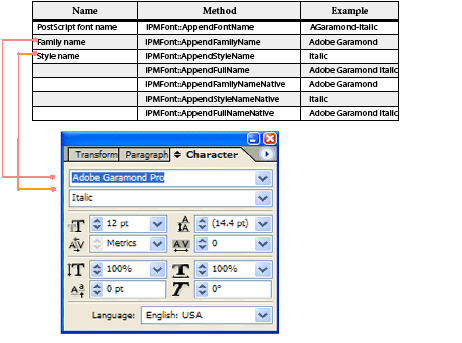
Notice the typeface name Adobe Garamond Pro in the panel in the preceding figure does not match the family name in the table. This is because ITextUtils::GetDisplayFontNames supplies the platform-specific name in the Character panel. If you do not have the PostScript font name but know the name of the typeface on a given platform (the typeface name in Windows or the family name in Mac OS), IFontMgr::QueryFontPlatform returns the corresponding IPMFont.
Font warnings
The IDocumentFontUsage interface (on kDocBoss) manages used-font and missing-font information for text in stories of a document. The IDocumentFontUsage interface does not detail fonts used by features that rely on the application text model but are not rendered as part of the document (for example, notes).
The IMissingFontSignalData interface provides data sent with the missing-font signal (of which responders of type kMissingFontSignalResponderService are notified).
The IFontUseWarningManager interface can be called to check a particular font and possibly warn the user about restrictions. Examples are restrictions based on user preferences or because a font is a bitmap.
Some languages too many glyphs to be contained in a font; for example, Japanese contains about 50,000. To accommodate this, font developers create fonts with subsets of glyphs. Also, there is a desire within typography to replace some glyphs with others to achieve a certain visual effect. And users might want to shift the position of Roman glyphs relative to the baseline or enlarge or reduce the size of glyphs. See the following figure.
Japanese and Roman typography metrics:
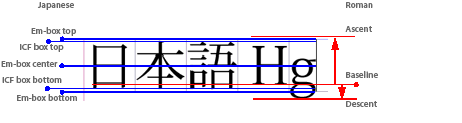
The ICompositeFont interface creates a new font composed of base fonts and provides for size and positioning adjustments. Font switching is based on Unicode values. The base font must be a Chinese, Japanese, or Korean font. For examples of using ICompositeFont, see the SnpPerformCompFont code snippet. An application can get this interface using any of the following:
Use the ICompositeFontMgr interface to manage composite fonts. For examples of its use, see the SDK code snippet SnpPerformCompFont.
The IFontMetricsTable interface obtains the correct tsume values (similar to side bearings on glyphs) around either the top and bottom or left and right of glyphs from the document originator and caches them. Later users (who might have only bitmaps of the fonts used to create the document) can use the tsume metrics saved in the document through this interface.
This chapter describes how to extend your plug-in so that its features can be automated by a script, can be accessed in InDesign Server, and can participate in technologies based on IDML.
You can add scripting support to a plug-in for InDesign, InCopy, or InDesign Server. This chapter is the C++ programming counterpart to Adobe InDesign Scripting Guide and Adobe InCopy Scripting Guide, which document how to write scripts that automate InDesign and InCopy. Both the scripting guides and this chapter are recommended reading if you are adding scripting support to your plug-in. This chapter also describes the relationship between scripting and the InDesign Markup Language (IDML) file format.
This following list contains terms used throughout this chapter. For other terms used in this chapter that are not in the following list, see the Glossary.
Scripting allows users to exert virtually the same control of the application from a script as is available from the user interface. This functionality can be used for purposes as simple as automating repetitive tasks, or as involved as controlling the application from a database. Scripts can be written in AppleScript, Visual Basic, or JavaScript. For instructions on writing and running scripts, see Adobe InDesign Scripting Guide.
The extensibility of this scripting architecture allows you to provide scripting support for functions added by your own plug-in. The architecture provides a platform-independent and scripting-language-independent foundation on which you can build. It abstracts and provides implementations for the common elements of scripting. Your task is adding implementations for the functionality you are exposing.
For the plug-in developer, making a plug-in scriptable has several benefits:
IDML is an XML-based format used to serialize and deserialize a scripting DOM. For an overview of IDML and guidance on working with it, see IDML File Format Specification and Adobe InDesign Markup Language Cookbook.
By exposing functionality through scripting, plug-ins can participate in technologies like Save Backwards. You should make your plug-in scriptable if your plug-in adds persistent data to a document or to the session workspace (kWorkspaceBoss) and your plug-in uses features that depend on IDML, such as the following:
These are the principal tasks involved in adding scripting support to your plug-in:
To make your plug-in scriptable, you need the following tools:
For more information on writing and debugging scripts, see Adobe InDesign Scripting Guide.
This section provides an architectural description of the framework that supports scripting. Instructions on making your plug-in scriptable are in How to make your plug-in scriptable.
The scripting DOM is the end-user representation of an application and document as a set of script objects. Each script object has properties and/or methods. The closest analogies for these concepts in an object-oriented programming language are class (script object), attribute (property), and method (method).
The scripting DOM describes a document as a tree structure of script objects, rooted at a document script object. For example, a document may have several children that are color script objects, several that are spreads, and so on. Besides having children, each script object can have a set of properties and methods. A color has properties that describe its name, color model, and color value, among other things. At this level of abstraction, we have the objects that are part of the end-user's experience of an InDesign document (spreads, pages, frames, stories, and so on), but the representation is less closely tied to the boss objects you manipulate with the C++ API.
The following figure shows a portion of the scripting DOM for an application that has a document containing a page with a text frame. The scripting DOM is a hierarchy of script objects with methods and properties. Four script objects are shown in the figure: Application, Document, Page, and TextFrame. The script property that stores the bounds of a text frame object is shown.
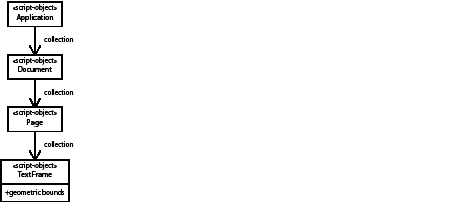
Scripts get or set properties and execute methods. To do this, a script must find the right object and then perform an operation. The following example shows a script written in JavaScript that creates an instance of the scripting DOM shown in the preceding figure and sets a property of the text frame.
A script object is said to be a child of the script object on which it is exposed. The script object that exposes another script object is said to be that object's parent. For example, in the figure, the document script object is a child of the application, and the application script object is the parent of the document.
A script object that can exist in a collection is said to have a plural form. The document, page, and text frame script objects in the figure have a plural form. A script object that has a plural form must support the special script methods used to manage collections (see Special methods).
A script objects that does not have a plural form often is called a singleton. Examples are the application script object in the figure and script objects that expose preferences.
Each script object, method, and property has a name, description, ScriptID, and ScriptElementID defined, as described in Scripting resources. The script objects provided by InDesign are identified in the table in "Scripting DOM reference", later in this chapter.
Each script object, method, and property has an associated script provider (see Script providers) that handles it.
The scripting DOM covers the entire boss DOM. As the boss DOM changes, the scripting DOM evolves in response. The scripting DOM is versioned to maintain compatibility with past and future versions.
Adobe maintains at least one version of backward compatibility of the scripting DOM. This ensures that clients of the scripting DOM (for example, scripts, IDML, and INX) work seamlessly in new versions of the product.
Clients of the scripting DOM can specify which version of the scripting DOM should be used by the application to interpret requests (see RequestContext in the API documentation). Requests involving scripting elements (script objects, properties, and methods) that are added in a particular product version (for example, InDesign CC) work only if the client specifies that version (or later) of the scripting DOM. Similarly, objects, properties, and methods removed from the scripting DOM in InDesign CC will not work if the client specifies the InDesign CC version of the scripting DOM; however, they must still work if the client specifies the InDesign CS5 version of the scripting DOM.
Compatibility is maintained not just for the elements in the scripting DOM, but for the functionality they expose. This means that any underlying function that changes in InDesign CC is still exposed as it was in InDesign CS5 for clients of the scripting DOM. In some cases, this requirement may constrain the ability to significantly rearchitect the code. How to handle exceptions to this requirement, such as for functionality that no longer exists, is determined on a case-by-case basis. At the very least, script providers must degrade gracefully by implementing support as a no-op. For details of working with versioning, see Versioning of scripting resources.
Special considerations and rules regarding versioning and IDML are in Maintaining IDML forward and backward compatibility.
The core architecture is implemented in the scripting plug-in, which manages the scripting DOM. The scripting DOM is described by plug-ins using ODFRC resources (see Scripting resources). These resources define script objects, their properties, methods, and the script provider (IScriptProvider) that handles them. The architecture is extensible. Plug-ins can add new script objects or add new properties and methods to existing script objects by defining ODFRC resources and implementing a script provider.
See the following figure, showing scripting architecture. The scripting DOM represents a document as a set of script objects with properties and methods. The boss DOM represents a document as a set of boss objects and interfaces. Plug-ins expose their boss DOM data as objects and properties in the scripting DOM, by defining ODFRez resources. Plug-ins expose other functionality as scripting methods in a similar way. Plug-ins implement a script provider to manipulate data in the boss DOM when their script objects, properties, and methods are used. The scripting plug-in manages the scripting DOM. When script managers access the scripting DOM, the scripting plug-in maps script object properties and methods to their associated script provider.
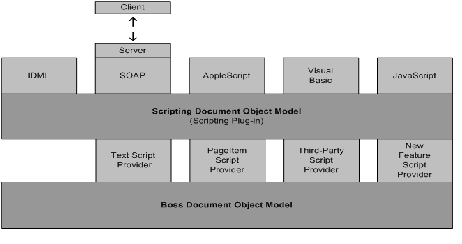
Clients of the Scripting DOM are called script managers (see the IScriptManager interface in the API documentation). Scripting language support for AppleScript, Visual Basic, and JavaScript is provided by optional plug-ins that implement a script manager. The scripting DOM was conceived to make the scripting architecture easier to use and more extensible; in addition, it has enabled other technologies to be built. The IDML file format is founded on the scripting DOM.
Scripts interact with their associated script manager, which interacts with the scripting DOM, which interacts with the application's C++ API. The interaction varies somewhat depending on the scripting language, as shown in the following figure. AppleScript and Visual Basic communicate with the application through their respective interapplication communication processes, AppleEvents and COM/OLE automation.
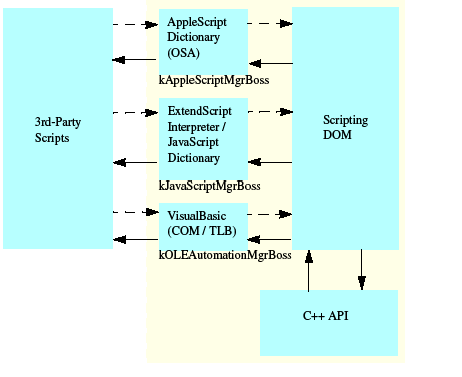
The application supplies script managers that handle the interaction between the scripting client and your plug-in. The following tables lists major script manager boss casses
| Script Manager ClassID | Used with |
|---|---|
| kAppleScriptMgrBoss | AppleScript |
| kINXScriptManagerBoss | Base class for INX and IDML script -manager bosses |
| kJavaScriptMgrBoss | JavaScript |
| kOLEAutomationMgrBoss | Visual Basic |
| kINXTraditionalImportScriptManagerBoss | INX |
| kINXTraditionalExportScriptManagerBoss | INX |
| kINXExpandedImportScriptManagerBoss | IDML |
| kINXExpandedExportScriptManagerBoss | IDML |
This section describes the parts that enable a plug-in to receive a scripting request from a script manager and report data back to the script manager. As with other client interfaces that you would give a plug-in, scripting is intended to query and change the boss DOM. To accomplish this, we must be able to identify objects in the boss DOM via IScript and get and/or set values.
For instructions on making your plug-in scriptable, see How to make your plug-in scriptable.
Every scriptable plug-in needs to supply a VersionedScriptElementInfo ODFRez resource that specifies the plug-in's additions to the scripting DOM in the form of script objects, properties, methods, and the providers that handle these additions. In this resource, you identify details about the script objects and their relationships with other script objects, and give them IDs so that your additions to the scripting DOM can be identified.
See Scripting resources.
IScriptProvider is the signature interface of a script-provider boss class. This interface allows the script manager to access a script object, get and set its properties, and execute its methods. Script providers know how to handle script objects, properties, and methods in an abstract sense. They map a request from the scripting DOM onto the boss DOM. For example, in response to being called to get a property, a script provider might call an accessor method on an interface on a scriptable boss. To set a property, it might process a command that changes a scriptable boss.
When you implement a script provider boss, you normally extend kBaseScriptProviderBoss. To see its interfaces, refer to the API documentation.
Partial implementations are as follows:
IScript is the signature interface of a scriptable boss; that is, a boss class exposed in the scripting DOM. A scriptable boss object is the ultimate target of a method or property request made on a script object. The need to implement an IScript interface depends on whether you want to add a function to an existing script object or are implementing a new script object of your own. To add a function to an existing script object, such as the document, you do not implement the IScript interface. To create a new script object, you must define a boss class that implements the IScript interface, which maps your scriptable boss to its associated script object.
Partial implementations are as follows:
You must define IDs that identify your plug-in's additions to the Scripting DOM. See ScriptElementIDs, ScriptIDs, names, descriptions, and GUIDs.
Related sample code:
| Sample | Scripting DOM | Notes |
|---|---|---|
| BasicPersistInterface | Adds a string property to script objects kPageItemObjectScriptElement and kGraphicObjectScriptElement in the scripting DOM. | Exposes data stored in an add-in data interface on kDrawablePageItemBoss. |
| BasicTextAdornment | Adds a boolean property to script objects kTextStyleRangeObjectScriptElement and kTextObjectScriptElement in the scripting DOM. | Exposes data stored in a custom text attribute. |
Related sample code:
| Sample | Scripting DOM | Notes |
|---|---|---|
| CandleChart | Adds methods to script object kDocumentObjectScriptElement in the scripting DOM. | Exposes processes that manage this sample's function. |
| SnippetRunner | Adds methods and properties to script object kApplicationObjectScriptElement in the scripting DOM. | Exposes methods and properties that manage code snippets and the framework that hosts them. |
A preference object contains preference settings and exists in the scripting DOM as a singleton property. Normally, preferences reside in the kApplicationObjectScriptElement and kDocumentObjectScriptElement objects in the scripting DOM. In the boss DOM, these generally correspond to preference data interfaces on kWorkspaceBoss and kDocWorkspaceBoss, respectively.
To add a new script object to make preferences scriptable:
Preference-related sample code:
| Sample | Scripting DOM | Notes |
|---|---|---|
| BasicPersistInterface | Adds script object kBPIPrefObjectScriptElement to kApplicationObjectScriptElement and kDocumentObjectScriptElement in the scripting DOM. | Exposes preferences stored in an add-in interface on kWorkspaceBoss and kDocWorkspaceBoss. |
| PrintSelection | Adds script object kPrintSelectionObjectScriptElement to kDocumentObjectScriptElement in the scripting DOM. | Exposes data stored in an add-in interface on kDocBoss. |
| SnippetRunner | Adds script object kSnipRunObjectScriptElement to kApplicationObjectScriptElement in the scripting DOM. | Exposes the Snippet Runner object as a singleton object under kApplicationObjectScriptElement, which does not have any counterpart interface on any workspace boss. |
If the object you are exposing is a singleton, follow the procedure for preferences (see Adding a new script object to make preferences scriptable and the example in "Object element").
Related sample code:
| Sample | Scripting DOM | Notes |
|---|---|---|
| PersistentList | Adds script object kPstLstDataObjectScriptElement to kGraphicObjectScriptElement, kPageItemObjectScriptElement and other page item related objects in the scripting DOM. (For the complete list, see the Provider statement in PstLst.fr). | Exposes the UID-based object kPstLstDataBoss. |
For sample code, see the SnippetRunner sample. For related APIs, see IScript, IScriptProvider, and CProxyScript.
Related sample code:
| Sample | Scripting DOM | Notes |
|---|---|---|
| SnippetRunner | Adds script object kSnpRunnableObjectScriptElement to represent a code snippet that can be run by SnippetRunner. | Code snippets are C++ objects that have no associated boss. |
For related APIs, see IPalettePanelScriptUtils, IPanelMgr, and IScriptProvider.
Your plug-in's script provider (IScriptProvider) should return a meaningful ErrorCode. If it returns kFailure, you will get an assert. To provide error information that is useful to clients, you must add an error-string service to your plug-in. To do so:
The scripting architecture can handle multiple requests concurrently in two ways: across multiple target objects and across multiple properties.
Handling multiple objects concurrently
Many methods of IScriptRequestHandler, like DoHandleMethod, DoHandleCollectionMethod, DoSetProperty, and DoGetProperty, can take either one IScript* or a const ScriptList &. The request handler segregates the target objects according to which script provider handles them, then hands each script provider its own list of targets (by calling IScriptProvider::HandleMethodOnObjects or IScriptProvider::AccessPropertyOnObjects).
The default implementations of these methods (in CScriptProvider) simply iterate through the individual objects and call HandleMethod or AccessProperty for each one separately. A script provider, however, may override the overloaded version of CScriptProvider::HandleMethodOnObjects or CScriptProvider::AccessPropertyOnObjects that takes a const ScriptList &, to handle the request on all objects at once (for example, by executing a single command on all targets).
This approach is most useful for script providers that handle methods for which there is a command that takes (or may take) multiple objects.
Handling multiple properties concurrently
Use IScriptRequestHandler::SetProperties and IScriptRequestHandler::GetProperties to set and get multiple properties at a time. The request handler segregates the properties according to which script provider handles them, then hands each script provider its own list of properties (by calling IScriptProvider::AccessProperties).
The default implementation of AccessProperties (in CScriptProvider) simply iterates through the individual properties and calls AccessProperty to set each one separately. If you have a property-heavy script provider, however, you can override this behavior as follows:
The prerequisite for the preceding approach is a script provider that uses the same command to set all or most of the properties it supports, since the time to execute the command repeatedly is most expensive. Preferences script providers are a good candidate, because a variety of preferences often are grouped together in one command.
For related APIs, see IScriptRequestHandler and IScriptProvider.
Windows: COM Type library location
The COM type library is stored under the user's defaults folder for the application on Windows; for example:
See the "Resources for Visual Basic.tlb" file.
This folder also contains a "Scripting SavedData" file that holds a list of scriptable plug-ins, together with information that allows the application to detect changes that require the COM type library to be updated. When the application launches, it creates the COM type library (Windows only) if the files mentioned above do not exist or the "Scripting SavedData" file indicates these files need to be regenerated.
Another copy of the COM type library is stored under the "All Users" defaults folder on Windows; for example:
See the "Resources for Visual Basic.tlb" file. This is set up by the product installer and regenerated only if the application launches and finds the file does not exist. It is not regenerated when the set of scriptable plug-ins changes.
Mac OS: AppleScript dictionary location
The AppleScript dictionary is stored under the user's defaults folder for the application on the Mac; for example:
See the "Resources for AppleScript.aete" file.
This folder also contains a "Scripting SavedData" file that holds a list of scriptable plug-ins, together with information that allows the application to detect changes that require the dictionary to be updated. When the application launches, it creates the AppleScript dictionary (Mac OS only), if the files mentioned above do not exist or the "Scripting SavedData" file indicates that these files need to be regenerated.
Reviewing the scripting DOM
To verify that your new script elements were incorporated into the scripting DOM:
Reviewing the AppleScript dictionary
To verify that your new script objects were incorporated into the AppleScript dictionary:
Reviewing the COM type library
To verify that your new script objects were incorporated into the COM type library, choose one of the following approaches:
Using Microsoft Visual Studio:
Using Microsoft Word or Excel's Macro Editor:
Three steps must be properly versioned to run an older script in a newer version of the product:
Targeting
Targeting for AppleScript applications
Targeting for AppleScript applications is done using the "tell" statement. You do not need a tell statement if you run the script from the Scripts panel, because there is an implicit tell statement for the application launching the script.
Targeting for Visual Basic applications
Targeting for Visual Basic applications and VBScripts is done using the "CreateObject" method:
Targeting for JavaScript applications
Targeting for JavaScripts is implicit when launched using the Scripts panel. If launched from elsewhere, use the "target" directive:
Compilation
Compilation of AppleScript applications
Typically, AppleScripts are compiled using the targeted application's dictionary. You can override this behavior with the "using terms from" statement, which substitutes another application's dictionary for compilation purposes.
To generate a CS6 version of the AppleScript dictionary, use the publish terminology method, which is exposed on the application object (see below). The dictionary is published into a folder (named with the version of the DOM) under the "Scripting Support" folder. For example: /Users/<username>/Library/Caches/Adobe <InDesign or="" incopy="" or="" indesign="" server>="">/Version 9.0/en_US/Scripting Support/8.0.
Compilation of Visual Basic applications
Compilation of Visual Basic applications may be versioned by referencing the type library. To generate a CS6 version of the type library, use the PublishTerminology method, which is exposed on the Application object. The type library is published into a folder (named with the version of the DOM) that is under the "Scripting Support" folder in your application's preferences folder, which is located:
Windows 7:
For example:
VBScripts are not precompiled. The application generates and references the appropriate type library automatically, based on the version of the DOM set for interpretation.
Compilation of JavaScript applications
JavaScripts are not precompiled. For compilation, the application uses the same version of the DOM that is set for interpretation.
Interpretation
The Application object contains a Script Preferences object, which allows a script to get/set the version of the scripting DOM to use for interpreting requests. The version will remain as set until explicitly changed again, even across scripts. The version defaults to the current version of the application and persists. See the following examples.
AppleScript interpretation
Visual Basic interpretation
JavaScript interpretation
For the most part, you support the IDML file format simply by exposing your persistent data in the scripting DOM.
If you are making a custom page item scriptable, make sure you do not rely on "with properties" (parameters) during the create method (e_Create). This is because the application component that generates the IDML file format may not have all the data to create the IDML tag attributes on your custom objects. Also, it may not set properties on your custom object in any specific order. So, in your script provider where you support the create method (e_Create), you should be able to support instantiation without properties while using reasonable defaults, and tolerate setting properties in random order.
If you have read-only properties that are set automatically by the application or your plug-in (for example, file modification date/time), you may need a separate read/write version of the property for use by the kINXScriptManagerBoss, so the IDML subsystem can update it while writing. For example, kPageCountPropertyScriptElement is a read-only element that needs the following:
Page count, a read-only property to which IDML requires write access
IDML writes object and property data to XML using their long name identifiers. To allow long names to be written within a list of values, define your property using a StructType containing StructFields that define key/value pairs for each value in the list. For example, here is a definition of key/value pairs to define list elements:
This section describes the versioning goals and rules for InDesign and the IDML file format. The same versioning goals and rules apply to InCopy and its ICML file format.
Consider three InDesign versions, A, B and C, with A being the oldest. The scripting DOM version is changed at the beginning of each product development cycle, so we also can speak of scripting DOM versions A, B and C. Each product version has its own IDML file format version, IDML-A, IDML-B, IDML-C, based on its associated scripting DOM.
Users do not want to specify which flavor of IDML they want to export or open. As a result, Adobe and third-party developers must preserve the illusion that there is one version of IDML.
Goals
Whether goal 3 is met depends on how carefully people write script providers. For most script objects, which are simple, just a small set of rules need to be followed.
Rules
Adding script objects or properties
If you add new script objects or add new properties to existing objects, there is no problem; older versions of InDesign simply ignore the information.
Removing script objects and properties
If you remove an object or property, there is no problem. Suppose a property called weasel is no longer needed in InDesign-B. Mark the weasel property Obsolete as of scripting DOM version B. Leave support for the property intact, since it will be needed when version A of the scripting DOM is active.
Changing the type of a property
We do not recommend changing the type of a property, and experience has shown that changes to a property's type should be rare. Choose carefully when adding a new property and specifying its type.
To make sure your new script objects are exported in IDML:
For example, the Watermark sample plug-in adds a preference object to the document. Follow the instructions above, and use the Plug-ins > SDK > Watermark menu to define a watermark for the document. Export an IDML file, uncompress it, open designmap.xml, and search for "WatermarkPreference."
To help debug your scriptable plug-in, use the following debug-build-only menu items:
The scripting DOM is made up of script objects, properties, methods, and providers that are defined by plug-ins using the ODFRez resource statements described in this section.
The scripting resources in a plug-in:
The scripting plug-in manages the scripting DOM via the IScriptInfoManager interface. IScriptInfoManager:
A VersionedScriptElementInfo statement adds script objects, properties, methods, and providers to the scripting DOM. Example:
Notes:
See Versioning of scripting resources.
An object element defines a new script object that can be added to the scripting DOM using a Provider statement (see Provider element). The following is an example of a statement for a script object with a plural form:
Notes:
The following is an example of a statement for a singleton script object (for example, preferences):
We recommend that any singleton script object be implemented using the pattern for preferences, for backward compatibility. A singleton is based on kPreferencesObjectScriptElement, as shown in the example, and it follows the implementation pattern outlined in Adding a new script object to make preferences scriptable.
Earlier product versions (Creative Suite 1) required this, so the scripting DOM for JavaScript is set up correctly. If you add script elements to the scripting DOM for Creative Suite 1, make your singleton a preference script object).
Follow the preceding approach for any singleton, even if it exposes data to scripting that is not stored in the normal locations for preference data (that is, kDocWorkspaceBoss and kWorkspaceBoss). For sample code, see SnippetRunner's kSnipRunObjectScriptElement object and SnipRunScriptProvider.
A method element defines a new method that can be added to the scripting DOM using a Provider statement (see Provider element). Example:
Notes:
Default parameter values
You may specify a default value for optional parameters, using a default type (see Scripting data types). There are no default declarations for date, file, object, record, or array types. (See the ScriptInfoTypes.fh file.)
Special methods
Create
The create method instantiates a script object.
Most script objects can reuse the predefined method kCreateMethodScriptElement, unless they have required parameters for the create method, which is strongly discouraged. To define your own create method, use e_Create as the ScriptID and "add" as the name in your Method statement.
The create method is expected to use the WITHPROPERTIESPARAM macro to add a "with properties" parameter for AppleScript and JavaScript.
The create method is added to the scripting DOM using a CollectionMethod field within a Provider statement; for example: CollectionMethod{ kCreateMethodScriptElement }. See Provider element. This associates the method with the collection object (or container of, in AppleScript).
Count
The count method indicates how many script objects are instantiated. It is considered a property in Visual Basic and appears on collections (the plural form of an object; for example "Books") in the type library.
Most script objects can reuse the predefined method kCountMethodScriptElement.
The count method is added to the scripting DOM using a CollectionMethod field within a Provider statement; for example: CollectionMethod{ kCountMethodScriptElement }. See Provider element.
Predefined methods
The following table lists common predefined methods. They are useful if you are adding a new script object that has a plural form to the scripting DOM.
| ScriptElementID | ScriptID | Name | Notes |
|---|---|---|---|
| kCreateMethodScriptElement | e_Create | add | Instantiate a script object ("make" in Apple Script, "Add" in Visual Basic, and "add" in JavaScript). |
| kCountMethodScriptElement | e_Count | count | Count how many script objects are instantiated. |
| kDeleteMethodScriptElement | e_Delete | delete | Delete a script object. ("delete" in Apple Script, "Delete" in Visual Basic, and "remove" in JavaScript). |
| kDuplicateMethodScriptElement | e_Duplicate | duplicate | Duplicate a script object. |
| kMoveMethodScriptElement | e_Move | move | Move a script object. |
A property element defines a new property that can be added to the scripting DOM using a Provider statement (see Provider element). Example:
Notes:
Other examples of Property statements are in the following example:
TypeDefType
A TypeDef resource defines a synonym for another type. You can use a TypeDef type wherever a type is required, by using a TypeDefType declaration; see TypeDef element.
Settable types
If a property takes a particular type on "set" but will never return that type on "get," that type should be in the list of additional settable types, rather than in a variable type.
For a property with settable types, instead of using this:
Use this:
Special properties
Special properties added via inheritance
The special properties in the following table are added when appropriate via inheritance and do not need to be added to any Provider statement. For documentation on the inheritance of properties from base script objects, see Script-object inheritance.
| ScriptElementID | Name | Description | Note |
|---|---|---|---|
| kClassPropertyScriptElement | class | Class descriptor type | Provided under AppleScript by kAnyObjectScriptElement |
| kIDPropertyScriptElement | id | The object's identifier | Provided by kUniqueIDBasedObjectScriptElement and kNonUniqueIDBasedObjectScriptElement |
| kIndexPropertyScriptElement | index | Index of the object within its parent | Provided by kAnyObjectScriptElement |
| kLabelPropertyScriptElement | label | A label that can be set to any string | Provided by kUniqueIDBasedObjectScriptElement and kNonUniqueIDBasedObjectScriptElement |
| kObjectReferencePropertyScriptElement | object reference | An object reference for this object | Provided under AppleScript by kAnyObjectScriptElement |
| kParentPropertyScriptElement | parent | The object's parent | Provided by kAnyObjectScriptElement |
| kPropertiesPropertyScriptElement | properties | Property that allows setting of several properties at the same time | Provided by kAnyObjectScriptElement |
Name
This must be added into the Provider statement that supports the Name property; for example: Property{ kNamePropertyScriptElement, kReadWrite }.
Predefined properties
The properties in the following table are predefined by the application and can be added to script objects via a Provider statement:
| ScriptElementID | ScriptID | Name | Description | Data type |
|---|---|---|---|---|
| kBottomPropertyScriptElement | p_Bottom | bottom | Bottom edge of the object. | UnitType |
| kBoundsPropertyScriptElement | p_Bounds | bounds | Bounds of the object, in the format (top, left, bottom, right). | UnitArrayType(4) |
| kDatePropertyScriptElement | p_Date | date | Date and time. | DateType |
| kDescriptionPropertyScriptElement | p_Description | description | Description. | StringType |
| kFullNamePropertyScriptElement | p_FullName | full name | Full path including the name. | FileType |
| kHeightPropertyScriptElement | p_Height | height | Height of the object. | UnitType |
| kLeftPropertyScriptElement | p_Left | left | Left edge of the object. | UnitType |
| kLockedPropertyScriptElement | p_Locked | locked | Whether the object is locked. | BoolType |
| kNamePropertyScriptElement | p_Name | name | Name of the object. | StringType |
| kPathPropertyScriptElement | p_Path | file path | File path. | FileType |
| kPropertiesPropertyScriptElement | p_Properties | properties | Property that allows setting of several properties at the same time. | RecordType( kContainerObjectScriptElement ) |
| kRightPropertyScriptElement | p_Right | right | Right edge of the object. | UnitType |
| kTopPropertyScriptElement | p_Top | top | Top edge of the object. | UnitType |
| kVisiblePropertyScriptElement | p_Visible | visible | Whether the object is visible. | BoolType |
| kWidthPropertyScriptElement | p_Width | width | Width of the object. | UnitType |
The StructType allows you to assign long scripting names to data within a group in your resource. This is especially useful for data that will be written to IDML.
A TypeDef resource defines a synonym for another type. A TypeDef type may be used wherever a type is required, by using a TypeDefType declaration; for example, the storage type of a property resource or the return type or parameter types of a method resource.
Two TypeDefs in the core DOM corresponding to user-interface colors in InDesign and InCopy were reimplemented using this technique. The new TypeDefs are shown here:
To use a TypeDef in a property definition, use TypeDefType to specify which TypeDef to use:
An enum element defines the list of enumerated values that a property or parameter can take. Example:
Notes:
An enum is referred to by a ScriptElementID from a Property statement or from parameters within a Method statement. See the example in Method element for an example of a Method statement that uses kSaveOptionsEnumScriptElement as a parameter.
An enumerator element adds additional enumerators to an existing enum (see Enum element). This is handy when adding a new value for an existing enumerated property. It also can be used when the available values of an enum are different in the Roman and Japanese feature sets. Example:
Notes:
The metadata element allows you to add metadata to one or more existing Suite, Object, Method, Property, Enum, and TypeDef elements. The target elements are listed by ScriptElementID; the metadata takes the form of a ScriptID/ScriptData key/value pair. Metadata on an element can be accessed at run time via the ScriptElement base class's GetMetadata() and HasMetadata() methods. The CustomDataLink sample in the SDK provides an example of metadata element, which is shown in this example:
Notes:
Value types
The following metadata value types are supported:
A provider element adds the script objects, methods, and properties you defined into the scripting DOM. It can be defined (used) in multiple places to represent different parent-child hierarchy client types. See Object element, "Method element" on page 384, and "Property element" for a description of how objects, methods, and properties are defined. The provider statement:
The following is an example of a Provider statement that adds a property and a method to an existing object in the scripting DOM, kPageItemObjectScriptElement:
Notes:
The following is an example of a Provider statement that adds a new script object into the scripting DOM:
Notes:
Fields in a provider statement
The types of field that can appear in a Provider statement are listed in the following table. Each field refers to an associated script element (a script object, method, property, or enum) using its ScriptElementID.
| Field type | Purpose | Use |
|---|---|---|
| Object | The script object referenced by this field is the object in the scripting DOM to which properties and methods referenced by subsequent fields are added. | Add new properties and methods to an existing script object. |
| Method | The script method referenced by this field is added to the script object referenced by the preceding Object or RepresentObject field. | Add method to a new or existing script object. |
| Property | The script property referenced by this field is added to the script object referenced by the preceding Object or RepresentObject field. This identifies access rights as kReadOnly, kReadWrite, or kReadOnlyButReadWriteForINX. | Add property to a new or existing script object. |
| Parent | The script object referenced by this field is a parent in the scripting DOM for the new script object referred to by a subsequent RepresentObject field. | Add a new script object to the scripting DOM. |
| RepresentObject | The script object referenced by this field is added to the scripting DOM. Its parent object is defined by a presiding Parent field. | Add a new script object to the scripting DOM. |
| ParentProperty | The script property referenced by this field is added to the script object referred to by a preceding Parent field. | Provide an accessor in the scripting DOM for a singleton script object. |
| CollectionMethod | A Create script method referenced by this field creates an instance of a script object in a collection. A Count script method referenced by this field counts how many instances exist in the collection. See Special methods. | Provide access in the scripting DOM for a collection of script objects. Script objects that can exist in a collection are said to have a plural form. For example, the plural form of spread is spreads. |
| SurrogateParent | See Surrogate. | Deprecated. SurrogateParent is an old mechanism used to avoid INX getting confused about ownership relationships. The preferred approach is to create an INX-specific scripting resource (see "Client-specific scripting resources") with a Provider statement that uses the kNotSupported script provider. Parent fields added to this Provider statement indicate the parent-child relationship that simply reference an object without any ownership. These parents are ignored by INX, and confusion about owner versus reference relationships is avoided. |
Surrogate
A surrogate is a concept that helps INX identify a parent object that does not have an ownership relationship with a child object.
In the native InDesign model, a document is stored as a tree of boss objects, each of which is bound to and stored persistently in a database. Each boss object (except the root object) has one boss object (a parent boss object) that refers to it and "owns" it and zero or more boss objects that simply reference it without any ownership.
In the scripting DOM, a surrogate indicates a parent-child relationship that does not have an ownership relationship with the underlying boss object. A surrogate simply refers to a child object. If you ask a child in the scripting DOM for its parent, the object you get back is the parent that has the ownership relationship; you do not get a surrogate. For example, a Page object has both a primary parent (a Spread object) and a surrogate parent (the Document object). You can access all pages in a document via the surrogate Document/Page relationship, but if you ask a Page which object is its parent, you always get back a Spread object.
A suite element adds a suite script element, which is used by AppleScript to group related script objects together. Each Object statement refers to its associated suite (see Object element). Example:
The ScriptElementIDs for common suites are defined in ScriptingID.h (for example, see kBasicSuiteScriptElement).
The scripting DOM is made up of script elements. A script element is a script object, script method, script property, script enum, or script suite. Each script element has two identifiers, a ScriptElementID and a ScriptID, together with a name and a description. Script objects also require one or more GUIDs.
ScriptElementIDs
A ScriptElementID is a kScriptInfoIDSpace ID, an object model identifier based on a plug-in prefix in the same way as the IDs for boss classes, interfaces, and implementations. These IDs are defined in the ID.h file of the plug-in that adds the script element to the scripting DOM. For example, kSpreadObjectScriptElement, the ID for the spread script object, is defined in SpreadID.h.
ScriptIDs
A ScriptID is a four-character identifier for a script element. For example, "sprd" is the ScriptID for a spread. Most ScriptIDs in the scripting DOM supplied by the application are defined in the <SDK>/source/public/includes/ScriptingDefs.h header file.
Names
The name field(s) in an Object, Method, Property, or Enum statement should contain a lowercase string, using a space to delimit the parts of the name (for example, "graphic layer" or "text frame"). Optionally, you can force uppercase for an acronym (for example, "URL") or product name (for example, "InDesign basics").
Descriptions
The string in the description field(s) of an Object, Method, Property, or Enum statement should be sentence case (that is, initial word capitalized), with no closing punctuation, unless the description is more than one sentence long, in which case all sentences except the last should have closing punctuation.
Object-sensitive descriptions
This option is particularly useful for methods and properties that appear on multiple script objects.
Often, it makes sense for the description field(s) of a method or property element to contain the name of the script object on which the method or property is exposed. For example, consider an object named "swatch":
By using ^Object for the singular form and ^Objects for the plural form, the name of the relevant object is substituted at run time. For example:
GUIDs
A GUID is a Windows ID that allows COM to interact with the script manager. GUIDs are generated on Windows using the Microsoft GUID generator GUIDGEN.EXE.
Adding a singleton script object to the scripting DOM requires a GUID. Adding a script object that has a plural form requires two GUIDs (see Object element).
The following is a sample GUID declaration:
If you need to access the GUID from C++ code in your plug-in, you must declare the GUID, as shown in the following example. Normally this is not necessary in the course of making a plug-in scriptable.
Scripting ID naming idioms
The following table lists the ScriptID and ScriptElementID naming idioms:
| Script element | ScriptID prefix | ScriptElementID | Examples |
|---|---|---|---|
| Object | c_ | kXxxObjectScriptElement | c_Spread, kSpreadObjectScriptElement |
| Method | e_ | kXxxMethodScriptElement | e_Open, kOpenMethodScriptElement |
| Method parameter | p_ | not required | p_ShowInWindow |
| Property | p_ | kXxxPropertyScriptElement | p_LineWeight, kStrokeWeightPropertyScriptElement |
| Enum | en_ | kXxxEnumScriptElement | en_FitContentOptions, kFitContentOptionEnumScriptElement |
| Suite | s_ | kXxxSuiteScriptElement | s_TableSuite, kTableSuiteScriptElement |
Source-file organization
The current SDK sample organization of source files for scripting IDs is as follows. For the referenced sample files, see <SDK>/source/sdksamples/basicpersistinterface:
This section discusses the scenarios in which plug-in developers need to extend the scripting DOM, and how ScriptIDs and names, referred to as ScriptID/name pairs, are managed.
When you add a new script element (script object, method, property, or enum) to the scripting DOM, the element has a ScriptID and a name (see ScriptIDs) and "Names"). The ScriptID and name are treated as a pair and must be used together. When you need a new ScriptID/name pair, you must register them with Adobe, to avoid conflicts with other plug-ins.
If you are unsure whether you need to register a ScriptID/name pair for the elements you want to add to the scripting DOM, always do the safe thing. Register a new unique ScriptID/name pair.
After you register ScriptID/name pairs, use them consistently in your code:
ScriptID/name registration process
The earlier online ScriptID/name pair system has been decommissioned and a new system is being built. In the interim, developers can still register the ScriptID/name pairs they need by sending the following information to wwds@adobe.com:
The following scenarios indicate situations in which a new ScriptID/name pair is needed. Do not use an arbitrarily chosen ScriptID/name pair as a new ScriptID/name pair. If the ScriptID/name pair you want is already registered, you must choose and register an alternative. Follow the procedures outlined in the following scenarios.
All plug-in developers must check for ScriptID/name pair conflicts with Adobe plug-ins, by loading their plug-in under the debug build of the application, having deleted the application's SavedData file before launching. If conflicts are detected, asserts are raised on start-up. Developers must change their scripting resources to fix any conflicts and be able to start the application without asserts.
Reserved words in each scripting language (that do not yet have any corresponding IDs) are prepopulated in the ScriptID/name pair database with arbitrarily chosen IDs.
Adding a new script object
Adding a new property or method to an Adobe script object
You can add a new property or method to the application or document script object (kApplicationObjectScriptElement or kDocumentObjectScriptElement). To do so:
Adding a new suite or enum
Adding a new property or method to an Adobe script object using an Adobe ScriptID/name pair
Suppose you want to add Adobe's name property (kNamePropertyScriptElement) to the page-item script object (kPageItemObjectScriptElement). In this example, the ScriptID/name pair is ‘pnam'/"name" and is registered by Adobe.
Never use Adobe-registered ScriptID/name pairs to add elements to Adobe script objects. Instead, register your own ScriptID/name pair for any new element you add to an Adobe script object. See Adding a new property or method to an Adobe script object.
You can reuse an Adobe-registered ScriptID/name pair in your own script object. This is required if you are overriding a method or property in any base script object provided by Adobe. When adding your new object, follow the guidelines in Adding a new script object.
If you already registered the ScriptID/name pair for your element, this scenario does not apply to you: you are not reusing an Adobe ScriptID/name pair). In this situation, the only party you can clash with is yourself, so the resolution is under your control.
The data types that can appear in Property and Method statements are listed in the following table. These types are defined as ODFRC macros in <SDK>/source/public/Includes/ScriptInfoTypes.fh. A table key follows:
| ODFRC type | Description | ODL type | AETE type |
|---|---|---|---|
| VoidType | Void | void | typeNull |
| Int16Type | Short integer | short | typeShortInteger |
| Int16DefaultType (default) | Default short Integer | short | typeShortInteger |
| Int16MinMaxType (min, max) | Short integer range | short | typeShortInteger |
| Int16MinMaxDefaultType (min, max, default) | Default short integer range | short | typeShortInteger |
| Int32Type | Long integer | long | typeLongInteger |
| Int32DefaultType (default) | Default long Integer | long | typeLongInteger |
| Int32MinMaxType (min, max) | Long integer range | long | typeLongInteger |
| Int32MinMaxDefaultType (min, max, default) | Default long integer range | long | typeLongInteger |
| BoolType | Boolean | VARIANT_BOOL | typeBoolean |
| BoolDefaultType (default) | Default Boolean | VARIANT_BOOL | typeBoolean |
| StringType | String | BSTR | typeChar |
| StringDefaultType (default) | Default string | BSTR | typeChar |
| UnitType | Measurement unit | VARIANT | cFixed |
| UnitDefaultType (default) | Default measurement unit | VARIANT | cFixed |
| UnitMinMaxType (min, max) | Measurement unit range | VARIANT | cFixed |
| UnitMinMaxDefaultType (min, max, default) | Default measurement unit range | VARIANT | cFixed |
| RealType | Real number | double | cFixed |
| RealDefaultType (default) | Default real number | double | cFixed |
| RealMinMaxType (min, max) | Real number range | double | cFixed |
| RealMinMaxDefaultType (min, max, default) | Default real number range | double | cFixed |
| DateType | Date or Time | DATE | typeLongDateTime |
| FileType | File name or path | BSTR or VARIANT | typeAlias |
| KeyStringDefaultType (default) | Key string (untranslated version of a translatable string) | BSTR | typeChar |
| EnumType (enum_id) | Enum | enum's name | enum's ScriptID |
| EnumDefaultType (enum_id, default) | Default enum | enum's name | enum's ScriptID |
| ObjectType (object_id) | Object | IDispatch* | cObjectSpecifier |
| Int16ArrayType (length) | Array of short integers | VARIANT | typeShortInteger (listOfItems) |
| Int16MinMaxArrayType (length, min, max) | Array of short integer ranges | VARIANT | typeShortInteger (listOfItems) |
| Int32ArrayType (length) | Array of long integers | VARIANT | typeLongInteger (listOfItems) |
| Int32MinMaxArrayType (length, min, max) | Array of long integer ranges | VARIANT | typeLongInteger (listOfItems) |
| BoolArrayType (length) | Array of Booleans | VARIANT | typeBoolean (listOfItems) |
| StringArrayType (length) | Array of strings | VARIANT | typeChar (listOfItems) |
| UnitArrayType (length) | Array of measurement units | VARIANT | cFixed (listOfItems) |
| UnitMinMaxArrayType (length, min, max) | Array of measurement unit ranges | VARIANT | cFixed (listOfItems) |
| RealArrayType (length) | Array of real numbers | VARIANT | cFixed (listOfItems) |
| RealMinMaxArrayType (length, min, max) | Array of real number ranges | VARIANT | cFixed (listOfItems) |
| DateArrayType (length) | Array of dates/times | VARIANT | typeLongDateTime (listOfItems) |
| FileArrayType (length) | Array of file names/paths | VARIANT | typeAlias (listOfItems) |
| EnumArrayType (enum_id), length) | Array of enum values | VARIANT | enum's ScriptID (listOfItems) |
| ObjectArrayType (object_id, length) | Array of objects | IDispatch* | cObjectSpecifier (listOfItems) |
| RecordType | List of key/value pairs | VARIANT | typeAERecord |
| StructType {struct_type_list} | Structure | VARIANT | typeWildCard |
| StructArrayType (length) {struct_type_list} | Array of structures | VARIANT | typeWildCard |
| TypeDefType(typedef_id) | Type definition | (defined type is substituted) | (defined type is substituted) |
| TypeDefArrayType(typedef_id, length) | Array of type definitions | (defined type is substituted) | (defined type is substituted) |
| VariableType {variable_type_list} | Variable | VARIANT | typeWildCard |
| VariableDefaultType default, {variable_type_list} | Variable with default | VARIANT | typeWildCard |
| VariableArrayType (length) {variable_type_list} | Array of variable contents | VARIANT | typeWildCard (listOfItems) |
VariableType examples
| Example | Description |
|---|---|
| VariableType{ FileType, FileArrayType( kVariableLength ) } | A single file or an array of files. |
| VariableType{ ObjectType( kPageItemObjectScriptElement ), ObjectArrayType( kPageItemObjectScriptElement, kVariableLength )} | A single page item or an array of page items. |
| VariableType{ StringType, EnumType( kNothingEnumScriptElement ) } | A string or the enumeration "none." |
| VariableType{ EnumType( kAnchorPointEnumScriptElement ), UnitArrayType(2) } | An anchor point enumeration or an array of two unit values (that is, a measurement point). |
| VariableType{ ObjectType( kSwatchObjectScriptElement ), StringType } | A swatch object or a string (that is, the name of the swatch). |
| VariableDefaultType StringValue( "None" ), { StringType, FileType } | A string or file (defaults to the string "None"). |
| VariableArrayType( kVariableLength ) { ObjectType( kPageItemObjectScriptElement ),ObjectType( kImageObjectScriptElement ), ObjectType( kEPSObjectScriptElement ), ObjectType( kPDFObjectScriptElement ) } | An array of one or more page items, images, EPS files, and/or PDF files. |
Object-sensitive types
Object-sensitive types are useful for methods and properties that appear on multiple script objects. In such cases, it makes sense for the type of a property or the return type of a method to be the type of the script object on which the method or property is exposed. A field containing ObjectType( kContainerObjectScriptElement ) is used to indicate this. For example, the create method that can be reused by new script objects uses it as shown in the following example:
Using ObjectType( kContainerObjectScriptElement ) to define a method that returns the type of the script object on which it is exposed:
The ObjectType( kContainerObjectScriptElement ) is commonly used by:
Less often, a property or method parameter may have the type of the parent script object. For these cases, use ObjectType( kContainerParentScriptElement ) as the type. Example:
The ObjectType(kContainerParentScriptElement) is used by:
Record type
A "record" is a list of key/value pairs, where the key is the ScriptID of a property and the value is any appropriate one for that property. A RecordType declaration takes an object_id, which is the ScriptElementID of the object to which the properties in the record apply. For example:
Script-object inheritance is what you use to construct specialized script objects from existing ones. If one script object is based on another, it inherits the base object's methods and properties. It does not inherit its parents, children/collections, or collection methods. The root of the script-object inheritance hierarchy is kAnyObjectScriptElement.
A script object is based on another by specifying the base object in its Object statement (see Object element). Normally, a new script object is based on one of the base script objects shown in the following table:
| ScriptElementID | Description | Based on |
|---|---|---|
| kNonIDBasedObjectScriptElement | A non-ID-based script object. A proxy object in scripting. The text script objects that represent character, word, and line, for example. | kAnyObjectScriptElement |
| kNonUniqueIDBasedObjectScriptElement | A nonunique-ID-based script object. A script object that exposes a scriptable boss that has an ID of some sort but not a UID for example, table cells. | kAnyObjectScriptElement |
| kPreferencesObjectScriptElement | A script object that exposes preferences. | kNonIDBasedObjectScriptElement |
| kUniqueIDBasedObjectScriptElement | A unique-ID-based script object. A script object that exposes a scriptable boss that has a UID. | kAnyObjectScriptElement |
A new script object also can be based on an existing script object. The script object that represents page items is kPageItemObjectScriptElement, as shown in the following example.
An oval is a kind of page item, so it is based on kPageItemObjectScriptElement, as shown in the following example:
Two script objects can have the same property or method, but with a slightly different definition. For example, the descriptions, types of the property, or parameters of the method may differ. In this case, you must define a unique ScriptElementID for each resource. The name and ScriptID must be identical in both resources. Other information (description, type, parameters, etc.) may be identical or different.
The following sections describe how to work with versioning in the scripting DOM (see Versioning the scripting DOM).
Versioned resources
Scripting resources include data for the first and last version of each script element. This data may be altered on an element-by-element basis.
Adding a new resource
New script elements (objects, properties, methods, etc.) are added to the scripting DOM using a VersionedScriptElementInfo statement. For the version information, specify the first version of InDesign for which the contained elements are applicable. The version information is called the context for the elements. Example:
VersionedScriptElementInfo resources can accommodate multiple contexts. Example:
Specifying an obsolete element
To designate an existing resource as obsolete (that is, no longer part of the scripting DOM as of the current version), add "Obsolete" to the beginning of the keyword for the type of element (for example, ObsoleteSuite, ObsoleteObject, ObsoleteProperty, etc.) in the existing resource. Also, add version information to specify the first version of InDesign for which the element is no longer applicable. If you are removing a resource (rather than revising it), do not forget to also obsolete the relevant Provider resource.
Removing a script element from the scripting DOM:
Splitting a provider resource
If the property is only one of many on an object that is being obsoleted, you must pull it out into a new ObsoleteProvider resource, rather than obsoleting the entire provider. For example, this code shows an existing resource with two properties, Foo and Bar.
The following example shows what the resources would look like after making the Foo property obsolete:
Changing an existing property
To change an existing property:
The following example shows the existing resource before any changes:
The following example shows the existing resource after making it obsolete (in the existing .fr file):
The following example shows the new, corrected resource (in a new _90.fr file):
Changing an existing method
To change an existing method:
The following example shows the statement that defines the method before any changes:
The statement is edited in the existing .fr file, to indicate that the existing definition is obsolete (see Specifying an obsolete element). Example:
A new VersionedScriptElementInfo statement (in a new _90.fr file) is used to define the change. Example:
Changing an existing enum
New enumerators can be added and removed using Enumerator and ObsoleteEnumerator elements. To add an additional enumerator, however, instead of obsoleting the entire enum, you can use an enumerator resource. For example, suppose you want to add a new enumerator to the enum shown in this example:
Using an enumerator resource, as shown in the following example, you can add an additional enumerator to the existing enum without obsoleting the existing one:
You also can use this approach for obsoleting one (or more) enumerators without obsoleting the entire enum.
This example shows the existing resource:
Move the obsolete enumerator(s) into a separate, obsolete enumerator resource:
Client access to the version
The scripting architecture requires that all requests specify which version of the scripting DOM to use.
Via the object model from IScriptProvider implementations
Script providers also can check which version of the scripting DOM to use when handling a request:
Major changes to function across versions should be implemented in a separate script provider (see Process for making changes) and directed to the correct script provider via a versioned resource.
Via the Object Model from IScriptManager Implementations
This is implemented via the IScriptPreferences interface, which is aggregated by every script manager boss (that is, those with IScriptManager).
The code is as you would expect:
IScriptManager::GetRequestContext() returns a request context based on the current settings (version and locale) of the aggregated IScriptPreferences interface. The default implementation of IScriptManager::CreateScriptRequestData() calls GetRequestContext(). This means you must make sure the version information is set correctly before generating the IScriptRequestData for a client's request.
Via the scripting DOM
For information on accessing and setting the DOM version through scripting, see Running versioned scripts.
For testing purposes
The Test > Scripting > Set Current DOM version menu contains items to set current DOM version to a variety of versions. These reset all active script managers to the selected version.
Process for making changes
Most changes to the scripting DOM require creating a new VersionedScriptElementInfo statement (usually in a new .fr file) and, possibly, a new script provider .cpp file.
Changes that may be made in the existing resource
You can make nonfunctional/superficial changes; for example, correcting an element's description.
Changes that may be made in the existing script provider
You can fix bugs in the function of the script provider; for example:
Changes that must be made by versioning the resource and/or script provider
Protocol for changes
New elements
Obsolete elements
Altered elements
Bug fixes
Certain script elements are applicable to only one client of the scripting DOM. These script elements are declared in VersionedScriptElementInfo statements, but using the ClassID of the client's script manager boss instead of kCoreScriptManagerBoss. These script elements are managed automatically by the same IScriptManagerInfo interface and are visible (or not) depending on the client that requested the information.
On first launch, all script elements are loaded into a single "database" managed by the scripting plug-in and stored in SavedData. Each element includes a member datum of the ElementContext class (defined in ScriptInfo.h), which specifies the element's client (core or specific), feature set, locale, and version (first and last).
When a client wants access to the script information database, it must specify a RequestContext (defined in ScriptInfo.h), which indicates the client, feature set, locale, and version in which the client is interested. The client calls IScriptUtils::QueryScriptInfoManager or IScriptUtils::QueryScriptRequestHandler. If this is the first request using a particular RequestContext, the scripting plug-in creates a new ScriptInfoManager boss containing only the relevant elements. If this RequestContext was received previously, the scripting plug-in returns the appropriate interface on the existing boss.
The elements contained in a ScriptInfoManager boss for a particular RequestContext include all core script elements plus all elements specific to the specified client (if any). Script elements are included in the DOM for client X if they are exposed for client X or any parent bosses of X in its boss inheritance hierarchy.
For example, suppose the boss inheritance hierarchy looks like this:
Every DOM includes all core elements exposed to the base script manager kCoreScriptManagerBoss. kINXScriptManagerBoss gets all core elements plus any elements specifically exposed for it. kINXExpandedExportScriptManagerBoss gets everything in the kINXScriptManagerBoss's DOM, plus any INX Expanded (IDML)-specific elements.
If any element is exposed at more than one level, the element exposed to the most derived boss is retained. For example, if an element with the same ScriptElementID is exposed to kCoreScriptManagerBoss and kINXScriptManagerBoss, the one for kINXScriptManagerBoss is used. If another element with that ScriptElementID is exposed to kINXExpandedExportScriptManagerBoss, it would be used for the INX-ALT DOM.
Elements visible to only one client
All VersionedScriptElementInfo resources specify a client, the ClassID of a script manager boss. For core script elements, this is kCoreScriptManagerBoss. For client-specific script elements, this is the ClassID of the client's script manager boss. Example:
Notes:
Elements defined differently by different clients
Attributes of a script element that are intrinsic to its definition (that is, that appear in fields of the script element's resource) can be changed on a per-client basis. For example, a property might have a different type, or a method might have different parameters.
One way to do this is to define a new script element with its own ScriptElementID, name, and ScriptID. In this case, both versions of the element are available. Alternatively, you can use the same ScriptElementID, but change some or all of the other attributes. In this case, only the client-specific version of the element is available for that client. In either case, the alternative script element could be handled by the same or a different script provider as the original one, since that is determined by the provider resource.
For example, in the following example, the delete method for the swatch object has one parameter by default but no parameters for my client (which also uses a different script provider to handle the method):
Relationships between elements that are different for different clients
In some cases, attributes of a script element that are related to its behavior for a specific object are set in the provider resources; for example, whether an object has a particular parent or whether a property is read-only or read-write. For a particular client to obtain behavior that is different from the core attributes set in the core resources, define a separate provider resource in a context-sensitive VersionedScriptElementInfo resource for that client.
In the following example, the name property of the hyphenation exception object is read-only by default but read-write for my client (and still handled by the same script provider implementation):
Relationships between elements that are not applicable to a particular client
By default, elements specified in a core resource are available in all clients, although sometimes these elements have an alternative, client-specific definition (see above). In most cases, however, whether these elements actually are accessible to a user of the client is determined by whether they appear in a provider resource. That is because the provider resources determine the parent/child relationships of the DOM hierarchy, as well as which methods and properties are supported by which objects. This makes it possible for a client to hide a particular element by hiding relationships between elements. (This is not true of core suite or enum elements, which, therefore, cannot be hidden.)
To remove a relationship, define a provider resource that uses kNotSupported as the identifier of the script provider. Doing so means any relationships in that provider resource specifically is not supported for the client in question.
In the following example, a client-specific provider resource is used to add additional parents for the link object and to remove a property that these parents use to access links in the default case:
Relationships between elements that are not applicable to a particular client
It also is possible to use kNotSupported to remove elements from an object. Typically, this is used for a subclass object that does not want to inherit elements from its parent object type. We discourage this approach, because by definition a subclasses should support the entire DOM of its parent class.
In the following example, the name property and delete method are removed from the foo object.
This section contains lists of commonly used scripting-related APIs. For reference documentation, either search in <SDK>/docs/references/index.chm for the specified class by name or, if you uncompressed the HTML-based API documentation (sdkdocs.tar.gz), view <SDK>/docs/references/api/class{ClassName}.html with your HTML browser.
The following tables list common scripting-related interfaces, common partial implementation classes, and other headers. For more information, see the API documentation.
Common scripting-related interfaces:
| Interface | Location / description |
|---|---|
| IExportProviderSignalData | Data interface for export providers to use when signaling responders. This is not scripting specific. |
| IScript | <SDK>/public/interfaces/architecture/IScript.h |
| IScriptArgs | For passing arguments into scripts. |
| IScriptCoreFunctor | Represent a function object in scripting. |
| IScriptError | Contains error state information for a scripting request. |
| IScriptErrorUtils | Sets method data for common errors. |
| IScriptEvent | The interface for an attachable event in scripting. |
| IScriptEventTarget | Any object that can be the target of attachable events in scripting should aggregate this interface to the same boss as its IID_ISCRIPT. |
| IScriptInfoManager | Manages information about elements in the scripting DOM. |
| IScriptLabel | Script label. |
| IScriptManager | Provides basic information about support for a particular scripting client (including IDML). |
| IScriptObjectMgr | Manages nonpersistent (that is, proxy) script objects. |
| IScriptObjectParent | Allows script objects (usually proxy script objects) to refer to the parent object in the scripting DOM. |
| IScriptPreferences | Preferences for the application environment when executing a script. |
| IScriptProvider | <SDK>/public/interfaces/architecture/IScriptProvider.h |
| IScriptRequestData | <SDK>/public/interfaces/architecture/IScriptRequestData.h |
| IScriptRequestHandler | <SDK>/public/interfaces/architecture/IScriptRequestHandler.h |
| IScriptRequestHandler | Matches requests from clients to the appropriate script provider. |
| IScriptRunner | Runs a script from within the application. |
| IScriptUtils | <SDK>/public/interfaces/architecture/IScriptUtils.h |
| ITextObjectParent | This interface must be implemented for any scripting object that wants to act as a parent of text objects in the scripting DOM. |
Common partial implementation classes:
| Class | Location |
|---|---|
| CProxyScript | <SDK>/public/includes/CProxyScript.h |
| CScript | <SDK>/public/includes/CScript.h |
| CScriptRequestData | <SDK>/public/includes/ CScriptRequestData.h |
| CScriptProvider | <SDK>/public/includes/CScriptProvider.h |
| PrefsScriptProvider | <SDK>/public/includes/PrefsScriptProvider.h |
| RepresentScriptProvider | <SDK>/public/includes/CScriptProvider.h |
Other headers:
| Header file | Location |
|---|---|
| ScriptData.h | <SDK>/public/includes/ScriptData.h |
| ScriptInfo.h | <SDK>/public/includes/ScriptInfo.h |
| ScriptInfoTypes.(f)h | <SDK>/public/includes/ScriptInfoTypes.(f)h |
| ScriptingDefs.h | <SDK>/public/includes/ScriptingDefs.h |
| ScriptingID.h | <SDK>/public/interfaces/architecture/ScriptingID.h. This header is needed in .fr files for base boss class ID declarations. |
The scripting DOM made available for developers to extend is documented by the references listed in the following table . New script objects, properties, and methods are added to the script objects defined in these references. Most of the scripting DOM is common to all client scripting managers; however, separate references for IDML, INX, AppleScript, JavaScript, and Visual Basic are provided for completeness, so you can see the differences. These mainly show how base script objects adapt to meet the needs of each script manager. If you need information on the scripting DOM for another product (for example, InCopy), version (for example, CC), or feature-set locale (for example, Japanese), you can create your own dump containing the desired information (see Dumping the scripting DOM.)
Scripting DOM references for C++ programmers:
| Scripting DOM reference | Location |
|---|---|
| Adobe IInDesign CC 2014 | <SDK>/docs/references/scripting-dom-idml-idr10.html |
| Adobe IInDesign CC 2014 | <SDK>/docs/references/scripting-dom-inx-idr10.html |
| Adobe IInDesign CC 2014 | <SDK>/docs/references/scripting-dom-applescript-idr10.html |
| Adobe IInDesign CC 2014 | <SDK>/docs/references/scripting-dom-javascript-idr10.html |
| Adobe IInDesign CC 2014Visual Basic | <SDK>/docs/references/scripting-dom-visualbasic-idr10.html |
The scripting DOM is versioned by product, version, feature-set locale, and scripting client. This means that each product (InDesign, InCopy, and InDesign Server) has several distinct scripting DOMs. For more information, see RequestContext in the API documentation. For example, each row in the following table represents an instance of a scripting DOInDesign CC 2014gn CC. The scripting DOM varies by scripting client, but most of the DOM is core. There can be considerable variation by feature-set locale (Roman or Japanese) and product version (for example, 3.0, 4.0, 5.0, 6.0, 7.0, or 8.0). Similar tables could be created for InCopy and InDesign Server.
| Product | Version | Locale | Script manager |
|---|---|---|---|
| InDesign | 9.0 | Roman | kAppleScriptMgrBoss |
| InDesign | 9.0 | Roman | kJavaScriptMgrBoss |
| InDesign | 9.0 | Roman | kOLEAutomationMgrBoss |
| InDesign | 9.0 | Roman | kINXTraditionalImportScriptManagerBoss |
| InDesign | 9.0 | Roman | kINXTraditionalExportScriptManagerBoss |
| InDesign | 9.0 | Roman | kINXExpandedImportScriptManagerBoss |
| InDesign | 9.0 | Roman | kINXExpandedExportScriptManagerBoss |
Via the diagnostics plug-in
The InDesign CC 2014 Scripting DOM Reference documents listed in the table in Scripting DOM reference are created via the diagnostics plug-in and an XSLT stylesheet. See Chapter 16, "Diagnostics," for information on dumping the scripting DOM in XML and transforming it to HTML using XSLT.
Via Test > Scripting > Dump All Script Resources
The scripting DOM can be dumped to a text file using the debug build. To find the script objects provided by a product and the methods and properties they expose:
The dump contains separate sections that describe the available suites, enums, methods, properties, and script objects.
Script events allow scripting-based solutions to respond when something changes in InDesign. This is essentially an observer mechanism for scripting. InDesign contains support for a fixed set of events. This chapter discusses developing plug-ins that dispatch additional custom events.
Users can execute scripts from the Scripts palette or externally. The ability to attach event listeners provides a away to call scritpts or script methods whenever the user (or a script) triggers certain events or changes in the object model or UI. For example, events are triggered every time a document is opened or closed. You can attach an event listener of your own design to each event for which you need a particular action to occur.
Event support has been enabled by default for all objects in the scripting DOM by exposing the Event and EventListener objects as children. Using events in scripting is explained in the "Events" chapter of the Adobe InDesign Scripting Guide.
If your solution requires the ability to watch for an event that isn't provided by InDesign, you can write a plug-in that dispatches the event. This is called a hybrid solution because it requires both C++ and scripting.
Event information, including target objects, is defined in scripting resources (.fr file) like all other parts of the scripting DOM. Information about which objects support which events is exposed programmatically in C++ via IScriptInfoManager.
For the ExtendScript client, you can add the event types as static class properties of their target objects, for example:
as an alternative to this:
You can look up these class static properties in the OMV (under an object's class rather than instance properties) to see which events an object supports.
Note that event types are also exposed as static class properties of the Event object that is used to dispatch the event. For example:
For the VBScript client, event types are exposed as constants in a separate module of their target objects (named as <object> Events, eg: ApplicationEvents). For example:
A handler can be specified as a file or a function.
For VBScript, file is provided as a string:
and function is provided as:
Example:
For the AppleScript client, each class lists the event types as static properties. For example:
Here, myHandler is a function defined in the same script. An argument, evt, of type event is implicitly passed to the myHandler function, and the user needs to explicitly define it. So, the handler might look like this:
Like all other elements in the scripting DOM, attachable events are defined using ODFRC resources in a ScriptInfo.fr file. A sample resource looks like this:
There are three key interfaces related to attachability:
IScriptEvent is the primary interface for an attachable event. It contains methods for initializing the event, getters and setters for the event's properties, and utility methods used internally during propagation of the event. When an event is dispatched, it is pushed onto the target's list of events using the IScriptEventTarget interface (see below).
IID_ISCRIPTEVENT is aggregated to proxy script objects that represent an event in the scripting DOM. Most events use the the generic kBaseScriptEventBoss, but events that have additional properties may subclass this.
IScriptEventListener is the primary interface for the boss that represents attached event handlers. It contains methods for initializing the event listener, getters and setters for the event listener's properties, and utility methods used internally during propagation of an event. When an event listener is created, it is pushed onto the target's list of event listeners using the IScriptEventTarget interface (see below).
IID_ISCRIPTEVENTLISTENER is aggregated to the proxy script object that represents an event listener in the scripting DOM.
IScriptEventTarget is the interface for objects that may be the target of attachable events–which is to say, all objects in the scripting DOM. For that reason, IID_ISCRIPTEVENTTARGET is automatically aggregated to every boss in the object model that has an IID_ISCRIPT interface. This interface includes methods to access events being dispatched on the object and event listeners attached to the object, along with utility methods used internally during propagation of an event.
Most clients of this interface will use only the DispatchScriptEvent method.
As its name suggests, this method is responsible for:
For performance reasons, the process is aborted after the first step if there are no event listeners that will be triggered by the event.
Valid Targets
At the time an event is dispatched, the target object must be a valid scripting object, which is to say that it must be accessible via the scripting DOM. This point is particularly relevant when an event is related to the creation or deletion of an object. Before create and after delete events are discouraged because the target does not yet or no longer exists and it's confusing to dispatch the event on the parent.
Custom Event Properties
Some events have additional properties that either must be initialized prior to dispatch or are used to update the object model after the event finishes propagation. In this case, you may pass an InitEventCallback function to DispatchScriptEvent. The IScriptEvent interface on the initialized event is passed to this function before and after propagation.
A good example of this is a mutation event. Its callback function is defined as a static method in IScriptMutationData:
The code to dispatch the mutation event for a change in the name of an object might look like this:
Some tasks execute against a cloned document database on a thread with its own execution context. However, no supported background tasks trigger attachable events. Events related to document open, import or export, and so on are dispatched against the main execution context.
Event listeners are attached via a scripting method, so you have to run a script to attach a script to be executed when an event occurs. Currently, the INX file format does not include a mechanism to execute a script, so you cannot use an INX file alone to attach a script.
INX/IDML import does trigger the dispatch of any events for which scripts have already been attached (by running a script). Export will not trigger any events because it doesn't change the model or view.
The sample plug-in CustomScriptEvents shows how to create a custom script event. It allows scripts to listen for an event that is dispatched on InDesign when the current paragraph style list changes.
Text in [brackets] is the chapter where the term is primarily used.
Absolute command
A command that modifies the model, specified as an absolute new value that the model is to take.
Abstract selection
The layer that allows client code to access and change attributes of selected objects. The abstract selection decouples client code from the need to know where or how these attributes are stored in the underlying model.
A class that represents the abstract selection and lets client code use suites to access or change selection attributes. If you add an interface to the abstract-selection boss class (through an add-in to kIntegratorSuiteBoss class), user-interface code can query for this interface on the active selection and call methods to manipulate the selection target; for example, to change the attributes of a table or filter or sort its data.
ACE
["Graphics Fundamentals"] Adobe Color Engine. Responsibilities include conversion between different color spaces.
Acquirer; acquirer filter
["XML Fundamentals"] Responsible for translating an XML source into an XML stream.
Action
A piece of functionality that can be called through a menu component or keyboard shortcut. Plug-ins can implement actions that execute in response to an IActionComponent::DoAction message from the application framework.
Active context
The context the user has chosen to work with. There can be several views open, each with its own selection subsystem; however, only one view is active at a time. The active context is represented by the IActiveContext interface and gives access to the key constructs, like the document, view, workspace, and selection manager.
Active layer
["Layout Fundamentals"] The layer targeted for edit operations. New objects are assigned to the active layer.
Add-in
An ODFRez type expression with keyword AddIn that defines one or more interfaces (and their implementations) to be added to an existing boss class. An add-in lets you add functionality to an existing class; it allows you to extend the type system without defining a new class. Add-ins and boss classes are the two primary mechanisms for an extender of the application. Normally, implementing building blocks requires defining new add-ins and/or boss classes.
Aggregated interfaces; exposed interfaces
The set of interface/implementation pairs that compose a distinct boss class. A boss class aggregates (exposes) a set of interfaces; the exact behavior depends on the implementations of these interfaces. The API Reference shows the complete set of interfaces each boss class exposes. Some (or all) of the exposed interfaces on a boss class can come from add-ins, whereas others can be declared in the boss-class definition. A boss class aggregates an interface if it provides an implementation of that interface; it exposes an interface of a specific type. InDesign/InCopy interfaces are descendants of the IPMUnknown type. There are some abstract classes in the API that do not descend from IPMUnknown, like IEvent, and these cannot be reference-counted.
AGM
["Graphics Fundamentals"] Adobe Graphics Manager. This is the core API used to draw vector graphics, perform rasterization, work with device-independent descriptions of graphics, and so on. AGM should be used for drawing anything that is to be printed or exported to a format that may later be printed, like PDF.
Anchor
The top-left element of a cell. An anchor is a location in the underlying grid and, therefore, it is represented by a GridAddress.
API
Application programming interface. Sometimes used as a shorthand for InDesign API.
Application
Executable program that loads plug-ins; a plug-in host. The program could be a product in the InDesign family: InDesign, InCopy or InDesign Server.
Application core
Software that performs functions like inviting plug-in panels to register, sending IObserver::Update messages to registered observers, and sending IActionComponent::DoAction messages when a particular action component is activated by a shortcut or menu item.
Application database, database
Where InDesign documents are stored. This is a fundamental provider of persistence to the application. It is a lightweight, object-oriented database that stores a tree of persistent boss objects. Each object in the database (except the root object) has another object (a parent object) that refers to it by UID and "owns" it, and has zero or more objects that simply reference it without any ownership. Refer to IDataBase in the API Reference.
Application object model
Responsible (among other things) for loading and unloading plug-ins and managing the lifetimes of boss objects.
Applications
Executable programs that support the InDesign API.
ASB
See Abstract-selection boss (ASB).
Automatic undo and redo
The part of the InDesign architecture that takes over responsibility reverting and restoring the state of objects in the model at undo and redo.
Backdrop
["Graphics Fundamentals"] One of the inputs used to calculate resultant colors for transparent objects. The object being blended with the backdrop conventionally is referred to as the source object. By convention, the backdrop is 100% white and 100% opaque.
Backing store
["XML Fundamentals"] Storage for unpolished content and other key objects like the document element and root element. It can contain a DTD element, objects representing processing instructions and comments that are peers of the root element, and unplaced elements.
Binary plug-in
The result of compiling and linking the source for a plug-in; a shared library (DLL/framework) that supports a protocol allowing it to be loaded by the application.
Bitmap image
["Graphics Fundamentals"] An image composed of small squares (pixels) on a grid. Each pixel defines its own color and is independent. Paint programs manipulate bitmap images. Same as Raster image.
Blend
["Graphics Fundamentals"] A mixing of colors to produce interesting visual effects. Although blending can produce results similar to physical transparency, blending is not an attempt to model translucent materials directly.
Blending mode
["Graphics Fundamentals"] Specifies how a transparent source object combines with other objects and the backdrop. For example, the normal blend specifies that the resultant backdrop color is simply the color of the corresponding point in the source object.
Blending space
["Graphics Fundamentals"] The color space (user-specified) in which the colors are blended. Document RGB and document CMYK are the available choices.
Boss class
A class in the InDesign type system. Boss classes are the fundamental building blocks of the application object model. A boss class is a compound ODFRez type expression consisting of a set of interfaces and their implementations, some or all of which can come from add-ins. Boss classes support inheritance of implementation from a single superclass. Boss classes represent objects in the application domain and provide their behavior; for example, a spread (kSpreadBoss) or page (kPageBoss). The term "boss" was coined for an entity that manages, or bosses, a collection of interfaces.
Boss-class definition
An ODFRez type expression with the keyword Class. There may be a superclass (or kInvalidClass if none) and a list of interface/implementation (PMIID/ImplementationID) pairs. Some or all of the interface/implementation pairs that compose a boss can come from add-ins. The boss-class definition is a single place where the core interfaces that compose a boss are declared, without considering add-ins.
Boss class factory, class factory
A method used by the application core to construct an instance of a boss class. CREATE_PMINTERFACE is where these methods are defined.
Boss DOM
Document object model specified in terms of boss classes and associations between them. The boss DOM contrasts with the scripting DOM, which is a somewhat more abstract model of the document.
Boss leak
The state in which a boss object's reference count is nonzero when the application quits. A boss leak usually is caused by mismatched AddRef-with-Release calls and/or unmatched QueryInterface/ Instantiate/ CreateObject-with-Release calls. A boss leak results in a memory leak. See also UID leak.
Boss-leak tracking
A debugging aid built into the applications to help find boss leaks.
Boss object
An instance of a boss class. At its lowest level, an InDesign document is structured as a graph of persistent boss objects, with relationships between them; for example, spreads (kSpreadBoss) and pages (kPageBoss). There also are boss objects that exist only in memory. For more information on how boss objects represent documents, see Chapter 7, "Layout Fundamentals."
Boss-object hierarchy; hierarchy
A tree-structured organization of boss objects in parent-child relationships with one another. The API has several different types of hierarchy; each with its own characteristic interface to allow it to be traversed. The hierarchies commonly encountered the spread hierarchy traversed by IHierarchy, the XML-element hierarchy traversed by IIDXMLElement, and the scripting-DOM hierarchy traversed by IDOMElement.
Bounding box
["Layout Fundamentals"] The smallest rectangle (PMRect) that encloses a geometric page item.
Cell
Visual containers for content that appear to end users as the components of a table. A cell consists of one or more elements; each cell has an anchor. A cell corresponds to a
(table data) item in the HTML 4 table model.
Cell attribute
A boss class that represents an aspect specific to one or more cells.
Character-attributes strand
A strand that maintains formatting information for ranges of characters.
Child
["Layout Fundamentals"] A page item contained within a parent. For example, a graphic page item is contained in a frame and is said to be a child of the frame.
CIE
["Graphics Fundamentals"
Commission Internationale de l'Eclairage (International Commission on Illumination). CIE has a technical committee, Vision and Color, which plays a leading role in colorimetry and defining color standards.
Class factory
See Boss class factory, class factory.
Client
Any code that interacts with the selection; typically, user-interface code. This includes widgets in palettes, menu items, actions, and tools. The interaction can include reflecting the value of a selection attribute, changing the attribute, or both.
Client code
Code written by a third-party plug-in developer that uses the InDesign/InCopy API to use the services of the application. Client code typically drives suites, processing commands or wrapper interfaces that in turn process commands, like ITableCommands and IXMLElementCommands.
Code-based converter
A conversion provider that converts persistent data from one format to another, based on specific coded instructions. Generally, this is implemented as a subclass of CConversionProvider, which inherits from IConversionProvider and provides several housekeeping methods.
Color component
["Graphics Fundamentals"] A coordinate in a given color space. A ColorArray item is used to represent the color components in the implementations of IColorData interface. Colors defined in different color spaces may have different number of components; for example, four components in CMYK and three components in RGB.
Color model
["Graphics Fundamentals"] The dimensional coordinate system used to numerically describe colors. Some models are RGB (red, green, blue), CMYK (cyan, magenta, yellow, black), HLS (hue, lightness, saturation), and L*a*b* (lightness, a, b). Color space also can refer to the range of colors in a particular color model. Also known as gamut.
Color space
["Graphics Fundamentals"] Same as Color model.
Transactions that change the data model must be implemented as commands. A command in the API is a boss class with an ICommand implementation and optional data interfaces. A custom command is an extension pattern you can implement to change aspects of the data model you may have contributed yourself. For example, if you add your own persistent interfaces somewhere in the boss document object model, you would implement custom commands to change these.
Comment, XML
["XML Fundamentals"] A comment valid within an XML document (kXMLCommentBoss).
Composite font
An extension of the basic PostScript font mechanism that enables the encoding of very large character sets and handles nonhorizontal writing modes. You can create a composite font that contains any number of base fonts.
Compound path
["Graphics Fundamentals"] Two or more simple paths that interact with or intercept each other.
Compound shape
["Graphics Fundamentals"] Two or more paths, compound paths, groups, blends, text outlines, text frames, or other shapes that interact with and intercept one another to create new, editable shapes.
Concrete selection
The layer underlying abstract selection that knows which objects are selected and how to access and change their attributes in the underlying model. Comprises one or more CSBs. See also CSB (concrete selection boss).
Container (structural) element
["XML Fundamentals"] An XML element that does not itself have an associated content item but is intended to be an ancestor for other content items.
Container-managed persistent-boss object
An object stored in an application database, whose storage is managed by another UID-based persistent boss object. Examples are text attributes, graphic attributes, XML elements. None of these is associated with UIDs.
Content handler
["XML Fundamentals"] Responsible for reading XML content from an input stream.
Content item
["XML Fundamentals"] An object in a document that can be tagged. An object in the native document model that can be associated with an element in the logical structure. A content item is represented by boss classes with IXMLReferenceData. Examples include placeholder items (kPlaceHolderItemBoss), images (kImageItem), and stories (kTextStoryBoss). A text range within a story (kTextStoryBoss) also is a content item, since it can be tagged.
Content page item
["Layout Fundamentals"] A frame, path, group, or page item that represents another type of content that can be placed on a spread.
Content manager
The component that manages plug-ins that add content to documents (that is, any plug-in with persistent data that is saved to a document). The content manager (identified by the IContentMgr interface) works with the conversion manager to determine whether data conversion is needed.
Control-data model
An aspect of a widget boss class that represents the data associated with a widget's state. The control-data model typically can be changed by an end user or through the API. The control-data model is associated with an interface named I<data-type>ControlData. For example, there is an ITextControlData interface associated with text-edit boxes, the internal state of which is represented by a PMString.
Control view
An aspect of a widget boss class that represents the appearance of a widget. It is associated with the IControlView interface, which also can be used to change the visual representation of a given widget. For example, use this interface to vary the resources used in representing the states of an iconic button or to show/hide a widget.
Conversion manager
The component that manages persistent-data conversions between different versions of plug-ins. By comparing format numbers both in the persistent data and the currently loaded plug-in, the conversion manager finds the appropriate conversion provider, which determines whether conversion is needed and, if necessary, converts the data. This component is identified by the IConversionMgr interface.
Conversion provider
A service provider that determines whether a data conversion needs to be performed and performs the appropriate conversions. This component is identified by the IConversionProvider interface. There are two types of conversion providers: schema-based and code-based.
CSB (concrete selection boss)
A class that encapsulates a selection format and supports access, change, and observation of the selected objects in its underlying model.
CSB suite
The suite implementation for a selection format that understands how to access and change some attributes of the selected objects in the underlying model.
Current spread
["Layout Fundamentals"] The spread targeted for edit operations. New objects created by the user interface are contained in the current spread.
Data conversion
The process of converting persistent data in a database from one format to another.
Data flavor
Describes the data involved in data exchange, like cut-and-paste and drag-and-drop operations. Internal types are represented by PMFlavor; external types, ExternalPMFlavor. For a list of built-in types, see source/public/includes/PMFlavorTypes.h.
Database
See Application database, database.
Detail control
The process of varying the resolution of a user interface by varying the composition of the widget set or the size of elements in the interface. This capability is represented by IPanelDetailController.
Developer prefix; plug-in prefix
Identifier defining the range of 256 values in which you can define the unique identifiers in any ID space (for example, kClassIDSpace, kInterfaceIDSpace, and kImplementationIDSpace) required for your contributions to the object model. The prefix must be obtained from Adobe Developer Support before you can release your product, to ensure your plug-ins do not conflict with other plug-ins.
Dialog protocol
Message sequencing for dialog boss objects (kDialogBoss and descendants). This protocol consists of messages delivered in this sequence: IDialogController::InitializeDialogFields, ValidateDialogFields, and ApplyDialogFields. A ResetDialogFields also may be sent, but only if the dialog is enabled to do so.
Direct model change
A call to a mutator method on a persistent interface.
DLL (dynamic-link library)
A library linked in at run time or load time, not at build time. Normally this is associated with the Windows operating system.
Document
["Layout Fundamentals"] An InDesign document, unless otherwise stated. A publication that stores layout data. The content is organized in a set of spreads. Each spread has one or more pages on which page items are arranged. Page items are assigned to layers, which control whether the content is displayed or editable.
Document element
["XML Fundamentals"] Element in the logical structure associated with the document (kDocBoss), represented by kXMLDocumentBoss. A singleton instance of this class is present in the document 's backing store. Be aware this is defined differently than "document element" in the XML 1.0 specification (http://www.w3.org/TR/REC-xml , ), which is equivalent to"root element in the InDesign XML API.
Document layer
["Layout Fundamentals"] The objects shown in the Layers panel that, together with their corresponding spread layers in each spread, represent the layers in a document.
Document object model (DOM)
A specification for how objects in a document are presented. For example, the InDesign scripting DOM refers to sets of objects and properties that make up an InDesign document, including page items in the document hierarchy and various document preferences.
Document Type Declaration (DTD)
["XML Fundamentals"] Defines the grammar for a class of documents. This is represented by kXMLDTDBoss.
DollyXs
A plug-in developer productivity tool, written entirely in Java™, which uses XSL templates to generate fundamental plug-in projects. Details on its use can be found in <SDK>/devtools/sdktools/dollyxs/Readme.txt.
DOM
See Document object model (DOM).
DTD
See Document Type Declaration (DTD).
Element
A unit item on the underlying grid of a table. An element may or may not have an anchor. Elements always have the unit (trivial) GridSpan(1,1). There is no corresponding entity in the HTML 4 table model.
Entity
["XML Fundamentals"] Container for content in an XML document.
Event handler
Handler responsible for processing events and changing the data model of a widget. An event handler is equivalent to a controller. Unlike other APIs, in which you must extend an event handler to receive notification about control changes, there are very few circumstances in the InDesign/InCopy API in which overriding a widget event handler is required. Notifications about changes in control state are sent as IObserver::Update messages, because InDesign/InCopy update for every keystroke for edit boxes, if they are configured correctly in the ODFRez data statements.
Exposed interfaces
See Aggregated interfaces; exposed interfaces.
Extending
Subclassing. Boss classes and ODFRez types can be extended (subclassed).
Extension pattern
A software pattern that fits into an extension point for the application. It is associated with a well-defined purpose; for instance, to signal that a document was opened. Every plug-in should implement one or more extension patterns to do something useful. A common extension pattern is the service provider.
Extension point
A hook in the application for a plug-in developer, where you can plug an extension pattern so your implementation code gets called. For example, if you implement a specific extension pattern (Open-doc Responder), you can be called when documents are opened. The extension point in this example is in the code that opens documents. Extension points know about the extension patterns that plug into them.
Facing pages
["Layout Fundamentals"] Used for publications like magazines, books, and newspapers that have both left-hand (verso) and right-hand (recto) pages.
Family name
The name of a font family; for example, Times, Courier, or Times New Roman. The group name and the family name always are the same.
Feather (vignette)
["Graphics Fundamentals"] A transparency effect that ships with InDesign, that allows designers to create smooth, diffuse edges on frames.
Fill
["Graphics Fundamentals"] Color or gradient applied to area inside a path.
Flatten
["Graphics Fundamentals"] To remove the transparency information from the representation of what is to be drawn, leaving only a representation of the resulting color information at each point once blending is computed. Typically this is implemented by factoring the area to be printed into a set of atomic regions that can be printed with opaque inks.
Font
A collection of glyphs designed together and intended to be used together. See the IPMFont interface.
Font family
A font group used within a document. See the IFontFamily interface.
Font group
A collection of fonts designed together and intended to be used together. Font groups describe all fonts available to the application. Within a group, there might be several different stylistic variants. See the IFontGroup interface.
Font group name
The name of a font group; for example, Times, Courier, or Times New Roman.
Format number
A tuple, defined in the PluginVersion ODFRez resource, that identifies the version of a persistent data format for a particular plug-in. The format number is different from the application version or a plug-in version number. Format numbers are incremented when changes to persistent data formats occur.
Frame
["Layout Fundamentals" and "Graphics Fundamentals"] The page item (kSplineItemBoss) that acts as a container or placeholder for a graphic page item, text page item, or page item that represents content of another format. This is defined by one or more paths.
Frame content
["Graphics Fundamentals"] Text or graphic object inside a frame. Fill is not frame content.
Frame list
Lists the text frames that are displayed.
Framework
See Resources; framework.
Front document
["Layout Fundamentals"] The document displayed in the layout presentation the user is using to edit and view a publication.
Front view
["Layout Fundamentals"] The layout view the user is using to edit and view a publication.
Generic identifier
["XML Fundamentals"] Name of an element in an XML document, which corresponds to the tag name.
Geometric page item
["Layout Fundamentals"] A page item with IGeometry and ITransform interfaces that define its coordinate space.
Glyph
A shape used to represent a character code on screen or in print.
Gradient
["Graphics Fundamentals"] Continuous, smooth, color transitions along a vector from one color (a gradient stop) to another (another gradient stop). The colors are defined only at the stops and interpolated elsewhere. A gradient may have two or more gradient stops.
Gradient stop
["Graphics Fundamentals"] One of the points of a range over which a gradient is defined.
Graphic frame
["Layout Fundamentals" and "Graphics Fundamentals"]- A frame that contains or is designated to contain a graphic page item. A placeholder for graphic content. The spline item wrapping a graphic or image. In the API, boss classes (for example, kSplineItemBoss) that represent the behavior of graphic frames have the signature interface IGraphicFrameD ata.
Graphic page item
["Layout Fundamentals" and "Graphics Fundamentals"] A page item that represents a picture of one format or another (for example, kImageItem). A page item that contains graphics. A graphic page item is the content of a graphics frame.
Group
["Layout Fundamentals" and "Graphics Fundamentals"] A collection of two or more page items, which can be manipulated as a single entity. A transparency group is a group with at least one transparency-related attribute.
Group blending mode
["Graphics Fundamentals"] The blending mode applied to blend a group of objects. This is independent of the blending modes of the group members.
Group opacity
["Graphics Fundamentals"] An opacity attribute applied to a group of transparent objects. Grouping is performed with the rule that an object can belong to only one immediate group, although groups can contain other groups. The group opacity is independent of individual object opacities.
Guide
["Layout Fundamentals"] An object used to help align and position other objects.
Headless document
["Layout Fundamentals"] A document (kDocBoss) that has no layout presentation. Headless documents can be edited programmatically.
Heap corruption; memory trampling
When code illegally accesses memory. InDesign gives you some help in detecting this. All new memory in debug mode allocated with global new is cleared to 0xFBFB. If you see this as a value of a memory block (instance variable, etc.), this is a sign it was not initialized properly. All deallocated memory in debug mode is cleared to 0xEAEA. If you see this value in a memory block, you are using it after it was deleted. When a boss object is destroyed in debug mode, the application object model deletes each interface and sets the pointer to the interface to have the value 0xDEADBEEF. If you see 0xDEADBEEF as the value of a pointer, you have queried for an interface on a boss object that was in the process of being destroyed. When allocating memory with global new in debug mode, the actual memory allocated is bracketed by an extra head and a tail. Look at the ASCII value of memory, and search for "Chck" and "Blck" to see the block header and trailer.
Helper class
Partial implementation class; a C++ class in the API that provides most or all of the code required to implement a particular interface, like IObserver. A helper class may leave key method implementations to be filled in by the plug-in developer. For example, CObserver provides a basic implementation of IObserver. CActiveSelectionObserver provides a richer implementation for client code to observe changes in the active context.
Hierarchy
See Boss-object hierarchy; hierarchy.
Host
Application in which a client plug-in is loaded. Plug-ins can choose the hosts that should load them. For example, a plug-in may specify that it should load within both InDesign and InCopy.
Hybrid selection
The ability to select objects of differing selection formats simultaneously. An example of hybrid selection is selecting a frame containing a picture (a layout selection), adding a range of text (a text selection) to that selection, and then changing the color of both the frame and the text with one action. Hybrid selection is not yet supported. but the new selection architecture was implemented to accommodate it in the future by means of integrator suites.
ICC
["Graphics Fundamentals"] International Color Consortium. Most notable for their characterization of the properties of hardware represented in ICC device profiles. For the specification of the ICC file format, see their Web site at http://www.color.org .
ID space
A set of numeric values in which an identifier (for example, ClassID or ImplementationID) is defined. For example, kClassIDSpace identifies the set of numbers in which a ClassID can be defined; the values that can be used run from 0x0 to 0xFFFF. Likewise, an ImplementationID is defined in kImplementationIDSpace. The ID spaces are disjoint, so you can have the same number in two or more different spaces without a clash. You do need to ensure that identifiers you define are unique within the given ID space; obtain a developer prefix to achieve this.
IDE (integrated development environment)
An application or set of applications used to develop other computer applications. At the minimum, IDEs include a text editor, a compiler, a linker, and a debugger.
Idle task
One way to perform a background task within the application. An idle task is a function point that can called when the application is waiting to receive user events. Idle tasks are used to spread the load of CPU-bound tasks. For example, text composition is performed by an idle task, allowing the application to remain responsive to the user as text is being composed. See the IIdleTask interface.
Implementation
A C++ class that implements an interface. An implementation can either extend a partial implementation class or be based on CPMUnknown.
IDML
InDesign Markup Language file format. Based on serializing objects defined in a scripting DOM tree to an XML-based format.
Implementation identifier
An identifier for a C++ implementation.
INCX
InCopy Interchange file format. An INCX file is a snippet file containing an InCopy story.
InDesign API
API for the InDesign platform, consisting of InDesign and related products.
Ink
["Graphics Fundamentals"] Foundation colors that can make a color; for example, cyan, magenta, yellow, black, and spot inks.
Integrator suite
Suite implementation on an ASB called by client code to access or change attributes of the selection. An integrator suite forwards any member function call to its corresponding CSB suite on one or more CSBs.
Interface
An abstract C++ class in the API that extends IPMUnknown. Interfaces are aggregated by boss classes and represent the capability or services a boss class provides to client code. (Exception: There are a handful of abstract C++ classes named IXXX that do not derive from IPMUnknown; IDataBase is a frequently encountered example.)
Invariant data
A data format that does not vary based on what is contained within. For example, if a data structure contains a field that identifies whether the next field is a string or an integer, that data structure is variant; otherwise, it is invariant.
INX
InDesign Interchange file format. Based on serializing objects defined in a scripting DOM tree to an XML-based format.
Isolated blending
["Graphics Fundamentals"] A Boolean property of a group. An isolated group does not blend with the backdrop as individual elements, but rather blends as a group object. This is independent of knockout; a group can have both knockout and isolation-group properties.
Knockout group
["Graphics Fundamentals"] A Boolean property of a group. Objects in a knockout group of transparent objects do not interact transparently with each other in calculating the blend color, but they do interact transparently with the backdrop. This is used in creating effects where the group as a whole is composited onto the background rather than mistakenly compositing elements onto each other.
Layer
["Layout Fundamentals"] Either document (user-interface) layer or spread (content) layer. This is the abstraction that controls whether objects in a document are displayed and printed and whether they can be edited. A layer can be shown or hidden, locked or unlocked, arranged in front-to-back drawing order, etc. A page item is assigned to a layer. If a layer is shown, its associated page items are drawn; if a layer is hidden, its associated page items are not drawn. Layers affect an entire document: if you alter a layer, the change applies across all spreads. See IDocumentLayer and ISpreadLayer in the API Reference.
Layers panel
["Layout Fundamentals"] The user interface for creating, deleting, and arranging layers.
Layout
["Layout Fundamentals"] The spreads in a document that store the page items in a publication.
Layout hierarchy
["Layout Fundamentals"] The hierarchy under each spread in a document, which controls how page items are stored and displayed.
Layout item; layout object
Page item.
Layout view
["Layout Fundamentals"] The part of the layout presentation that presents the layout of a document. (This also is known as the layout widget.)
Layout presentation
["Layout Fundamentals"] The user-interface window in which the layout of a document is presented for viewing and editing. The layout presentation contains the layout view and other widgets that control the presentation of the document within the view.
Lazy notification
A new notification mechanism. An observer can opt to observe a subject in the model lazily and get notified once per step. The notification is lazy in the sense that the observer gets notified after all commands in the step are processed. See IObserver::LazyUpdate.
Link
An explicit relationship between a document object or part thereof and another entity (for example, external content, like an image or a hyperlink destination that is a text frame in another document). Links (represented by the type ILink) can represent the path to a placed image; they also are used by the hyperlink subsystem and the book subsystem.
Logical structure
["XML Fundamentals"] A tree of elements that represents the logical relationships between content items. The elements are represented by boss classes with the IIDXMLElement interface, which maintains the logical structure and allows it to be traversed. The logical structure also can contain a DTD element, processing instructions, and comments.
Low-level API
The API at the level of boss classes, interfaces, and partial-implementation classes.
Low-level event
Something like a window system occurrence or low-level input, like one keystroke.
Mask
["Graphics Fundamentals"] A raster version of the outline of an object.
Master page
["Layout Fundamentals"] A page that provides background content for another page. When a page is based on a master page, the page items that lie on the master page also appear on the page. A master page eliminates the need for repetitive page formatting and typically contains page numbers, headers and footers, and background pictures.
Master spread
["Layout Fundamentals"] A special kind of spread that contains a set of master pages.
Matrix
See Transformation matrix; matrix.
Memory trampling
See Heap corruption; memory trampling.
Message protocol
The IID sent with the IObserver::Update message. An observer listens along a particular protocol; it is merely a way of establishing a filter on the semantic events about which an observer might be informed.
Messaging architecture
How client code can be written to receive notifications from the application core when widget data models change. The main architecture of interest uses the observer pattern.
Mixed ink
["Graphics Fundamentals"] An ink defined as a mixture of process-color inks and spot-color inks.
Model
Persistent boss objects and persistent interfaces that represent a feature and are stored in a database that supports undo. Also, from the perspective of selection, the commands that mutate this data are part of the model. There may be several distinct yet related models in a document. For example, the layout model represents layout and stories, their text models represent text and tables, and their table model represents tables and so on. A selection format sits atop each distinct model that contains selectable objects.
Model notification
Indicates to observers that one or more objects in the model have changed.
Native document model
Specifies how end-user documents are represented within the InDesign API. It consists of a hierarchy of persistent boss objects, with a root node of class kDocBoss.
Nesting
The containing of one object within another object. Three kinds of nesting are common: paths inside frames, frames inside frames, and groups inside groups. You can also use combinations of paths, frames, and groups to build hierarchies of nested objects.
Object model
Model responsible for (among other things) loading and unloading plug-ins and managing the lifetimes of boss objects.
Observer
An abstraction (represented by the IObserver interface) that listens for changes in a subject. Typically, implementations use CObserver or one of its subclasses to implement an IObserver interface, which can listen for changes in the control-data model of a subject (ISubject) and respond appropriately. The observer pattern is central to the messaging architecture.
ODF
OpenDoc Framework, a cross-platform software effort initiated by Apple and IBM that defined an object-oriented extension of the Apple Rez language to specify user-interface resources.
ODFRC
OpenDoc Framework Resource Compiler, the SDK-supplied compiler for framework resource (.fr) files.
ODFRez
OpenDoc Framework Resource Language, which allows cross-platform resources to be defined for plug-ins. Boss classes and add-ins must be defined in ODFRez, along with data statements defining scripting entities, menu elements, user-interface widgets, and so on. The SDK tool DollyXs can generate ODFRez.
ODFRez custom-resource type
The type defined in the top-level framework resource file and typically populated in data statements in the localized framework resource files.
ODFRez data statement
An expression in ODFRez other than a type expression. It can define the properties of a given widget or a key/value pair in a string table.
Opacity
["Graphics Fundamentals"] Defined as (1-transparency), in a continuous range [0,1], with 0 being entirely opaque and 1 entirely transparent.
Owned-item strand
A strand that maintains information on objects inserted into the text flow, like inline frames.
Ownership relation
Parent-child relationship between two classes. For example, spreads (kSpreadBoss) own spread layers (kSpreadLayerBoss).
Page
["Layout Fundamentals"] The object in a spread on which page items are arranged.
Page item
["Layout Fundamentals"] An object that can participate in a layout; for example, a graphic frame or text frame. This represents content the user creates and edits on a spread, like a path, a group, or a frame and its content.
Pages layer
["Layout Fundamentals"] The layer to which pages (kPageBoss) are assigned.
Pages panel
["Layout Fundamentals"] The user interface for creating, deleting, and arranging pages and masters.
Palette
A floating window that is a container for one or more panels. A palette can be dragged around, and its children can be reordered.
Panel
A container for widgets. The Layers panel is an example. Panels can reside in tabbed palettes.
Paragraph-attributes strand
A strand that stores paragraph boundaries and formatting information for ranges of paragraphs.
Parcel
A lightweight container associated with at most one text frame, into which text can be flowed for layout purposes. A parcel can be considered a lightweight text frame; however, a parcel has geometry information, so it is not a page item, nor is it UID-based.
Parcel list
A list of the parcels associated with a story thread.
Parent
["Layout Fundamentals"] A page item that contains other page items. For example, a frame that contains a graphic page item is the parent of that graphic page item.
Parent widget
A container widget; a widget that contains another widget. The parent widget can determine when the children draw and which of the children receive events.
Pasteboard
["Layout Fundamentals"] The area that surrounds the pages of a spread. Page items can be positioned on the pasteboard for temporary storage.
Path
["Layout Fundamentals" and "Graphics Fundamentals"] A set of straight and/or curved segments. These segments can connect to one another at anchor points (to form closed shapes like rectangles, ellipses, or polygons) or be disconnected. A path comprises one or more segments, each of which may be straight or curved. A path can be open or closed.
Path page item
["Graphics Fundamentals"] A page item that defines its paths. The most common path page item is the spline item, which represents such path types as lines, curves, and polygons.
Persistence
This is defined by Wiktionary as: "Property of some data to continue existing after the execution of the program." See Database.
Persistent boss object
A boss object that saves its state between sessions. Persistent boss objects store their state to an application database through persistent interfaces.
Persistent data
Data stored in a database and retained between sessions. InDesign publication files are referred to as databases. Types of persistent data include preferences, page item, and text data, as well as user-interface states.
Persistent interface
A boss class aggregates interfaces, some of which may be persistent. An interface is persistent to the application object model when CREATE_PERSIST_PMINTERFACE is used in the implementation code when defining it. It must call PreDirty before it changes a persistent member, and it must implement a ReadWrite() method to deserialize and serialize an instance of the class. For example, the IControlView interface on widget boss objects always is persistent. This is why every widget has at least one CControlView field in the ODFRez data-to set up its initial state, such as widget ID, whether it is enabled, or whether it is visible (properties common to all widgets).
Placed element; placed content
["XML Fundamentals"] An element associated with document content; that is, with a content item in the layout. There is a small visual indicator in the Structure view that indicates whether an element is associated with a placed-content item. In terms of the model, this means the IIDXMLElement::GetContentItem returns something other than kInvalidUID. This is contrasted with unplaced element.
Placeholder
["XML Fundamentals"] A target for XML import. It can be a graphic frame that has a tag applied to identify it as a target for content from an XML import. If a text container is marked up, the placeholder is the story (kTextStoryBoss) rather than the containing frame.
Plug-in
A library that extends or changes the behavior of the application and follows the rules for extending the application. On Windows, a plug-in is a DLL; on Mac OS, a framework. Plug-ins are loaded and managed by the application object model.
Plug-in prefix
See Developer prefix; plug-in prefix.
PostScript points
["Layout Fundamentals"] The standard internal measurement unit, equal to 1/72 inch. All measurements stored in databases are stored using PostScript points as the unit.
Predirty
Indicates to the application object model that persistent data is about to change. As of Creative Suite 3, a mutator method on a persistent interface just call PreDirty() before changing any persistent data.
Primary-story thread
The main flow of text that is not for table cells or other features that store text in the story.
Process color
["Graphics Fundamentals"] (i) A scheme used to print full-color images, typically with four passes through the printing press, one for each ink color. (ii) A single color within the CMYK system; for example, cyan. The term is used within the user interface as a shorthand for a color intended to be printed with process color as in definition (i).
Processing instruction (PI)
["XML Fundamentals"] Instruction for an application. PIs take the form <?application-name ... ?>.
Proxy image
["Graphics Fundamentals"] A screen-resolution bitmap image with which the end user can view designs on the screen faster than with the original image.
Pseudo-buttons
Items that have a button-like facility, like being responsive to mouse clicks, but that are intended as image-based buttons rather than text-labeled buttons.
Publication
["Layout Fundamentals"] A document that stores layout data. The page items are organized in a set of spreads. Each spread has one or more pages on which content is arranged. Page items are assigned to layers that control whether the content is displayed or editable.
Raster image
["Graphics Fundamentals"] See Bitmap image.
Regular notification
Notification broadcast immediately after the model is modified by a command. After the command 's Do() method returns, its DoNotify() method is called. This method initiates the broadcast and observers are called. See IObserver::Update().
Relative command
A command that modifies data in the model by some delta; for example, a command that increased the point size of text by 1.
Rendering intent
["Graphics Fundamentals"] Methods or rules for converting from one color space to another. Examples of rendering intent include perceptual, saturation, relative colorimetric, and absolute colorimetric.
Repeating element
["XML Fundamentals"] An element with the same tag name as its previous sibling.
Resources; framework
Initializes widgets, and are held in files written in ODFRez. These files also contains locale-specific information that allows user interfaces to be localized. Platform-specific resources (defined in an .rc, .r, or .rsrc file) play a very small role in InDesign plug-ins and typically are used only for icons or images in image-based widgets.
Revision history
Records the state required for undo and redo of changes made to objects in a database that supports undo. Includes snapshots of the persistent interfaces modified by commands during a step. The database and its revision history are associated but distinct states
Root element
["XML Fundamentals"] Top-level XML element in the logical structure of a document. This is a child of the document element.
Ruler guide
["Layout Fundamentals"] A horizontal or vertical guide line used to align or position objects on a spread.
Run
Strands are subdivided into runs. Run lengths differ depending on the strand. For example, a text-data strand uses runs to split character data into manageable chunks, and a character-attribute strand uses runs to indicate formatting changes.
SBOS (small boss object store)
["XML Fundamentals"] Where the objects representing XML elements are held. It is an example of container-managed persistence.
Schema
An ODFRez resource that contains metadata about a persistent data format. There are various kinds of resources.
Schema-based converter
A conversion provider that converts persistent-data formats from one format to another based on format numbers in a document and plug-ins, along with instructions given in schema resources.
Script ID value
A concise identifier for an element from the DOM. This is a four-character value (32-bit integer), like "docu" or "colr."
Script ID name
A verbose identifier for an element from the DOM. This is the full name of the element, like "document" or "color."
Scripting DOM
View of the document-object model seen through the scripting subsystem (IDOMElement).
Scripting DOM tree
An instance of a document, described from the scripting subsystem's perspective. At its root is the document object (kDocBoss, with the IDOMElement interface), which has element name "docu" in the scripting DOM.
SDK
The combined software development kit for InDesign and related products. When stated as <SDK> in a path, it refers to the InDesign SDK installation location.
Section
["Layout Fundamentals"] A range of pages with a defined set of properties that control how the pages within that section are numbered. For example, a section can have its own starting page number and numbering style such as Roman or Arabic.
Segment
["Graphics Fundamentals"] A curve or line connecting two path points.
Selection attribute
A property of a selectable object, like stroke color, height, or opacity.
Selection extension
An extension that can be made to a suite implementation when advanced features are needed.
Selection format
The model format of a selectable object. Examples of selection formats are layout (page items), text, table cells, and XML structure.
Selection manager
The abstraction ISelectionManager that manages a selection subsystem.
Selection notification
Indicates that either the set of objects selected by the user changed (for example, a frame was selected or deselected) or a property of these objects changed (for example the stroke color of selected frames changed). See ActiveSelectionObserver().
Selection observer
The abstraction ActiveSelectionObserver that allows client code to be notified when the selection changes.
Selection subsystem
The abstraction responsible for managing selection in a particular view.
Selection target
The means by which a selection format identifies the set of objects that are selected.
Semantic event
Directly corresponds to high-level user interactions with a user-interface component. Clicking a button is an example of a semantic event. These events are communicated to client code through IObserver::Update messages with various protocols, like IID_IBOOLEANCONTROLDATA for a button click, and other message parameters.
Service provider
A class that provides a service identified by a specific ServiceID. It aggregates an implementation of the IK2ServiceProvider interface and a second provided interface. For example, an export-provider service provides the IExportProvider interface.
Session
Depending on context, this can mean the period of use of the application between starting up and shutting down or the session boss object (instance of kSessionBoss), referred to through global variable gSession of type ISession*.
Smart pointer
A construct that automatically manages the lifetime of the object it encapsulates. At a minimum, it should provide an implementation of the -> operator that can be used as a pointer. It also can provide an implementation of the * (dereference) operator. In the context of the InDesign API, smart pointers, like InterfacePtr<T>, implement the necessary reference-counting behavior to avoid memory leaks and controlled access to memory. There also are other smart pointers in the InDesign API, like TreeNodePtr and K2::scoped_ptr.
Snapshot
A copy of the state of an interface at a particular time. Snapshots of interfaces are kept in the revision history for the database, to support undo and redo.
Snippet, XML snippet
XML-based file containing a definition of one or more objects in an InDesign document. Snippet files are standalone assets that can range from defining a spot-color swatch to a group of page items or an InCopy story (ICML) file. For more information, see Chapter 9,"Snippet Fundamentals."
Spot color
["Graphics Fundamentals"] A color intended to be printed with its own individual ink.
Spread
["Layout Fundamentals"] The primary container for layout data; a collection of pages that belong together in a document. A spread contains a set of pages on which page items that represent pictures, text, and other content are arranged. The pages can be kept together to form an island spread, a layout that spans multiple pages.
Spread layer
["Layout Fundamentals"] The object (kSpreadLayerBoss) in a spread used to realize layers.
Standard buttons
Buttons that descend from kButtonWidgetBoss.
Story
A piece of textual content.
Story thread
A range of text in the text model that represents a flow of text content. There can be multiple flows of text content stored in the text model-the main flow and one flow per table cell for the tables embedded in the story.
Story-thread strand
A strand that stores the content boundaries of story threads within a story.
Parallel sets of information that, when combined, provided a complete description of the text content in a story.
String table
A collection consisting of key/value pairs for a specific locale, which contain the strings that may be displayed in the user interface by the plug-in and are candidates for localization. A string table is represented in a plug-in by an instance of the ODFRez custom-resource type StringTable.
Stroke
["Graphics Fundamentals"] The outline of a path, with characteristics like color, weight, and stroke type, that affect the visual presentation of the path.
Style
A collection of text attributes. There are paragraph styles and character styles. Styles are defined in a hierarchy. The root style contains a value for all attributes. Leaf styles define differences from their parent.
Style name
The name of a stylistic variant. Typically, the Roman-also called Plain or Regular-member of a font group is the base font; the name varies from group to group. The group might include variants like Bold, Semibold, Italic, and Bold Italic.
Stylistic variant
A difference in the appearance-other than size-of a font in a font group.
Subject
An abstraction that is the target for the attention of observers. In the user-interface API, widget boss objects are the typical subjects.
Subject identifier
A means of uniquely identifying the selected objects for a selection format. For example, layout page items have a subject identifier similar to a UIDList, and text uses a story UID and a text range. All boss classes, interfaces, and relationships that contribute to the functioning of a selectable object also are part of that selectable object's selection format. This also includes commands and observers.
Suite
A suite interface is an interface that lets you manipulate the properties of an abstract selection. See the interfaces aggregated on kIntegratorSuiteBoss. Suite interfaces represent a level of abstraction between the low-level API and the high-level (scripting DOM–based) API. Implement a custom suite if you need to interact with the model behind a selection.
Suite boss class
Boss classes to which suite interfaces get added. These extend the set of attributes of selected objects that can be accessed and changed.
Swatch
["Graphics Fundamentals"] A representation of color-related objects that end users manipulate. A swatch can represent a process color, spot color, gradient, tint, or mixed ink.
Table attribute
A boss class that represents an attribute for an entire table.
Table frame
A composed piece of the table that exists in a parcel or text column. In general, header and footer rows repeat in all table frames with at least one body row.
Table iterator
An abstraction that allows sequential access to the cells in a table. Table iterators return references to GridAddress objects for anchor cells. There are forward and reverse variants that can be used to traverse a table from beginning to end or from end to beginning, both using the same increment operator (++ ). These are STL-like iterators.
Table layout
Represents the composed state of the table. The composer creates layout rows as rows are composed. One model row can map to one or more layout rows.
Tag
["XML Fundamentals"] Stores tag names of elements and the color in which they appear in the user interface (see kXMLTagBoss).
Tag collection; tag list
["XML Fundamentals"] The set of tags that can participate in the logical structure of a document. Represented in the API by IXMLTagList, stored in a workspace (for example, kDocWorkspaceBoss).
Tagged content item
["XML Fundamentals"] An instance of a content item that has been subject to tagging. In terms of the model, this means IXMLReferenceData::GetReference would return a valid XMLReference.
Tagging
["XML Fundamentals"] The process of applying mark-up to content items. This has no connection with tagged text, a format not based on XML that the applications use to import and export styled text. Content items that can be tagged aggregate the IXMLReferenceData interface.
Text attribute
A property of text, like point size, font, color, or left indent. Identified by a ClassID, such as kTextAttrPointSizeBoss.
Text composition
Flows textual content in story threads into a layout, which is represented by parcels in a parcel list, creating the wax as output.
Text-data strand
A strand that stores characters in Unicode encoding.
Text frame
["Layout Fundamentals"] A frame that displays or is designated to display text.
Text page item
["Layout Fundamentals"] The page item that represents a visual container that displays text.
Text model
Holds the textual content of a story (character codes, their formatting, and other associated data) as separate but related strands.
Tint
["Graphics Fundamentals"] A percentage of a color. Tint also can be defined over an already-tinted color.
Tool
Abstraction an end user experiences in the toolbox window of the user interface; represented in the API by ITool For example, the Text tool can be used to create text frames. You can add custom tools to extend the applications that have a user interface. For more information, see Chapter 17,"Tools."
Top-level FR file
The file that is included in the compilation as a custom build element. In SDK samples, these are called <plug-in-short-name>.fr; for example, BscMnu.fr.
Transform
For a page item, the ITransform interface stores mapping between inner coordinates of the page item and its parent in the spread hierarchy. See Chapter 7, "Layout Fundamentals." See also ITransform and PMMatrix.
Transformation matrix; matrix
["Layout Fundamentals"] A matrix that specifies the relationship between two coordinate spaces, giving a linear mapping of one coordinate space to another coordinate space (PMMatrix).
Type binding
An association between a widget boss class and an ODFRez custom-resource type. Alternately, interfaces can be bound to ODFRez custom-resource types (by the identifier IID_<whatever>) that compose more complex types. This type binding occurs in the context of an ODFRez type expression. For example, the type expression defining the ODFRez type ButtonWidget binds it to kButtonWidgetBoss (see the API header file Widgets.fh for many examples of this). The ODFRez type delineates how the data is laid out in a binary resource for the widget boss class to deserialize itself. That is, the ButtonWidget type specifies the layout for data that allows an instance of kButtonWidgetBoss to read its initial state from the binary resource. When an interface is bound to an ODFRez custom-resource type, it is expected that the implementation in the boss class reads its initial state from the fields defined in the ODFRez custom-resource type. When the plug-in resource is being parsed for the first time, the type information represented in the binary resource provides sufficient information for the application core to make an instance of the correct type of widget and give it the intended widget ID. By reading the data in the resource, that is effectively a serialized form of the widget boss object.
UID
Unique identifier; an identifier for a persistent boss object that is unique within a given InDesign document, equivalent to a record number within the document's database. Not all persistent boss objects have a UID-only those that expose IPMPersist. Other persistent boss objects may be managed by a UID-based object; for example, XML elements (see IIDXMLElement).
UID leak
The state in which a boss object has been orphaned from the boss object that owns it, which may have been deleted. A UID leak is a potentially serious condition, because it means the underlying document in which the object is stored can become corrupt. See also Boss leak.
Reference to a persistent boss object, composed of a reference to an application database (IDataBase) and UID. See the API reference documentation for UIDRef. A UIDRef works only for UID-based persistent boss objects; how you refer to container-managed persistent boss objects depends on the container.
Underlying grid
The coarsest grid that can contain all cell edges for a given table, with the constraint that each cell in the underlying grid has trivial GridSpan(1,1).
Unplaced element; unplaced content
["XML Fundamentals"] An element in the logical structure with no associated content item. These are associated with text or reference images but are not in the document layout and are not linked to items in the native document model.
Utils boss
The kUtilsBoss boss class, which exposes utility interfaces that span the application domain. There is a smart pointer class, Utils, that makes it easier to access interfaces on this boss class. Along with the suite interfaces, you should look first at the utility interfaces when looking for a particular capability.
Value-name look-up table
A table that takes the Script ID value as input and returns the Script ID name. Specifically, this refers to ScriptingDefs.h or Scripting Reference and the INX-specific script ID names and values.
Vector graphics
["Graphics Fundamentals"] Graphic objects made up of lines and curves defined mathematically. These objects are not converted to pixels until they are displayed or printed. Drawing programs enable you to create and manipulate vector graphics.
Vignette
["Graphics Fundamentals"] See Feather (vignette).
Wax
The output of text composition that draws text.
Wax strand
A strand that stores the composed representation of text that can be drawn and selected. The wax strand is the result of composition.
Widget
This term is particularly prone to confusion and is qualified in this document to make its meaning clear. For example, "static text widget" is highly ambiguous and could refer to one of at least four things: the boss class that provides the behavior (kStaticTextWidgetBoss), an instance of this boss class, the ODFRez custom-resource type StaticTextWidget, or an instance of this ODFRez type used to specify initial state and properties of a kStaticTextWidgetBoss object.
Widget boss class
Boss classes that derive from the kBaseWidgetBoss. They are typically, but not invariably, named k<Widgetname>WidgetBoss. The only difference between a widget boss class and a normal boss class is that a widget boss class can be associated with an ODFRez custom-resource type through an associating or type binding. The ODFRez type is concerned with the layout of plug-in resource data, so a widget boss object can be correctly instantiated and initialized by the application framework. The ODFRez type defines the data required to correctly deserialize a particular widget boss object from the plug-in resource.
Widget boss object
An instantiated widget boss class. Because it is aggregated on any widget boss object that has a visual representation, the most common way to manipulate widget boss objects from client code is through an IControlView pointer.
Widget notification
Indicates that a user-interface object, like a button or check box, has changed state.
Window-paning
X-join of stripes where the stripes do not overlap in the intersection; that is, the middle stripes meet in an X, and the outer stripes meet the adjoining outer stripes, so no stripes draw over each other.
Workflow user model
Web-based Distributed Authoring and Versioning (WebDAV), which is a set of extensions to the HTTP protocol that allows users to collaboratively edit and manage files on remote web servers.
XML (Extensible Markup Language)
["XML Fundamentals"] A metalanguage for defining mark-up languages. The specification for current version is defined as the W3C Recommendation (see http://www.w3.org/TR/REC-xml ).
XML data
["XML Fundamentals"] Content defined in an XML-based language
XML element
["XML Fundamentals"] A node in the logical structure of a document. XML elements are represented by boss classes with the signature interface IIDXMLElement.
XML element, existing
["XML Fundamentals"] An element in an XML template (an InDesign document), which may receive content as a result of import or be deleted subject to import options.
XML element, incoming
["XML Fundamentals"] An element in the input XML, which may replace content of an existing element in the XML template or be deleted subject to import options.
XML snippet
["XML Fundamentals"] See Snippet, XML snippet.
XML template
["XML Fundamentals"] An InDesign document with tagged placeholders into which XML data can be flowed. Using XML templates avoids end users having to manually place content or mark up content manually once it is imported.
XMP SDK
Extensible Metadata Platform software development kit, a facility for software developers to create and store their own metadata.
XP
["Graphics Fundamentals"] Refers to transparency boss classes and interface names. This not be confused with other potential meanings, such as cross-platform or Windows XP.
XSLT (Extensible Stylesheet Language Transformations)
["XML Fundamentals"] The specification for the current version is defined as the W3C Recommendation (see http://www.w3.org/TR/xslt ).
Z-order
["Layout Fundamentals"] The order in which objects are drawn, which determines which object is in the foreground when objects are stacked.
 1.8.3.1
