 | InDesign SDK 20.5 |
This guide provide detailed information on the Adobe InDesign plug-in architecture. This C++-based SDK can be used for creating plug-ins compatible with the CC versions of InDesign, InDesign Server, and Adobe InCopy.
The two volumes of this guide contain the most detailed information about plug-in development for InDesign products. It is not designed to be a starting point. They pick up where Getting Started With Adobe InDesign Plug-in Development leaves off, and this guide is more commonly used to understand particular subjects deeply.
This chapter describes concepts and architecture related to the table feature of InDesign.
Table attributes are boss classes with ITableAttrReport implementation; they are discussed in Table attributes. Table and cell styles define a collection of table attributes that are appropriate for tables or cells. They can be applied to individual tables and cells. See "Table and cell styles".
For information on how to work with table models and APIs, see Tables.
Tables in InDesign publications consist of rows, columns, and cells. Cells can span multiple rows or columns, as in the HTML 4 table model, which evolved from the CALS SGML table model.
There are helper classes in the InDesign API that are used to specify location, dimension of cells, and areas within tables. The abstractions used to specify these are shown in the following figure. For this example, the resolution of the underlying grid is 4 (rows) by 3 (columns). Cells can consist of merged elements on this underlying grid.
Table-structure example:
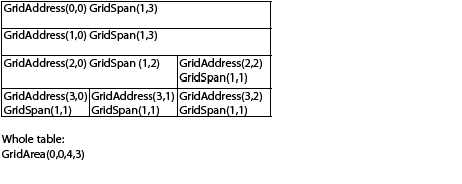
Anchor cells versus grid elements
The top-left of a cell is its anchor.
A grid element is a unit on the underlying grid. Grid elements may or may not be anchor cells.
A cell can comprise multiple elements on the underlying grid, but there is at most one anchor point per cell.
To access the text content of a cell, some API methods require a GridAddress that refers to an anchor, whereas other methods can work with a grid element that is not necessarily an anchor.
The API helper class GridAddress identifies the location of cells within tables. GridAddress and the other GridXXX classes are defined in TableTypes.h. In InDesign, GridCoord is an alias for the primitive type int32. The nondefault constructor for GridAddress is as follows:
where row and column are the row and column, respectively, in which the top-left of the cell is located.
Another key concept is the underlying grid on which measurements are made, consisting of grid elements.
For example, if a cell is split by a vertical line, this increases the resolution of the grid in the horizontal direction. The resolution of the grid in a given direction is determined by projecting all cell boundaries onto an axis in that direction. Adding another vertical line means an additional projection onto the horizontal axis; that is, an increase in horizontal grid resolution.
The grid lines are not uniformly distributed. The grid is rectilinear.
Determining what row a particular cell is in can become quite complex in a table with many split and merged cells; that is, tables with many nontrivial GridSpan values. The algorithm to determine the GridAddress for a particular cell is straightforward:
Complex table and underlying grid:
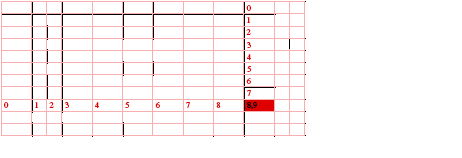
The GridAddress of a cell can change even if its physical location does not change.
GridSpan is a class that represents the dimension of an area within a table, expressed as coverage of elements in the notional underlying grid. GridSpan has a constructor with two arguments:
where height and columns are the numbers of rows and columns spanned, respectively (on the underlying grid).
When a table is created (for example, using the Insert Table menu command), each cell in the table has the trivial GridSpan(1,1). The concept of GridSpan is illustrated in the table-structure figure in Table structure, which shows the GridSpan for several cell configurations
The GridSpan of a given cell can change as more cells are added to a table-for example, by a cell being split vertically in a column that this cell spans-even if the physical dimension of the cell of interest does not vary. GridSpan for a cell is affected by changes in the columns spanned by a cell and the rows spanned by a cell.
Merging a pair of cells with trivial GridSpan(1,1) gives one cell with a GridSpan(2,1) if the cells are merged vertically and GridSpan(1,2) if the cells are merged horizontally.
Cells may be unmerged by selecting any merged cells-even the whole table-and choosing Unmerge Cells.
Splitting a cell with GridSpan(2,1) in the vertical direction gives two cells with trivial GridSpan(1,1). Splitting the cell horizontally leads to the GridSpan of other cells in the table being recalculated.
The GridArea class is used to specify a region within a table. Like GridSpan and GridAddress, GridArea is calculated on the underlying grid. GridArea has a constructor with four arguments:
where:
The choice of using one greater than the last row or column allows for specifying an empty area in a simple way. That is, an empty GridArea can be specified by writing GridArea(0,0,0,0), for example.
Alternately, given the definition of GridArea, it is equivalent to the following:
Table and cell selection
You can select a whole table or cells within a table, allowing the selected cells to be deleted or their properties to be altered as a block. Alternately, you can select text within a table cell, allowing the text properties to be specified for this text run. This is shown in the following figures.
Table cells selected:
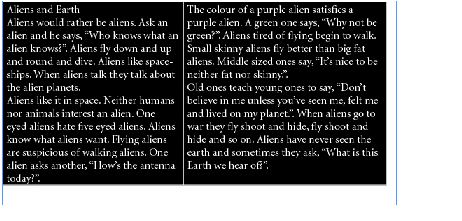
Table text selected:
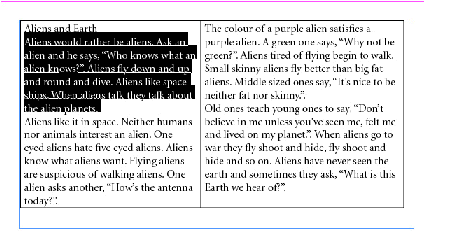
The selection manager hides the detail of the particular selection type involved from client code. The intent is that client code interact with the table model only indirectly, through the integrator suite interfaces, which present a uniform facade to client code. When the cursor is within a table cell, InDesign can perform operations for any of the three selection types: text selection, cell selection, and table selection.
Some operations are possible only with table cells selected; for example, the Merge Cells command is enabled only when multiple table cells are selected.
Table composition
Typically, a table is associated with a text frame. One text frame can contain multiple tables.
The table composer flows the row content of tables between table frames. Once a table becomes too deep for the containing text frame, rows from the table may be flowed to another text frame, if there is one linked to the current table's text frame. Only whole rows are flowed by the table composer.
Text composition within a table cell uses the same text-composition engines that operates over normal text (that is, text outside tables). For more information on text composition, see Text Fundamentals.
A text frame that contains one or more table rows that are too deep to display is marked as overset. The overset rows can be flowed to another text frame by linking the frames, exactly as for overset text. The visual indicator for table cell overset is drawn as a text adornment.
Tables can be wider than the containing text frame; table rows, on the other hand, flow between linked cells, or the frame is marked as overset.
Table region
A table can be viewed as composed of regions: header rows, footer rows, left column, right column, and body rows. When inserting a table, headers and footers can be specified in the Insert Table dialog box. A table style can set different cell styles for each region.
Text-model extensions for tables
The basic text model API is extended to accommodate tables. kTextStoryBoss aggregates interfaces to support the abstraction of text-story threads, which are spans of characters that represent the text content of one cell. The text-story thread interface (ITextStoryThread) is aggregated on the kTextStoryBoss class, which is used to represent the main text flow within a story designated as the primary story thread.
Many higher-level APIs make it possible to manipulate the content of text cells without having to manipulate the underlying text model directly. The essential API for this is the ITableTextContent interface, which is aggregated on the kTableModelBoss class. This provides a mechanism to get and set table text in chunks.
How tables are connected to text
The kTextStoryBoss boss class is the fundamental class that represents the textual content of stories. For more information, see Text Fundamentals.
A story can contain zero or more tables. Tables can be nested within tables to an arbitrary depth. The text-model interface (ITextModel) is the fundamental API to interact with stories; for every table, there is an embedding story. An ITextModel interface can be used to obtain the text-cell contents. The UML diagram in the following figure is a graphical representation of the relationship between the story and table models. It shows other key abstractions, such as the table-model list and the TextStoryThreadDictHier.
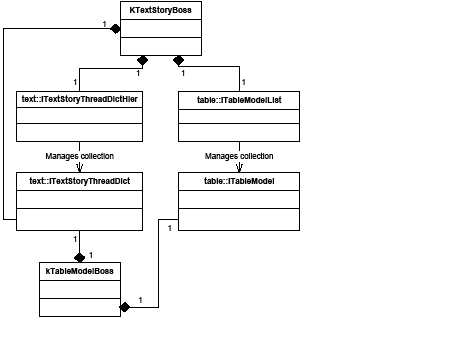
Text and tables are connected in two ways:
Obtaining a reference to ITableModel through the table model list meant making a series of API calls by client code to navigate the table architecture. The alternative scheme to obtain a reference to an ITableModel has a starting point of an ITextModel interface on a kTextStoryBoss object. The difference is that there is no dependence on ITableModelList.
Another API that allows connections between tables and text to be explored is ITableTextContainer. Given a table, ITableTextContainer allows client code to determine the embedding text model. This interface is aggregated on kTableModelBoss.
A key abstraction in the table model is the kTableModelBoss boss class. Among other things, this class encapsulates the data model for a table, allows iteration over the cells in a table, allows access and modification of the attributes of a table, and provides access to the text chunks (or other content) in a table. It provides APIs that enable copy, paste, and deletion of content and access to the geometry of the table. For some of the key interfaces aggregated on the boss class, see the following figure.
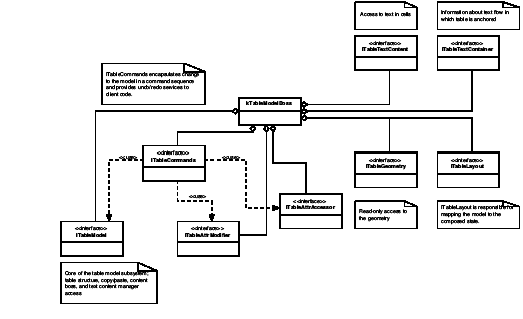
The kTableModelBoss boss class aggregates interfaces like ITableModel. This interface has methods to obtain table iterators; these can be used to navigate a table or iterate through a specific GridArea within a table. These are STL-like iterators, supporting both forward and reverse iteration.
The ITableAttrAccessor and ITableAttrModifier interfaces also are aggregated on kTableModelBoss. These provide detailed queries over the set of table attributes and allow applying overrides to table and cell attributes. In practice, most of the capability required for client code to query attributes and apply overrides is provided by the more convenient suite interface, ITableSuite. ITableAttrModifier is not likely to be used directly by client code; all the capabilities exposed by this interface are available through methods on ITableCommands, which wrap changes to the document object model in a command sequence in a clean and convenient way for client code to use. Client code should use ITableCommands (rather than ITableAttrModifier). Refer to the API Reference for details of the interfaces aggregated on kTableModelBoss.
The ITableTextContent interface is aggregated on kTableModelBoss; this allows the text contained within cells to be accessed. Do not confuse this interface with ITableTextContainer, which is a fundamental API that represents the connection between a table and the story (kTextStoryBoss) within which it is embedded.
The kTableModelBoss class represents the data model for an entire table. A table is composed into a set of table frames (kTableFrameBoss) by the table composer.<SDK>/source/sdksamples/tablebasics indicates how to acquire a reference to a table model. This code is in the context of a suite implementation that was added to a concrete-selection boss class.
Table layout
ITableLayout on kTableModelBoss provides detailed information about the layout of the table. ITableLayout centralizes the persistent data into one implementation and contains several subclasses responsible for maintaining table layout information, like Row (representing the composed state of table-model rows), Frame (mapped to one persistent kTableFrameBoss object), and Parcel (holding information about IParcel). ITableLayout also provides iterators to access these layout elements. For example, ITableFrame can be obtained from ITableLayout using the following snippet:
The ITableLayout::Row subclass represents the partial mapping of a model row to a table frame (represented by the kTableFrameBoss). For each model row, there is one or more corresponding table layout rows. Each row contains information for each parcel owned by a table cell, like the GridCoord of the model row it maps and the UID of the table frame with which it is associated. Each layout row is associated with one table frame.
ITableLayout is responsible for the lifetime management of table frames. Besides containing the layout rows, the table frame also is responsible for maintaining the link back to the containing Parcel and associated ParcelList.
Table frames
The rows in a table may not all fit in one text frame. The table composer groups as many rows as will fit into the first text frame, the second text frame, and so on. A table with many rows may be spread across multiple, linked, text frames.
These groups of rows are table frames. Each row is part of one and only one table frame.
A table is divided into one or more table frames, spread across one or more text frames. A table frame (represented by the kTableFrameBoss boss class) is a collection of rows within a text frame. There can be multiple table frames within a text frame (if the text frame contains multiple tables), so there are at least as many table frames as text frames.
An occurrence of a table frame leads to its UID for the corresponding kTableFrameBoss object appearing in the owned item strand.
Tables can have an arbitrary number of table frames, split between linked text frames. If rows cannot be displayed within the last linked frame in the series, the frame is marked as overset. For each text frame, there is a corresponding table frame that represents the collection of rows being displayed within the given text frame.
For each row of a table, there is an occurrence of the kTextChar_Table or kTextChar_TableContinued character in the text data strand. For more information, see Text Fundamentals.
Cell-content managers
The table architecture supports having different cell-content managers. In practice, InDesign has only text cell-content manager (with behavior provided by kTextCellContentMgrBoss) and a dummy cell-content manager. (Future versions of InDesign may add canonical cell-content managers for content types like images.) You may add your own types of cell-content managers. The main responsibility of a cell-content manager is to implement the ICellContentMgr interface.
A cell-content manager is created during table creation. You can get the cell-content manager from the table via ITableModel::QueryContentMgr().
Cell contents
Text cells (the only kind in InDesign) have behavior provided by the kTextCellContentBoss boss class. Instances of this boss class do not store the content directly but provide a convenient API on top of the table text model to allow its manipulation. It also is possible to quickly and conveniently manipulate the text content of a cell through the text model. In this case, API classes like TextIterator can be used to access a range within the text model.
To set cell text, the ITableCommands::SetCellText API method makes it straightforward to change the cell text at a given GridAddress. The ITableCommands interface is aggregated on kTableModelBoss.
Code snippets like SnpAccessTableContent.cpp show how to work with the APIs to access cell contents. See also the TableBasics plug-in and the SnpSortTable.cpp code snippet for examples of accessing and manipulating table text content.
Cell strands
The kCellStrandBoss cell strand provides storage for cell attributes and aggregates an ITableStrand interface. This abstraction is likely to be hidden from client code and should be treated as an implementation feature. Higher-level APIs, like ITableAttrAccessor and ITableCommands, provide methods to access and modify attributes without having to work at the lower level of representation of the table strand.
The table architecture supports extensible attributes with inheritance. Attributes can be applied to an entire table or one or more cells within a table, and there also are a small set of row-specific and column-specific attributes. As with the text subsystem, attributes are represented by boss classes. Table-attribute boss classes have names that follow the pattern k<target-entity>Attr<property>Boss, where <target-entity> is one of Table, Cell, Row, or Column. Some text-cell-specific attributes have TextCell in the attribute name.
The ITableAttrReport::AppendDescription method reports whether an attribute is a cell-specific, row-specific, column-specific, or table-specific attribute. To obtain information about the default value of each attribute, refer to the API Reference.
Table-specific attributes
A table attribute describes one property of an entire table. A table attribute is applied to the table itself; the attributes collectively define aspects of how the table should appear.
A table attribute is represented by a table attribute boss with a name that conforms to the pattern kTableAttr<property>Boss.
Row attributes
There are only a few row-specific attributes, which apply to a row or collection of rows within the table. Row attributes are represented by boss classes. For details, refer to kRowAttrBaseBoss in the API Reference. These are named to follow the pattern kRowAttr<property>Boss.
Column attributes
There are very few column-specific attributes. For details, see kColAttrBaseBoss in the API Reference. These are represented by boss classes, which are named to follow the pattern kColAttr<property>Boss.
Cell-specific attributes
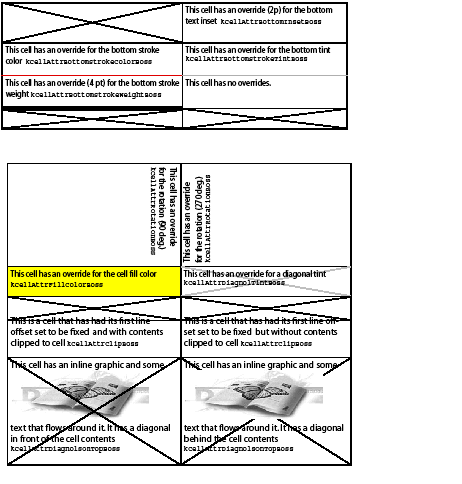
There are a wide range of cell-specific attributes that can be overridden. These can be divided into those that apply to an entire cell and those that are specific to one border (bottom, left, right, top) of the cell. See the following figure.
Examples of cell-specific attributes:
Text-cell-specific attributes
Some cell attributes apply only to text cells. Text cells are the only supported kind of cell in InDesign, but future versions may support other cell-content types, so text cells are not generic-cell attributes.
Text-cell attributes are represented by boss classes named to follow the pattern kTextCellAttr<property>Boss.
Default table attributes
The ITableAttributes interface is aggregated on the workspace (kWorkspaceBoss class) and the document workspace (kDocWorkspaceBoss class), with interface identifier IID_IDEFAULTTABLEATTRIBUTES.
When a new document is created, this root set of table attributes is applied to the document. This attribute list is further enhanced when the swatch list is available for the new document, since some of the attributes reference a swatch (black or none) by UID.
When a new table is created (by kNewTableCmdBoss class, an instance of which is created and executed through the ITableCommands interface on kTableModelBoss), the root table style is applied to the table.
A style can be considered a collection of attributes. Table and cell styles provide a mechanism to name and persist a particular set of table attributes.
Table style and cell style are analogous to paragraph style and character style in the text. Each style has an AttributeBossList list that maintains the set of attributes that apply to that style. Access to the attributes in a style is achieved through the ITableAttributes interface. Cell styles are associated with cell-specific attributes; however, table styles can be associated with both table attributes and cell-specific and other attributes.
Styles form a hierarchy rooted at the root style. Each style (except the root style) is based on a style. The AttributeBossList list for a particular style records only the differences from the style on which it is based; that is, the set of attributes the particular style overrides.
As with other types of styles, table and cell styles support the Style Group concept. Users can create, edit and delete folders (called Groups), in the table styles and cell styles palettes. Style group is a collection of styles or groups. The user also can nest groups inside groups and drag styles within the palette to edit the contents of a group. Styles do not need to be inside a group and can exist at the root level of the palette.
Table styles
A table style is represented by a kTableStyleBoss. Its IStyleInfo stores general, style-related information like style name and parent style. Its ITableAttributes interface stores a list of table attributes that are different from its parent.
The root table style (known in the application user interface as [No Table Style]) contains a complete set of default table attributes. This defines the default look of the table with no further formatting applied.
The application also defines a basic table style called [Basic Table]. The basic style cannot be deleted, but you can change it. Initially, the basic style is based on the root style; however, its parent style can be changed.
Table styles are accessible through the table-style group manager (signature interface IStyleGroupManager with interface identifier IID_ITABLESTYLEGROUPMANAGER) on the document (kDocWorkspaceBoss) and session (kWorkspaceBoss) workspace boss classes. When a document is created, its style group manager inherits the existing set of styles from the session workspace.
THe IStyleGroupManager of the table styles works exactly the same way as that of paragraph and character styles. For details, see Text Fundamentals.
Cell styles
A cell style is represented by a kCellStyleBoss. Its IStyleInfo store general, style-related information like style name and parent style. Its ITableAttributes interface (with implementation kCellStyleCellAttributeListImpl) stores a list of cell-specific attributes that are different from its parent cell style.
The root cell style (known in the application user interface as [None]) is really nothing; in fact, it defines nothing. It is synonymous with the root character style. The root cell style cannot be deleted.
Cell styles are accessible through the cell-style group manager (signature interface IStyleGroupManager with interface identifier IID_ICELLSTYLEGROUPMANAGER) on the document (kDocWorkspaceBoss) and session (kWorkspaceBoss) workspace boss classes. When a document is created, its style group manager inherits the existing set of styles from the session workspace.
As with table styles, the IStyleGroupManager of the cell styles works the same way as that of paragraph and character styles. For details, see Text Fundamentals.
Regional cell styles
Each table style can assign different cell styles for different regions: headers rows, footers rows, first column, last column, and body rows. When a table style is applied to a table, these regional cell styles are applied to the appropriate regions.
Regional cell styles are considered as table attributes of a table style. Except for body rows, the values of two related attributes, "cell style" and "use body," determine a regional style. See the following table.
Regions and their controlling attributes:
| Region | Cell-style attribute boss | Use body attribute boss |
|---|---|---|
| Body rows | kTableAttrBodyCellStyleBoss | kInvalidClass |
| Header rows | kTableAttrHeaderCellStyleBoss | kTableAttrHeaderUseBodyCellStyleBoss |
| Footer rows | kTableAttrFooterCellStyleBoss | kTableAttrFooterUseBodyCellStyleBoss |
| Left column | kTableAttrLeftColCellStyleBoss | kTableAttrLeftColUseBodyCellStyleBoss |
| Right column | kTableAttrRightColCellStyleBoss | kTableAttrRightColUseBodyCellStyleBoss |
To set a regional cell style, you need to create and apply an appropriate "cell style" attribute as well as create and apply an appropriate "use body" attribute (except for body rows). To get a regional cell style, you need to look for these attributes at the complete list of attributes. For more information, see Tables.
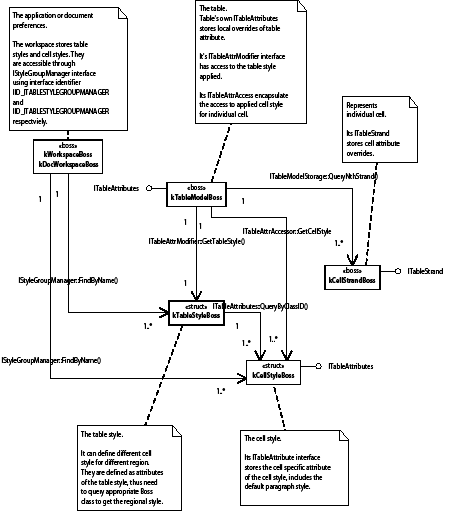
Table and cell style in the data model
The following figure illustrates a simplified class diagram of table styles, cell styles, and their relationships to application/document workspaces and the table model. The descriptions of the boss classes give hints to navigate through these related classes.
Formatting a table
Tables are formatted according to table-specific attributes. Every table is assigned a table style. ITableAttributes, aggregated on kTableModelBoss, provides coarse-grained access to the locally overridden attribute list for a particular table. For a given attribute (such as table stroke), InDesign follows these steps to format a table:
Formatting a cell
Cells are formatted according to cell-specific attributes, similar to tables. For a given cell attribute, InDesign follows these steps to format a cell:
Formatting text in a cell
It is helpful to view table attributes as equivalent to paragraph-level attributes for normal text, and cell attributes as equivalent to character-level attributes. The analogy holds insofar as the effective attributes are calculated by applying the following in the order listed below:
To format a character in a table cell, InDesign looks at the reverse of the order above. An override always takes priority than a style; a smaller range style always takes priority over a coarse one.
Text-formatting priorities:
| Overrides | Styles |
|---|---|
| Character overrides | Character styles |
| Paragraph overrides | Paragraph styles |
| Cell overrides | Cell style |
| Table overrides | Table style |
A cell style can have a paragraph style used in the paragraphs of a cell to which the cell style is applied. If a cell style does not have a paragraph style defined, any cell that has that cell style applied to it will have all paragraph-style formatting removed.
ITableCommands is an interface that is aggregated by kTableModelBoss and provides methods to create and execute table-related commands, instead of having to manipulate the table model at a lower level. You can use ITableCommands to affect the table model on any specific table area. Some functions in ITableCommands also are provided by ITableSuite, which instead operates on the currently selected area of the table. For more details, refer to ITableCommands in the API Reference.
ITableSuite is a key API for manipulating tables in client code. It provides much of the required capability for plug-ins, with the exception of insertion and retrieval of cell content.
The ITableSuite interface is aggregated on the integrator suite boss class (kIntegratorSuiteBoss), which makes it available through the abstract selection. Implementations of this interface are provided on various concrete-selection boss classes, which are hidden from client code through the facade of the abstract selection. To obtain ITableSuite, client code should query the selection manager (ISelectionManager) for the interface.
The integrator suites expose methods that determine whether a capability is present on the current selection; this always should be tested before trying to exercise a capability. For more detail on the integrator suites, see Selection.
Suite interfaces typically use this pattern of checking for a service (capability) and, if the abstract selection supports the capability, calling the method called. For details, refer to ITableSuite in the API Reference.
Use is illustrated in the following code:
ITableStyleSuite is the selection suite used to manipulate table styles, such as creating and editing table styles of a selected table; applying a table style to the current selection; and getting and setting local overrides of table attributes. As with other selection suites, the interface can be acquired through ISelectionManager.
Aggregated on kUtilsBoss, ITablesStylesFacade is used to manipulate table styles on a table or table style directly. It is the counterpart of ITableStyleSuite.
The ITableAttrAccessor and ITableAttrModifier interfaces aggregated on the kTableModelBoss provide access to and mutation of table attributes; however, we recommend you use suites and facades whenever possible.
ICellStyleSuite is the selection suite used to manipulate cell styles, like creating and editing the cell styles of selected cells; applying a cell style to the current cell selection; and getting and setting local overrides of cell attributes.
The facade counterpart of ICellStyleSuite is ICellStylesFacade, aggregated on kUtilsBoss.
By using suites and facade, implementation details of cell strands and cell styles storage are encapsulated. We recommend you use only suites and facades.
This chapter describes the change-tracking features of InDesign and InCopy for software developers.
The chapter has the following objectives:
For use cases, see Working with Track Changes.
Editors and writers need the ability to selectively track, show, hide, accept, and reject changes as a document moves through the writing and editing process. The Track Changes features of InDesign and InCopy address these needs.
Changes are tracked in both InDesign and InCopy, and the API is available in both applications. In galley view or story view, the user can choose to see changes; tracked changes are not visible in layout view.
The following figure shows the Track Changes panel, which provides most of the relevant user interface.
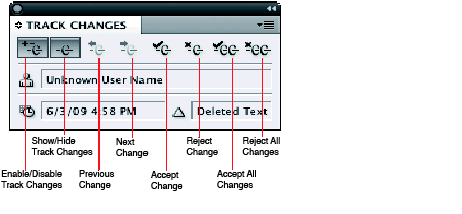
When Track Changes is turned on, changes to text are tracked. When changes are shown, tracked changes in text are highlighted with the color assigned to the user who made the change. An optional change bar may appear to the left of the body of the text, to indicate which lines contain tracked changes. The Track Changes panel displays information about the change at the insertion point, as shown in the following figure. See InDesign/InCopy Help for more information about the user interface.
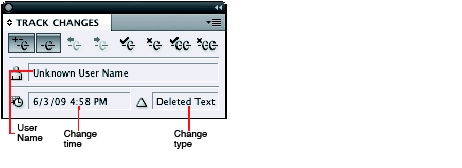
There are three types of tracked changes, each indicated in a manner chosen in the Track Changes Preferences panel:
Showing and hiding changes
You can show or hide changes in story view or galley view.
Navigating tracked changes
If the story contains a record of tracked changes, the user can navigate sequentially through tracked changes. Navigating to a change selects the change.
Accepting and rejecting tracked changes
The user can accept and reject changes-added, deleted, or moved text-made by any user. For more information, see InDesign/InCopy Help.
Partially accepting or rejecting tracked changes often results in replacing one tracked change with multiple tracked changes, and vice versa. When an operation results in multiple tracked changes in contiguous text, any adjacent tracked changes are concatenated into one contiguous tracked change. Conversely, accepting or rejecting part of a tracked change may result in multiple, discontiguous tracked changes with nontracked (normal) text between them.
Copy, cut, and paste behavior
When copying, cutting, or pasting text that includes tracked changes, it is the text itself that is copied, cut, or pasted-not the tracked change that was applied to the text in its previous location. In other words, when you copy something out of a tracked change, you copy the text content, not the type of tracked change. Copying or cutting text from a tracked deletion does not affect the tracked deletion; pasting this text is treated the same way as adding new text.
Track Changes preferences
The Track Changes panel in the Preferences dialog box contains user settings for tracking changes, like which types of changes to show and the color of the highlight that indicates a change.
Tracked changes are recorded in a story (kTextStoryBoss) on the redline strand (kRedlineStrandBoss). They are accessed through an iterator, RedlineIterator.
The following figure illustrates the relationship between a story and its tracked changes:
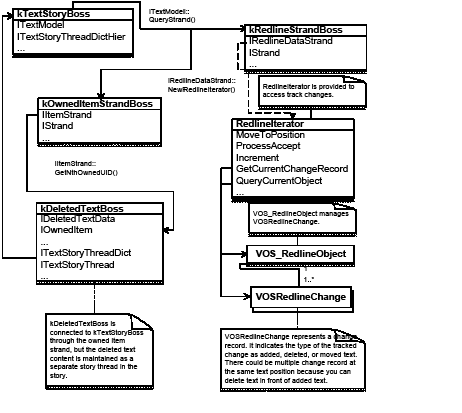
Track Changes implements kRedlineNewStoryResponderBoss. When a new story is created-for example, using kNewStoryCmdBoss-the Track Changes plug-in is notified to create and initialize a new text strand, kRedlineStrandBoss, which is responsible for maintaining the Track Changes information. During the initialization of the kRedlineStrandBoss, the story's Track Changes state (ITrackChangeStorySettings from kTextStoryBoss) is set to the state from the session (ITrackChangeAppSettings) using the kSetRedlineTrackingCmdBoss.
During a normal text operation performed by a text command-like Insert or Delete-each strand (including kRedlineStrandBoss) on the text story gets a chance to react to the operation. This results in the IRedlineStrand methods-like Insert or Cut-being called to manage the corresponding change record before the text is inserted into or cut from the t ext model.
kRedlineStrandBoss uses a virtual object store (VOS) to store and manage the Track Changes records. Each change record is represented by the VOSRedlineChange class. In the redline strand, one or more VOS_RedlineObject objects manage the VOSRedlineChange. We strongly discourage direct access to the VOS object; instead, the IRedlineDataStrand interface in kRedlineStrandBoss provides RedlineIterator to access the strand and let you examine and manipulate the change record. You should view RedlineIterator as the primary access to tracked changes.
Relationship between a story and the tracked changes it contains
When text is inserted, IStrand::Insert from kRedlineStrandBoss places a change record (VOSRedlineChange) on a VOS redline object (VOS_RedlineObject); length is the number of characters inserted. When a new story is created, a carriage-return character is inserted at the end of the story. This means IStrand::Insert from kRedlineStrandBoss is called during the execution of kNewStoryCmdBoss. The following figure shows the activities in kRedlineStrandBoss when text is inserted into a story.
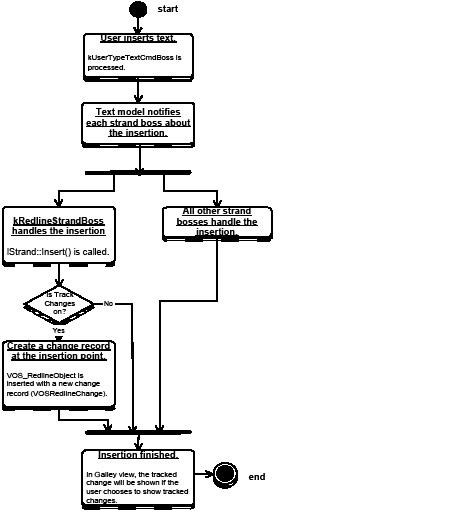
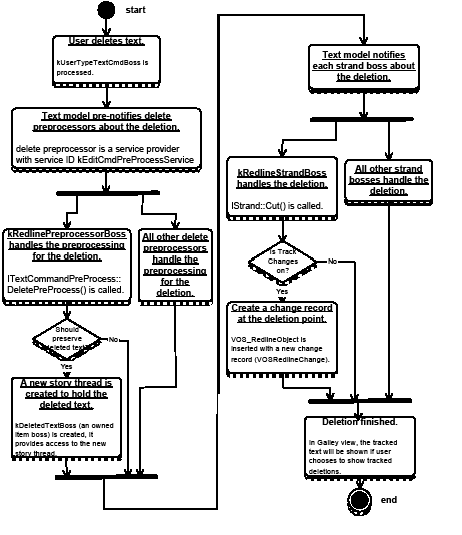
When text is deleted, a change record (VOSRedlineChange) is placed on a VOS redline object (VOS_RedlineObject), on the character following the deleted text. Also, the text is copied to a story thread, so the deleted text can be retrieved and displayed in story view or galley view.
To preserve the deleted text before it is deleted, Track Changes implements a kRedlinePreprocessorBoss service provider, which enables Track Changes to participate in a preprocessing text event, like deletion, so it can preserve the soon-to-be-deleted text. During deletion, if Track Changes is turned on, and (private) IRedlineUtils>()->ShouldStoreDelete returns true, RedlinePreProcessor::StoreDeletedText gets called. The deleted text is represented by an owned item accessed through the kOwnedItemStrandBoss on the text story, with an owned-item boss (kDeletedTextBoss) anchored in the deleted position. A new story thread is created to hold the deleted text content, and the owned item's class ID is set to the kDeletedTextBoss.
The following figure shows the activities in kRedlineStrandBoss when text is deleted from a story.
kRedlineStrandBoss Activity on text deletion:
In some situations, there can be multiple VOSRedlineChanges for one text position. The most likely scenario is one in which the character following the deleted text is an insertion change; then the insertion change is nested. In this case, it is possible to iterate through changes and have the current text position be the same, even though the iterator was incremented or decremented (through RedlineIterator::Increment or RedlineIterator::Decrement). Calling the accessor methods returns the appropriate change-record information given the state of an internal flag, or the useUI flag if passed when the iterator was constructed with NewRedlineIterator. Accepting a nested insertion does not affect the deletion; however, rejecting a nested insertion rejects the deletion.
Consider the example of the story "0123456789," with "3" and "7" converted to notes, as shown in the InCopy story view in the following figure. This story, with embedded owned items-the notes-demonstrates what happens in a text story when deletion and insertion are performed while Track Changes is turned on. Below the story view in the figure is a table showing the fundamental text model data, with which you can understand the basics of change tracking.
Track Changes action 1: Before Track Changes is turned on:
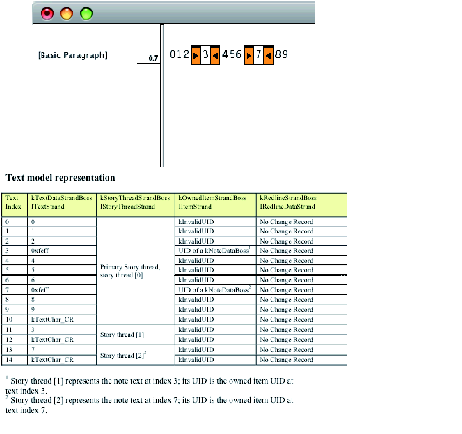
In the table, the columns are interpreted as follows:
Looking at the text model representation in the preceding figure, see in the kTextDataStrandBoss that each note is anchored at the note's visual location (text index 3 and text index 7) with a special anchor character, 0xfeff. At the same position, the UID of the note's kNoteDataBoss is stored through the IItemStrand interface on the kOwnedItemStrandBoss. The kNoteDataBoss also aggregates the interfaces to access the story threads that store the note contents. To find the text content of a note, you can go through the kOwnedItemStrandBoss to find its corresponding story thread. Because the story was entered with Track Changes off, the kRedlineStrandBoss does not contain any tracked-change information at this point.
Using the SnippetRunner SnpInspectTextModel snippet, you can inspect the text model while Track Changes is turned on. Some methods in SnpInspectTextModel were used to produce the results you see in the preceding figure. The SnpInspectTextModel::InspectTrackChange method uses the RedlineIterator to examine the change record under each text index in the story. The SnpInspectTextModel::InspectStoryThreads and SnpInspectTextModel::CountStoryOwnedItems methods were used to examine the story threads, owned item, and text data.
Next, turn on Track Changes, select the text "234," and delete the selected text. The result is shown in the following figure.
Track Changes action 2: Delete one block of text:
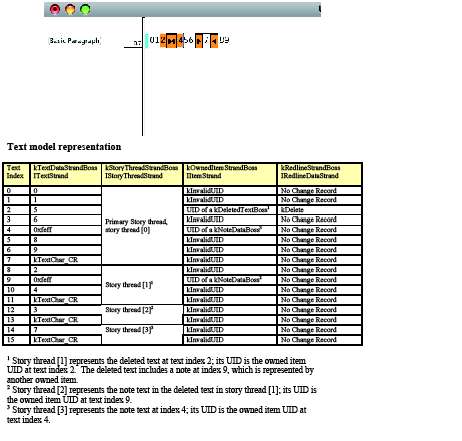
Unlike the note-which uses a kTextChar_ZeroSpaceNoBreak character to anchor the note-Track Changes does not insert anchor characters for deleted text in text position 2 in the kTextDataStrandBoss; that position is occupied by the character "5" after the deletion. The text model uses kRedlineStrandBoss to maintain tracked-change information. In text index 2 of the kRedlineStrandBoss, there is a change record with the type kDelete stored in that location, which tells the text model that at least one character was deleted at that location. Similar to the inline note, the tracked change stores the deleted text in an owned-item boss, kDeletedTextBoss. In text index 2, where the text was deleted, the kOwnedItemStrandBoss stores the UID of the kDeletedTextBoss. The kDeletedTextBoss aggregates ITextStoryThread and ITextStoryThreadDict, as shown in the first figure in "Redline strand", which points back to the text-story thread, represented by the kStoryThreadStrandBoss of the text model. The result of SnpInspectTextModel.cpp can show you the UID stored in the kOwnedItemStrandBoss and the UID of the associated story thread, so you can make the connection. For simplicity, the UIDs are omitted from the table in the preceding figure.
Notice how embedded content is being stored in the event, such as deletion, and how it is tracked. The deleted text includes a note. The UID of the kDeletedTextBoss in position 2 leads to story thread [1] in the preceding figure. By examining this thread's corresponding kTextdataStrandBoss and kOwnedItemStrandBoss, you can see that all attributes in the predeletion indices 2–4 are preserved in indices 8–9, including the deleted note's information. The kRedlineStrandBoss does not keep any change record in the position under the deleted text-story thread, though. In the SnpInspectTextModel::InspectTrackChange, when in the deleted text thread, the text index is not used to create a RedlineIterator. Instead, the corresponding deleted text position is found, and that position is used in the primary story thread to check its corresponding change record. To find the deleted note's text content, go to the story thread [1], which represents the deleted text. From there, find the UID of the deleted note's kNoteDataBoss, which leads to the thread [2]. Note that the text content of the inline note in text index 7 is now the text thread [3], because a new story thread was created and inserted to hold the deleted text.
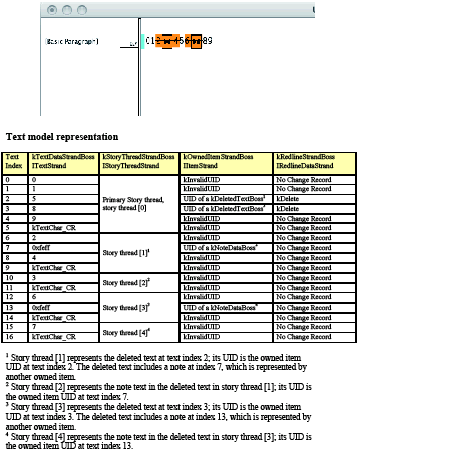
Next, select and delete the text "67." The result is shown in the following figure. Since both notes are deleted, you will not see any UIDs of kNoteDataBoss if you examine the kOwnedItemStrandBoss in the primary story-thread range; they are all preserved in the deleted text's threads, which can be reached through the UIDs of the kDeletedTextBoss at indices 2 and 3. Also, the kRedlineStrandBoss data shows there are kDelete items at both index 2 and index 3, which is consistent with what you see in story view, in which the deleted text is displayed immediately before the character "5" (at index 2) and immediately before the character "8" (at index 3).
Track Changes action 3: Delete two blocks of text:
Next, select and delete all text. The result is shown in the following figure. The deleted text contains all original text and notes. Only one kDeletedTextBoss is needed to maintain the deleted text.
Track Changes action 4: Delete all text:
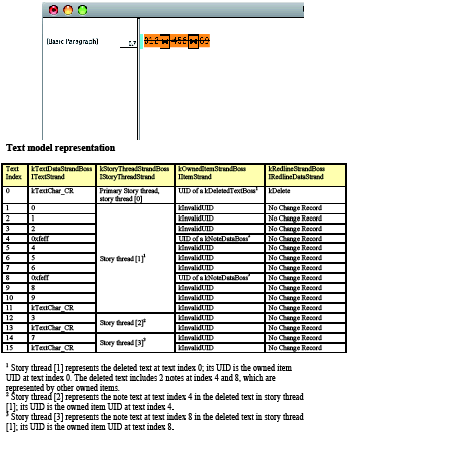
Next, select "01234" and accept the change, then select "678" and reject the change. The result is shown in the following figure. When you accept the deletion, the tracked change no longer tracks that portion of deleted text; therefore, the tracked text "01234" is removed from the story view, and the corresponding kDeletedTextBoss is purged. The only way to get the deleted text back is through the undo operation. Because you rejected the change partially ("6[7]8" out of the tracked "56[7]89," where "[7]" is a note), the tracked text is not in a contiguous block; therefore, two separate kDeletedTextBoss objects are needed, one to track "5" and one to track "9."
Track Changes action 5: Partially accept and partially reject a change:
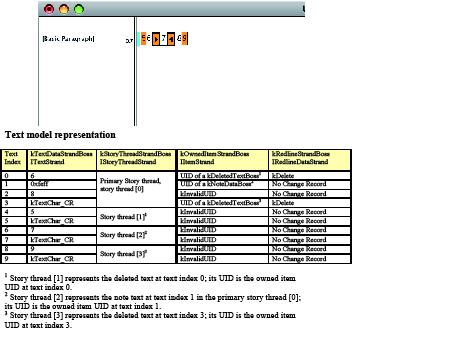
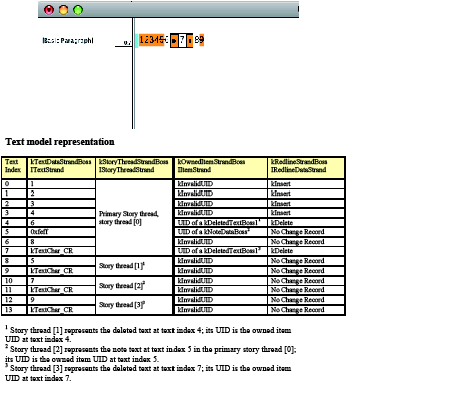
Next, insert "1234" before the deleted "5." Because Track Changes is still turned on, the new insertion is tracked, as shown in the following figure. In this case, the inserted text is simply added into the text model as normal: the data is added into kTextDataStrandBoss at a normal text index, and no owned item boss needs to be created. The corresponding position in the kRedlineStrandBoss is marked as kInsert. With this one flag, the text model can hide, show, accept, or reject a tracked change when user chooses to do so.
Track Changes action 6: Insert a block of text:
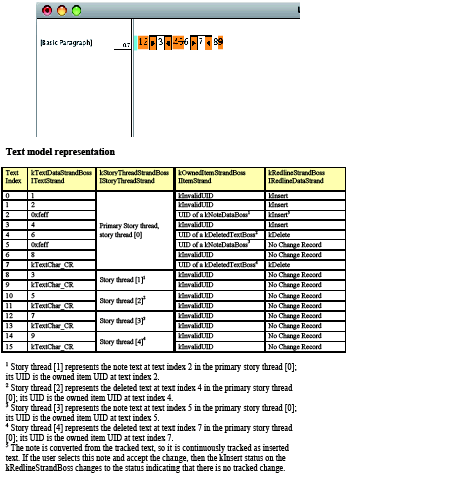
Next, select the text "3" and convert it to a note. The result is shown in the following figure. The note is created in text index 2 and tracked as inserted text in that position. The tracked text's change information in the kRedlineStrandBoss will not change until the user accepts or rejects the change or the text is cut. So, if you highlight the note in index 2 and accept the change, you will see the kRedlineStrandBoss change the change data from kInsert to none.
Track Changes action 7: Convert tracked text to a note:
An ITrackChangeAppSettings interface is added to the kWorkspaceBoss. This interface is responsible for maintaining the Track Changes settings in the Preferences panel. To access this interface, you can do the following:
The ITrackChangeStorySettings interface (IID_ITRACKCHANGESTORYSETTINGS) is added to the kTextStoryBoss. This interface's responsibility is to maintain story-level settings, like whether Track Changes is turned on for the story. To access this interface, you can do the following:
ITrackChangeUtils, added to the kUtilsBoss, provides convenient methods for a client to access some Track Changes features. For more information, see ITrackChangeUtils.h.
Much of the capability required for client code to work with Track Changes is provided in a high-level suite interface, ITrackChangeSuite, which is available through a reference to a selection. To obtain the interface, query a selection manager (ISelectionManager) for the ITrackChangeSuite interface. For information on obtaining a reference to the selection manager, see Selection. ITrackChangeSuite encapsulates the details of interacting with the Track Changes model and hides details about the selection format that is active, providing a capability-driven API that can be used to accept and reject tracked change. Other suites for acce ssing Track Changes are discussed in this section.
ITrackChangeSuite is a key API for manipulating Track Changes in client code; most Track Changes user-interface functions are provided through this interface. It provides much of the required capability for plug-ins.
The ITrackChangeSuite interface is aggregated on the integrator-suite boss class (kIntegratorSuiteBoss), which makes it available through the abstract selection. Implementations of this interface are provided on concrete-selection boss classes kGalleyTextSuiteBoss and kTextSuiteBoss, which are hidden from client code through the facade of the abstract selection. To obtain ITrackChangeSuite, client code should query the selection manager (ISelectionManager) for the interface, as shown below:
Generally, ITrackChangeSuite is active when the text cursor is active in story view or galley view. Suite interfaces typically use this pattern of checking for a service or capability, and if the abstract selection supports this capability, the method can be called; however, ITrackChangeSuite does not follow this pattern. The ITrackChangeSuite::CanAccept and ITrackChangeSuite::CanReject methods check only whether the workspace preference ITrackChangeAppSettings::GetUserCanAcceptRejectChanges method returns true. If true-and the story is not locked-the CanAccept and CanReject methods always return true.
Because ITrackChangeSuite does not provide meaningful CanDo-types of methods (see ITrackChangeSuite), another suite interface, IChangesReviewSuite, is provided for determining whether a tracked change is available in the current text position. The application uses this suite to decide whether the user interface related to Track Changes-like the menu and the Track Changes toolbar buttons-should be enabled or disabled when the text selection changes. For example, to determine whether the current cursor position has a change record the user can accept, call IChangesReviewSuite::IsAcceptChangeEnabled.
IChangesReviewSuite is mainly responsible for getting and setting a story's change-tracking state. You also can apply the state to multiple stories at the same time with one call.
IChangeInfoSuite provides one method to get the current tracked-change information, based on the current text selection. IChangeInfoSuite returns the information in a public ChangeInfo class, which stores three pieces of information: story user, date of change, and change type. This suite is used by the application for the Change Info panel.
RedlineIterator is the primary access to the tracked change object; it also provides for processing acceptance and rejection of tracked changes. Create a new iterator using IRedlineDataStrand::NewRedlineIterator as shown below; the caller is responsible for destroying the iterator.
As discussed in Example: Track Changes in action, there may be more than one change record under each text index. Currently, the only situation that results in multiple change records under one text index is the deletion of text that results in a deleted text record in front of added text, which causes a deletion record and an insertion record at the same text position. The records are managed so the deletion always is at change position 0. The underlying change record can be viewed as being laid out in a two-dimensional map, as shown in the following figure.
Conceptual change record structure map:
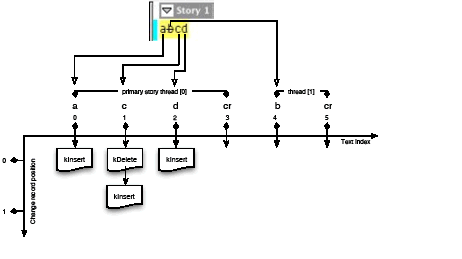
The RedlineIterator::MoveToPosition method provides the means to move in this two-dimensional space:
The first parameter lets you go horizontally (i.e., navigate by the text), and the second parameter lets you go vertically (i.e., navigate among change records at the same text index).
You also can use RedlineIterator::Increment or RedlineIterator::Decrement to access the change record. When you use Increment, it first goes down to the next change record on the same text index, then moves to the next text index that has a change record, and then goes downward from the first record in that index before moving to the next index again. SnpInspectTextModel::InspectTrackChange uses this method to iterate through all change records in a story.
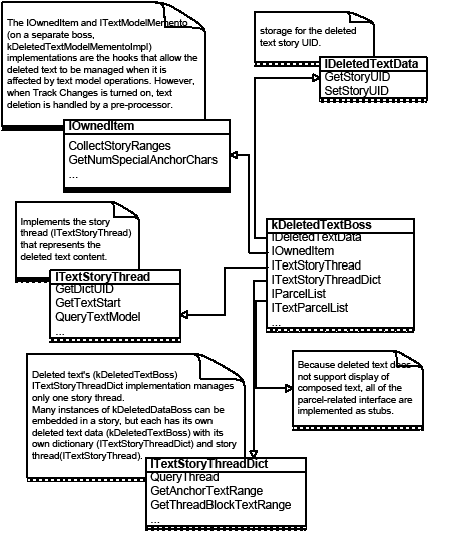
kDeletedTextBoss is anchored as an owned item in the text story. The following code snippet shows one way to get to the kDeletedTextBoss from the story. After you gain access to the owned item, you have access to the whole kDeletedTextBoss, and you can use it to find the primary story thread index where the owned item is anchored.
See the following figure for an illustration of kDeletedTextBoss and its key interfaces.
This section summarizes some of the most common commands related to Track Changes. Critical data interfaces that users of the command must supply are explained, and the notification protocol associated with the command is listed.
Description
Sets the tracking flag for the story or workspace (whichever is specified in the command's item list) to the specified boolean setting. Changes remain tracked, but no new changes are tracked.
Item list
UIDList that contains either the workspace pointer (from GetExecutionContextSession()->QueryWorspace()) or UIDs of the text stories for the setting change.
Data interface
IBoolData, to turn Track Changes on or off for the target.
Description
Sets the session preference ITrackChangeAppSettings to the settings specified in the data interface.
Item list
UIDList that contains the workspace pointer (from GetExecutionContextSession()->QueryWorspace()).
Data interface
ITrackChangesPrefsCmdData can be changed to the user's preference. The following table shows the default values in ITrackChangesPrefsCmdData. A Set method changes all preference data, and individual Get or Set methods modify individual attributes.
| Attribute | Default value |
|---|---|
| Added Text Background Color Choice | ITrackChangeAppSettings::kUseUserColorBG |
| Added Text Background Color Index | 2 (InCopyUIColors => yellow) |
| Added Text Color Choice | ITrackChangeAppSettings::kUseGalleyColor |
| Added Text Color Index | 1 (InCopyUIColors => black) |
| Added Text Marking | 0 (ITrackChangeAppSettings::kNone) |
| Change Bar Color Index | 18 (InCopyUIColors => cyan) |
| Change Bar Location | 0 (ITrackChangeAppSettings::kLeftMargin) |
| Deleted Text Background Color Choice | ITrackChangeAppSettings::kUseUserColorBG |
| Deleted Text Background Color Index | 2 (InCopyUIColors => yellow) |
| Deleted Text Color Index | 1 (InCopyUIColors => black) |
| Deleted Text Marking | 1 (ITrackChangeAppSettings::kStrikethrough) |
| Deleted TextColor Choice | ITrackChangeAppSettings::kUseGalleyColor |
| Moved Text Background Color Choice | ITrackChangeAppSettings::kUseUserColorBG |
| Moved Text Background Color Index | 2 (InCopyUIColors => yellow) |
| Moved Text Color Choice | ITrackChangeAppSettings::kUseGalleyColor |
| Moved Text Color Index | 1 (InCopyUIColors => black) |
| Moved Text Marking | 3 (ITrackChangeAppSettings::kOutline) |
| Show Added Text | kTrue |
| Show Change Bar | kTrue |
| Show Deleted Text | kTrue |
| Show Moved Text | kTrue |
| Spellcheck Deleted Text | kTrue |
Notification
Notify kSessionBoss with kSetTrackChangesPrefsCmdBoss message along with the IID_ITRACKCHANGEAPPSETTINGS protocol.
Description
Create the kRedlineStrandBoss, and attach it to the story. It synchronizes the redline strand to the story to which it is attached. Usually, the kRedlineStrandBoss is created when a new story is created. If the redline strand cannot be found, this command can be processed to get the strand back. The following is one way to check whether a redline strand is available in a story:
If QueryStrand returns a valid IRedlineDataStrand interface pointer, a redline strand is connected to the story.
Item List
UIDList that contains the UID of the text story to which the redline is supposed to be connected.
Description
This is the reverse of kActivateRedlineCmdBoss. To delete the kRedlineStrandBoss associated with a story, this command purges the strand from the associated VOS disk page, deregisters the redline strand from the text model, and removes the UID of the kRedlineStrandBoss from the database. This command accepts all changes before it deletes the strand.
Item list
UIDList that contains the UID of the text story from which the redline is supposed to be disconnected.
Description
Rejects all tracked change (redline) data in a story.
Item list
UIDList that contains the UID of the text story for which the redline data is supposed to be rejected.
Data interface
IBoolData with interface ID IID_IRESTORESELECTIONDATA. This interface defaults to false. Set to true to restore the selection.
Notification
Notify kTextStoryBoss with the kRejectAllRedlineCmdBoss message and IID_ITEXTMODEL protocol. Notify kDocBoss with the kRejectAllRedlineCmdBoss message and IID_REJECTALLREDLINE_DOCUMENT protocol.
Description
Rejects changes in the specified range. If the range's start index or end index corresponds to a deletion, this deletion is not rejected; such deletions should be detected and rejected individually if desired.
Item list
UIDList containing UID of the text story for which the redline data is supposed to be rejected.
Data interface
Notification
Description
Rejects the change record at the text index specified by the user.
Item list
UIDList containing the UID of the text story for which the redline data is to be rejected.
Data interface
Notification
The command notifies only when the IBoolData (with IID_IBOOLDATA) is set to false.
Description
Accepts all tracked change (redline records) in a story.
Item list
UIDList containing the UID of the text story for which the changes are to be accepted.
Data interface
IBoolData with IID_IRESTORESELECTIONDATA
Notification
Description
Accepts changes in the specified range. If the range start index or end index corresponds to a deletion, it is not accepted. Such deletions should be detected and accepted individually if desired.
Item list
UIDList containing the UID of the text story for which the changes are to be accepted.
Data interface
Notification
Description
Accepts the change record at the text index specified by the user
Item list
UIDList containing the UID of the text story for which the change is to be accepted.
Data interface
Notification
The command notifies only when the IBoolData (with IID_IBOOLDATA) is set to false.
Notify kTextStoryBoss with the kAcceptRedlineCmdBoss message and IID_ITEXTMODEL protocol.
Description
Moves a tracked-change (redline) record from one (source) location to another (destination) location within the same story.
Item list
UIDList containing the UID of the text story for which a change is to be moved.
Data interface
Notification
The command notifies only when the IBoolData (with IID_IRESTORESELECTIONDATA) is set to true.
Notify kTextStoryBoss with the kMoveRedlineChangeCmdBoss message and IID_ITEXTMODEL protocol.
Description
Copies a deletion record from one location to another. This works across stories.
Item list
When copying within the same story: a UIDList that contains the UID of the text story for which the deletion record is supposed to be copied.
When copying across stories: a UIDList with the first item (index 0 in the list) the UID of the source text story from which the deletion record is supposed to be copied, and the second item (index 1 in the list) the destination text story to which the deletion record is supposed to be copied.
Data interface
Commands that should not be called directly
DeletedTextEditCmds methods provide the function to split deleted text into two deletions, to allow text to be inserted into the main story while the selection is in deleted text. Use these methods. Do not use kDeletedTextDeleteCmdBoss, kDeletedTextTypeCmdBoss, kDeletedTextPasteCmdBoss, or kDeletedTextInsertCmdBoss directly.
Whenever possible, use ITrackChangeSuite::GotoNextChange and ITrackChangeSuite::GotoPreviousChange. ITrackChangeSuite should be available as long as Track Changes is turned on. Alternately, you can access each change record using RedlineIterator.
Use the ITrackChangeSuite::Accept and ITrackChangeSuite::Reject methods whenever possible. Alternately, use RedlineIterator::ProcessAccept and RedlineIterator::ProcessReject. In general, low-level commands should be used only when the problem cannot be solved by RedlineIterator or the suite.
When multiple change records in one location occur, the Track Changes subsystem manages them so the deletion record is at index 0 and the insertion record is at index 1. Use this information to get to the desired change record, as illustrated in the InspectTrackChange method in <SDK>/source/sdksamples/codesnippets/SnpInspectTextModel.cpp. This sample shows how to reach the insertion record when there are multiple change records in one location.
Use the redline phase, documented in the IRedlineDataStrand.h, to modify the redline strand decision of whether to track an edit. For example, there probably is no need to track the insertion and deletion of carriage returns during paste operations, or the removal and insertion of XML tag characters.
Redlining can use the auto-undo architecture implemented for InDesign. Since accept and reject actions cause model changes, and the redline strand is on the model, accept and reject actions can be converted to auto-undo commands.
Basically, a snapshot is taken of the model during Do, which is restored during Undo. Accepting a deletion removes the change record; but since the redline strand is on the model, it also is part of the snapshot restored on Undo. This is what brings back the change record.
Use IRedlineUtils::DetectDeletedText to determine whether a location is in deleted text.
Alternately, see the InspectTrackChange method in <SDK>/source/sdksamples/codesnippets/SnpInspectTextModel.cpp, which provides a way to achieve the same result.
Use the following:
Alternatively, you can use ITrackChangeUtils::PrimaryIndexToDeletedText, which returns true if deleted text is anchored at a specified primary index. This method also returns the deleted thread start and thread span.
The following snippet shows one way to get kDeletedTextBoss if you know the position has deleted text:
Even better, use ITrackChangeUtils::GetDeletedText to get the same UID plus the deleted text stored in a WideString or PMString of your choice.
Accepting a deletion removes the associated kDeletedTextBoss from the text model and makes the deletion permanent (unless you undo the accept operation). There are many ways to accept a deletion, as described in Accepting and rejecting tracked changes. If you know the UID of the kDeletedTextBoss, you can use IRedlineUtils::RemoveDeletion, which calls RedlineIterator::ProcessAccept to remove the deleted-text owned item.
Moving a change record from one story to another is not always straightforward; it depends on what kind of change record you want to move. kRedlinePreserveDeletionCmdBoss is a command for preserving deletions that works across stories. There are methods on the IRedlineDataStrand to remove and apply insertions that could be used across stories similar to kMoveRedlineChangeCmdBoss, which does not work across stories.
Text-run information cannot be maintained. The redline strand has a similar concept to text run, but its objects are divided on change boundaries rather than attributes, and they are not really considered runs but, rather, objects that may or may not have a change record. Use the RedlineIterator to find the tracked changes.
This chapter provides information about the concepts surrounding the process of printing a publication, including the printing data model and commands, the printing user interface, key interfaces, and how plug-ins can participate in the printing process.
The implementation and user interface for printing from InDesign and InCopy are similar to those for printing from other Adobe applications, like Photoshop and Illustrator. All these applications use a common component, the Adobe Graphics Manager (AGM), to handle the core printing tasks. Printing from the application entails drawing part or all of a document to a printer rather than to the screen. Adobe applications use Display PostScript, supplied by AGM, to draw graphics primitives to both the screen and the printer.
For more information on how document content is drawn to an output device, see Graphics Fundamentals.
The tasks of printing from InDesign can be shared among the following:
A plug-in can use printing commands, interfaces, structures, and event-handling mechanisms to print with the C++ API. By understanding the flow of operations in the application's Print plug-in, you can design a plug-in to participate in the print process and the print user interface by hooking onto the various extensibility points.
Third-party plug-in developers do not have direct access to the AGM API. Instead, the application provides the user interface, commands, interfaces, and data structures necessary to drive and participate in the printing process. For details, see Printing data model.
When printing a document to any output device, the colors used in a printable item on each page need to be rendered. Depending on the output device and print settings, each color can be separated into multiple inks. This is done so a system like a four-color (CMYK) printing press can render each printable item. In some cases, printable items can contain spot colors, which generally correspond to a specific ink.
Colors, gradients, and spot colors generally are referred to as swatches. A swatch is identified by the IRenderingObject interface. Inks are identified by the IPMInkBossData interface.
For more details on inks and colors, see the chapter entitled "Graphics Fundamentals" in volume 1 of this guide.
You can specify the way in which inks are printed on top of one another. Depending on how you set up overprinting, the colors of overlapping items of different colors may appear differently. For more details on overprinting, see InDesign Help.
Trapping allows an output device to compensate for printing problems due to paper misregistration. When the print medium (for example, paper) is not registered exactly in a multi-color press system, the output can show unintended gaps between inks. An example of a case in which this is especially important is when a printable item has a thin, dark border around a lighter-colored shape. By specifying how trapping is set up, you can compensate for media-registration errors.
What you see on the screen may not always be what you see printed on print media. This is due to variances in how each device used in the design and print process renders colors. For example, your computer monitor may show a bright red apple, but when that is printed on paper using a specific set of inks on a specific output device, the apple may appear to be a different color or brightness. Colors also may shift in the input device, such as digital scanners and cameras. It can be hard to make sure the colors appear as you want on the print media. InDesign and InCopy offer features to manage color throughout the design process.
For more details on color management and proofing, see "Color Management" in InDesign Help and Graphics Fundamentals.
Preflight is a way to verify before you send a publication to the output device that you have all associated files, fonts, assets (for example, placed images and PDF files), printer settings, trapping styles, and so on. For example, if you placed an image as a low-resolution proxy but do not have the high-resolution original image accessible on your hard disk (or workgroup server), that may result in an error during the printing process. Preflight checks for this sort of problem.
For details, see Implementing Preflight Rules.
Although the user interface for exporting a publication to the EPS and PDF file formats is different from that for printing, the output processes incorporate the same types of drawing components (AGM, inks and color swatches, color management, etc.). Some publishing workflows may incorporate exporting to EPS or PDF as part of the proofing and output steps. Though this document does not go into the details of extending the EPS and PDF export capabilities of the application, you can refer to Exporting to EPS and PDF for some highlights of how to drive the EPS and PDF export features.
This section describes the printing data model, commands, interfaces, and structures available in the SDK. InDesign and InCopy can print documents and books to a registered output device. The registered output device can be a printer, PostScript file, or external file format like EPS or PDF.
This section describes the data interfaces that make up the print-settings data model. For information on bosses that aggregate these interfaces, refer to the API Reference. The print settings generally are set by the user in either the Print or Print Presets dialog box. (For more information on the Print user interface, see Print user interface.)
IPrintData is the main data interface that keeps most print-settings data. It also is the interface passed among the print commands during a print operation or in the Print or Print Presets dialog box.
Other interfaces that store print settings
A print preset style is a group of print settings with a specified name. Of the print-settings data model interfaces, the IPrintData and IPrintDeviceInfo data interfaces are stored as part of a print-preset style. A print-preset style is represented by kPrStStyleBoss, and a list of defined print-preset-style boss instances is managed in the kWorkspaceBoss using the IPrStStyleListMgr interface. kPrStStyleBoss also aggregates IGenStyleLockInfo, which specifies whether the style is locked or can be deleted.
When a list of print-preset settings is exported to a file (database), the root of that database is an instance of kPrStExportRootBoss, which also aggregates IPrStStyleListMgr. Using this IPrStStyleListMgr interface, you can iterate through the print-preset styles that are stored in the exported file.
A trap style is a set of trap settings with a specified name. A trap style is represented by kTrapStyleBoss and aggregates the ITrapStyle interface. kTrapStyleBoss also aggregates IGenStyleLockInfo, which specifies whether the style is locked or can be deleted. A trap style is associated with an individual page in a document.
A list of trap styles is accessible from ITrapStyleListMgr on kDocWorkspaceBoss (the trap styles used on a document), kWorkspaceBoss (the workspace default trap styles), and kBookBoss (the trap styles used in a book).
The following utility interfaces are available to facilitate the management and manipulation of print data settings:
For details, refer to the API Reference.
When you print a document or book in InDesign or InCopy, the application processes a hierarchy of commands. This is the core feature provided by the Print plug-in. This section discusses the sequence of events that take place during the print process and explains the various extensibility points for third-party plug-ins.
The primary actions taken by the Print plug-in are as follows:
The following are the data interfaces used during the print-action sequence and supporting commands:
The print user interface lets an end user change print settings during a print process or in print preset styles. This section describes the design of the Print and Print Presets dialog boxes and how they are invoked, and it presents an overview of how to extend these dialog boxes.
The Print dialog box shows the current print settings for the frontmost document. This dialog box opens when the user chooses File > Print in InDesign or chooses one of the print preset styles from the File > Print Presets menu. The Print dialog box also opens when the user chooses Print from the Book panel. This dialog box is invoked programmatically in InDesign by processing the kPrintDialogCmdBoss command.
The Print dialog box is a selectable dialog box, which contains a list of panels that are selectable by a list (located on the left-hand side of the dialog box). The Print dialog box contains the following panels:
The panels are shown in order in the following sections. Below a screen shot of each panel is a list of methods on the print data-model interfaces (for example, IPrintData) corresponding to each user-interface element on the panel.
For details on these settings, see InDesign Help.
Print dialog box: General panel
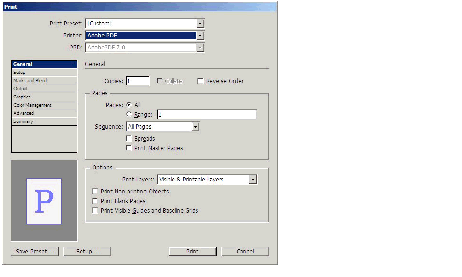
The three user-interface elements above the selectable panel region of the dialog box are common in all Print dialog box screenshots and are mapped to the following API methods:
The user-interface elements on the General panel are mapped to the API methods listed in the following table .
| User-interface element | API method |
|---|---|
| Copies | IPrintData::SetCopies |
| Collate | IPrintData::SetCollate |
| Reverse Order | IPrintData::SetReverseOrder |
| Pages: All | IPrintData::SetWhichPages(IPrintData::kAllPages) |
| Pages: Range | IPrintData::SetWhichPages(IPrintData::kPageRange) (Range text edit box): IPrintData::SetPageRange |
| Sequence | IPrintData::SetPrintOption, using IPrintData::kBothPages (for All Pages), IPrintData::kEvenPagesOnly, or IPrintData::kOddPagesOnly |
| Spreads | IPrintData::SetSpreads |
| Print Master Pages | IPrintData::SetScope, using IPrintData::kScopeMaster or IPrintData::kScopeDocument |
| Print Non-printing Objects | IPrintData::SetPrintNonPrintingObjects |
| Print Blank Pages | IPrintData::SetPrintBlankPages |
| Print Visible Guides and Baseline Grids | IPrintData::SetPrintWYSIWYGGridsGuides |
Print dialog box: Setup panel
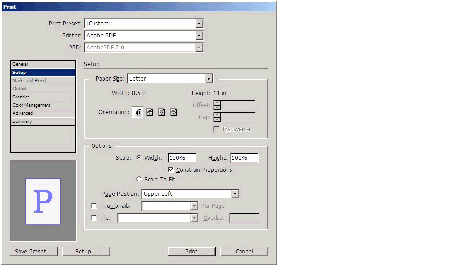
The user-interface elements on the Setup selectable panel are mapped to the API methods listed in the following table.
| User-interface element | API method |
|---|---|
| Paper Size | IPrintData::SetPaperSizeSelection if defined by the user (IPrintData::kPaperSizeDefinedByUser), printer driver (IPrintData::kPaperSizeDefinedByDriver), or IPrintData::SetPaperSizeName |
| Paper Size: Width | IPrintData::SetCustomPaperWidth only if Paper Size is defined by the user; otherwise (if defined by driver or paper-size name), IPrintData::SetCustomPaperWidth(IPrintData::kCustomPaperSizeAuto) |
| Paper Size: Height | IPrintData::SetCustomPaperHeight only if Paper Size is defined by user; otherwise (if defined by driver or paper-size name), IPrintData::SetCustomPaperHeight(IPrintData::kCustomPaperSizeAuto) |
| Offset | IPrintData::SetCustomPaperOffset only if Paper Size is defined by the user |
| Gap | IPrintData::SetCustomPaperGap only if Paper Size is defined by the user |
| Transverse | IPrintData::SetPaperOrientation, using IPrintData::kTransverse or IPrintData::kNormal |
| Orientation | IPrintData::SetPageOrientation, using IPrintData::kPortrait, IPrintData::kLandscape, IPrintData::kReversePortrait, or IPrintData::kReverseLandscape |
| Scale (radio button) | IPrintData::SetScaleMode using IPrintData::kScaleXAndY |
| Scale: Width | IPrintData::SetXScale |
| Scale: Height | IPrintData::SetYScale |
| Scale: Constrain Proportions | IPrintData::SetProportional |
| Scale to Fit (radio button) | IPrintData::SetScaleMode using IPrintData::kScaleToFit |
| Page Position | IPrintData::SetPagePosition, using IPrintData::kPagePositionUpperLeft, IPrintData::kPagePositionCenterHorizontally, IPrintData::kPagePositionCenterVertically, or IPrintData::kPagePositionCentered |
| Print Layers | IPrintData::SetPrintLayers using kPrintAllLayers, kPrintVisibleLayers, or kPrintVisiblePrintableLayers. |
| Thumbnails | IPrintData::SetTileThumbMode, using IPrintData::kThumbnails or IPrintData::kTileThumbOff |
| Per Page | IPrintData::SetNumberOfThumbsPerPage. Calculate the number of thumbnails on the page (for example, 4x4 = 16). |
| Tile | IPrintData::SetTileThumbMode, using IPrintData::kTiling or IPrintData::kTileThumbOff |
| Overlap | IPrintData::SetTilingOverlap |
Print dialog box: Marks and Bleed panel
(Roman feature set)
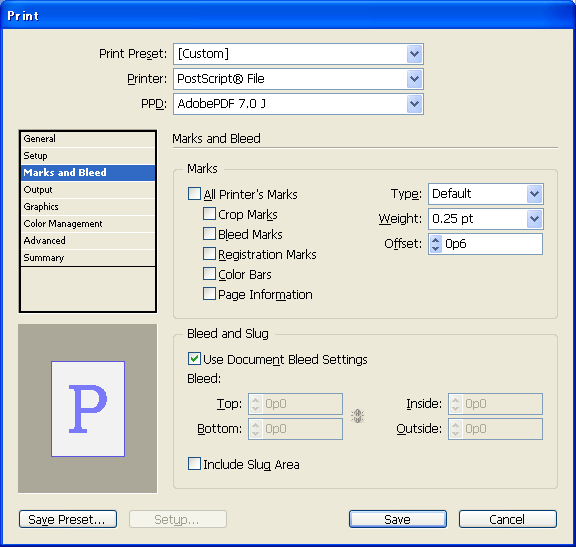
The user-interface elements on the Marks And Bleed selectable panel are mapped to the API methods listed in the following table.
| User-interface element | API method |
|---|---|
| All Printer's Marks | Checking this sets the state of the five check boxes below it. |
| Crop Marks | IPrintData::SetCropMarks |
| Bleed Marks | IPrintData::SetBleedMarks |
| Registration Marks | PrintData::SetRegistrationMarks |
| Color Bars | IPrintData::SetColorBars |
| Page Information | PrintData::SetPageInformation |
| Type | IPrintData::SetPageMarkFile. For the Roman and Japanese feature sets, you get the Default setting; in this case, the PMString passed into SetPageMarkFile is blank. There are extra details when using the Japanese feature set; see Japanese page-mark files. |
| Weight | IPrintData::SetMarkLineWeight, using the enumerations ranging from IPrintData::kMarkLineWeight125pt to IPrintData::kMarkLineWeight30mm (see IPrintData.h.) |
| Offset | IPrintData::SetPageMarkOffset |
| Use Document Bleed Settings | IPrintData::SetUseDocumentBleed |
| Bleed (chain button) | IPrintData::SetBleedChain |
| Bleed: Top | IPrintData::SetBleedTop |
| Bleed: Bottom | IPrintData::SetBleedBottom |
| Bleed: Inside | IPrintData::SetBleedInside |
| Bleed: Outside | IPrintData::SetBleedOutside |
| Include Slug Area | IPrintData::SetIncludeSlug |
Print dialog box: Output panel
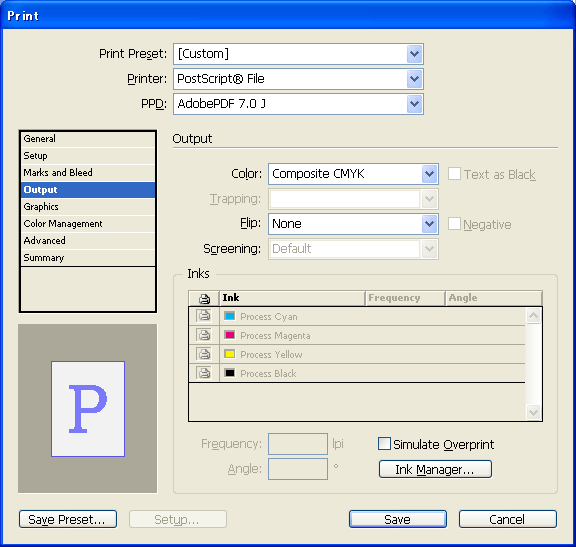
The user-interface elements on the Output selectable panel are mapped to the API methods listed in the following table.
| User-interface element | API method |
|---|---|
| Color | IPrintData::SetOutputMode, using IPrintData::kCompositeLeaveUnchanged, IPrintData::kCompositeGray, IPrintData::kCompositeRGB, IPrintData::kCompositeCMYK, IPrintData::kSeparationBuiltIn, or IPrintData::kSeparationInRIP |
| Text as Black | IPrintData::SetPrintColorsInBlack |
| Trapping | IPrintData::SetTrappingMode, using IPrintData::kTrappingNone, IPrintData::kTrappingBuiltIn, or IPrintData::kTrappingInRIP |
| Flip | IPrintData::SetFlipMode, using IPrintData::kFlipOff, IPrintData::kFlipHorizontal, IPrintData::kFlipVertical, or IPrintData::kFlipBoth |
| Negative | IPrintData::SetNegative |
| Screening | When the IPrintData::GetOutputMode is a separation mode, IPrintData::SetSeparationScreenText; when the IPrintData::GetOutputMode is a composite mode, IPrintData::SetCompositeScreenText. |
| Frequency | If output mode is kCompositeGray and the composite-screen mode is string key "kCustom" (translates differently in each locale), IPrintData::SetCompositeFrequency. |
| Angle | If output mode is kCompositeGray and the composite-screen mode is string key "kCustom" (translates differently in each locale), IPrintData::SetCompositeAngle. |
| Simulate Overprint | IPrintData::SetSpotOverPrint, using IPrintData::kSimulatePress (if the radio button is checked) or IPrintData::kLegacy (if the radio button is not checked). |
| Inks | Stored temporarily in IPrintDialogData::SetNthInkScreening. When the user clicks the OK button in the Ind Manager dialog box, the kChangeInkCmdBoss command is processed for each ink listed. |
Print dialog box: Graphics panel
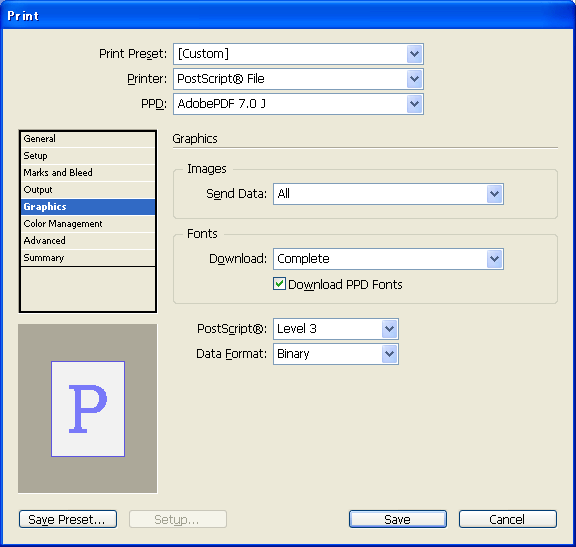
The user-interface elements on the Graphics selectable panel are mapped to the API methods listed in the following table.
| User-interface element | API method |
|---|---|
| Images: Send Data | IPrintData::SetImageData, using IPrintData::kImageDataAll, IPrintData::kImageDataOptimized, IPrintData::kImageDataLoRez, or IPrintData::kImageDataProofPrint |
| Fonts: Download | IPrintData::SetFontDownload, usingIPrintData::kFontDownloadNone, IPrintData::kFontDownloadComplete, IPrintData::kFontDownloadSubset, or IPrintData::kFontDownloadSubsetLrg |
| Download PPD Fonts | IPrintData::SetDownloadPPDFonts |
| PostScript | IPrintData::SetPSLangLevel, using IPrintData::kPSLangLevel_2 or IPrintData::kPSLangLevel_3 |
| Data Form at | IPrintData::SetImageDataFormat, using IPrintData::kImageDataBinary or IPrintData::kImageDataASCII |
Print dialog box: Color Management panel
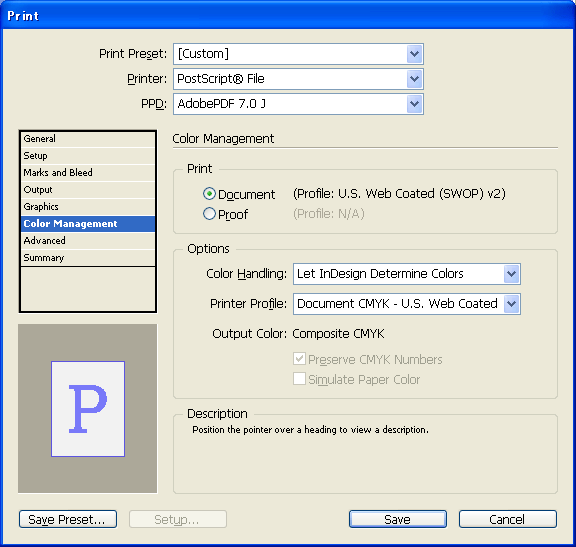
The user-interface elements on the Color Management selectable panel are mapped to the API methods listed in the following table.
| User-interface element | API method |
|---|---|
| Print: Document | IPrintData::SetSourceSpace(IPrintData::kDocumentSourceSpace) |
| Print: Proof | IPrintData::SetSourceSpace(IPrintData::kProofSourceSpace) |
| Color Handling | IPrintData::SetProfileType, using IPrintData::kUseDocumentProfile, IPrintData::kUsePostScriptCMS, or IPrintData::kUseNoCMS |
| Printer Profile | IPrintData::SetProfileType, using IPrintData::kUseDocumentProfile or IPrintData::kUseWorkingProfile. If this is not one of the predefined profiles, use IPrintData::kUseSpecificProfile and then call IPrintData::SetProfileName, specifying the name of the profile as displayed in the drop-down list. |
| Preserve CMYK Colors | IPrintData::SetPreserveColorNumbers |
| Simulate Paper Color | IPrintData::SetIntent, using IPrintData::kRelativeColorimetric (if the radio button is unselected) or IPrintData::kAbsoluteColorimetric (if the radio button is selected). |
Print dialog box: Advanced panel
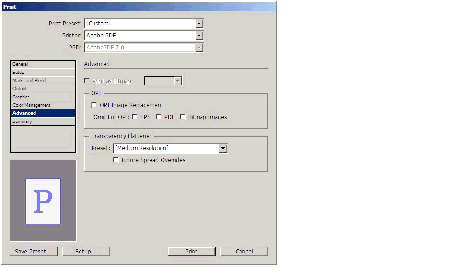
The user-interface elements on the Advanced selectable panel are mapped to the API methods listed in the following table.
| User-interface element | API method |
|---|---|
| OPI Image Replacement | IPrintData::SetOPIReplacement |
| Omit for OPI: EPS | IPrintData::SetOmitEPS |
| Omit for OPI: PDF | IPrintData::SetOmitPDF |
| Omit for OPI: Images | IPrintData::SetOmitImages |
| Transparency Flattener: Preset | IPrintData::SetFlattenerStyleName |
| Transparency Flattener: Ignore Spread Overrides | IPrintData::SetIgnoreSpreadOverrides |
Print dialog box: Summary panel
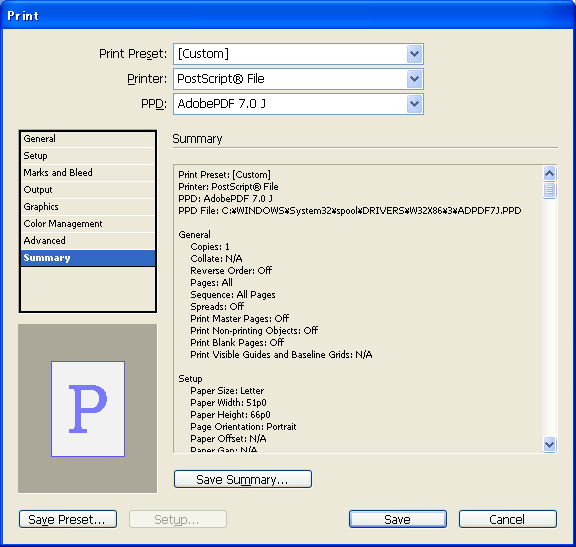
When you click the Save Summary button, the Save File dialog box opens, asking for the path of a text file to which to save the summary. If you call IPrStStyleListMgr::GetNthStyleDescription for a selected printer style, you get the same text as shown in the Summary multi-line text widget.
The main Print Presets dialog box is opened when the user chooses File > Print Presets > Define.
In the main Print Presets dialog box, the user can see the currently defined print presets and a text summary of the currently selected preset. The main dialog box also has buttons for creating a new print preset (New), editing an existing print preset (Edit), deleting the selected print preset (Delete), loading from a print presets file (Load), and saving the print presets to a file (Save).
When the user clicks the New or Edit button, a selectable dialog box similar to the Print dialog box opens. The design of the Print Presets selectable dialog box is mostly the same as the Print dialog box, with a few minor differences:
The Print dialog box and the Print Presets selectable dialog boxes are extensible by third-party plug-ins by means of custom, selectable, dialog panel. By implementing one selectable dialog panel, you can add your own panel into both the Print dialog box and the Print Presets selectable dialog box. For a discussion on SDK sample plug-ins that implement selectable dialog panels, see "Adding your own panel to the Print and Print Presets dialog boxes" in Participating in the print process.
A plug-in can register a print-setup service boss by providing an IK2ServiceProvider implementation that supports the kPrintSetupService service ID. The service is called at various points during the print-action sequence (see The print action sequence). The implementation for IPrintSetupProvider provides methods to set up or change print parameters before and during the printing process. See the following table for implementation details.
| Purpose | Participate in various phases in the print process. |
| ServiceID | kPrintSetupService |
| Required companion interface | IPrintSetupProvider |
| Boss class | IID_IK2SERVICEPROVIDER with implementation ID kPrintSetupServiceImpl (see PrintID.h) and IID_IPRINTSETUPPROVIDER with your implementation ID |
| When called | Methods of IPrintSetupProvider are called at various phases of the print action command. See The print action sequence. |
| How called | All providers of this ServiceID get called. |
| Sample code | See "Participating in the stages of the print-action sequence" in Participating in the print process. |
A plug-in can inject PostScript statements into the print-output stream by registering an IK2ServiceProvider implementation supporting the kPrintInsertPSProcService serviceID and providing an implementation for IPrintInsertPSProcProvider. See the following table for implementation details.
Implementation recipe for a print-insert-PostScript proc provider:
| Purpose | Inject PostScript comments at predetermined phases of the printing process. |
| ServiceID | kPrintInsertPSProcService |
| Required companion interface | IPrintInsertPSProcProvider |
| Boss class | IID_IK2SERVICEPROVIDER with implementation ID kInsertPSProcServiceImpl (see PrintID.h) and |
| IID_IPRINTINSERTPSPROCPROVIDER with your implementation ID | |
| When called | Methods of IPrintInsertPSProcProvider are called at various phases of the core print command. See The print action sequence. The Setup method is called first, to give the provider a chance to store print settings. Then the GetInsertPSProcName method is called, so the provider can return a name. (The following steps occur only if your GetInsertPSProcName implementation returns a nonempty string.) The GetClientData method gets called to obtain the provider's custom client data (if any), then the PrintInsertPSProc method is called at various phases of the printing process. (For a list of phases, see the enum IPrintInsertPSProcProvider::DocumentSection.) |
| How called | All providers of this ServiceID get called. |
| Sample code | See "Injecting PostScript comments or extra data into the print stream during the print action sequence" in Participating in the print process. |
A plug-in can control whether to override the current locked state and relevant state of print data items in the Print dialog box by registering an implementation of IK2ServiceProvider supporting the kPrintDataHelperStrategyService serviceID. The IPrintDataHelperStrategy interface provides two methods: IsLocked and IsRelevant.
IsLocked allows a plug-in to lock the Print and Print Presets dialog-box user-interface elements. Although an item's locked state can be partially controlled using this method, the application print components are still free to change an item's value as necessary to maintain the print data in a consistent and valid context.
IsRelevant allows a plug-in to disable specific Print and Print Presets dialog-box user-interface elements. Although an item's relevant state can be partially controlled using this interface, the application print components are still free to change an item's value as necessary to maintain the print data in a consistent and valid context.
The most restrictive interface takes precedence. After an ID is set to be locked (the most restrictive setting), other implementations are not called. After an ID's relevance is set to kFalse (the most restrictive setting), other implementations are not called.
See the following table for implementation details.
Implementation recipe for a print-data helper-strategy provider:
| Purpose | Influence the Print and Print Presets dialog boxes through the ability to suppress and lock print user-interface elements. |
| ServiceID | kPrintDataHelperStrategyService |
| Required companion interface | IPrintDataHelperStrategy |
| Boss class | IID_IK2SERVICEPROVIDER with implementation ID kDataHelperStrategyServiceImpl(see PrintID.h) and IID_IPRINTDATAHELPERSTRATEGY with your implementation ID |
| When called | Whenever IPrintData::IsLocked or IPrintData::IsRelevant is called. Generally this happens when the Print or Print Presets dialog box is being prepared for display. |
| How called | All providers of this ServiceID get called. |
| Related sample code | See "Specifying which parts of the Print and Print Presets dialog boxes are relevant or locked" in Participating in the print process. |
A plug-in can register a draw-event handler (IDrwEvtHandler) to participate in various draw events that happen during the printing process. For more details on draw-event handlers, including implementation details, see Graphics Fundamentals. For samples that implement this extension pattern for printing purposes, see "Adding a custom watermark during the printing process" and "Injecting PostScript comments or extra data into the print stream during the print action sequence" in Participating in the print process.
Printing a document
Execute (not process) one of the following commands:
The minimal settings required to print a document with kPrintActionCmdBoss in InDesign are as follows:
The print-action command is executed (not processed), because there is no undo capability provided. For a sample that uses either kPrintActionCmdBoss or kInCopyPrintActionCmdBoss, see the SnpPrintDocument.cpp sample code snippet, in particular SnpPrintDocument::DoPrintDocument.
Printing a Book
Execute the kBookPrintActionCmdBoss command.
Getting information about print-preset styles
Query for IPrStStyleListMgr on kWorkspaceBoss, then call the Get methods to get information about the print-preset styles that are registered. IPrStStyleListMgr::GetNumStyles reports the number of print-preset styles registered. IPrStStyleListMgr::GetNthStyleName reports the name of the print-preset style at index n. IPrStStyleListMgr::GetNthStyleRef returns the UIDRef of the print-preset style at index n. Using this UIDRef, you can query IPrintData, and get further information about the print-preset style. There are other useful methods on IPrStStyleListMgr.
For more details, see the SnpManipulatePrintStyles.cpp code snippet, in particular SnpManipulatePrintStyles::InspectPrintStyle.
Adding a print-preset style
Query for IPrStStyleListMgr on kWorkspaceBoss, then call IPrStStyleListMgr::AddStyle. When the new style is created, it is appended to the end of the list of print-preset styles.
For details, see the SnpManipulatePrintStyles.cpp code snippet, in particular SnpManipulatePrintStyles::AddPrintStyle.
Duplicating a print-preset style
Query for IPrStStyleListMgr on kWorkspaceBoss, then call IPrStStyleListMgr::CopyNthStyle. When the new style is created, it is appended to the end of the list of print-preset styles.
Modifying the name of a print-preset style
First, query for IPrStStyleListMgr on kWorkspaceBoss.
Then, call IPrStStyleListMgr::SetNthStyleName. When you do this, however, the name of the print-preset style stored in IPrintData is not updated, so you must query for IPrintData and call IPrintData::SetStyleName, using the same name. For details, see the SnpManipulatePrintStyles.cpp code snippet, in particular SnpManipulatePrintStyles::ModifyPrintStyleName.
Modifying the settings of a print-preset style
First, query for IPrStStyleListMgr on kWorkspaceBoss.
Then, call IPrStStyleListMgr::EditNthStyle, which invokes the Print Presets selectable dialog box. This procedure requires a user to use the dialog box to change settings. For details, see the SnpManipulatePrintStyles.cpp code snippet, in particular SnpManipulatePrintStyles::ModifyPrintStyle.
Deleting a print-preset style
Query for IPrStStyleListMgr on kWorkspaceBoss, then call IPrStStyleListMgr::DeleteNthStyle. For details, see the SnpManipulatePrintStyles.cpp code snippet, in particular SnpManipulatePrintStyles::DeletePrintStyle.
Exporting a set of print-preset styles to a file
Process the kGenStlEdtExportStylesCmdBoss command. In the IGenStlEdtCmdData data interface, call SetListMgrIID to set the type of style list to be the print style list, by specifying the IPrStStyleListMgr::kDefaultIID (IID_IPRSTSTYLELISTMGR), then call SetTargetFile to specify the full path of the file to save. Optionally, specify a set of style indices you want to export from IPrStStyleListMgr on kWorkspaceBoss. If you do not specify a set of style indices, all styles stored in IPrStStyleListMgr are exported.
Importing a set of print-preset styles from a file
Process the kGenStlEdtImportStylesCmdBoss command. In the IGenStlEdtCmdData data interface, call SetListMgrIID to set the type of style list to be the print style list, by specifying the IPrStStyleListMgr::kDefaultIID (IID_IPRSTSTYLELISTMGR), then call SetTargetFile to specify the full path of the file to import.
Getting notified when a print-preset style is imported to/exported from a file
Implement a signal-responder extension pattern that responds one or more of the following signals:
These IDs are defined in GenericSettingsID.h. In your implementation of IResponder::Respond, you can query for the IStyleSignalData interface using ISignalMgr::QueryInterface (or InterfacePtr). IStyleSignalData gives you a reference to the file that is the target of the export or import operation.
Any preset style that is managed by the generic-settings framework and can be exported or imported-such as PDF-export styles and document-preset styles-can be monitored in the same way.
Getting information about trap styles
First, query for ITrapStyleListMgr on one of the following bosses:
The utility interface ITrapStyleUtils (on kUtilsBoss) has a QueryTrapStyleListMgr method to simplify this process. There are two overloaded methods:
Next, call the Get methods to get various information about the trap styles that are registered. ITrapStyleListMgr::GetNumStyles reports the number of trap styles registered. ITrapStyleListMgr::GetNthStyleName reports the name of the trap style at index n. ITrapStyleListMgr::GetNthStyleRef returns the UIDRef of the trap style at index n. Using this UIDRef, you can query ITrapStyle and get further information about this trap style. There are other useful methods on ITrapStyleListMgr.
Adding a trap style
Query for ITrapStyleListMgr, then call ITrapStyleListMgr::AddStyle. When the new style is created, it is appended to the end of the list of trap styles.
For details, see the SnpManipulateTrapStyles.cpp code snippet, in particular SnpManipulateTrapStyles::AddTrapStyle.
Duplicating a trap style
Query for ITrapStyleListMgr, then call ITrapStyleListMgr::CopyNthStyle. When the new style is created, it i appended to the end of the list of trap styles.
Modifying a trap style
Query for ITrapStyleListMgr, then call ITrapStyleListMgr::EditNthStyle. You are required to pass in the trap-style data via the parameter list as ITrapStyle. You can create a nonpersistent instance of kTrapStyleBoss to store the settings.
For details, see the SnpManipulateTrapStyles.cpp code snippet, in particular SnpManipulateTrapStyles::ModifyTrapStyle.
Deleting a trap style
Query for ITrapStyleListMgr, then call ITrapStyleListMgr::DeleteNthStyle.
For details, see the SnpManipulateTrapStyles.cpp code snippet, in particular SnpManipulateTrapStyles::DeleteTrapStyle.
Exporting a set of trap styles to another trap-style list
First, create a command sequence, as the following procedure processes multiple commands. Next, query for ITrapStyleListMgr, then call ITrapStyleListMgr::ExportStyles. The first parameter is a UIDRef for the destination trap style list (note the source trap style list is identified by this particular instance of ITrapStyleListMgr), and that UIDRef must refer to a boss that aggregates ITrapStyleListMgr. If you want to export the trap styles to a file, you can create a new database using DBUtils::CreateDataBase and IDataBase::New, then put a new root UID by calling IDataBase::NewUID. The class for the new root should be kTrapStyleExportRootBoss. Create a UIDRef for this new root, and pass it into ITrapStyleListMgr::ExportStyles. Once that completes, save the database by calling IDataBase::SaveAs, and close the database by deleting the IDataBase pointer.
Importing a set of trap styles from another trap-style list
First, create a command sequence, as the following procedure processes multiple commands. Next, query for ITrapStyleListMgr, then call ITrapStyleListMgr::ImportStyles. The first parameter is a UIDRef for the source trap style list (note the destination trap style list is identified by this particular instance of ITrapStyleListMgr), and that UIDRef must refer to a boss that aggregates ITrapStyleListMgr. If you want to import the trap styles from a file, you can open a database using DBUtils::CreateDataBase and IDataBase::Open, then get the root UID by calling IDataBase::GetRootUID. The class for the new root should be kTrapStyleExportRootBoss. Create a UIDRef for this root, and pass it into ITrapStyleListMgr::ImportStyles. Once that completes, close the database by deleting the IDataBase pointer.
Determining which trap style is associated with a page on a document
Given a specific page (kPageBoss) on a document (which you can query using IPageList on kDocBoss), query for IPersistUIDData with the specific IID of IID_ITRAPSTYLEUIDDATA. Get the UID from IPersistUIDData. That UID refers to the trap style registered in ITrapStyleListMgr on the document workspace (kDocWorkspaceBoss). To find out the name of this trap style, first call ITrapStyleListMgr::GetStyleIndexByUID and then call ITrapStyleListMgr::GetNthStyleName.
Alternately, you can collect a list of pages that use a specific trap style. Call ITrapStyleUtils::GetDocumentTrapStylePageList. For details, see the SnpManipulateTrapStyles.cpp code snippet, specifically SnpManipulateTrapStyles::InspectTrapStyle.
Associating a trap style with a page on a document
Create a UIDList of pages (kPageBoss) to which you want to associate a trap style, and the UIDRef of the trap style. Then call ITrapStyleUtils::AssignStyleToPageList. For details, see the SnpManipulateTrapStyles.cpp code snippet, specifically SnpManipulateTrapStyles::AssignTrapStyleToPages.
Participating in the stages of the print-action sequence
There are various ways to participate in the print-action sequence. The main way is to implement a print-setup provider (see Print-setup provider). By implementing IPrintSetupProvider, your plug-in can be notified at the stages of the print-action sequence described in "The print action sequence".
Other ways to participate in the print-action sequence are noted in the following list. Some of these require extra hook-ups from within a print setup-provider implementation.
The following sample plug-ins contain an implementation of a print-setup provider:
For details, refer to the API Reference for each sample plug-in.
Specifying which page items should be printed
You can implement a print-setup provider (see "Participating in the stages of the print-action sequence" in Participating in the print process Participating in the print process) and a custom draw-event handler to specify which pages items should be printed. From the print-setup provider (in any method that gets called before the core print command is executed, the last chance being AfterPrintGatherCmd), you register the custom draw-event handler that handles the print event only when it encounters document content you want to print. When the printing is done, you de-register the custom draw-event handler in your print-setup provider's EndPrint implementation.
The PrintSelection sample plug-in shows how this is done. Here are the highlights of what the PrintSelection plug-in does:
For details, refer to the API Reference for the PrintSelection plug-in.
Specifying which layer(s) of a document should be printed
In the Setup panel of the Print dialog box, there is a setting called "Print Layers," which is a drop-down list that allows the user to choose printing with visible and printable layers, visible layers, or all layers. This option can be get/set through the IPrintData::GetPrintLayers/SetPrintLayers methods. Each layer's visibility and printability, however, are managed by layer options as described in the "Layer Options" section of Layout Fundamentals.
To set the visibility of a layer, use the kShowLayerCmdBoss command. To set the printability of a layer, use the kPrintLayerCmdBoss command. The SnpPrintDocument.cpp SDK snippet shows how to use a kPrintLayerCmdBoss. Before processing a kPrintLayerCmdBoss, make sure the printability of the layer is different from the new state you are going to set. If the new printability state is the same as the old one, kPrintLayerCmdBoss asserts, although the assert is benign.
Adding a custom watermark during the printing process
You can implement a custom draw-event handler that draws the watermark on a page or a page item. This is done in the BasicDrwEvtHandler sample plug-in, a canonical example of a draw-event handler. For details, refer to the API Reference for the BasicDrwEvtHandler plug-in.
Another way to add custom watermarks to page items is to implement a page-item adornment that draws when the draw flag has the IShape::kPrinting bit set. While the FrameLabel sample plug-in does not support printing (that is, if flags contains IShape::kPrinting, the Draw method breaks out), you can use the FrameLabel sample as a basis for implementing custom watermarks and extra persistent data on page items. For details, refer to the API Reference for the FrameLabel plug-in.
Injecting PostScript comments or extra data into the print stream during the print action sequence
You can implement a print-insert PostScript proc provider (see Print-insert-PostScript proc provider) to inject PostScript comments during predetermined phases of the print-output process as driven by the core print command. The PrintMemoryStream sample plug-in contains an implementation of a print-insert PostScript proc provider. The print-insert PostScript proc provider implementation in this sample is a canonical example that demonstrates when each method in IPrintInsertPSProcProvider gets called by writing a trace message. This plug-in also demonstrates how to manage custom print settings throughout the print-action sequence.
There are other ways to inject PostScript comments into the print stream during the print action sequence:
Adding custom print settings so they are managed like other print settings
Any plug-in that registers for kPrintCopyCustomDataService gets a chance to manage its own print data during the print process. Note the service provider is called after the application's CopyData is done. You should provide the implementation for IPrintCopyCustomDataProvider and aggregate it on the service-provider boss that registered as kPrintCopyCustomDataService. Then your IPrintCopyCustomDataProvider will be called whenever IPrintData::CopyData is called.
Adding your own panel to the Print and Print Presets dialog boxes
You can implement a panel that adds itself to the dialog box identified by kPrintSelectableDialogService. The panel should be 400 pixels wide and 345 pixels high. The ODFRez widget type should inherit from PrimaryResourcePanelWidget, and the boss class that contains the necessary implementations (see below) should inherit from kPrimaryResourcePanelWidgetBoss. The required implementations in this boss class are as follows:
In addition to the panel user-interface definition and the supporting boss class, you must include the following resources:
Both these resources should have the resource ID you specified in your IPanelCreator::GetPanelRsrcID implementation. For example, if the resource ID you specify in IPanelCreator::GetPanelRsrcID is kSDKDefIDListPairResourceID, the resource ID of the panel is kSDKDefPanelResourceID, and the ID of the plug-in that provides this panel is kPrtHokUIPluginID, the resources would be written like the following example.
An IDList and IDListPair to support the kPrintSelectableDialogService:
To find out whether the panel is being opened from the Print or Print Presets dialog box, you can query the IPrintDialogData interface from the parent selectable dialog (by using the help of IWidgetParent), and call IPrintDialogData::GetFlags. See the following example.
Getting IPrintDialogData flags from a print-dialog selectable-panel implementation:
If the returned value has the IPrintDialogData::kWorkingOnStyle bit set (test by doing a logical AND on the value with IPrintDialogData::kWorkingOnStyle), the panel is in the Print Presets dialog box.
A canonical implementation of a selectable dialog box (along with children panels) is provided in the BasicSelectableDialog sample plug-in. You can use BasicSelectableDialog to understand the interactions between the parent selectable dialog box and its child panels. For more details, refer to the API Reference associated with the BasicSelectableDialog sample plug-in.
Specifying which parts of the Print and Print Presets dialog boxes are relevant or locked
You can implement a print-data helper strategy provider (see Print-data helper-strategy provider). Print-data helper strategy provider also are called when the Print or Print Presets dialog box gets its summary text. (That is, if a setting is not relevant, it is not included in the summary text.) For a sample implementation of IPrintDataHelperStrategy, see the PrintMemoryStream sample plug-in.
Writing printing data to a custom stream
You can write a class that implements IPMStream (and inherits CStreamWrite), along with a class that inherits IXferBytes, to copy the data to whatever your stream targets. Your stream may target things like a file, a memory buffer, or even a database. This custom stream must be reported to the print-action sequence by calling IOutputPages::SetOutputStream. You can do this from one of the methods in your print-setup provider (see Print-setup provider and "Participating in the stages of the print-action sequence"), like IPrintSetupProvider::BeforePrintGatherCmd. For a sample implementation, see the PrintMemoryStream sample plug-in.
For details on these bosses, such as other aggregated interfaces or boss hierarchy, refer to the API Reference.
The following table lists the main command bosses used in the print process.
| Command boss | Description |
|---|---|
| kBookPrintActionCmdBoss | Top-level print-action command for printing a book. For most clients, this is the command to execute to print a book in InDesign. It processes the following supporting commands: kPrintDialogCmdBoss, kBookSavePrintDataCmdBoss, kPrintGatherDataCmdBoss, and kNewPrintCmdBoss. |
| kBookSavePrintDataCmdBoss | Saves the print data into a book. |
| kCreatePrintGalleyViewCmdBoss | Creates a galley window view to print. |
| kInCopyNewPrintCmdBoss | Performs the actual output of a document in InCopy. |
| kInCopyPrintActionCmdBoss | Top-level print-action command for printing in InCopy. For most clients, this is the command to execute to print a document in InCopy. It processes the following supporting commands: kCreatePrintGalleyViewCmdBoss, kInCopyPrintDialogCmdBoss, kInCopyNewPrintCmdBoss, and kPrintGatherDataCmdBoss. |
| kInCopyPrintDialogCmdBoss | Displays the print dialog box in InCopy. |
| kNewPrintCmdBoss | Performs the actual output of a document or a book to the output device in InDesign. |
| kPrintActionCmdBoss | Top-level print-action command for printing a document. For most clients, this is the command to execute to print a document in InDesign. It processes the following supporting commands: kPrintDialogCmdBoss, kPrintSavePrintDataCmdBoss, kPrintGatherDataCmdBoss, and kNewPrintCmdBoss. |
| kPrintDialogCmdBoss | Displays the print dialog box in InDesign. |
| kPrintGatherDataCmdBoss | Gathers print data. |
| kPrintSavePrintDataCmdBoss | Saves the print data into a document. |
The Japanese feature set provides two extra Type options in the Marks And Bleed panel in the Print dialog box and Print Presets selectable dialog box:
In addition (with either the Roman or Japanese feature set), you can specify a filename (without path or extension) of a file that contains a custom page mark written using PostScript. The contents of this PostScript file are injected during printing. The actual file should have an .mrk extension and be in one of the following locations:
(Windows) C:\Program Files\Common Files\Adobe\PrintSpt
(Mac OS) /Library/Application Support/Adobe/PrintSpt
The process of exporting to EPS and PDF file formats is somewhat similar to the process of printing, in that similar components of the application are employed. The way you drive the export process and the data model behind the EPS and PDF export features are somewhat different. This section provides highlights of how to drive the EPS and PDF export features in the application.
EPS export preferences
Settings for EPS export are stored in the IEPSExportPreferences interface on kWorkspaceBoss. For details, refer to the API Reference.
To get the preferences, query for IEPSExportPreferences on kWorkspaceBoss and call its Get methods.
To modify the preferences, process the kSetEPSExportPrefsCmdBoss command. This command has a data interface, IEPSExportPrefsCmdData, with which you specify the new values of the EPS preferences. Before you call any Set methods, you can call IEPSExportPrefsCmdData::CopyPrefs to copy the current preference settings in IEPSExportPreferences.
User interface
When you choose File > Export and specify the file to export and the export format to be EPS, you will see a selectable dialog box with two panels, General and Advanced. The user-interface elements on these panels are mapped to the methods on IEPSExportPreferences, as described below.
Export EPS dialog box: General panel
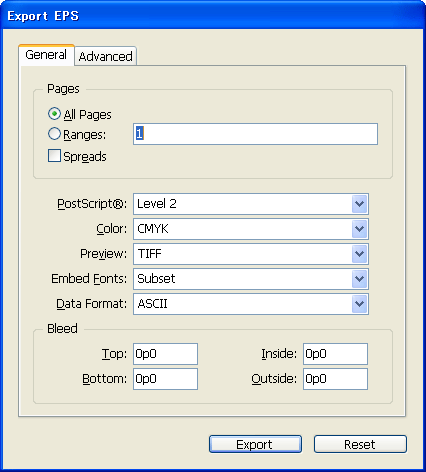
Export EPS dialog box: Advanced panel
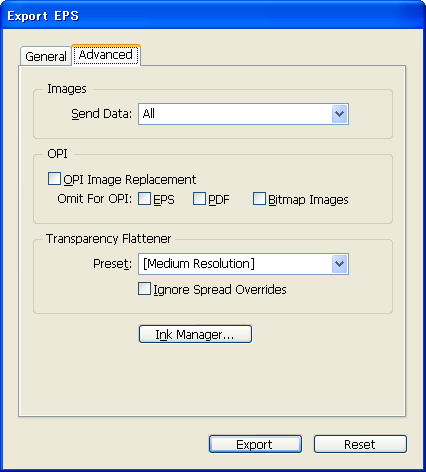
Exporting
Using IK2ServiceRegistry, query for service providers supporting kExportProviderService. Find an export provider that can support the format name "EPS," by iterating over all export providers and calling IExportProvider::CountFormats and IExportProvider::GetNthFormatName, or IExportProvider::CanExportThisFormat. Once you find the export provider for EPS, do the following:
The structure of the PDF-export architecture is very similar to that of EPS export; however, you can specify a greater level of detail when exporting a document to PDF. For details of exporting to PDF, see Import and Export.
This section focuses on how to control PDF import preferences during the PDF import process.
Importing a file into InDesign requires a series of commands to be processed in a certain sequence. Before a PDF file can be imported, a page item needs to be created to hold the PDF content. Also, a proper datalink needs to be set up, so the association between the page item and the external file can be established.
The following figure is a high-level illustration of the import process in InDesign for a standalone desktop PDF file (not a workgroup file) to be loaded into the place gun. The details of a complete import process is beyond the scope of this document. We recommend you always try to import (or place) a file using the method illustrated in the SnpPlaceFile.cpp snippet sample, which uses kImportAndPlaceCmdBoss to place the file on the active spread. You also can use kImportAndLoadPlaceGunCmdBoss to load the file into the place gun. Both commands check with all the import providers and pick the appropriate provider for the type of file to import. The PDF import provider (kPDFPlaceProviderBoss) is the default InDesign import provider for PDF files. kPDFPlaceProviderBoss processes kPDFPlaceCmdBoss, which is the central command that does the real work of importing a PDF file.
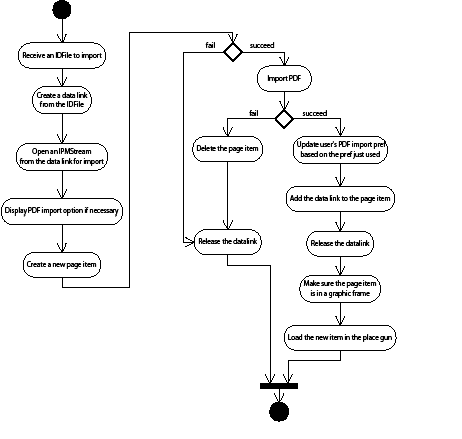
When you import a PDF file through the InDesign Place dialog box, if you choose Show Import Options, the Place PDF dialog opens:
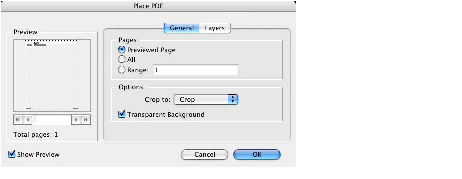
The following options offer flexible PDF import:
General PDF import options are stored in the IPDFPlacePrefs interface, and layers options are stored in IGraphicLayerInfo; both interfaces are added to the kWorkspaceBoss workspace. Normally, these options are used unless the PDF import is performed through a link update; in that case, the IGraphicLayerInfo on the page item (kPlacedPDFItemBoss) is used instead, and some attributes from the IPDFAttributes aggregated on the kPlacedPDFItemBoss are used. The following attributes override the defaults under the condition of a link update:
The following figure shows how kPDFPlaceProviderBoss sets up the data interfaces for kPDFPlaceCmdBoss in different cases. If the import is done with the full user interface, the user can change settings through the Place PDF dialog (see the preceding figure). InDesign uses kPDFPlaceProviderBoss to do its PDF import, so by changing import options you control InDesign's PDF import behavior.
The following figure has a "Minimal UI" decision point. If the user deselects Show Import Options when importing a file, a minimal user interface is used: the user sees only a progress bar, not the Place PDF dialog.
The figure also has an "Is the PDF import for link update?" decision point. Link update is performed when the user selects Relink or Update from the Links panel. Doing this triggers a PDF import if the link is a PDF item.
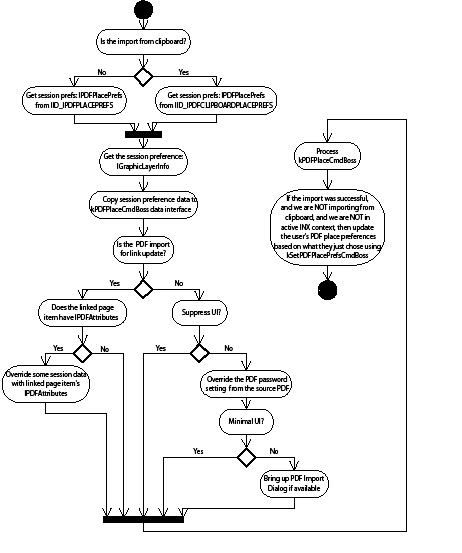
The main interfaces to control the PDF import options are IPDFPlacePrefs, IGraphicLayerInfo, and IPDFAttributes. To modify the data stored in these interfaces, use the commands shown in the following table. Note there is no command to modify the IPDFPlacePrefs for clipboard import (IID_IPDFCLIPBOARDPLACEPREFS). If you process your own kPDFPlaceCmdBoss, use the IPDFPlacePrefs aggregated on the command boss to set up the import option. The IGraphicLayerInfo on the page item passed to the kPDFPlaceCmdBoss is used for layer options.
Commands to Change PDF Import Options:
| To change... | Use |
|---|---|
| IPDFPlacePrefs on the workspace | kSetPDFPlacePrefsCmdBoss |
| IGraphicLayerInfo on the workspace | kSetPDFPlacePrefsCmdBoss |
| IPDFAttributes on the page item | kSetPDFAttributesCmdBoss |
| IGraphicLayerInfo on the page item | kSetGraphicLayerInfoCmdBoss |
InDesign/InCopy document export
The easiest way to export an InDesign or InCopy document is to use the PDF export service provider. The following example is a snippet showing how to get the PDF export provider and call the export method.
In the example:
The PDF export provider for InDesign/InCopy documents is represented by kPDFExportBoss. There is an IBoolData in kPDFExportBoss, which indicates whether print content preferences (IPrintContentPrefs) should be considered. When you export from the InDesign menu, the default value for the IBoolData is set to false, so no print content preference are used during the default PDF export. Also, the PDF export provider allows you to use an export style (kPDFExportStyleBoss) instead of dealing with the settings one by one. This is achieved by passing the style UID in the IUIDData aggregated on the kPDFExportBoss.
The kPDFExportBoss processes kPDFExportCmdBoss. Before the command is processed, kExportValidationCmdBoss is used to verify that the attributes set for the command will produce a valid output. The following table summarizes the command interfaces kPDFExportBoss needs to set up before it processes kPDFExportCmdBoss.
Critical data interfaces for kPDFExportCmdBoss:
| Interface | Purpose |
|---|---|
| IPDFExportPrefs | Holds most of the PDF export settings as seen in the PDF export options dialog. |
| IPDFSecurityPrefs | Holds the PDF security preference. |
| ISysFileData | Holds the destination IDFile for the PDF document. |
| IBoolData | Indicates whether the IPrintContentPrefs should be used. |
| IPrintContentPrefs | Allows certain contents to be removed from the output. |
| IBoolData (IID_IBOOKEXPORT) | Indicates whether the command is used to export an InDesign book. |
| IUIFlagData | Tells the command to use kFullUI, kMinimalUI, or kSuppressUI. |
| IOutputPages | Holds the UIDs of the pages to output in layout mode. |
| IInCopyGalleySettingData | Holds the data for galley export. |
| IBoolData (IID_IINCOPYPDFNOTEANNOTATIONDATA) | Layout export note annotation flag. |
| IInteractivePDFExportPrefs | Contains settings for exporting PDF files with interactive content such as multistate objects and media files. The PDF files created are targeted for Acrobat 9.0 and later. |
Interactive PDF
The IInteractivePDFExportPrefs interface is used to configure the parameters for an export to the PDF format specifically targeted at Acrobat 9 and later. To export InDesign content to an interactive PDF, an instance of the interactive PDF export command kInteractivePDFExportCmdBoss will typically need to be created.
You can then use the IInteractivePDFExportPrefs aggregated on the command boss to set up various parameters for the export. The IPDFSecurityPrefs interface off of the command boss can be used to set the security settings for the exported PDF. The IInteractivePDFExportPrefs interface is also aggregated on the application workspace, where it is used to ensure that default export settings are preserved from export to export. Consider using this instance as the base for export settings. Also consider using kSetInteractivePDFExportPrefsCmdBoss to update the default export settings for subsequent exports. The IInteractivePDFExportFacade facade can assist in retrieving the application workspace settings.
From InDesign layout view
If a style is passed to the export provider, the IPDFExportPrefs on the kPDFExportStyleBoss is copied to the IPDFExportPrefs on the kPDFExportCmdBos; otherwise, the IPDFExportPrefs on the kWorkspaceBoss is used. You can query the session's PDF export preference as follows:
To change the preferences, process kSetPDFExportPrefsCmdBoss and use the Set*** methods of IPDFExportPrefs on the command boss to change the settings.
IPDFSecurityPrefs is set up using the preferences saved in the session (that is, IPDFSecurityPrefs on the kWorkspaceBoss). You can query the preferences as follows:
To change the security preferences, process kSetPDFSecurityPrefsCmdBoss and use the Set*** methods of IPDFSecurityPrefs on the command boss to change the settings.
Another critical interface in kPDFExportCmdBoss that needs to be set up is IOutputPages. It holds the UIDs of the pages from the document for export. The PDF export provider uses IPageRange on the kWorkspaceBoss to initialize the IOutputPages on kPDFExportCmdBoss. kPDFExportDialogBoss uses the same data to initialize the export settings dialog user interface, and it updates the session data when the user changes it from the dialog box. The following example shows how to set up IOutputPages from IPageRange on kWorkspaceBoss.
From InCopy layout view
There is an IInCopyPDFExptLayoutData interface on kWorkspaceBoss, which is used to store some InCopy layout export settings. During an InCopy layout export, IPDFExportPrefs is set up as described in From InDesign layout view. Then the IInCopyPDFExptLayoutData on the kWorkspaceBoss is used to override some of the data on the command's IPDFExportPrefs. The following table summarizes the overrides. To change the IInCopyPDFExptLayoutData on the kWorkspaceBoss, use kSaveInCopyPDFExptLayoutDataCmdBoss.
InCopy Layout-specific export settings:
| Attributes | Override |
|---|---|
| Launch Adobe Acrobat | Changed by SetPDFExLaunchAcrobat. If IInCopyPDFExptLayoutData::GetPDFExLaunchAcrobat is equal to kTrue, this is set to kExportLaunchAcrobatON; otherwise, kExportLaunchAcrobatOFF. |
| Compatibility Level | Changed by SetPDFExAcrobatCompatibilityLevel. Set to the value returned by IInCopyPDFExptLayoutData::GetPDFExAcrobatCompatibilityLevel. |
| Compression Type | Changed by SetCompressionType. If IInCopyPDFExptLayoutData::GetPDFExAcrobatCompatibilityLevel >= kPDFVersion15, this is set to kCompressObjects; otherwise, kCompressNone. |
| Embed Page Thumbnails | Changed by SetPDFExThumbnails. If IInCopyPDFExptLayoutData::GetPDFExThumbnails is equal to kTrue, this is set to kExportThumbnailsON; otherwise, kExportThumbnailsOFF. |
| Optimize for Fast Web View | Changed by SetPDFExLinearized. If IInCopyPDFExptLayoutData::GetPDFExLinearized is equal to kTrue, this is set to kExportLinearizedON; otherwise, kExportLinearizedOFF. |
| Include Page Information | Changed by SetPDFExPageInfo. If IInCopyPDFExptLayoutData::GetPDFExPageInfo is equal to kTrue, this is set to kExportPageInfoON; otherwise, kExportPageInfoOFF. |
| Subset Fonts Threshold | Changed by SetPDFExSubsetFontsThreshold. Set to the value returned by IInCopyPDFExptLayoutData::GetPDFExSubsetFontsThreshold. |
| Export Reader Spreads | Changed by SetPDFExReaderSpreads. If IInCopyPDFExptLayoutData::GetPDFExReaderSpreads is equal to kTrue, this is set to kExportReaderSpreadsON; otherwise, kExportReaderSpreadsOFF. |
| Interactive Elements | Changed by SetPDFExAddInteractiveElements. Set to the value returned by IInCopyPDFExptLayoutData::GetPDFExAddInteractiveElements. |
| Multimedia Content to Embed | Changed by SetContentToEmbed. Set to the value returned by IInCopyPDFExptLayoutData::GetContentToEmbed. |
IOutputPages for kPDFExportCmdBoss is set up like kPDFExportCmdBoss IOutputPages from IPageRange, except IInCopyPDFExptLayoutData::GetPDFExPageRangeFormat is used to check the range format and IInCopyPDFExptLayoutData::GetPDFExPageRange is used to get the range if the range format is not IInCopyPDFExptLayoutData::kAllPages.
kPDFExportCmdBoss also aggregates an interface, IInCopyGalleySettingData. During InCopy layout export, IInCopyGalleySettingData::SetGalleySetting(kFalse) is called, so no IInCopyGalleySettingData is used.
The IBoolData (IID_IINCOPYPDFNOTEANNOTATIONDATA) on the kPDFFxportCmdBoss is set to the value from IInCopyPDFExptLayoutData::GetPDFExAnnotationNotes.
From InCopy story view or galley view
Export from galley view is different than export from layout view, because the galley and story view on-screen may not be the export (print) view. Galley export allows the user to output the galley story with multiple columns and a selected range of story lines. When the user selects export, a final view to the document is not yet available. The PDF export provider internally executes kCreatePrintGalleyViewCmdBoss to generate an invisible galley view for PDF port printing based on the user's preferences.
IInCopyPDFExptGalleyData on the kWorkspaceBoss is the default galley-specific setting data used during PDF export. It is used to set up some of the data in IPDFExportPrefs and IInCopyGalleySettingData; both are aggregated on kPDFExportCmdBoss. The PDF export provider does not take the data from IInCopyPDFExptGalleyData on the kWorkspaceBoss as is: if the galley document contains any story and the session's IInCopyPDFExptGalleyData is default (checked through IInCopyPDFExptGalleyData::GetIsDefaultValues), the data shown in the following table is overridden.
IInCopyPDFExptGalleyData overrides when it is the default:
| Attributes | Override |
|---|---|
| Font Leading | Changed by SetPDFExFontLeading. Set to the string value returned from IGalleySettingsOverwrite::GetDisplayFontLeading. |
| Font Name | Changed by SetPDFExFont. Set to the value returned by Utils<IGalleyUtils>()->GetFontFamilyAndStyle. |
| Font Size | Changed by SetPDFExFontSize. Set to the string value returned from IGalleySettingsOverwrite::GetDisplayFontSize. |
| Font Type | Changed by SetPDFExFontType. Set to the value returned by Utils<IGalleyUtils>()->GetFontFamilyAndStyle. |
| Include Accurate Line Endings | Changed by SetPDFExALE. If ITextLine::GetLinesType is equal to ITextLines::kLayoutLineEnds, set to kTrue; otherwise, kFalse. |
| Include Inline Notes | Changed by SetPDFExInlineNotes. If there is at least one note anchor in the document, set to kTrue; otherwise, kFalse. |
| Include Line Numbers | Changed by SetPDFExLineNumber. Set to the value returned by Utils<IGalleyUtils>()->InGalley(). |
| Include Paragraph Styles | Changed by SetPDFExStyle. Set to the value returned from IGalleySettingsOverwrite::GetShowParagraphStyleNames. |
| Include Track Changes | Changed by SetPDFExTrackChanges. Set to the value returned from IGalleySettingsOverwrite::GetShowTrackChanges. |
| Notes Type | Changed by SetPDFExNotesType. Set to kVisible. |
| Show Notes Backgrounds in Color | Changed by SetPDFExNotesBackground. Set to kFalse. |
| Show Track Changes Backgrounds in Color | Changed by SetPDFExTrackChangesBackground. Set to kFalse. |
| Track Changes Type | Changed by SetPDFExTrackChangesType. Set to kVisible. |
In galley view mode, the PDF export provider initializes IPDFExportPrefs and IPDFExportPrefs in much the same way as described in From InCopy layout view, but the attributes from IPDFExportPrefs shown in the following table are overridden by IInCopyPDFExptGalleyData, as described above.
Galley-specific settings for IPDFExportPrefs:
| Attributes | Values |
|---|---|
| Acrobat Compatibility Level | Set by SetPDFExAcrobatCompatibilityLevel. Set to the value returned from IInCopyPDFExptGalleyData::GetPDFExAcrobatCompatibilityLevel. |
| Include Page Information | Set by SetPDFExPageInfo. If IInCopyPDFExptGalleyData::GetPDFExPageInfo is equal to kTrue, this is set to IPDFExportPrefs::kExportPageInfoON; otherwise, IPDFExportPrefs::kExportPageInfoOFF. |
| Subset Fonts Threshold | Set by SetPDFExSubsetFontsThreshold. Set to the value returned from IInCopyPDFExptGalleyData::GetPDFExSubsetFontsThreshold. |
As described in From InCopy layout view, IOutputPages is a critical interface that holds the UIDs of pages to be exported for kPDFExportCmdBoss in layout mode. For InCopy galley and story mode, however, IOutputPages cannot provide enough data for kPDFExportCmdBoss to draw a range of lines from galley view or rearrange the number of columns in the output PDF that are allowed in the galley export options dialog box. Therefore, the interface IInCopyGalleySettingData is aggregated on kPDFExportCmdBoss to hold the data used to create a galley window for PDF export.
In addition to settings specific to galley mode, IInCopyGalleySettingData also holds the views (IControlView* of the galley writing widgets, paragraph information panel, etc.) that represent the real output pages based on the user's galley export settings. kPDFExportCmdBoss passes these views to the PDF drawing port for output instead of using IOutputPages. The user of kPDFExportCmdBoss is responsible for setting up IInCopyGalleySettingData properly before the command is processed.
The PDF export provider executes kCreatePrintGalleyViewCmdBoss to get an invisible output view based on the data from the current galley document and IInCopyPDFExptGalleyData. It then uses the view and IInCopyPDFExptGalleyData to set up IInCopyGalleySettingData for kPDFExportCmdBoss. The PDF export provider sets up IOutputPages of kPDFExportCmdBoss with IOutputPages returned from kCreatePrintGalleyViewCmdBoss, which has the values shown in the following table.
IOutput pages from kCreatePrintGalleyViewCmdBoss:
| Attributes | Values |
|---|---|
| ContiguousPages | kTrue |
| Name | Name of the galley document |
| IsSpreads | kFalse |
| MasterDataBase | Database for the window created by the kCreatePrintGalleyViewCmdBoss |
| UIDs | Placeholder. UIDs number from 0 to total pages-1. UIDs contained in IOutputPages are not used by kPDFExportCmdBoss in InCopy galley and story mode. |
The following steps summarize how the PDF export provider sets up IInCopyGalleySettingData for kPDFExportCmdBoss.
The following table shows how attributes from IInCopyGalleySettingData get their values in different stages. In the table, "PEGD" stands for IInCopyPDFExptGalleyData from Step 2 above.
Setting up IInCopyGalleySettingData for kPDFExportCmdBoss:
| Attribute and description | Default value | Overridden value | Final value after kCreatePrintGalleyViewCmdBoss |
|---|---|---|---|
| Galley/story control view | nil | nil | Calculated by kCreatePrintGalleyViewCmdBoss |
| Paragraph panel control view (GetInfoColumnView) | nil | nil | Calculated by kCreatePrintGalleyViewCmdBoss |
| Line number panel control view (GetLineNumberView) | N/A, not used | N/A, not used | N/A, not used |
| Splitter control view (GetInfoSplitterView) | nil | nil | Calculated by kCreatePrintGalleyViewCmdBoss |
| Total content height of the galley (GetTotalHeight) | 0 | 0 | Calculated by kCreatePrintGalleyViewCmdBoss |
| Start Line Number (GetStartLineNumber) | N/A, not used | N/A, not used | N/A, not used |
| End Line Number (GetEndLineNumber) | N/A, not used | N/A, not used | N/A, not used |
| Column width (GetColumnWidth) | 0 | Calculated based on PEGD and current unit settings | Calculated by kCreatePrintGalleyViewCmdBoss |
| GalleySetting | kTrue | kTrue | kTrue |
| Document UIDRef (GetDocUIDRef) | N/A | UIDRef of galley document | UIDRef of galley document |
| To print with paragraph style info (GetParaStyle) | kFalse | from PEGD | from PEGD |
| To print with line number (GetLineNumber) | kFalse | from PEGD | from PEGD |
| To print with accurate line ending (GetALE) | kFalse | from PEGD | from PEGD |
| To print with notes displayed (GetNotes) | kFalse | from PEGD | from PEGD |
| To print with tracked changes displayed (GetTrackChange) | kFalse | from PEGD | from PEGD |
| Notes displayed type (GetNotesType) | kVisible | from PEGD | from PEGD |
| Track change displayed type (GetTrackChangesType) | kVisible | from PEGD | from PEGD |
| Font name (GetFontName) | "" | from PEGD | from PEGD |
| Font type (GetFontType) | "" | from PEGD | from PEGD |
| Font size (GetFontSize) | "" | from PEGD | from PEGD |
| Font leading (GetFontLeading) | "" | from PEGD | from PEGD |
| To print with line range scope (GetWhich) | IIncopyGalleyPrintData::kAll | If PEGD's GetPDFExlineRangeFormat is IInCopyPDFExptGalleyData::kAllLine, set to kAllLines; otherwise, kUseRange | If PEGD's GetPDFExlineRangeFormat is IInCopyPDFExptGalleyData::kAllLine, set to kAllLines; otherwise kUseRange. |
| To print the line range (GetRange) | "" | from PEGD | from PEGD |
| Galley frame size (GetFrameSize) | Rect(0, 0, 0, 0) | Set frame to the page bounds from the first page of the galley document. | Set frame to the page bounds from the first page of the galley document. |
| To print with content filled with the page (GetFill) | kFalse | If GetALE returns true, then set to the return value from PEGD's GetPDFExFill; otherwise, kFalse. | If GetALE returns true, then set to the return value from PEGD's GetPDFExFill; otherwise, kFalse. |
| Story range (GetScope) | IInCopyGalleyPrintData::kAll | from PEGD | from PEGD |
| To print with story information (GetStoryInfo) | kFalse | from PEGD | from PEGD |
| To print with notes background in color (GetNotesBackgroundInColor) | kTrue | from PEGD | from PEGD |
| To print with track changes background in color (GetTrackChangesBackgroundInColor) | kTrue | from PEGD | from PEGD |
| To print with page information (GetPagesInfo) | kFalse | kFalse | kFalse (kPDFExportCmdBoss takes this info from IPDFExportPrefs) |
| To print with number of columns (GetColumns) | 1 | 1 | Calculated by kCreatePrintGalleyViewCmdBoss |
PDF/VT
PDF/VT (V: variable, T: transactional) enables variable data publishing in a variety of environments, from desktop printing to digital production press, and to accommodate linkages for content, such as TransPromo applications, which combine color promotional content with transaction information.
PDF/VT has three levels; InDesign provides API support for creating only PDF/VT-1:
With InDesign, the third-party plug-in has the responsibility for setting up the PDF export preferences properly to achieve PDF/X-4 standards compliance (required for PDF/VT-1).
The solution for generating a PDF/VT document is built upon the PDFExportSetupService service provider. To create a PDF/VT document, implement this service (IID_IPDFEXPORTSETUPPROVIDER) to start receiving the PDF export events (class PDFExportEvent).
The PDF export events are generated by InDesign's PDF export process and are dispatched to all the PDFExportSetupService providers. A PDF export event contains the following information:
To create a PDF/VT file, the plug-in must provide the PDF/VT DPart hierarchy and metadata information that it will generate to the PDF export process. This information could either be provided page by page (in the draw page/spread event), record by record (in the draw page/spread event but at record boundaries) for a multipage document template, or all at one time (in the end export event).
The interface IPDFDPartHierarchy is aggregated on the kPDFViewPortBoss. The plug-in code can get this interface from the PDF doc port as follows:
The IPDFDPartHierarchy interface provides APIs to create the DPart hierarchy for the PDF/VT. These APIs allow the plug-in to set the PDF/VT node name list, set the record level, and create the DPart node tree, starting from the root DPart node. It also provides APIs to create child DPart nodes, add pages to DPart nodes, and set metadata for DPart nodes.
Plug-ins create the DPart metadata using the services of another interface, IPDFDPartMetadataUtils, which is again aggregated on the kPDFViewPortBoss. This interface allows plug-ins to create rich DPart metadata. The metadata dictionary created using this interface can then be attached to the DPart node by the plug-ins.
For a sample showing how to export PDF/VT file, see PDFVT in the SDK.
InDesign book export
You can use the high-level kBookExportActionCmdBoss to easily export a book. For details, see SnpExportBookAsPDF.cpp.
kBookExportActionCmdBoss uses kPDFExportBookBoss (with service ID kExportBookService), which uses the same PDF export service provider (kPDFExportProviderImpl) as the kPDFExportBoss; however, kPDFExportBookBoss aggregates an IOutputPages interface that lists document pages in the book to export. The regular document kPDFExportBoss does not aggregate IOutputPages; it sets up IOutputPages for the kPDFExportCmdBoss based on the IPageRange, as shown in the example in From InDesign layout view.
Selected page-items export
There is no direct user interface to allow export of selected page items in InDesign; however, you can copy selected page items to the pasteboard in PDF format. Then, when you paste into an external application that supports PDF import, the pasted object is in PDF format. This is done through kPDFExportItemsCmdBoss. The snippet in the following example shows how to process the command.
Consider two exports:
The first is much faster because it has a single port to which the 1000 pages are exported, whereas the second has 1000 such ports. Each port has its own cache. For the first case, the cache is initialized only once. For the second, the caches are initialized 1000 times, once in each port.
For example, suppose that you have a one-page InDesign document containing variable content as a template and you have a database containing thousands of records for the variable content. You want to merge the template document with each record in the database and export the resulting files to PDF.
A bad approach would be to
This is same as the second case, which has bad performance.
A good approach would be
This approach allows all records to be exported into a single PDF file, eliminating the creation of numerous PDF ports.
When the PDF export provider brings up the Export Adobe PDF options dialog box, the dialog box is initialized according to the following rules:
PDF export style is represented by kPDFExportStyleBoss, which aggregates an IPDFExportPrefs interface that stores the settings. Usually, the IPDFExportPrefs -> CopyPrefs method is used to copy the setting out of the style boss to another IPDFExportPrefs you are using. The last preset style's name is saved in the IPDFExportStyleLastUsed on the kWorkspace. You can use the snippet in the following example to get the name in PMString:
Given a style name, you can use IPDFExptStyleListMgr (aggregated on kWorkspace) to obtain the UID style object, Continuing from the preceding example, the following example shows how to get to a last used style object from its name:
Adding, deleting, and editing styles
To add a style, use kPDFExportAddStyleCmdBoss. The following example shows how to process the command:
The command boss aggregates an IExportStyleCmdData that has a method, SetStyleIndex, that sets up a style index for the command. The style index tells the command where the source style comes from, according to the following rules:
To delete a style, use kPDFExportDeleteStyleCmdBoss. The following example shows how to delete a style stored in the application's workspace:
To edit a style, use kPDFEditStyleCmdBoss. The following example shows how to edit a style stored in the application's workspace:
How does the PDF export provider determine whether it should start the viewer after the export?
In InDesign, IPDFPostProcessPrefs is used to maintain persistent PDF preference data not part of the standard IPDFExportPrefs. IPDFPostProcessPrefs is aggregated on kWorkspaceBoss and can be queried through QuerySessionPreferences. Use IPDFPostProcessPrefs::GetViewAfterExport to determine whether the viewer should be launched.
In InCopy, IInCopyPDFExptGalleyData::GetPDFExLaunchAcrobat (for galley) and IInCopyPDFExptLayoutData::GetPDFExLaunchAcrobat (for layout) are used to determine whether the viewer should be started.
How do I set the PDF clipboard setting as seen in the File Handling preferences?
Those settings (for example, Prefer PDF when Pasting) are kept in the IPDFClipboardPrefs aggregated on the kWorkspaceBoss. To modify the settings, use kSetPDFCBPrefsCmdBoss.
How do I control which layer of a document should be exported?
IPDFExportPrefs::SetExportLayers can be used to control the function of layers for visibility and printability. Use the enums kExportAllLayers, kExportVisibleLayers, and kExportVisiblePrintableLayers to set the export layer's preference. Each layer's visibility and printability are controlled by each layer's option, managed by IDocumentLayer. For more information about how to set each layer's visibility and printability, see Layout Fundamentals.
How do I make the two-page spreads in my document export as two separate PDF pages?
Set the Boolean control for reader spreads in the IPDFExportPrefs to false. The IOutputPages on the kPDFExportCmdBoss usually is initialized as follows:
If the preference for the reader spreads is set to false and you set up IOutputPages as above, the two pages spreads are exported as separated pages in the PDF. See the example in From InDesign layout view.
Why does kPDFExportCmdBoss give me an assert after the command is processed (ASSERT 'db != nil' in PDFExportController.cpp)?
Make sure you put the UIDRef of the pages in the IOutputPage interface. Also, set the item list with the pages' UIDRef values (in a UIDList). kPDFExportCmdBoss is used for exporting both books (multiple .indd files) and multiple pages from a document. kPDFExportCmdBoss first checks to see whether it has a valid IOutputPages and uses the database from the first UIDRef of the output pages. If the command cannot find a valid database from IOutputPages, it looks for it from the command item list.
How do I set up line ranges for output in InCopy Galley or Story mode?
Use IInCopyPDFExptGalleyData::SetPDFExLineRange. Pass in a PMString with a format like "3-10" (that is, the beginning page number, followed by a dash, followed by the ending page number). IInCopyPDFExptGalleyData is aggregated on the kWorkspaceBoss.
Is it possible to export only selected text from an InDesign document?
No. When printing or exporting to PDF, the decision to draw or not draw is made at the page-item level. This is evidenced by the "Nonprinting" attribute, which can be applied to a text frame but not the text itself. Similarly, draw event handlers work on the page-item level, such as the text frame.
EPub (electronic publication) is a free and open e-book standard by the International Digital Publishing Forum. EPub files have the extension .epub. EPub is designed for reflowable content, meaning that the text display can be optimized for the particular display device used by the reader of the EPub-formatted book.
The easiest way to export an InDesign document as an EPub file is to use the EPub export service provider. The following snippet shows how to get the EPub export provider and call the export method:
In this example:
For details, see SnpExportEPub.cpp.
Articles provide designers and production artists with an easy way to create relationships among page items. These relationships can be used to define which content to export to ePub, HTML, or Accessible PDFs and to define the order of the content. You can create articles from a combination of existing page items within a layout, including images, graphics, or text. After an article has been created, you can add, remove, or reorder page items.
To operate on articles, use IArticleFacade. This facade provides methods to create and delete articles and to add articles to a document at the specified position. It also provides several useful utility methods for changing an article's name, adding page items to an article, removing page items from an article, and reordering page items in an article.
The IArticleList interface on the document provides access to any particular article:
Through this interface, you can retrieve article counts, access any particular article in the document's article list, add an existing article at the specified position in the document's article list, or remove an article from the document's article list. For a complete list of APIs, refer to the API Reference for IArticleList.
Given the UID of an article, you can use IArticleMemberList aggregated on kArticleBoss to access any member of the article:
Through this interface, you can retrieve the number of members in the article, add a new member at the specified position in the article, or remove a member from the article. For a complete list of APIs, refer to the API Reference for IArticleMemberList.
Group items can be added to the article as well. To reorder the group children inside an article independent of their layout hierarchy, use interface IArticleChildList aggregated on kGroupItemBoss. With this interface, you can retrieve the number of direct children of the group, add a child at the specified position in the group, or remove a child from the group. All the APIs in this interface affect only the order of children inside an article; their layout hierarchy will not be affected. For a complete list of APIs, refer to the API Reference for IArticleChildList.
The sample code in SnpManipulateArticles.cpp demonstrates the use of article APIs.
InDesign provides users with tools for developing interactive content, that is, content that users can interact with as well as view. Interactive content includes animated page items, media files, and other objects whose state changes as a result of a document event such as a button click or page load. Interactive content is intended to be exported to interactive file formats such as PDF, SWF, or XFL.
The interactive features can be organized into the following categories: animations, timings, buttons, hyperlinks, multistate objects, and media. Each of these features is represented by a separate panel in InDesign. The combinations of these features allow complex and capable interactive documents to be created.
This chapter describes these capabilities and how to take advantage of these features with C++ plug-ins. This chapter assumes that you have some familiarity with the interactive features found in the Window > Interactive menu in InDesign.
InDesign provides a feature that allows users to specify whether a document is intended to be a print document or web document when the document is created. Documents are not required to have an interactive intent to use the interactive features. The purpose of specifying the document intent is to change document defaults. Documents intended for interactive use will have their default measurement units set to pixels and their default color space set to RGB.
By default, the intent of a new document is for printing. This can be changed when the document is created with the INewDocCmdData interface by calling the SetIntent function and passing the kWebIntent enum value. The kWebIntent is included in the IPageSetupPrefs header file.
Page items can have a single animation applied to them, which can be triggered by a variety of events such as page load or button click. (See Timings.) Users may apply preset animations supplied in InDesign or create custom animations. InDesign includes many preset animations. These include options such as fading in page items, rotating page items, or moving page items. The preset animations may be configured with additional options such as duration or loops. If animation presets provided by default are too limited, custom animations can be imported from XML files. There is a one-to-one relationship between page items and animation settings, which means that page items can have only one animation applied to them. While the same page item animation behavior may be triggered by multiple trigger events, it is not possible to apply multiple animations to a page item that are conditionally triggered based on the trigger event.
This interface has been added to the kDrawablePageItemBoss to give drawable page items animation settings.
This facade provides services for obtaining and modifying the animation setting for the page items, as shown in the following code excerpt from the create animated multistate object snippet:
This façade provides services for adding, modifying, or removing preset animations. Use this facade to import custom animations defined in an XML file or to export existing animations to an XML file. The name of the preset in the preset list of the animation panel is determined by the name of the XML file. To have the custom animation preview in the animation panel, a separate SWF file must be created with the same name as the XML file defining the animation and placed in the presets/motion presets folder.
The following code excerpt from the create custom animation snippet shows importing from and exporting to XML files:
Multistate objects provide any easy-to-use tool for toggling the visibility of multiple page items with a single button click. Multistate objects exist on the page hierarchy and act as containers for the groups within them. Both groups and individual page items can be added to them. If an individual page item is added, the multistate object places that page item inside a group. With multistate objects, groups are treated as unique states. There is not a separate state object used for storing page items. Multistate objects are not viewable. Only the page items within the object can be viewed. With multistate objects, only one state is viewable at a time. It helps to think of states as layers where only one layer is visible at one time.
The multistate object provides controls for toggling states. States in a multistate object can be toggled only with a button click event. Page clicks and other events do not change the current state. Button click events can be used to go to the next state, the previous state, or a specific state identified by a name or index.
Multistate objects require a minimum of two states. When created programmatically with fewer than two states, an empty state is added. Take this into consideration when adding states. Otherwise, these additional empty states may appear unexpectedly.
This façade is used to create multistate objects and buttons (see Buttons). The façade also provides functions for adding, removing, moving, and altering states contained within a multistate object. Finally, it provides functions for changing the active state. Here is a code excerpt from the CreateAnimatedMultiStateObject snippet:
Timings are used determine when interactive behaviors assigned to page items are triggered. They can match behaviors such as animations with dynamic events. They can also organize and chain animation dependencies to each other. The following timing settings can be configured:
The following dynamic events are available for the associated boss objects. When an event fires, it triggers interactive behaviors assigned to these objects or to active objects within these objects. Buttons are an exception to this rule. Buttons can trigger behaviors on outside target objects such as a multistate object or a page item.
This interface has been added to the following boss classes:
This façade provides services for accessing information regarding page items in dynamic documents. Here is a code excerpt from the CreateAnimatedMultiStateObject snippet:
InDesign can place audio and video files within an interactive document. The following audio and video file formats are supported: MP3, AU, WAV, AIFF, SWF, MP4, F4V, FLV, and H.264-encoded MOV. In addition to playing these formats, InDesign provides the ability to modify poster images, set navigation points to specific times in the video, and customize controller skins.
This utility provides tools for changing the poster image, determining whether a media file is encoded in a supported format, working with controller skins, and placing media files.
This suite contains tools for setting navigation points, changing poster images, placing media files, and setting controller skins.
This façade is not media specific. It is used to create a link to a media file and place it in a document (see the "Architecture" section in Links). While doing so, the IMediaUtils functions are called to place media-specific files on the document.
Here is a code excerpt from the AddMediaFile snippet:
Buttons in InDesign are one way to trigger interactive events. Buttons are the only objects that can trigger behaviors on other page items. Behaviors triggered by button events include page transitions, state transitions, playing animations and more. Button events can have multiple actions assigned to them, allowing a single button event to trigger multiple behaviors. Buttons in InDesign do not have a required preset appearance. They are created by converting existing page items to buttons. See Import and Export for more information about exporting interactive PDF files.
Here is a code excerpt from the ExportDynamicDocuments snippet:
InDesign documents can store interactive behaviors but they are not intended for displaying these behaviors. Interactive documents can be exported to file formats, such as XFL, SWF, and interactive PDF, that fully utilize these features. The supported export formats each have a unique export preferences interface such as ISWFExportPreferences or IXFLExportPreferences.
An export is shown in the following code excerpt from the export dynamic documents snippet:
This chapter describes the InDesign link architecture.
A link establishes a relationship between a link object, such as a page item, and a link resource, such as an external graphic file. When you place an image in an InDesign document, a link is created between the image file and the page item that contains the image. The link acts as a bridge between a source (the resource) and a destination InDesign object (the object). A link object is not limited to a page item; it can be an XML element, swatch, style set, chunk of text, and so on.
InDesign supports three types of links:
A link is created and maintained by ILinkManager. The ILinkManager::CreateLink methods create a link between a given link object and linked resource.
All three link boss classes aggregate a key interface, ILink, which establishes a relationship between a link resource and a link object.
The following figure shows the relationship between a linked resource and linked object.
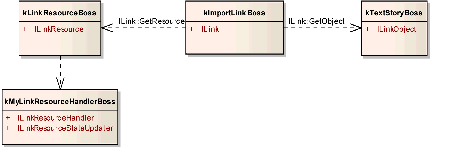
The ILink interface defines Get/SetResource to access the associated link resource and GetObject/SetObject are used to access the associated link object. In these functions, a UID is used to identify the link resource or link object.
ILink defines import and export policies.
The ImportPolicy enumeration denotes the policy that specifies when to automatically update the link object via an import when the resource is marked as modified:
Use Get/SetImportPolicy to access the import policy.
The ResourceModificationState enumeration denotes the modification state of the linked resource, and Get/SetResourceModificationState are used to access the state.
The ExportPolicy enumeration denotes the policy used to specify when to automatically update the link resource via an export, when the object is marked as modified:
Use Get/SetExportPolicy to access the export policy.
The ObjectModificationState enumeration denotes the modification state of the linked object, and Get/SetResourceModificationState are used to access the state.
ILink has many other settings to customize the link, such as Get/SetCanEmbed, Get/SetCanPackage, and Get/SetShowInUI.
The most common link resources are desktop files. However, InDesign link architecture supports generalized, abstract links: it allows data to come from a file, URL, database record, or any external or internal source that can be read or written via a stream.
A linked resource is referenced by a URI. According to the URI specification, a URI consists of a hierarchical sequence of five components, referred to as the scheme, authority, path, query, and fragment.
There is an InDesign class, URI, which can be used to construct and parse a well formed URI. The link architecture classifies link resources based on the link resource's scheme from its URI. All link resources of the same type must share the same scheme in their URIs. There should be a link-resource handler (represented by ILinkResourceHandler) for each type of scheme available in InDesign. For example, most traditional InDesign datalinks are file-based links; that is, the link is between a page item and an external file established though a "Place" action. The link resources for these type of links are the external file, and all their URIs have the scheme of "file"; that is, their URIs all look like "file://path_to_file". During import (through Place), a resource handler that knows how to handle URIs with a "file" scheme is used to create a resource read stream, and the stream is given to an import provider that knows how to handle the particular file format to import the resource.
What makes up a resource handler? A resource handler aggregates the ILinkResourceHandler interface and is implemented by a generic InDesign boss class. The convention to invoke a resource handler is through a service-provider boss that supports the kLinkResourceService service ID. In this service-provider boss, an ILinkResourceFactory should be aggregated. The ILinkResourceFactory indicates what kind of URI scheme the resource handler can handle through its GetSchemes method, and ILinkResourceFactory::QueryHandler returns an instance of the handler upon request, based on a URI. For example, the CustomDataLink SDK sample allows you to place assets specified in a CSV file. Since only CustomDataLink knows how data is stored in the CSV file, it must implement a resource handler for assets from the CSV. CustomDataLink defines its own URI that can uniquely identify any asset in the CSV. CustomDataLink's resource handler knows how to retrieve data from the CSV based on the URI. The URI defined in CustomDataLink has its own scheme, CSVLink, and its URI looks something like this:
The resource handler in CustomDataLink declares it knows how to handle resources whose URI scheme is CSVLink. When CustomDataLink's client asks to place a resource from the CSV, CustomDataLink processes a kImportAndLoadPlaceGunCmdBoss by giving the command a IImportResourceCmdData that consists of an URI to the resource client specified. kImportAndLoadPlaceGunCmdBoss does all the ground work for an import action; when it comes time to import the real resource, it sends the URI to the link manager. The link manager queries all the service providers that support kLinkResourceService, to see if anyone can handle a URI scheme of CSVLink. Since CustomDataLink implements one, it is chosen to import the data from the URI. The CustomDataLink's implementation of ILinkResourceHandler defines methods like CreateResourceReadStream(), which returns an IPMStream to the resource to which the selected CSV record points. Since CustomDataLink knows how to access the CSV, given its own URI, it knows exactly what record its client is requesting and handles the request.
The following table lists the URI schemes handled by a default InDesign resource handler.
| Scheme | Purpose |
|---|---|
| file | Used when InDesign Place... is used to import file |
| adobevc | For handling assets from Version Cue. |
| ADBEapli | Used in assignment link |
If you provide you own resource handler, you should implement your own Place dialog and add it under your own Place menu.
This factory class is used to provide a list of schemes supported by a link resource handler, and to create instances of a link resource handler. Include this interface on the link resource provider boss that is registered with the service registry as a kLinkResourceService.
ILinkResourceFactory::GetSchemes returns the list of URI schemes supported by the handler. ILinkResourceFactory::QueryHandler returns the link resource handler that will be used by a link resource object to act on an resource whose URI scheme matches one of the supported schemes. ILinkResourceFactory::QueryStateUpdater returns the link resource state updater that will be used to obtain and update the state of a link resource whose URI scheme matches one of the supported schemes.
Both Custom Data Link and Extended Link SDK samples show usage of ILinkResourceFactory.
A link object is any boss that aggregates the ILinkObject interface. ILinkObject is a proxy used to represent the item in an InDesign publication being linked to; for example, a page item, XML element, or range of text. Depending on the type of link associated with the item, ILinkObject specifies how the item is imported, exported, or resolved. A link (ILink) stores the UID of the link object with which it is associated, and the link object can be retrieved from the ILink::GetObject() method. Normally, if your link object is a regular page item, it has an ILinkObject with kPageItemLinkObjectImpl as its default implementation. kPageItemLinkObjectImpl specifies kPageItemUpdateLinkServiceProviderBoss as its import provider. When the link needs an update, kPageItemUpdateLinkServiceProviderBoss is used to update the link. Internally, kPageItemUpdateLinkServiceProviderBoss's IUpdateLinkService implementation (kPageItemUpdateLinkServiceImpl) processes a kReimportCmdBoss to update the link. Eventually, kReimportCmdBoss uses the link resource's resource handler to provide a data stream to the resource, just like the initial Place.
The following table lists the InDesign bosses that aggregates an ILinkObject by default.
| Boss name | Note |
|---|---|
| kDocBoss | kPageItemLinkObjectImpl |
| kTextStoryBoss | kPageItemLinkObjectImpl |
| kSplineItemBoss | kPageItemLinkObjectImpl |
| kMediaPageItemBoss | kPageItemLinkObjectImpl |
| kGroupItemBoss | kPageItemLinkObjectImpl |
| kDisplayListPageItemBoss | kPageItemLinkObjectImpl |
| kImageItem | kPageItemLinkObjectImpl |
| kPlacedPDFItemBoss | kPageItemLinkObjectImpl |
| kXMLLinkObjectReferenceBoss | kXMLElementLinkObjectImpl |
| kTestSplineItemBoss | kPageItemLinkObjectImpl |
| kSPPlaceHolderPageItemBoss | kPageItemLinkObjectImpl |
| kBookContentBoss | kBookLinkObjectImpl |
If you are trying to create a link on an object not listed in the table, make sure you aggregate ILinkObject to the object's boss. The SDK sample ExtendedLink illustrates this situation, where a link object is derived from kXMLLinkObjectReferenceBoss.
There is a link manager, represented by ILinkManager, in every InDesign document (kDocBoss). ILinkManager is used to create and delete links and link resources. ILinkManager also provides many ways to query links and link resources.
There should be one, and only one, ILinkManager per InDesign database. However, different flavors of links can be differentiated by the LinkClientID. For example, InDesign placed links all have a client identifier of kIDLinkClientID, and hyperlinks have a client id of kHyperlinkLinkClientID. Both flavors of links are managed by the same manager, but the manager prevents links and resources with different client ids from interacting with each other. Therefore, a link with a client id of kIDLinkClientID cannot link a resource with a client id of kHyperlinkLinkClientID. The client ids can also be utilized to control where and how the links and resources are displayed to the user. For example, the Links Panel only shows links and resources with a client id of kIDLinkClientID; hyperlinks have their own UI.
Most operations provided by the manager, with the exception of queries, should be initiated from the ILinkFacade.
To query links through ILinkManager, first you should construct a LinkQuery object. LinkQuery is a class that allows you to easily specify what you want the ILinkManager to search for and pass the LinkQuery object to the ILinkManager::QueryLinks method. ILinkManager returns the query result in a ILinkManager::QueryResult, which is a std::vector that contains the UID of the links. Once you have the UID of a link, you can query its ILink interface.
ILinkManager also uses the link client ID as a filter when it returns the LinkQuery result. If you specify a client ID, ILinkManager::QueryLinks returns the link with the same client ID. This is convenient if you used a unique client ID to identify your link and link resource: you can easily query all your links with an empty LinkQuery and your client ID.
To query a link resource through ILinkManager, construct a LinkResourceQuery object. LinkResourceQuery is similar to LinkQuery, in that it allows you to specify the criteria (such as resource URI scheme) to look for when ILinkManager searches for a link resource in a document. Once you construct a LinkResourceQuery, you then pass it to ILinkManager::QueryResources for the query. ILinkManager also returns the query result in a ILinkManager::QueryResult.
For example, to get links from a page item, Use ILinkManager::QueryLinksByObjectUID to get to ILink. It returns the result in an ILinkManager::QueryResult, which is a UID vector that holds the ILink UID.
For every link resource handler made available in the link architecture through the kLinkResourceService service provider, you should provide an implementation of ILinkResourceStateUpdater, which provides the link manager with link-resource status information. There are times when link manager will ask each link resource to provide a status update; for example, when the application resumes from background to foreground. ILinkManager calls ILinkResourceStateUpdater::UpdateResourceStateAsync. ILinkResourceStateUpdater should be aggregated on the boss where ILinkResourceHandler is aggregated. In Linked resource and ILinkResourceHandler, we discuss how ILinkResourceHandler normally is instantiated through the ILinkResourceFactory. ILinkResourceFactory has a method called QueryStateUpdater, which is used to instantiate a status updater for the URI scheme supported by the same ILinkResourceFactory.
ILinkManager may call for a link-resource status report synchronously or asynchronously, depending on the situation; therefore ILinkResourceStateUpdater declares two update methods: UpdateResourceStateSync and UpdateResourceStateAsync. In UpdateResourceStateSync, the status update should be completed on the return of the function. In UpdateResourceStateAsync, it is expected that status update is done in the background or during idle time.
Both ILinkResourceStateUpdater::UpdateResourceStateSync and ILinkResourceStateUpdater::UpdateResourceStateAsync are passed in an UIDRef of a link resource (kLinkResourceBoss). ILinkResource stores resource-status information like resource state (ILinkResource::ResourceState), modification time, and size.
Also, there is a "stamp" (of type ResourceStamp, which is essentially a WideString) stored in ILinkResource. You can use the ResourceStamp to construct any custom stamp you need for status-update purposes. ILinkResource has declared get/set methods for maintaining these resource attributes.
In UpdateResourceStateSync/UpdateResourceStateAsync, a comparison should be made between the link-resource object passed in and the external link resource (available from the URI, which can be queried through the link-resource object). If you decide the link is out of date, a kLinkResourceStateUpdateCmdBoss should be processed. This causes the link resource to be updated with the new status data. The corresponding link (ILink) also maintains a linked-resource modification state, which is set to ILink::kResourceModified, indicating the link resource was modified since the last update. If the link is displayed in the Links UI panel, the status shows it is out of date, and the Update Link option becomes available; this allows the user to manually update the link on demand.
There are several approaches you can take to accomplish link-state updates. For example, Version Cue links are updating via a push approach. Version Cue notifies InDesign whenever the state of a Version Cue link changes. File links use a pull approach to update link states, by getting current information from the file system. The SDK ExtLink sample uses an idle-task-based solution. It is important to consider the case where there are many links in a document. When the link architecture asks for a link-status update, it asks all links to provide updates; therefore, the performance issue is critical and deserves a good implementation strategy.
When a link status is outdated, a link-update action becomes available. If the link information is available on the Links UI panel, a contextual-menu item, Update Link, is enabled when a link is selected in the panel. When the Update Link menu action is selected on an import link, kLinkUpdateCmdBoss is processed; this queries the ILink on the kImportLinkBoss and calls its ILink::Update() method. Inside the ILink::Update(), it queries its associated link object (ILinkObject) to see if there is an import provider available for the link object through the ILinkObject::GetImportProvider(). If there is one, that import provider is used to reimport the link resource; otherwise, ILinkObject::Import() is called. In ILinkObject::GetImportProvider(), you can specify a update-link service-provider boss that implements IUpdateLinkService or kInvalidClass. In the later case, you should then implement ILinkObject::Import. For example, if the link object is a kPageItemLinkObjectImpl, it defines an kPageItemUpdateLinkServiceProviderBoss in its GetImportProvider, which is used to update the link. kPageItemUpdateLinkServiceProviderBoss processes a kReimportCmdBoss, which asks the link-resource handler to create a read stream from the resource for import purposes.
What if your link object is not a page-item type, or you do not want to (or cannot) use kReimportCmdBoss to update your link? In these cases, you must implement your own link object that will use your own IUpdateLinkService or ILinkObject::Import.
When a link or link resource is added, deleted, or changed, a lazy notification is sent on the protocol of IID_ILINK or IID_ILINKRESOURCE (depending on what was changed). The UID of the link or link resource is sent in the notification via the notification cookie, LazyNotificationData. Using ListLazyNotificationData::BreakoutChanges, you can determine which items (UIDs) were added, deleted, or changed.
There is another lazy notification sent via the IID_ILINKDATA_CHANGED protocol. This occurs not only when a link or link resource is added, deleted, or changed, but also when a link's link resource is changed. The notification cookie is passed in a type called ILinkManager::ChangeData, a wrapper of UID, which tells you what kind of UID is referenced.
You need not send any links-related notification from your plug-in-the links manager takes care of that.
ILinkFacade is a high-level API for dealing with links, link resources, and link objects. It has methods to create, delete, update, and relink a link. Also, it has methods to create link resources and update resource state. Use ILinkFacade whenever possible.
For example, to update links, use ILinkFacade::UpdateLinks, which processes (or schedules) a kLinkUpdateCmdBoss. You need to pass in the UID of a kImportLinkBoss.
You can add your own column into the Links panel (through a service-provider boss with kLinkInfoServiceImpl as IK2ServiceProvider) and provide your own ILinkInfoProvider implementation. The column will be available in the Links panel's option dialog for the user to turn on or off. Providing an ILinkInfoProvider implementation can be as easy as providing static information, or you can indicate that the information needs to be updated dynamically based on certain protocol's notification. You can elect to listen to any command-notification protocol in ILinkInfoProvider and update your information when the command notifies your subscribed protocol. For a simple ILinkInfoProvider implementation, see the CustomDataLink sample in the SDK.
When you place a graphic file in an InDesign publication, InDesign does not include the graphic file in the publication. Instead, it creates a page item to host the graphic object and establishes a link between the page item and the graphic file. What you see on screen is a low-resolution proxy image of the graphic. A link helps InDesign avoid redundantly storing large amounts of data in the publication, and it enables us to automatically update page items when the external file is modified.
To see the link information associated with the page item, you need to display the Links UI panel. If the current selected page item has an associated link, its link information is highlighted in the Links UI panel. The link information includes where the linked file comes from and the link's status.
When a user uses the default InDesign menu item File > Place, the InDesign File Chooser dialog appears, and when the user selects a file from the InDesign Place dialog, kImportAndLoadPlaceGunCmdBoss is processed. kImportAndLoadPlaceGunCmdBoss requires its client to set up a command data-interface IImportResourceCmdData. IImportResourceCmdData can store the UID of a link resource or a URI (Uniform Resource Identifier) that is a reference to the link resource. The URI is used in a kImportResourceCmdBoss to create a link resource from an URI. Internally, kImportResourceCmdBoss calls ILinkFacade::CreateResource to create the link resource from an URI, which in turn uses kLinkResourceCreateCmdBoss. Finally, ILinkManager::CreateResource() is used to create the resource (kLinkResourceBoss) using the InDesign link client ID.
The ILinkManager will query a resource handler based on the URI's scheme. The first resource handler that knows how to handle (import, export, and resolve) the particular URI scheme is used to import the resource. The resource handler is asked to supply a resource's read stream, and it is given to an import provider that knows how to import the particular file format. Once the file is imported, a series of checks is performed to determine if a link is wanted before a link is created. For example, by default, a text file always is embedded, not linked, unless it is an Adobe InCopy file. The following figure illustrate the sequence of how the link and link resource are created during the processing of a kImportAndLoadPlaceGunCmdBoss.
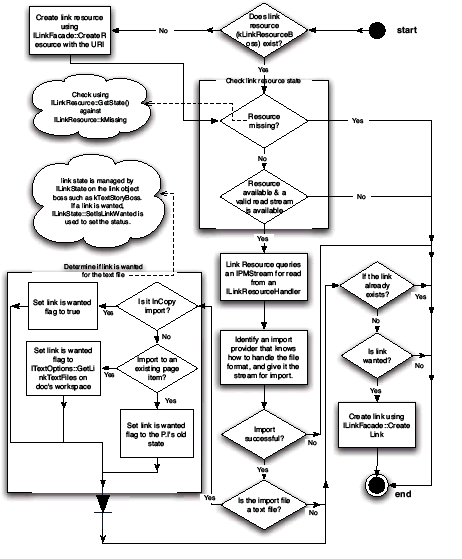
Linked stories make it easier to manage multiple versions of the same story or text content in the same document; it makes it easier to support emerging digital publishing workflows, where, for example, you need to design for both vertical and horizontal layouts. Linked stories behave similarly to traditional links. You can designate a story as a parent and then place the same story at other places in the document as child stories. Whenever the parent story is updated, the child stories are flagged in the Links panel and can can be updated to synchronize with the parent story.
To create link for shared stories, use facade ISharedContentFacade.
ISharedContentFacade provides other functions to operate on shared content links including:
For the complete APIs, refer to the API Reference for ISharedContentFacade.
An ASB class ISharedContentSuite is also provided for creating shared stories for the selected text frames.
To provide your own type of links support, you should implement a resource-handler boss that aggregates an ILinkResourceHandler and ILinkResourceStateUpdater, and provide a ILinkResourceFactory to instantiate the handler on demand, as described in the following procedure.
The link-resource handler and state-updater are returned by ILinkResourceFactory::QueryHandler and ILinkResourceFactory::QueryStateUpdater, respectively.
Both the Custom Data Link and Extended Link SDK samples show the above procedure.
If you want to programmatically define conditional links, here is an suggestion. Suppose you have an image with both low-resolution and high-resolution versions. You want to have the ability to define a link to alternate images, depending on whether the high-resolution image is available. The easiest way to achieve this workflow is to define a custom URI that has paths to both images. The URI is opaque, the links subsystem cares about only the scheme part of the URI, and each scheme is tied to a link-resource handler. In your link resource, you must parse the URI to get the paths to both versions of the image (link resources). Then, you also will build the logic for determining when to use each image in the link resource (and the link-resource state updater). For example, you might have a flag in the database for each high-resolution image, to indicate if it is ready to publish. In your link-resource handler, you would check that flag, to see if you should import the low- or high-resolution image.
This chapter provides high-level information for developers who want to build their own rules or set of rules. It complements the low-level information found in the SDK.
InDesign includes a fully rule-driven, parameterized, continuous preflight that can run in the background as you work.
The preflight model comprises several major areas, most of which are fully extensible by external developers. Very little preflight code is written using private interfaces.
This chapter is concerned only with the rule services, which are the most common type of extension.
In the preflight model, rules are the entities that check conditions in the document and generate errors. An example of a rule is "Missing and Modified Graphics," which looks for graphics that are missing or outdated.
To write a rule, you need two things:
Each unique rule (for example, missing fonts or image resolution) is identified by a rule ID. A rule ID is simply a WideString that is never exposed in the user interface but serves to distinguish it from every other rule out there. For each rule you implement, you need to devise a unique rule ID. For example, you could prefix your rule ID with your company name or use a GUID converted to a string. Rule IDs are exposed to scripting.
A rule service is implemented as a standard InDesign service with the service ID kPreflightRuleService. On the service boss, you need the IID_IK2SERVICEPROVIDER (you can use kPreflightRuleSPImpl for the implementation) and an IPreflightRuleService. The latter interface has two methods, shown in the following table.
| Method | Purpose |
|---|---|
| GetAllRules | Returns a vector of rule IDs that your services hosts. |
| CreateRule | Given a rule ID that you host, creates a rule boss and returns it. |
In other words, this interface provides a map and boss factory for rule bosses. Most of the complexity is in the rule bosses themselves.
CreateRule can be called on when InDesign is creating new preflight profiles or, in some cases, for purely temporary purposes. For example, it might create a rule just to get some information about it, then destroy it. It takes a database pointer to indicate whether it wants the boss to be created in a document (or preferences) or in memory for temporary purposes.
To illustrate a typical rule-service implementation, here are some sample method implementations. In this example, there are two rules, Maximum Text Size and Maximum Rectangle Size.
IPreflightRuleService::GetAllRules
The first step is to create rule IDs for these rules; typically, we'll also need rule bosses. If XYZCo company is developing the rules, we might use the mapping shown in the following table.
| Rule | Rule ID | Boss |
|---|---|---|
| Maximum text size | XYZCo_MaxTextSize | kMaxTextSizeRuleBoss |
| Maximum rectangle size | XYZCo_MaxRectSize | kMaxRectSizeRuleBoss |
The GetAllRules method must return a vector of rule IDs. This is not complicated:
This method usually will be called only once per session, by the rule manager, which then holds onto the information in its internal maps.
IPreflightRuleService::CreateRule
This method creates the appropriate boss from a passed-in rule ID and fills in defaults. In our example, we would do something like the following. (For ease of reading, most error handling is omitted.)
It is up to you what strategy to use for initialization, mapping rule IDs to bosses and descriptions, and so on. If you have only a few rules, the method above should suffice.
A rule boss is where all the heavy lifting goes on in the preflight world. A rule boss corresponds to a particular rule and encapsulates all the behaviors of that rule, including the following:
As shown in the previous example, each rule your plug-in supports typically has its own boss. Each rule boss must have the interfaces shown in the following table. You can add whatever other interfaces you want on your rule bosses.
| Interface | Purpose |
|---|---|
| IPreflightRuleData | Stores the rule parameter data as a dictionary (key-value pairs). Use kPreflightRuleDataImpl unless you have a really good reason not to do so. |
| IPreflightRuleVisitor | Provides all the evaluation and aggregation functions. This interface tells InDesign what kinds of objects the rule wants to visit (page items, styles, artwork, etc.), is called back when it is time to visit one of those objects, and is called back when it is time to aggregate (create final report of findings). Also, it provides some parameter initialization and validation methods. |
| IPreflightRuleUtilities | Provides rule-specific utilities for your rule, including copying the rule, any special deletion requirements, and determining equality with other rules. In most cases, you can use the default kPreflightRuleUtilitiesImpl implementation. |
These interfaces are documented in the headers and doc++ comments, but the IPreflightRuleVisitor interface is critical, so we expand on it below.
The IPreflightRuleVisitor interface has three methods related to rule evaluation, shown in the following table.
| Method | Description |
|---|---|
| GetClassesToVisit | Preflight calls this method, generally on start-up, when it builds its maps relating rules to objects. It must return a vector of preflight object class IDs that your rule wants to visit. For example, if you want to visit all images, you would return a vector containing kPreflightOM_Image. |
| Visit | Preflight calls this method when it is time to evaluate a given object, either because it was not visited before or something was changed such that the result might be different. This method is passed an abstract utility class that your method uses to obtain information and report its findings. |
| AggregateResults | Preflight calls this method after the first pass (visitation) is complete and the Visit method found something it might want to report. This method takes the "raw" results found during visitation into final presentation, in the form of nodes in the results tree. This method typically consolidates multiple errors into a single node, builds strings, and so on. |
The IPreflightRuleVisitor interface also has two methods related to rule-parameter initialization and validation, shown in the following table. (These could be on another interface but since every rule needs to implement them, there is less overhead to include them on this interface, since every rule needs its own IPreflightRuleVisitor.)
| Method | Description |
|---|---|
| UpdateRuleData | Preflight calls this method at start-up (for application profiles) and document open time (for document embedded profiles), to give the rule an opportunity to initialize and/or update the rule parameters. |
| ValidateRuleData | Preflight calls this method when a parameter is set via scripting, to ensure it is a legitimate value. |
The methods in this interface concentrate on the discovery, visitation, and aggregation phases of the preflight process. This is the trickiest interface to write.
This method simply tells InDesign what object classes your rule wants to visit. For example the missing-fonts rule looks at text runs (to see directly which fonts are used and where), as well as placed content that has required-font data, namely placed EPS, EPS, and INDD files. Its implementation looks like the following:
Do not declare classes in which you are not actually interested. The preflight engine expands only those portions of the model required to satisfy the rules in the profile, If you ask for artwork, for instance, you will take a big hit in processing cycles; do this only if it is needed.
This is the method in which your rule inspects objects it asked to visit. Typically, this method consists of comparing attributes of the object against rule parameters.
The argument for this method is a IPreflightVisitInfo interface, which provides all the information you should need about the object being visited. It also provides the mechanism for reporting the errors. The following table lists the methods in this interface.
| Method | Purpose |
|---|---|
| QueryOptions | Gets the IPreflightOptions interface for the current process. Not typically used, but sometimes rules want to know the options. |
| GetObjectID | Gets the PreflightObjectID of the thing being visited. Typically, this is used to get the ClassID of that object, if your rule looks at multiple object types. |
| QueryObject | Obtains the IPreflightObject interface for the object being visited. This is used in nearly every rule, because it lets you ask questions about the object. |
| CreateResultRecord | Creates a result record; that is, records a problem (or potential problem) with this node. Usually, this is an error indication, but not necessarily; you might use this to count instances of something and have an error only if it finds more than a certain number. |
Here is an example of a Visit implementation, the page-count rule. (To enhance readability, most error checking, like nil interfaces, is omitted.)
In this case, the rule is looking only at the document object, so it does not need to check for the class ID of the object that is passed in. The first thing it does is as follows:
Since the object in question is the document, it has a model mapping, so iObj->GetModelRef() produces the UIDRef of the document. Not all objects have a model mapping. You need to do things that are unique to the kind of object you are looking at, even if in general those things fall into general categories.
The rest of the implementation simply compares the number of pages against the rule parameter, using the rule's comparison type (also a rule parameter). If it fails, then it does the following:
This code creates a result record, which is simply a small data structure that records what the rule tells it to, and attaches it in the process database (a nonpersistent database) to the node representing the object (in this case, the document). This record can be produced later (along with all other records the rule created as it inspected objects), in the results-aggregation method. In this example, there is only one object, the document, but in a case where you are inspecting page items or marking operations, there could be dozens or hundreds.
After the result record is created, the rule sets the criteria to kPreflightRC_Default. This is the value used by rules that do not need to break down errors into different categories (or at least not at the time it is finding the errors).
Finally, consider the case where the rule is adding a value to the record. The meaning of this value and the use of the value vector are completely up to the rule; however, when the rule is inspecting the object, it may make complex decisions or get calculated values that are inconvenient to repeat when results are aggregated. For example, a marking operation that looks at stroke width will record the stroke width it found, because it does not want to have to look it up again later. More examples of this are later in this section.
The following table shows the contents of a results record.
| Field | Uses |
|---|---|
| Object ID | The PreflightObjectID of the entity to which the record refers. This always is the object to which the record was attached. |
| Subparts | A vector of subpart IDs. Normally, this is set up by one of the aggregation utilities during the aggregation phase, but a rule also may specify a subpart, if that is useful. |
| Values | A vector of PMReals. Normally, this is a width, height, or other quantity you want to record for this instance. For example, you can record the width of a stroke you found. The aggregation utilities also use this information when combining multiple records together. |
| Criteria | This can be used to differentiate different kinds of failure. This field also is used by the aggregation utilities to simplify the process of generating results. An example is the image-resolution rule, which has different criteria for each image type and min/max failure. This means that the aggregation method does not have to determine what the image type was again. |
| Aux String | This is just string data that the rule can use as it wishes. For example, the font-type rule records the font name here. This allows it to build results easily, because the aggregation utilities can sort by this value. |
| Process Node | If this record was created by IPreflightVisitInfo::CreateResultRecord, it has the process node ID recorded here. This is useful if you want to look at the result relative to other objects in the tree. The aggregation utilities use this to determine the relationship between artwork and containing objects. |
This method is where your rule takes the results (specifically, the result records) found in the Visit phase and produces nodes in the aggregated results tree. In other words, the input is the array of result records; for example:
The output is a hierarchy of preflight aggregated result nodes; for example:
This example is simple. In the general case, especially with artwork, the raw results can be numerous, with many grouped under the same object (for example, the same PDF).
The tree contains several different kinds of nodes:
Each node has a short string that appears in the tree-view widget in the preflight panel and long-form strings that appear in the Info section. In both cases, these strings also appear in the preflight report.
Mapping the raw preflight result records to the tree hierarchy can be complex, because each rule usually has its own strategy for reducing the complexity of the results presentation. The preflight API allows the rules to do this any way they like, but it supports those mechanisms with utilities that reduce the line count. All these utilities are in IPreflightAggregatedResultsUtils.
The recommended sequence of events in the AggregateResults method is as follows. The code assumes a declaration with the following arguments:
The first two parameters can be thought of as the inputs to the aggregation process; that is, the nodes in the process database corresponding to the raw results found during the Visit. The last two parameters can be thought of as the outputs: iResults is the artwork-tree interface you would use to add nodes, and parentID is the node in that tree under which you should add your nodes as children.
All utilities in the IPreflightAggregatedResultsUtils work on preflight result records, collecting them in tables (IPreflightResultRecordTable) for most operations. A IPreflightResultRecordTable is simply a vector of ref-counted record pointers, so dividing a table into subtables is a fairly quick operation; therefore, most of the utilities transform one table of results into another, at which point those results are copied into the aggregated results tree.
Typical steps in aggregation are as follows:
Get the raw table of results
The first step in aggregation is getting the initial table of results by collecting them from the process-database result nodes. Unless you have a good reason otherwise, use IPreflightAggregatedResultsUtils::CreateTableFromNodes for this step:
The raw table now contains all the results added by your iVisit->CreateResultRecord() calls.
Apply standard aggregations
The usual next step is aggregating all results together using "standard" aggregations, using IPreflightAggregatedResultsUtils::ApplyAllStandardAggregations:
The standard aggregations utilities aggregate the following:
You do not need to call ApplyAllStandardAggregations. You do not need to make this call if your rule looks at only one object or does not look at objects that would ever be aggregated, or you simply do not want to do any standard aggregation. You also can use any of the "lesser" aggregation utilities, which do only one kind of aggregation, not all of them.
Combine records into buckets
After standard aggregation, the nodes are more or less ready to go into the tree; however, depending on your rule's desired presentation, you may want to put them in buckets. The native InDesign rules put records into buckets in two ways
Several methods in IPreflightAggregatedResultsUtils are useful for putting nodes into buckets. Some of these are shown in the following.
| Method | Purpose/use |
|---|---|
| CreateSubTable | Use this when you have manually determined how to divide entries and want to create a new table containing just those entries (for example, for passing to your shared node-building subroutine). |
| CreateSubTableByCriteria | Use this to put all records under a common criteria node. This method creates a table with only the matching criteria, so you know all entries share that criteria. |
| CreateTablesByCriteriaCreateTablesByAuxString | Use this to group entries under the same criteria or aux strings, and might have quite a few different criteria (or in the case of strings, you probably don't know ahead of time how many strings to expect). This method gives you a vector of tables, each sharing entries of the same criteria or string. You can then iterate over the vector and pass each to a common formatting utility. |
| CreateTablesByObject | Use this to ensure that an object appears in only one node. If there are multiple criteria/subparts under that object, you just want to add more information strings. For example, this how the stroke-width rule works. |
You can use several of these together. For example, you could create tables by criteria, then for each of those tables, create tables by object. Remember, tables are lightweight and ref counted, so there is no record copying when creating subtables. Thus, you can use these utilities to your advantage, without worrying too much about overhead.
As an example, the colorspace rule's aggregation method looks like this:
In the above example, some of the details are omitted. The point of the example is to show how the original, raw table, having been reduced through standard aggregation, is divided and conquered via CreateTablesByObject.
Generating result nodes
The final step is generating the nodes that appear in the results tree. There are three substeps:
To create the nodes, the IPreflightAggregatedResultsUtils methods in the following table are handy.
| Method | Purpose |
|---|---|
| CreateGenericNode | Creates a generic node. Typically, this is a child of a criteria node and is used to group together like items by something other than a criteria. The native rules use this when they want to group by font name, for example. |
| AddCriteriaNode | Creates a criteria node and immediately adds it to the tree. You specify the name at the time of creation. Criteria nodes typically have no info text, which is why this does both operations. |
| CreateViolationNode | Creates a violation node; this is a node that describes a particular problem with a particular object. Thus, the name is generated automatically from the passed-in object ID, and all other behaviors are inherited automatically (page number reporting, selection, etc). |
| CreateCriteriaAndViolationNode | Creates a combination criteria and violation node. Typically, this is used for rules that check only the document or other singleton. There is not much point in having a criteria node with a violation child; that is unnecessary hierarchy. |
In most cases, you take the result of these methods and start adding info strings. Unless you are going to build your own implementation of IPreflightResultNodeInfo, you do this via code like the following:
How you fill in the strings is up to you, but there are some utility methods that help with the task. Some of them are explained in the following table. Normally, these are used along with StringUtils::ReplaceStringParameters() to handle localization properly.
IPreflightAggregatedResultsUtils methods that help with formatting:
| Method | Purpose/application |
|---|---|
| IsPlacedContent | Determines whether a given record corresponds to a placed element or a subpart of a placed element. In many cases, the recommended fix string depends on the distinction. |
| FormatXMeasureFormatYMeasure FormatLineMeasure FormatTextSizeMeasure FormatResolution FormatAsInteger | Return pretranslated strings ready for substitution via StringUtils::ReplaceStringParameters(). These take PMReals and return PMStrings. See below for an example. |
| GetSubpartsDescription | Returns a description of the subpart (or subparts) for a record. For example, if the subparts are kPreflightOM_NativeStroke and kPreflightOSP_NativeFill, this returns the string "Stroke, Fill". This leverages the object model. |
Here is an example of how you might use the preceding:
This example is almost literally the code found in the InDesign native rules. It takes a number of lines of code to write the string generation, but this is unavoidable; the presentation depends entirely on the nature of your rule and how verbose you want the results to be. You do not need to be this fancy, but users expect more in-depth information to be presented where possible.
This method is called when a document is opened, at start-up, or when a new rule is created. It examines the rule parameters, establishes defaults, and removes any parameters that are no longer needed. This is analogous to the class constructor and converters used for stream-based data in other interface implementations.
Typically, this method leverages the utilities in PreflightRuleDataHelper, which makes it easier to set defaults.
The following example is from the colorspace rule:
By using SetBoolParamDefault, there will be no change if the parameter was already initialized, so this implementation works for both updating and initializing.
Preflight calls this method whenever a script sets a parameter on a rule. Since there is no range metadata in the rule data, the rule must perform any required checking. If the rule exposes no parameters with range restrictions, it can simply return kSuccess.
The following example is from the bleed/trim hazard rule:
This section describes how to work with particular objects in the model in your Visitor.
These are the simplest to work with because their preflight object boss does not have any additional interfaces. You simply use IPreflightObject::GetModelRef to get an interface on a native (persistent) InDesign boss in the document database. There is no point in preflight providing additional interfaces on the preflight object in this case, because you can get this information from the UID and all existing InDesign model interfaces.
For example, the Scaled Graphics rule always looks at graphic page items, so its Visit code looks like the following:
This version has error checking removed, for readability. Initially, you may want to put in several asserts in your rules, to satisfy yourself that the visitor is looking at the object it thinks it is.
A rule can ask to look at marking operations. This is a powerful capability because you can look at exactly what marking is done for a particular page item or graphic element, regardless of whether you "own" the implementation of that object. Preflight renders the spread into a port, then builds a tree data structure based on what it finds. That tree consists of the marking operations, any logical artwork groups (for example, transparency groups), and groups corresponding to native InDesign elements like wax runs and page items.
Unlike page items, artwork objects are not UID based, so all the information exists on the preflight object boss in interfaces that you query.
The following table shows the artwork preflight object types and their related interfaces.
| Preflight object class ID | Description |
|---|---|
| kPreflightOM_ArtworkMark | The most commonly inspected object type for artwork rules. The boss that the service creates for this object type has the following interfaces: - IPreflightArtworkMarkInfo - Provides information about the marking operation, such as the geometry, colorspace, opacity, and text versus path. - IPreflightArtworkContext - Relates the marking operation to any context objects of which it is a child. This is useful when you need to know whether the mark is, say, drawn as part of rendering a text run or graphic. |
| kPreflightOM_ArtworkGroup | Placeholder for future implementation. |
| kPreflightOM_ArtworkContext | "Metadata" contexts that enclose artwork. In other words, the marking operation tells you that a stroke of a specified width and color exists; the context tells you what that stroke is associated with.Preflight supports the following contexts: |
To determine what contexts an artwork mark is associated with, you start with the IPreflightArtworkContext interface on the mark boss; that interface allows you to search for the nearest, or any, context of a given type. You also can walk the context tree manually.You can ask to visit these context types directly, although this would be uncommon. For example, the OPI rule looks at OPI contexts, because it cares about only their existence.
Regarding artwork-based rules: if a rule wants to see any of these classes (or any other class that lists these classes as parents), preflight forces artwork expansion, which is fairly expensive compared to looking at the attributes of native objects. This is one reason why the out-of-the-box default profile (Basic) does not have any artwork rules. This is not to say you should not have such rules; many native rules (like colorspace and CMY marking) are artwork rules. If you can get the information you need by inspecting attributes instead of looking at artwork, however, you probably should use attributes, which has much lower overhead.
An artwork-rule visitor usually looks something like that shown below. This is actual code from the colorspace rule.
Note the use of IPreflightArtworkContext, which looks for an enclosing shape context with a subpart of kPreflightOSP_GraphicProxy. This identifies the marking operation as proxy-related. Your rule may or may not want to exclude proxy artwork in this way.
Once the rule determines that the artwork is not part of a proxy, it gathers the marking data, including the paint characteristics. All these secondary interfaces (for example, IPreflightArtworkPaintInfo) are obtained via methods in IPreflightArtworkMarkInfo. In the case of the colorspace rule, it simply calls various IPreflightArtworkCSInfo methods to determine whether the marking operation violates its rule parameters.
Text runs are not persistent objects, so IPreflightObject::GetModelRef will not give you a UID for one of these. Thus, a text run or range object has all its data on the preflight object boss itself.
To obtain information about text objects, query for the following interfaces:
An example of the use of text interfaces follows (from the missing-fonts rule):
Many table elements in a document are composed of elements and may or may not have an associated UID. Thus, some of the table objects are UID based (for example, use GetModelRef) and some are not. Those that are not have additional data on the preflight object boss.
For non-UID based elements, the IPreflightTableCellInfo interface on the preflight object boss provides the necessary data, from which you can navigate to the InDesign model. The objects that support this interface are kPreflightOM_TableCell, kPreflightOM_TableArea, kPreflightOM_TableFrameCell, and kPreflightOM_TableFrameArea.
The following is an abbreviated example from the overprint rule, which looks for any overprint attributes that are set. In this case, the rule is interested in page items, text, and tables, all of which have overprint attributes.
Note how the rule must use a different strategy for each object type. For page items and tables there is a UID to work with, so it queries the model directly. For text and cells, which are composed entities, the rule uses the interfaces hosted on the preflight object directly: IPreflightTextRangeInfo for text and IPreflightTableCellInfo for table cells.
For example, the first thing it does when looking for cell attributes is to look up the table attribute's accessor interface from the table model, using IPreflightTableCellInfo::GetTableModelRef:
This chapter describes features of the InDesign XML subsystem relevant to plug-in developers, and the architecture that supports them. It explains how client code can use these features and take advantage of the XML-related extension patterns in the InDesign API.
For use cases, see XML.
There are several benefits of using an XML workflow in publishing:
Disadvantages to an XML workflow can include the following:
Using XML-based data and XML templates in InDesign has some benefits to a programmer, which include the following:
See the "Glossary" for definitions of terms. The following table lists terms used in this chapter and sections that relate to them.
| Term | See ... |
|---|---|
| Acquirer; acquirer filter | Extension patterns |
| Backing store | Backing store |
| Comment, XML | Processing instructions and comments |
| Content handler | Extension patterns |
| Content item | Content items |
| Document element | Document element and root element |
| Document Type Declaration (DTD) | DTD |
| Entity | SAX-entity resolver |
| Logical structure | Native document model and logical structure on page 157 and "Elements and content" |
| Placed element; placed content | Unplaced content versus placed content |
| Processing instruction (PI) | Processing instructions and comments |
| Repeating element | Importing repeating elements |
| Root element | Document element and root element |
| SBOS (small boss object store) | Persistence and the backing store |
| Tag | Tags |
| Unplaced element; unplaced content | Unplaced content versus placed content |
| XML element | Elements and content |
Several XML extension patterns depend on the refactored XML import architecture. You can implement these extension patterns to customize how XML data is imported and exported and other XML-related features. See Extension patterns.
InDesign supports tagging of tables and table cells. See Tagged tables on page 188. Inline graphics can be tagged, and placeholders for inline graphics can be created in XML templates. See "Tagged inline graphics".
It may be desirable to filter out elements in your XML template that are not matched by elements in the incoming XML data. When enabled, this features discards unmatched existing elements in an XML template. See Throwing away unmatched existing elements on import (delete unmatched right) on page 169. The feature is implemented by an import-matchmaker service, an extension pattern described in "XMl-import matchmaker".
It may be desirable to filter out incoming XML elements that have no corresponding match in your XML template. When enabled, this feature discards inbound elements in the XML-based data being imported that have no match in the XML template into which the data is being imported. In API terms, the feature is called throw away unmatched left. See "Throwing away unmatched incoming elements on XML import" on page 170. The feature is implemented by an import-matchmaker service, described in "XMl-import matchmaker".
This feature allows text styling from elements in an XML template to be preserved (within one story) when repeated elements are imported. It is described in Importing repeating elements.
This feature allows CALS table to be imported as InDesign table. It is described in Importing a CALS table as an InDesign table.
This specification is implemented by the features related to matching and transforming on import. Import matchmakers and XML transformers that operate on the DOM (Document Object Model) are described in Extension patterns. For the DOM Level 2 Core specification, see http://www.w3c.org/TR/2000/REC-DOM-Level-2-Core-20001113 .
This feature allows table and cell styles to be applied to InDesign table when is imported. It is described in Support table and cell styles when importing an InDesign table.
The scripting-based XML-rules feature allows an XML DOM to be altered after an XML file is imported. XML rules also can be triggered by application events, such as open, place, and close. The feature is described in id_xml_rules.
The snippet architecture is described in Snippet Fundamentals. The snippet architecture depends on the XML subsystem, as well as on INX (InDesign Interchange) or IDML (InDesign Markup Language) import and export. Snippets are XML-based representations of parts of a document in INX or IDML file format.
The following figure shows the structure view, a representation of the logical structure of a document that lets you view and interact with its logical structure. You can make selections in this view and create new elements as children of the selection, delete elements, create or delete attributes, and so on. The figure shows the structure view with text snippets visible, which provides context to see what content items in the document are associated with the elements in the logical structure.
Depending on your workflow, it may be desirable to control the visibility and other properties of the Structure pane. These properties are controlled by preferences. See XML-related preferences.
When you tag a graphic frame as a placeholder, the structure view draws a cross through the icon representing the element to indicate its placeholder status. There are also other icons that represent whether an element is associated with text content or image-based content.
The following figure shows content that has been tagged, rendered in the layout view of the application. In layout view, tags are shown as brackets with a width of zero; that is, they are intended to have no effect on text composition. Start tags are indicated by brackets pointing right ([), and end tags by brackets pointing left (]). The tag name associated with the tag markers is encoded by color, corresponding to the color displayed in the Tags panel. Multiple tags can exist at the same position in layout view.
Story view makes it somewhat easier to understand the logical structure of a story and edit its structured content. The following figure shows structured content rendered in story view. In this view, the names of tags are shown explicitly.

The following figure shows part of the Tags panel, which has a list of tags that can be applied to document content. Each tag has a name and associated color. In this example, some tags were created when a DTD was imported, shown with icons at the right-hand end of the list elements.
To open the Tags panel, choose Window > Tags. By default, the list of tags shown is sorted alphabetically by tag name; the list has no inherent logical structure. The complete set of tags in an imported DTD or imported tag list is shown, regardless of what is selected in the structure view. To populate the tag list, end users can load a set of tags with the Load Tags menu command in the Tags-panel menu.
You can create a new tag through the Tags panel; this adds an entry to the tag list. Creating a new tag means it is available to mark up content or tag placeholder graphic frames for content. You can delete a tag through the Tags panel. You can export the tag with the Save Tags menu command in the Tags-panel menu.
You can choose to apply a mapping between element names and styles (character and paragraph styles). Once the mapping is applied to a document, any marked-up text is styled as specified by the style on the right-hand side of this mapping. See the following figure.
An important use case for mapping tags to styles is preparing a document for XML import. Assuming XML-based content does not carry style information, the tag-to-style map is a simple mechanism to apply styling to inbound XML-based content; more complex mechanisms include styling based on XSLT or a proprietary mechanism like an Adobe FrameMaker Element Definition Document (EDD). The FrameMaker EDD effectively is a style sheet containing rules specifying how to map tags to styles, but in a context-dependent way.
You can apply structure to an unstructured InDesign document by choosing to map styles to tags. The effect of this is to mark up the text ranges that have the styles on the left-hand side of the style-to-tag mapping. See the following figure, which shows the user interface for mapping styles to tags:
The XML-validation-errors pane appears below the Structure pane; see the following figure. The XML-validation-errors pane contains hyperlinks. If the end user clicks on the hyperlinks, InDesign tries to fix the validation errors. This may not always have the desired effect; for example, it may delete content that was tagged incorrectly.
Other components of the user interface for XML-like context-sensitive menus for tagging the selection-are beyond the scope of this chapter.
The InDesign native document model specifies how end-user documents are represented by InDesign. The InDesign native document model consists of both the description of the document in terms of boss classes and the scripting DOM. End users directly manipulate spreads, pages, and the items they contain; these abstractions are represented by boss classes in the native document model or objects in the scripting DOM.
For example, a spread is represented by kSpreadBoss in the low-level model or boss DOM. Spread contents are organized into a hierarchy (IHierarchy). In the scripting DOM, a spread is represented by a Spread object, with properties like Pages or PageItems to represent the object hierarchy at a higher level of abstraction.
The logical structure of an InDesign document is specified by the user; for example, by tagging content items in the layout or importing their XML data. An XML template, consisting of tagged placeholders for text and graphics, provides the user with a way to define how user-domain data is mapped into the native model.
The logical structure of an InDesign document is organized into a hierarchy of XML elements (see IIDXMLElement) representing logical relationships between content. The IIDXMLElement interface plays the same role in the logical structure that IHierarchy plays in the spread hierarchy. The key operation that modifies logical structure is tagging document objects, like graphic frames, stories, and text ranges. Tagging establishes associations between objects in the native document model and the logical structure. See Elements and content.
Importing XML-based data into an InDesign document creates new elements in the logical structure (see Importing XML on page 162). If there are tagged placeholders, content can be flowed into these placeholders. The logical structure of an InDesign document also can be exported as an XML file (see "Exporting XML" on page 173). You also can create new elements by mapping styles to tags (see "Tags").
Elements represent user-defined logical relationships between content items in a document. Elements are created by InDesign when XML data is imported or content is tagged. The implementation of elements in InDesign is closely related to the XML specification (http://www.w3.org/TR/REC-xml ), which defines an element as follows: "Each XML document contains one or more elements, the boundaries of which are either delimited by start-tags and end-tags, or, for empty elements, by an empty-element tag. Each element has a type, identified by name, sometimes called its "generic identifier" (GI), and may have a set of attribute specifications. Each attribute specification has a name and a value."
You can create a new element in the logical structure with the New Element command in the Structure-pane menu. The behavior of this feature depends on whether the element in the structure view already is placed and, if placed, what is the associated content item. You can choose a tag for the element or create a new one. The tag stores the element's name and color in the user interface.
The following figure shows what happens when the root element is selected in the structure view and the user chooses the New Element menu command. The application adds a child element to the logical structure's root element. By default, the child element is added at the end of the collection of child elements of the root element. In this example, the root element <book> is selected and a new element <article> is added. The new element is inserted into the logical structure as the last child of the root element and is shown as unplaced content, since the top-level element was not placed; only its child elements are placed content.
You can add an element to the logical structure in the structure view, in which case the element is not directly associated with document content. You can indirectly add one or more elements in another view, like layout view, by tagging (for example, tagging a text range or graphic placeholder frame).
Attributes are properties of elements. Attributes can be added by end users through the structure view, when a node is selected that supports added attributes. Some elements, like comments, processing instructions, and the DTD element, do not support the addition of attributes.
Elements are modeled by boss classes that have the IIDXMLElement interface. Tags are modelled by the kXMLTagBoss boss class. See Tags. Attributes are modeled as properties of elements (IIDXMLElement). There are facades that make it relatively easy to change the properties of elements, tags, and attributes (IXMLElementCommands, IXMLTagCommands, and IXMLAttributeCommands).
Elements (IIDXMLElement) are created when content items are tagged. Elements also may be created on import of XML data. New content items can be created when XML content is flowed into an XML template. The main point is that elements are defined in the user domain and represent logical relationships between content items-or between elements, in the case of structural elements.
Content items are objects in the layout or text domain that can be tagged to create an association with an element in the logical structure of an InDesign document. Many content items can be tagged:
There is no easy way to identify a content item. Many but not all the objects that can be tagged have the IXMLReferenceData interface. If you refer to the API Reference for IXMLReferenceData and see the boss classes in the native document model that aggregate this interface, you get some indication of the variety of document objects that can be tagged.
All elements in the logical structure of an InDesign document expose the IIDXMLElement interface; therefore, one type of reference to an element is an interface pointer of type IIDXMLElement. A more convenient type for programmers to work with is XMLReference, an instance of which can be obtained from IIDXMLElement::GetXMLReference. This XMLReference is just another way to refer to the same element.
Conversely, given an XMLReference, you can obtain an IIDXMLElement interface pointer by using XMLReference::Instantiate. XMLReference is the XML subsystem's equivalent of UIDRef; note that UIDRef applies only to UID-based objects, and elements in the logical structure are not UID-based.
XMLContentReference refers to a chunk of content rather than an element. Do not mistake the XMLContentReference type for XMLReference: XMLContentReference is a reference to a content item, which might be a UID-based like a graphic frame or a non-UID-based object like a table cell. An instance of XMLContentReference can be obtained from IIDXMLElement::GetContentReference. This generalizes and replaces IIDXMLElement::GetContentItem, which is deprecated.
An instance of XMLContentReference can tell you the type of object with which it is associated, through XMLContentReference::GetContentType. For example, kContentType_Normal is used for elements associated with a UID-based object in the layout; this could be something like a tagged graphic placeholder.
For more information on methods and use of these key types, refer to the API Reference for XMLReference and XMLContentReference. The main difference between XMLReference and XMLContentReference is that XMLReference refers to an element (IIDXMLElement), whereas XMLContentReference refers to a content item.
The IXMLReferenceData interface on kDocBoss stores a reference to the document element (instance of kXMLDocumentBoss). There also is an interface on the document (kDocBoss), with a different PMIID referring to the DTD element (kXMLDTDBoss), if one is associated with the document. The document element associates with the root element both through IXMLReferenceData (as shown in the following figure ) and through IIDXMLElement::GetNthChild, because the document element is the parent of the root element. The class diagram in this figure shows associations involving the document element (kXMLDocumentBoss) and other classes.
Document element, root element, and DTD:
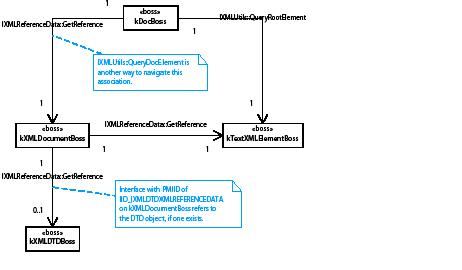
The document element is responsible for managing document-level information (like the DTD) and comments and processing instructions that are peers of the root element.
The root element (kTextXMLElementBoss) appears as the root of the element hierarchy in the structure view, although the root element is a child of the document element, which is not shown in the structure view. By default, the root element for a new InDesign document has the tag Root; you can change this to whatever the content model for your XML vocabulary requires.
The document element and root element -along with the DTD element and any top-level comments (kXMLCommentBoss) and processing instructions (kXMLPIBoss)-are held in the backing store.
Each InDesign document contains one backing store, which stores XML elements that are unplaced and elements that are siblings of the root element, like the document element, root element, DTD element, comments, and processing instructions. The backing store is a story (kTextStoryBoss) that is not accessible to the user and is present in every InDesign document. The architecture of the backing store is described in Persistence and the backing store.
The object diagram in the following figure shows the relationship between the document, backing store, and elements stored in the backing store.
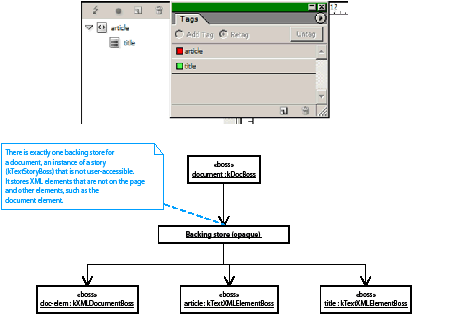
The backing store is opaque to client code. Use facade methods like IXMLUtils::QueryDocElement and IXMLUtils::QueryRootElement to acquire objects like the document element (kXMLDocumentBoss) or the root element (shown as the article object in the figure). To acquire a reference to the backing store when you need it (for example, for notification), use IXMLUtils::GetBackingStore.
For more information, see Backing store and notification of changes in logical structure.
The main persistence mechanism for the native document model is UID-based; that is, each instance of the classes shown in the model, like kSpreadBoss, has a record number or UID (unique identifier) associated with it in the document's database. The UID is unique only within the context of a particular database, not globally.
UID-based objects also can store persistent boss objects without a UID; for example, this model is used for attributes and widely within the table and XML subsystems. This as an example of container-managed persistence, to distinguish it from the conventional, UID-based persistence mechanism. The implementation of container-managed persistence in InDesign is very efficient compared to UID-based persistence, which played a large part in the decision to use it for both tables and XML. For more information, see the chapter entitled "Persistent Data and Data Conversion" in volume 1 of this guide.
This object diagram in the following figure is an elaborated version of the figure in Backing store. The BaseUID shown for each object is the UID of the kTextStoryBoss implementing the backing store. The LSID (logical structure ID) starts at 1 for the document element (kXMLDocumentBoss). Refer to the API Reference for XMLReference. The root element, with LSID of 2 in this diagram, is an instance of kTextXMLElementBoss; it has a reference to a tag (TagUID=126, name="Root") but not to a content item. The image element has a reference to a tag (TagUID=159, name= "image") and to a content item (UID=161, an instance of kPlaceHolderItemBoss).
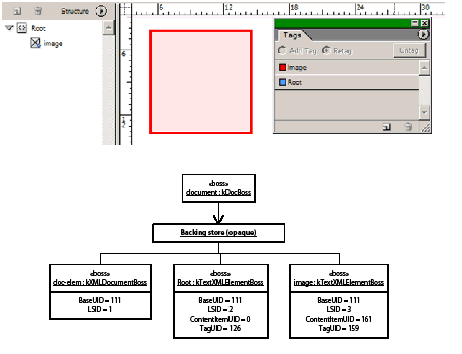
The backing store is an instance of a small-boss object store (SBOS), a storage container for small boss objects. The container has a UID, but the objects it stores do not have UIDs. The objects managed by the store have logical IDs (LSIDs) as keys. Refer to the API Reference for XMLReference::GetLogicalID and related methods.
The application supports import of XML data encoded as any of the following:
There are two main workflows for importing XML data:
The import process is controlled by the XML importer (kXMLImporterBoss), which is the main delegate for the low-level command that performs the import (kImportXMLFileCmdBoss). Unlike other forms of import-like EPS (import provider kEPSPlaceProviderBoss) and PDF (import provider kPDFPlaceProviderBoss) import-importing XML data does not use the standard import provider (IImportProvider) architecture. The importer controls the import process by dispatching messages to extension patterns responsible for different parts of the import sequence, as shown in the following figure.
The sequence diagram shows some of the messages sent during XML import. The importer object shown consists of the low-level import XML command (kImportXMLFileCmdBoss) and its delegate (kXMLImporterBoss). The main points to note are the order in which the different extension patterns are sent messages and, for the transformer (IXMLTransformer), how the stream transform precedes the DOM transform message.
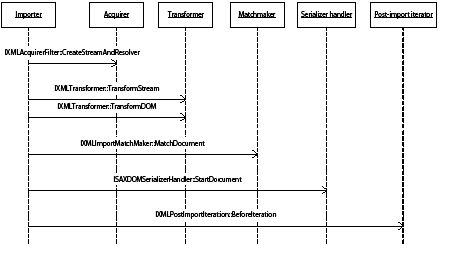
A low-level command (kImportXMLFileCmdBoss) is processed to import an XML file. Much of the work is done by this command's delegate, an instance of the kXMLImporterBoss boss class, in its implementation of IXMLImporter::DoImport. The following operations are performed while importing an XML file:
When XML data is imported, the XML subsystem creates elements (IIDXMLElement) in the logical structure. See Elements and content on page 180. Import of XML data results in content items (IXMLReferenceData) being populated with the imported content, if the content items are tagged before import. After import, unplaced elements are held in the document's backing store. See "Backing store".
The UML diagrams in the following figure show some interfaces involved in storing options for import and export of XML data at the session level (kWorkspaceBoss) or document level (kDocWorkspaceBoss). There are other interfaces specific to individual components in the XML import architecture (for example, IXMLImportPreferences, which can be found on service boss classes), which are not shown here.
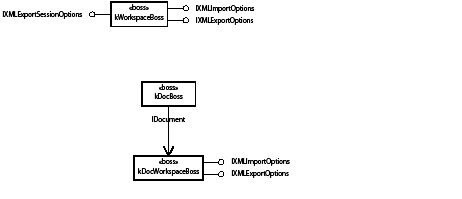
A new, empty document has a logical structure consisting of one Root element. To construct a slightly less trivial example, you can create a new document and import a minimal XML file into the backing store. The content is as shown in the following example.
Minimal XML data to be imported:
To perform the import:
The objects created and instances of associations between them are shown in the following figure. The UML object diagram shows the objects involved in representing the logical structure when minimal XML content is imported into the backing store of a new InDesign document. The logical structure of the InDesign document represents the tree structure of the original XML document, which has one title element as a child of the root-article element. Instances of the associations with the objects that represent tags are shown (kXMLTagBoss).
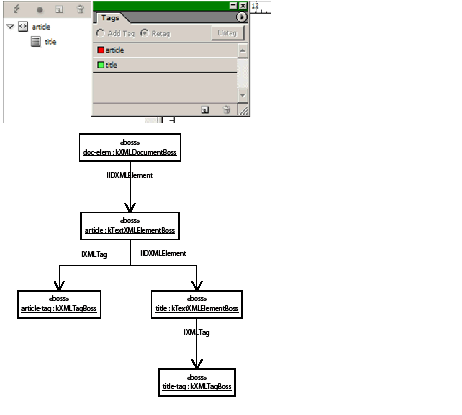
Given a reference to the document (IDocument) or a document database (IDataBase), you can acquire a reference to the document element or root element in the logical structure, using the IXMLUtils facade.
The document element has no tag, but the root element always has a tag; in this example, it is named "article." The IIDXMLElement::GetTagString method discovers the tag name of an element.
The root element is one starting point for traversing the logical structure. For the minimal example, you can start from the root element and look at its children.
XML elements have the signature interface IIDXMLElement. Given an IIDXMLElement interface, you can obtain an XMLReference, another way to refer to an XML element. See IIDXMLElement::GetXMLReference. Conversely, given an XMLReference, you can get an IIDXMLElement interface through XMLReference::Instantiate. XML elements are described in more detail in Elements and content.
The UML object diagram in the following figure shows instances of associations between a document (kDocBoss), document workspace (kDocWorkspaceBoss), and objects representing tags (kXMLTagBoss) and their colors within the Tags panel (kUIColorDataBoss).
Objects representing tags and colors:
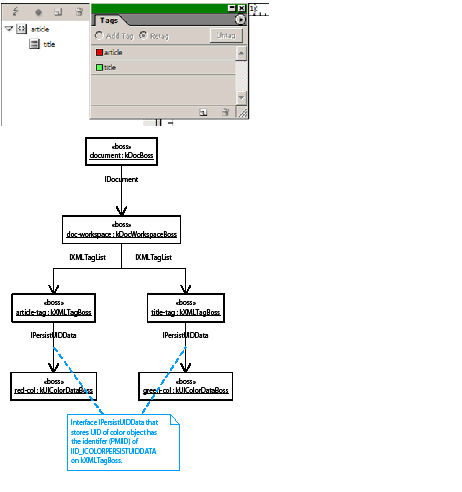
When XML content is imported with default options and there are no tagged placeholders for the incoming content, the content is held in the backing store. See Backing store.
An XML template is an InDesign document with tagged placeholders. These can be any of the following:
In addition, for the template to be useful, it is likely to already have some styles established and a mapping from tags to styles. See Tag-to-style mapping.
When XML data is imported into an XML template that matches elements in the imported XML data, some or all of the content becomes placed. Determining what constitutes a match is not a straightforward process.
Architecture
Matching against an XML template is performed by XML-import matchmaker services (IXMLImportMatchMaker), which implement the matching logic. For a description of this extension pattern, see XMl-import matchmaker. There are several existing import matchmaker services that support the import features; for example, for importing structured tables or repeating elements. For a more complete listing, refer to the API Reference for IXMLImportMatchMaker and the boss classes that aggregate this interface.
If you implement your own import matchmaker, you can customize how the matching against the template is done. For example, you might want to add new pages to the document when you encounter certain repeating elements in the incoming XML data or perform some other operation not provided by the application. For details, see XMl-import matchmaker.
Suppose you have XML-based content that consists of many very similar elements, like classified advertisements for used automobiles. You want an XML template that can handle repeating elements in the incoming XML data, rather than having to specify up front how many advertisements could be flowed into the template. In designing an XML template, it often is desirable to design only one instance of a repeating substructure and, during import, have all incoming instances of the substructure pick up the design of that instance.
Often, the number of instances in the incoming XML data is either unknown or variable, so having the ability to handle repeating elements adds flexibility. During XML import, InDesign examines the incoming XML data's structure, compares it to the existing structure in the XML template, and makes duplicates of the existing template element as necessary when it detects the incoming elements are repetitions of the existing template element.
Suppose you are going to import this hypothetical XML data related to classified advertisements for motor vehicles. The fields in the XML template tagged with the names of the different elements may be styled differently. The number of items in the incoming XML data is unknown. You may set up a template structure like that in the following example.
In this case, the "advert" element is the repeating element. You would set up styling for the fields in each advert element. During XML import, InDesign duplicates the repeatable advert element as many times as there are elements in the incoming XML.
When the data is imported into the XML template, the fields under advert retain the original styling throughout the duplication process, so the final outcome is that there are as many advert elements as there advert elements in the incoming XML.
Architecture
The feature is implemented by an import matchmaker service (IXMLImportMatchMaker) whose ClassID is kXMLRepeatTextElementsMatchMakerServiceBoss, which is responsible for duplicating elements in the XML template to accommodate the incoming XML elements.
The feature is turned on or off by an XML import preference (IXMLImportPreferences); see Service-level XML preferences.
You can choose to throw away (delete) unmatched existing elements on import, to filter out XML template elements that do not have a match in the incoming XML data. This might occur if, for example, your XML template contains placeholders for all possible elements in the incoming XML, including optional elements, and the incoming XML does not contain some of the optional elements. If an element (like a byline element) in your XML template is not matched in the actual content, you would not want to leave this unnecessary element in the logical structure of the document. This feature removes any unmatched optional elements (and their content) in the document after XML import. The user sets this import option in the XML Import Options dialog box.
Suppose you have an XML template with the logical structure and existing mark-up shown in the following figure. If the feature to throw away unmatched existing elements is enabled before importing XML, and the inbound XML does not have elements that match a copyright element in the template, the copyright element in the template is deleted on import.
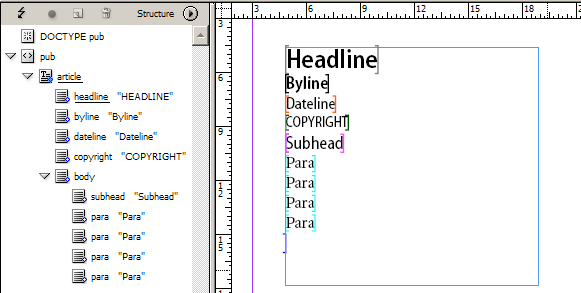
For example, suppose the incoming XML contains only the elements shown in the following example, rather than the full set of elements in the XML template document in the preceding figure.
The net result of importing the sample XML with the option to throw away unmatched existing elements is that only the elements in the incoming XML data explicitly matched in the template are retained, and the template elements and associated content are deleted from the document on import. The result for this sample XML is shown in the following figure.
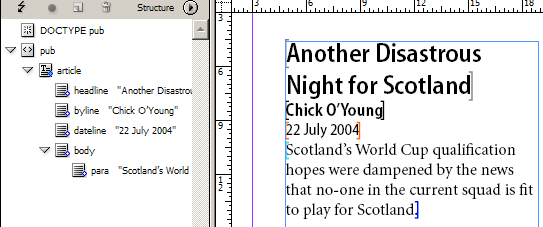
Architecture
This feature is implemented by a matchmaking service (kXMLThrowAwayUnmatchedRightMatchMakerServiceBoss); see XMl-import matchmaker on page 199. The feature is turned on or off by a service-specific import preference (IXMLImportPreferences); see "Service-level XML preferences". For more information on controlling the feature, see the "XML" chapter of Adobe InDesign SDK Solutions.
You can choose to throw away (delete) unmatched incoming elements, to filter out elements in the incoming XML data that do not have a match in the XML template into which they are being imported. You can use this feature when you know there are optional elements in the incoming XML that you do not want to display, and you do not want to use XSLT to explicitly filter them out.
Architecture
This feature is implemented by a matchmaking service (kXMLThrowAwayUnmatchedRightMatchMakerServiceBoss); see XMl-import matchmaker on page 199. This feature is turned on or off by a service-specific import preference (IXMLImportPreferences); see "Service-level XML preferences". For more information on controlling the feature, see the "XML" chapter of Adobe InDesign SDK Solutions.
Suppose you want to import XML that has (or is transformed to have) attributes that specify the character or paragraph style to apply to text content in the inbound XML. You can use the attribute-style mapping feature, which looks for attributes pstyle and cstyle in the inbound XML, then tries to match these to paragraph and character styles in the document.
Architecture
This feature is implemented by a post-import responder (kXMLImporterPostImportMappingBoss); see Post-import responder on page 199. This responder also implements tag-to-style mapping on import; see "Tag-to-style mapping" on page 178. For information on how this feature is turned on or off, see "Service-level XML preferences".
When XML is imported into an XML template, the default behavior is not to create a link to the imported XML file; however, it is possible to turn on a feature that supports creating a link to the imported XML file.
XML linking is a feature that enables InDesign to keep track of imported XML files. Each imported XML file has a corresponding link, which is shown in the Links panel along with status. Operations that can be performed on XML links include the following:
Architecture
This feature is controlled by an XML-related preference. For details on how this feature is turned on or off, see Service-level XML preferences.
If this feature is turned on during XML import, incoming elements that have no content (or only whitespace for content) do not replace content in the matching existing XML element in the XML template. By default, this feature is turned off.
Architecture
The feature is controlled by an XML-related preference (kXMLSparseImportOptionsServiceBoss). The top-level SAX handler (kSAXDocumentHandlerBoss) acts on this preference, rather than the service (kXMLSparseImportOptionsServiceBoss) being responsible for providing the behavior. This explains why kXMLSparseImportOptionsServiceBoss has no service interface: it is not implementing a particular extension pattern other than for XML import preferences. For details on how to turn sparse import on and off, see Service-level XML preferences.
You can choose whether to import a CALS table as an InDesign table. You can use this feature when you have a table specified in CALS table format and you want to manipulate it the same way as InDesign native tables.
Architecture
This feature is implemented by a matchmaking service (kXMLTableMatchMakerServiceBoss) and DOM serializer handler service; see XMl-import matchmaker on page 199 and "SAX DOM serializer handler" on page 201. During the matchmaker phase, a special attribute, kTableFormatAttr ("tformat"), with value kAttrValueCALS ("CALS"), is inserted into the table element. During the DOM serializer phase, contents in the CALS table are altered to fit the InDesign table format. This feature can be turned on or off by a service-specific import preference (IXMLImportPreferences); see "Service-level XML preferences". For more information on controlling the feature, see XML.
You can specify table and cell styles when importing an InDesign table. A table-style attribute applies only to a table element. Cell-style attributes apply to either a table element or a cell element; they are ignored for other types of elements. If the style name specified in the attribute value does not exist, a new style with that name is created and then applied to the table or cell.
Architecture
This feature is implemented by a post-import responder (kXMLImporterPostImportMappingBoss), the same way as character style and paragraph style; see Attribute-style mapping. The only difference is that the attribute names are tablestyle and cellstyle.
Exporting XML data from InDesign is considerably more straightforward than importing XML data into InDesign. The downside to this is that there are fewer opportunities for your plug-in to customize the export side.
You can export the logical structure of an InDesign document as an XML document. The export takes place in document order, meaning the logical structures of the InDesign document and exported XML data are the same.
An XML file can be exported from any element in the logical structure. For example, if exported from the root element, the exported XML data represents the logical structure of the entire document. If another element -for example, E-is chosen, the exported XML data represents the logical structure of the subtree with E at its root.
Even an empty InDesign document has some (albeit trivial) logical structure: it has one root element with no dependents. If exported as XML data, one element (<Root></Root>) is written to the output file. The following figure shows the logical structure of a new, empty document and the XML data exported from InDesign with the default settings. Note the default encoding (UTF-8).
There are two points to note about the relationship between XML data exported from InDesign and the logical structure:
An XML generator (IXMLGenerator) is an abstraction responsible for generating the XML content during export. The IXMLGenerator interface is aggregated by classes representing XML elements (IIDXMLElement) in the logical structure.
The mechanism that supports XML export is a standard export provider (kXMLExportProviderBoss, IExportProvider). This delegates to an instance of kXMLExportHandlerBoss to perform the actual export. The implementation of IXMLHandler iterates elements in the logical structure, calling methods through the IXMLGenerator interface of the elements.
This sequence diagram in the following figure shows some of the messages sent during a typical XML export.
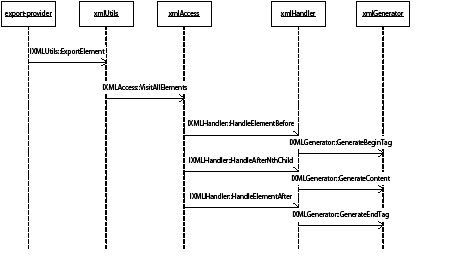
The export provider (kXMLExportProviderBoss), shown as export-provider in this figure, starts the export. The parser service (kXMLParserServiceBoss) has an IXMLAccess interface, shown as the xmlAccess object. An instance of kXMLExportHandlerBoss, shown as xmlHandler, with signature interface IXMLHandler, iterates elements in the logical structure. The implementation of the IXMLGenerator interface on these elements generates XML content to the output stream. There are several implementations of this interface, generating different content types on export.
Contributions to XML export come from instances of boss classes that expose the IXMLGenerator interface. These classes represent elements in the logical structure; for example, kTextXMLElementBoss (tagged stories, tagged text ranges, and tagged graphics) and kXMLCommentBoss (XML comments).
You can participate in the export process by providing a custom kXMLExportHandlerSignalService. The providers are called when the XML handler iterates elements. For more information, see the extension pattern in XML-export handler.
The logical structure of an InDesign document is exported as XML in document order, as defined in the XPath specification (http://www.w3.org/TR/xpath#dt-document-order ). For convenience, part of the definition is repeated here: "There is an ordering, document order, defined on all the nodes in the document corresponding to the order in which the first character of the XML representation of each node occurs in the XML representation of the document after expansion of general entities. Thus, the root node will be the first node. Element nodes occur before their children. Thus, document order orders element nodes in order of the occurrence of their start-tag in the XML (after expansion of entities). The attribute nodes and namespace nodes of an element occur before the children of the element. ... Reverse document order is the reverse of document order."
Document order has no direct relationship with the order in which a document would be read or other ordering schemes you might devise (for example, based on page numbering).
Consider the case, shown in the following figure , of a simple but nontrivial logical structure in which a tagged placeholder is intended as the destination for an image.
Exporting the logical structure with default export options results in the XML data shown in the following figure. To vary the options, like the encoding, see XML-related preferences.

The abstraction responsible for generating the XML data related to the tagged graphic is the element (IIDXMLElement) that represents the graphic. It exposes the IXMLGenerator interface, which is used during the export process.
Consider the example in which you create a text frame, tag the story running through it with a tag named "story," then tag a range within that story with a different tag named "emphasis." The XML story element represents the instance of the tagged story. The XML emphasis element represents the tagged content item with value "Hello." This is shown in the following figure. The screenshot shows logical structure, tags, and layout view for a document with one text frame, with a tagged text range. The story is tagged "story" and represented by the story element in the logical structure. The text range is tagged "emphasis" and represented by the emphasis element.
If you export the logical structure as XML data from the root element, you get the XML data shown in the following figure. This time, the export option to export with UTF-16 encoding is set, to make it easier to inspect the Unicode character that represents the hard carriage return in the story. This XML data was exported by InDesign from the document shown in the preceding figure.
The XML content of the exported story requires some study. The intent of the InDesign function is that stories should be represented in exported XML data as closely as possible to how InDesign represents them internally. The end-of-line character corresponding to the hard carriage return after the word "world" is represented by the Unicode character 0x2029. If you open the XML file in a binary editor on Windows-which is little-endian-the Unicode character 0x2029 is represented as the octet 29 and then the octet 20. Soft carriage returns are represented by 0x2028. See IXMLOutStream. This is shown in the following figure; the 0x2029 (hard carriage return) is highlighted.
Tags can be loaded from several different sources, including the following:
The following example is a sample tag list.
It also is possible to specify the color of the tag using RGB coordinates, which are used for any tags defined with a custom color. The coordinates are hex-encoded; for example, one tag with a custom color (0,0,255) in decimal RGB coordinates appears below:
In addition, the custom-tag service-extension pattern lets you customize what tags are created when an XML document is being parsed. See Custom-tag service.
The kXMLTagBoss boss class represents an individual entry in a tag list. The signature interface of this boss class is IXMLTag; this stores properties like the name and color in the user interface. The tag list is represented by IXMLTagList.
IXMLTagList is aggregated on the session workspace (kWorkspaceBoss), representing a default set of tags for any new document.
IXMLTagList is aggregated on the document workspace (kDocWorkspaceBoss), representing tags in a given document.
The session workspace (kWorkspaceBoss) stores zero or more tags. A document workspace (kDocWorkspaceBoss) stores one or more tags; the minimal tag set for a new document consists of the Root tag.
Tagging relationships are represented by associations between classes representing elements in the logical structure and those representing tags. For example, if a graphic frame is tagged for use as a placeholder, an association is created between the placeholder boss object (an instance of the kPlaceHolderItemBoss class) and an instance of the kTextXMLElementBoss class. An association is created between an element in the logical structure (IIDXMLElement) and an instance of kXMLTagBoss, to represent the tagging.
Tags (kXMLTagBoss) that can be used to mark up content items in the native document model are held in the tag list (IXMLTagList) of a workspace (kDocWorkspaceBoss, kWorkspaceBoss). Tags are rendered in the Tags panel (see Tags panel on page 155) and shown in views like layout view or story view (see "Tags in layout view and story view"). XML elements that have tag names are associated with tags (kXMLTagBoss) that store the tag names.
Given a reference to an XML element, you can find the tag string through a method on IIDXMLElement. You also can use IIDXMLElement::GetTagUID to acquire a reference to an instance of kXMLTagBoss representing the tag.
You can acquire a reference to a tag (kXMLTagBoss) in a document through the tag list (IXMLTagList) on the document workspace (kDocWorkspaceBoss). The tagUIDRef variable refers to an instance of kXMLTagBoss.
The class diagram in the following figure shows associations between tags and workspaces and the document (kDocBoss).
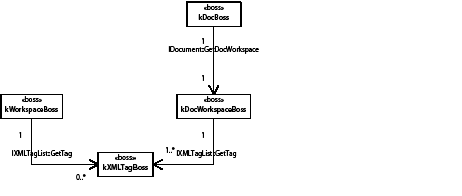
Suppose you have XML content with a headline tag and a p-head-1 paragraph style in your XML template. You can create an association between tags and styles in the document, to enable incoming XML to be styled automatically.
When a tag-to-style mapping is applied during the XML import, inbound XML content has the styles applied when elements with tag names matching the tags in the tag-to-style map are encountered. For example, if you create a mapping from the headline tag to the p-head-1 paragraph style, textual content in a headline element has the p-head-1 style applied.
The user interface for this feature is shown in Mapping between tags and styles on page 155. This establishes a one-to-one mapping from tag names to character or paragraph styles, which is sufficient when context-sensitive styling is not required. If context-sensitive styling for incoming XML is required, you can use a combination of a stream-based XML transformer and attribute-style mapping to achieve this. See "XML transformer" on page 199 and "Attribute-style mapping".
Architecture
The following figure is a class diagram for tag-to-style mappings (IXMLTagToStyleMap). The session workspace (kWorkspaceBoss) stores the default mapping inherited by new documents. The document workspace (kDocWorkspaceBoss) stores the mapping applied to a particular document (kDocBoss).
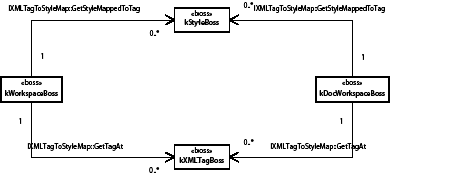
The following figure is a screenshot of an unstructured but systematically styled document, which as an associated DTD.
Before mapping styles to tags:

The following figure shows the result of applying a style-to-tag mapping.
Once a style-to-tag mapping is defined and applied, ranges of styled text with the styles mapped to given tags end up tagged, creating new elements in the logical structure. There are some default commitments in terms of the tags applied; for example, the Story tag is used for a story, even if it is not in the tag list of the document when the style-to-tag mapping is applied.
Architecture
The class diagram in the following figure shows the associations between workspaces (IWorkspace), tags (kXMLTagBoss), and styles (kStyleBoss), mediated by the style-to-tag map (IXMLStyleToTagMap). The session workspace (kWorkspaceBoss) stores the default style-to-tag map for new documents. The document workspace (kDocWorkspaceBoss) stores the style-to-tag map for a given document (kDocBoss).
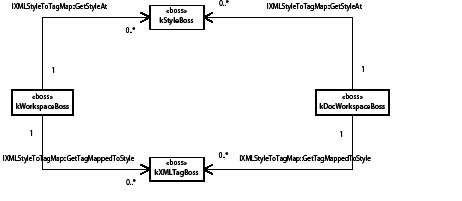
Text styles are represented by kStyleBoss. Collections of styles are held in the style-name table (IStyleNameTable) and stored in a workspace (IWorkspace). The session workspace (kWorkspaceBoss) stores text styles that are defaults for new documents. The document workspace (kDocWorkspaceBoss) stores text styles that can be used in the associated document. For more information on text styles, see Text Fundamentals as well as the API Reference for kStyleBoss.
The workspace (IWorkspace) maintains an associative map between text styles (kStyleBoss) and tags (kXMLTagBoss). This map is stored in the persistent interface IXMLStyleToTagMap. The workspace style list (IStyleNameTable) may contain styles that are not referenced in the style-to-tag map. Similarly, there may be tags in the tag list (IXMLTagList) of the workspace that are not involved in the style-to-tag map.
Suppose you are building an XML template and you want to create placeholders into which images will be placed when an XML data file is imported. To create a placeholder graphic for an image:
Architecture
The UML object diagram in the following figure shows the boss objects representing a tagged graphic placeholder and some of the relationships between them. The placeholder object (kPlaceHolderItemBoss) is a child of a graphic frame (kSplineItemBoss); the latter is omitted from this diagram, in the interest of simplicity. Content items like kPlaceHolderItemBoss have an IXMLReferenceData interface, which lets them refer to an element in the logical structure.
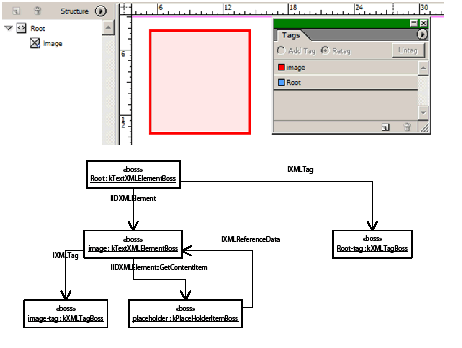
When document content is tagged, XML elements (IIDXMLElement) are created within the logical structure. Tagging content creates associations between content items (see IXMLReferenceData) and elements in the logical structure. Tagging also creates associations between elements and tags (kXMLTagBoss).
The following figure shows a class diagram for some of the classes representing a tagged placeholder graphic. A graphic frame (kSplineItemBoss) acquires a placeholder item child (kPlaceHolderItemBoss), when the frame is tagged to use as a placeholder. If a graphic frame is not tagged, it has no dependent placeholder (kPlaceHolderItemBoss).
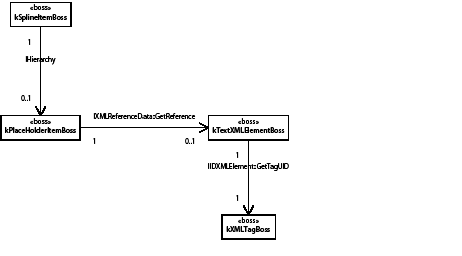
There are several key associations related to tagging of content items shown in the two preceding figures:
The following figure is an example of a minimal XML file that can be used to place an image. The path shown is a relative one; the image would have to be in the same folder as the XML file that referenced it.

See XML for an example of XML for importing an image by reference. On importing the XML file, if we do not have a preexisting placeholder graphic frame tagged with the Image tag, the image is not placed.
The following figure shows the result of importing the minimal XML file.

If there is a preexisting graphic frame tagged with the Image tag, the image is placed on import. One constraint is that if you intend an image to be placed in the graphic frame, the Image element (for this example) must support the href attribute that on import should specify the system path with which to locate the image to be placed, or you will have to place the image yourself.
Architecture
Elements can be associated with a tagged placeholder (kPlaceHolderItemBoss) or a tagged graphic content item, such as an image (kImageItem, kPlacedPDFItemBoss, kEPSItem, etc.).
When an XML tag is applied to a graphic frame with placeholder content (for example, kSplineItemBoss containing a kPlaceHolderItemBoss), a new instance of the kTextXMLElementBoss class is created, and a link is created between this object and the boss object representing the placeholder item (kPlaceHolderItemBoss).
Architecture
Elements (IIDXMLElement) can be associated with a content item that is either a story or a range of text within a story. The story (kTextStoryBoss) in which the text range is contained must be tagged before a range of text can be tagged. Tagging a story is useful when you want to create a tagged placeholder for incoming, text-based content. The end-user action to tag a story is to tag the text frame through which the story flows; this creates an association between the story (kTextStoryBoss) and an XML element (IIDXMLElement).
The following figure shows associations for some of the classes representing a tagged story (kTextStoryBoss). If a story is tagged, the IXMLReferenceData of the story boss object (kTextStoryBoss) refers to a valid instance of an element (kTextXMLElementBoss).
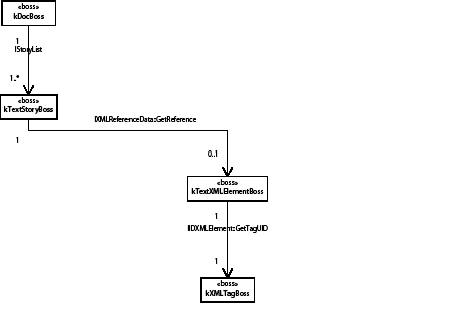
You can iterate over the children of the element tagging the story, using XMLContentIterator, to find out text ranges marked up by the child elements. For an example, see the section on "Finding Text associated with Tagged Text Ranges" in the "XML" chapter of Adobe InDesign SDK Solutions.
A tag is applied to a text range by making a text selection and either clicking a particular tag in the Tags panel or selecting an item from a context-sensitive menu containing tag names. Once the range is tagged, tag markers are placed before and after the tagged range. The "[" and "]" adornment characters are nonprinting, zero-width spaces inserted into the text; these characters can be shown or hidden.
Text ranges within a tagged story can themselves be tagged. Text within table cells also can be tagged. There are some constraints on what text can be tagged. The following text ranges cannot be tagged:
The following figure shows a tagged range of text. In this example, the article tag is applied to the story, and the emphasis tag is applied to the text range containing the characters "tagged."
Architecture
When tagging a text range in an untagged story, the following steps take place:
The following figure shows the classes involved in this minimal example of tagging a text range.
Consider the example of one tagged text range, as shown in the following figure, which shows objects involved in representing a tagged text range. The result of tagging this text range is to create a new element that is a child of the element associated with the tagged story. See Tagged stories. In the following figure, an emphasis element is created on tagging the text range. This is a child of an article element for this example. The information about the range of text is encapsulated in the kTextXMLElementBoss, but it can be accessed through using XMLContentIterator.
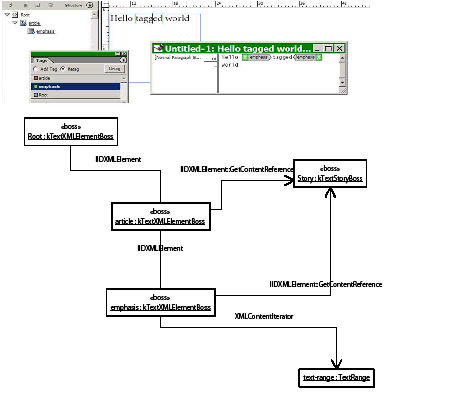
You can create a tagged inline graphic by either selecting an existing inline graphic and tagging it or placing an image into a tagged inline placeholder.
The following figure shows a tagged story, with two tagged paragraphs and a tagged inline graphic.
Architecture
From an XML perspective, tagged inline graphics are like tagged images, described in Tagged images. The main differences are on the native-document-model side; the image (for example, kImageItem) is owned by a frame that itself is owned by an inline object (kInlineBoss). The object diagram in the preceding figure shows some objects that model a tagged inline graphic.
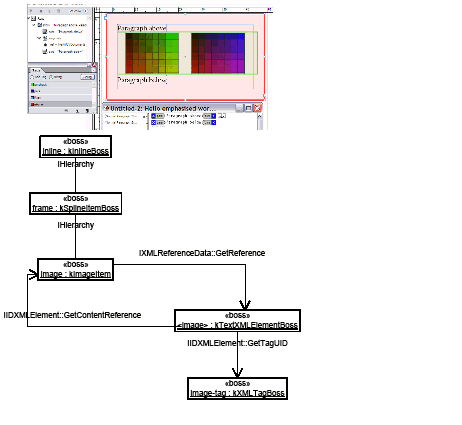
You can tag a table and cells within a table. A table that is not explicitly tagged will not get exported during XML export. If a table is tagged, all its cells must be tagged. In other words, a tagged table cannot contain untagged cells, and a tagged table cell cannot be inside an untagged table.
Tagged tables and table cells also can be untagged; that is, the mark-up associated with them can be removed. Untagging a table or its cells untags the entire table, including the cells.
The model for tagging tables is restricted: you can tag either at the whole-table level or the cell level, but you cannot tag rows or create other container elements within the logical structure of a table.
Architecture
If you refer to the API Reference for IXMLReferenceData and see the boss classes that aggregate this interface, you will notice table-related classes like kTableModelBoss and kTextCellContentBoss. The operation of tagging a table (kTableModelBoss) has the following constraints:
It also is possible to tag text within a table cell, which is not much different than the situation described in Tagged text ranges. For example, if you create an element that is a child of a Cell element, the new element becomes a placeholder for tagged text within a table cell.
For more details on implementing tagging of tables, see the section on "Tagging a Table" in XML.
The object diagram in the following figure shows some of the objects that represent a tagged table. Note how the table (kTableModelBoss) associates with an XML table element. The key to understanding the model is the XMLContentReference type, an instance of which can be obtained from IIDXMLElement::GetContentReference. In the case of XML elements associated with table cells, the properties of the cells can be discovered through XMLContentReference.
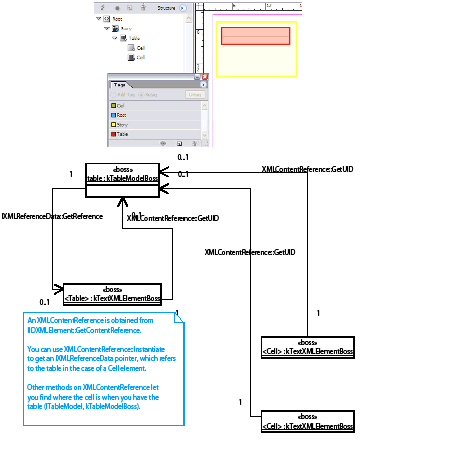
A document type declaration (DTD) is a grammar defined in an extended Backus-Naur format that can be read by XML processors. The main point of associating a DTD with an InDesign document is to allow the logical structure of the InDesign document to be checked or validated against the grammar. The XML 1.0 specification (http://www.w3.org/TR/REC-xml ) defines a DTD as follows: "The XML document type declaration contains or points to markup declarations that provide a grammar for a class of documents. This grammar is known as a document type definition, or DTD. The document type declaration can point to an external subset (a special kind of external entity) containing markup declarations, or can contain the markup declarations directly in an internal subset, or can do both. The DTD for a document consists of both subsets taken together."
You can import a DTD to create an association between the DTD and the document's logical structure, using the Load DTD menu command in the Structure pane. This associates the DTD with the logical structure of the document. New tags are created (see Tags) from an element type declaration, if they are not already in the tag list.
After associating a DTD with the document, you can validate the logical structure of a document against the DTD. The user interface for this is shown in the figure in Validation window.
Once you load a DTD, you can validate the logical structure against the DTD, to determine the extent to which the document's structure violates the constraints expressed in the grammar represented by the DTD. See Section "5.1 Validating and Non-Validating Processors" in the XML 1.0 specification.
The API does not support validating the logical structure of an InDesign document against an XML schema (http://www.w3.org/TR/xmlschema-0 ).
If you import a DTD, a new element is created in the logical structure, and new tags are created as needed. A sample DTD is shown in the following example. This was associated with the logical structure of a document after importing the minimal XML from Importing a minimal XML file.
Architecture
The DTD associated with the logical structure of an InDesign document is represented by an instance of kXMLDTDBoss. When present, this instance is a child of the document element (kXMLDocumentBoss) and a peer of the root element. See the following figure for an object diagram showing relationships between objects representing the logical structure of a minimal InDesign document. The UML diagram in the following figure shows objects representing the logical structure when a DTD is imported into the document. kXMLDTDBoss, as a participant in the logical structure, has the IIDXMLElement interface; however, it does not have children and has no associated tag.
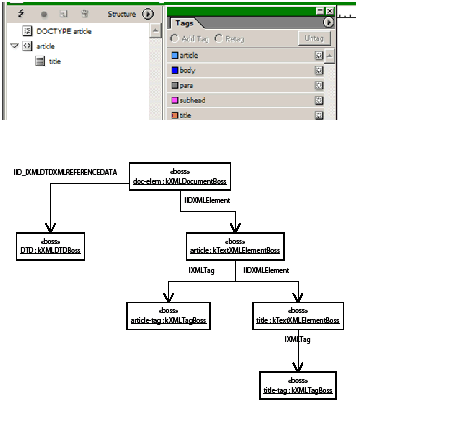
An XML comment stores text that is not considered part of the document content, but that may be relevant when authoring. XML comments are defined in the XML 1.0 specification (http://www.w3.org/TR/REC-xml ) as follows: "Comments may appear anywhere in a document outside other markup; in addition, they may appear within the document type declaration at places allowed by the grammar. They are not part of the document's character data ...."
XML comments can occur anywhere in the logical structure that is legal within the XML specification. An XML comment appears in the XML data like this:
Processing instructions (PIs) also store text that is not considered part of the document content, but the content may be relevant to an XML processor. Processing instructions are defined in the XML specification as follows:"PIs are not part of the document's character data, but must be passed through to the application. The PI begins with a target (PITarget) used to identify the application to which the instruction is directed."
Processing instructions allow XML-based documents to contain instructions for applications that know how to process them. It is possible to create new processing instructions anywhere in the logical structure. A processing instruction appears in the XML data like this:
This processing instruction directs an XML application to choose a particular XSL stylesheet if applying an XSL transform to the XML content.
The following figure shows how an XML comment and processing instruction are rendered in the structure view.

Architecture
An XML comment is associated with one string. Comments are represented by kXMLCommentBoss, with the text stored by an implementation of IStringData. On the other hand, a processing instruction appears to the user as a pair of strings, one specifying the target for the processing instruction and the other specifying the data. Processing instructions are represented by kXMLPIBoss; there are two IStringData interfaces implemented by this class, (IID_IXMLPITARGET, IID_IXMLPIDATA) storing strings representing the key (target) and value (data).
The kXMLCommentBoss and kXMLPIBoss boss classes have implementations of the IIDXMLElement interface (through inheritance) and are part of the logical-structure tree. Comment and processing-instruction elements support some but not all properties of other XML elements. For example, you cannot add attributes to a comment or processing instruction, and there is neither a valid content-item reference nor a valid tag reference for a comment or processing instruction.
You can add new elements to the logical structure of a document using the structure view and its associated menu. Elements created in this way are not immediately associated with content items and are, therefore, unplaced.
Unplaced elements can be placed from the logical structure onto the layout manually or programmatically, but sometimes it is useful to retain unplaced elements as structural or container elements.
For example, suppose a publication is a collection of sections (for example, "Arts" and "Motoring"), each comprising one or more articles. You could model this with a Section element that consists of a set of Article elements; the Section element might never itself have any content but instead be used to structure the collection of Article elements. The Section element is a logical element of the publication, rather than a content-related element.
The XML template for this publication might be set up as shown in the following figure. The Article elements appear as placed content, because we tagged some stories with Article tags; these stories are placeholders into which the XML-based data would be imported.

Architecture
Structural elements differ from elements representing placed content only insofar as structural elements do not have a valid content-item reference (IIDXMLElement::GetContentReference). However, structural elements should have a valid tag reference (IIDXMLElement::GetTagUID).
The XML subsystem is relatively complex, and there are several interfaces that store XML preferences. These can be grouped into workspace-level preferences and service-level preferences.
There are some XML-related preferences (options) interfaces stored in workspaces (kWorkspaceBoss and kDocWorkspaceBoss). These are shown in the following table, along with low-level commands that enable them to be changed.
| Interface | Responsibility | Command to process to change preference |
|---|---|---|
| IDocStructurePrefs | Stores preferences like whether structure view is visible when the document is opened. | kChangeDocStructurePrefsCmdBoss to change the data, but you need to execute an action to change the structure-view state. |
| IGeneralXMLPreferences | Stores tagging preferences in the session workspace, like default tag name for story, table, and cell. | kSetGeneralXMLPreferencesCmdBoss |
| IStructureViewPrefs | Stores information related to the appearance of the structure view, like whether comments are visible. | kChangeStructureViewPrefsCmdBoss |
| IXMLExportOptions | Stores XML export options in the workspace that control what gets written to the XML data. | kChangeXMLExportOptionsCmdBoss |
| IXMLExportSessionOptions | Stores XML export options in the session workspace related to viewing XML data after export. | kChangeXMLExportSOptionsCmdBoss |
| IXMLImportOptions | Stores XML import options in the workspace. | kChangeXMLImportOptionsCmdBoss |
| IXMLPreferences | Stores user-interface preferences related to XML. | kShowTaggedFramesCmdBoss, kShowTagMarkersCmdBoss, and kShowTagOptionsCmdBoss |
In most cases, the command required to change a data interface is specified in the API Reference or can be deduced when inspecting the boss classes that aggregate a given interface.
The UML diagrams in the following figure show some of the interfaces involved in storing options for import and export of XML at the session level (kWorkspaceBoss) or document level (kDocWorkspaceBoss).
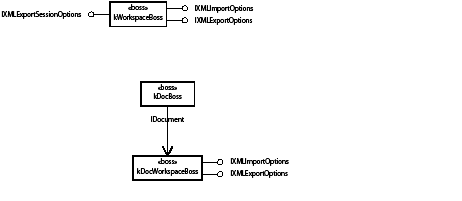
Preferences related to structure view and other user-interface components
The IDocStructurePrefs interface controls some properties of the structure view. IDocStructurePrefs is present on the session workspace (kWorkspaceBoss) and document workspace (kDocWorkspaceBoss). IDocStructurePrefs stores preferences related to whether to show the structure pane and how wide it should be.
The IStructureViewPrefs interface (only on kWorkspaceBoss) stores other properties of the structure view, like whether text snippets are to be shown. The IXMLPreferences interface on the session workspace (kWorkspaceBoss) stores the visibility of tag markers, etc.
Some services that aggregate the IXMLImportPreferences interface are shown in the following table.
Object-specific preference interfaces related to XML:
| Service and its responsibility | Semantics of its IXMLImportPreferences interface |
|---|---|
| kXMLRepeatTextElementsMatchMakerServiceBoss, responsible for preserving story text styling when handling repeating elements. | 0th preference is bool16, whether to turn on, kTrue by default. |
| kXMLThrowAwayUnmatchedRightMatchMakerServiceBoss, responsible for discarding unmatched elements in the XML template. | 0th preference is bool16, whether to turn on feature, kFalse by default. |
| kXMLThrowAwayUnmatchedLeftMatchMakerServiceBoss, responsible for discarding incoming elements that have no match in the XML template. | 0th preference is bool16, whether to turn on feature, kFalse by default. |
| kXMLImporterPostImportMappingBoss, responsible for attribute-style mapping. | 0th preference, bool16, kTrue by default. Specifies whether to delete namespace attribute (aid: for example) and the namespace attribute (xmlns:). |
| kXMLSparseImportOptionsServiceBoss, just stores a preference relating to sparse import. | 0th preference, bool16, whether to use sparse import, kFalse by default. |
| kXMLLinkingPostImportResponderBoss, responsible for creating a link (kXMLImportLinkBoss) to imported XML files. | 0th preference, bool16, whether to create link, kFalse by default. |
Some suite interfaces that represent a fairly high level of abstraction over the XML subsystem can be used to program the XML features. We recommend you use these suites when possible when programming using the XML features:
You can extend the application by writing a custom suite that is available when there is a selection in the Structure pane. See Extension patterns.
There are many command-related boss classes named kXML<whatever>CmdBoss, but in most cases, you do not need to process these low-level commands, as there are command facades in the XML API that encapsulate parameterizing and processing these commands.
Interfaces like IXMLUtils, IXMLElementCommands, IXMLMappingCommands, IXMLTagCommands, and IXMLAttributeCommands are examples of command facades. These encapsulate processing of almost all the commands required by plug-in code. These interfaces are aggregated on kUtilsBoss; the smart pointer class Utils makes it straightforward to acquire and call methods on these interface. You can call their methods by writing code that follows this pattern:
When writing code that does not involve selection, always look first at the IXMLUtils or IXML<whatever> Commands interfaces, to see if there is a method that serves your purpose on one of these interfaces. By doing so, you can avoid the increased chance of confusion and error that comes with processing low-level commands. Of course, your use case may require you to process some low-level commands, if the facades do not provide all the functionality you require.
Suppose you want to customize how InDesign obtains the XML data to be read by the standard import-XML file operation. For example, you might query your database to get XML-based data, and you want to allow InDesign to parse the XML data directly from a stream you open.
Architecture
An XML acquirer (IXMLAcquirerFilter) lets you take control to create a stream (IPMStream) from which InDesign reads XML data, and optionally provide an entity resolver (ISAXEntityResolver) for InDesign to use when importing the XML data in your stream. An XML acquirer allows you to take control early in the XML-import sequence, to determine where the XML data comes from. An XML acquirer is a service provider, characterized by the IXMLAcquirerFilter service interface. The ServiceID must be of type kAcquireXMLService; you can reuse the API implementation kXMLFilterServiceProviderImpl (IK2ServiceProvider) for this.
XML import begins with a URL-style string that describes the XML source. This stage of the import process (see Import architecture) has the task of converting the XML source description into a stream (IPMStream). In the simplest case, the URL-style string is a path to a local file. In more complex cases, it could be an XQuery, any kind of URL, or a comma-separated values (CSV) file.
These different identifiers for the XML source are handled uniformly by the XML importer (kXMLImporterBoss). The XML importer takes the source string and sends it to each of the XML acquirer filters (IXMLAcquirerFilter) in turn, until it finds one that can handle the string. Each filter examines the string and determines whether it can return a stream given the string.
The order in which the filters are called is undefined. The XML import mechanism of InDesign includes a file-based, XML-acquirer filter (kXMLAcquirerTextFilterServiceProviderBoss), and other filters can be added by third parties.
In theory, it should be possible to write a database connectivity acquirer to get XML data directly out of a database (or content-management system) into InDesign. The URL string has to be something that can be recognized by the target acquirer (and, hopefully, no one else). The URL can even be an instruction that points to another file with more instructions (for example, a binding file). The only thing the acquirer must do is return an XML stream in the end; the acquirer can process instructions, get some XML data, process it further, and finally return manipulated XML data if desired by the acquirer.
The import source is specified through data stored in the IImportXMLData of the data object (kImportXMLDataBoss), which encapsulates an IDFile. To implement a custom acquirer, you can construct an IDFile with an arbitrary path, then you can implement the IXMLAcquirerFilter to interpret the path specified by the IDFile to take whatever action you want. For example, you might plan to make a query on a server-based repository of some kind, then open a stream to a local file that you copied onto the machine from the server. The query could be specified or parameterized by information in the string you got back from IDFile::GetString, once you get inside your acquirer code (see IImportXMLData::GetImportSource).
Suppose you want to transform the incoming XML data using something like the InDesign built-in XSLT engine or a transformation engine of your own. The XML transformer is an extension pattern you can implement if you want to transform the XML data being imported. You have the choice of transforming the data when it is still a stream or when it has been turned into a DOM.
Architecture
The XML transformer (IXMLTransformer) is an extension pattern for manipulating the incoming XML DOM. It is an opportunity for a third-party software developer to add elements, throw away others, and change the rest before the incoming XML data is matched against the existing XML template. An import transformer is a service provider characterized by the service interface IXMLTransformer and signature interface IK2ServiceProvider. The ServiceID must be of type kXMLImporterTransformerService; you can reuse the API implementation kXMLImportTransformerSignalServiceImpl (IK2ServiceProvider) for this.
You can transform the inbound XML data in one or both of two phases:
Suppose you want to customize how the XML template is matched against the incoming XML data.
Architecture
This is a service that participates in XML import, to determine how the incoming XML is matched against the XML template (document) into which the XML is imported. An import matchmaker is a service provider characterized by the service interface IXMLImportMatchMaker and signature interface IK2ServiceProvider. The ServiceID must be of type kXMLImportMatchMakerSignalService; you can reuse the API implementation kXMLImportMatchMakerSignalServiceImpl (IK2ServiceProvider) for this.
An XML-import matchmaker service (IXMLImportMatchMaker) is responsible for determining the behavior of InDesign when importing XML-based data into an XML template that has structure which provides a partial match for the inbound XML data. For example, the features to throw away unmatched existing or inbound are implemented by matchmaker services. In theory, you can implement a custom XML-import matchmaker to specialize how matching against an XML template is performed.
Suppose you want to perform an operation just after the XML data is imported and the logical structure created, like placing images based on information in the logical structure. Rather than having to write your own code to traverse the logical structure after import, there is an extension pattern that lets you be called when the logical structure of the document is being traversed, just after the DOM is completed.
Architecture
A post-import iterator (IXMLPostImportIteration) is a type of responder (IResponder) that is signalled during XML import. An post-import iterator is a service provider; specifically, it is a responder service, characterized by the service interface IXMLPostImportIteration and signature interface IK2ServiceProvider. The ServiceID must be of type kXMLPostImportIterationService; you can reuse the API implementation kXMLPostImportIterationServiceProviderImpl (IK2ServiceProvider) for this.
A lot of post-processing tasks are of the form "go through the logical structure. and if you see <something>, do <whatever>." The iterator allows you to do this without writing the iteration itself, while taking as little penalty in performance as possible. Essentially, InDesign iterates over the structure one time and calls all the clients when every node is visited. If your task is simple and localized, this is a good choice, because all you would write is your specialized code. If you require, you can still write a full post-import processor of your own design and iterate over the whole structure yourself.
Features of the application like tag-to-style mapping are implemented using a post-import iterator.
Suppose you want to allow some operations to be performed whenever there is a selection of one or more nodes in the logical structure. For example, suppose you want to let an end user verify the image references in the nodes selected in the structure view, perhaps through a context-sensitive menu item that is present or enabled only when nodes are selected.
Architecture
A custom suite for the structure view lets your code be called only when there is a node-selection target (IXMLNodeTarget) in the structure view. You can follow the pattern of IXMLStructureSuite (refer to the API Reference for that interface). To implement a custom suite for the structure view:
When you implement a custom suite, it gives you access to the nodes selected in the structure view through IXMLNodeTarget, through your add-in to the concrete-selection boss class kXMLStructureSuiteBoss.
Suppose you want to load a configuration from an XML file that contains information relevant only to your plug-ins and does not specify document content.
Architecture
A custom SAX-content handler (ISAXContentHandler) lets you take control when XML is being parsed by the XML-parser service early in the XML-import service. This extension pattern can be used to read configuration data from an XML file, for example.
A SAX-content handler is not (any longer) a service. Your main requirement is to register with the SAX services (ISAXServices) of the SAX parser (kXMLParserServiceBoss).
There are several instances of SAX-content handlers (for example, parsing the tag list, itself an XML file). Refer to ISAXContentHandler in the API Reference and note the boss classes that expose this interface.
See http://sax.sourceforge.net for information about the Simple API for XML (SAX).
Suppose you want to take control when XML is being imported and the XML DOM is being serialized into the document, and you want to handle the parsing of XML content for some custom elements, to let you create some document content.
Architecture
A custom, SAX DOM serializer handler lets you take control when the XML DOM is imported and is being serialized (written) into the document. If you implement this extension pattern, you can choose how particular elements in the DOM are written into the document; for example, you can create custom content. This is done for tables and Ruby annotations.
A SAX DOM serializer handler is a service provider characterized by the service interface ISAXDOMSerializerHandler and signature interface IK2ServiceProvider. The ServiceID must be of type kXMLContentHandlerService; you can reuse the API implementation kXMLContentServiceProviderImpl (implementation of IK2ServiceProvider) to do this.
Suppose you have custom content in the XML file that is created programmatically on export, and you do not want end users to be able to apply the tags based on the element names in your custom content.
Architecture
A tag service is given the opportunity to handle elements in an XML stream that has been opened for reading element names to be used as tags.
A tag service is a service provider that is closely related to the SAX-content-handler service. A tag service is characterized by the service interface ISAXContentHandler and interface IK2ServiceProvider, which should yield a ServiceID of kXMLTagHandlerService. You can reuse the API implementation kXMLTagServiceProviderImpl to achieve this.
For example, you may be using a tag service to filter out names of custom elements you do not want to appear in the tag list. In this case, you would provide a minimal implementation of ISAXContentHandler that registers your handler for the elements you want to filter out and claims to handle a subtree. You then do not need to do anything when sent the other ISAXContentHandler messages for elements for which you do not want tags to be created.
Suppose you want to customize how external entities are resolved by the InDesign SAX parser. An external entity needs to have an associated PUBLIC or SYSTEM identifier, which can be translated to something like a URI, which should point at the input source where the entity is defined: "Attempts to retrieve the resource identified by a URI MAY be redirected at the parser level (for example, in an entity resolver)"
See the XML specification (http://www.w3.org/TR/REC-xml , section 4.2.2) for a definition of "external entity."
Architecture
If you implement a custom entity resolver for external entities, it is your responsibility to create a stream (IPMStream) to the input source where the entity is defined, when passed a PUBLIC or SYSTEM identifier for the entity. An entity resolver is characterized by the ISAXEntityResolver interface.
You create an instance of the boss class you defined with your own implementation of ISAXEntityResolver when needed; for example, when implementing an XML acquirer (IXMLAcquirerFilter::CreateStreamAndResolver or CreateResolver).
Suppose you want to control the output of some XML elements when they are being exported; for example, you want to alter the structure of XML file for some custom elements, to better fit your needs.
Architecture
A custom, XML-export handler lets you control the output. If you implement this extension pattern, you can choose how particular elements in the document are written into the XML file.
An XML-export handler is a service provider characterized by the service interface IXMLExportHandler and signature interface IK2ServiceProvider. The ServiceID must be of type kXMLExportHandlerSignalService; you can reuse the API implementation kXMLExportServiceImpl (implementation of IK2ServiceProvider).
To customize the output of an element or elements, override the CanHandleElement method to return true for the element, and override other methods to write custom content to the output.
When the logical structure of a document changes, the commands that change the logical structure send notification about changes in the backing store. The subject for notifications about change in the logical structure is a UID-based object (instance of kTextStoryBoss).
You can acquire the backing store with IXMLUtils::GetBackingStore and query for its ISubject interface. Once you have the ISubject interface, you can attach an observer and listen for changes of interest in the usual pattern.
Command output can be stored in the item list of a command boss object on output, which is sent as the changedBy parameter in the IObserver::Update message. When implementing an observer, you can cast the changedBy parameter of the Update method to an interface pointer of type ICommand*, as shown below:
When the command output shows the output is stored in an interface on the command (for example as an XMLReference), you might write code like this:
Standard entities supported by default by the XML subsystem are shown in the following table. If you need to support a wider set - like the entire ISO-LATIN 1 set of character entities (for example, &174; for ™) - you can use them with the applications if they are defined in the DTD. For example, Simplified DocBook (http://www.oasis-open.org/docbook/xml/simple/sdocbook ) contains additional entity definitions within its DTD to support ISO-LATIN 1.
| Entity | Meaning | Description |
|---|---|---|
| & | & | Ampersand |
| < | < | Less than |
| > | > | Greater than |
| ' | ' | Apostrophe |
| " | " | Quote |
| 
 | CR | Character replacement entity for carriage return |
| 
 | LF | Character replacement entity for line feed |
Basic grammar for article-based publications
Fragment of XSL Stylesheet to Convert NITF to Basic Pub
The architecture is detailed and has a broad client API and many extension patterns, but there are known limitations you should be aware of, which could make implementing particular XML-based workflows tricky or impossible.
Specifically, XML elements associated with graphics cannot have dependents. The model for representing logical structure does not allow you to have a subtree of elements that depend on the element linked to a graphic item.
A snippet is a logically complete fragment of an InDesign document, expressed in one of two XML formats, INX (.inds or .incx file extensions) or IDML (.idms or .icml file extensions). INX-based snippets were introduced in InDesign CS, but because of the complexity of the format, we did not recommend using them to generate and manipulate content outside of InDesign. IDML- and IDML-based snippets were designed for these purposes. This chapter describes the snippet architecture and the organization of snippets for different asset types, and it relates this to the low-level (boss) document object model (DOM). The snippet architecture is the basis for the asset library in InDesign, which is a collection of snippets in a binary container. The chapter discusses implications of the change to this snippet architecture if you store your own persistent data in documents.
In addition to explaining what snippets are, the chapter describes the organization of some snippets, identifies use cases involving snippet, and provides implementation hints.
Snippets are a feature added to InDesign to support factoring a document into components that become self-contained assets. One special application of this is an InCopy story. A snippet is a logically complete fragment of an InDesign document, saved in either InDesign Interchange format (INX) or InDesign Markup Language (IDML). Both are XML-based formats. INX-based snippet files have the extension .inds (or .incx for InCopy stories). IDML-based snippet files have the extension .idms, (or .icml for InCopy stories).
The snippet architecture allows a subset of the objects in a document (and their dependencies) to be imported into a snippet file, which can be exported to another document. Features like assignments depend on snippets to factor document content into XML documents, each of which represents a subset of the information in the original InDesign document.
The asset-library subsystem takes advantage of the snippet architecture, reinforcing the notion of a snippet as an asset. An InDesign library is a collection of snippets in a binary container. If you store persistent data in InDesign documents (for example, through adding your own persistent interfaces to page items), you must make sure this content roundtrips through snippets, by adding scripting support to your plug-in. See Scriptable Plug-in Fundamentals.
Snippets can contain page items, swatches, styles, XML tags, XML elements, and application preferences. If you understand how to export and import snippets, you can assemble most of the contents in an InDesign document from snippets. To make the process more straightforward, see the procedures in Snippets.
Snippets can-in one format-represent information previously exported from InDesign in several quite different (and often opaque binary) formats. The object types that can be exported from InDesign include the following:
These reduces to a handful of basic snippet types, described in Snippet types and policies.
Several subsystems and features depend on the snippet architecture:
The snippet architecture is more a foundation technology than a feature, so there is relatively little user interface to let you interact directly with snippets; however, there are a few places where snippets show up in the user interface, directly or indirectly.
You can drag a snippet file onto the InDesign layout view, and the application takes appropriate action. For example, if the snippet file contains a text style, a new text style may be created if one matching the specification does not already exist. If you drag a snippet file defining a group item with many page-item dependents, a new group item with dependents is created in the InDesign document.
An end user can create a new snippet file on the desktop, by dragging a layout object from an InDesign document onto the desktop. An end user also can drag an XML element from the structure view to the desktop, to create a snippet on the desktop.
The snippet format is the primary representation for chunks of InDesign content for data exchange. The user interface now strictly uses IDML-based (IDMS) snippets. You can still generate INX-based (INDS) snippets using the API.
The asset library depends on page items being represented as snippets. An InDesign library (INDL) file is a binary file containing a collection of snippets, and the Library panel can be considered a view onto the snippets it contains.
When an asset is dragged from the library onto a document, the snippet is imported into the document, and the new content is created. When an asset is dragged from a document into a library or added through a menu item in the Library panel menu, the content is written to the library file in a block of XML contained within the (binary) library.
You can export snippets under certain selection conditions, including the existence of a layout selection (page items) or structure-view selection (XML elements). You can export an InCopy story (ICML or INCX) when there is a text selection. The snippet-export provider is responsible for serializing page items to snippet files after drag and drop. This export provider depends on the suite ISnippetExportSuite. (See Client API.) For more information about the selection architecture, see Selection.
Snippets contain collections of XML fragments that represent document content. What makes snippet files interesting is that they are standalone representations of document assets (for example, a styled page item) that can be imported into another document. The precise collection of XML fragments that compose a snippet depends on the objects you want to export into the snippet and the objects on which it depends.
The objects represented in the snippet file are instances of classes in the scripting-level DOM. Deciding what goes into a snippet file and understanding what is represented there requires knowledge of the low-level boss DOM. Understanding what happens when a snippet file is imported requires knowledge of the low-level boss DOM.
INX and IDML are XML-based formats that represent InDesign content at a higher level of abstraction than the low-level binary InDesign document (INDD) files. These higher level files contain a collection of XML elements that represent an entire InDesign document, created by serializing the scripting DOM for a document instance.
A major benefit of this representation is that the scripting DOM is stable relative to the low-level (boss) document model. A price to be paid for this higher level of abstraction (and XML-based format) is that it takes longer to read and write an INX- or IDML-based file than a binary InDesign (INDD) document. InDesign binary documents load data on demand, whereas the entire INX file must be loaded before it can be used.
A snippet file represents one or more root objects and their dependents in the document from which they came. A root object in this context does not mean the root of the entire document, but the root of a subtree within the scripting-DOM tree.
A root object must expose the IDOMElement interface. Parent-child relationships in a snippet come from ownership relations in the scripting DOM; however, as we will see in the examples, the elements in a snippet file have information that comes from the boss DOM (about UIDs, for example), and the relationship between the boss DOM and scripting DOM is predictable.
Although INCX, the INX-based InCopy story format, is still supported, the default file format for InCopy is ICML. The main difference between an INX or IDML file and a snippet file is that INX and IDML files represent complete InDesign documents, whereas a snippet file represents only a subset of the information in an InDesign document.
There are two things you need to know to work with snippets:
Generating a snippet from scratch is not easy. Snippets for even simple content page items are complex, owing to the need to serialize the graph of dependencies. We do not recommend generating INX-based snippets. If you need to generate snippets outside of InDesign, create IDML-based snippets. You still will have to be concerned with fulfilling all dependencies.
The InDesign DOM is relatively complex on the surface, but it is fundamentally simple. An InDesign (binary) document consists of the following:
You can consider an InDesign (binary) document as a serialized graph of boss objects. The boss DOM specifies InDesign documents at the level of boss classes and relationships between them. Sometimes the relationships are hard to express purely in terms of classes, and we visualize them in object diagrams to understand them better. See the chapter entitled XML Fundamentals.
A boss object can represent a spread (kSpreadBoss), guide (kGuideItemBoss), frame (kSplineItemBoss), story (kTextStoryBoss), etc. The binary document stores the persistent state of these boss objects, consisting of a hierarchy of objects on each spread (kSpreadBoss) and a set of relationships between the boss objects.
One kind of relationship that can exist between boss objects is ownership, which is the same as the concept of composition in object-oriented literature: coincident lifetime of part and whole, composite object responsible for creation and destruction of parts. Boss objects can either own other objects (and manage their lifetimes) or refer to them.
Boss objects expose interfaces which provide their behavior, and if they have persistent implementations, store their state across instantiations of InDesign. The persistent interfaces determine exactly what data a given boss object stores in the document; for example, it may store references to other objects it depends on in some way or references to objects it owns.
Persistent implementations of interfaces on each boss class that participates in the boss DOM read and write the data in an InDesign binary document. The interfaces themselves are part of the low-level API for InDesign, which is fine-grained and extensive. This means an InDesign (binary) document is very tightly coupled to the low-level API.
Compared to the boss DOM, there is a more abstract way to represent an InDesign document, based on the notion of scriptable objects (IScript). This level of abstraction is the scripting-DOM view of an InDesign document. This level of abstraction still involves the objects that are part of the end user's experience of an InDesign document (spreads, pages, frames, stories, etc.), but the representation is less closely tied to the boss objects you manipulate with the low-level API. There are several advantages of working at this level of abstraction:
The concepts of ownership relationships between classes versus referential associations also exists in the scripting DOM and, therefore in snippets. These two types of associations are important when it comes to understanding what is in a snippet file.
The low-level boss DOM is the ultimate truth as far as inDesign document is concerned, and the scripting DOM is an abstraction over that very fine-grained, low-level model. When you inspect snippet files, you will find information that comes directly from the boss DOM, like UIDs.
Information can appear in a snippet file only if some boss object with an IDOMElement interface generates it. As a C++ programmer, you inevitably work at the level of how scripting was implemented within the InDesign API, rather than at the consumer level. This means scripting appears as an additional complexity, but it provides a stable abstraction over the low-level boss document model.
Each script class has an identifier (ScriptElementID) defined in kScriptInfoIDSpace; this space is parallel with kClassIDSpace, where a boss ClassID is defined. If you consider the scripting DOM and boss DOM as distinct graphs, they have points of contact, where a node in the boss DOM also participates in the scripting DOM (for example, kSpreadBoss), and there are points of difference (sometimes there is a proxy boss class, sometimes no boss class at all).
The IScript and IDOMElement interfaces are exposed by any boss class that participates in the scripting DOM. The signature interface of a scriptable object, IScript, provides the low-level API programmer with a bridge into the scripting object world. IDOMElement can be used to traverse the scripting DOM for a given document instance.
The supported snippet types are listed in the following table.
| Snippet type | Boss DOM source |
|---|---|
| ApplicationPreferences | Session workspace (kWorkspaceBoss) preferences. |
| InCopyInterchange | From story (kTextStoryBoss). InCopy default story format. |
| PageItem | A page item in the spread hierarchy (kSpreadBoss/ISpread). |
| XMLElement | XML elements (see IIDXMLElement) and associated content, if elements are placed. |
Application-preferences export
Exporting application preferences means serializing the state of preference objects that are dependents of the application-script object (kApplicationObjectScriptElement). See IScriptUtils::QueryApplicationScript and IINXInfo::IsPreferenceObject. In terms of where these preferences are stored in the boss DOM, these are preferences stored in the session workspace (kWorkspaceBoss) as persistent interfaces.
The export policy for application preferences (kAppPrefsExportBoss) would be specified explicitly only if you were trying to export a subset of application preferences, which is beyond the scope of this document. If you use methods like ISnippetExport::ExportAppPrefs, the policy is implicit. The exact behavior of the policy is beyond the scope of this document.
Application-preference export supports only INX-based snippets.
Document-element export
Exporting a document element means exporting something that is a fairly direct dependent of the document (IDocument). For example, swatches are stored in the document workspace (kDocWorkspaceBoss), and these are exported as DocumentElement snippets.
Page-item export
Exporting a page-item snippet means exporting one or more root objects and dependents. For example, if you placed images or text frames containing content, exporting a page item gives you a self-contained representation of the page item that you can import into another document.
The page-item export policy contains rules including the following:
A page-item snippet is exported from a layout selection (see ISnippetExportSuite), or you can choose one or more page items by UID and export them using ISnippetExport.
InCopy stories
Exporting in InCopy stories can be done either through the export provider for this format or by exporting a snippet with type InCopyInterchange and export policy kInCopyInterchangeExportBoss.
The export policy is very much the same as for a page item, with respect to how story content is handled, as described in Page-item export.
There is a high-level suite responsible for exporting snippets (ISnippetExportSuite). It exports an InCopyInterchange snippet if there is a text selection on export. If you used a lower-level API like ISnippetExport, in which you must choose the document object from which to export, you would export from a story (rather than text frame); you would export a story by calling ISnippetExport::ExportInCopyInterchange().
XML-element export
The high-level suite responsible for exporting snippets (ISnippetExportSuite) can export XML elements selected in the structure view. If you use a lower-level API like ISnippetExport to perform the export, you need to explicitly identify the objects to export by XMLReference. For more information on acquiring references to objects in the logical structure, see XML Fundamentals. Use the XML-element export policy (kXMLElementExportBoss) when exporting XML elements.
Snippets are imported mostly as if they were standard INX or IDML files. Snippet-import policies are applied when importing a snippet, depending on the type of content in the snippet file. As a programmer, you need to decide what object in the boss DOM should parent the objects you are importing from the snippet. For example, if you import a page-item snippet and want the page items in it to be top-level items on a spread, you specify a particular spread (kSpreadBoss) to parent the content. For most other snippet types, the document (kDocBoss) is sufficient.
The snippet type is carried by processing instructions at the start of a snippet file. These are of the form <?aid ... ?>. See the table in Snippet types and policies for list of types that can occur. For example, if the snippet is a page item, the following processing instruction occurs:
Importing snippets can be tricky for some snippet types, like XML elements, because you must decide the node in the scripting DOM that will parent the incoming content, and sometimes this is nontrivial to discover. When you import a snippet, you must choose a boss object to parent the snippet content that has IDOMElement and IScript interfaces that characterize participants in the scripting DOM. Some snippet types are easy, and the choice is the document (kDocBoss) or session workspace (kWorkspaceBoss). Others require more work and a detailed understanding of how the scripting DOM works in terms of boss classes.
Application-preferences import
When you import application preferences, you need to identify an object that can parent the import. This is the session workspace (kWorkspaceBoss). Suppose you opened a stream onto a snippet file containing "ApplicationPreferences." You might import it by writing code like the following:
The IScriptUtils::QueryApplicationScript method returns a reference to the session workspace (kWorkspaceBoss) in the boss DOM through its IScript interface. The session workspace associates with the application script object (kApplicationObjectScriptElement) in the scripting DOM.
The import policy is complicated and beyond the scope of this document.
Page-item import
When importing a page item-like a placed image or text frame-you can target a Spread element in the scripting DOM. This supposes you want the page item to be a top-level page item.
In boss terms, this means targeting a spread (kSpreadBoss) rather than the spread-layer boss (kSpreadLayerBoss), the parent of top-level page items in the boss DOM.
A boolean interface, IID_ISNIPPETIMPORTUSESORIGINALLOCATIONPREF, was aggregated on both kWorkspaceBoss and kDocBoss to determine whether the coordinates of the page item imported should be same as where it was exported from or a new location. The behavior also can be altered temporarily based on modifier key ALT/Option when the page item is imported via the user interface, such as via drag-and-drop and use-place-gun.
The import policy does very little, because most of the work is done by the page-item export policy during export.
InCopy-story import
When importing a story from an InCopy story snippet, you can go through the import provider, rather than trying to import the snippet directly. Importing InCopy stories directly using the low-level snippet API (ISnippetImport) is not supported.
XML-element import
Deciding where in the scripting DOM an XML-element snippet should be parented is not straightforward. This is because XML elements are represented by proxy objects in the scripting DOM. That is, boss classes like kTextXMLElementBoss that represent XML elements in the boss DOM do not have IScript and IDOMElement interfaces. There are proxy boss classes that participate in the scripting DOM, and you need to specify one of these as the parent for incoming XML-element snippet content.
If you want to import an XML element into a specified location within the logical structure of an InDesign document, you must construct a proxy boss object (kXMLItemProxyScriptObjectBoss), configure it correctly, and set this as the target for ISnippetImport::ImportFromStream.
When you import a snippet containing XML elements, what happens depends on whether the exported XML elements were placed or all unplaced content. If the XML elements in the snippet were exported from placed elements, layout content is created on import.
The behavior of the import policy is beyond the scope of this document.
In this scenario, a new document was created, a document layer (red-layer) added, and a single page item created (with the Rectangle tool) on this layer. The rectangle had a swatch applied (C=15, M=100, Y=0, K=0). For information on exporting a page item programmatically, see Snippets. Through the InDesign user interface, you can drag a page item to the desktop to create a PageItem snippet.
Boss-level model
We consider the key boss objects that represent this page item, then examine the organization of the snippet that results from exporting the asset. The objects referred to by a page item depend on what the page item is and what relationships it has with other objects in the document at the time of its export.
The object diagram in the following figure shows some of the objects that represent a rectangle page item. The page item is a top-level item that is a child of a spread layer (kSpreadLayerBoss, with signature ISpreadLayer). The spread layer is a child of a spread (kSpreadBoss). The spread layer class associates with a document layer (kDocumentLayerBoss, with signature IDocumentLayer). The document (kDocBoss, signature IDocument) manages the spreads via ISpreadList and manages the document layers via ILayerList. The UID of the document layer and spline-item boss objects are shown, as these will appear in the snippet as object references.
Boss-object diagram for a rectangle page item:
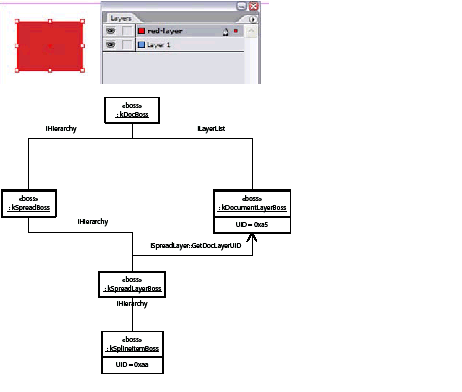
The UML object diagram in the following figure shows relationships between objects that represent the fill color and object style (Basic Graphic Frame) of a rectangle page item.
Boss-object diagram for page-item style:
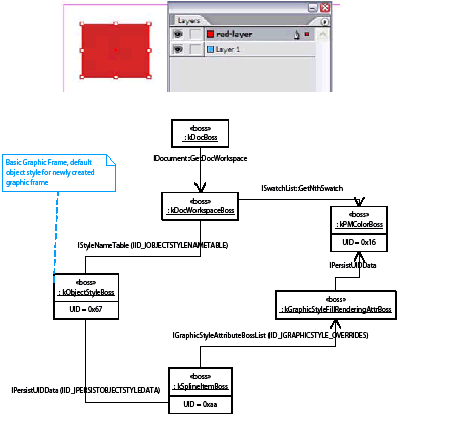
Snippet organization
When the filled-rectangle page item is exported as a snippet, a somewhat large XML file is generated. The contents depend on whether it is an IDML or INX snippet. Though this may seem to be a lot of data to specify a red rectangle, consider that the intent of a snippet is to provide a complete, standalone description of a collection of objects that can be imported into any other InDesign document. The first few and last few characters are shown in the following examples. This small percentage of the text shows some differences between the two formats. The IDML-based snippet has a document element called Document, while the INX-based example has a document element of SnippetRoot.
Example 1: IDML-based (IDMS) extraction:
Example 2: Snippet-file extract:
Inspecting the raw XML data contained in an INX snippet file is not immediately illuminating (see the XML in the following figure, for example), so some XSLT transformations have been applied to render the data in a form that is easier to understand. The snippet file creating by exporting a rectangle page item was transformed with XSLT, using information from the ScriptingDefs.h file in the SDK as a translation table, to turn short names like "crec" into long names (Rectangle). The amount of information was reduced by filtering out all but the names of elements and some key attributes. The relationships between elements were represented as a graph of nodes (the elements) and edges (the links between them).
Subset of XML from filled-rectangle snippet:
The newer, IDML-based format is more readable. The example in the following figure is a similar subset, in actual IDML.
If we visualize the XML from the preceding figures as a graph showing a subset of the elements, we arrive at the following figure. The Rectangle object (kRectangleObjectScriptElement) from the scripting DOM corresponds to kSplineItemBoss in the boss DOM. The Color object (kColorObjectScriptElement) corresponds to kPMColorBoss in the boss DOM. The Layer object (kLayerObjectScriptElement) corresponds to kDocumentLayerBoss (IDocumentLayer) in the boss DOM.
The following figure shows a subset of the elements in the snippet file exported from this document asset. The long names for the elements are shown. The Self attribute (shown as, for example, 0xaa rather than rc_uaa or u_123) corresponds to the UIDs for the boss objects shown in Filled-rectangle snippet. The snippet (scripting DOM) model is simplified relative to the boss model; there is no graphics-attribute object interposed between the page item and the object representing its color.
Relationships between elements in snippet representing a rectangle:
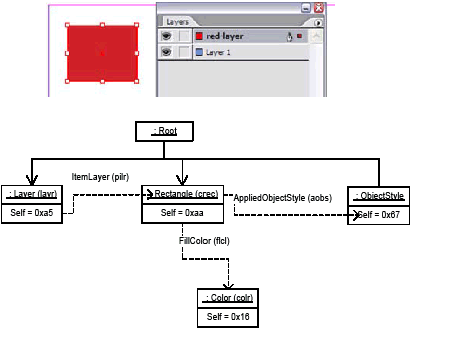
Two different views are shown of the elements and associations in a snippet file. This figure shows the key objects that were explicitly identified by UID in the figures in Filled-rectangle snippet.
A new document was created, and an image was placed in it. A page-item snippet was exported, based on the graphic frame containing the image. We examine both the low-level boss model for this and the organization of the snippet file. To create this through the InDesign user interface, you can select the frame containing the image and just drag the page item from the layout to the desktop. To do this programmatically, see Snippets.
Boss-level model
The following figure contains an object diagram showing key boss objects that represent a placed (TIFF) image (kImageItem) in a graphic frame (kSplineItemBoss), and links between them (instances of associations between the boss classes). A low-resolution embedded proxy (kImageInDB) is stored in the document. The actual high-resolution image is referenced from a link (kImportLinkBoss). In the interest of clarity, associations with objects of class kSpreadLayerBoss (which would own the kSplineItemBoss if it were a top-level page item) and so on are omitted.
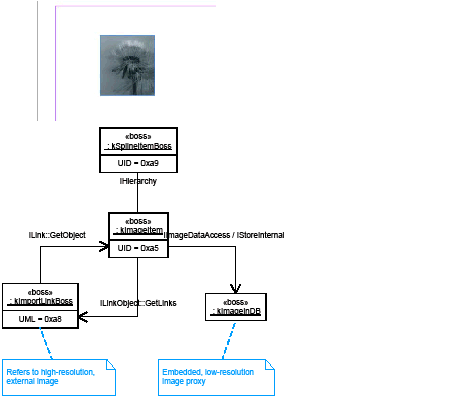
A placed image is represented by the boss class (kImageItem), which can be found as a child of a graphic frame (kSplineItemBoss). The image item (kImageItem) refers to both a link (through ILinkObject) and an object that may store a proxy (through IImageDataAccess or IStoreInternal).
The original high-resolution image placed is referenced by a link (kImportLinkBoss), and the low-resolution image proxy may be stored by a boss object (kImageInDB). The embedded proxy is referenced either through IStoreInternal interface of the kImageItem object (for example, for PDF, EPS, and PICT) or by IImageDataAccess (as in the TIFF example here and for other formats like JPEG).
Snippet organization
The complete snippet is quite complicated, but we can make sense of the picture by focusing on the objects in the scripting model and considering the relationships to the boss objects we saw in the preceding figure.
The frame is represented in the scripting DOM by a Rectangle object (kRectangleObjectScriptElement), and the image placed by an Image object (kImageObjectScriptElement). The scripting classes associate to kSplineItemBoss and kImageItem in the boss DOM. Consequently, when we inspect the snippet, we see a Rectangle, with child element Image. The link to a high-resolution image external to the InDesign file is maintained in the scripting DOM by a Link object (kLinkObjectScriptElement), which associates with kImportLinkBoss (in the case of a placed image file).
The object diagram in the following figure represents elements in the snippet file for a placed image. The Rectangle element has a Self attribute matching the UID of the kSplineItemBoss in the figure on page 219. The Image element has a Self attribute equal to the UID of the kImageItemBoss object in that figure. The Link object has a Self attribute corresponding to the UID of the link boss object (kImportLinkBoss) in that figure. The ClippingPath and TextWrap elements correspond (approximately) to the IClipSettings and IStandOffData interfaces on kImageItem, respectively.
Relationships between elements in snippet for a placed image:
The Image element shown on page 220 has a dependent Link element, which maintains a link to the high-resolution image that was placed. This Link element stores approximately the data stored in or obtainable from a link boss object (kImportLinkBoss); it stores a path to the file and other information, like link-import stamp and link-stored state. The snippet also maintains a low-resolution thumbnail of the image, but in the xap:Thumbnail metadata element, intended for consumers of the XMP format.
Consider the scenario of creating one element in the logical structure as a tagged placeholder for an image to be placed later. We can examine the organization of a snippet obtained by exporting a placed element from the logical structure.
Boss-level model
This is described in some detail in XML Fundamentals. Briefly, a tagged graphic placeholder is represented by a kSplineItemBoss, with a kPlaceHolderItemBoss child. Associations with XML elements (IIDXMLElement) are maintained by the IXMLReferenceData on the placeholder (kPlaceHolderItemBoss). See the following figure.
Boss-object diagram for XML-tagged placeholder:
Snippet organization
An XML-element snippet is the serialized form of an XML element, its tree of elements (IIDXMLElement) it owns, and any placed content that it or any of its dependents refer to, along with dependencies. Because we only one tagged object, there is only one element (XMLElement) in the snippet. Only the tags required for the exported XML elements are contained in the snippet; in this case, we have only one XMLTag element in the snippet. The UIDs of the frame (kSplineItemBoss) and tag (kXMLTagBoss) propagated to the snippet. XML elements are not UID-based, and the Self attributes for the XMLElement elements in the snippet are less easy to relate to the original InDesign document. See the following figure.
Key elements in a snippet for a tagged placeholder:
To create a snippet based on the current selection, use ISnippetExportSuite. ISnippetExportSuite lets you export the layout selection or a selection in the structure view as a snippet, and a text selection as an InCopyInterchange snippet (INCX or ICML). For more details, see Snippets.
The following utilities are available:
The ISnippetExportSuite suite can be used if you create a selection programmatically and are not worried about trampling the user selection. For example, the ITextSelectionSuite, IXMLNodeSelectionSuite (structure view), and ILayoutSelectionSuite interfaces each create selections that can be exported as snippets through ISnippetExportSuite. For more information on creating selections programmatically, see Selection.
If you have a nonselectable object you want to export as a snippet, you can use one of two methods on the ISnippetExport interface (on the kUtilsBoss). ISnippetExport::ExportAppPrefs can be used to export various application preferences; for examples, see the SnpShareAppResources code snippet. You also can use ISnippetExport::ExportDocumentResource to export resources of the document; for examples, see the SnpImportExportSnippet code snippet.
For more information, see Snippets.
Importing
On import, the main thing the client must specify is where on the scripting DOM tree the incoming snippet will go. The incoming snippet will have one or more root objects (for example, page items), and the client needs to specify where on the DOM tree they will go. For page items, this typically means specifying the spread. For XML elements, it means specifying an element on the structure tree that will be the parent of the imported element. For many other snippet types (styles, swatches, etc.) the document is the parent. For more information, see Snippets.
There are no specific extension patterns you can implement relating to snippets; however, if you add persistent data to the low-level document model (for example, through add-ins of interfaces that have persistent implementations), your plug-in must expose this data to scripting.
If you add persistent data to the boss DOM-for example, through an add-in to one of the page-item boss classes-then for this data to be round-tripped through snippets, you need to expose your data as properties in the scripting DOM. This also may require you to define new object (classes) in the scripting DOM. For more information, see Selection.
For example, if your custom data on page items needs to be round-tripped through asset libraries (which depend on the snippet architecture), you need to ensure your persistent data is scriptable. See, for example, the SDK sample CandleChart, which was updated to support round-tripping persistent data through snippets by exposing the persistent data as properties added to the scripting DOM.
A snippet is a logically complete fragment of an InDesign document, saved in the XML-based InDesign Markup (IDMS) or InDesign Interchange (INX) formats. A snippet is created by acquiring references to document objects you want to export (for example, by UID or XMLReference), then using one of the client APIs like ISnippetExport. Alternately, there is a ISnippetExportSuite suite interface that lets you export based on a selection in the layout or structure view (XML elements) or a text selection, as InCopy Interchange format.
See Image-item snippet. A snippet for a placed image maintains a link to the asset within the XML representation. When the snippet is imported into a new document, a link appears in the Links panel as if you had placed the image.
See Features that depend on snippets.
Maintaining a high-fidelity representation of a document asset was one of the design goals for snippets. However, some limitations were designed in. For example, snippets do not carry document-level preferences with them. If they did, they would create overrides of the existing document-level preferences when imported into a new document, which is desirable.
When importing a new asset, it is reasonable for it to bring new document objects, like swatches on which it depends, but it could have unintended global effects on the target document if it starts to redefine document-level preferences that control typography, for example. Importing a snippet should not alter the properties of other document objects in the document into which you import the snippet.
If you are adding custom data to the document-for example, to page items in some way-and you want this data to be round-tripped through asset libraries, you must be sure you can get your persistent data into snippet files. This is because asset libraries store their assets as snippets internally, meaning your persistent data must be exported into a snippet. See Adding persistent data to snippet files for more discussion.
Suppose you have a multipage document, and you want to decompose it into independent pages by exporting each page as individual snippets containing all objects on each page and dependencies. Alternately, you may want to export each spread as a snippet.
This is not possible, as pages are not recreated on snippet import, so you cannot factor a document into individual spreads or pages using the snippet architecture alone.
No. The INX-based snippet format should be regarded as a read-only format. We do not recommend using it to generate snippets from scratch.
We designed IDML-based snippets to facilitate programmatic assembly and disassembly of snippets. You can validate your snippets using a RELAX NG-based schema. The SDK also includes a sample plug-in that logs errors on import and export. Both schema validation and the error-logging plug-in are covered in Adobe InDesign Markup Language (IDML) Cookbook.
Although asset libraries (kSnippetBasedCatalogBoss) depend heavily on snippets for their representation of assets, there is no public API to let you import a snippet directly into a library. You must import the snippet into a document, then use the library APIs to add the item to an existing library. See Snippets.
The scrap database (kScrapDocBoss) does not support importing snippets; there is no DOM element hierarchy (IDOMElement) on the scrap, which is required to import snippets.
You cannot add new snippet types or policies; you are restricted to those identified in the table in Snippet types and policies. The existing snippet types, however, cover the range of document content it makes sense to export as self-contained assets. Since you can export an arbitrary collection of root objects (those with IDOMElement interfaces) to a snippet file, you can select what goes into a snippet, at least in terms of root objects. What you cannot do is decide what dependents of those objects to include or leave out when export is taking place. You might have to do some additional work before export, to ensure those dependents were exported as if they were root objects in determining what goes on in the snippet.
With InDesign and a small amount of your own code, you can manage application resources like preferences, text styles, XML tags, and swatches. This chapter describes how to read and write these resources to or from a stream, using InDesign Interchange (INX) snippets.
This chapter does not require a full understanding of XML, INX, snippets, or scripting, nor does it try to teach you those technologies. For background, see Scriptable Plug-in Fundamentals and Snippet Fundamentals. Also see Adobe InDesign Scripting Guide and Adobe InCopy Scripting Guide.
InDesign and InCopy provide robust scripting support. It is very simple to change an application preference via scripting. One approach to managing application preferences is to write a script that sets these properties to some predefined state. Due to the large number of preferences in InDesign and InCopy, however, this would be fairly involved.
You could continue along this path, and manage character and paragraph styles, object styles, swatches, and XML tags. This would become very involved, with a great deal of code to maintain. Fortunately, you do not have to write these scripts. Snippets achieve the same result, and most of the work is done for you. You must write only the code that exports and imports the snippet.
INX is an XML-based equivalent to a script, which recreates native InDesign content. Snippets are INX fragments, which are complete enough to recreate part of an InDesign document or workspace. For example, a snippet may recreate a page item and all the resources on which it depends. This probably is the most common use of snippets to date. Snippet Fundamentals provides details about exporting document content. Although beyond the scope of what is covered in that chapter, snippets can be used to recreate most of the items saved in the application workspace.
Instead of building elaborate scripts that set and reset your application workspace, you can use the application's user interface to set your application preferences and styles as required, then export all or part of the workspace using INX snippets. The snippet then contains all the data needed to recreate all or part of your application workspace via the scripting model.
From an API standpoint, special support was added to the snippet architecture for exporting and importing application preferences and resources. The one caveat to using snippets is that you cannot control which individual properties are exported. The API does not provide this level of granularity; instead, it is based on classes of scriptable objects (for example c_GeneralPrefs). All such objects that are marked as preference objects in the scripting model and are children of the Application object can be exported. By default, several other classes also are exported. These classes amount to elements of some style list. For instance, for Paragraph Styles, the c_ParaStyle list element is exported. For your reference and use in code, the scripting IDs for these types are in AppPrefsListElementTypes.h.
A brief description of all relevant interfaces follows.
ISnippetExport is the interface used to write snippets to a stream. Most the methods have a specific application (like ExportInCopyInterchange, ExportXMLTags, and ExportTextStyles). There also are generic Export methods. It is important to note that these methods can be called only with a predefined snippet export policy. You cannot create your own snippet export policy using the publicly available SDK. Certain interfaces intentionally were left out; calling these items with an invalid policy (kInvalidClass) exports invalid XML.
The method used to export application resources is ExportAppPrefs(). By default, this method exports all application preference types and all other types specified in AppPrefsListElementTypes.h. For the exact content, see the method. It contains a collection of list element types, such as text and object styles.
ExportAppPrefs also takes three optional arguments, which allow you to control exactly what is exported:
While you cannot create your own INX export policy, IAppPrefsExportDelegate allows for finer control of the application preference export process. It gives the caller final say on exactly what is exported and in what order. This may be important if your plug-in adds scripting support to an object you want to be exported by ExportAppPrefs(). You may need a way to reorder the export, putting your item after objects on which it depends.
To add an IAppPresExportDelegate, create your own instance and pass in a pointer when you call ExportAppPrefs().
ISnippetImport is the interface used to import snippets from a stream. You can access an instance through Utils<> helper.
The methods in this interface are generic. They are not specific to importing application resources, but rather any type of snippets. The difference in the two ImportFromStream methods is that one allows you to import a snippet containing multiple root objects. For our purposes, we use the ImportFromStream method that specifies a single root object (the application).
Like the generic export methods, ImportFromStream also takes an INX import policy. Again, you cannot create this on your own. The argument itself is optional and defaults to kInvalidClass. The correct policy to use is kAppPrefsImportBoss; if you leave it as kInvalidClass (the default value), the method will figure this out from the snippet.
Two options must be defined when importing. These options are provided by an instance of IAppPrefsImportOptions on the application workspace. To set these options, query for that instance of IAppPrefsImportOptions and call the appropriate set method. That implementation in turn creates and processes a command to change its own state.
The first option is what to do when list items already in the application match those being imported. For example, suppose you import Paragraph Styles A, B, and C into an application workspace that already has Paragraph Style A. Should the import keep or replace Paragraph Style A? To set the option for this, call SetHandleListItemsWithMatchingNames with either IAppPrefsImportOptions::kUseExistingListItems or IAppPrefsImportOptions::kReplaceListItems. The default value is kReplaceListItems.
The second option is what to do with list items that are not being imported. You can either delete everything not in the imported list or leave existing items alone. For example, suppose you import Paragraph Styles A, B, and C into an application workspace that contains Paragraph Style D. Should the import keep or delete Paragraph Style D? To set this option, call SetDeleteNonImportedListItems with kTrue or kFalse. When called with kTrue, items not in the imported list are deleted, which is the default behavior. To retain existing items, return kFalse.
To completely restore lists like paragraph styles to exported snippets, set the above two properties to kReplaceListItems and kTrue, respectively. This replaces any existing list items and deletes list items not in the import. This is the default behavior, but it is up to you to know whether IAppPrefsImportOptions was changed.
While you cannot create your own INX import policy, IAppPrefsImportDelegate allows for finer control of the application preference import process. It gives the plug-in developer final say on exactly what is imported, what is kept and/or deleted, and which property is used to compare list elements. You may never need to use a delegate; however, if you need finer control over the import, you need to provide an instance of IAppPrefsImportDelegate. To do this, add your IAppPrefsImportDelegate instance to kAppPrefsImportBoss. This delegate is a way to influence the import policy even though you cannot create your own policies.
See the "Share App Resources" snippet in <SDK>/source/sdksamples/codesnippets/SnpShareAppResources.cpp. This contains the sample code that demonstrates everything covered above except the use of delegates (IAppPrefsImportDelegate and IAppPrefsExportDelegate).
SnpShareAppResources::CreateStream() shows how to create file streams. It uses StreamUtils, which has other useful methods for reading and writing different kind of streams.
You cannot be that precise, but you can come close. SnpShareAppResources::ExportPrefsPanel contains all ScriptIDs for the objects that control the preference panels. Some of these objects control other settings, like items in the View menu.
Specify the correct list of ScriptIDs to include. See ExportTextStyles(), ExportObjectStyles(), ExportXMLTagsAndPrefs(), and ExportSwatches() in SnpShareAppResources.cpp.
Call ISnippetImport::ImportFromStream() with a pointer to the appropriate root object (IDOMElement) instance. SnpShareAppResources::ImportToApp() shows how to query for the application root and call ImportFromStream().
SnpShareAppResources::ImportToAppWithOptions() shows how to set the application workspace's IAppPrefsImportOptions before importing.
This may involve trial and error. While all the native IDs are available in ScriptingDefs.h, sometimes it is difficult to find the ID corresponding to a particular user interface feature. Most of the ScriptIDs have meaningful names that map to the user interface or how they appear in the scripting object model. To start, look at ScriptingDefs. If you cannot figure it out, an understanding of the scripting object model will help. If you cannot identify the right ID, open a developer support case.
The list of all such types is in AppPrefsListElementTypes.h. In ScriptingDefs.h, most list element types have both a singular and plural ID; for example, c_ObjectStyle and c_ObjectStyles. AppPrefsListElementTypes.h uses all singular IDs. In all cases, use the singular ID. The internal snippet code considers these elements on a case-by-case basis. It does not export all object styles if you pass in c_ObjectStyles.
This chapter introduces the key concepts in the user-interface architecture, such as type bindings between widget boss classes or interfaces and ODFRez custom resource types. This chapter also describes how the user-interface model is factored, discusses relevant design patterns like the Observer pattern, and provides an overview of common plug-in resources.
The chapter has the following objectives:
Plug-in developers often need to implement a user interface early in their plug-in programming experience. To program user interfaces, a plug-in developer needs to understand concepts like boss classes and interface aggregation, as much of the user interface is specified in resources.
The initial state and properties of a plug-in user interface are specified in a cross-platform resource language, ODFRez (OpenDoc Framework Resource language). Developing responsive user interfaces for InDesign plug-ins requires understanding type binding between boss classes (and persistent API interfaces) and types defined in ODFRez, and how persistent interfaces on widget boss classes read their initial state from the plug-in resources.
One benefit of the ODFRez data format is that it is a cross-platform resource definition language. The initial geometry of widgets can be defined in ODFRez data, as well as other data needed to define the initial state of widgets, like the labels on buttons. It is rare that a platform-specific resource is required; in the SDK samples, this occurs only for image-based buttons.Sample user interface on page 237 introduces a concrete example of a user interface to explain abstract topics like type binding. "Factorization of the user-interface model" describes the user-interface programming model.
The following are some of the design objectives for the user-interface programming model:
To meet these objectives, the design supports reuse, with the possibility of customizing widget behavior and appearance, and it encapsulates of platform dependencies. Support for reuse is established through the use of widget boss classes. Platform independence is achieved by using a cross-platform resource format; widgets are defined in the ODFRez language.
The following are the key responsibilities of a plug-in developer:
Client code also may be responsible for the following:
This section describes some programming idioms and naming conventions that are strongly recommended when writing plug-in user-interface code. There are two types of conventions:
Control-data interfaces on widget boss classes are predictably named. When working with controls, there are many interfaces named I<Data-type>ControlData. Notifications of changes in the data model of a control are performed by the implementations of these interfaces.
It is helpful to be disciplined in defining symbolic constants for identifiers. We strongly recommend you observe the following conventions:
Along with following the appropriate naming conventions for the domain, it is essential to define symbolic constants in the correct namespace and make sure there are no constants defined that clash numerically. In addition to the boss class IDs and implementation IDs used throughout the API, there are widget identifiers and string tables consisting of key/value pairs for each locale of interest.
In some cases, the namespaces are global; each plug-in must ensure any identifiers and strings it creates are unique within the application. This applies to string keys; for example. However, widget identifiers need be unique only within the list of descendants of a given widget, so in some circumstances you can reuse a widget identifier (for example, across different dialog boxes or panels you own), as long as you observe this constraint.
This section highlights the major abstractions in the InDesign API and the main strategy for code reuse within the user-interface API: extending widget boss classes. This section also reviews some of the fundamental material required for InDesign programming.
There is a very high degree of code reuse within the user-interface domain, and the boss class hierarchies are particularly deep in this area compared to other application domains. Reuse within the widget API typically takes the form of reuse of boss classes by inheritance. In some circumstances, implementations from the API of particular interfaces can be reused.
In general, it is not possible to predict whether an implementation of an interface on an existing boss class can be safely reused. There might be implementation dependencies, like expecting the container-widget boss object to expose an IBoolData interface. In general, it is not safe to try to reuse just one implementation from a given widget boss class. The recommended reuse policy is to extend an existing widget boss class and override an interface, if required, by extending the implementation present on the parent boss class.
Widget boss classes and the user-interface API can be confusing, because there are widgets defined in ODFRez and widgets in the boss-class space with very similar names. For example, kButtonWidgetBoss is a boss class that provides implementations responsible for the behavior of a given widget, and ButtonWidget is an ODFRez custom-resource type that specifies data for the initial state and properties of a control.
Another source of confusion is that occasionally there are C++ helper classes and ODFRez custom-resource types with identical names (like CControlView) but different responsibilities. To avoid confusing these types, it always is necessary to consider whether entities are from the code domain (C++) or data domain (ODFRez).
This section describes the relationship between InDesign widget classes and platform controls. Widget boss classes provide a layer of abstraction over platform-specific controls and provide additional capability beyond what is delivered by the platform controls. The user-interface model extends widgets to the platform-specific control set, providing controls like measure-edit boxes specialized for the domain of print publishing.
A widget boss class potentially encapsulates a platform control and provides additional capabilities like entry validation-a cross-platform API to query and set data values and change notification. This is the principal benefit of the user-interface model: the same code can be written to develop a plug-in user interface for Mac OS and Windows, with little or no attention to platform differences.
A widget boss class can be associated with a platform control, as in the case of an edit box. Some classes, however, have no direct platform equivalent or platform peers; for example, the iconic push buttons are not bound to a platform control. When writing client code, typically it is not necessary to be aware of whether there is a platform peer control for an API widget, and we recommend you manipulate the state of InDesign widgets through the InDesign API and not through platform-specific APIs. In addition, use InDesign API-specific patterns to receive notification about changes in control state (subject/observer).
Widget boss classes provide more capability than platform controls. For example, there is a mechanism for controls to persist their state across instances of the application; this is not default behavior for platform controls. The integer edit-box widget (kIntEditBoxWidgetBoss) provides additional validation capability not typically provided by platform controls. Another key point about widget boss classes is that they expose a cross-platform API and a uniform programming model on both Mac OS and Windows. This provides true cross-platform development of user interfaces, although at the cost of some complexity in the architecture.
This section introduces a common factoring in the InDesign plug-ins, which are decomposed into model plug-ins and user-interface plug-ins. The core capabilities of the InDesign API are delivered by required plug-ins, most of which are model plug-ins. A model plug-in delivers required pieces of architecture every client plug-in needs, or it implements the document-object model at the core of InDesign. Much of the application user interface is delivered by plug-ins that named <whatever>UI.apln, indicating they are user-interface–specific and not required plug-ins, which end in .rpln.
A plug-in's user interface can be thought of as a means of parameterizing command sequences that perform functions benefitting an end user, like changing the document object model to be consistent with user intent. For example, the XML required plug-in provides the core cross-media API (for example, IXMLElementCommands, a key wrapper interface), and the XMedia user-interface plug-in creates the user interface and drives the commands delivered through the XML required plug-in. Behind most plug-in user interfaces, a command or command sequence is executed when a widget receives the appropriate end-user event.
Commands provide a means to encapsulate change, provide support for undoing commands, and support notification of changes. The command pattern is a well-known design pattern, described in depth in Gamma, Helm, Johnson, and Vlissides, Design Patterns: Elements of Reusable Object-Oriented Software, Addison-Wesley, 1995.
Commands also use the messaging framework, which allows observers (IObserver) to attach to subjects and receive notification of change to the underlying model. Frequently, notifications about commands are received by observers associated with plug-in user-interface components. For example, the Layers panel receives notifications about documents being opened and closed through the command architecture and updates its views accordingly. It is particularly convenient that the same design pattern (subject/observer) is used within the user-interface programming model, since all widget boss classes expose an ISubject interface that can be observed by another boss object that implements IObserver.
Previewable dialogs are closely connected with commands. Commands used in previewable dialogs should be absolute; that is, do not try to increase or decrease the value of data. With preview off, the dialog is operating in collect mode, queuing up the set of commands that will execute. If preview is turned on, these commands are executed, and further updates are executed immediately. If the user cancels the action or turns preview back off, the database rolls back to the original state. Providing preview capability is an essential requirement in some client code.
Selection suites are a convenient way to package model-manipulation code that makes it almost trivial to write a user interface to drive the code. As described above, you should factor the code such that the suite is delivered by one plug-in, and the client code for your user interface that exercises the methods on the suite is in another plug-in. For a more detailed discussion of suites, see Selection.
Suites are particularly appropriate to writing user-interface code because they simplify the process. Whenever an end user is required to manipulate document objects by making active selections, make maximum use of suites.
There are two main ways to inspect the widget set delivered by the API:
For information on why there are widget boss classes and ODFRez types with similar names, see Type binding.
Each widget in the API is best understood in terms of the boss class that provides its behavior. Although there is an ODFRez type ButtonWidget, it really is the boss class kButtonWidgetBoss that provides all the significant behavior. For simple widgets, however, you can use just the ODFRez type without worrying about the boss class behind it; a static text widget is an example of this.
For example, a button in the InDesign API can be understood mainly by the interfaces aggregated on the button-widget boss classes and the semantics of those interfaces. For example, kButtonWidgetBoss exposes the following key interfaces, among others:
Observers (IObserver) are notified of changes to an abstract subject (ISubject). When a button is pressed by an end user, the button-widget boss object (kButtonWidgetBoss) notifies any attached observers about the state change, by sending them a message along IID_IBOOLEANCONTROLDATA protocol. The message contains additional information to say whether the button is being pressed in.
A change in control state can be caused by many events, such as a button click, a keystroke entered in an edit box, or a selection in a list box. Within the InDesign API, you get notification of changes by providing your own implementation of an observer (IObserver) that listens for changes in the state of a subject (ISubject). Since all widget boss classes extend kBaseWidgetBoss, which aggregates ISubject, all widgets are observable by default. The simplest way to get notification about changes in state is to add an IObserver interface to the widget boss class in which you are interested, and subclass the corresponding ODFRez type. While this pattern has the advantage of simplicity, if you have any elaboration in your user interface, we recommend you have one observer listen for changes in multiple widgets and be aggregated on the parent of all widgets in whose state changes you are interested.
If you are accustomed to programming other user-interface APIs, you may expect to need to extend the event-handler interface. Usually, however, this is not required for the InDesign API, where typically writing an observer (IObserver) implementation is sufficient to be notified about the semantic events associated (for example, check-box state changed) with the widgets, rather than about the low-level events (left-mouse-button-click) transmitted through the event handler (IEventHandler).
If you use model-view observers to update the user interface, and they update data that does not always need to be synchronized with the model state, you can use lazy notification to improve performance. For more information, see Notification.
The Stroke panel has an assembly of widgets to let an end user vary the miter limit associated with a line (the following figure). There is a text-edit box (kIntEditBoxWidgetBoss), a pair of labels (kStaticTextWidgetBoss), and a nudge-control widget (kNudgeControlWidgetBoss), which increments or decrements values in the edit control by a specified amount.
The edit-box widget (kIntEditBoxWidgetBoss) shown in this figure is specialized for the input of integers; for example, a warning message is generated for any input that is not a valid integer. A widget boss object of type kIntEditBoxWidgetBoss encapsulates a standard platform native edit box and adds behavior, like validation logic when accepting updates; for example, when the end user presses Enter with focus in the edit box.
The nudge-control widget (kNudgeControlWidgetBoss) collaborates with the integer edit box, allowing increments or decrements of the value in the edit box. A nudge-control widget boss object (kNudgeControlWidgetBoss) is not based on any specific platform control. Instead, it consists of two API iconic button-like widgets, although this detail is hidden from developers of client code. This is an instance of the facade design pattern.
The initial state of widget boss objects must be specified through resources, and for each widget boss class, there is an associated ODFRez custom-resource type used to specify initial state for the widget. The following table shows the widget boss classes for the example in the preceding figure and associated ODFRez resource types.
| API Widget boss class | ODFRez custom-resource type | Displaying |
|---|---|---|
| kIntEditBoxWidgetBoss | IntEditBoxWidget | 4 |
| kNudgeControlWidgetBoss | NudgeControlWidget | (Nothing) |
| kStaticTextWidgetBoss | StaticTextWidget | Miter limit |
| kStaticTextWidgetBoss | StaticTextWidget | x |
The key behavior of each control comes from the boss classes shown in the first column. The nudge control and edit box interact in a different way; the nudge control is coupled to the edit box in ODFRez data statements, and you do not need to write any additional C++ code to have an edit box with nudge capability. The code behind the nudge control is delivered by the application's required Widgets plug-in, and it can be safely reused through the user-interface architecture.
This section describes the type bindings that exist between widget boss classes or interfaces and ODFRez custom-resource types, using the example shown in the figure in Sample user interface. A key aspect of working with plug-in user interfaces is being able to interpret the binding between a widget boss class and an ODFRez custom-resource type or the significance of the binding between an API interface and an ODFRez custom-resource type.
Widget boss classes provide the behavior behind widgets, including the capability to draw and manage internal state and mediate interactions with the end user. Boss classes implement sets of interfaces. The example in the figure in Sample user interface uses an integer edit box (kIntEditBoxWidgetBoss), which is a control specialized for the input of integers. The implementation of the IControlView interface on the kIntEditBoxWidgetBoss boss class is responsible for drawing the edit box. The implementation of the ITextDataValidation interface on this boss class validates that the input is an integer.
ODFRez custom-resource types define data to initialize widgets and other elements needed for the interface. For example, the CControlView field in the example later in this section specifies the initial location and dimensions of each widget, along with other properties like its widget ID and visibility.
When a panel is shown for the first time, a set of widget boss objects is created by the application framework, and the lifetime of these boss objects is managed by the framework. Each widget boss object is invited to draw itself to the display. A widget boss class provides the capability behind the user-interface element drawn to the screen and implements the user-interface model.
For example, the kStaticTextWidgetBoss boss class is bound to the ODFRez custom-resource type StaticTextWidget. The ODFRez data defines the initial state of a widget the first time it instantiates; thereafter, the state of the widget is restored from a saved data database. This enables widgets to persist their state across instances of the application, which is how end users can save the state of their working areas in terms of the visible panels, their geometries, etc.
A frequently encountered type expression is an ODFRez custom-resource type definition that refers to an interface ID or boss class IDs. An ODFRez expression like ClassID = xxx (or IID = xxx) establishes a binding between a widget boss class (or interface in the API) and an ODFRez custom-resource type.
For the following example, some of the type bindings are illustrated in the following figure, which shows one of the widget boss classes involved, the kIntEditBoxWidgetBoss class which provides an API to an integer-specific edit control. Note how the ODFRez is made up of fields, like CControlView, that map onto interfaces on the widget boss class. There also are other interfaces on the widget boss class that do not map to fields in ODFRez, like IEventHandler. The ODFRez fields specify the appearance of the control; they do not address its behavior, which is done by the widget boss class.
The following figure shows the type binding between the kIntEditBoxWidgetBoss boss class and the associated ODFRez custom-resource type IntEditBoxWidget. It also shows the type bindings for each interface with persistent data exposed by kIntEditBoxWidgetBoss. Each persistent interface is bound to an ODFRez custom-resource type that is used to define the initial state stored in the interface by a widget boss object.
The ODFRez fields in IntEditBoxWidget define the initial state for the integer edit-box widget, whose behavior is provided by kIntEditBoxWidgetBoss. The following example shows the ODFRez data statements for the widgets in the figure in Sample user interface.
The main point to note about the ODFRez data statements is that each comprises fields of simpler types. For example, CTextControlData has one field, containing a string key. The contents of this CTextControlData field are used to initialize the contents of the ITextControlData when the widget boss object is created.
Widget boss objects read their initial state from the compiled version of the ODFRez data. They persist their state to a saved-data database and read it back from this if the application starts up with saved data.
Often it is tedious and difficult to write a responsive user interface. Also, there are well known differences in the user-interface APIs on Mac OS and Windows. A key design objective for the InDesign user-interface architecture was to provide a cross-platform API and interface-definition format. The result is that the architecture is relatively elaborate; however, it is based on simple and familiar concepts. The user-interface architecture consists of views, data models, event handlers, and observers on the models. There also are attributes associated with the widget boss classes. See the following table.
| Aspect | Description |
|---|---|
| Attributes | Represent properties (rather than user data), like the point size a text widget uses to displays its label. These are properties that can be defined in ODFRez data statements, although typically they also can be set through interfaces aggregated on the widget boss class providing the widget behavior. See Attributes. |
| Control data models | Encapsulate the widget state. Typically, the control-data-model implementation notifies when it changes, so observers on its state can get notified about the changes. See Control data models. |
| Control views | Specify the presentation of a widget, like whether it is visible, its widget ID, or whether it is enabled. The particular implementation on a widget boss class determines how the control draws. See Control views. |
| Event handlers | Convert events into changes to the data model. See Event handlers. |
The event handlers have code that changes the data models. When the widget data models change, the change manager is notified through the default ISubject implementation. It is the change manager that notifies observers of changes to the data model of interest. This abstraction is described elsewhere, in connection with commands and the notification framework.
Views are connected with the visual appearance of a widget. They can be manipulated to change the visual representation of widgets, like the dimension of the bounding box or the visibility. They also encapsulate the process of rendering a view of the data model.
The only occurrence of an explicit controller abstraction is in the context of dialog boxes. Widget boss classes have no externally visible controller abstraction; code with an equivalent responsibility is encapsulated in the widget event handlers. The MVC pattern is not a complete description of the user-interface architecture.
There also can be other interfaces aggregated on boss classes, often related to details about an implementation of a particular widget.
At its simplest, a widget consists of at least a control view (IControlView). If a widget has a state that can be changed, it also has a control data model, like IBooleanControlData, ITriStateControlData, or ITextControlData. If the widget is responsive to end-user events, it aggregates an event handler (IEventHandler). It also may have other property-related interfaces.
Depending on the widget type, there can be additional interfaces to manipulate the control or perform operations on data. For example, the combo-box widget boss class kIntComboBoxWidgetBoss has additional interfaces, like IDropDownListController (to manipulate the list component of the combo box) and ITextDataValidation (for performing validation on data entered in the edit-box component of the combo box).
Control views are responsible for creating the visual representation of a widget boss class. For example, the control-view implementation associated with a palette-panel widget draws a drop shadow. The interface that allows control views to be manipulated is IControlView. This interface, for example, can be used to show or hide a widget or to vary other visual properties.
The key method for widget drawing is IControlView::Draw. A widget boss class implements this method to provide its default visual appearance. This method is called in response to system paint events or explicit requests to redraw. Any owner draw widgets should override this method to provide a specialized appearance.
Views also can control their own size in response to end-user events. Overriding the ConstrainDimensions method on the IControlView interface allows a panel to resize to its container palette. For more information, see the API documentation for this interface and the table in Key abstractions in the API.
A control data model represents the state of a widget and is responsible for notifying the application core of changes in its state. For example, an edit box has a data model represented by a PMString. Changes in this state are likely to be of interest to client code in a plug-in.
The widget boss classes that control the behavior of radio buttons (kRadioButtonWidgetBoss) and check boxes (kCheckBoxWidgetBoss) aggregate an ITriStateControlData interface. This interface queries and modifies the state of the check box. The possible states are checked, unchecked, or indeterminate (mixed). The event handler interacts with the control data to set the state. Client code also may have to set and query the control-data-model state and register for notification about changes to the state of the control data model. Typically, observers associated with widgets request notification about changes along a protocol, IID_I<name>CONTROLDATA. This is the standard mechanism for client code to receive messages about changes in the state of a control.
Other APIs require that explicit event handlers be written to process messages from controls. Coding event handlers are used relatively infrequently when programming with the user interface API; the requirement to implement observers is far more common.
The main pattern for processing end-user events is the observer pattern; events are transformed into semantic events by the widget boss class's event-handler code. These semantic events are then transmitted to the observer, as IObserver::Update messages with informative parameters. An end user clicking the left mouse button when the pointer is over a button is a low-level event; it becomes a semantic event when interpreted as a button press that takes the control into a button-down state. The semantic event is of more interest to client code than the low-level event, because it provides a useful level of abstraction over the details of how the end user manipulates the state of different types of controls.
Event handlers are responsible for transforming end-user events into changes in the data model. The event handler, therefore, mediates between the end user and the control's internal state.
It is important to be clear about the difference between an event handler and an observer. Event handlers generally are of little interest to client code, except in highly specialized circumstances, when the standard behavior of the control needs to be overridden. There is no need to code an event handler to be notified of events within a widget, like mouse clicks on a button, if the semantic event of interest is the button press.
When an end user clicks in a widget, events are transformed by the application core into cross-platform messages. For example, if an end user clicks on a button, the button-event handler receives an IEvent::LButtonDn message. The responsibility of the event handler is to map these events into changes to the state of the control, which it does through interaction with the control's data model. For example, if a check box is selected, the state is represented by the control data interface ITriStateControlData. The event handler determines this state and calls ITriStateControlData::Deselect when the check box is clicked in the selected state. For more information, see the API documentation for IEventHandler and the table in Key abstractions in the API.
An attribute is a property of a control that is not an aspect of the data model but can be used in defining its visual representation, as well as other nonvisual properties. For example, the following are some of the attributes of a multiline text widget:
These attributes are defined in ODFRez data statements. The dimensions of a widget (for example) also can be defined in data statements, but this is a property directly associated with the view. The data model represents the widget state likely to be varied by an end user, like the contents of an edit box.
Design patterns are "simple and elegant solutions to specific problems in object-oriented software design" (Gamma, et al.). The objective of such patterns is to write code with the following characteristics:
To understand design patterns, you must be aware of how objects in the pattern interact and how responsibilities are distributed between the classes involved. This section introduces some of the design patterns in the API related to the user interface.
These patterns are introduced here to provide a clear outline of the design commitments made in the API. Some of the abstractions may be unfamiliar, but they will be encountered repeatedly in developing plug-ins, so it is important to understand these patterns. Some patterns of relevance and their applicable domain are as follows:
The observer pattern also is referred to with the term "publish-subscribe." This pattern is fundamental to the user-interface model. Every widget boss class aggregates an ISubject interface and, therefore, it can be observed.
The observer pattern is appropriate in the following situations:
The abstractions in the pattern are the observer and the subject. The subject abstraction encapsulates state of potential interest to client code, like the state of a check-box widget.
The observer is interested in changes to the subject. The observing abstraction determines when to register with a particular subject and when to deregister.
The observer registers an interest in being informed when the subject changes. For completeness, the pattern also specifies the ability of the observer to send a message to the subject to state it is no longer interested in being told about changes in the subject.
The observer pattern defines simple abstractions and a straightforward protocol for communication between the subject and observer. The sequence is as follows:
Changes in the state (data model) of widgets are observed by objects derived from a helper C++ class (CObserver). This allows creation of a listener object that is notified when the data model associated with a widget changes.
Observers are discussed in more detail in Layout Fundamentals.
Events do not lead directly to observer notifications; there is an intermediate step in the user-interface model. IEvent types, for example, do not convey the appropriate semantics to allow a listener to determine the meaning of an event; a mouse click on a radio button does not tell a listener enough about the action (selection or deselection). The listener would be aware only that a particular mouse event occurred. The missing data is the state of the widget.
The correct process is to attach to the data model of the widget and register for notification on changes in the data model. Rather than each individual observer having to maintain information about the state of the widget, this state is held in the control's data model, and many observers can listen for changes in this model.
For example, if a radio button is selected or deselected, the widget boss object's event handler changes the control data model. This, in turn, generates a call to the Update method in the observer. At this point, the implementation-specific code determines what operation to perform, based on the current state and the type of event. The parameters of the Update message specify to an observer the new state of the control.
Model-view controller (MVC) is a well-known mutation of the observer pattern. The model plays the role of subject in the observer pattern. The view is equivalent to the observer. The only new abstraction is the controller, which is implicit in the observer pattern; it is the entity that mediates between the end user (an event source) and the data model. The controller causes views to update after the data model is changed. The responsibilities of the elements of the MVC pattern are as follows:
The controller separates the responsibility of dealing with user interaction from the entities responsible for displaying a view of the model or maintaining model state. It becomes particularly useful when not all end users have equal rights to change or query the model, and it mediates between the users and the data (state).
This pattern is especially useful when an application is involved in creating multiple renderings of the same data and keeping these synchronized across updates of the data.
Strictly speaking, the application does not implement the pattern from the SmallTalk MVC. There are few explicitly named abstractions in the codebase named <name>Controller; for example, the IDialogController interface. In SmallTalk, there are classes in the class library named Model, View, and Controller, that are subclassed to build a user interface. There is no direct equivalent in the InDesign API. MVC is an approximation to the architecture and is a reasonable conceptual (high-level) description of the architecture; however, it is not accurate at a more detailed level.
Event handlers are related to controllers, because they act upon and change a model (the widget data model). The code that implements the widget data model in turn sends out notifications via the change manager, when the model is changed.
A widget's event handler changes the data model of a widget boss object directly, without using commands. A command sequence always is needed to change the native document model, which does not involve user-interface widget boss objects. The event handler is in the same role as the controller abstraction in the MVC pattern, because it sits between the data model and the end user, mediates changes in the model initiated by the end user, and indirectly triggers notifications about changes in the data model. In other words, within the InDesign user-interface architecture, the data model actively notifies the change manager about its change in state, rather than being a passive abstraction.
The data model of a widget boss object sends a change message to the change manager through the default ISubject implementation, and attached listeners receive an IObserver::Update message.
This pattern is encountered in the context of creating dialog interfaces by subclassing the partial implementation classes CDialogController and CDialogObserver. In the behavior of most widget boss classes, the notion of an explicit controller is not encountered directly, and you can largely forget about MVC when it comes to writing user-interface plug-ins. Think in terms of the observer pattern, and consider that changes to the control data model (subject, represented by ISubject) of a widget result in change notifications being sent to any registered observers (IObserver) on the abstract subject.
The chain-of-responsibility pattern also is referred to with the term "responder" (see IResponder in the API) or "event handler" (see IEventHandler in the API). Use it in the following situations:
The key intent of this pattern is to give multiple objects a chance to handle a request or event. This pattern is useful when writing event handlers for plug-ins, as event handlers are stacked by the application core, and events are chained between the event handlers. If one handler does not signify that an event was handled, the next event handler receives notification of the event. The chaining stops if one handler claims responsibility for having handled the event and no further event propagation would occur.
The user-interface model does not implement the pattern exactly as specified in Gamma et al. In the API, there is an event dispatcher that takes responsibility for propagating the events instead of having each event handler explicitly be aware of the next handler in the chain.
The intent of the facade pattern (Gamma et al.) is to provide a simplified interface to a complex subsystem. The abstractions in a facade pattern are the facade itself and subsystem classes. The facade knows the subsystem classes to which particular requests should be delegated. The suite architecture uses the facade pattern; suites provide a simplified API for potentially complicated selection format-specific code that has detailed knowledge of model structure.
Within the context of the InDesign selection architecture, the facade is the abstract interface of the suite itself (for example, ITableSuite), and the subsystem classes are those such as <name>ASB and <name>CSB, which add implementations of the suite interface to the abstraction and concrete-selection boss classes, respectively.
In the facade pattern, a client sends requests to the facade, which forwards them to the appropriate object in the subsystem. In the case of suites and the selection architecture, the client is the client code that handled (for example) a menu item. The integrator suite is responsible for choosing the correct implementation given the selection format and delegating the request to the correct implementation.
There are other examples of the facade pattern in the API, like the nudge-control widget (kNudgeControlWidgetBoss) and combo-box widgets (kComboBoxWidgetBoss). These are relatively complex widgets that expose a more restricted API to client code, to allow it to manipulate their state and properties.
The intent of the command pattern (Gamma et al.) is to encapsulate a request as an object, allowing clients to parameterize requests, enabling requests to be queued and executed at different times, and supporting an undo protocol. A major benefit of this pattern is that it decouples the object that calls an operation from the object that knows how to perform it.
The key abstraction in the command pattern is the client, which creates a command, a specification of a parameterized operation. The caller executes the command subject to its scheduling preferences. A receiver abstraction knows how to perform the command; for example, an abstraction that can perform a copy on a document page item. The receiver is referenced from the command, to allow the caller to indirectly execute the required operations.
Within the application, client code (often user-interface code) takes on the role of the client; the caller is the command-execution framework of the application core. Client code also may provide the receiver (or delegate to another abstraction within the API). At its most basic, the command abstraction should support an execute method; ideally, it also should support an undo protocol.
The widget-observer pattern is a specialization of the observer pattern that applies in the following circumstances:
Rather than having to subclass all the controls you use on a panel, use one widget observer aggregated on the parent panel boss class. Use the observer implementation to attach to and detach from the ISubject interface on the widgets of interest, when this widget observer is sent IObserver::AutoAttach and IObserver::AutoDetach messages.
There is an extension of this pattern that you can use when you also want to observe changes in the active context. Observing changes in the active context is very common when writing panels that may be constantly present and provide some form of read-out about the application state. This extended pattern for receiving notification about changes in control state on a panel and notification about changes in the active context can be called the "active-selection and widget-observer pattern"; it requires you to aggregate a standard API implementation of IControlViewObservers on the panel-widget boss class. The corresponding ODFRez data statements are sufficient to create all wiring for the observer implementations to be auto-attached and detached. In the old InDesign 1.x architecture, there was no way to do this, and it would have been necessary to create a dummy observer that simply called AutoAttach on other observers on a given boss object.
IControlViewObserver
Adding a widget observer and active-selection observers to a single-panel boss class and using the IControlViewObservers mechanism to wire these in ODFRez data is a very common pattern in the InDesign application codebase. For example, panels-like the Character panel-observe changes in the active context and update states of the widgets, while simultaneously monitoring for changes in the state of many combo-box widgets and so on, using a widget observer and an active-selection observer that are hooked up by IControlViewObservers.
For an example of adding a widget observer, an active-context observer, and control-view observers, see the boss-class definition for kTblAttPanelWidgetBoss in <SDK>/source/sdksamples/tableattributes/TblAttr.fr.
See the TblAttPanelWidget type definition, which adds the field to the type statement for the ODFRez panel widget.
Widget boss classes descend from kBaseWidgetBoss, which exposes the IPMPersist interface. This means a widget boss object can read its initial or stored state for any persistent interfaces exposed by the widget boss class. An interface is persistent if and only if its implementation is declared with the CREATE_PERSIST_PMINTERFACE macro, in which case it must implement a ReadWrite method.
The initial state of a widget is created by reading data from the plug-in resource in the very first instance. The persistent interfaces on a widget boss class, like IControlView, read their initial state from the plug-in resource.
There is a simple rule for understanding which interfaces should be persistent in a widget boss class: at least the interfaces that are bound to ODFRez types should be persistent. If not, there is no way for them to read their initial state from the binary data in the plug-in resource.
Consider the example with the integer edit box and nudge control shown in the figure in Sample user interface on page 237. There are four interfaces bound to ODFRez types (see the figure in "Type binding"), and other interfaces on this boss class that are not bound to ODFRez types. The following table shows some of the interfaces on the boss class, whether they are persistent, and whether they are bound to an ODFRez type.
Interfaces, with persistence and binding information:
| Interface | Implementation ID | Persistent? | Bound to ODFREz type? |
|---|---|---|---|
| IControlView | kNudgeEditBoxViewImpl | Yes | Yes |
| IEditBoxAttributes | kEditBoxAttributesImpl | Yes | Yes |
| IEventHandler | kEditBoxEventHandlerImpl | No | No |
| IObserver | kCNudgeObserverImpl | No | No |
| ITextControlData | kEditBoxTextControlDataImpl | Yes | Yes |
| ITextDataValidation | kIntTextValidationImpl | Yes | Yes |
| ITextValue | kIntTextValueImpl | Yes * (see note below table) | No |
In theory, a third-party software developer can create an entirely new widget boss class, deriving from kBaseWidgetBoss and providing the implementation of required interfaces like IControlView and IEventHandler. Extreme care must be taken to ensure that the specification of the fields in the xxx.fh file matches the order in which the data is read or written in the ReadWrite method of any persistent interfaces on the new widget boss class. The key point to remember is that a binding between an ODFRez type and an interface ID means the (implementation of) the interface must be persistent.
All widgets have an initial state defined by ODFRez data statements. The ReadWrite method of the persistent interface implementation is called during the initialization of widget boss objects, when an object is created by reading its initial state from a plug-in resource or saved-data database. If there is no saved data, the widget boss object is initialized from the plug-in resource. If there is saved data, any persistent data associated with the widget is read back from the saved data, including parameters like position and size (for resizable elements such as resizable panels).
A typical plug-in comprises the following:
The framework resources are compiled using the ODF resource compiler (ODFRC). The C++ code is compiled by the appropriate compiler for the platform. The boss-class definitions are the starting point to understand a new code base; they specify the subclasses for the new boss classes that the plug-in adds to the API, and promise implementations of interfaces.
The ODF resource language (ODFRez) is a cross-platform solution for defining user-interface resources. ODFRez is based on Rez, the Apple resource utility available with Apple MPW. ODFRez differs from Rez in minor respects; it is intended as an object-oriented, cross-platform, resource-definition format, and it is case-sensitive.
The ODF resource compiler, ODFRC, compiles files written in the ODFRez language. The ODFRez language has a very simple grammar and provides a comprehensive way to define resources, not write programs. There is support for code in other languages that can be embedded, but this capability is limited; only constant C expressions can be embedded in ODFRez files.
ODFRez files contain both type statements (defining new types, or the equivalent of resource classes) and resource-data statements (instances of types). The following example shows a separator widget type being defined; that is, definition of the ODFRez custom-resource type SeparatorWidget, which extends the ODFRez custom-resource type, Widget. A ClassID field is initialized to the value of kSeparatorWidgetBoss, specifying the class that provides the behavior behind this widget.
ODF resources are created in one or more ODF resource-definition files. These files are text files with .fr extensions. There also may be platform-specific resources associated with a plug-in, like icons, PICT, or Windows bitmap resources, though plug-ins should be using SVG-based resources wherever possible, because it is a cross-platform format.
PanelList resource
Panels are containers for widgets housed in palettes. They enable panels to be ordered, dragged around, shown, and hidden. An example of a panel contained in a palette is the Stroke panel.
The root panel for a plug-in is defined in a PanelList resource. The ODFRez custom-resource type PanelList specifies what plug-in ID the panels are associated with, a resource ID to use in loading the panels, and how each panel interacts with the menu subsystem.
To understand the PanelList, it is important to be able to distinguish between the ODFRez PanelList type (the template, just like a C++ class declaration) and an ODFRez data statement defining an instance of a PanelList:
Nontranslated StringTable resource
There is a StringTable resource where the plug-in developer can place strings that are not to be translated. To minimize the amount of unnecessary duplication of strings across the locale-specific string tables, pay careful attention to localization. For examples of localization, refer to the SDK sample plug-ins.
Strings displayed in the user-interface elements, except the layout widget (the document view), are likely to require localization. From a programming perspective, consider the following entities when localizing:
For each of these entities, there should be an ODFRez LocaleIndex custom resource, which provides the offsets the application framework needs to switch to the localized data for a particular locale. There also should be an appropriate ODFRez StringTable or view resource in the localized framework resource files, to match those promised in the ODFRez LocaleIndex statements.
For most purposes, the recommended string class to use in the API is PMString. The application architecture tries to translate all PMStrings for display in the user interface, unless they are explicitly marked as nontranslatable, either by being included in the nontranslate string table (which, in general, should be very small) or by calling a SetTranslatable(kFalse) on a PMString before it is used. You should provide a translation for every string likely to be displayed in the user interface, in locale-specific string tables.
Localization and LocaleIndex resources
The mechanism of localization is extremely straightforward using the application architecture. The key is to manipulate string keys (keys into the StringTable for a locale) rather than thinking in terms of strings as values.
The LocaleIndex resource is a look-up table that specifies how to locate a particular resource given the locale. A LocaleIndex resource should be declared for each of the following:
When adding new resource statements for views, a common mistake is to forget the LocaleIndex associated with the view. The type expressions and the data statements for the view may be perfectly formed, but without the LocaleIndex resource telling the localization subsystem which view to choose for which locale, the widgets corresponding to the view resource do not appear. The LocaleIndex type is defined in the SDK header file LocaleIndex.h. The ODFRez LocaleIndex type is a template for defining resources that enables the application core to choose the correct views and strings, given the current locale setting.
It is important to understand how the files that make up a plug-in project are compiled. The following table lists the tools used for compiling resources.
| Platform | Tool | Description |
|---|---|---|
| Mac OS | ODFRC | Plug-in for Metrowerks CodeWarrior. |
| Mac OS | Rez | Platform-native compiler which compiles any platform-specific resources, like icons or .rsrs or .r files. |
| Windows | ODFRC.exe | Windows executable version of the ODF resource compiler that produces Windows binary resources. |
| Windows | RC.exe | Platform-native resource compiler which compiles the RC file present in a plug-in and any other platform-specific resources, like icon definitions. |
The same (header) file may be compiled with the C++ compiler, ODFRC compiler, and platform-native resource compiler; this is achieved by using macros. Some of the key macros can be found in CrossPlatformTypes.h, with core data types defined in CoreResTypes.h.
A common reason to add a new interface to an existing widget boss class is to create a new widget boss class that exposes an IObserver interface. This is the pattern for obtaining notification about changes to the data model of a particular widget boss object. If you have many widgets on a panel, use the pattern described in Widget-observer pattern. Otherwise, you risk the unnecessary proliferation of entities that may lead to problems later.
For example, suppose a software developer wrote a new type of panel with a single list box on it. When an end user makes a new selection in the list box, client code receives an update message on the IObserver interface. The parameters of the update message specify the type of change that occurred. In this instance, the software developer would subclass the kWidgetListBoxWidgetNewBoss boss class and extend the ODFRez custom-resource type WidgetListBoxWidgetN, binding it to the new boss type.
For controls on dialog boxes, generally there is no need to subclass a widget boss class for each of the controls to get notification about events. There can be one observer for all controls on the dialog box, which can choose to attach to particular controls on the dialog box if notifications about changes in data are required before the dialog box is closed. The helper class CDialogObserver (partial implementation of IObserver) provides an API that is extremely useful for attaching to and detaching from controls on a dialog box. It also should be used as the basis for an override of the IObserver interface on the kDialogBoss class. If you use DollyXs to generate the boilerplate for a dialog box, by default you already have an implementation of an observer that gets notification about all controls. This actually is an implementation of the widget-observer pattern, which merely generalizes the notion to an arbitrary parent-widget type.
The way in which the observer design pattern is implemented in the user-interface model means client code can be notified about widget events without an event handler having to be implemented in your plug-in. In general, this is sufficient for client code to be responsive to end-user events. This pattern simplifies client code and avoids client code having to turn low-level events (like a mouse move or button press) into semantic events (like a check-box widget becoming checked). Even notification of single keystrokes can be sent to an observer of a text widget, so the granularity of notification is potentially quite fine.
The event-handler implementations in the InDesign/InCopy user interface can have an inheritance hierarchy several levels deep. In most cases, it is not possible to subclass the implementation by straightforward C++ techniques, because most event-handler implementation headers are not exposed to plug-in developers.
There are specialized cases in which some knowledge of the event-handling model is useful and the ability to override the default event handling for a control is essential. An example is when there is a requirement to specialize the event-handling behavior of a particular control, such as to perform a special function in response to a double click. The challenge is that most of the event-handler implementation classes are not exposed to plug-in developers, because these may involve deep hierarchies of implementation classes that also are not public. It breaks the encapsulation in the user-interface API if client code comes to depend on this code. Fortunately, there is a convenient workaround for this, by using a proxy or delegate pattern.
The concept of overriding the default event handler for a control using the proxy technique, which is often all that is appropriate, implies handling many messages. Often, only a few messages are of interest, and you want a technique with more precision. The event-watcher (IEventWatcher) abstraction can target specific events, and a particularly useful partial implementation class (CIdleMouseWatcher) can provide a convenient source of information about MouseMove events, without the need to register every MouseMove event associated with a control.
For example, the JPEG Export dialog box has a feature that allows a description of the widget over which the mouse pointer is hovering, based on the CIdleMouseWatcher partial implementation. This implementation class can be used to create a mouse event watcher without having to use a proxy event-handler pattern.
The following table shows some of the key interfaces and summarizes their responsibilities. The kBaseWidgetBoss boss class is the ancestor for all API widget boss classes. Some of these are found on kBaseWidgetBoss. For a complete list of interfaces on kBaseWidgetBoss, refer to the API Reference.
| Name | Key responsibilities |
|---|---|
| IControlView | Implements the widget view (the visual representation of a widget) and stores properties like its dimensions or visibility. Every widget boss class provides an implementation of the IControlView interface, and the IControlView::Draw method determines how it renders its appearance. For more detail on owner-draw controls, refer to the API Reference for IControlView and the CustomDataLink and PanelTreeView SDK samples. |
| ISubject | Makes a widget observable by observers. Exposed by kBaseWidgetBoss, so every widget also is a subject. |
| IObserver | Provides notification when widgets change. Implements the observer component of the observer design pattern. You add an implementation of IObserver in to a widget boss class to let your code be called when a widget or one of its dependents is changed. |
| IPanelControlData | Used to traverse the widget tree in the direction of the leaves. Found on container widget boss classes (like panels or dialog boxes). |
| IWidgetParent | Allows the widget tree to be traversed in the direction of the root. At the root of a typical widget hierarchy (associated with a panel or dialog box) is a window boss object. Given an interface pointer referring to one widget boss object, it is possible to walk up the widget hierarchy, querying for a particular interface, until reaching the root. |
| IEventHandler | An event-handling API. The event dispatcher in the application core dispatches events to a widget's event handler, according to its own logic. Your client code typically uses the observer pattern only to receive notification about changes in control state and does not need to implement event handlers. |
| ITip | Allows a tip to be defined in ODFRez data statements. |
| IPMPersist | Allows the widget to read its state from the plug-in resource's saved data and to write its state back to saved data. |
This chapter describes the suppressed user interface feature and how plug-in developers can use it to hide or disable pieces of the InDesign or InCopy user interfaces.
Sometimes it is valuable to remove or disable some functions. For example, system integrators may want to disable particular features or controls. The easiest way to do this is to remove nonrequired user-interface plug-ins that provide access to the undesirable features. While this works in the simplest of cases, it does not provide the granularity necessary in most cases. Most often, it is desirable to disable parts of a plug-in. Suppressed user interface allows plug-in developers to disable or hide menus, actions, and widgets; and disable drop operations for specific widgets.
In this chapter, suppress means hide or disable.
The suppressed user-interface architecture is straightforward. An implementation of ISuppressedUI was added to kSessionBoss. The menu, action, widget and drag-and-drop code calls methods on this interface to determine whether a user-interface element is suppressed. The implementation of ISuppressedUI does not track suppressed widgets; instead, it forwards the method calls to the ISuppressedUI implementations on kSuppressedUIService service provider bosses. These service provider bosses are the extension point for third-party developers.
The minimum requirement for a plug-in to become part of the decision-making process is to provide a service provider like the following:
In the above, kSuppressedUIServiceProviderImpl is provided by InDesign. It is a premade implementation of IK2ServiceProvider that identifies this service provider as type kSuppressedUIService. The other implementation, kMySuppressedUIImpl, is where the interesting work would occur.
For an illustration of how the method calls are forwarded to service providers, consider what happens when an otherwise enabled widget is added to a panel. The widget code calls IsWidgetDisabled() on the ISuppressedUI implementation aggregated on kSessionBoss. This implementation forwards the call to the service providers, by looping through calling IsWidgetDisabled () on the ISuppressedUI implementation. If one service provider returns kTrue, it breaks out of the loop by immediately returning kTrue. If all service providers return kFalse, the forwarding method also returns kFalse. The widget is then enabled or disabled, based on the results of this call.
Depending on your requirements, you may not need to write your own ISuppressedUI implementation. InDesign provides an ISuppressedUI implementation (kSuppressedUIWithXMLFileImpl) that suppresses user-interface items (menus, actions, widgets, and drop targets) based on the content of a specified XML file. To use this implementation in your service provider boss, use kSuppressedUIWithXMLFileImpl as the ISuppressedUI implementation. You also will need to provide an ISysFileData implementation, which is used to specify the XML file. Your boss will look something like the following:
When providing an ISysFile Implementation, you may provide your own ISysFileData implementation, as shown above. Alternately, you can reuse kSysFileDataImpl which is provided by InDesign. The difference lies in how the data is initialized. If you provide your own implementation, you can initialize your class to point to a file of your liking. If you reuse kSysFileDataImpl, you must set its data before it is used. One way to do that is to provide a start-up service (IStartupShutdownService) that sets the SysFileData at start-up. Then, at any other time, you could set ISysFileData and call ISuppressedUI::Reset() to force the kSuppressedUIWithXMLFileImpl to read the XML file. To get to the ISysFileData interface from your service boss, you can call IK2ServiceRegistry::QueryServiceProviderByClassID(kSuppressedUIService,kMySuppressedUIWithXMLUIServiceBoss). For an example of how to add your own XML based service, see the SuppUI sample project.
The XML file should be well formed, with a single root element of type SuppressedUI; for example:
Any of the following five elements and their attributes can be used:
They are all described below.
The SuppressedWidget element is used to suppress widgets. It should contain the attributes shown in the following table.
| Attribute name | Type | Summary |
|---|---|---|
| widgetID | CDATA | This specifies which widget is being disabled or hidden. Provide a WidgetID in decimal format. |
| ancestorWidgetID | CDATA | In some cases, you may need to qualify a widgetID. For example, suppose you want to disable the OK button in the Style Options dialog. The Widget ID (kOKButtonWidgetID) is shared by many dialogs. Without qualifying it with an ancestorWidgetID, the OK button would be suppressed on all dialogs. To prevent this, you need to specify (in decimal format) the WidgetID of the Style Options dialog, using the ancestorWidgetID attribute. A value of "0" means no ancestor. |
| restrictionType | CDATA | This specifies how the widget is suppressed. The choices are disable or hide. |
The SuppressedAction element is used to suppress actions. It should contain the attributes shown in the following table.
| Attribute name | Type | Summary |
|---|---|---|
| actionID | CDATA | This specifies which action is being disabled or hidden. Provide a ActionID in decimal format. |
| restrictionType | CDATA | This specifies how the action is suppressed. The choices are disable or hide. |
The SuppressedMenu element is used to suppress menus. It should contain the attributes shown in the following table.
| Attribute name | Type | Summary |
|---|---|---|
| menuName | CDATA | This specifies a menu name; for example, "Main: \&Type:\&Font." |
| restrictionType | CDATA | This specifies how the action is suppressed. The choices are disable or hide. |
Description
The SuppressedDragDrop element is used to disable drag and drop operations for particular widgets. It should contain the attributes shown in the following table.
| Attribute name | Type | Summary |
|---|---|---|
| widgetID | CDATA | This specifies a widget. Provide a WidgetID in decimal format. |
| ancestorWidgetID | CDATA | In some cases, you may need to qualify a widgetID. For example, suppose you want to disable the OK button in the Style Options dialog. The Widget ID (kOKButtonWidgetID) is shared by many dialogs. Without qualifying it with an ancestorWidgetID, the OK button would be suppressed on all dialogs. To prevent this, you must specify (in decimal format) the WidgetID of the Style Options dialog, using the ancestorWidgetID attribute. A value of "0" means no ancestor. |
Description
Platform dialogs like Place, Open, and Save are provided by the operating system. InDesign uses such dialogs but adds its own custom controls. This element is used to suppress these custom controls on platform dialogs. It should contain the attributes shown in the following table.
| Attribute name | Type | Summary |
|---|---|---|
| PlatformDialogControlIdentifier | CDATA | This specifies which custom controls to suppress. |
The SuppressedUIPanel plug-in (also known as the SuppressedUI tool) can be used in conjunction with the debug build to discover widget IDs and generate XML files as described above. It is included with the debug builds of InDesign and InCopy (in the "tools" folder), but due to start-up costs and potential confusion, it is not loaded by default. To load the plug-in, you need to manually copy it to the "plug-ins" folder in your debug build. When installed, it is available under the SuppressedUI Tool menu item in the Windows menu.
Although the SuppressedUI Tool can be very useful, it has several significant limitations. Before using the tool, be sure to read and understand SuppressedUI tool limitations.
The SuppressedUIPanel plug-in provides a kSuppressedUIService service provider boss that uses the XML-based implementation (kSuppressedUIWithXMLFileImpl). This means when the plug-in is loaded, the specified widgets are suppressed. This is only for debug purposes. When your plug-in is deployed, you need to provide your own such service provider.
When the SuppressedUIPanel is loaded, it looks for the SuppressedUI.xml file in the user's application preferences folder. If the XML file is present, it is parsed, and its data is used to suppress the user interface. If no file is present, it is created with no elements.
The SuppressedUIPanel contains two subpanels.
If you open the "WidgetID to suppress" drop-down, you will see the targeted widget at the top of the list. For your convenience, all its ancestors also are added to the list. This is important because it is easy to target the wrong widget. For example, if you try to target the stroke styles drop-down, it may target the widget inside the drop-down that draws the line. This widget contains sub-widgets, which can be targeted. If you disable the sub-widget instead of the drop-down, the drop-down will still function. Instead, you need to select the appropriate ancestor, in this case the kStrokTypePopupWidgetId.
There is another drop-down, "Qualifying WidgetID." Its purpose is to provide more context when WidgetIDs are shared. For example, many dialogs share the kOKButtonWidgetID. To disable the OK button in a specific dialog, you must specify the button's parent WidgetID in the "Qualifying WidgetID" drop-down. Doing so prevents the OK button from being disabled in all dialogs that share the kOKButtonWidgetID. To do this using the tool, you target a widget, then select the ancestor widget you want as your qualifier from the "Qualifying WidgetID" drop-down. Click one of the buttons to add this widget/qualifier combination to the suppressed list.
This tool does not handle platform dialog controls; these must be put in the XML file by hand. For more information, see XML file format.
Using the SuppressedUI tool on modal dialogs requires special care. For the SuppressedUI tool to work on modal dialogs, it must already be open when the dialog is opened. Furthermore, it must be opened before the dialog is opened for the first time. If you open the dialog before the SuppressedUI tool, you need to quit and delete the SavedData file in your preferences folder, to reset the dialog and allow you to use the tool for that dialog.
On Windows, if you have a modal dialog open, you can target a widget with the tool, but you will not be able to click the Hide, Disable, or Disable Drop buttons. Instead, target the widget and then dismiss the dialog. Once the dialog is dismissed, you can click the Hide (or other) button to suppress the widget.
Do not disable the top level widget in a dialog. If you disable the dialog widget, when you dismiss the dialog, the menus remain disabled as they were when the dialog was open.
When browsing the available actions in the SuppressedUI tool, you may see strange actions like "dynamic" or "doesn't matter." These actions are present because the tool makes no effort to filter out special-case actions; it simply lists all actions defined. These particular actions exist but are not useful to the user; ignore them.
The ISuppressedUI interface is documented in the SDK API documentation. For a sample implementation, see the SuppUI sample project. The interface itself is not complex, but it is challenging to determine the appropriate IDs and menu paths. The best way to get around this is to use the SuppressedUI tool to discover IDs and menu paths, even if ultimately you will not use the XML-based implementation.
Before implementing this interface yourself, read and understand the following additional points:
The application API supports other mechanisms that allow for customization and suppression of the user interface behavior:
This chapter describes the Adobe File Library (AFL) as it applies to developers of plug-ins for InDesign. This library provides utilities for manipulating files, paths, and directories on Windows and Mac OS. The chapter defines terms and explains key concepts related to the Adobe file library, provides detailed descriptions of the design and class hierarchy of the Adobe file library, and answers common questions.
The Adobe file library was designed with two goals in mind:
To this end, the design includes a core set of classes and utilities that are independent of InDesign (that is, they do not rely on the InDesign model). In addition to the core architecture, there are classes and utilities that provide functions specific to InDesign, as well as model-dependent features.
Plug-in developers should use the IDFile. IDFile is an InDesign API class used to manipulate a file or directory specified by a path. IDFile has a rich cross-platform method set including, for example, persistence of file and directory paths.
The following terms are used throughout this chapter. They are illustrated in the following figure.
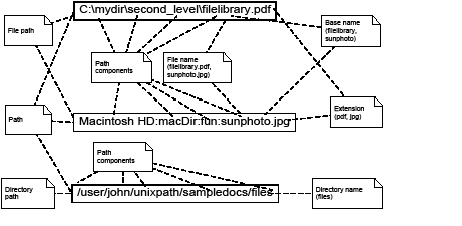
Adobe File Library is a dynamic library. It is in the Windows SDK at <SDK>\external\afl\libs\win\<release_debug>\AFL.lib. On Windows, if you have a plug-in project that uses Adobe file library, you need to explicitly link to AFL.lib. On Mac OS, AdobeAFL.framework is included in InDesignModel.framework), a universal binary that can be used on both PPC and i386 systems.
Adobe file library is not based on the InDesign object model and does not use concepts specific to InDesign, like bosses and interface IDs.
The following figure provides an overview of file library classes and utilities provided by Adobe File Library.
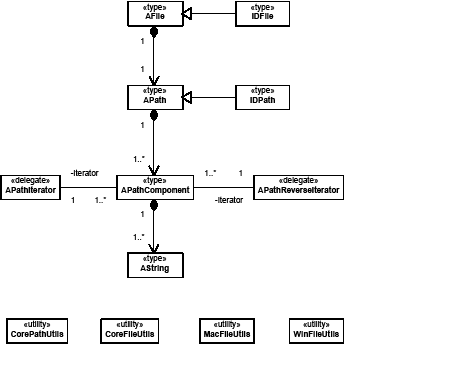
AFile, APath, APathComponent, and AString form a composition chain. An AFile object represents a file or directory; it holds an APath object pointing to the full path of the file or directory. An APath object consists of one or more APathComponent objects; a sequence of path components forms a path. An APathComponent object consists of two AString objects, representing base and extension parts, respectively.
AFile and APath are not pure virtual classes: they have their own implementations that may be used by other Adobe products. IDFile is the InDesign implementation of AFile. IDPath is the InDesign implementation of APath. They extend their parent classes by providing additional methods specific to InDesign and InCopy.
CorePathUtils and CoreFileUtils provide core utilities that apply to both Windows and Mac OS. WinFileUtils provides utilities specific to Windows. MacFileUtils provides utilities specific to Mac OS. FileUtils provides file-manipulation utilities specific to InDesign and InCopy. See FileUtils class.
The common file API comprises classes and utilities that can be used in InDesign and InCopy, as well as other Adobe products. For detailed methods and definitions, refer to the API Reference.
AString class
AString is a class used to hold and manipulate a UTF-16 string. AString has general string-manipulation methods, such as Append, Insert, and Length. AString has methods for converting to and from other string types. The common file implementation does not know InDesign types, so AString cannot be constructed from PMString directly.
APathComponent class
APathComponent is a container class used to hold the name of a single component of a path. A path component can be a volume name, directory name, or filename. APathComponent has methods for getting and setting the base, extension, or full name of an APathComponent object as an AString.
APath class
APath is a container class used to hold an absolute or relative path. The individual path elements are stored in a vector of APathComponent objects. Storing the path in a vector allows for quick retrieval, manipulation, and iteration of the path components. APath does not require that the contained path exist on the file system. It has methods for getting path information, setting and changing the path, and begin(), end(), rbegin(), and rend() methods for use with its iterator class APathIterator and APathReverseIterator.
APathIterator class
The APathIterator random access iterator class provides the ability to iterate over the path components contained in an APath object. The class mimics the function provided by STL random access iterators.
APathReverseIterator class
The APathReverseIterator random access reverse iterator class provides the ability to iterate over the path components contained in an APath object in reverse order. The class mimics the function provided by STL random access reverse iterators.
AFile class
The AFile class is used to create and delete files and directories, and to get and set file and directory status and access properties. A file or directory referred to by the class does not need to exist. Methods that require the existence of a file or directory are ignored and fail appropriately when the file does not exist.
CorePathUtils class
CorePathUtils is a utility class that provides additional path function beyond the scope of APathComponent and APath. CorePathUtils includes methods for converting UTF-8 to and from an APathComponent object, getting and setting current working directory, and checking the path type of an APath object.
CoreFileUtils class
CoreFileUtils is a utility class that provides additional file and file system function. CoreFileUtils includes methods for creating temporary files, copying and moving a file, renaming a file, and testing whether a file is on a server.
MacFileUtils class
MacFileUtils is a utility class that provides additional file and file system functions specific to Mac OS. Methods are included for getting and setting VolumeRefNum, getting and setting the creator and type of a file, converting AFile to and from FSRef, SpecInfo, FSSpec, and CFURLRef.
WinFileUtils class
WinFileUtils is a utility class that provides additional file and file system functions specific to Windows. Methods are included for getting UNC path, local path, and POSIX path.
IDPath class
IDPath is an InDesign class used to manipulate a file or directory specified by a path. IDPath is a child of APath; therefore, it inherits all APath methods. IDPath can be constructed from an APathComponent, an AString, or an InDesign WideString object.
IDFile class
IDFile is an InDesign class used to manipulate a file or directory. IDFile is a child of AFile; therefore, it inherits all AFile methods. Like IDPath, IDFile can be constructed from an APath, AString, or InDesign WideString. In addition, IDFile defines several methods specific to Windows and Mac OS.
FileUtils class
The FileUtils class has been in existence since InDesign CS. The following table briefly describes some methods.
| Method | Description |
|---|---|
| static FILE* OpenFile(const IDFile & file, const char* mode) | Opens the file. This method uses FSpfopen, FSRefParentAndFilenamefopen, or FSReffopen to open the file, depending upon the current state of the file. |
| static OSErr FSSpecToIDFile(const FSSpec & fsSpec, IDFile & file) | Converts an FSSpec to an IDFile object. |
| static OSErr SpecInfoToIDFile(FSVolumeRefNum vRefNum, uint32 parId, const PMString & name, IDFile & file) | Converts Mac OS file system specification information to an IDFile object. |
| static OSErr IDFileToFSSpec(const IDFile & file, FSSpec & fsSpec, PMString* unicodeName = nil, bool16 bCreateLong = kFalse) | Converts an IDFile object to an FSSpec. |
| static OSErr UnicodeNameToHFSName(const PMString & unicodeName, PMString & hfsName, TextEncoding textEncodingHint = kTextEncodingUnknown); | Converts a Unicode name to an HFS Pascal name. |
| static OSErr HFSNameToUnicodeName(const PMString & hfsName, PMString & unicodeName, TextEncoding textEncodingHint = kTextEncodingUnknown) | Converts an HFS Pascal name to a Unicode name. |
SDKFileHelper is not part of Adobe file library. This class is listed here because it is used as a utility class in SDK sample code and, presumably, it is used commonly in code written by third-party plug-in developers.
To help you debug your code containing IDFile objects, the IDFile class has a debug-only data member, fDebugPath, that always contains the current path. The path contained by fDebugPath matches the path contained by the AFile implementation class, but it is much easier to get from the debugger.
On Windows, fDebugPath is defined as a wchar_t string that contains a UTF-16 UNC or mapped drive path. On Mac OS, fDebugPath is defined as a character string that contains a UTF-8 POSIX path. On both platforms, if the current path is empty, fDebugPath is null.
Adobe file library provides unified file-manipulation methods, so you do not need to write platform-specific code for Windows and Mac OS, or even UNIX.
Adobe file library provides classes and utilities that meet most file-manipulation needs, so your code will be shorter, more robust, and easier to maintain.
Adobe file library will evolve with the operating systems, so your code will be easier to port.
Most importantly, InDesign code uses Adobe file library. Future interfaces will continue to be based on Adobe file library.
We highly recommend using Adobe file library classes.
No.
However, Adobe file library directly supports POSIX paths on Mac OS. You can use FileUtils::PMStringToSysFile to create an IDFile object from an HFS path (like Macintosh HD:macfolder:myfile) or Windows file path (like C:\Program Files\Adobe\InDesign)
Adobe file library does not replace ICoreFileName; however, we do not recommend using ICoreFileName unless you absolutely have to (for example, when dealing with data links). On Mac OS, the class still depends heavily on FSSpec and is not very efficient. Most of the function is provided more efficiently in Adobe file library classes like CoreFileUtils, CorePathUtils, MacFileUtils, WinFileUtils, AFile, and FileUtils.
You can round-trip between IDFile and IDPath as shown in the following sample code:
There is no difference between a file and a directory in terms of how they are represented as IDFile objects. The differences are at the operating-system level: A directory has other files or directories as its children, and a file does not.
IDPath and IDFile objects can point to the same file or directory. They differ mainly in concepts: IDPath has methods that apply to a file path, and IDFile has methods that apply to file operations.
They are different conceptually. PMString represents a string, used primarily in the user interface. IDFile deals primarily with file manipulation.
Also, not all IDFile objects are represented by a PMString, so treating an IDFile as a string makes your code prone to errors. Mac OS has several ways to represent a file. Windows, UNIX, and file URLs also have different formats.
IDFile does not allow an invalid path, so you may encounter runtime errors or asserts if you assign a PMString to an IDFile with an invalid path. PMString does not validate paths at run time.
An invalid path is a path with one or more invalid path components in its respective platform. For example, the wildcard *.* does not refer to a file, so any path containing *.* is an invalid path.
A nonexistent path is a path that points to a file that does not exist. IDFile and IDPath fully support nonexistent paths. You can create or delete a file using IDFile methods.
Yes and no.
You cannot construct an AString from a PMString, because Adobe file library is not aware of the InDesign type PMString. Since they both use UTF-16, however, you can construct an AString with the following code:
Use APath::MakeAbsolute.
Make sure you are converting paths on the same platform. You cannot convert a Windows relative path on Mac OS, or vice versa. Instead, you must manipulate the relative path as a PMString, convert it to the platform-specific format, and then convert to an absolute path.
The InDesign plug-in architecture and object model make it possible for software developers to add powerful features to InDesign; however, the architecture also allows developers to accidentally create very inefficient code.
This chapter describes how to optimize InDesign plug-ins for peak performance.
Often, software developers believe they know the cause of a performance problem in their code, only to be surprised by the results of a profile of that code. There are several very good tools for identifying performance problems, and you always should use them before trying to optimize your code manually. This section describe some of these tools.
There are several tools that can be used to profile your code and identify performance problems on Windows. For example, the InDesign engineering team has had success with GlowCode. GlowCode is a set of analysis tools to profile code and identify memory use problems. GlowCode instruments a user-selected list of plug-ins, allows the user to define a trigger function, and provides accurate timings and function call counts. For more information about GlowCode, including a trial version, see http://www.glowcode.com .
Xcode comes bundled with various tools for performance and behavior analysis. This includes a tool called Instruments, which analyzes memory usage, among other things.
Commands are responsible for encapsulating compound modifications to the object model, supporting the undo/redo protocol, and indicating to the object model when it should notify its state to observers. If not used properly, commands can seriously reduce performance.
You can improve performance by reducing the number of commands processed, partly because undo information for each command must be stored on the command history, and partly because each command sends out a notification on completion. One good way to reduce the number of commands processed is to write commands such that each accepts a list of inputs.
For example, a MovePageItem command should either call GetItemList to obtain the command's list of inputs or include a separate data interface in the command's boss. This makes it possible to execute one command for an entire list of page items, instead of executing a separate command for each page item.
Notifications can decrease performance because observers tend to do some work each time they are notified; therefore, it is desirable to find ways to reduce the total number of notifications. One way, as mentioned above, is to reduce the number of commands executed. Another, is to send one notification on the document subject instead of a separate notification for each page item. This approach requires observers to attach at the document level instead of at the page item level. See the following code:
Some commands do not require undo support. For example, a command to print a document is not undoable. In such cases, the constructor of the command should call SetUndoability(kUndoNotRequired).
Observers can be attached to and detached from any subject, but be careful to attach observers only to subjects in which you are interested, since each attachment impairs performance. Performance is affected by the level of the subject to which the observer is attached.
It is inefficient for an observer to attach and observe at the page-item level. Instead, observers should attach and observe at the document level.
Many commands notify several times. For example, when a page item moves, a prenotify and post-notify must occur, so the old and new locations can be invalidated on the screen. Often, an observer can ignore all but the last notification, as follows:
Many panels display information about the current selection, like graphic attributes, character attributes, or information about the selection's geometry. These panels must have an observer, and it is tempting to update the panel from the Update method of the observer; however, in general, updating a panel from an observer is a bad idea. Instead, it is much better to mark the data in the panel as dirty or invalid, generate a screen invalidation for the panel, then update the user interface in the Draw code for the panel.
The application supports two types of notification, regular and lazy. If an observer needs to be called as soon as a subject broadcasts the change message, it should request regular notification. If the observer can afford to wait until idle time before being notified of a change of interest, it can register for lazy notification.
Lazy notification is used when observers do not need to be in tight synchronization with changes being made to the subject objects they observe. Rather than participating in each change that occurs on a subject object, observers using lazy notification are notified after all updates are made and the application is idle.
Each operation to access a local disk or server can greatly reduce performance. For this reason, it is very important to reduce the number of disk access operations as much as possible. For example, if you need to parse a file using many very small read operations, consider reading a large block into a memory buffer using one read operation, then operating on the buffer. This kind of optimization is very important when working over a network.
If a profile shows that your code is spending a lot of time recomputing the same value or repeatedly searching a list for the same element, consider caching the result or element. It is very important to use profiling tools to identify where caches are needed. Unnecessary caches can decrease performance, by forcing the software to keep the cache up to date even when it is not needed.
Allocating memory beyond what is physically available causes InDesign to try to purge its caches and may cause a page fault in the operating system. Purging memory and page faults are very slow; avoid them when possible.
The InDesign object model is not thread-safe, so it does not use true threads; however, you can use cooperative threads, in the form of idle tasks (IIdleTask). Idle tasks are given a chance to execute when there are no events in the EventQueue for the application to process. Idle tasks are a great way to defer expensive operations and allow the user to continue using the application.
The remainder of this section presents guidelines that should be followed when implementing an idle task.
Each idle task has a RunTask method, which is passed a set of flags. These flags can be very important to the application's performance. For example, normally you will not want an idle task to execute when the user is dragging a page item around the layout, and you may not want the idle task to execute when a dialog box is open, because it slows the application's responsiveness. So, a typical idle task starts with the following lines of code:
Idle tasks allow the software to perform computationally expensive operations when the user is idle. The goal is to make the application as responsive as possible, so the user does not have to wait for an expensive operation to complete. For this reason, you do not want one call to RunTask to take a long time. It is better for each call to RunTask to perform some work, then ask for RunTask to be called again. For example, your RunTask method may look like the following:
A performance metric allows you to quantify the performance of your software. Adobe ® InDesign® contains a scriptable performance-metrics API. This API allows you to add performance counters to your components, giving you the ability to monitor aspects of your code or of InDesign code.
Performance metrics are implemented as counters. These counters can track any numerical value associated with your software; for example, time spent in an algorithm, memory usage, and number of objects created.
Several metrics already are implemented within the InDesign architecture, and the API allows you to add metrics to your own plug-in. An important aspect of the performance-metrics API is that it exposes the counters to PerfMon on Windows ® and DTrace on Mac OS®, allowing you to track your counters over time.
The performance-metrics API contains many built-in counters. These counters track information about CPU time, number of threads, memory size, handle count, memory-purge count, PDF allocations, image cache, database file, drop shadow, snapshot, composition, draw manager, and so on.
These counters are available through scripting; therefore, you can find a complete list of the built-in counters by using the Object Model Viewer in the ExtendScript Toolkit, as described in Accessing metrics from scripting.
The performance-metrics architecture is an application startup/shutdown service (IStartupShutdownService) consisting of a metrics service provider, script provider, idle task, and performance-counters implementation.
First, determine what performance data to expose for your plug-in. Then, find where that data is updated; this is, where you will update your performance counter. Your counter can represent any numeric data, as long as it fits in a uint64.
Start with implementing a performance-metric service provider. Edit your Class resource to define your service provider, as in this example from the hyphenator sample:
Next, create IDs for your counters in your ID.h file:
Then, implement your performance metric (IPerformanceMetric). The first step is to define your counters. To keep the new counters independent of the object model, add a C++ class HypPerformanceData and define static data members in it:
fHypMax and fHypTotal are for keeping the performance counters; fMutex is for synchronization.
In GetMetricInfo(), add your metrics to the global list of metrics by appending your metric IDs to the PerformanceMetricIDList argument:
Return your metric's short name in GetMetricShortName(). The string you return defines the accessor for your metric in both PerfMon and DTrace.
Return your metric's description in GetMetricLongName().
If you are allocating memory or have other clean-up to do, add that code in DeRegisterMetric().
In GetMetricValue(), return the value of your global counter. The return value must be a uint64 value. If the data you are tracking is a floating or real value (PMReal), you need to convert the value accordingly.
Reset your global counters back to their initial values in ResetMetric():
Performance metrics are accessed in scripting by their registered metric ID. You register these IDs in your service provider's GetMetricInfo() method. To make this ID accessible from scripting, you need to implement a simple script provider.
First, edit your Class resource in your .fr file:
Also, define one scripting property for each counter, and a provider element:
Next, define your scripting identifiers in your ID.h file:
Then, implement your scripting provider:
The InDesign scripting DOM contains several accessors for the built-in performance metrics. You can learn more about the metrics implemented in the DOM by using the Object Model viewer in ExtendScript Toolkit.
You can use InDesign's built-in metrics to track what is going on in InDesign. Here is an example that calculates the CPU time required to create and close 50 documents:
If you created a performance script provider for your plug-in, you can access your counter from scripting using the appropriate property:
If you did not create a script provider, you can still access your counter by running through the entire list of counters and locating yours. The following code compares to the short name value, but you also could compare to the ID or long name. The name values are defined by your service provider's GetShortName and GetLongName methods:
If you have access to the Debug install of InDesign or InDesign Server, you will have installed a special memory-tracker version of PMRuntime. This version of PMRuntime contains memory-tracking metrics not available to the regular installed version. Look in your debug installation's MemoryTracker folder for the DLL file (dylib).
Memory-growth example
By using the memory tracker PMRuntime, you can determine where memory is being allocated by using the performanceMetric scripting calls. Here is a sample script you could use to find InDesign memory-growth problems:
The purpose of the first set of test executions is to build up caches and allow the system to load any code that needs to be loaded. The third set allows any delayed memory deallocation to occur. The dumpBetweenMemoryMarks call creates a file named Memory Usage Dump.txt that is similar to a leaks file, with any allocations made between the currentMemoryMark calls that are still active.
Usually, a real memory-growth problem shows up in the output file as a repeated call stack (for example, if you run the test 20 times, there are 20 identical call stacks). Stack crawls that appear only once or twice generally are not a real problem but are caches being built up. Obviously, this list contains only those memory allocations that go through InDesign's memory allocator.
All counters with the performance-monitoring code are made available to the Windows perfmon system tool through a helper application named PerformanceMonitor.exe. This application is run when InDesign Server is started up. It adds the InDesign performance counters to perfmon. To see the InDesign counters from within PerfMon:
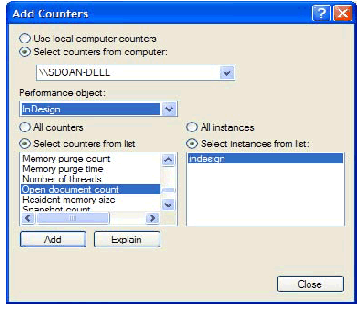
After you chose counters and dismiss the Add Counters dialog, the graph updates with InDesign's data:
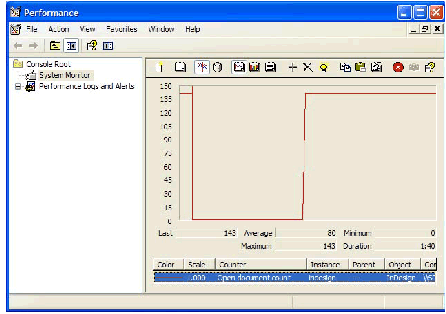
On OS X 10.5, InDesign's performance counters can be accessed from DTrace. DTrace is a command-line tool with its own scripting language, D. To examine an InDesign performance metric in DTrace, you first write a D script, then run that script using DTrace.
This sample script echoes all InDesign performance counters to the console:
If this script is saved to a file named test.d, it can be invoked using the following command line. Replace 15534 with the correct process ID for your running instance of InDesign or InDesign Server. (You can use Activity Monitor to find the process ID.)
We use the required sudo command to run DTrace as superuser. This command line executes the test.d script, which outputs information for every InDesign performance counter. The script runs continuously, ouputting the data every time the InDesign performance counters are updated (currently once per second).
If you are interested in a particular counter, for example, "DB new UID count," you can narrow the scope of the probe with a conditional:
This script executes the printf code only if arg0 (the name of the counter) matches the specified constant string. This script writes out one line for the "DB new UID count" once per second. If you have added your own metric to InDesign, you can use your metric's short name to compare to arg0.
For more information on DTrace, read its manual page using the command "man dtrace", or go to http://hub.opensolaris.org/bin/view/Community+Group+dtrace/ .
On OS X 10.5, Apple's Developer tool, Instruments (formerly Xray), supports DTrace. You can view InDesign metrics using instruments, giving you an experience like that of PerfMon on Windows.
To set up a custom instrument to track all InDesign metrics:
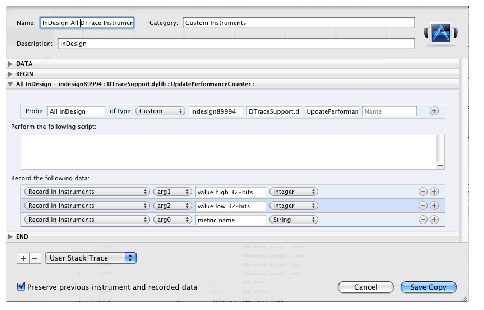
To create a custom instrument that tracks individual InDesign metrics, perform the steps above, except also create a predicate to narrow the probe. First, open the Instrument you created above by double-clicking it. Then, to add a predicate:
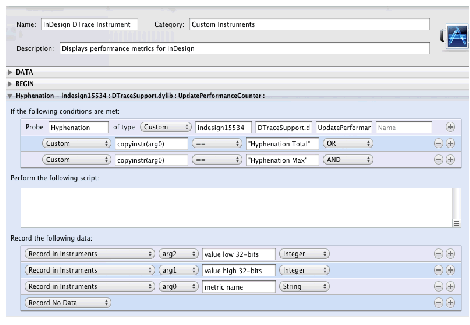
After you have set up your Instrument, you can begin a Record session and watch live data output to the Instruments user interface. Start by choosing Attach to Process > (PID) InDesign from the Launch Executable menu. Make sure to choose the instance that has the same PID that you used in your instrument. Next, click Record, and you should see output like the following:
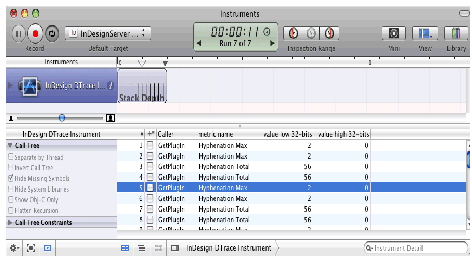
This chapter describes how you can use the diagnostics plug-in when developing plug-ins for InDesign, InCopy, and InDesign Server. The Diagnostics plug-in provides a detailed look at the internal operations of command processing; the organization of document content inside spreads, layers and page items; INX DTD generation; and object model IDs and UIDs. Note, the newer IDML file format supports schema generation and validation. For information on IDML and RelaxNG schema validation see Adobe InDesign Markup Language (IDML) Cookbook.
The diagnostics plug-in can help you find answers to questions like the following:
The diagnostics plug-ins (Diagnostics.apln and DiagnosticsUI.apln) are found on:
This chapter describes the use of the Diagnostics plug-in through the application user interface and scripting.
To use the plug-in with the debug build of InDesign or InCopy, select one of the Test > Diagnostics menu items. To use the plug-in with the release build of InDesign or InCopy or with InDesign Server, you must use a script. See Diagnostics > Scripting DOM menu.
You can use the diagnostics plug-in to generate traces, which provide an equivalent of printf debug messages to a log. You can filter messages by category. To see the trace, use the Test > TRACE menu to enable the logs you want use. If you do not see any traces when you use the plug-in's menus, make sure the Diagnostics category is checked on the Test > TRACE menu. Unchecking these categories filters the trace produced by the plug-in. If you do not see a Test > TRACE > Diagnostics menu, select Test > Diagnostics > ObjectModel > TraceID. Some trace output must be written before the Test > TRACE menu shows the category.
Plug-in options are not persistent; that is, settings you make to control the level of reporting must be applied for each session.
This menu contains items to trace one or more commands:

The three commands in the menu are described below.
The menu contains items to report information on the spreads, pages, and page items in the front document:
The four commands in the menu are described below.
This menu contains items related to INX DTD generation. InDesign Interchange (INX) format is an XML-based format used to serialize and deserialize the InDesign scripting DOM. The API supports several options for export to INX file format, and this menu item demonstrates generating DTDs that correspond to these options.
The five commands in the menu are described below.
The four commands in the menu are described below.
The Scripting DOM menu can be used to dump a language-specific scripting DOM to an XML file. It contains submenus that allow you to specify the product version, followed by the language to dump. IDML, INX, and JavaScript DOMs are available on both Windows and Mac OS. Also, Visual Basic is available on Windows, and AppleScript is available on Mac OS.
These XML files can be transformed into two useful HTML representations, using an XSLT processor and the style sheets included at <SDK>/docs/references/. The scripting-dom-to-html.xsl file produces an HTML representation of the entire DOM. The scripting-dom-idname-table.xsl file produces a simple table that maps scriptIDs to names. See the comments at the top of the style sheets for detailed use instructions.
You may run the Diagnostics plug-in with a script. The following examples demonstrate how to do so using JavaScript.
The following Windows example dumps the object model to c:\dump.txt:
The following Windows example produces c:\vbDOM-5.xml, a Visual Basic DOM for InDesign 5.0 or InCopy 5.0:
The following Mac OS example dumps the object model to dump.txt on the disk gokkyo:
The following Mac OS example produces appleScriptDOM-5.xml, an AppleScript DOM for InDesign 5.0 or InCopy 5.0:
Once you save a script on your hard drive, you can run it using the Scripts panel. To open the Scripts panel, select Window > Automation > Scripts. Open the scripts folder, add a shortcut to your script, and run the script.
To run the above scripts with InDesign Server on Windows, open a command window, locate InDesign Server through Windows Explorer, drag it to the command prompt, and append the port on which you want it to listen. For example:
Open another command window. Locate sampleclient through Windows Explorer, drag it to the command prompt, and append the host to which you want it to send. For example:
Before running InDesign Server, make sure the TCP/IP port (from which InDesign Server is listening for SOAP messages) is open (especially if you have a firewall set up).
To run the above scripts with InDesign Server on Mac OS, open a terminal window, locate InDesign Server through the Finder, drag it to the terminal window, and append the port on which you want it to listen. For example:
Open another terminal window. Locate sampleclient using the Finder and drag it to the terminal window. Append the host to which you want it to send. For example:
Before running InDesign Server, make sure the TCP/IP port (from which InDesign Server is listening for SOAP messages) is open (especially if you have a firewall set up).
The user interface for the features provided by the Diagnostics plug-in is in the Test > Diagnostics menu. The panel used by previous versions of this plug-in is no longer needed.
The easiest way to gather debug information is to use the debug facility's trace command, which is available in InDesign Build. A trace provides a printf style of debug log. Traces are available only with the debug build of InDesign Build; trace output under the release build is not supported.
When a trace statement is executed, the output goes to one or more trace logs. Use the Test > TRACE menu to enable the logs that you want use. The choices are:

Make sure you checked one of the available logs presented on the Test > TRACE menu and Test > TRACE > Diagnostics is selected. If you do not see a Test > TRACE > Diagnostics menu, use Test > Diagnostics > ObjectModel > TraceID first. (Some trace output must be written to the category before the Test > TRACE menu shows it.)
This chapter describes how tools work and how to implement your own custom tools and add them to the toolbox.
The chapter has the following objectives:
Tools are presented using the toolbox palette. Document content is presented in the layout view. Tools create and manipulate document objects using keyboard and mouse events in the layout view. This is illustrated in the following figure.
The layout view is a widget in which a document is presented and edited by the user. The layout view is the IControlView interface on the kLayoutWidgetBoss boss object. For more information on the layout widget, see Layout Fundamentals.
Tools commonly use interfaces on kLayoutWidgetBoss to discover the context in which they are working. For example, the spread being manipulated is found using ILayoutControlData, and hit testing can be done using ILayoutControlViewHelper. The toolbox contains a tool button icon for each tool and, optionally, a hidden-tools panel containing other tools (see the following figure).
A tool (ITool interface) has a button icon in the toolbox and, optionally, a keyboard shortcut. A tool also may provide a cursor (pointer) as a visual cue to the user of the active tool and a tool tip to help the user understand the purpose of the tool. To track mouse actions when the tool is being used, the tool provides a tracker (ITracker interface).
A cursor (ICursorProvider interface) provides a visual cue to the user of the active tool. Tools that provide their own cursors must implement cursor providers. Cursor providers set the mouse cursor and provide context-sensitive cursors for different areas of the screen. See the following figure.

A tool tip (ITip interface) displays a string with the name of the tool and its keyboard shortcut, when the pointer is positioned over the tool icon in the toolbox. See the following figure. The strings displayed are declared as ODFRez string resources in the plug-in's .fr file. The application automatically handles display of tool tips.

Trackers (ITracker interface) monitor mouse movement while an object is being manipulated by a tool. Trackers can provide visual feedback to the user. Trackers make changes to the objects being manipulated using commands. A tool may have one or more trackers, though only one tracker is active at a time.
The tracker factory (ITrackerFactory interface) allows you to introduce new trackers by manufacturing the tracker required for a particular context. The ITrackerFactory interface is aggregated on the kSessionBoss boss class. The tracker factory maintains a table associating a tracker with a given widget and tool by ClassID. When the tool is used in the context of the widget, the associated tracker is created and receives control. Trackers for tools that appear in the toolbox register themselves as being associated with the layout widget, kLayoutWidgetBoss. The code in the following example adds an entry to the tracker factory.
The framework maintains an event-handler stack that it uses to dispatch events (mouse, keyboard, and system events). Many event handlers (IEventHandler interface) are associated with a widget. The widget that has the user-interface focus is on top of the stack and receives and processes events.
When a mouse-down event occurs in layout view and the active tool is kLineToolBoss, the layout view's event handler asks the tracker factory to manufacture the tracker for this context. It does this by making the following call to create kLineTrackerBoss and return its ITracker interface:
The tracker is then focused on the layout view and begins tracking.
To follow mouse movement, a tracker must handle events for the duration of the tracking process. To do this, the tracker pushes its event-handler interface onto the stack when tracking begins and pops it off the stack when tracking ends. For example, when the Line tool is used to drag the end points of a line, its tracker pushes and pops its event handler as shown in the following figure.
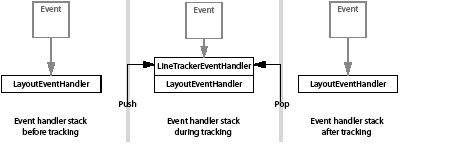
All tracker boss classes that want to follow the mouse as it is dragged aggregate an IEventHandler interface. When the LayoutEventHandler receives a mouse-down event, it calls the tracker's ITracker::BeginTracking method, which normally is implemented by CTracker::BeginTracking. If the mouse is to be tracked, this method calls CTracker::EnableTracking, which calls CTracker::PushEventHandler to push the tracker's event handler (interface IEventHandler) onto the event-handler stack using IEventDispatcher::Push. For more implementation details, see CTracker.cpp in the SDK.
Tools do not have to appear in the toolbox. For example, the Place tool is activated after selecting a file using the File > Place menu command. Trackers also are used extensively in mouse-dragging features, like setting the layout zero point and dragging guides from rulers.
To provide visual feedback while an object is undergoing manipulation, a tracker can draw to the screen.
Page items can be hard to draw when they are being changed dynamically. To ensure objects are drawn on the screen smoothly and efficiently without flickering, the application provides a sprite API. A sprite (ISprite interface) is a graphic object that can be moved around on screen without causing any disturbance to the background.
Tools allow the manipulation of documents and page items by the user. For more information on how documents are organized and page items are arranged, see Layout Fundamentals. Tools use commands to make changes to a document.
The following scenario describing the Line tool shows how the objects in a tool collaborate.
The scenario is divided into three sections:
The following figure shows how the Line tool registers with the application and is used to create a line between two points in a document. The table following the figure defines the abbreviations used in the figure.
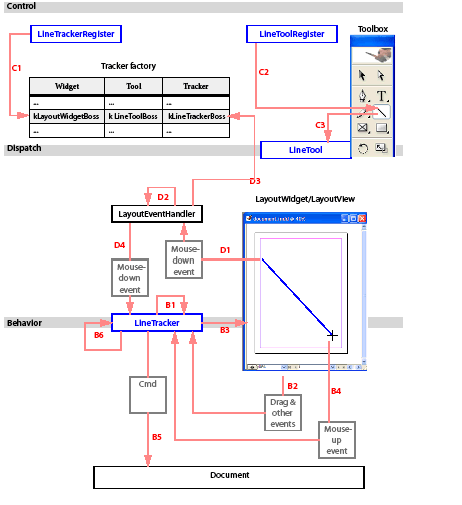
| Figure area | Abbreviation | Description |
|---|---|---|
| Control | C1 | The tool's tracker is registered with the application's tracker factory. |
| C2 | The tool is registered with the application, and its tool-button icon in the toolbox is initialized. | |
| C3 | The user clicks the tool's button icon (kLineToolBoss becomes the active tool). | |
| Dispatch | D1 | The user clicks in the layout view (a mouse-down event is passed to the LayoutEventHandler). |
| D2 | The LayoutEventHandler looks at the active tool (kLineToolBoss) and the context of the event (mouse-down over an empty page area). The association identifies the tracker that should be created for the context (kLineTrackerBoss). | |
| D3 | The appropriate tracker is manufactured by the tracker factory. | |
| D4 | The tracker is asked to begin tracking the mouse from the original mouse-down event. | |
| Behavior | B1 | The tracker pushes its own event handler onto the application's event handler stack, so it can receive events and track the mouse. |
| B2 | The user drags the mouse (events are passed into the tracker). | |
| B3 | The tracker provides appropriate dynamic visual feedback to the user of the tool behavior: a line is drawn between the location of the original mouse-down event and the current mouse position. | |
| B4 | The user releases the mouse (a mouse-up event is passed into the tracker). | |
| B5 | The tracker implements an appropriate action (creation of a page item describing the line between start and end points), using a command. | |
| B6 | The tracker pops its event handler from the application's event-handler stack, and tracking is complete. |
The scenario shown in the figure is typical of a tool that creates items. The item itself is created by the tracker, using a command after the user releases the mouse button; however, other categories of tools may execute commands dynamically, while tracking the mouse. For example, the Selection tool dynamically executes commands when moving or resizing items.
If a tracker needs to exhibit multiple behaviors, it can create another tracker that depends on the context. For example, the Selection tool exhibits multiple behaviors. When it is active and a mouse-down event occurs in a layout view, the pointer tracker (kPointerTrackerBoss) is created. The pointer tracker considers the context of the click, then creates and dispatches control to another tracker. Once the pointer tracker examines the context and creates an appropriate tracker, its job is done. The trackers used by kPointerTrackerBoss to move and resize page items are shown in the following figure.
Pointer tracker move and resize behavior:
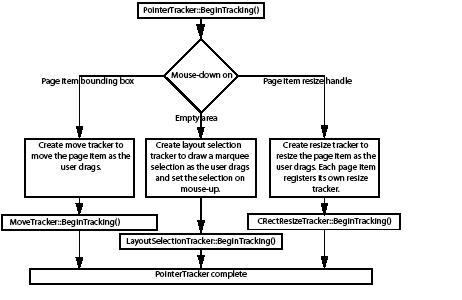
This figure does not show all kPointerTrackerBoss behaviors. For example, the following are not shown in the figure:
Each page item can register its own resize tracker, although they all use the same one for resizing.
Tools are managed by the tool manager, kToolManagerBoss. You can navigate to the IToolManager interface as shown in the following code:
The IToolBoxUtils interface provides a facade that should, in most situations, save you from having to program to the IToolManager interface. IToolBoxUtils is a utility interface on kUtilsBoss, accessed in the standard way. For example, the following code queries the active tool of type kPointerToolBoss. The tool type in this context identifies a group of tools, of which only one can be active:
Tools are categorized as belonging to one or more of the categories given by ITool::ToolType. This identifies what the tool does and how the selection in the layout view reacts when that tool becomes active (IToolChangeSuite interface). Tools identify this type in their CTool constructor by the toolInfo parameter.
ITool::ToolType easily can be confused with the ClassID parameter toolType defined by the tool's ToolDef statement (see ToolDef ODFRez type) and used by ITool::GetToolType and other APIs. This ClassID is used to identify a group of mutually exclusive tools-tools for which only one tool of a given tool type can be selected in the toolbox at any time.
The table in Tool-category information illustrates the distinction between these two different tool types and their values.
This section describes the boss classes, interfaces, and resources you must implement to add a new tool. The section also describes the APIs you use to build and catalogue custom tools.
Plug-ins that implement tools typically provide the following:
The classes typically found in a custom tool are shown in the following figure.
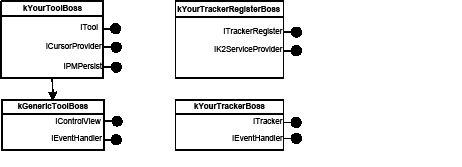
kYourTrackerRegisterBoss registers the plug-in's trackers with the tracker factory using the ITrackerRegister interface.
kYourToolBoss allows the tool manager to control the tool using the ITool interface. kYourToolBoss specifies information about the tool and gets called when the tool is selected or deselected by the user and when a tool options dialog box should be displayed. ICursorProvider allows the tool to customize the cursor when the tool is active. IPMPersist allows information like the tool's name and icon to be saved persistently.
kGenericToolBoss is the parent boss class for toolbox tools. The control view it provides displays the tool's buttons, and its event handler handles clicks on the tool's buttons in the toolbox.
kYourTrackerBoss responds to mouse actions in the layout view when your tool is being used. There is at least one tracker boss for each tool in your plug-in. The interfaces on a tracker boss class collaborate to provide the active behavior of the tool. Control is passed to the ITracker interface, so the mouse can be tracked. This interface manages and controls the other interfaces on the boss object.
The tracker pushes its event handler to the top of the event handler stack when tracking begins. During tracking, IEventHandler forwards events into the ITracker interface. When tracking ends, the event handler is popped from the stack, and the tracker is finished. Standard tracker event-handler implementations are provided by the API. It is common for tracker boss classes to have other interfaces particular to their needs. For example, trackers that create splines aggregate ISprite and IPathGeometry. If a tracker needs to handle only one mouse click, however, it does not require an IEventHandler.
The API provides helper classes that partially implement interfaces relevant to building tools. Some relevant classes are shown in the following table. For more information, refer to the API Reference for each class.
| Interface | Class |
|---|---|
| ICursorProvider | CToolCursorProvider |
| IEventHandler | CTrackerEventHandler (the C++ source code for this implementation is provided on the SDK) |
| ITool | CTool |
| ITracker | CTracker (the C++ source code for this implementation is provided on the SDK) |
| ITracker | CPathCreationTracker (the C++ source code for this implementation is provided on the SDK) |
| ITracker | CLayoutTracker (the C++ source code for this implementation is provided on the SDK) |
| ITracker | CSliderTracker |
| ITrackerRegister | None |
The API provides default implementations that completely implement some of the interfaces involved in building tools. If these meet your needs, you can reuse them in your boss class definition and avoid writing the C++ code. See the table in Default implementations of tool-related interfaces for a list of reusable implementations in the API.
ODFRez provides a type, ToolDef, that controls how a tool is displayed within the toolbox. This type controls the order in which tools are displayed, the way in which they are grouped, and other properties, as shown in the following figure.
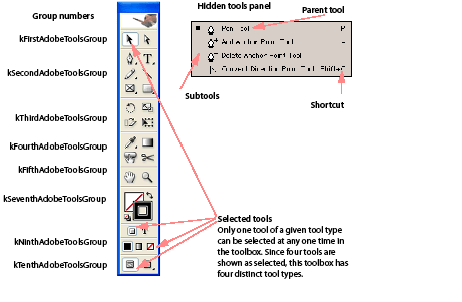
ToolDef resources are localizable, so you can define different resources for different locales and have a tool show up in a different place or with a different icon. For example, for a currency stamp tool, a tool icon could be provided for each locale (for example, dollar and yen) and the icon for the current locale would be shown in the toolbox. To localize your ToolDef resources, add a locale index to your plug-in's .fr file and define a ToolDef resource in the .fr file for each locale.
Icons and cursors can be created in their native-platform resource form. InDesign also supports SVG/PNG platform-independent files for icons. SVG is the preferred resource type to use in icon-based widgets. All the application tools icons and cursors use SVG files. Although PNG icons are still supported, continuing to use PNG Icons means that icons will become skewed and blurred when the icons are scaled. Instead of PNG icons, SVG icons should be preferred.
To create a SVG-based icon:
The user can now use SVG icons to create plugins for InDesign. There are two ways to use SVG icons in InDesign:
Similarly, in WListBoxComposite.sdk plugin, we have declared an Icon widget as follows:
For this widget we have declared an SVG resource as follows:
Note: Here also we have not used an SVGAD resource. InDesign generates the proper icon at runtime for dark them from the bright theme icon.
To create a PNG-based icon:
Mac OS icons need resources of type icl4, icl8, and ICN#. Cursors need resources of type CURS.
Windows icons need an icon bitmap, .ico file, and an ICON resource declaration in your plug-in project's .rc file. Cursors need a cursor bitmap .cur file and a CURSOR resource declaration in your plug-in project's .rc file. We also support both PNG/SVG cursor, the cursor can be declared using SVGC keyword. Following is an example of how an SVG based cursor is declared: resource SVGC(kCursorSnapResourceID) "Cur_SnapShot_1_1.svg" resource HOTC(kCursorSnapResourceID) {1, 1}; // {X-hotspot value, Y-hotspot value}
Tool-button icons come in two sizes: standard and mini. Normally, you use the standard size, kStandardToolRect. CTool specifies the widget rects involved. In your CTool::Init implementing, you control the size to be used by calling CTool::InitWidget and passing in the tool rects.
The API provides many trackers, and you may want to dispatch control to one of them. Generally, these can be divided into trackers used by tools to manipulate document content (see Tool-related trackers) and trackers used by user-interface widgets to manipulate controls (see User-interface widget-related trackers). The ClassID needed by ITrackerFactory to make one of these trackers are listed in these tables.
Since no iterator generates all registered trackers the application supports at run time, two distinct tables are shown: one for tool-related trackers (Tool-related trackers) and another for user-interface widget–related trackers (User-interface widget-related trackers).
Often, the application's existing trackers can be reused for your custom tools. For example, suppose you implemented a custom tracker, and the application already provides another tracker to which, under certain circumstances, you want to pass control. Suppose you want to pass control to the pointer tracker, kPointerTr ackerBoss. You look up the tracker ClassID in the Tracker ClassID column of the following tables and find the relevant widget ClassID and tool ClassID. You then pass these into ITrackerFactory::QueryTracker.
If desired, you can suppress or replace one of the application's trackers. See Tool-related trackers for a list of tool-related trackers.
If you want users to recognize that your tool will handle the event, you want a custom cursor. In this case, you need to implement a custom tool, set your tool as the active tool, and handle the mouse event in your tracker (see The toolbox and the layout view).
If you do not want users to recognize that your tool will handle the event, you probably want to handle the event without the user receiving any visual cue. In this case, use another stimulus, like a change in selection, to push an event handler onto the event-handler stack. If you are in doubt about what stimulus to choose, use a tool and tracker. This is the recommended way to catch mouse events in a layout view on a document.
See Custom tools, or refer to one of the sample tool plug-ins and adapt it to your needs.
Specialize the DisplayOptions and/or DisplayAltOptions methods in your ITool implementation. For an example, see SnapTool::displayOptions in the Snapshot sample.
When implementing a tracker, you need to handle the fact that the user can click on any spread in a layout view. Your tracker must identify the spread on which the user has clicked. To do this, transform the position from the system-coordinate system to the pasteboard-coordinate system, then use one of the methods in IPasteboardUtils.
When implementing a tracker, you need to handle the fact that the user can click on any spread in a layout view. A layout view caches the current spread in the ILayoutControlData interface. Your tracker may need to change this if the spread that was clicked on is different. Process kSetSpreadCmdBoss to change to another spread.
ILayoutControlViewHelper provides page-item hit-testing methods that can be used. For an example of using ILayoutControlViewHelper, see <SDK>/source/sdksamples/codesnippets/SnpHitTestFrame.cpp.
IToolBoxUtils provides methods you can use to set or get the active tool. For an example of activating the Text tool, see <SDK>/source/sdksamples/codesnippets/SnpManipulateTextFrame.
Attach an observer (IObserver interface) to kToolManagerBoss. In your Update method, detect the IID_ITOOLMANAGER protocol for the change kSetToolCmdBoss.
Use kSetUserInterfacePrefsToolboxCmdBoss or IUserInterfacePreferencesFacade to change the IUserInterfacePreferences.
Your tracker can create and dispatch control to a tracker supplied by the application. For example, to perform a marquee selection, you can create and dispatch control to a kLayoutSelectionTrackerBoss. For a complete list of all trackers provided by the API, see Tool-related trackers.
Suppose you implemented a special text tool on your custom toolbox that is to replace the Adobe standard toolbox. You do not want your text tool to create a text frame and only allow editing of text.
In this case, the frame creation you want to suppress is registered in the tracker factory under kIBeamToolBoss and kFrameToolBoss. The tracker ClassID installed is kFrameTrackerBoss. When your custom toolbox is activated, you could save this registered tracker and replace it with your own, using the code in the following example.
In this case, when the text-tool tracker tries to drag out a new frame, your tracker receives the control. If your CTracker::DoBeginTracking method returns kFalse, you suppress the frame-creation behavior. When your custom toolbox is deactivated, restore the previously registered tracker.
There is one drawback to this mechanism. If more than one third-party plug-in tries to replace the same tracker, there is the potential for a collision. If you use the activation or deactivation of your toolbox or tool to replace or restore the registered tracker, such collisions can be avoided.
| Tool | Tool boss | ITool::ToolType | ClassID toolType |
|---|---|---|---|
| Add Anchor Point | kSplineAddPointToolBoss | kLayoutManipulationTool, kPathManipulationTool | kPointerToolBoss |
| Apply color | kBoss_ApplyCurrentColorTool | kNone | kBoss_ClearFillStrokeTool |
| Apply gradient | kBoss_ApplyCurrentGradientTool | kNone | kBoss_ClearFillStrokeTool |
| Apply none | kBoss_ClearFillStrokeTool | kNone | kBoss_ClearFillStrokeTool |
| Bleed mode | kBleedModeToolBoss | kNone | kNormalViewModeToolBoss |
| Convert Direction | kSplineDirectionToolBoss | kLayoutManipulationTool, kPathManipulationTool | kPointerToolBoss |
| Delete Anchor | kSplineRemovePointToolBoss | kLayoutManipulationTool, kPathManipulationTool | kPointerToolBoss |
| Direct Selection | kDirectSelectToolBoss | kLayoutSelectionTool, kPathManipulationTool | kPointerToolBoss |
| Erase | kEraseToolBoss | kLayoutCreationTool, kLayoutManipulationTool, kPathManipulationTool | kPointerToolBoss |
| Eyedropper | private | kLayoutManipulationTool, kTextManipulationTool, kTableManipulationTool | kPointerToolBoss |
| Fill stroke | kStrokeFillProxyToolBoss | kNone | none |
| Free transform tool | kFreeTransformToolBoss | kLayoutManipulationTool | kPointerToolBoss |
| Gradient | kGradientToolBoss | kLayoutManipulationTool, kTextManipulationTool, kTableManipulationTool | kPointerToolBoss |
| Hand | kGrabberHandToolBoss | kViewModificationTool | kPointerToolBoss |
| Horizontal frame grid (Japanese feature set) | private | kLayoutCreationTool | kPointerToolBoss |
| Horizontal text on a path | kTOPHorzToolBoss | kTextSelectionTool, kTableSelectionTool, kTextManipulationTool, kTableManipulationTool, kTextCreationTool, kTableCreationTool | kPointerToolBoss |
| Line | kLineToolBoss | kLayoutCreationTool | kPointerToolBoss |
| Normal view mode | kNormalViewModeToolBoss | kNone | kNormalViewModeToolBoss |
| Oval | kOvalToolBoss | kLayoutCreationTool | kPointerToolBoss |
| Oval Frame | kOvalFrameToolBoss | kLayoutCreationTool | kPointerToolBoss |
| Pen | kSplinePenToolBoss | kLayoutCreationTool, kLayoutManipulationTool, kPathManipulationTool | kPointerToolBoss |
| Pencil | kPencilToolBoss | kLayoutCreationTool, kLayoutManipulationTool, kPathManipulationTool | kPointerToolBoss |
| Place | kPlaceToolBoss | kNone (The place tool creates page items and is in theory a layout -creation tool, but because it does not appear in the toolbox, it has no category as such.) | not applicable |
| Preview mode | kPreviewModeToolBoss | kNone | kNormalViewModeToolBoss |
| Rectangle | kRectToolBoss | kLayoutCreationTool | kPointerToolBoss |
| Rectangle Frame | kRectFrameToolBoss | kLayoutCreationTool | kPointerToolBoss |
| Regular Polygon | kRegPolyToolBoss | kLayoutCreationTool | kPointerToolBoss |
| Regular Polygon Frame | kRegPolyFrameToolBoss | kLayoutCreationTool | kPointerToolBoss |
| Rotate | kRotateToolBoss | kLayoutSelectionTool, kLayoutManipulationTool | kPointerToolBoss |
| Scale | kScaleToolBoss | kLayoutSelectionTool, kLayoutManipulationTool | kPointerToolBoss |
| Scissors | kScissorsToolBoss | kLayoutManipulationTool, kPathManipulationTool | kPointerToolBoss |
| Selection | kPointerToolBoss | kLayoutSelectionTool | kPointerToolBoss |
| Shear | kShearToolBoss | kLayoutSelectionTool, kLayoutManipulationTool | kPointerToolBoss |
| Slug mode | kSlugModeToolBoss | kNone | kNormalViewModeToolBoss |
| Smooth | kSmoothToolBoss | kLayoutCreationTool, kLayoutManipulationTool, kPathManipulationTool | kPointerToolBoss |
| Type | kIBeamToolBoss | kTextSelectionTool, kTableSelectionTool, kTextManipulationTool, kTableManipulationTool, kTextCreationTool, kTableCreationTool | kPointerToolBoss |
| Vertical frame grid (Japanese feature set) | private | kLayoutCreationTool | kPointerToolBoss |
| Vertical text on a path (Japanese feature set) | kTOPVertToolBoss | kTextSelectionTool, kTableSelectionTool, kTextManipulationTool, kTableManipulationTool, kTextCreationTool, kTableCreationTool | kPointerToolBoss |
| Zoom | kZoomToolBoss | kViewModificationTool | kPointerToolBoss |
| Interface | ImplementationID |
|---|---|
| IK2ServiceProvider | kCToolRegisterProviderImpl |
| IK2ServiceProvider | kCTrackerRegisterProviderImpl |
| IEventHandler | kCTrackerEventHandlerImpl |
| ICursorProvider | kCreationCursorProviderImpl, kDirectSelectCursorProviderImpl, kRotateCursorProviderImpl, kGrabberHandCursorProviderImpl, kScaleCursorProviderImpl, kShearCursorProviderImpl, kCreationCursorProviderImpl, kSplineAddCursorProviderImpl, kSplineRemoveCursorProviderImpl, kSplineDirectionCursorProviderImpl, kScissorsCursorProviderImpl, kHorizontalIBeamCrsrProviderImpl, kVerticalIBeamCrsrProviderImpl, kZoomToolCursorProviderImpl, kSelectCursorProviderImpl, kPlaceGunCursorProviderImpl, kSplineCreationCursorProviderImpl, kPencilCursorProviderImpl, kSmoothCursorProviderImpl, kEraseCursorProviderImpl, kTOPHorzToolCursorProviderImpl, kTOPVertToolCursorProviderImpl |
| ISprite | kNoHandleSpriteImpl, kGradientToolSpritekFreeTransformSpriteImpl, kCSpriteImpl, kNoHandleAndCrossSpriteImpl, kLayoutSpriteImpl, kPencilSpriteImpl, kStandOffSpriteImpl, kTableResizeSpriteImpl, kTextOffscreenSpriteImpl |
| IPathGeometry | kPathGeometryImpl |
This chapter introduces InCopy as a programming platform. Because the SDK is unified for InDesign and InCopy, information specific to InCopy is a relatively small portion of this document.
This chapter has the following objectives:
InCopy is a collaborative, text-editing application developed for integrated use with InDesign. InCopy enables you to track changes, add editorial notes, and fit copy tightly into the space designed for it. InCopy uses the same text-composition engine as InDesign, so InCopy fits copy within a layout with identical composition.
InCopy is for the editorial environment; it allows editorial workflow participants to collaborate on magazines, newspapers, and corporate publishing, enabling concurrent text and layout editing. Its users are editors, writers, proofreaders, copy editors, and copy processors.
InCopy shares many panels and palettes with InDesign but also provides its own user-interface items.
Previous releases of InCopy focused on large installations and were available for purchase only through system integrators, so system integrators were the primary group developing for InCopy. Several software developers also wrote plug-ins targeted for magazine and newspaper use.
With the current release, smaller developers have additional opportunities to write plug-ins targeted at magazines, newspapers, corporate publishing, and other collaborative users.
This section looks at the SDK from an InCopy perspective. InDesign and InCopy share an SDK.
In the great majority of cases, when you write code in the InDesign source base, you also are writing code for InCopy. Statistically speaking, the programs are nearly identical; nevertheless, you will need to keep InCopy in mind when working with files, links, text and page items, as there are behaviors that can be broken easily.
InDesign, InDesign Server, and InCopy all run the same code. This means any specific behaviors must be implemented at run time, not at compile time. The only uniquely built portions of the program are the application shells for each version. All other plug-ins can be loaded into any of the applications, although a plug-in also has a resource in its class file that lists which variants should load it.
Since InCopy does not support the entire InDesign API, it is important to know which APIs are available for use with InCopy. To determine whether a particular API is appropriate for InCopy, refer to the API Reference for boss classes; for each interface exposed by a given boss class, you can see in which application(s) the interface can be found.
Compiler settings do not differ between InDesign and InCopy plug-ins. For details on plug-in development environments, see the "Development Environment" section of Adobe InDesign Porting Guide.
InCopy and InDesign plug-ins are compiled from the same code base; therefore, the information on whether a plug-in is intended for InDesign or InCopy is built into the PluginVersion resource found in a plug-in's.fr file, using the kInDesignProduct and kInCopyProduct identifiers. When both identifiers are used in the resource definition, the plug-in is intended for use in both InDesign and InCopy.
Additional feature-set IDs exist that may be applicable to your InCopy plug-in. For information on additional feature-set IDs, see FeatureSets.h.
Important areas of integration between InDesign and InCopy are described below:
This section describes relationships between InDesign and InCopy files. These relationships are important because of the division of labor in a publication workflow that occurs when much of the same material is opened and modified in both applications.
There are two common scenarios for exporting from InCopy:
There are two common scenarios for exporting from InDesign that involve InCopy in some way:
Each InCopy file represents one story. An InDesign document containing several stories can be modularized to the same number of InCopy documents, through export. Those exported InDesign stories contain a link, which may be viewed in the Links panel (InDesign) or the Story List palette as assignment files (InCopy).
InCopy does not maintain a link to the InDesign document it is associated with (if one exists). InDesign maintains any links with InCopy files as bi-directional links (kBidirectionalLinkBoss).
Stories can be structured in XML. This means XML data can be contained within XML data. This feature can be used to design a data structure in which the raw text of a story is contained within an outer structure that contains data specific to InCopy (like styles).
Within InCopy, content can be saved in an ICML/INCX format or, if there is structure in the story, the logical structure can be exported in XML.
An ICML or INCX file can contain both InCopy data and marked-up text. If the file is exported as XML data, the data specific to InCopy is stripped out, leaving the marked-up content minus the information about how it is to be styled.
InCopy files do not contain page geometry. When geometry is needed, it must be obtained from the InDesign document. InCopy can open InDesign documents and extract design information and links to the exported stories where needed. When page geometry is desired from within InCopy, assignment files can be supplied with it.
The Adobe Extensible Metadata Platform (XMP) provides a practical method for creating, interchanging, and managing metadata. InCopy files support XMP.
Just as InDesign provides the File > File Info menu command to view XMP data, InCopy provides the File > Story Info menu command. The ability for that data to be retained or stripped out during export is provided to systems integrators.
Metadata added to stories by third-party software developers is preserved when incorporated into InDesign documents. Added metadata can be viewed within InDesign from the File Info dialog box, available from the Links panel menu, as well as viewed within InCopy. Further, third-party software developers can add function to InDesign to view that metadata in a custom user interface.
An extensibility point exists for service providers to add metadata content to InCopy files. For further information on the metadata API, see MetaDataID.h. Also, the XMP SDK provides documentation, tools, and sample code to help you build support for XMP metadata.
InDesign documents are the basis for all content in InDesign. InCopy also uses InDesign documents, but they are not the default document type. Symbolic constants are used to identify document types: InDesign documents are identified with kInDesignFileTypeInfoID, whereas InCopy documents are identified with kInCopyFileTypeInfoID. There also is a constant that means "this program's document," kPublicationFileTypeInfoID. There also is a corresponding template ID, kTemplateFileTypeInfoID.
In both InDesign and InCopy, the basic document always is a database based on IDocument; in InCopy, however, this document may be an incomplete document. In InDesign, the main document typically is an opened InDesign file, but it also can be an opened INX or IDML file, which typically appears to be an unsaved InDesign document.
InCopy has a few other permutations. There is the basic InDesign file, as well as a new document with an InCopy story (or plain or RTF text) imported into it; this is known as a standalone document and can be identified by the IStandAloneDoc interface on the kDocBoss. Also, there are IDML- and INX-based assignment files, which has some part of an InDesign file stored in an XML file. The InDesign/InCopy document model corresponds to the base required model plug-in set, versioned against changes over time. It is important that all IDML/INX scripting work in both InDesign and InCopy, so documents can be moved with high fidelity between the applications.
InDesign and InCopy share most of their panels, but InCopy has a smaller set and several additional toolbars along the top, left, and bottom screen borders. Most InCopy panels also can be docked on these bars, providing a smaller but always-visible view of the panel. Modifications made to these panels in InDesign also may need to modify their alternate view in InCopy. InCopy support for alternate panel layouts (kits) involves KitList resources.
InCopy also has a custom window layout with multiple views, in a main window with three tabs: Galley view, Story view, and Layout view. Layout view is the InDesign window view. Galley and story views are simply the story-editor view, with and without accurate line endings, respectively.
The most popular practice is checking for the proper feature set with the LocaleID utility. The most important thing to remember about this is that there are three products: InDesign, InDesign Server, and InCopy. As a result, you should almost never check for the InDesign feature set. Instead, check for InCopy or InDesignServer as needed:
To check a language feature set, for example, Japanese:
The InCopy workflow interface is an extensibility layer available to all third-party software developers and system integrators. The major pieces of this workflow are the following:
Story/file relationship
ICML is an IDML-based representation of an InCopy story. It represents the future direction of InDesign/InCopy and is an especially good choice if you need to edit a file outside of InDesign.
ICML format
Each InCopy file or stream is in XML. One of the advantages of this is that InCopy files can be parsed easily and opened by any text editor.
INCX format
INCX is an INX-based representation of an InCopy story. This format is not as readable as ICML, but it is still available to support INCX-based workflows.
Document operations
InCopy provides default implementations of document operations (file actions) like New, Save, Save As, Save A Copy, Open, Close, Revert, and Update Design. All these InCopy file actions are in one plug-in (InCopyFileActions) in source-code form that software developers or system integrators are expected to replace with their own implementations, to customize the interaction for their workflow system.
Using service providers for document interchange
InCopy uses the service-provider architecture for import and export. The InCopy Import and Export provider plug-ins function in both InDesign and InCopy applications. It is expected that system integrators will replace these default service providers with their own, to customize the interaction for their workflow system.
Using XMP metadata
The user can enter and edit metadata by choosing File > Story Info. Panels are supplied for General, Keywords, and Summary data. This metadata is saved in the InCopy file. Software developers and system integrators can create and store their own metadata using the XMP SDK.
Locked page items
One of the most common problems is making changes to locked page items. All page items have an IItemLockData interface on them, and this interface controls whether the page item is locked. Stories and images that are managed (i.e., exported to InCopy) get locked, so unintended changes cannot be made. All tools in InDesign need to check and respect this interface, as there is no magical bottleneck that can prevent changes from occurring. Always check this interface before making changes to page items.
There are two properties of IItemLockData, InsertLock and AttributeLock. Only InsertLock is used, for both content and attribute changes. The rule is simple: if InsertLock is set, you cannot make any changes to the contents of the frame.
Plug-in availability
InCopy has all InDesign model plug-ins but a substantially different set of user-interface plug-ins. It is essential that you check for nil on any interfaces that may not be present in one or more products. The most notorious interfaces that go missing in these cases are utility interfaces provided by plug-ins that are not required. It is almost never safe to assume an interface will be available, although plug-in dependencies can be specified that prevent your plug-in from loading if a requisite plug-in is unavailable. Because interfaces can move between plug-ins between versions, however, it is best to always check for nil.
The InCopyBridge plug-in is intended for small publishing workgroups-like corporate publishing, a newspaper, or a magazine-with an editorial and production staff of 2–10 people.
The InCopyBridge plug-in enables the user to manage InCopy files through a regular file system. This is done by writing out lock files. When a lock file exists for an InCopy file, the InCopy file is locked, so no other user can check it out. When the user submits changes, the lock file goes away, and the InCopy file is available for someone else to check out. The lock file holds the name of the user currently using the file, as well as the application; this way, when people users try to edit a locked file, they are told who has it checked out. This works for both InDesign and InCopy.
The InCopyBridge plug-ins provide a ready-to-use alternative to the InCopyFileActions plug-in, which is supplied as source code in the SDK. These two plug-ins (InCopyBridge and InCopyBridgeUI) are supplied as out-of-the-box workflow solutions. The older InCopyFileActions plug-in continues to be supplied as a foundation for third-party solutions.
The InCopyBridge plug-ins provide a file-based system for preventing simultaneous editing of InCopy stories by multiple InCopy and InDesign users that is based on a shared file-system (file-server) workflow. InCopyBridge is designed for explicitly checking in and out InCopy stories. This user model restricts access to InCopy stories that are being edited by other users.
This plug-in provides the core function but no user interface. This plug-in can run in an environment without any user interface, such as an InDesign server process. This plug-in also provides code for scripting and testing InCopyBridge core function.
This plug-in provides the user interface for InCopyBridge. InCopyBridgeUI implements warning dialog boxes for handling check-in and check-out conflicts. InCopy adds Bridge menu items to its File menu and Story list, whereas InDesign adds them to its Edit menu and the Links panel. While the InCopyBridge plug-in has implications for many menu items, the menu items most involved with the InCopyBridge plug-in are the following:
This chapter describes the inline, editorial notes features of InDesign and InCopy for software developers.
The chapter has the following objectives:
With the InDesign and InCopy inline, editorial notes features, you can add comments and annotations as notes directly to text without affecting the flow of a story. Notes features are designed to be used in a workgroup environment, so the notes can be color coded or turned on or off based on certain criteria.
You can add notes to a story using the Note tool in the toolbox, the Notes > New Note command, or the New Note icon on the Notes palette. You also can create a note from an existing story, by converting or copying the text into a new note. In galley or story view, type your note between the note bookends. In layout view, type your note in the Notes palette.
The Convert To Note command converts the selected text to a note; a new note is created, and selected text is removed and copied into the new note. In galley and story views, the container of the new note is expanded, and the text focus is at the beginning of the new note. The note contents appear in the Notes palette. The note anchor is located where the end of the text selection range was before the Convert To Note operation.
The Convert To Text command converts the selected note or selected text in a note container into regular text. Depending on the selection of the note, this command removes the selected text from the note and pastes the text into the document text in the location where the insertion point was before the Convert To Text operation. If the entire note is selected or the insertion point is inside the note container with no text selected, the entire note contents are converted to text. If only part of the content of a note is selected, only the selection is converted, while the remaining content stays in the note-or in two notes, if the selection does not include the beginning or end of the note content. The following figure shows the case in which the selection is in the middle of the note content, resulting in two notes after conversion.

The Next Note and Previous Note commands enable navigation among notes. These commands select the next or previous note anchor in the text flow. If the current note is the final or first note in the text, the first or last note is selected, respectively.
The Split Note command breaks a note into two notes at the insertion point. After a note is split, the insertion point moves to the story text, between the two notes produced by the split.
The Delete Note command deletes the selected note. The command is available if a note anchor is selected, the current insertion point is within an inline note, or the current insertion point is within the text editing area of the Notes palette. The Remove Notes From Story command deletes all notes from the current story, whereas the Remove All Notes command deletes all notes from the document.
The Expand Note or Collapse Note command expands or collapses the selected note. Only one of these commands is visible at a time, depending on the state of the selected note. Alternately, in story or galley view, click on a note's bookend icon to expand or collapse the note. You can expand all collapsed inline notes in the current document with the Expand All Notes command. You can collapse all inline notes in the current document with the Collapse All Notes command.
The View > Hide Notes and View > Show Notes commands hide and show notes. Which of these commands is available depends on the current state of the notes.
You can customize the appearance and behavior of notes using the Preferences settings, by choosing Edit > Preferences > Notes (Windows) or InCopy > Preferences > Notes (Mac OS).
When a note is added, through either the menu or the Notes palette, INoteSuite::DoAddNote is called. You can add a note only when the text tool is active but no text is selected; that is, when there is a blinking insertion point somewhere in the story. If a range of text is selected, you can convert the text to a note. The DoAddNote method first checks the INoteSettings on the kWorkspaceBoss, to determine the note's global visibility state. If the note is hidden, the kSetHideNoteStateCmdBoss is used to turn on the note's visibility. Next, INoteDataUtils::NewNote is used to make the new note by processing a kCreateNoteCmdBoss command.
Although the note seems to be embedded in the text, it actually is maintained in the text system as an owned item. A special anchor character (kTextChar_ZeroSpaceNoBreak) is inserted in the primary story thread of the text model, at the position where the note is to be placed. Then, an instance of kNoteDataBoss is instantiated to hold the note data; this object is anchored in the text model by associating the owned-item strand of the text model with the kNoteDataBoss object. This is done by the kCreateNoteCmdBoss, which sets the class of the owned-item strand at the offset to kNoteDataBoss with the UID of the kNoteDataBoss object. In the primary story thread, the note is represented by the special character kTextChar_ZeroSpaceNoBreak. The real note text is stored in a separate story thread. kNoteDataBoss implements ITextStoryThreadDict and ITextStoryThread, to maintain its story thread. For more information on the story thread dictionaries, see Text Fundamentals. The kNoteDataBoss object's INoteData holds information like note author and note creation time. It is important to understand that INoteData does not contain the note's text content; the note content is held by a separate story thread, accessible through the kNoteDataBoss object's ITextStoryThreadDict interface.
Relationship between a note and its parent story:
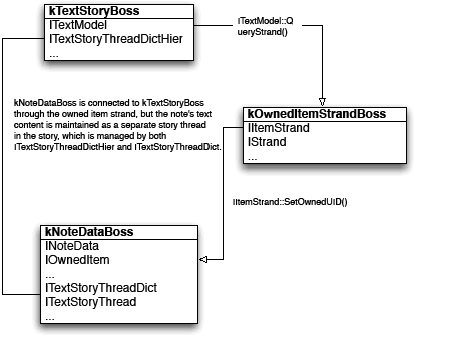
Using the SnippetRunner InspectTextModel snippet, we can inspect how the story threads are changed when a note is being added. Assume you have a text story with the text "abc." There are three characters, plus the carriage return at the end, so the primary story thread's character count is four, as shown in the following figure.
Text story containing only regular text:
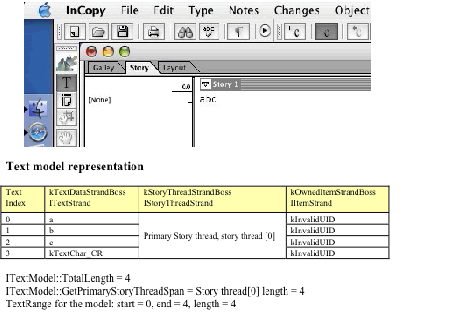
If you insert an empty note at the beginning, InDesign adds an owned-item strand to the text model, and this strand is represented by kTextChar_ZeroSpaceNoBreak (0xfeff). Also, a story thread is created to represent the note's content. When there is no initial text in the note, the thread is initialized to kTextChar_CR, which makes the note's story thread length 1. Thus, the text model's length is increased to 6 from the original 4, because of the added kTextChar_ZeroSpaceNoBreak for the owned item and kTextChar_CR for the note's initial data. In the output of InspectTextModel, the carriage return is not reported; but if you read ITextStoryThread[0], its length is reported as 5, which is equal to the PrimaryStoryThreadSpan. TextIndex 4 is for the carriage return. The following figure illustrates the text model when an empty note is inserted into a story.
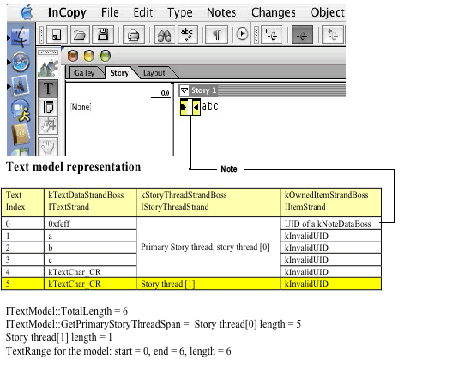
If you type something into the note-for example, type "d" in the note, so you see "<d> abc"-you can see the text model has seven characters, which is one character more than the version with empty note. Note, however, that the primary story thread looks the same as before. The new text is added into the thread that represents the note's text, which now has a length of 2 (for the "d" character plus the default carriage-return character). See the following figure.
Text story with a one-character note:
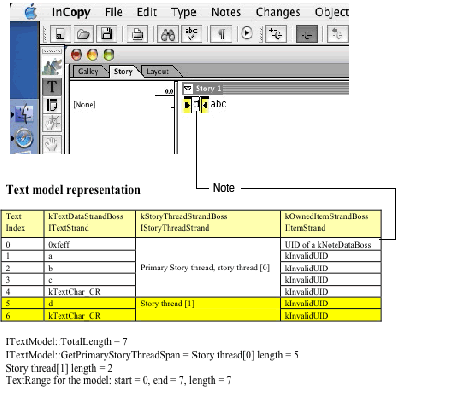
Much of the capability required for client code to work with notes is provided in a high-level suite interface, INoteSuite (with the ID IID_INOTESUITE interface), which is available through a reference to a selection (kIntegratorSuiteBoss). This interface is described in detail in INoteSuite.
This interface encapsulates the details of interacting with the note model and hides details about the selection format that is active, providing a capability-driven API that can be used to do things like add, delete, and convert notes.
Most of the note suite methods do not interact directly with model; instead, a few utility classes were added to kUtilsBoss. These utilities are used in most of the suite implementations. We highly recommend you use the suite functions when possible. If the suite does not meet your needs, look into the utilities before using a command directly.
See the following figure for an overview of notes utility classes.
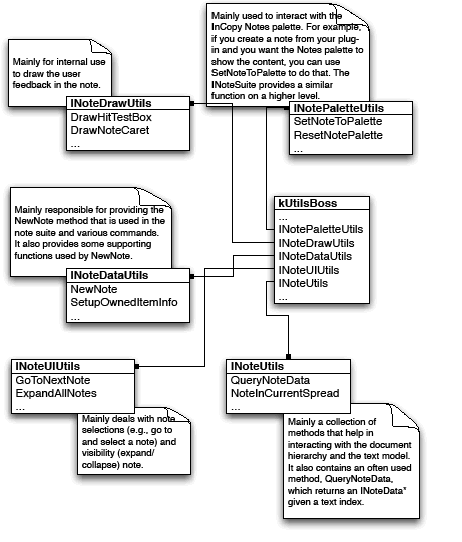
An INotePref interface (with the ID IID_INOTEPREFERENCE interface) is added to the kWorkspaceBoss. This interface is responsible for maintaining note settings in the Preferences panel, like note color. To access this interface, do the following:
There also is an INoteSettings interface (with the ID IID_INOTESETTINGS interface) added to kWorkspaceBoss. This interface's sole responsibility is to maintain the visibility state of the note. Users typically show and hide notes with the View > Show Notes and View > Hide Notes menu commands. To access this interface, do the following:
Unlike in Acrobat or Photoshop-in which sticky notes float on top of document content- each InDesign/InCopy note is anchored to a specific location in the text. This is necessary because notes are intended to be used as annotations to text, rather than to a layout element or the document as a whole. Notes can be created using the Note tool in the toolbox, the Notes > New Note command, or the New Note icon on the Notes palette.
The following figure shows most of the user interface related to notes. The notes features are context-sensitive; an action is available to the end user only when the context is appropriate for that action. Some of the menu items in the figure are disabled, because their function does not apply at the current location of the text-insertion point.
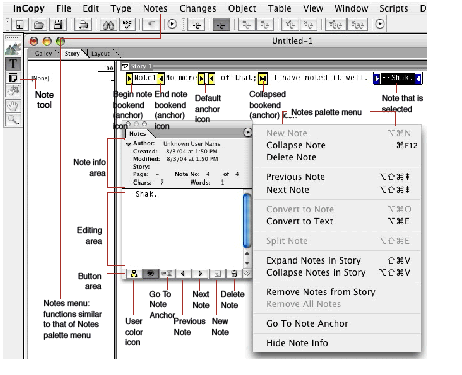
Note anchors
Each notes is associated with a specific location in the text, indicated by a note-anchor icon. The preceding figure shows examples of note anchors in different states. Content is visible only within a note container:
The content of a note is the same, regardless of the note container or view used. Anchors can be placed anywhere within text in layout or galley view, including the beginning or end of a word, within a word, and between a word and a punctuation mark; however, only one note anchor can occupy a single location within text. Users can create notes only in the text flow. If the user moves the Note tool pointer over an area that does not contain an open story, the pointer changes to the No Drop pointer, and clicking does not create a new note.
Note anchors perform multiple functions:
In galley or story view, each inline note icon has an anchor icon consisting of a start-note bookend icon and an end-note bookend icon. When the note is expanded, the content of the note appears between these bookends. New inline notes have a thin, empty, inline note container, with an insertion point ready for note-text entry. When the user begins typing the note text, the bookend icons move apart to accommodate the added text.
Editing text containing note anchors
The note anchor is an access point for opening and editing notes. Selected note anchors can be cut, copied, deleted, and moved by dragging. Selecting text also selects all note anchors within that text. Cutting, copying, or pasting text cuts, copies, or pastes all note anchors in the selected text, with the following exceptions:
When text containing a note anchor is deleted, cut, copied, or pasted, whatever happens to the enclosing text happens to the note whose anchor is contained within. This includes notes that are hidden.
Although note content always is drawn in plain text (that is, with no styles, color, size, or other text-formatting attributes shown), any text copied or pasted to a note retains all formatting information it had, even though that formatting is not shown when the text is part of a note. Text with formatting may be copied and pasted to a note, and at a later time that text may be copied and pasted to note text; when the text is placed as regular (nonnote) text, any formatting information it contains is rendered (shown) once again.
The INoteSuite suite interface is a key API for manipulating notes in client code. Most of a note's user-interface functions are provided through this interface. This interface provides much of the required capability for plug-ins.
The INoteSuite interface is aggregated on the integrator-suite boss class (kIntegratorSuiteBoss), which makes this interface available through the abstract selection. Implementations of this interface are provided on various concrete-selection boss classes, like kGalleyTextSuiteBoss and kNoteTextSuiteBoss, which are hidden from client code through the facade of the abstract selection. To obtain INoteSuite, client code should query the selection manager (ISelectionManager) for the interface, as shown below:
Generally speaking, the INoteSuite interface is active when the text-insertion point is active in the layout, story, galley, or Notes palette editing area. The suite interfaces typically use this pattern of checking for a service or capability and, if the abstract selection supports this capability, the method can be called. For example, the INoteSuite interface exposes a method that allows you to delete a selected note. To use this method, do the following:
The following table lists INoteSuite methods.
| CanDoSomething method | DoSomething method |
|---|---|
| CanAddNote | DoAddNote |
| CanConvertToNote | DoConvertToNote |
| CanOpenNote | DoOpenNote |
| CanDeleteNote | DoDeleteNote |
| CanConvertToText | DoConvertToText |
| CanScrollToNote | DoScrollToNote |
| CanNavigateNote | DoNavigateNote |
| CanRemoveAllNotes | DoRemoveAllNotes |
| CanRemoveStoryNotes | DoRemoveStoryNotes |
| CanSplitNote | DoSplitNote |
| CanShowHideNote | DoShowHideNote |
| CanExpandAllNotes | DoExpandAllNotes |
| CanCollapseAllNotes | DoCollapseAllNotes |
kNoteDataBoss is anchored as an owned item in the text story. The following code snippet shows one way to get the kNoteDataBoss from the story:
See the following figure for the key interfaces of kNoteDataBoss.
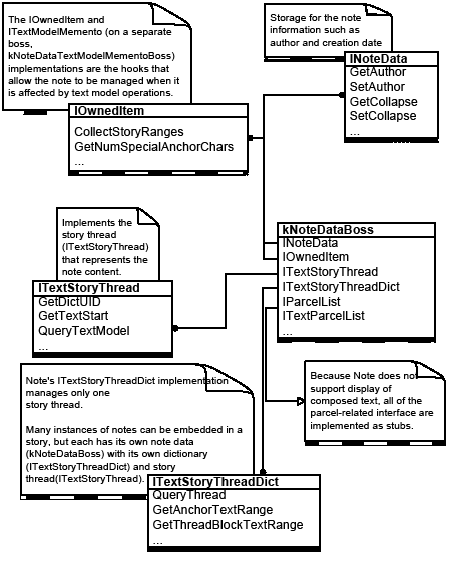
This section summarizes some of the most common commands related to notes, the critical data interfaces that users of the commands must supply, and the notification protocols associated with the commands so an observer who wants to observe certain commands can know what protocols to listen to.
Description
Sets the INoteData collapsed state according to the command's IBoolData. Used to expand (open) or collapse (close) a note.
Item list
The UID of the text story that contains the note to be expanded or collapsed.
Data interface
Notification
Description
Creates a new note in a text story at the location specified by a text index.
Item list
The UID of the text story that contains the note to be created.
Data interface
Notification
Description
Converts a range of text into a note.
Item list
The UID of the text story that contains the text to be converted.
Data interface
Data should be set up as for kCreateNoteCmdBoss:
Notification
Description
Converts a whole note or part of the note content into regular text. When the note content to be converted is between another note text in the same note, the portion of the note that is not converted is split into two notes, one on each side of the converted text.
Item list
The command needs two items: the UID of the story that contains the note to be converted, and the UID of the kNoteDataBoss of the note to be converted. When the text focus is in the note-content area, ITextModel::QueryStoryThread can be used to find out the note's story thread, from which you can get to the corresponding kNoteDataBoss. When the text focus is on the anchor, use INoteUtils::QueryNoteData to get to the INoteData, from which you can reach the kNoteDataBoss.
Data interface
Notification
Generally, the broadcast is based on how the note is converted.
If the entire note is converted:
If the note is spit into two notes after the conversion:
If the converted text is to the left or right of the original note:
Description
Splits a note into two notes at the text-index location specified by the data interface.
Item list
The command needs two items: the UID of the story that contains the note to be split, and the UID of the kNoteDataBoss of the note to be split. This is similar to the kConvertNoteToTextCmdBoss. For more details on how to get to the kNoteDataBoss from a text location, see kNoteDataBoss.
Data interface
Notification
Description
Modifies the notes preference as seen in the application's Notes Preferences panel.
Item list
The item needed is the application's workspace UID.
Data interface
INotePrefCmdData- Use its Set method to set the preference.
Notification
Notify the kWorkspaceBoss with the IID_INOTEPREFERENCES protocol.
When proper context is available, use INoteSuite::DoAddNote to add a new note. For an example, see the SnpPerformNoteFunction snippet.
When the INoteSuite interface is not available, first process a kSetHideNoteStateCmdBoss command, to make sure the note's visibility is on. Next, use kCreateNoteCmdBoss to create the note. A note is not allowed inside another note, but a note is allowed in deleted text (you can use ITrackChangeUtils::DeletedTextToPrimaryIndex to check if it is in deleted text), so you should make sure the text index for the note anchor is in either the primary story thread span or deleted text but not in an existing note's story thread range.
Use ITextModelCmds::InsertCmd to insert text into note. This is just like a regular text insertion operation. For an example, see the SnpPerformNoteFunction snippet.
When proper context is available, use INoteSuite::DoConvertToNote to convert selected text to a note. For an example, see the SnpPerformNoteFunction snippet.
When the INoteSuite interface is not available, check whether the text for conversion contains any XML tags. Normally, if there is a tag in the text range, you should abort the operation. Use INoteSuiteUtils::CheckRemoveXML to check for XML tags. If a tag is found in the selected text, this method causes an alert to pop up, asking whether the user wants to remove the XML tag. Proceed with the conversion only when the function returns a true value; then use the kSetHideNoteStateCmdBoss command to make sure the note's visibility is turned on. Use kConvertToNoteCmdBoss to convert the text.
When proper context is available, use INoteSuite::DoConvertToText to convert selected note content to text. For an example, see the SnpPerformNoteFunction snippet.
When the INoteSuite interface is not available, use kConvertNoteToTextCmdBoss to convert note content to regular text. If text focus is in the note content area and no text is selected, or if the note anchor is selected, the whole note is converted. If only part of the note content is selected, only that portion is converted to regular text.
Pay special attention to the text range to be converted. Consider the sample story "<Convert Me> Please," where "<Convert Me>" is a note and "<" and ">" are the bookends. If the whole note is selected, the current selection range is [0, 1], because the selection is on the anchor character. If the selection is in the note content area-for example, the whole ‘Convert Me'- the selection range is [9, 19], because the selection is in the note's story thread, not in the primary story thread. The command's focus-start and focus-end data (IIntData with the interface IDs IID_ISTARTFOCUSINTDATA and IID_IENDFOCUSINTDATA) need to be the indices in the note's story thread. So, if the selection is the note anchor (where the selection range is [0,1]), find out where that note's story thread is, and pass in the corresponding text index to the data interface. Use INoteUIUtils::TextFocusInNote to check whether the focus is in the note's content area. Also, the following snippet shows how to find the whole note's range; after indexStart and indexEnd are found, they can be passed into the command's data interface:
The item list in this command needs both the UID of the kTextStoryBoss that contains the note and the kNoteDataBoss of the note.
When proper context is available, use INoteSuite::DoNavigateNote to go to the next or previous note. For an example, see the SnpPerformNoteFunction snippet.
Navigating the notes without INoteSuite is very difficult, because there are so many factors to consider. You must collect all the notes by yourself, and you must consider the situation in which the insertion point is in a different context (for example, table or deleted text), and there is no command to do it. The closest thing is the INoteSuiteUtils::NavigateNote, which also involves the selection subsystem. Therefore, we highly recommend you do the navigation through the INoteSuite interface. In general, if you have a text story in the document, with a visible note anchored somewhere in the story, the INoteSuite::CanNavigateNote returns true, and you can navigate the notes with much greater ease.
When proper context is available, use INoteSuite::DoSplitNote to split a note. For an example, see the SnpPerformNoteFunction snippet.
When the INoteSuite interface is not available, use kSplitNoteCmdBoss to split the note at the position indicated by the text-index argument. As with kConvertNoteToTextCmdBoss, you must make sure the text index where you want to split is inside the note's content area; that is, the text index needs to be in the note's story-thread range. By default, notes are not splittable in layout view.
When proper context is available, use INoteSuite::DoOpenNote to expand or collapse one note, use INoteSuite::DoExpandAllNotes to expand all notes in the document, and use INoteSuite::DoCollapseAllNotes to collapse all notes in the document.
If the INoteSuite interface is not available, use kCollapseStateCmdBoss, supplying a valid TextIndex that points to a note anchor. Given a text-index location, use INoteUIUtils::TextFocusInNote to check whether that location is in the note contents area. If it is not, also check whether the location is on the note anchor. Both situations should be allowed to expand/collapse a note. After the command is processed, a text selection may need to be set to have a text focus in a desired location. INoteData in the kNoteDataBoss stores the current collapsed state data on the note. Normally, you toggle between the two states when processing the kCollapseStateCmdBoss.
Normally, if there are notes in the story and they are not already all expanded or all collapsed, INoteSuite::CanCollapseAllNotes or INoteSuite::CanExpandAllNotes returns true, so you should be able to use these suite methods when you need to expand or collapse all notes.
By default, layout view does not support the expand note and collapse note features.
Whenever possible, use INoteSuite::DoNavigateNote, as shown in the SDK snippet SnpPerformNoteFunction::NavigateNote. When you do not have a proper selection context to work with, however, you can use the following low level-method.
Assuming you know the UID of the note's kNoteDataBoss and the UID of the kTextStoryBoss that contains the note, do the following to select that note in galley view:
In layout view, instead of using ISelectUtils::GoToTextWithMarker, use the following to select the note anchor:
Use INoteUtils::QueryNoteData to get to the kNoteDataBoss. For an example, see Converting note content to text.
When proper context is available, use INoteSuite::DoDeleteNote to delete a note, use INoteSuite::DoRemoveStoryNotes to delete all notes from a story, and use INoteSuite::DoRemoveAllNotes to delete all notes from a document.
When the INoteSuite interface is not available, delete the note by simply removing the note-anchor character, which subsequently asks the note owned item to handle the rest of the data removal:
To remove all stories when the INoteSuite interface is not available, use INoteUtils::ClearAllNotes.
Use INotePaletteUtils >()->SetNoteToPalette to bring up the note data in the Notes palette.
INotePref::SetSpellCheckContent lets you turn on spell checking in the note content, but you cannot change the behavior of how the note interacts with the text's spell-checking engine.
Many note commands notify with the IID_INOTEDATA protocol along with its command ID, so attach an observer and listen to that protocol on an appropriate subject. The following code attaches an observer for IID_INOTEDATA broadcast to a document subject:
InCopy Workflow plug-ins install the InCopy Notes and Track Changes features in InDesign for use in the InCopyBridge workflow. These features use InCopyBridge user names to identify the author of a note.
When you add editorial notes to a managed story in InDesign, these notes become available to others in the workflow.
This chapter provides information about InCopy assignment files. To understand this chapter, you should have a basic understanding of XML and have a basic knowledge of the InDesign/InCopy workflow.
This chapter has the following objectives:
For common use cases, see InCopy: Assignments.
Assignment-file features address the following user needs:
Users want to be able to group related document constituents-not just stories, but graphics as well-into meaningful elements that can be worked on as a group. For example, users might want to group a headline, byline, copy, graphics, and captions into a group; if a company has dedicated headline writers or editors, they may want to group all headlines in to a meaningful unit.
InDesign and InCopy support the creation of such groupings with assignment files. Assignment files solve the file-management issue by adding an additional file that tracks the other files. In essence, an assignment is a set of files, the contents of which are assigned to one person for some work to be done (for example, copy-editing, layout, and writing). Stories in an assignment are exported as InCopy files. Geometry information and the relationships between the files are held in the assignment file. InDesign allows the user to export a given set of stories by exporting into an assignment. InCopy open all the stories in an assignment together, as a single unit.
Assignment files have the following attributes:
Assignments are saved in one of two file formats, IDML-based IMCA files or INX-based INCA files. Assignment files group content into chunks smaller than a complete publication that InDesign understands and manages. Assignment files provide the basis for asset control on a scale smaller than an entire publication.
Here is a common workflow for users collaborating by means of assignment files:
For more information on the use of assignment files, see InCopy Help or InDesign Help.
To give users control over how much geometry information an assignment file contains, InDesign allows users to choose assignment-export options. These options determine what content the user can see in InCopy when opening the assignment file. InDesign provides three such options:
The primary tool for working with assignments is the Assignment palette. Through the palette's interface, users can create, delete, add, and remove content of any assignment, as well as check out and check in InCopy stories and change assignment options.
The content of a document could be any of the following:
An assignment may become out of date when there is a change to the InDesign document after the assignment is exported. Saving an InDesign document does not clear the state; the user must choose Update Selected Assignment or Update All Assignments to reexport the assignment.
In the screenshot in the following figure, two text frames in the lower-right part of the page are unassigned contents. The remaining content is part of Assignment 1 (magenta border) or Assignment 2 (gold border).
In the figure, there are several ways to distinguish an assignment: the assignment name (assignment_1, assignment_2), the user to whom it is assigned (user_1, user_2), and the color of the assignment (magenta, gold). The image on the lower-left part of the page is colored gold because it belongs to assignment_2. The magenta frames belong to assignment_1.
Contents of an assignment are listed in the Assignments palette as children of the assignment. The palette shows the assigned story name as well as the status of the story file; for example, whether it is checked out by another InCopy user.
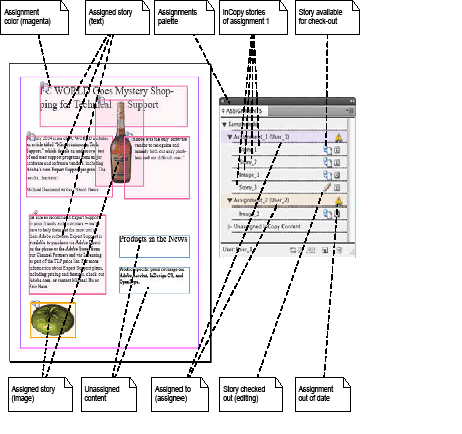
In the following figure, an assignment belongs to a publication (document) and is made up of several assigned stories. An assigned story holds text or an image. An assigned story holding an image is an assigned image.
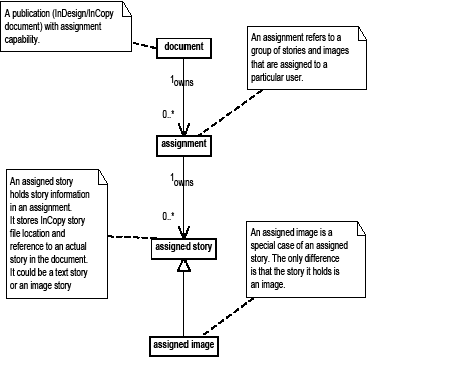
In the terms of the document object model (DOM), an assignment is a child of the document. Assignment-related boss class objects form a hierarchical tree.
In the following figure, IAssignedDocument stores a list of assignments for a document, each described by a kAssignmentBoss. An assignment consists of a number of assigned stories, each either a text story (kAssignedStoryBoss) or an image story (kAssignedImageBoss). Assigned stories have references back to the assignment.
The object structure of an assignment is constructed dynamically, as a user creates assignments and adds contents to assignments.
The sample document in the following figure contains two assignments (kAssignmentBoss):
Text frames and images in an InDesign document can never have been assigned, or they can have been assigned or exported and, therefore, can be moved among different assignments and unassigned InCopy content. When adding content to an assignment, the following is true:
The following figure shows the new screenshot and object diagram of the document shown in the preceding figure, after reassigning the lower-left text frame from Assignment_2 to Assignment_1. Assignment_1 has four assigned stories (three text stories and one image story). Assignment_2 has only one assigned story (an image story).
After the reassignment operation, the following is true:
The assignment feature relies on links to track the status of assignments and stories. Assignment files do not appear in the Links palette, but they work the same way as links:
Assignment files are stored as separate entities using the designated storage medium (for example, hard disk or network resource). Assignment files use the .icma filename extension.
Assignment files store the following information:
The assignment-files feature requires collaborative work with InDesign and InCopy files. Only InDesign writes to assignment files; InCopy cannot create an assignment. InCopy can only open an assignment file and work on its contained stories. The following sections summarize how assignment-related information is stored in the InCopy file and the InDesign file.
InCopy file (*.icml)
An InCopy file holds InCopy story contents -frame information and all relevant transform information for graphics; style, swatch, and tag definitions used in the story; user names associated with the story (for example, in notes, tracked changes); and story XMP data.
InDesign file (*.indd)
An InDesign file contains a list of references to the assignment files that contain elements from the document. InDesign needs to locate these files when moving the document from one machine to another. InDesign needs to open and potentially update these assignment files when the InDesign document is saved.
InDesign and InCopy support an IDML-based format; it uses the .icma file extension. The following is an example of an ICMA (IDML-based) assigment file.
Notes:
IAssignmentMgr is aggregated into kSessionBoss. IAssignmentMgr serves as a manager for assignment file function, so it has the broadest scope, serving all assignments in all documents. IAssignmentMgr also has the broadest range of methods, including manipulation methods like open, save, export, and import assignment; create, add, and remove content of an assignment; and general management methods like finding out whether a page item is assigned and checking whether an assigned story is a text story.
Aggregated into kDocBoss, IAssignedDocument serves all assignments in one document, so its methods are designed to work for managing assignments in a document. IAssignedDocument has methods for adding assignments, removing assignments, and getting the list of all assignments for a document.
IAssignment represents an individual assignment; therefore, it is a typical entry point for accessing an assignment. IAssignment has get and set methods to access assignment information, like assignment name, location of the assignment file, and export options for the assignment. IAssignment also has methods to access its assigned content and add, remove, and delete assigned stories.
IAssignedStory represents an assigned story. IAssignedStory has two different implementations: kAssignedStoryImpl and kAssignedImageImpl, representing text story and image story, respectively. Despite the difference in implementation, text story and image story share the same interface. IAssignedStory has access methods to get and set assigned story name, file location of the story, UIDRef of the story in the InDesign document to which it refers, and the assignment to which it belongs.
IAssignmentSelectionSuite is a typical selection-suite interface that has CanAssign and Assign methods to add the current selection to an assignment.
IAssignmentUtils is aggregated into kUtilsBoss. IAssignmentUtils has useful methods for assignment scripting.
IAssignmentUIUtils is aggregated into kUtilsBoss. IAssignmentUIUtils has very useful utility functions for assignment user-interface control. IAssignmentUIUtils has methods that check front document, current layout selection, and Assignments palette selection, to determine what type of operation might apply and execute it, such as create, delete an assignment, add content to an assignment, remove content from an assignment, update, relink assignment, check out, submit changes, and revert changes to the assignment.
IAssignmentPreferences controls how assignment contents are drawn in the document window. If Show Assigned Frame is set, InDesign draws a colored frame for the assigned story; otherwise, InDesign draws a normal frame.
Commands are the only recommended way to change the model. The following table lists commands used to manipulate assignments and their contents.
| Command name | Command data | Description |
|---|---|---|
| kAssignDocCmdBoss | IID_IASSIGNSETPROPSCMDDATA | Creates a new assignment. The UIDRef of the document is passed as the command's ItemList. Other information (assignment name, assignment file path, assignee, color, assignment export options, etc.) is passed as command-data interface IID_IASSIGNSETPROPSCMDDATA. After execution, the new assignment is stored in the command's ItemList. |
| kAssignSetPropsCmdBoss | IID_IASSIGNSETPROPSCMDDATA | Sets assignment properties. The ItemList of the command is the assignment UIDRef, and the command shares the same command data as kAssignDocCmdBoss. |
| kUnassignDocCmdBoss | IID_ISTRINGDATA | Deletes an assignment. The command's ItemList is the UIDRef of the assigned document, and the command data IID_ISTRINGDATA passes in the assignment's file path. |
| kAddToAssignmentCmdBoss | None | Adds content to an existing assignment. The content to be added and the assignment are passed as the first and second items of the command's ItemList, respectively. |
| kAssignStorySetPropsCmdBoss | IID_IASSIGNSTORYSETPROPSCMDDATA | Sets assigned story properties. The ItemList of the command is the UIDRef of the assigned story. Its command data IID_IASSIGNSTORYSETPROPSCMDDATA stores UIDRef of the story that the assigned story points to, the filename of the story in the disk, and the assigned story name. |
| kAssignmentSetColorCmdBoss | IID_IUIDDATA | Sets assignment color. The command's ItemList stores the UIDRef of stories. Its command data IID_IUIDDATA stores the UID of the color the client wants to set. |
| kRemoveAssignedStoryCmdBoss | None | Removes the assigned story from any assignment. The UIDRef of the assigned story to be removed is passed to the command as ItemList. |
| kRemoveAssignedFrameCmdBoss | None | Keeps assignment up to date when a frame is deleted in the document. Removes the assigned story from an assignment if the deleted frame is the only frame an assigned story has. UIDRef of the deleted frame is passed to the command as ItemList. |
| kMoveAssignedStoryCmdBoss | None | Moves an assigned story within an assignment. Moves the assigned story referenced by the first item of ItemList before the assigned story referenced by the second item of ItemList. |
| kShowAssignedFramesCmdBoss | IID_IBOOLDATA | Sets show or hide assigned frame preference of IAssignmentPreferences. |
 1.8.3.1
